
2) Click on the 'Parent Meetings' icon.

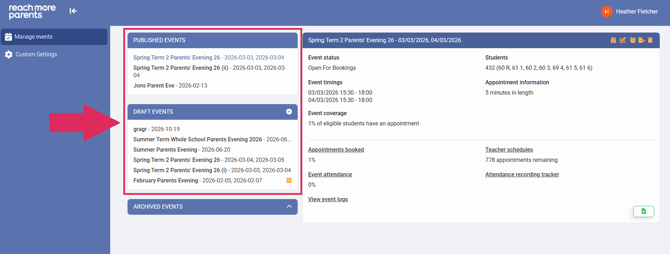
3) Select the event that you would like to edit from your 'Published' or 'Draft' events.
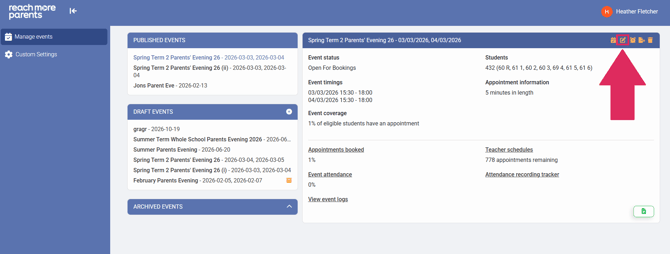
4) Click the pencil icon.
For full details on the steps needed to edit your event, click here for more information.
Event Summary
Once you have clicked on the Event Title you need to review, you can see the high level information about that event in the 'Event Summary' dashboard.
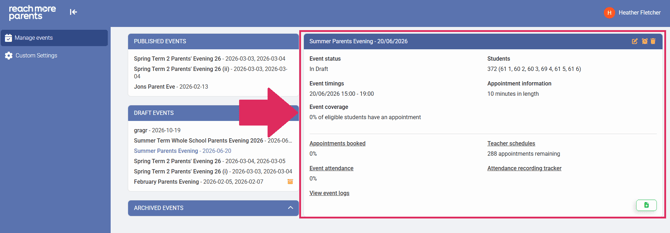
In this dashboard, you will see the below information and will have access to several reports:
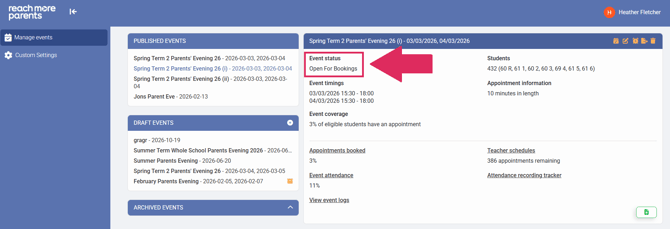
- Event Status - there are four event statuses for your Parent Events:
-
- "Pending" - Will show on an Event Summary when an event has been added but hadn't reached the start date/time for the booking window
- "Open for bookings" - Will show on an Event Summary when an event has been added and the start date/time for the booking window has been reached
- "Bookings closed" - Will show on an Event Summary when an event has been added and the end date/time has been reached
- "Completed" - Will show on an Event Summary when an event has passed all it's Event Dates
-
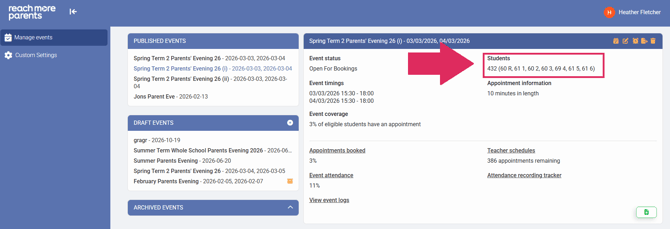
- Students - Displays the total count of students whose parents were invited to the Parent Event. with a bracketed break down
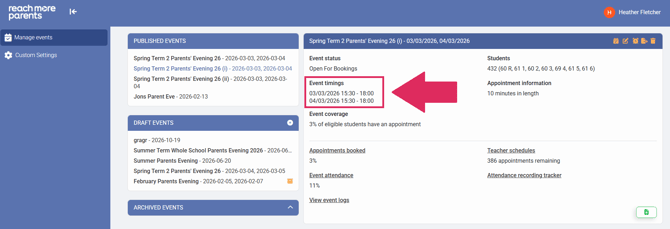
- Event Timings - Shows the date(s) and times that the event is taking / has taken place
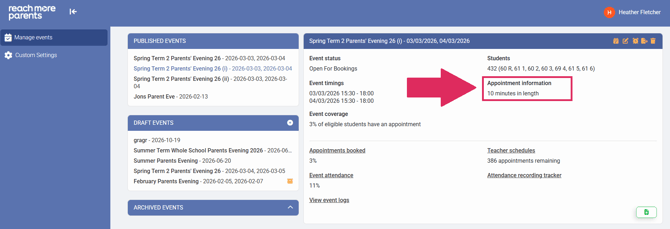
- Appointment Information - The default duration of the Parent Event appointments
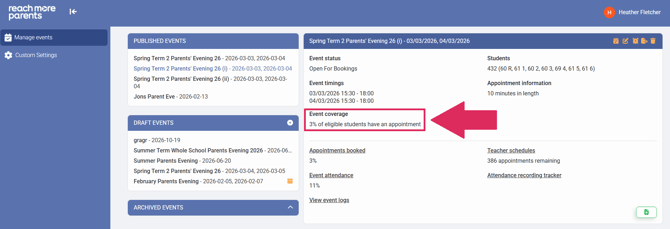
- Event Coverage - This shows the percentage of invited parent / carers have appointments booked on behalf of their child(ren)
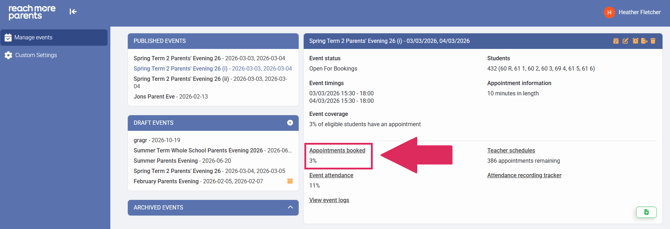
- Appointments Booked - This shows the percentage of appointments that have been booked of how many were available to book
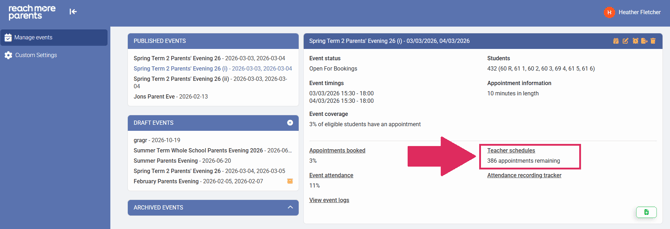
- Teacher Schedules - This displays a count of the total number of appointments that are still available
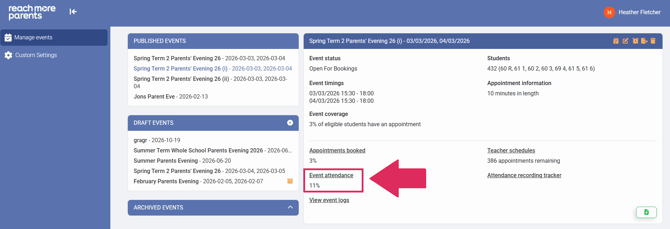
- Event Attendance - This displays a percentage of the appointments that were attended versus how many were booked
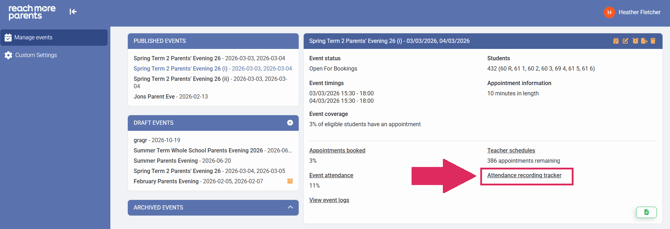
- Attendance Recording Tracker - This is a report that details which appointments haven't been flagged as Attended or Missed by the teachers yet, you can message these teachers "en masse" or individually
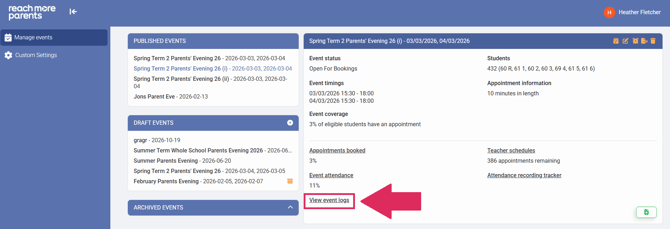
- View Audit Logs - This opens the report that tracks all changes to the event and the appointments booked in for that event
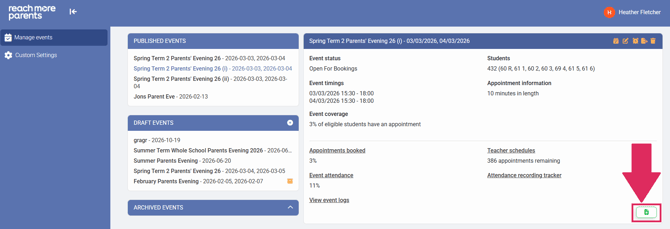
- Publish / Move to Drafts - If the event hasn't been published yet, this will be a "Publish" function, when it has been published, this will be a "Save to drafts" function
Managing appointments
Within PEMS it is possible for an Administrator to book, amend and cancel any appointments within the Parent Event. We have given the School / System Admins this over-riding control of the Event appointments to ensure that there is a bird's eye view of the event and always someone able to manage the trickier appointment situations.
For an admin, the the primary port of call is the "Add / Edit Appointment" screen which can be accessed from the Event Summary block. Within this menu, you can choose to auto-generate appointments on behalf of a Parent / Carer. You can create appointments for a specific Parent / Carer in tricky situations with difficult parental relationships. It's also possible for you to edit appointment times, attendees and cancel individual appointments.
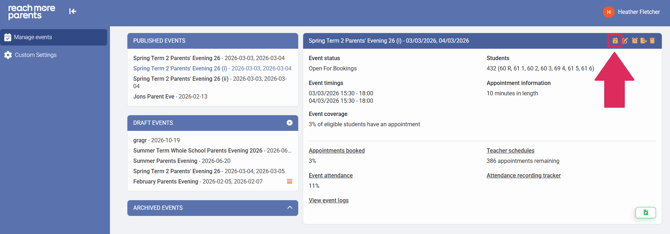
For further detail and steps to managing appointments, please follow the link here to see how.
Exporting information
Reporting on your event is simple, as is monitoring it on the day, by having your event data available without having live access to the ReachMoreParents Online Portal. We have created several exports that output to excel for reporting and offline attendance tracking purposes.
- Event Status - This is whether the event is a Draft, Published (Pending) or Archived
- Student (count) - This is how many students the groups booked into the Event have been invited
- Event timings - The event start and end date time(s)
- Appointment length - The duration of the appointments as configured at event creation
- Appointment time between - The time between each appointment (if there is one)
- Appointments booked (%) - Of the total number of appointments that could be booked, how many have been booked displayed as a percentage
- Remaining appointments (count) - Of the total number of appointments that could be booked, how many are still remaining open as just a count
- Students with/without an appointment - How many students who have an appointment and how many don't
- Total attendance (%) - How many appointments booked were attended as a percentage
For further detail and steps on how to export data for your Parent Event, please follow the link here.
Managing notifications
In order to make communications as simple as possible around your Parent Event, we have created automatic notifications which will communicate with your invitees at specific steps in the Parent Event process.
These notifications are:
- Send a notification to parents 2 hours before the booking window opens - Set this to true if you want to forewarn parents when they will be able to start making bookings
- Send a notification to parents the day before the booking window closes to remind them to book or edit any existing appointments - Set this to true to notify parents automatically when the booking window is due to close
- Send a booking reminder notification to parents with no appointments on the following date/time(s) - Set this to true if you want to add more specifically dated and timed notification(s), click on the + (add) button if you want to add another notification. Click on delete if you no longer want this custom notification.
- Send an attendance reminder notification to parents with appointments the day before the event - Set this to true if you want to remind parents with appointments that they have bookings for the event in question.
Accessing your Notification types is easy, straight from the Event Summary screen by clicking on the 'Set Reminders' button.
For further detail, please follow the link here to a step by step on setting up these notifications.
Deleting an event
When the unforeseen arises and you need to cancel all the appointments booked for a Parent Event and subsequently, delete the event itself. We have made this easy with deletion routines accessible from the Event Summary screen.
Firstly, you need to cancel all the appointments before you can cancel a Parent Event. To do so, you need to click on the bin icon then choose 'Cancel all appointments for an Event.' You'll be asked to provide a reason, then confirm before doing so but when you've accepted the cancellation, all Parent Attendees will be notified with a Push and Bell notification in the ReachMoreParents App automatically.
For steps on how to cancel all appointments for a Parent Event please follow the link here.
Once you have cancelled all of the appointments for your event, the next step is to delete the event itself. Refresh the PEMS system, then select the bin icon once again. Choose the 'Delete event' option this time, confirm your choice and the event will be deleted.
For steps on how to delete an event in detail, follow the link here.