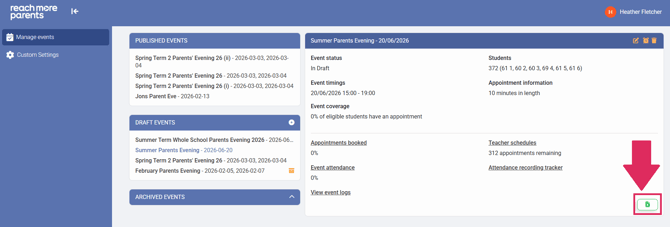
Firstly, you will need to access PEMS as an Admin:
1) Log in to ReachMoreParents.
2) Click on the Parent Meetings icon.

How to edit a Parent Event
Once you've accessed PEMS as an Admin, editing the Event settings is simple. Follow the steps below to edit your Parent Event in full:
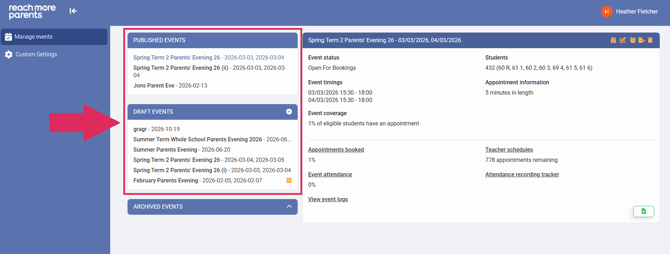
3) Click on the event that you would like to edit from either 'Draft Events' or 'Published Events.'
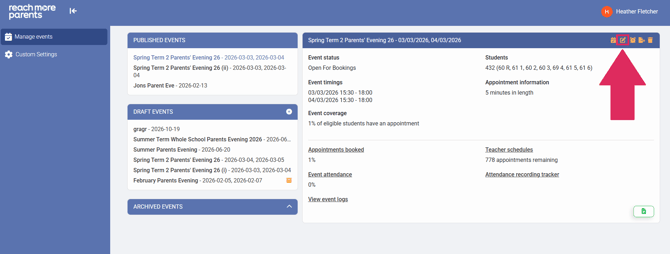
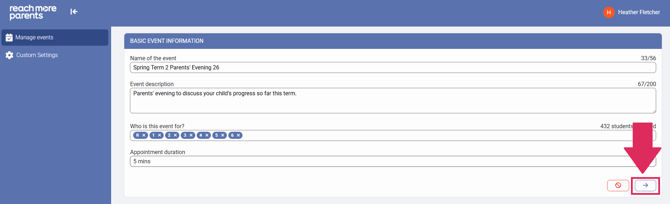
4) Click on the pencil icon. You will see the 'Basic Event Information' screen.
Changing Basic Event Information
5) Click into the 'Event Title' field and amend the text string to suit the new name of your event.
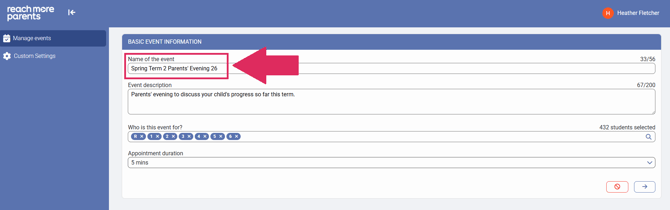
6) Click into the 'Event Description' field and amend the text string to suit the new description of your event.
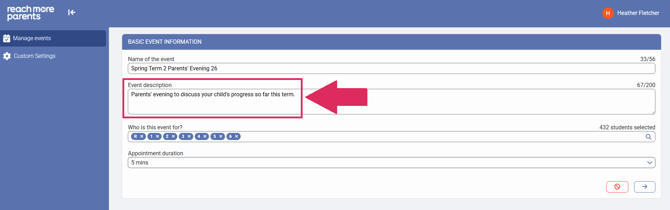
7) Delete or add new groups to the 'Who is this event for?' field.
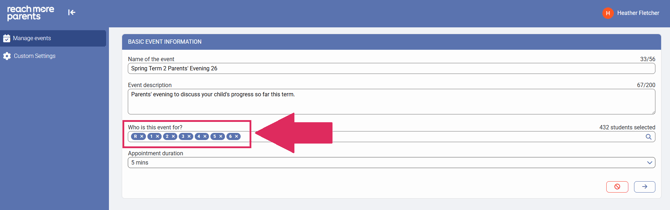
8) Amend the 'Appointment Duration' (only available for Draft Events).
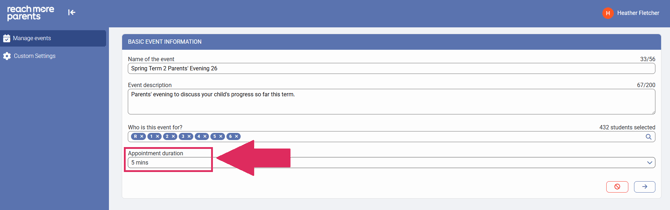
9) Click on 'Next' to proceed to the 'Event Date & Times Settings for [Event Name].'
Changing Event Date & Times
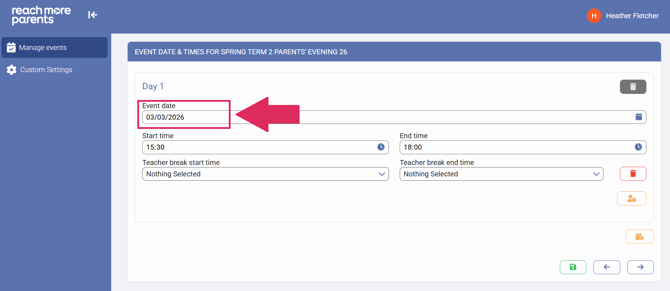
10) For a single day event, amend the 'Event Date.'
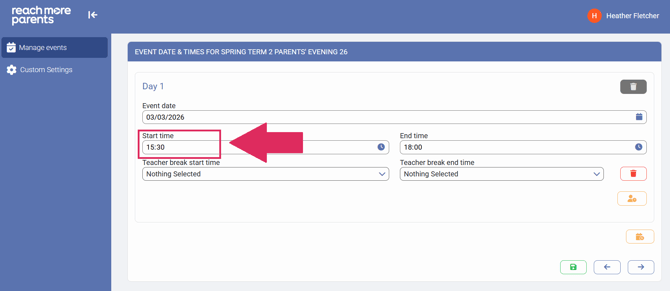
11) Amend the 'Start Time.'
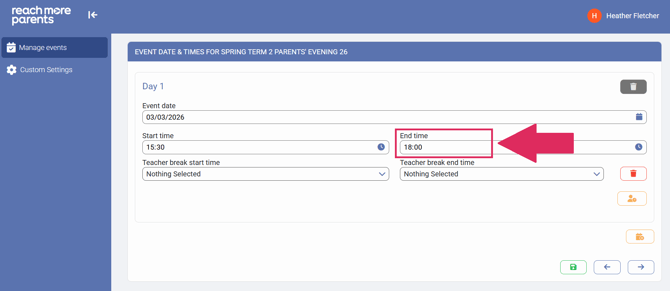
12) Amend the 'End Time.'
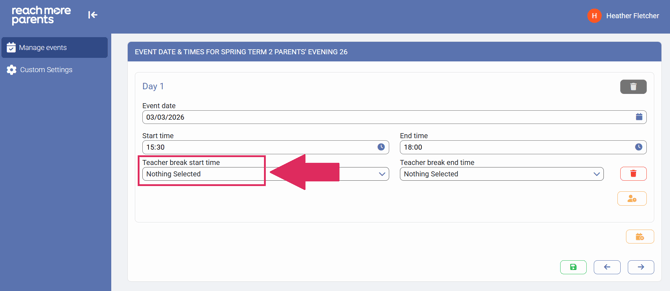
13) Amend the 'Teacher Break Start Time.'
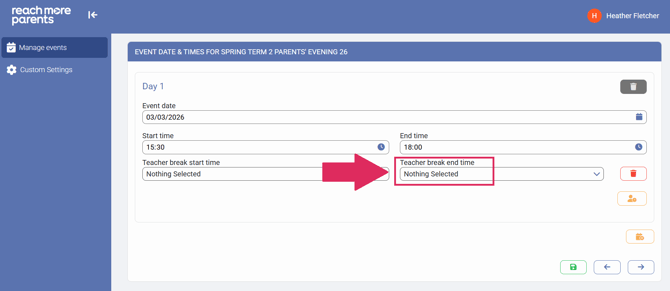
14) Amend the 'Teacher Break End Time.'
15) For a multi-day event, repeat steps 10 through to 14 for the subsequent date(s) of the event.
16) Click on "Add another day" if you need another Event Date
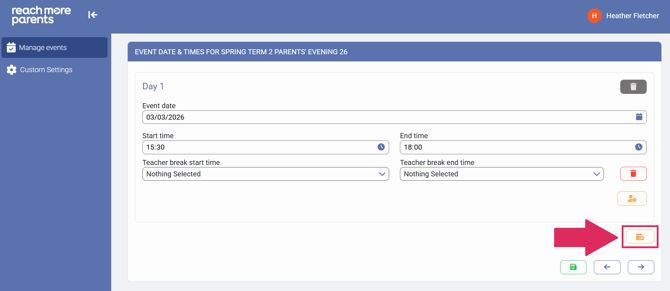
17) Repeat Steps 10 through to 14 for the new event date.
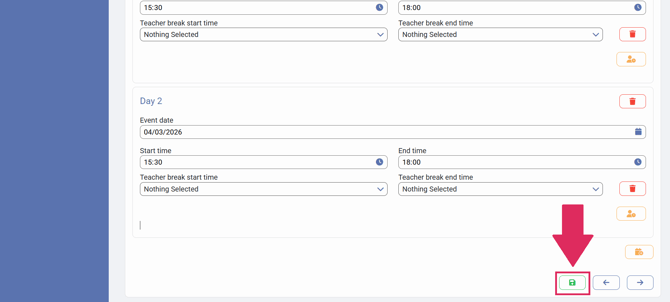
18) Click on the save icon if you're finished with your changes.
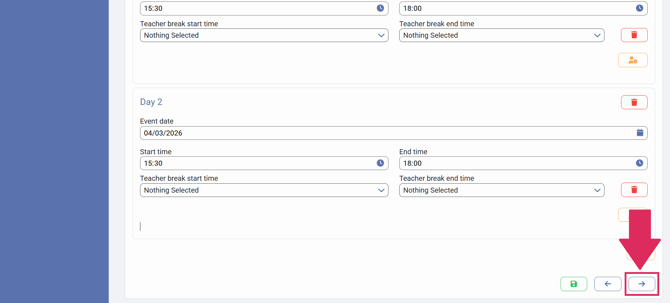
19) Click on "Next" if you need to change the 'Appointment Booking Settings.'
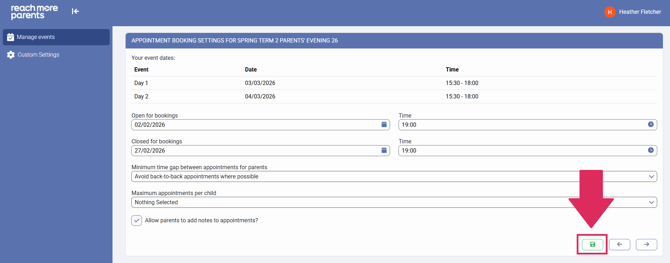
Changing Appointment Booking Settings
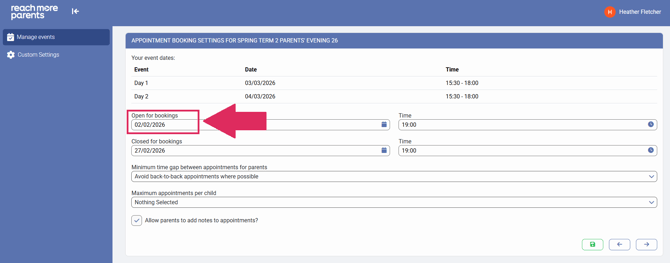
20) Amend the "Open for bookings" Date.
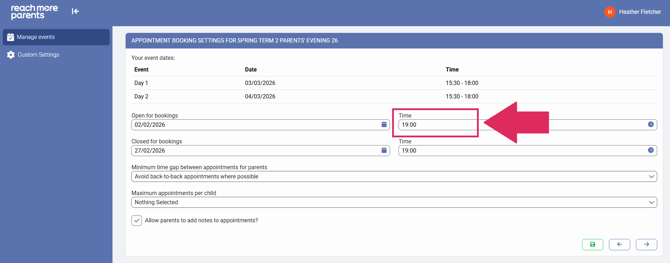
21) Amend the "Open for bookings" Time.
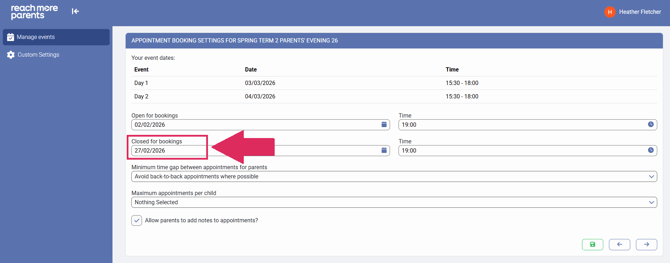
22) Amend the "Closed for bookings" Date.
23) Amend the "Closed for bookings" Time.
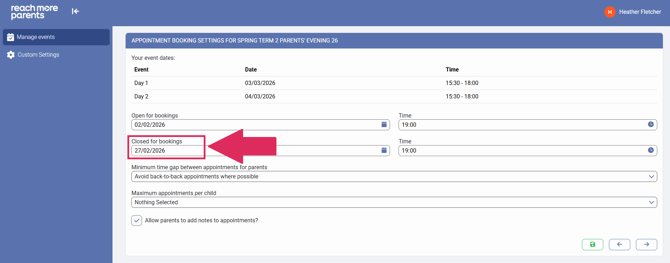
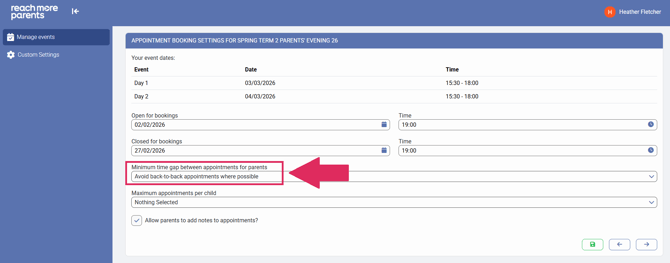
24) Amend the "Minimum time gap between appointments for parents" to the appointment break window that you need.
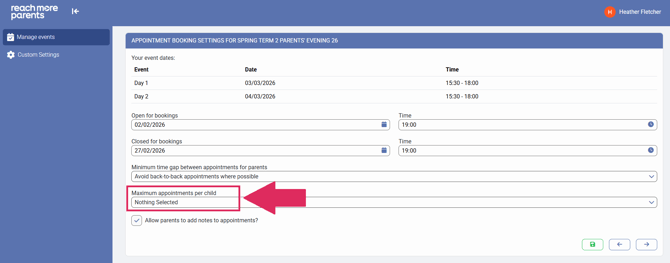
25) Amend the "Maximum appointments per child" to suit the changes to your event size.
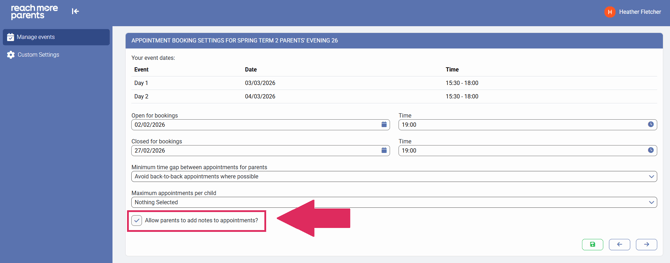
26) Enable / Disable the "Allow parents to add notes to appointments?" option as required.
27) Click on "Save" if you're finished with your changes.
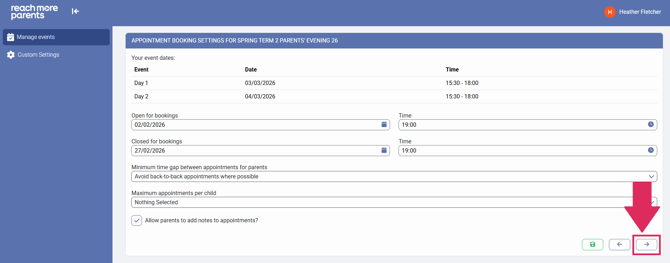
28) Click on "Next" if you need to change the "Classes & Teachers Settings"
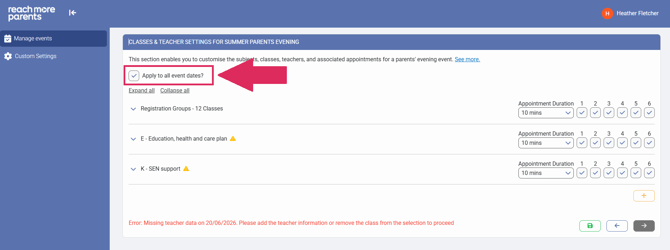
Changing Classes & Teacher Settings
29) Amend the "Apply to all event dates?" as required (this will mean any changes you carry out are duplicated across your event dates).
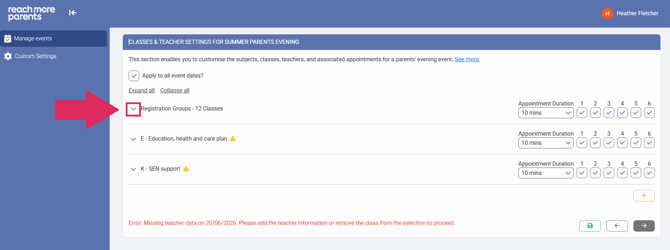
30) Click on "Expand All" if you need to review the Groups within the Subject/Registration Group drop-down.
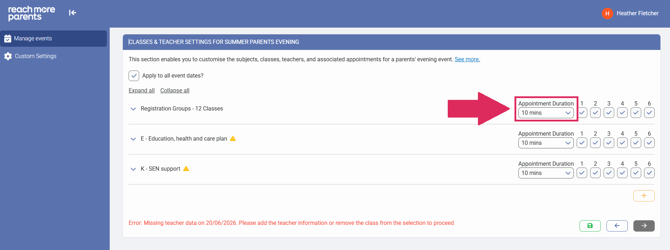
31) Click on "Appointment Duration" against the Subject header if you need to set a longer appointment session time for a single Subject.
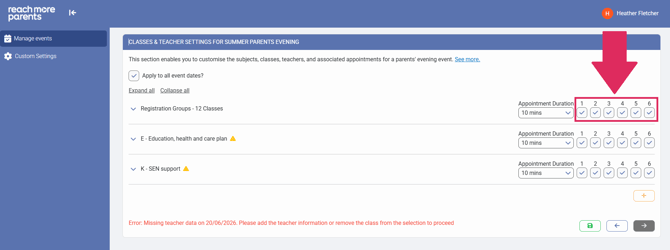
33) Click on the Year Group to either Enable or Disable it in the Event as required.
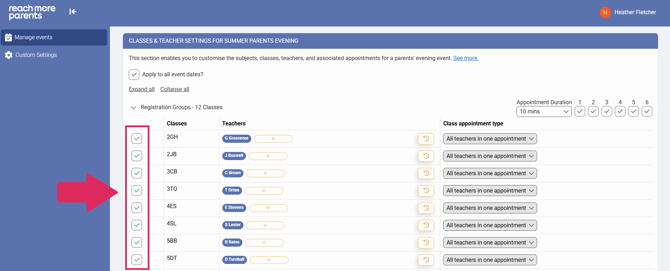
34) Click on the Class Group check boxes within a Subject or Registration Group drop-down to either Enable or Disable it in the Event as required.
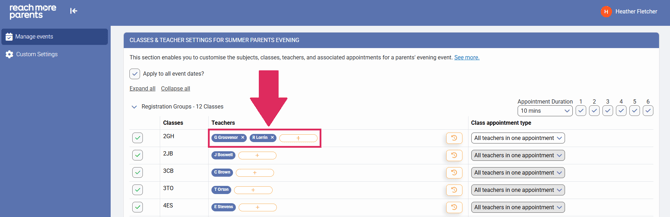
35) Click on "+" within the Subject or Registration Group drop-downs to add another Teacher, or "x" against a Teacher if you want to remove them.
36) Click on the checkbox against the "Add SENCO appointments" to either Enable or Disable it as required.
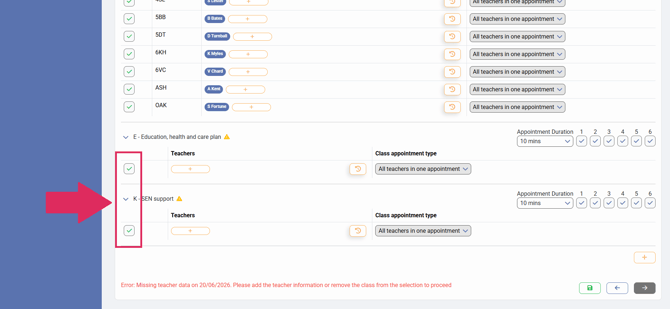
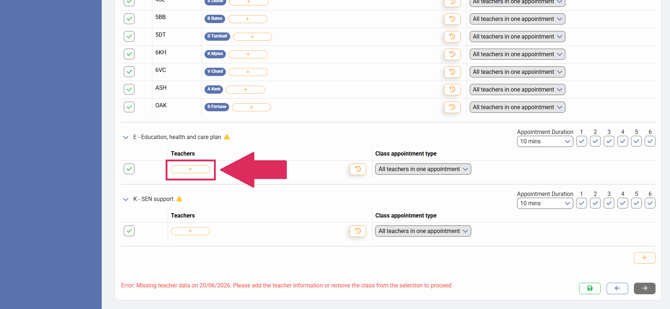
38) Click on "+" for a SENCO Group if you need to add a Teacher to it, or Click on "Delete" against the SENCO teacher if you need to remove it.
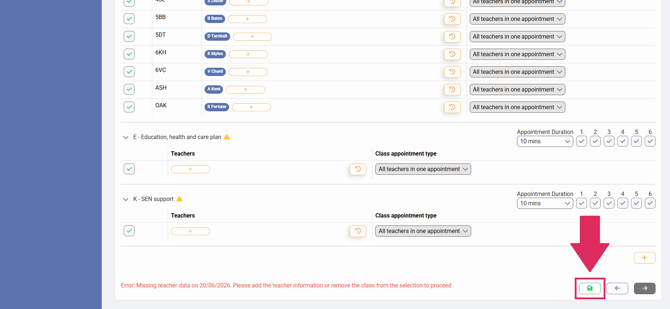
39) Click on "Save" if you're finished making changes to your Event
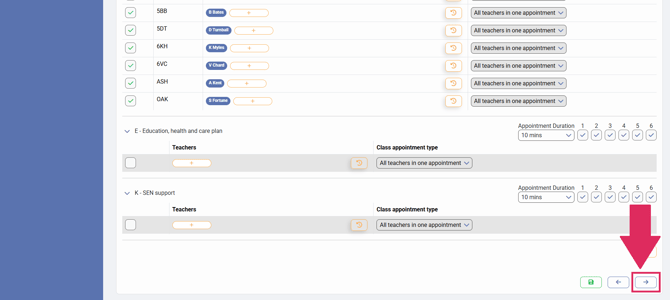
40) Click on "Next" if you need to make changes to your event Reminder Settings.
Changing Notification Settings
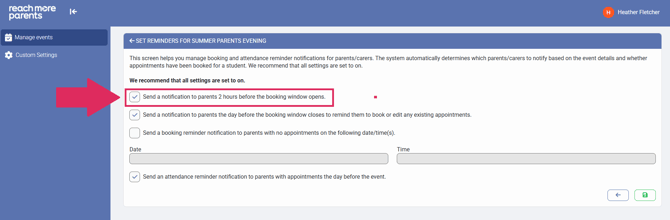
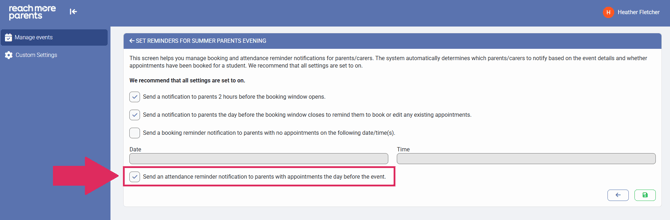
41) Click on the checkbox for "Send a notification to parents 2 hours before the booking window opens" to either Enable / Disable this notification as required.
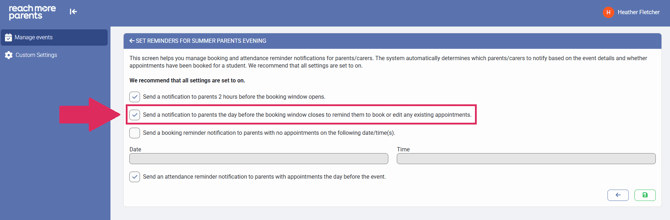
42) Click on the checkbox for "Send a notification to parents the day before the booking window closes to remind them to book or edit any existing appointments" to either Enable / Disable this notification as required.
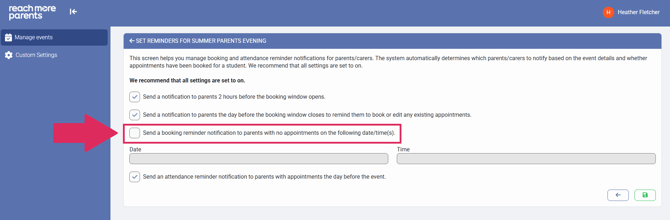
43) Click on the checkbox for "Send a booking reminder notification to parents with no appointments on the following date/time(s)" to either Enable / Disable this custom notification type, if the former, configure the Date and Time for this notification type.
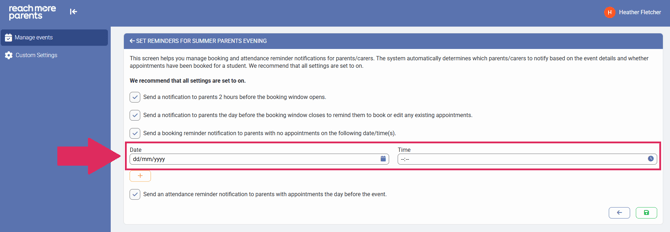
44) Click on the checkbox for "Send an attendance reminder notification to parents with appointments the day before the event" to either Enable / Disable this notification as required.
45) Click on "Save" when you're confident you've made all the changes you need.
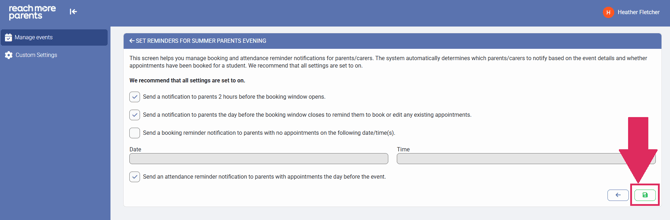
46) Within the Save menu, choose "Save a draft" if you're not ready to publish yet or "Save and Publish" if you are ready for people to have access to the event as a Teacher outside the booking window or as a Parent / Carer within the booking window.