In this article, we will be covering the ways in which you can cancel Parents Evening Appointments within the Parents Event Management System (PEMS). There are three clear cancellation routines that are present within PEMS:
Cancel an Individual Appointment
This is the scenario where a Parent / Carer has requested a specific appointment be deleted for one reason or another. In these steps, we will cover how an Administrator can cancel one appointment.
Firstly, you need to access PEMS as an administrator:
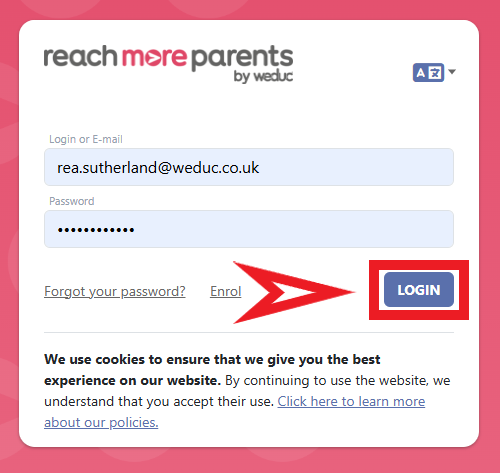
1) Log in to ReachMoreParents.
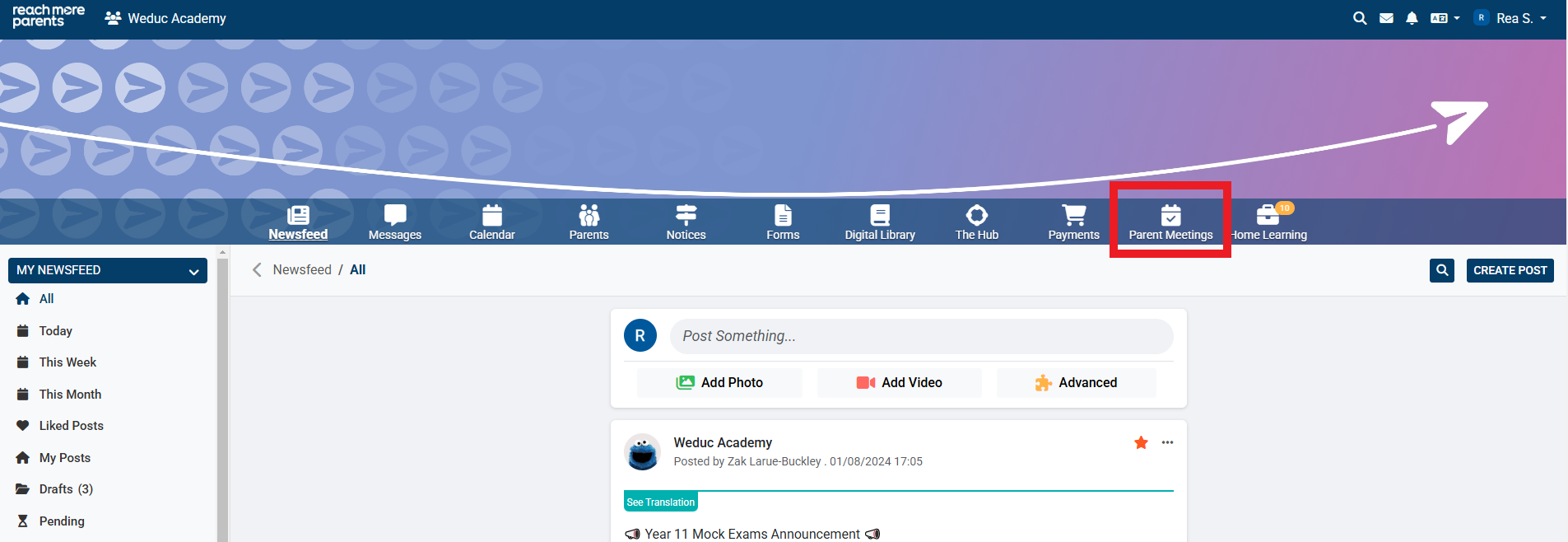
2) Click on the Parent Meetings icon
From here, you will need to carry out the below steps:
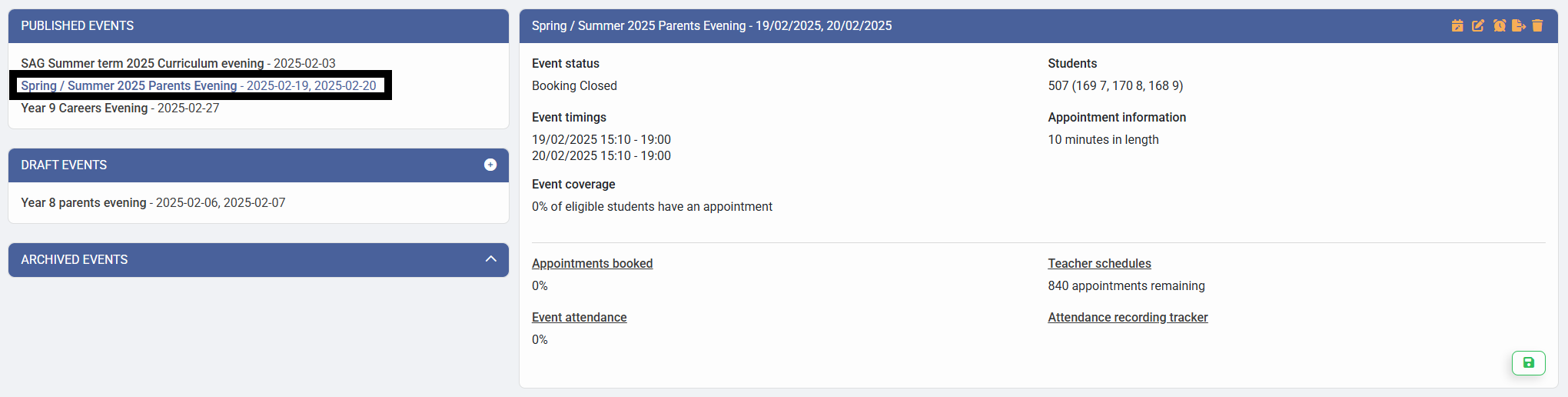
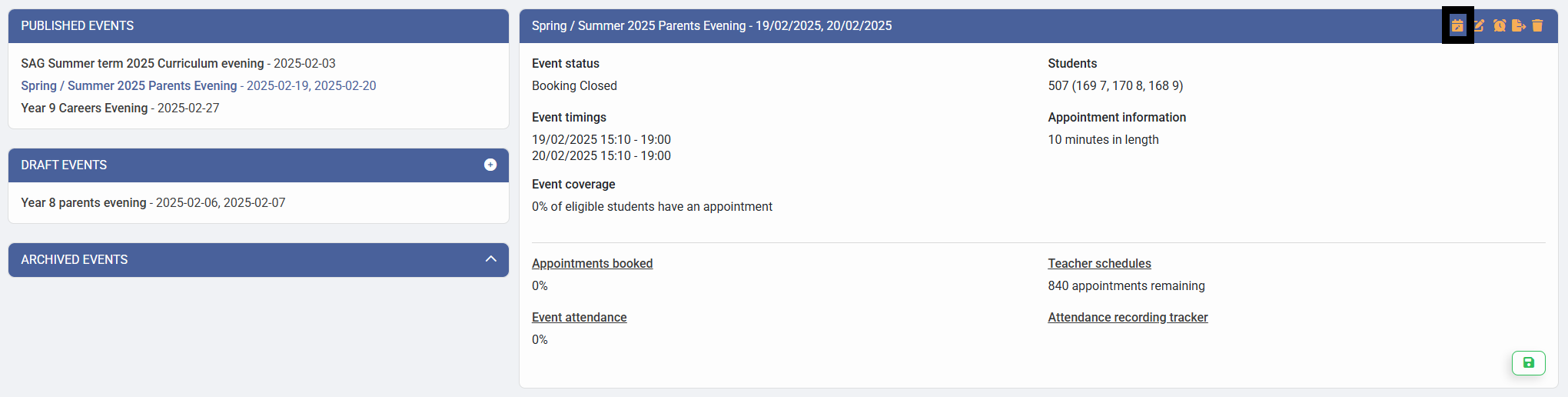
1) Click on the Event Title in the Published Events block
2) Click on "Add / Edit Appointments"
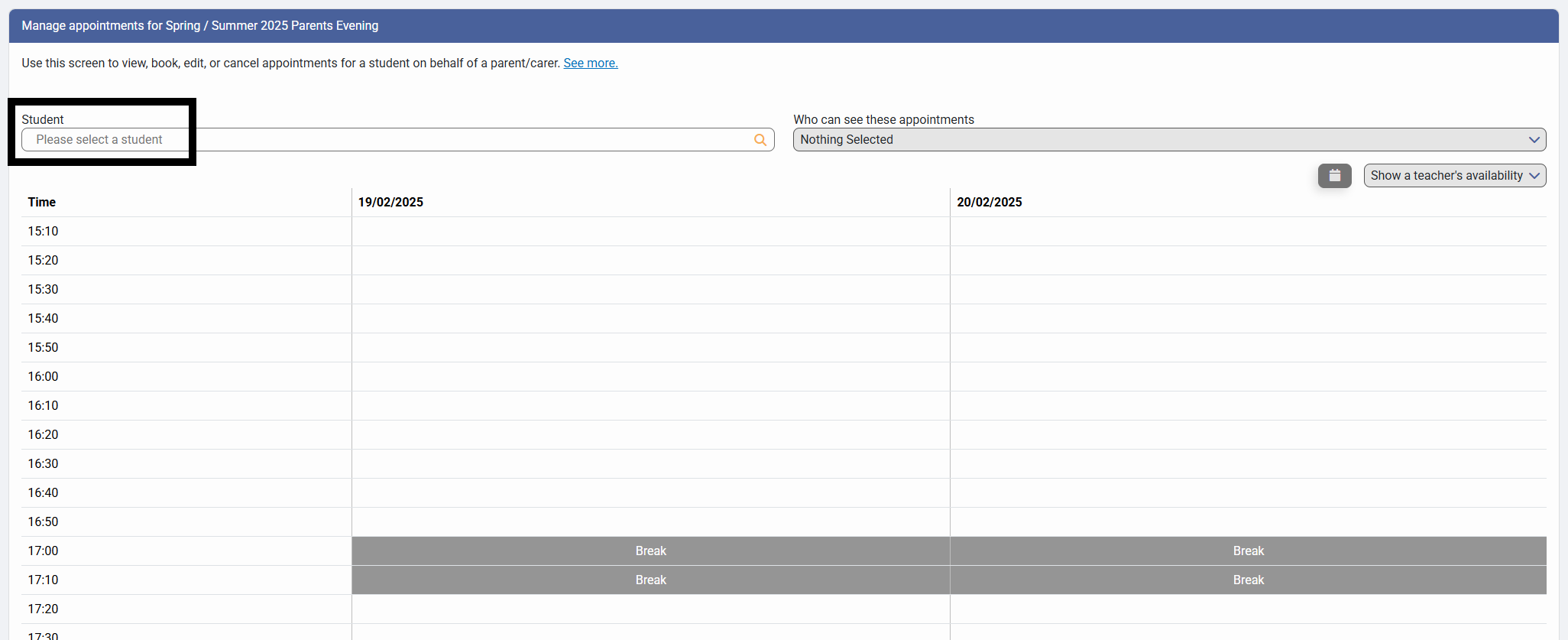
3) Type the Student's name in the "Student" field
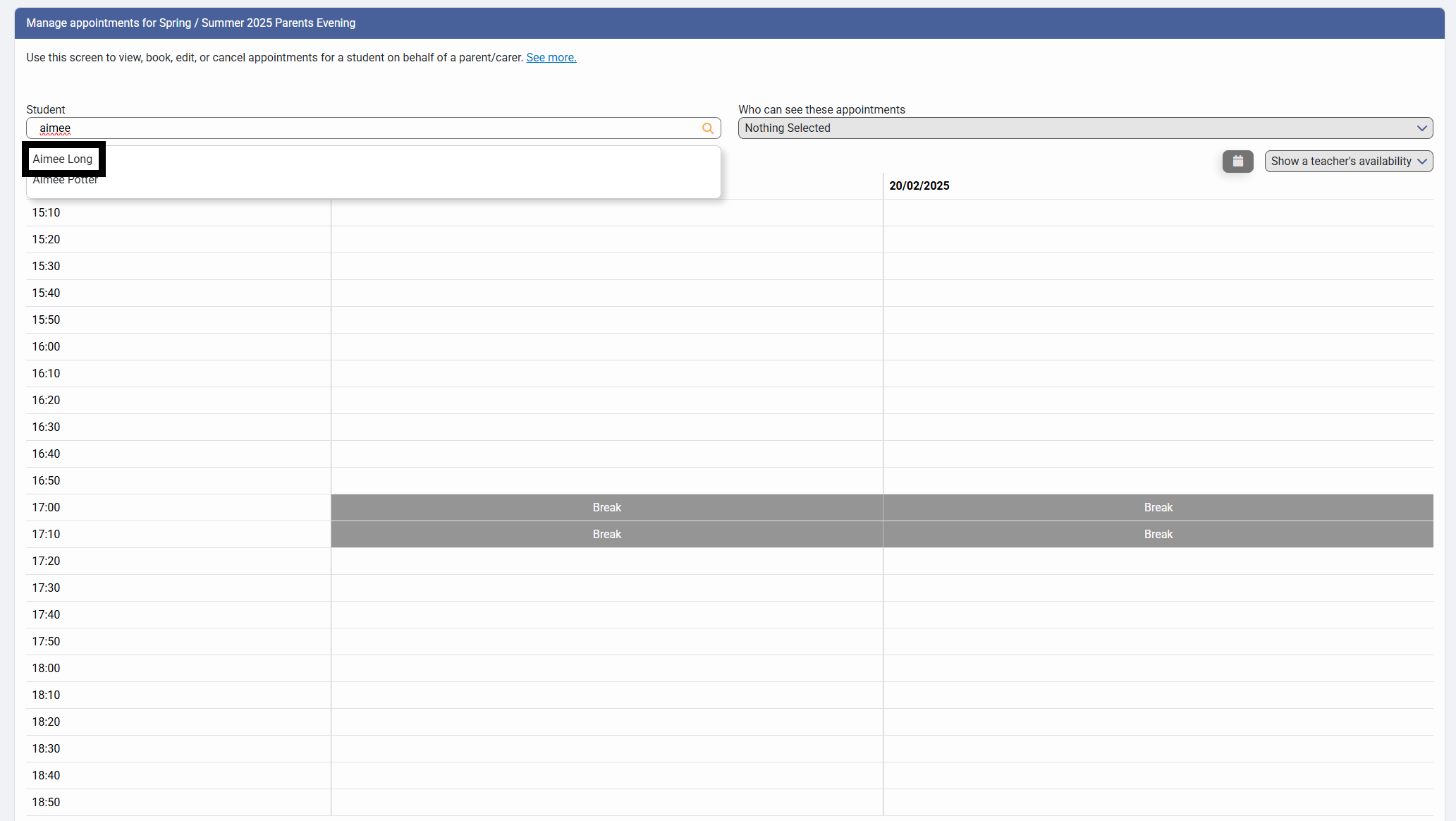
4) Click on the Student's name from the list of results
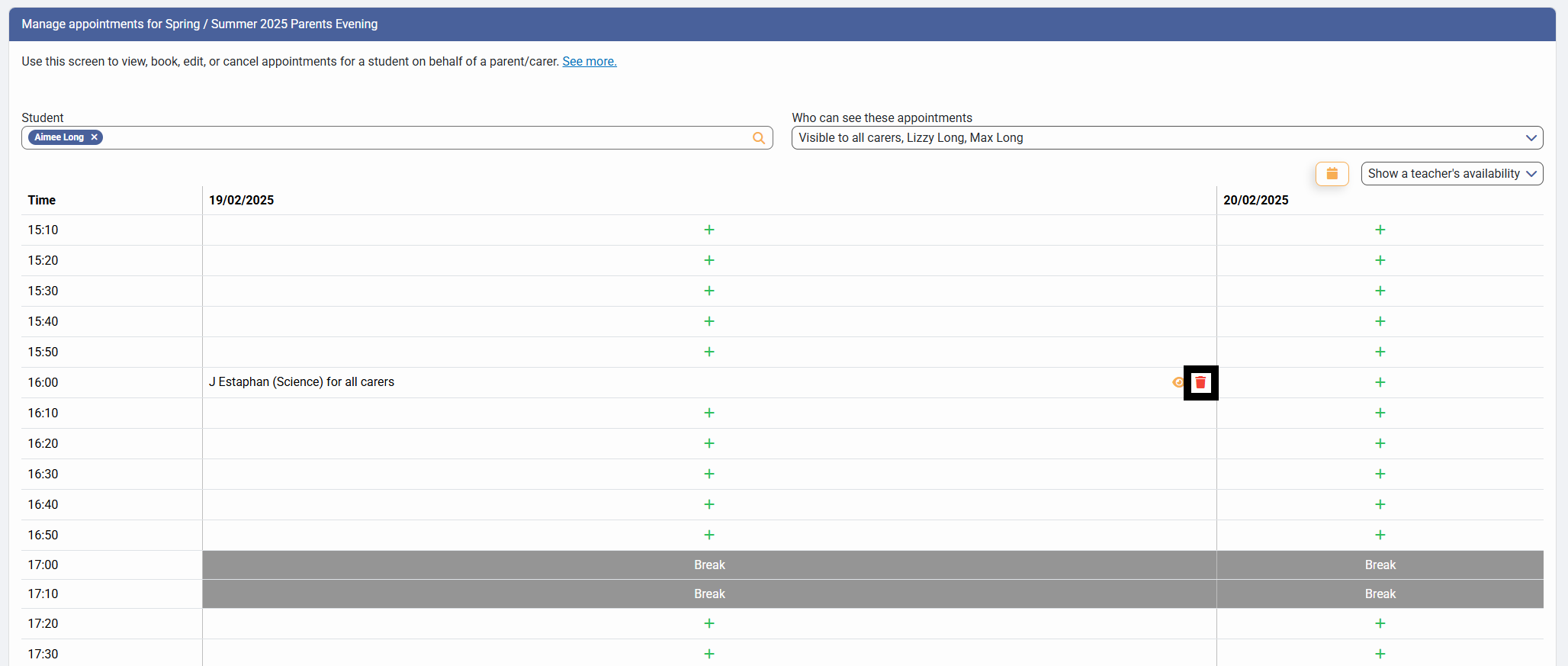
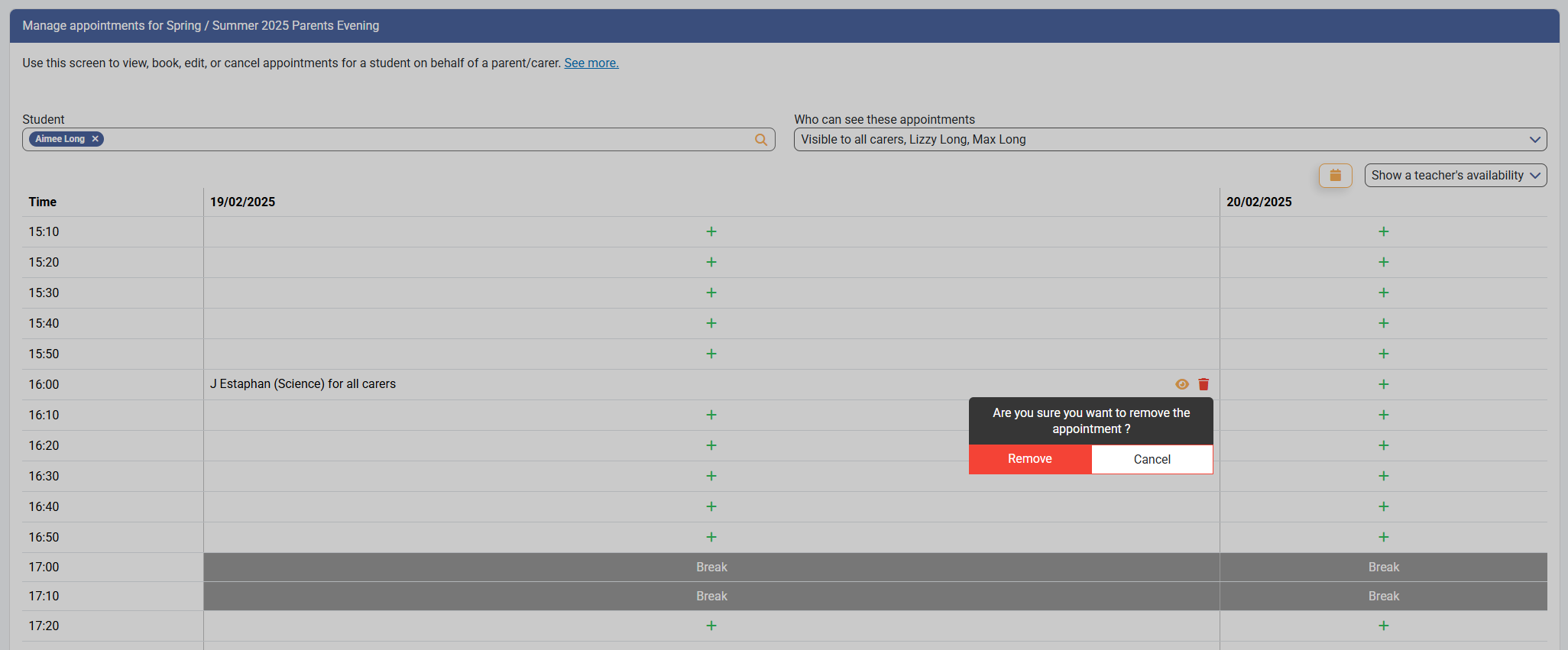
5) Locate the Appointment that you need to cancel and click on the bin icon
6) Within the Edit Appointment window, click on "Remove" within the confirmation block
Cancel all Appointments for a Student
In this scenario, all the appointments for a Students Parent / Carer(s) need to be cancelled as they can no longer attend the event at all.
Firstly, you need to access PEMS as an administrator:
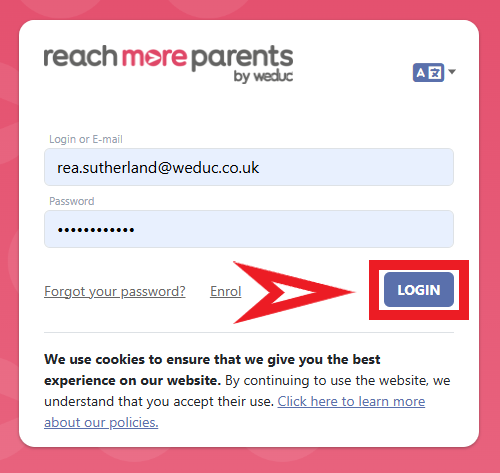
1) Log in to ReachMoreParents.
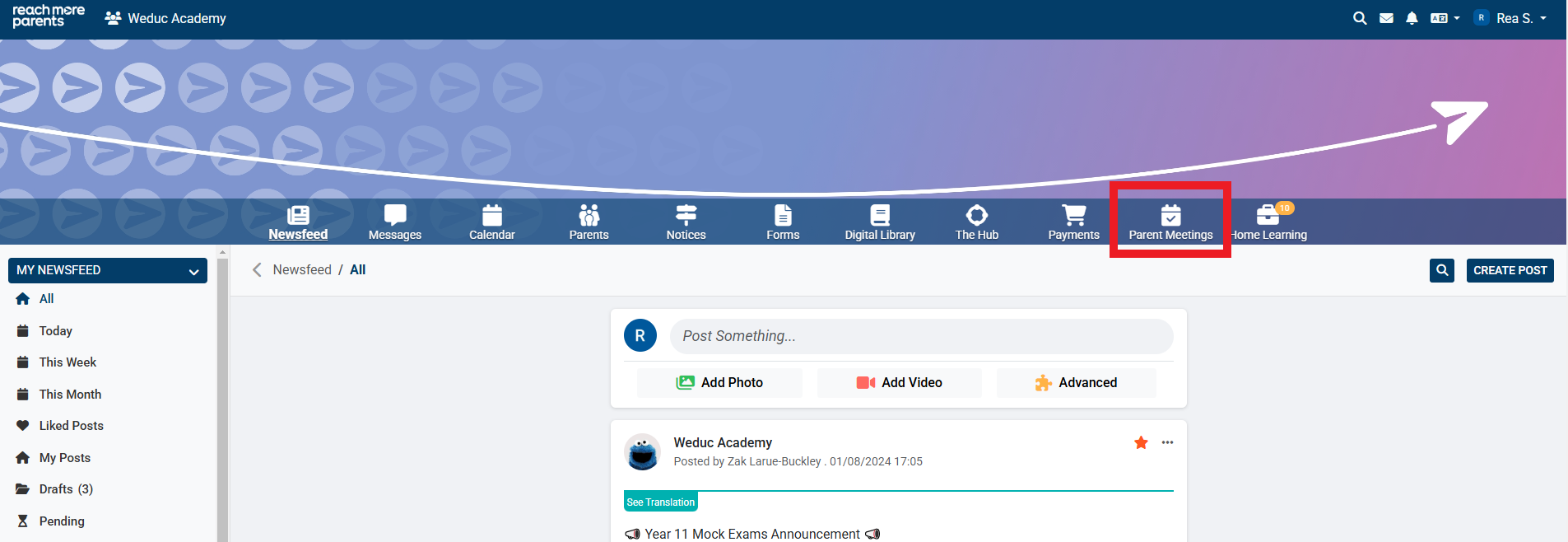
2) Click on the Parent Meetings icon
From here, you will need to carry out the below steps:
1) Click on the Event Title in the Published Events block
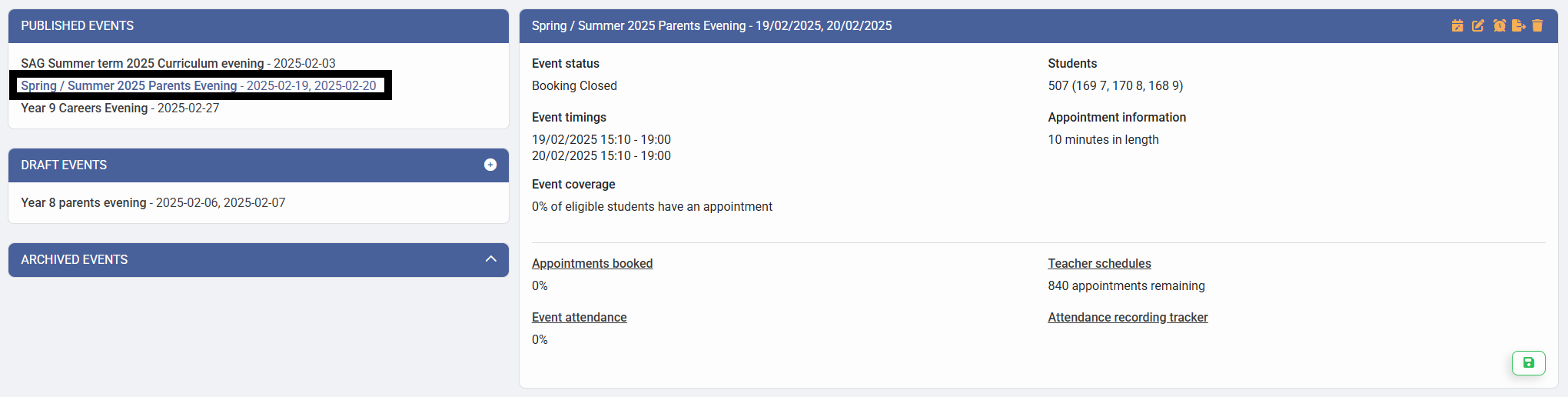
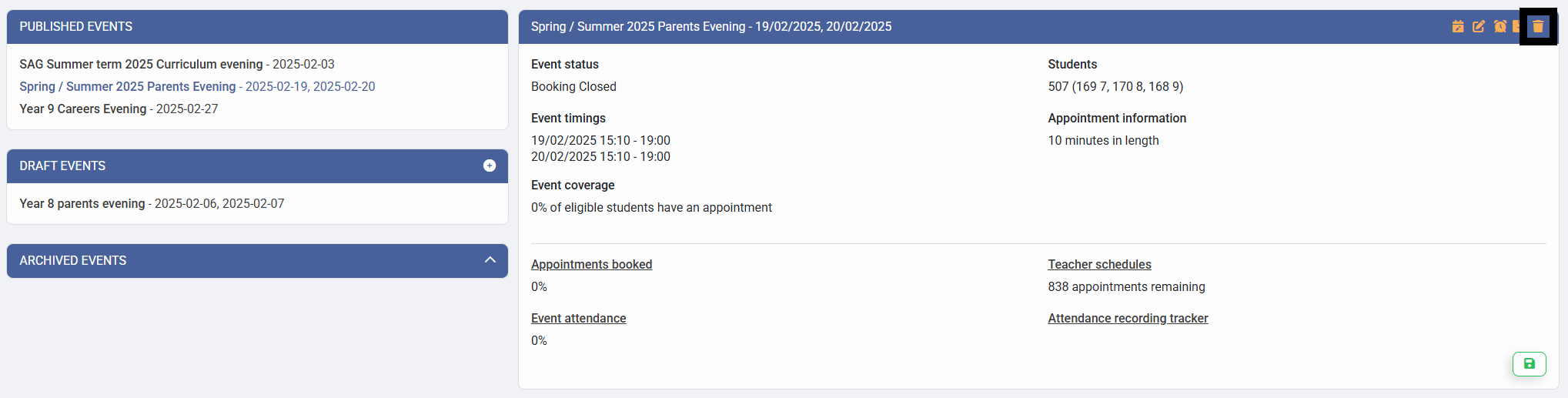
2) Click on the "Delete Event" button
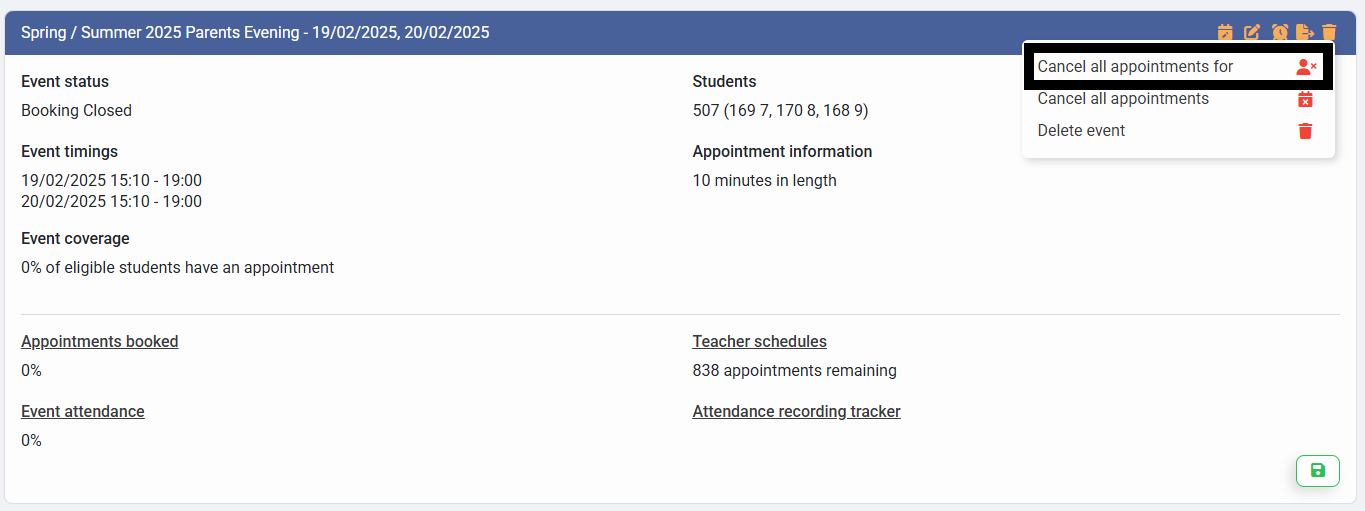
3) Click on the "Cancel all appointments for" option within this menu
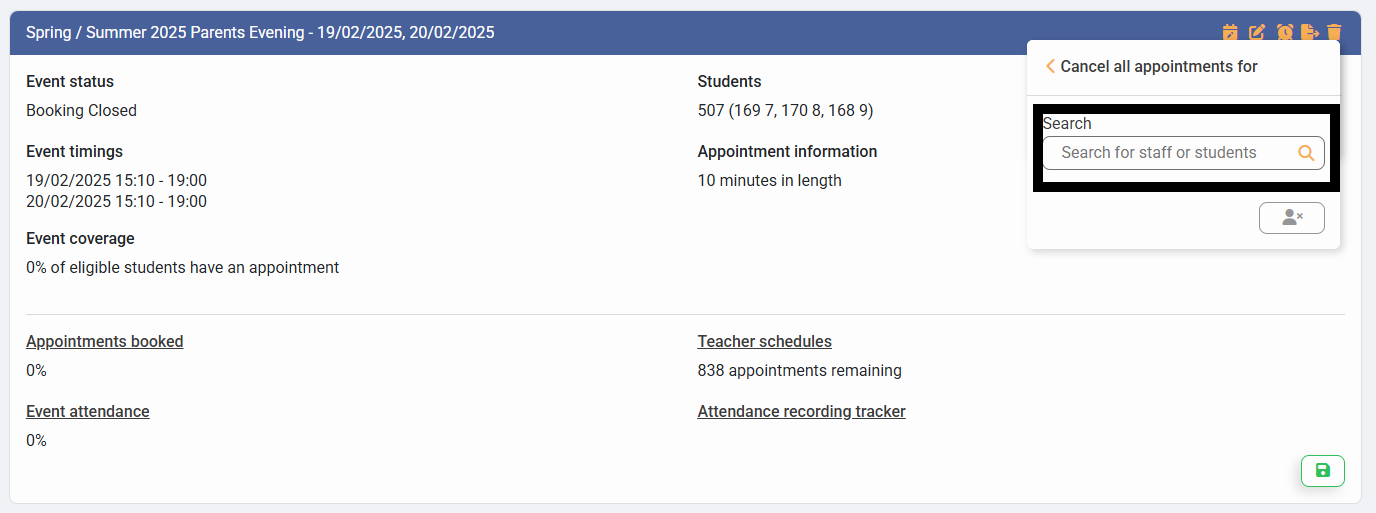
4) Type the name of the Student whose appointments you need to cancel
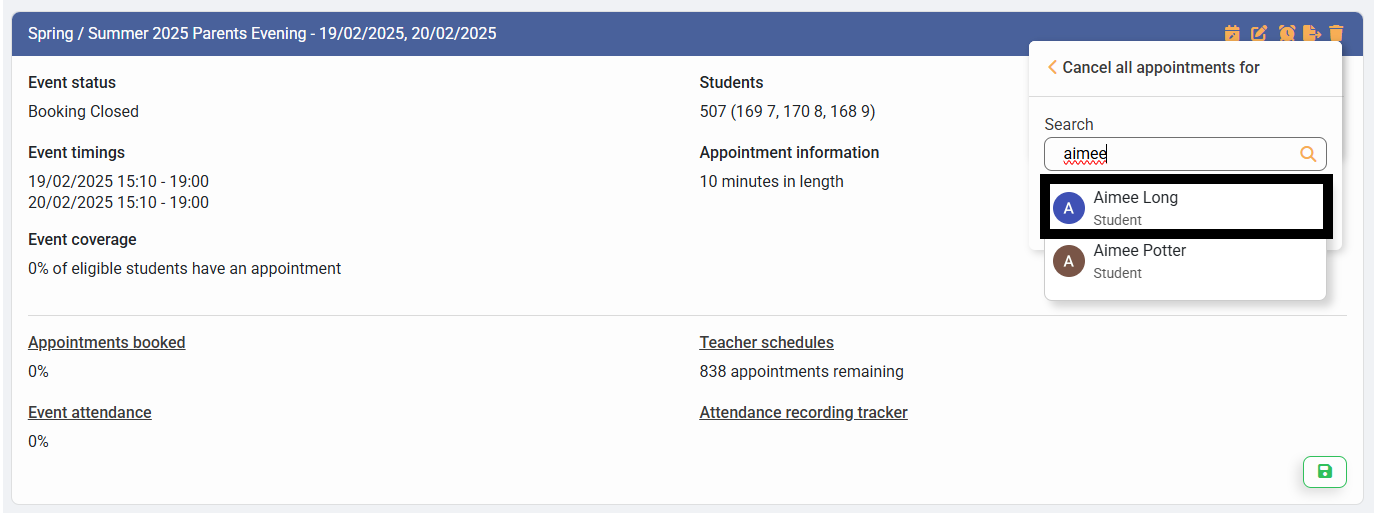
5) Click on the Student's name from the list of results
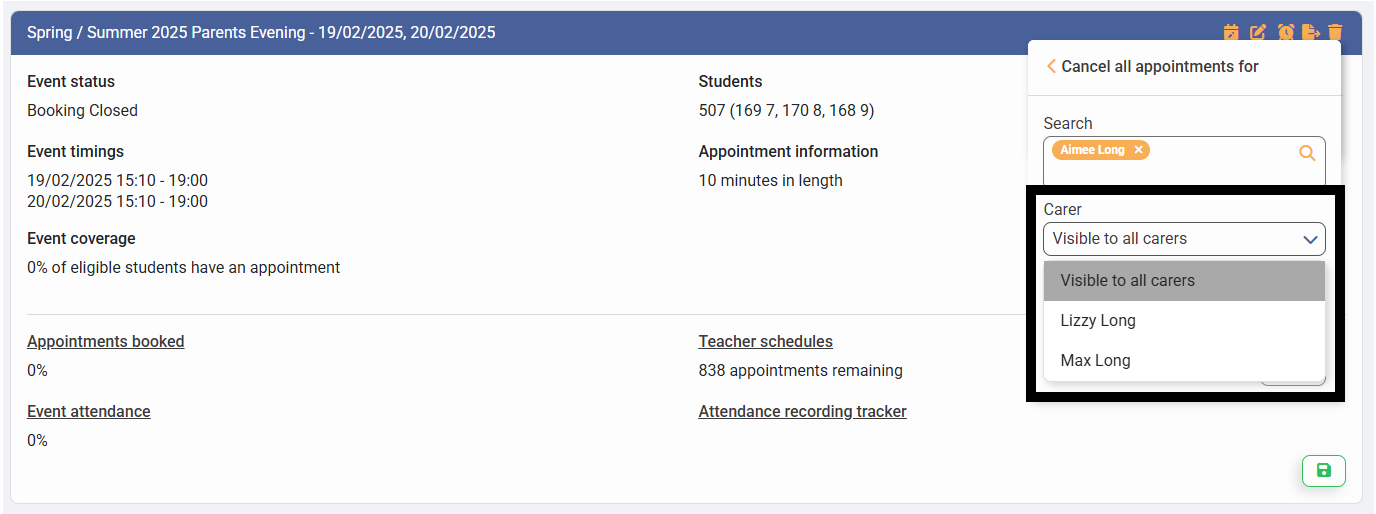
6) Choose whether it's the appointments for all Parent / Carers, or choose the Parent / Carer whose appointments only need to be cancelled
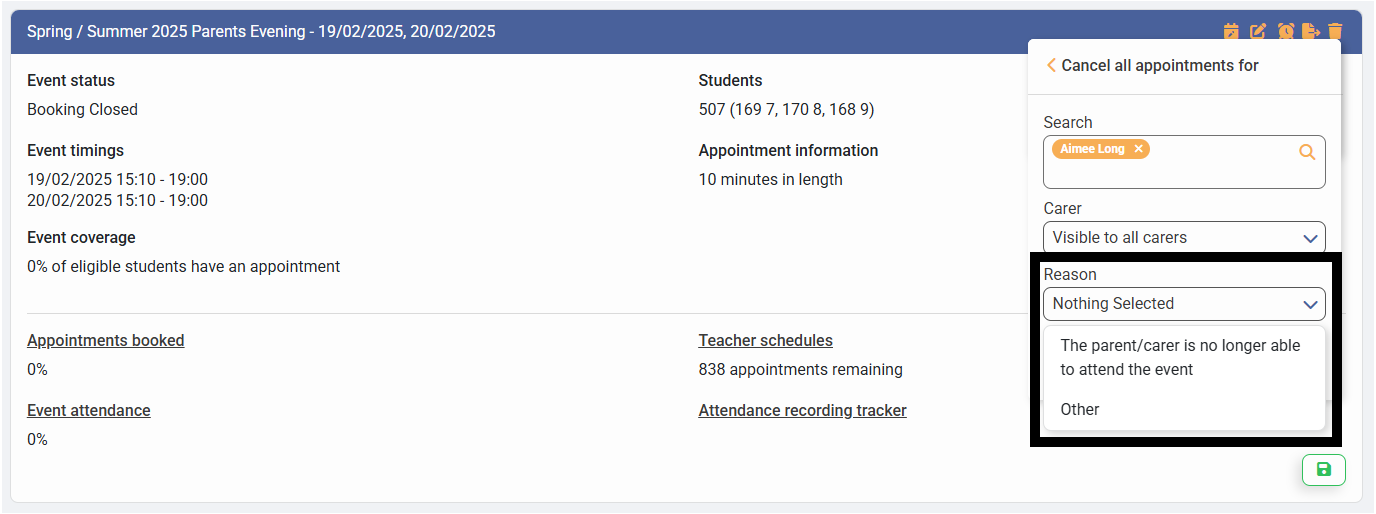
7) Choose the reason for Cancelling all the appointments, either "The parent/carer is no longer able to attend the event" or "Other"
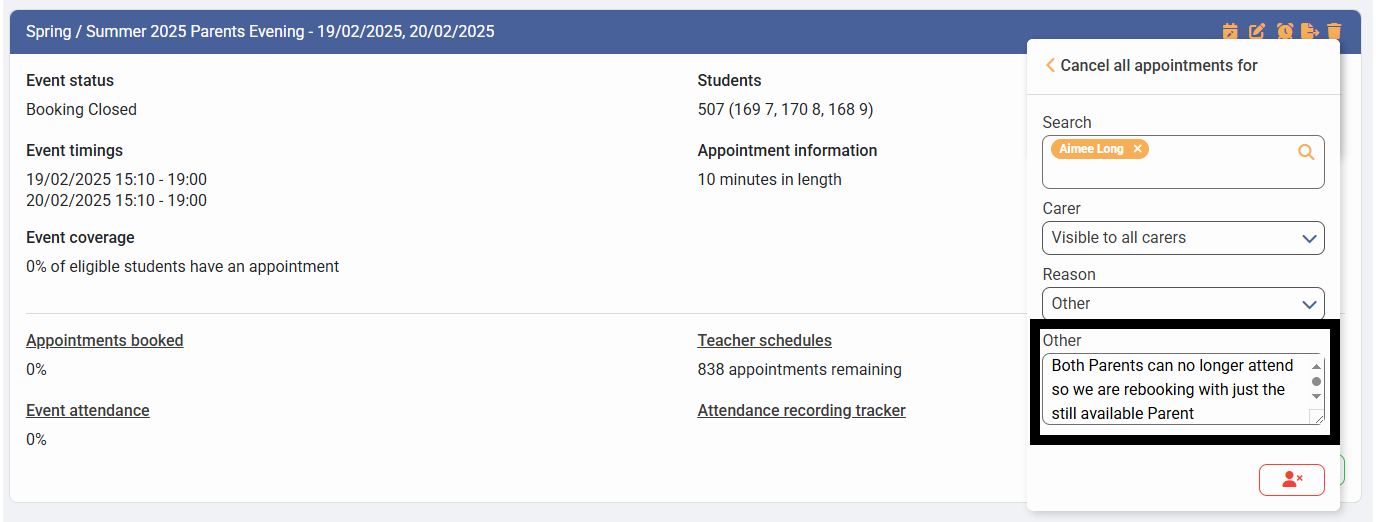
8) If you have chosen "Other" type the reason in the "Other" reason text field
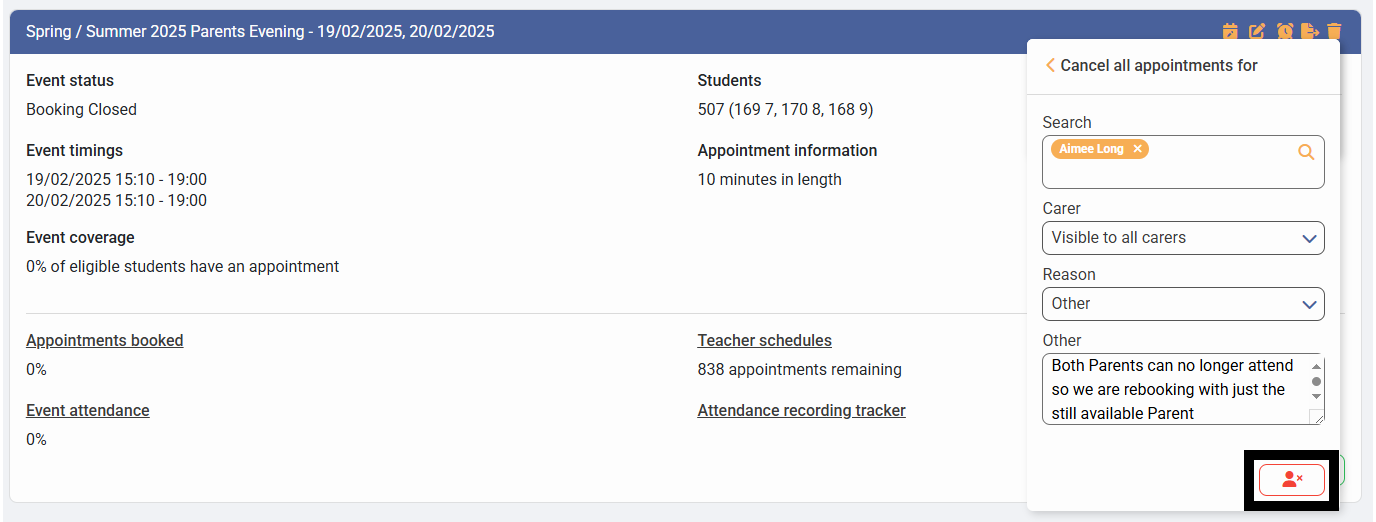
9) Click on the now active "Cancel all appointments for" button
Cancel all Appointments for a Parents Evening Event
In this scenario, you need to cancel all the appointments for the event and notify the parents due to unforeseen circumstances where the event needs to be cancelled or postponed, whereby you would create a new event and have the parents rebook their appointments.
Firstly, you need to access PEMS as an administrator:
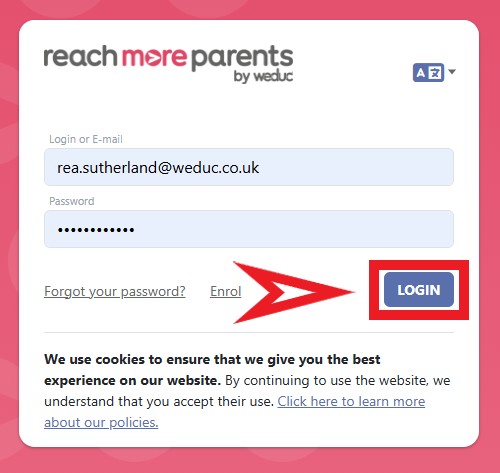
1) Log in to ReachMoreParents.
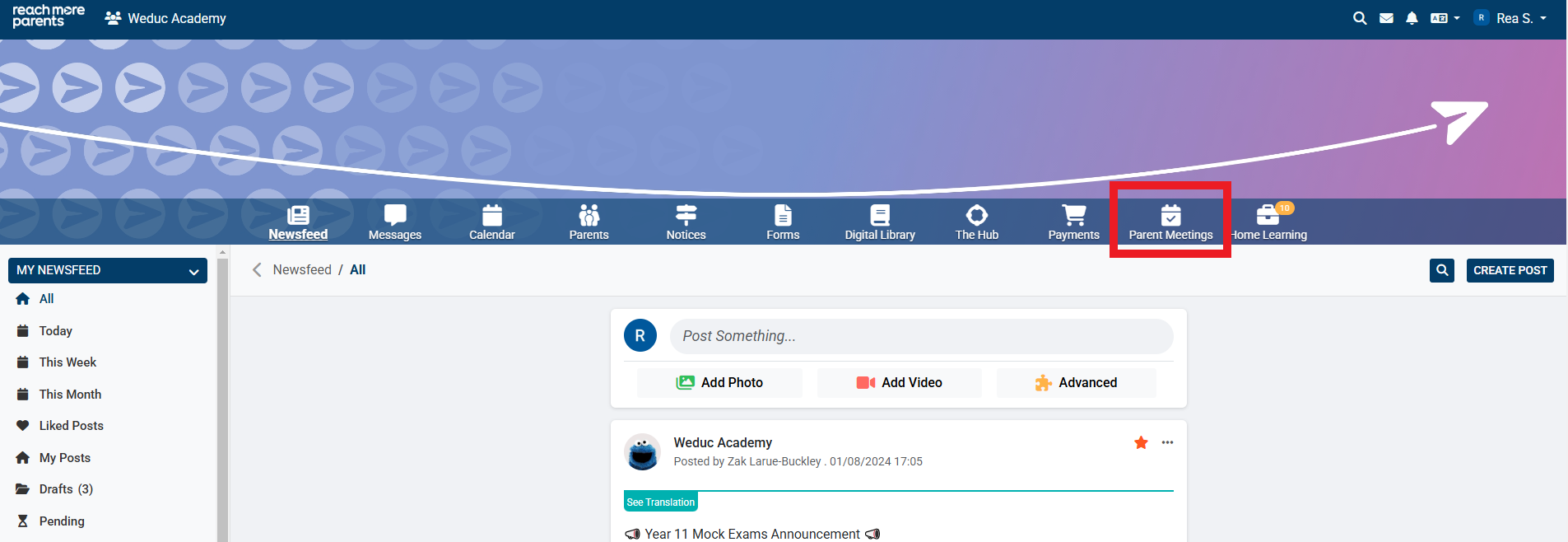
2) Click on the Parent Meetings icon
From here, you will need to carry out the below steps:
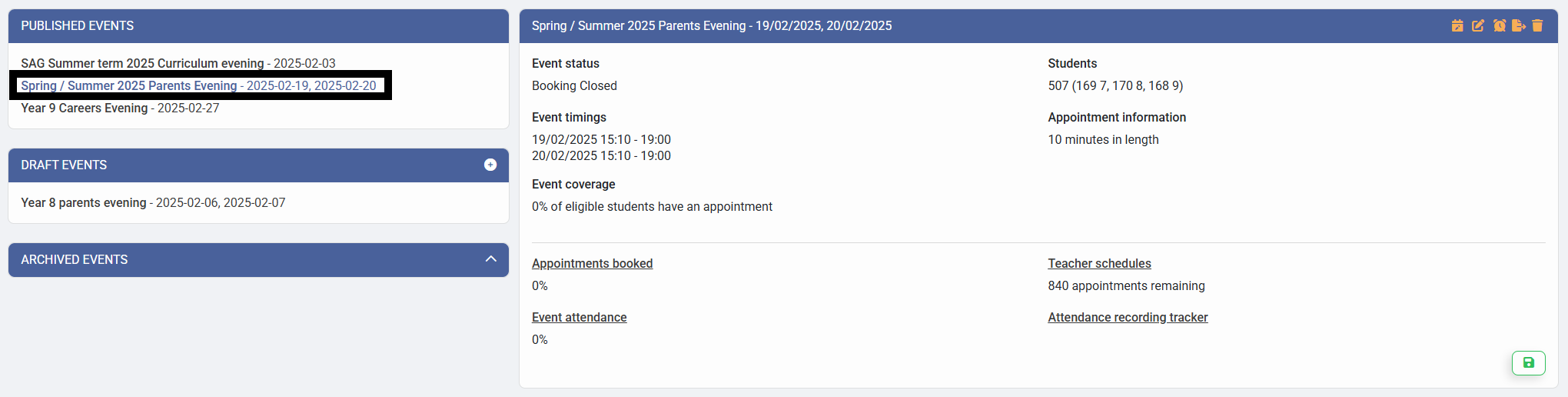
1) Click on the Event Title in the Published Events block
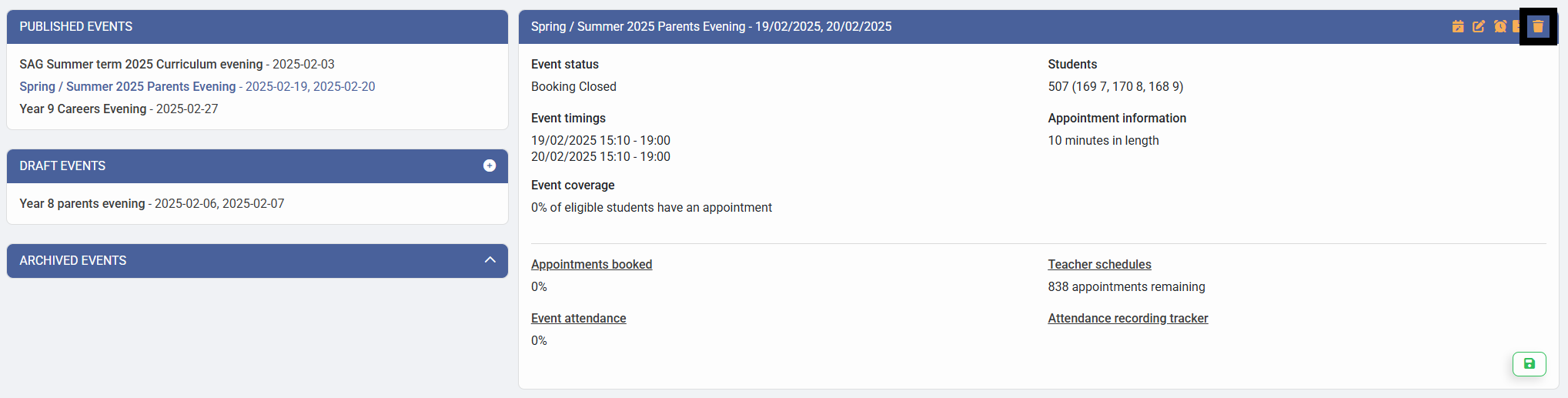
2) Click on the "Delete Event" button
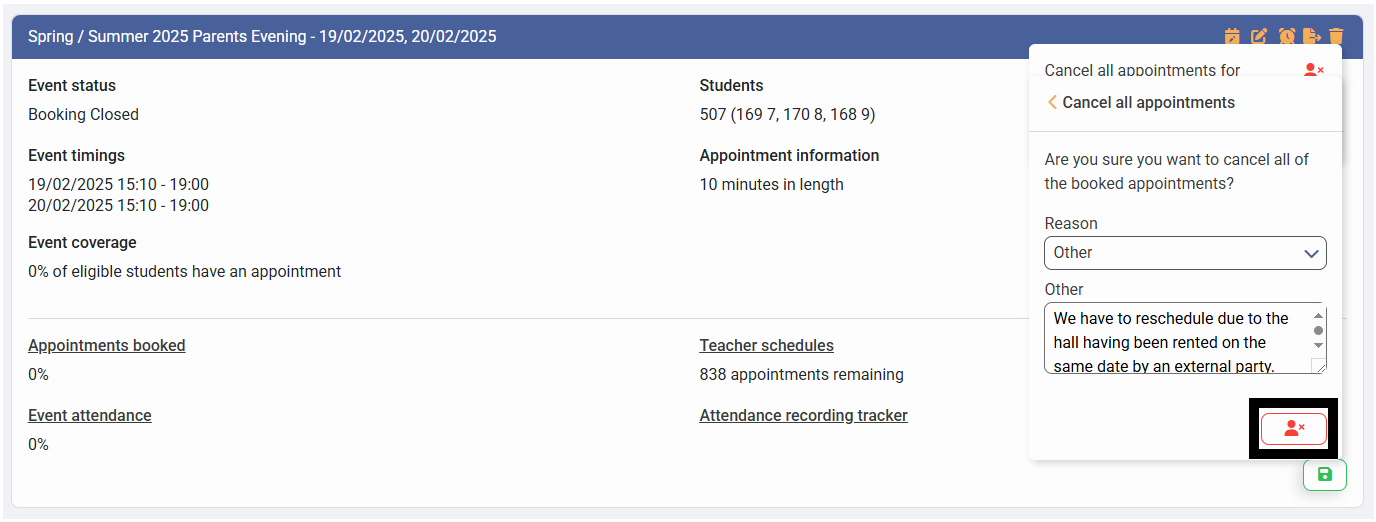
3) Click on "Cancel all Appointments"
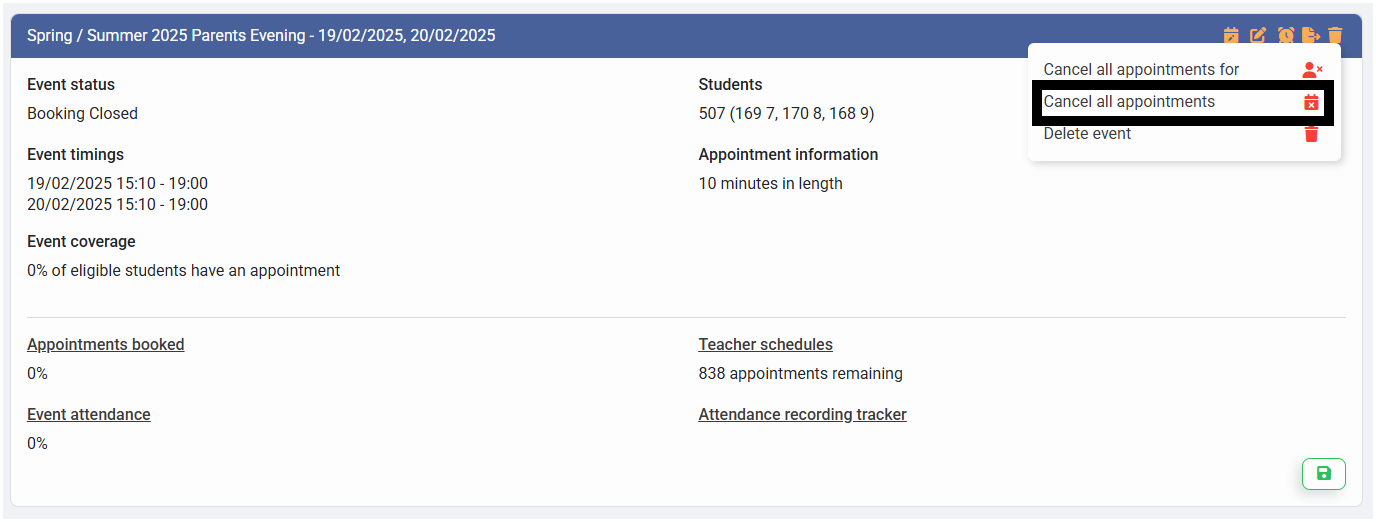
4) Choose a reason for cancelling all the Appointments
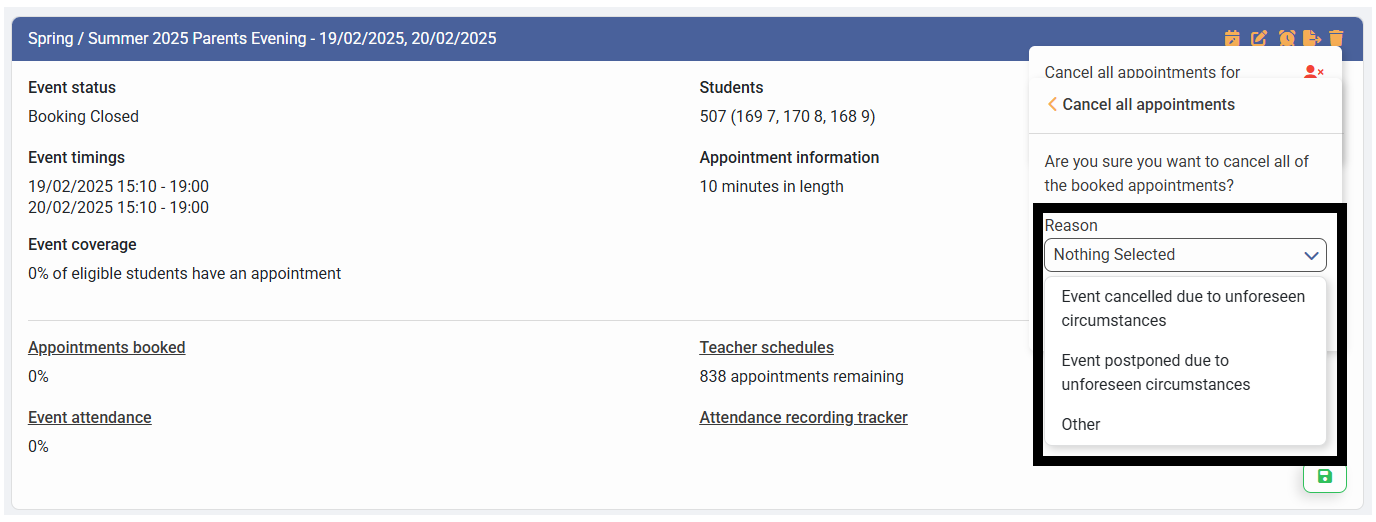
5) If you have chosen "Other", define the "Other" reason text
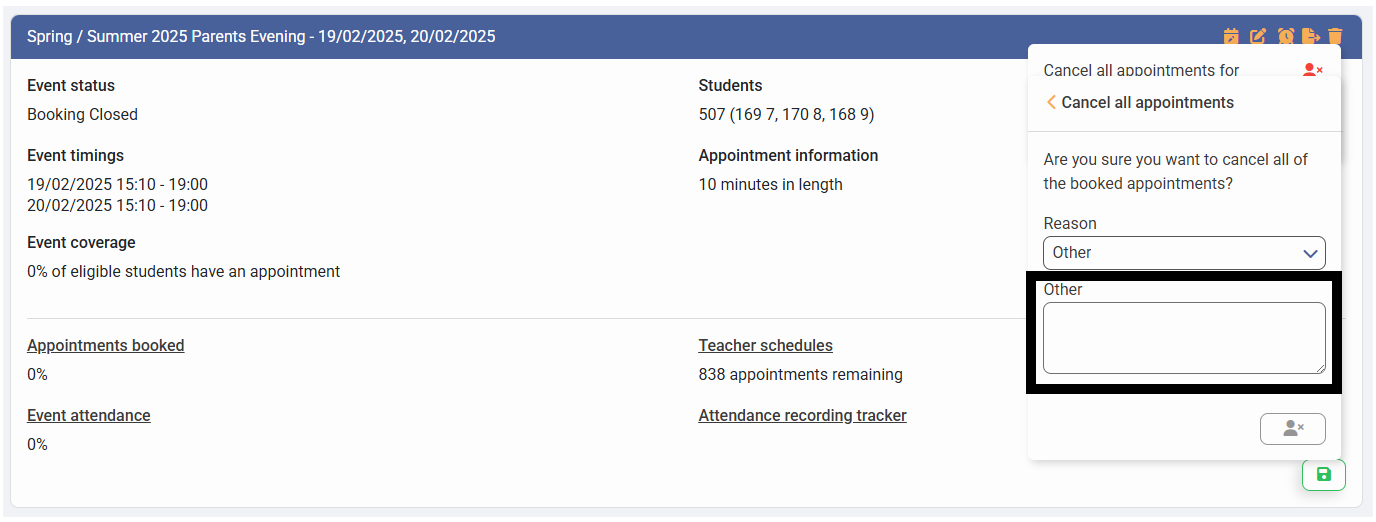
6) Click on the now active "Cancel all Appointments" button