
Who is this for:
- Parents/Carers
Summary:
By the end of this article, you will know how to:
- Connect two school accounts so that both appear within your ReachMoreParents app
Video walkthrough:

Step-by-step instructions:
Before you start, you will need an enrolment code from the newest school which should have been sent to you by the school via letter, email or SMS (text message). Once you have this enrolment code, please follow the steps below:
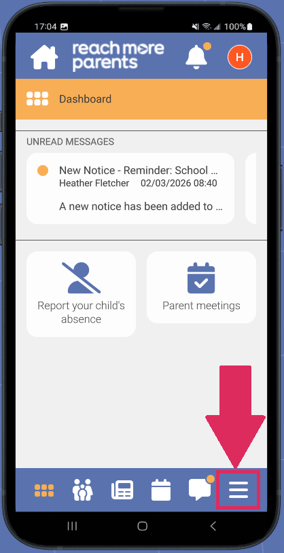
1) Open the ReachMoreParents app and tap the menu icon.
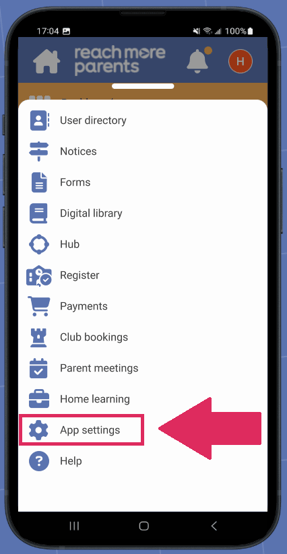
2) Tap App Settings.
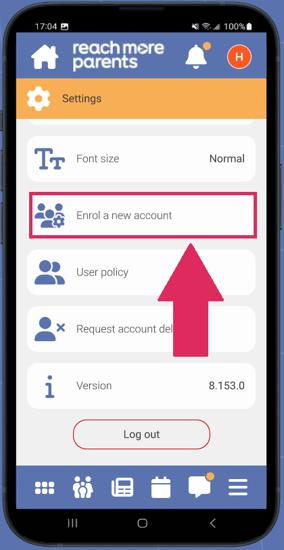
3) Scroll down and select Enrol a new account.
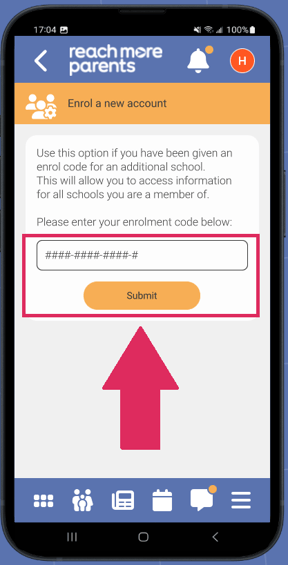
4) Enter your Enrolment code and tap Submit.
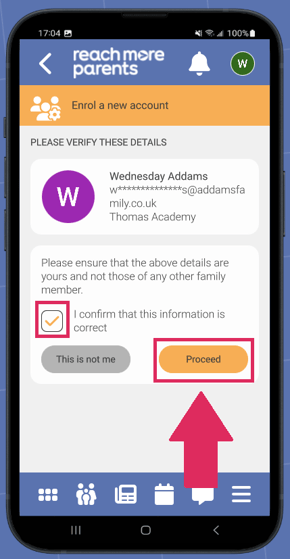
5) You then need to verify your details. Tick the box to confirm the information is correct and then click Proceed.
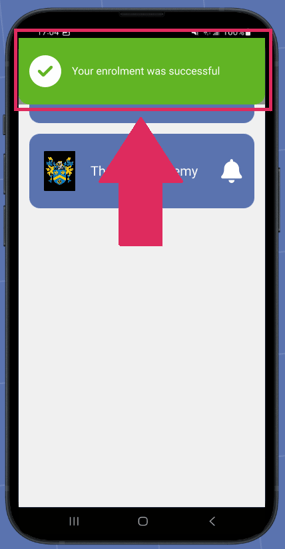
6) You should then see confirmation that the enrolment has been successful
Now both schools are linked to your account, you can toggle between both schools from within the app. To switch to another school within your app, please follow the steps below:
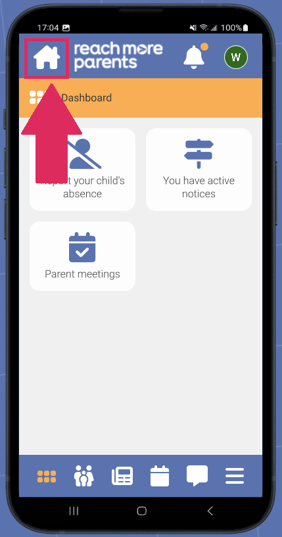
1) Tap the house icon in the top left hand corner of your ReachMoreParents app.
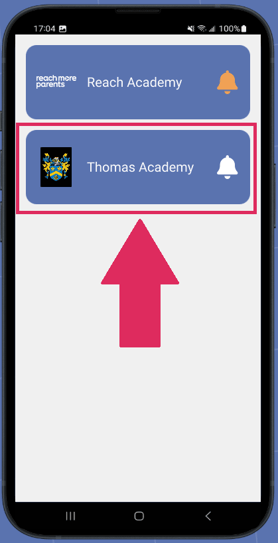
2) Select the school account you would like to view.
Related Articles:
Still need help?
Contact our team at support@weduc.com or on 01509 221349 (option 2).