
If you are using Meal Manager, some students will be eligible for Free School Meals (FSM) or Universal Infant Free School Meals (UIFSM).
Looking for means-tested FSM (Free School Meals)?
From the 31st October FSM data can be captured through your MIS Student User Sync. For more information on this click here: FAQs - Changes to the way FSM status is applied to pupils in ReachMoreParents – Weduc
How to Apply UIFSM Status to Reception/EYFS Pupils
When new Reception pupils are enrolled at your school in the new Autumn term, you will need to manually apply the UIFSM status for all pupils within the year group in ReachMoreParents. Once the UIFSM status has been applied, it will remain in place until you manually remove it and therefore, there should be no need to repeat this process when this cohort start in Year 1 or 2. To apply UIFSM status to your Reception pupils, please follow the steps below:
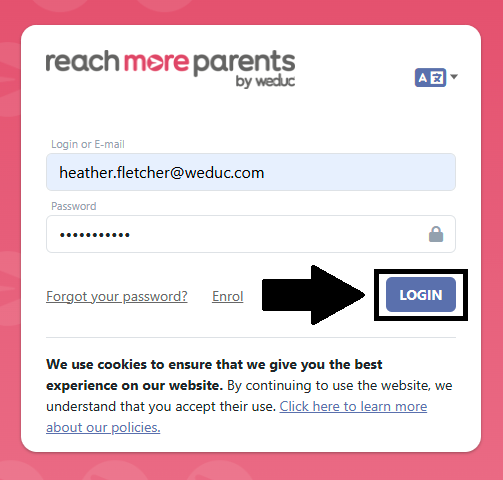
1) Login to ReachMoreParents.
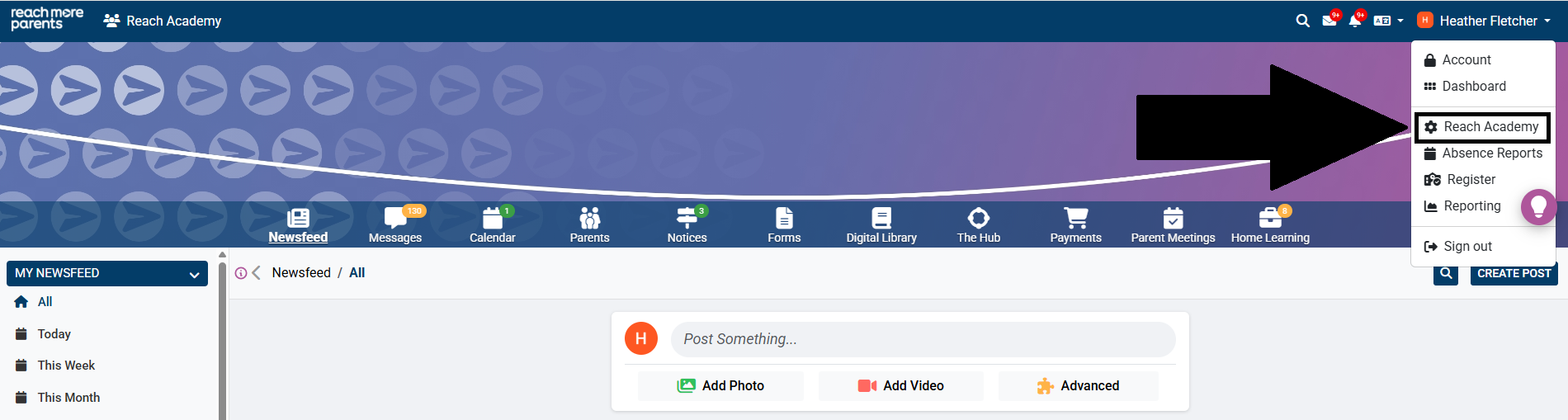
2) Click on your name in the top right hand corner and select the cog icon.
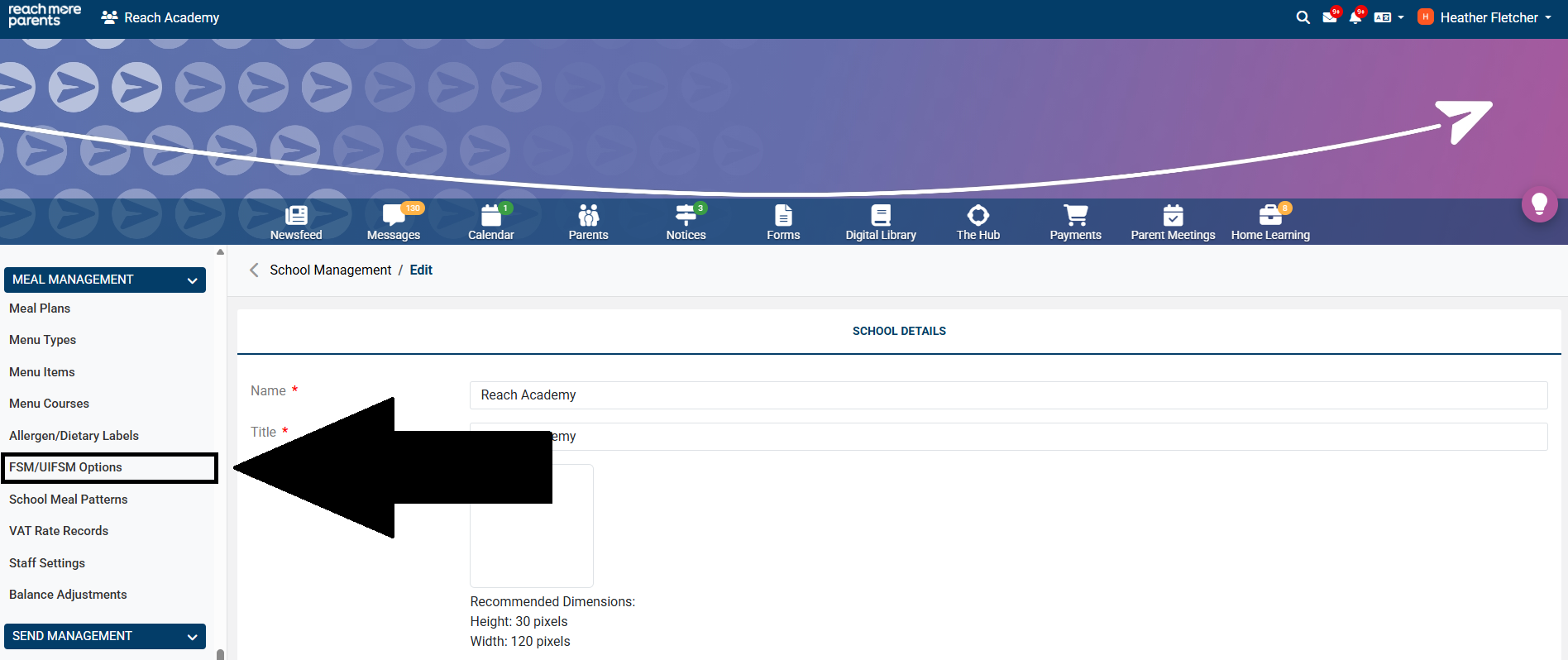
3) Click ‘FSM/UIFSM Options’ within the ‘Meal Management’ Menu.
4) Ensure the ‘SET FSM & UIFSM STATUS’ tab is open (this should be open by default when 'FSM/UIFSM Options' is clicked).
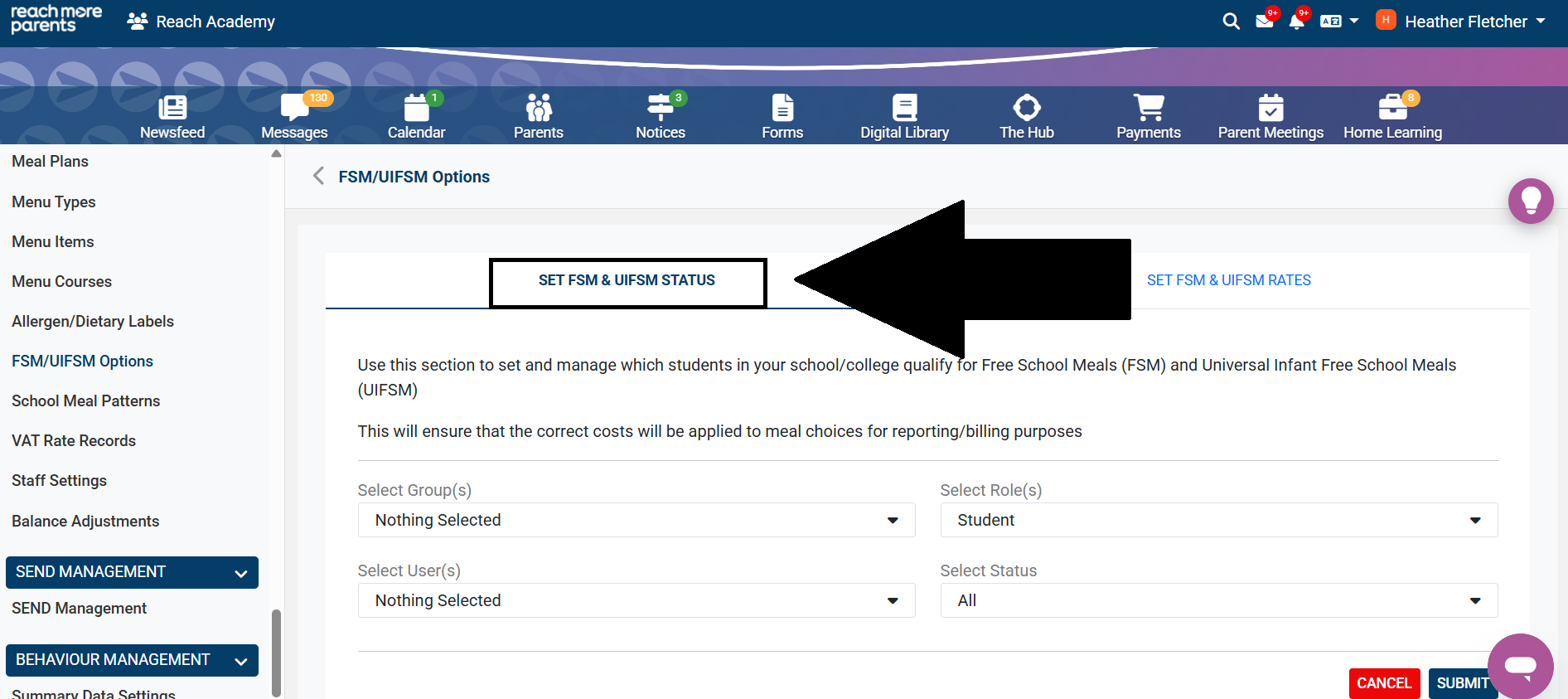
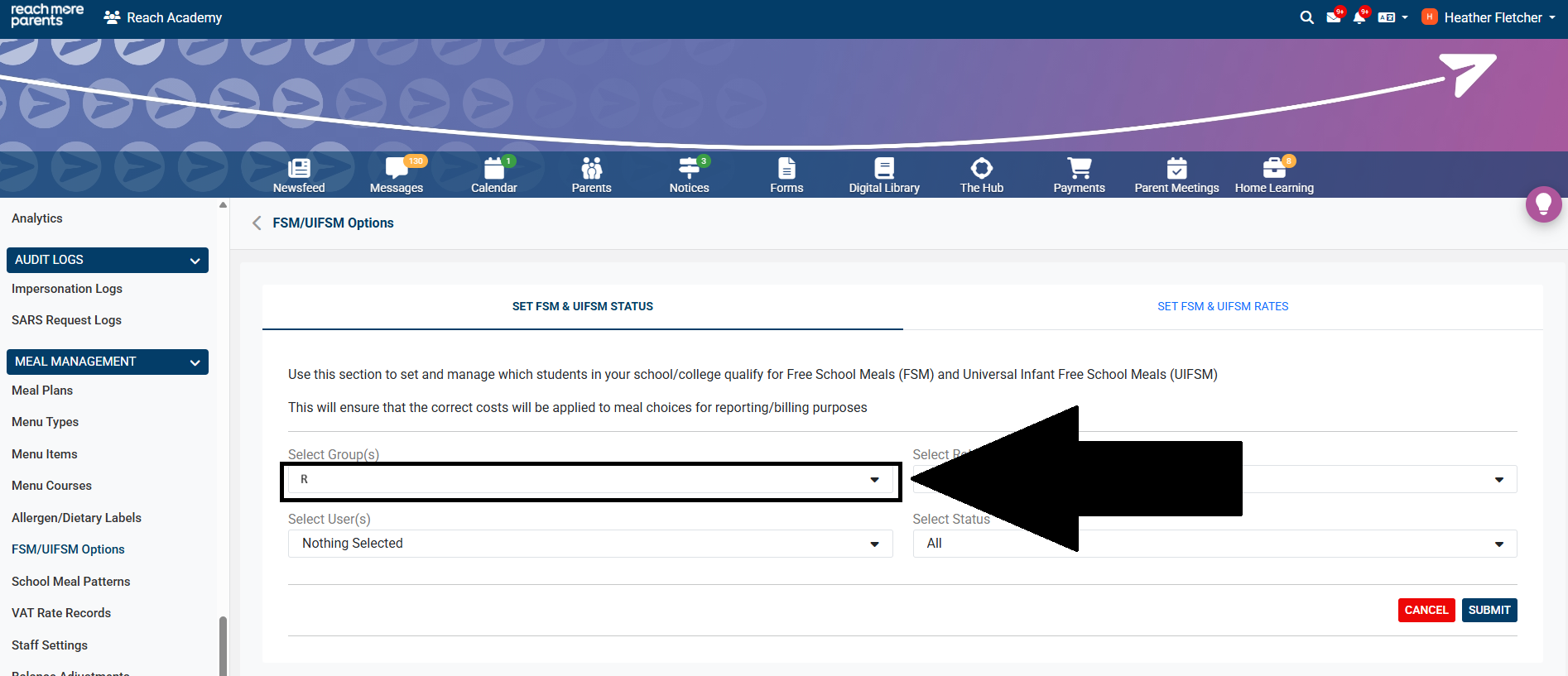
5) Select the relevant year groups from the 'Select Groups' drop-down. This will usually be Reception/EYFS but if you have started using Meal Manager part way through the school year, this may also include Year 1 and Year 2.
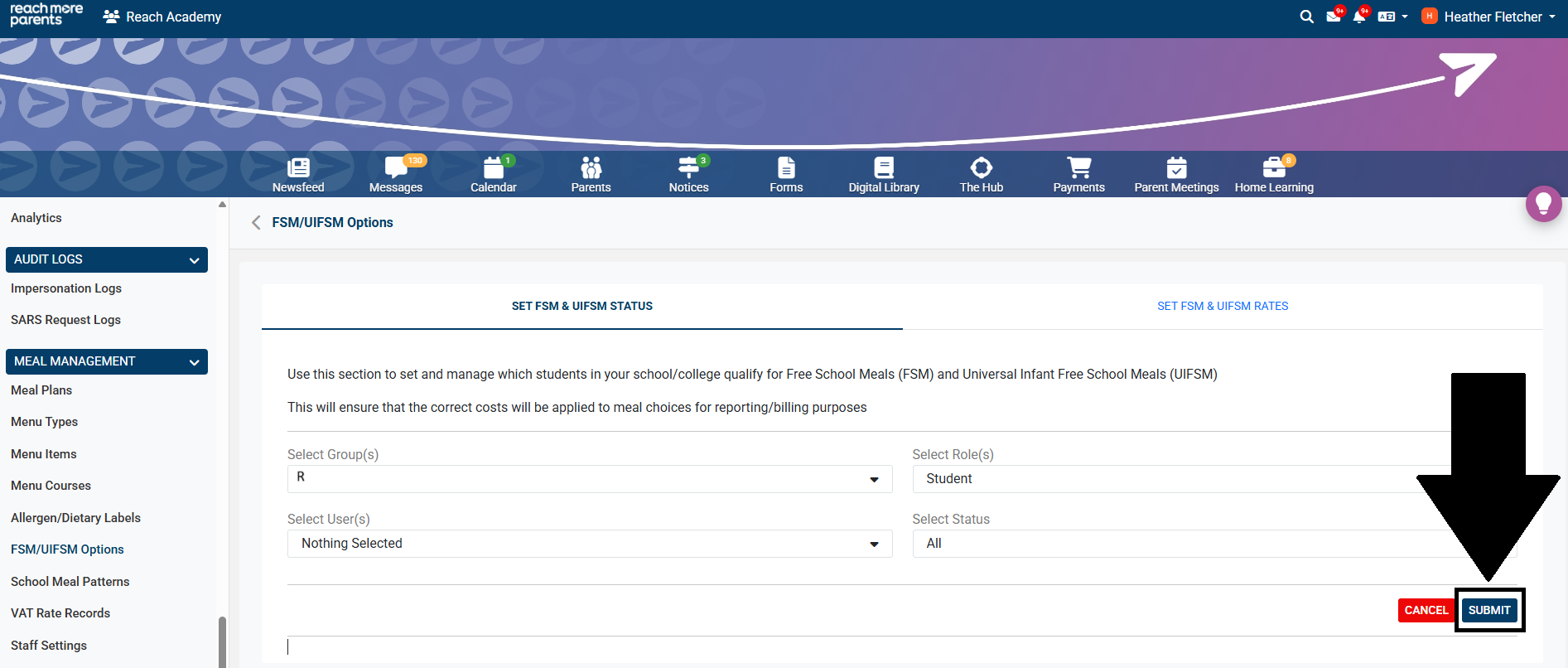
6) Click ‘Submit’.
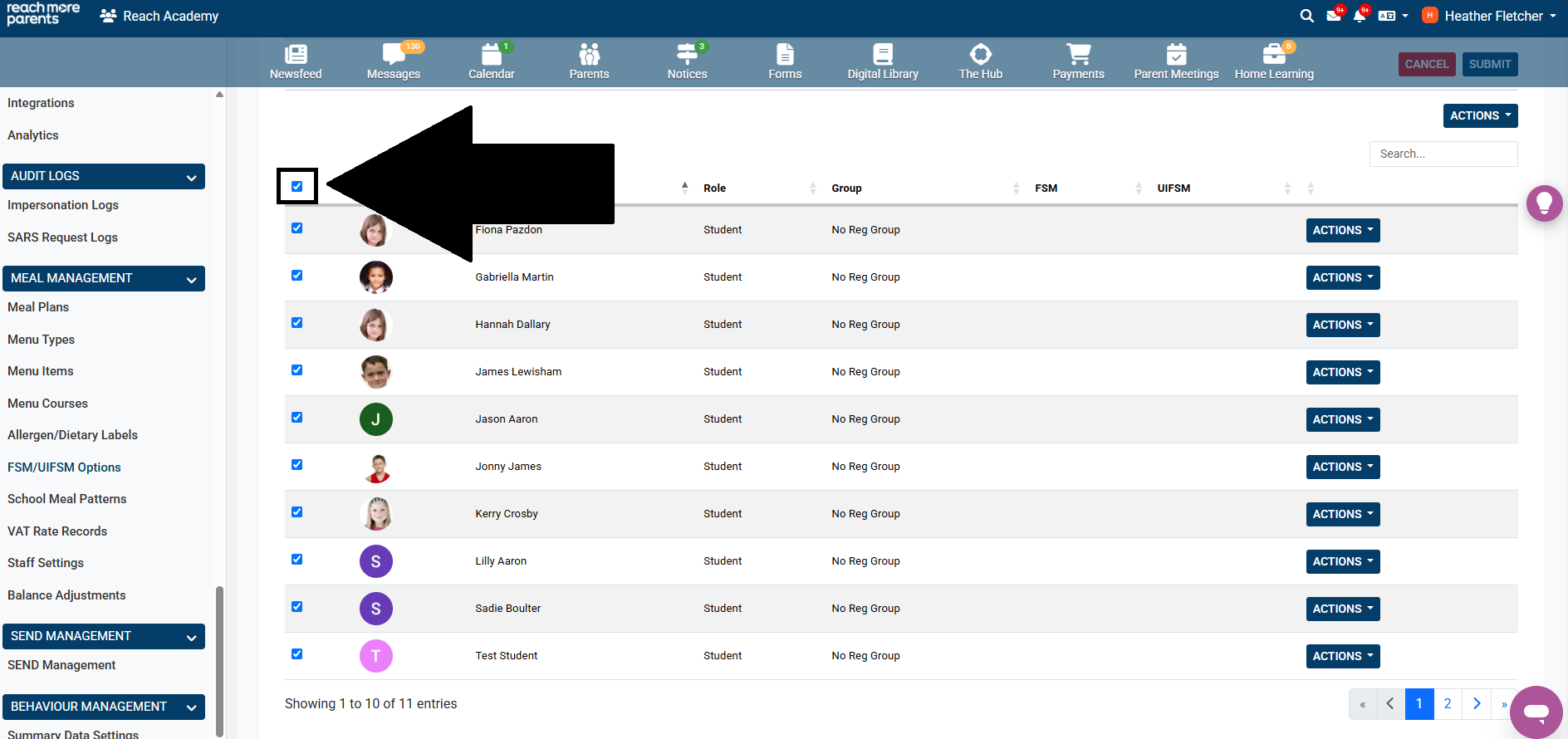
7) Tick the box at the very top of the list of pupils to select all.
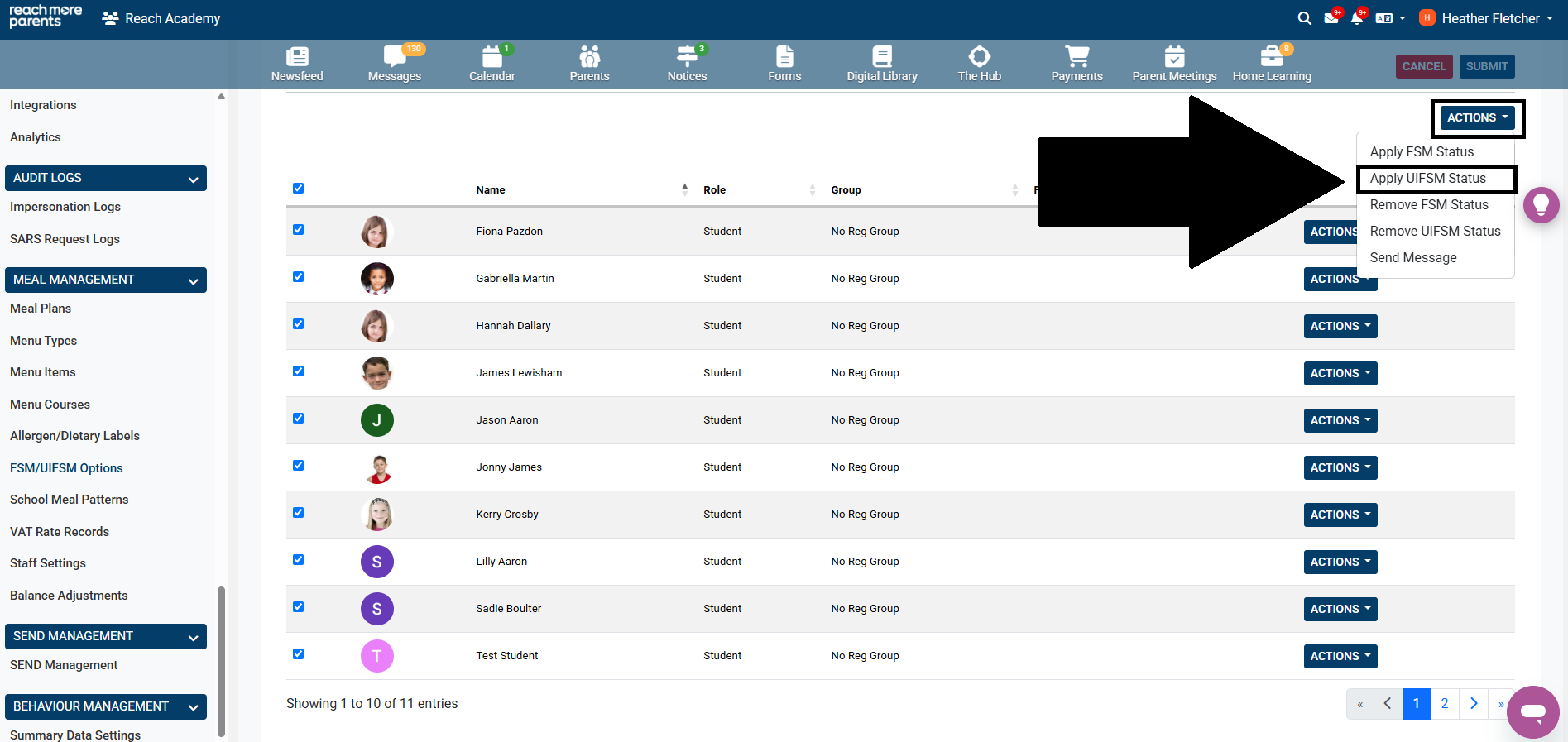
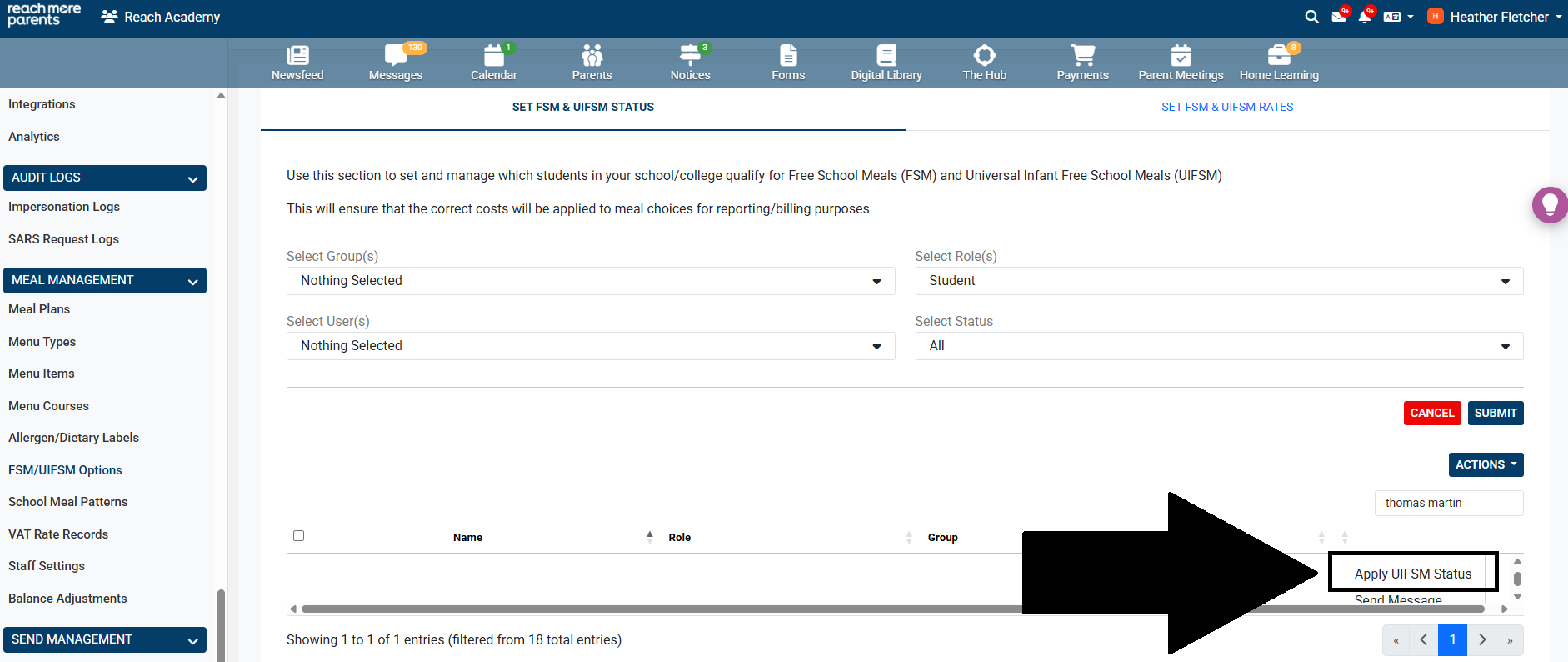
8) Click the ‘Actions’ button to the top right of the table and select ‘Apply UIFSM Status’.
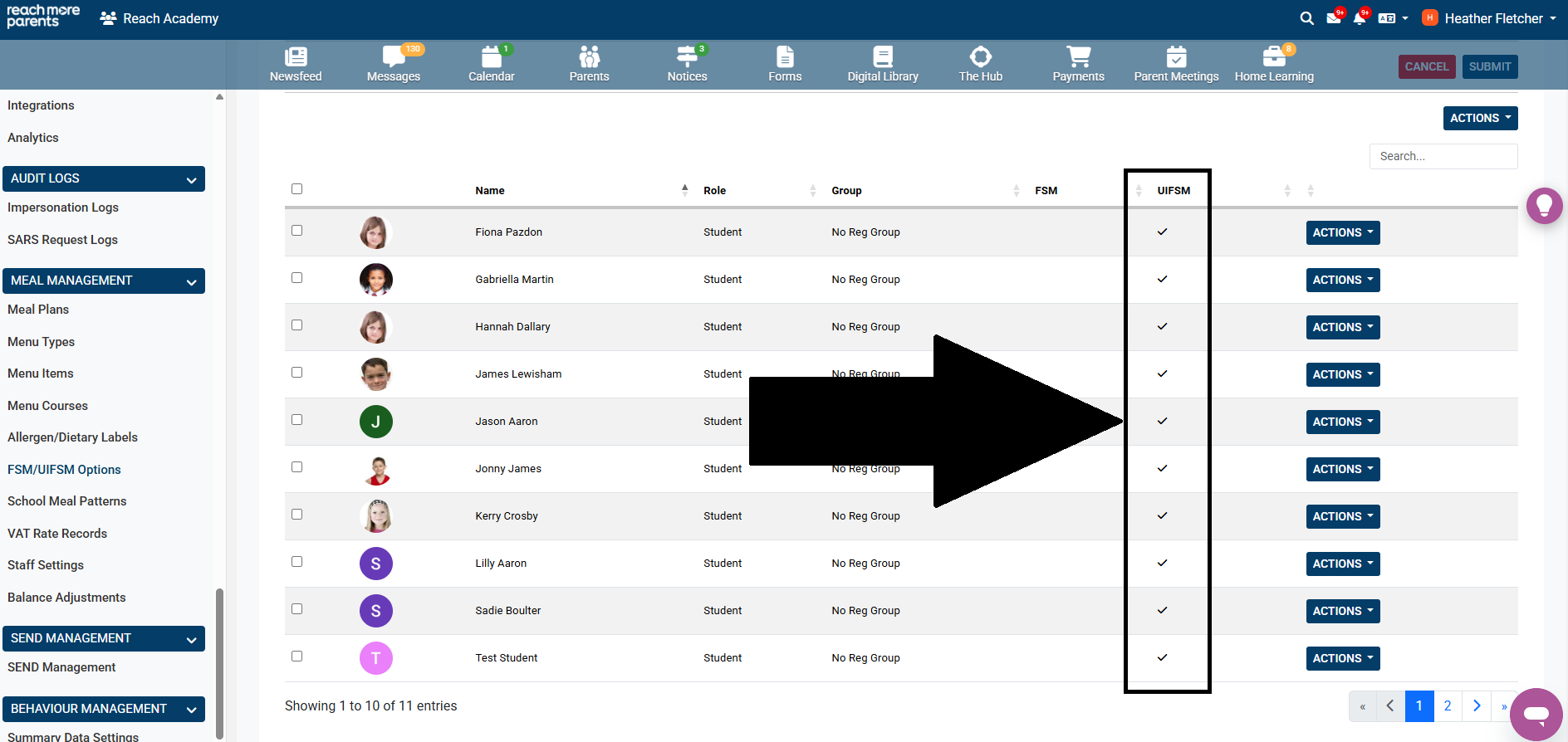
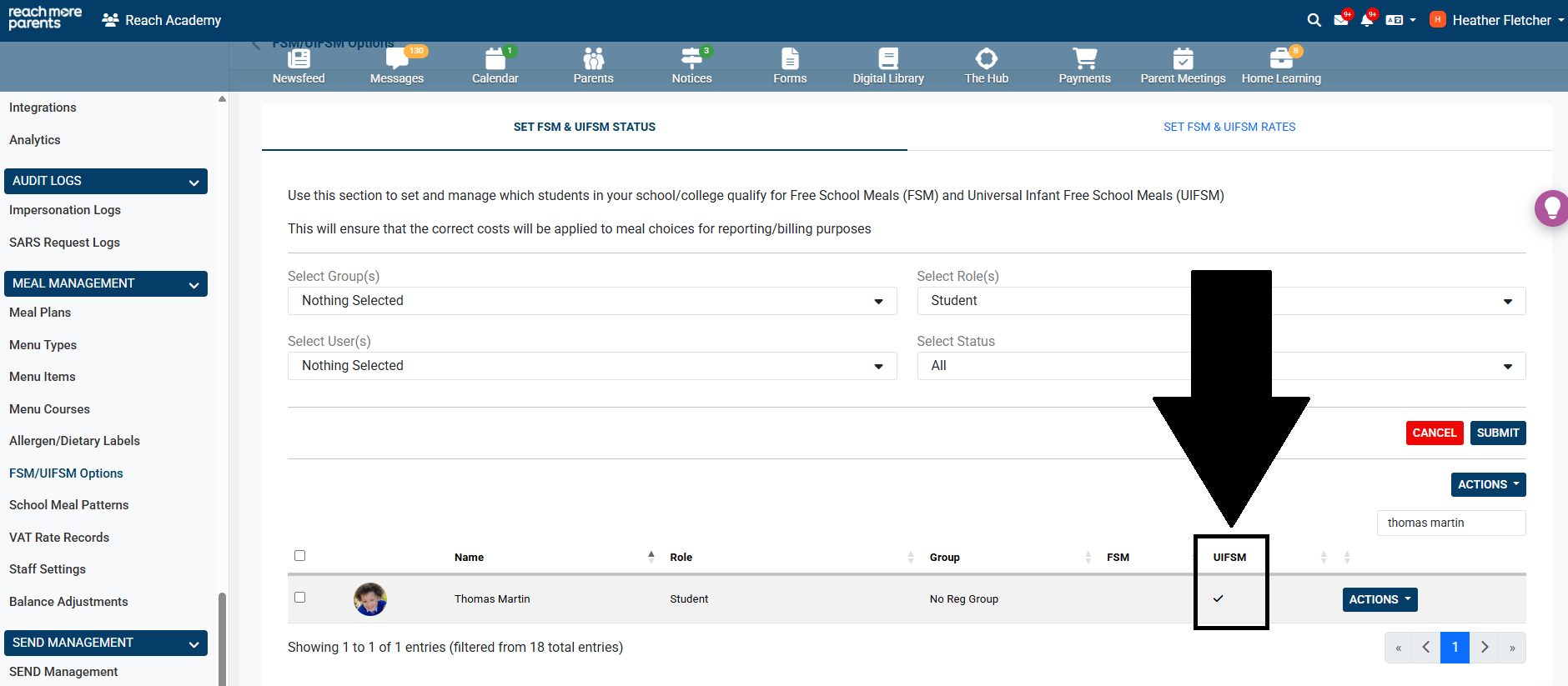
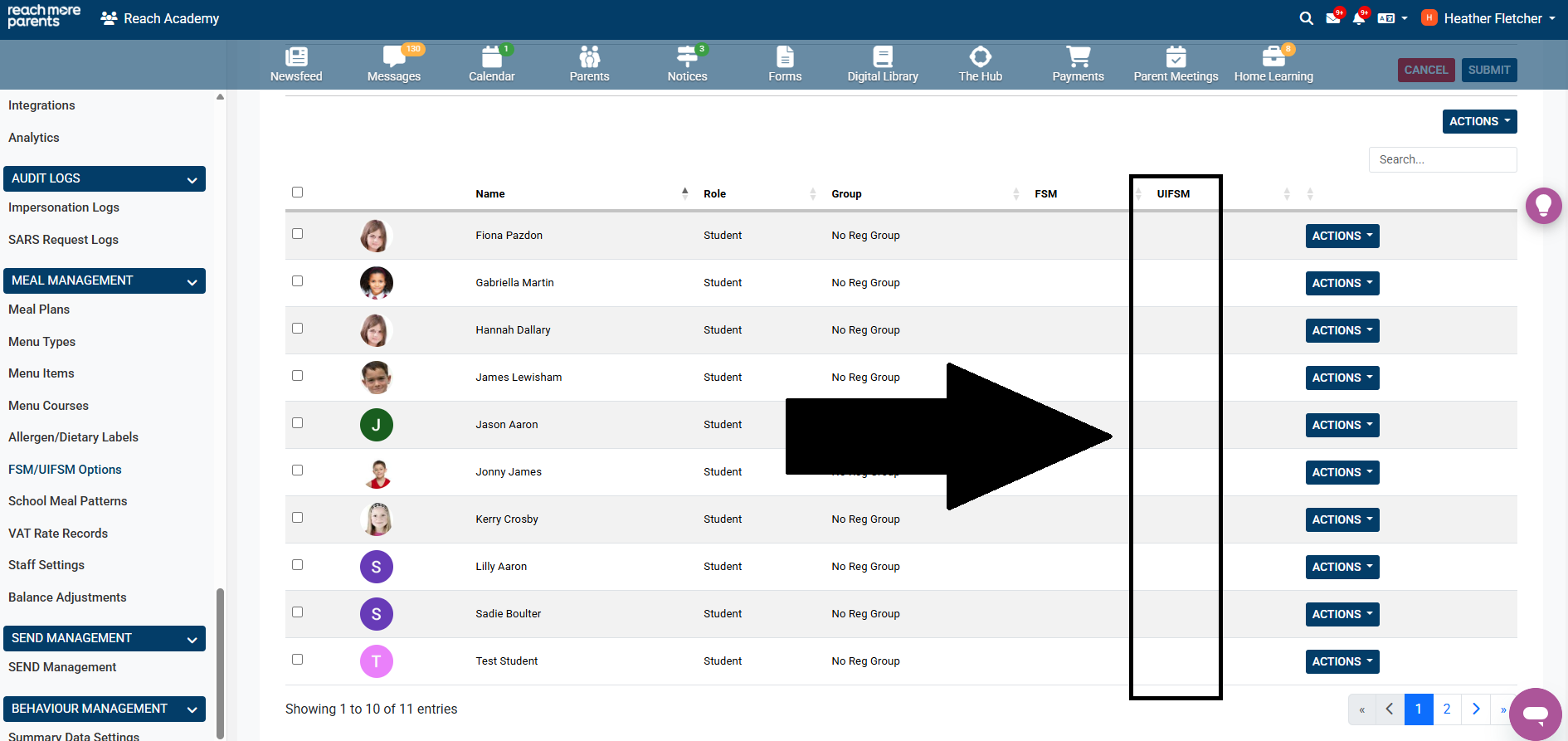
9) Once applied, a tick will appear in the UIFSM column against every student in the list. This means that UIFSM status has now been applied.
How to Apply UIFSM Status to an Individual Pupil
If a pupil joins your school part way through the academic year and they are eligible for Free School Meals (FSM), there is no action required in ReachMoreParents and you will just need to make sure that FSM status has been applied to the pupil in your school's MIS. To find out more about how pupils with the FSM flag automatically update in ReachMoreParents, please refer to our guide here.
If a pupil joins your school part way through the academic year and they are eligible for Universal Infant Free School Meals (UIFSM), you will need to apply UIFSM status to the pupil in ReachMoreParents. This will help prevent parents from being incorrectly billed for meals. To apply UIFSM status to an individual pupil, please follow the steps below:
1) Follow steps 1-3 in ‘How to apply UIFSM status to Reception/EYFS Pupils' which will bring you into the ‘FSM/UIFSM Options’ area.
2) Select the ‘SET FSM & UIFSM STATUS’ tab.
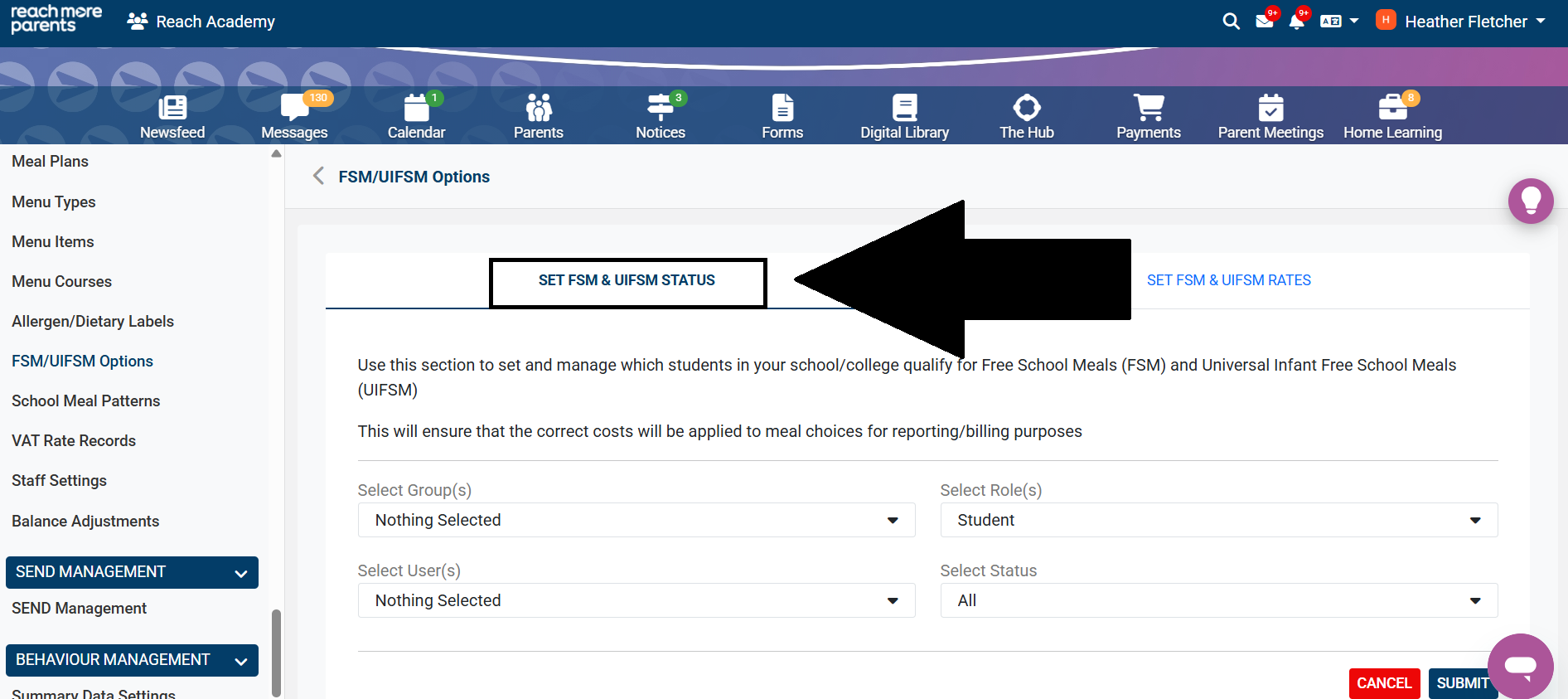
3) Click 'Submit.'
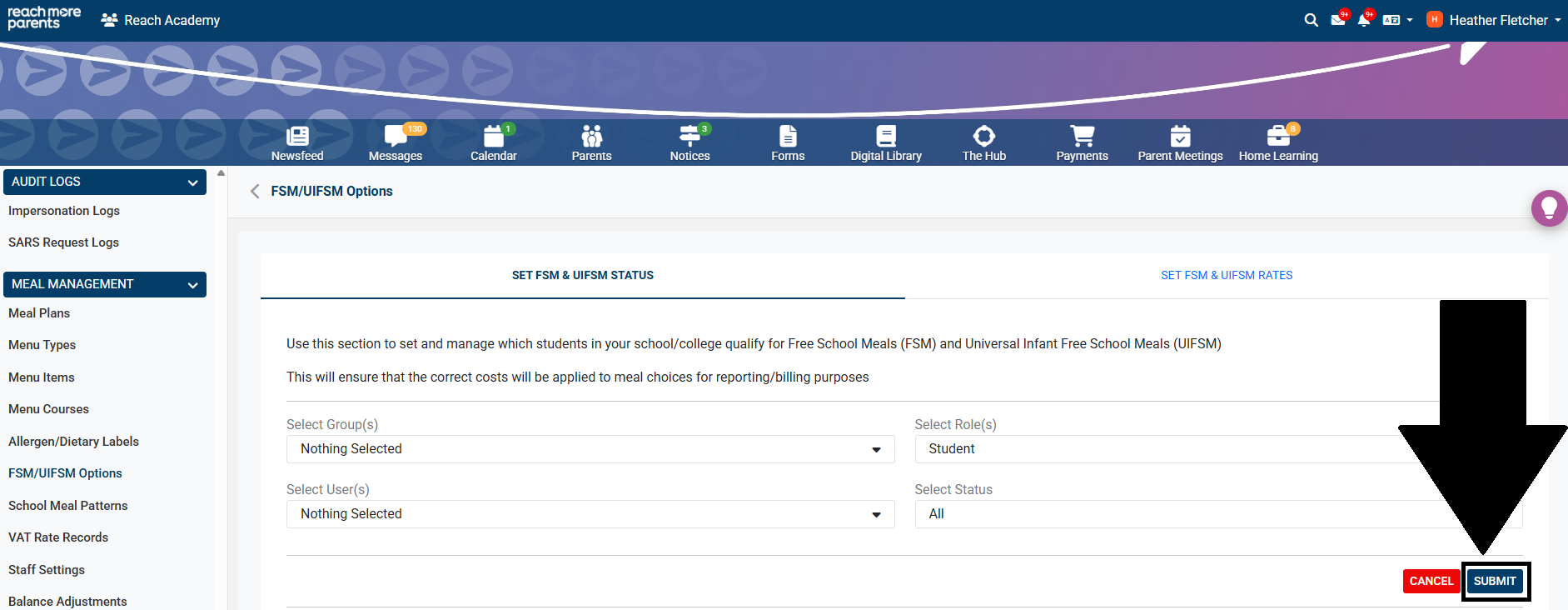
4) Search for the pupil by typing their name into the search bar.
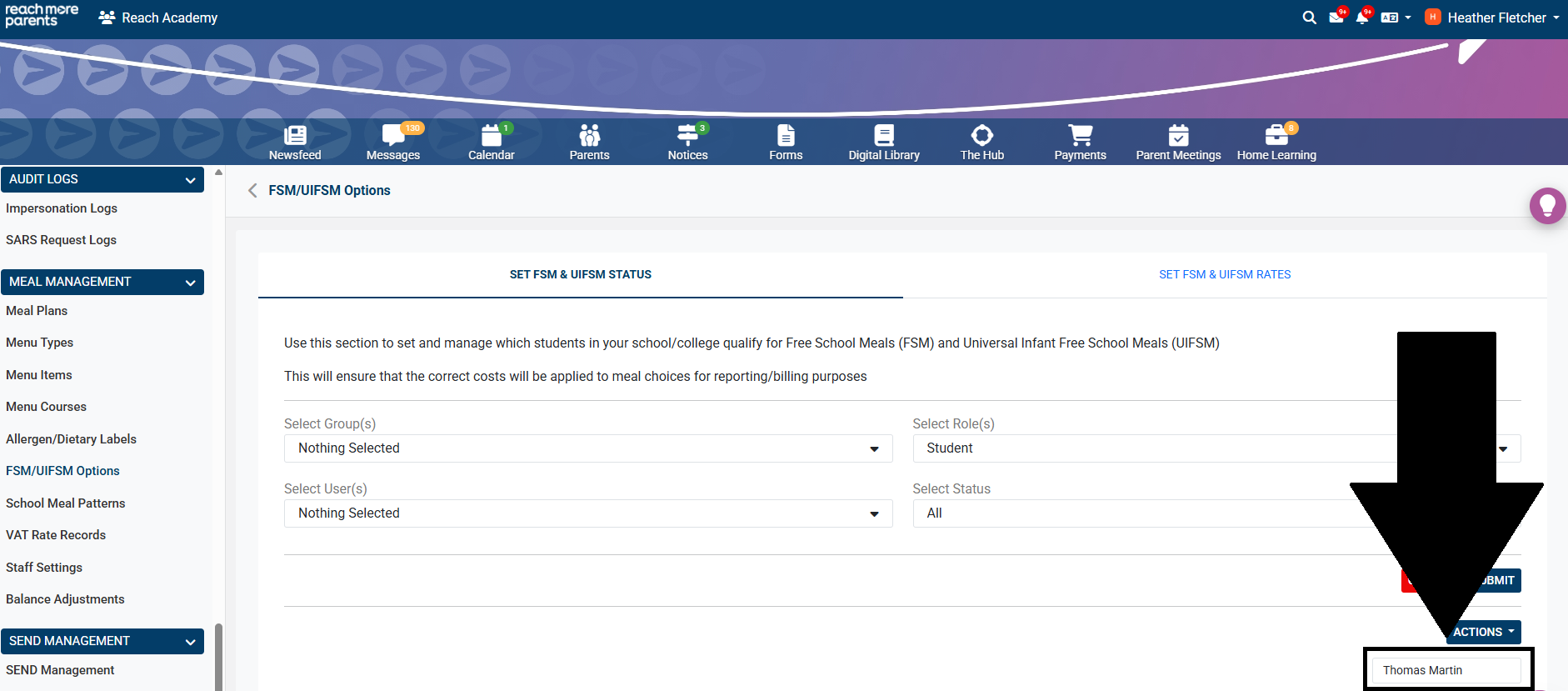
5) Click the 'Actions' next to the pupil's name in the table.
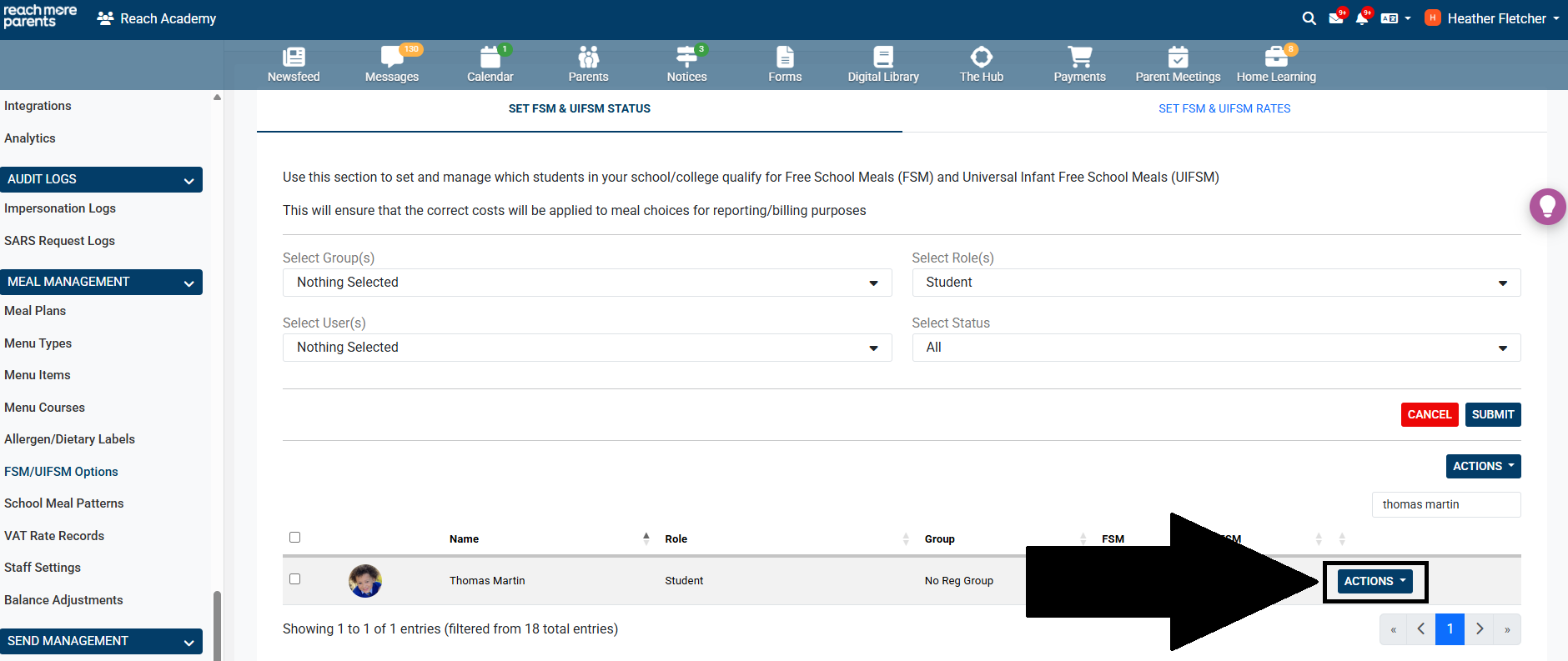
6) Click 'Apply UIFSM Status.'
7) The pupil will now have a tick in the 'UIFSM' column in the table to show that UIFSM status has been applied.
How to Remove UIFSM Status for Year 3 Pupils
At the start of a new academic year, Year 3 pupils will need to have their UIFSM status removed in ReachMoreParents so parents can be billed correctly for meals. If any Year 3 pupils are eligible for Free School Meals, the FSM flag must be applied against all relevant pupils in your MIS to ensure that ReachMoreParents is updated accordingly. To find out more about how pupils with the FSM flag automatically update in ReachMoreParents, please refer to our guide here.
To remove UIFSM status for Year 3 in ReachMoreParents, please follow the steps below:
1) Follow steps 1-3 in ‘How to apply UIFSM status to Reception/EYFS Pupils' which will bring you into the ‘FSM/UIFSM Options’ area.
2) Select the ‘SET FSM & UIFSM STATUS’ tab.
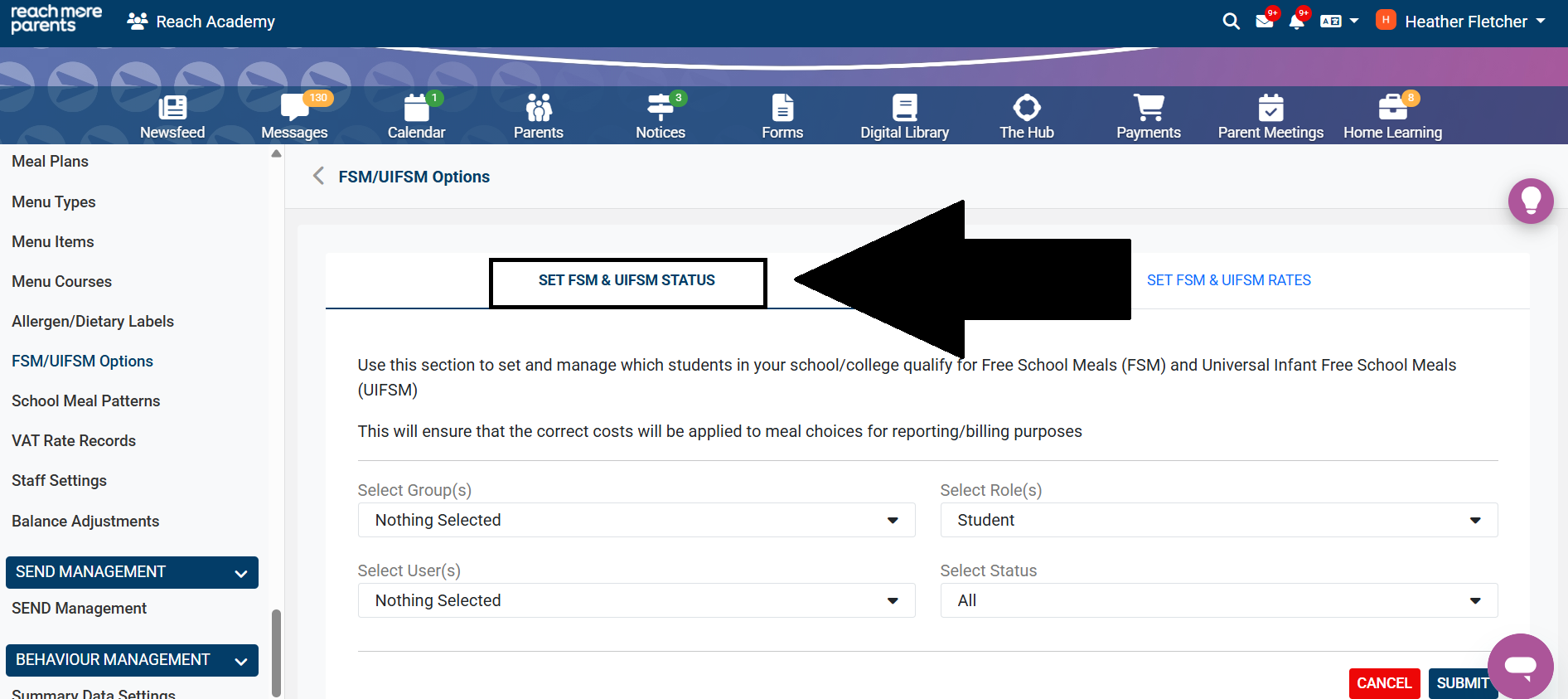
3) Select Year 3 from the 'Select Groups' drop-down.
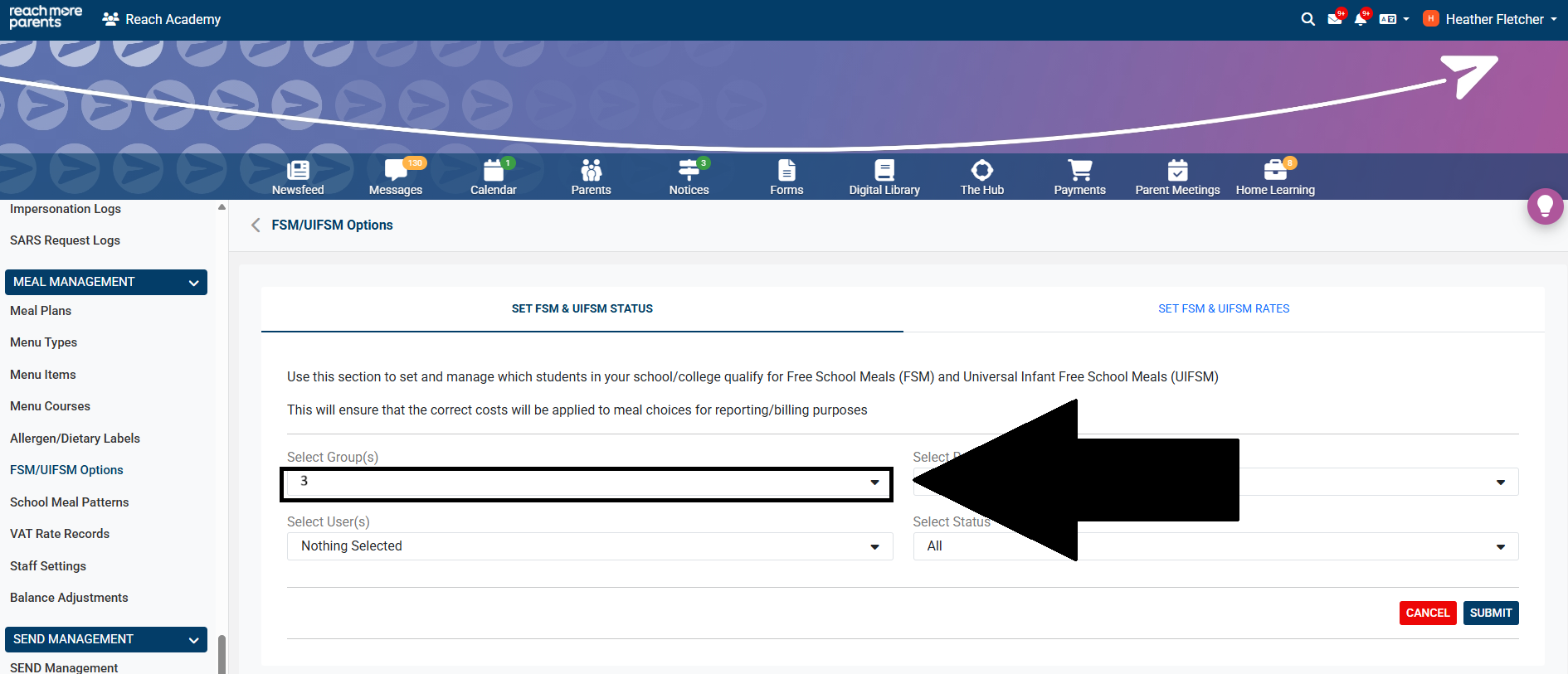
4) Click ‘Submit.’
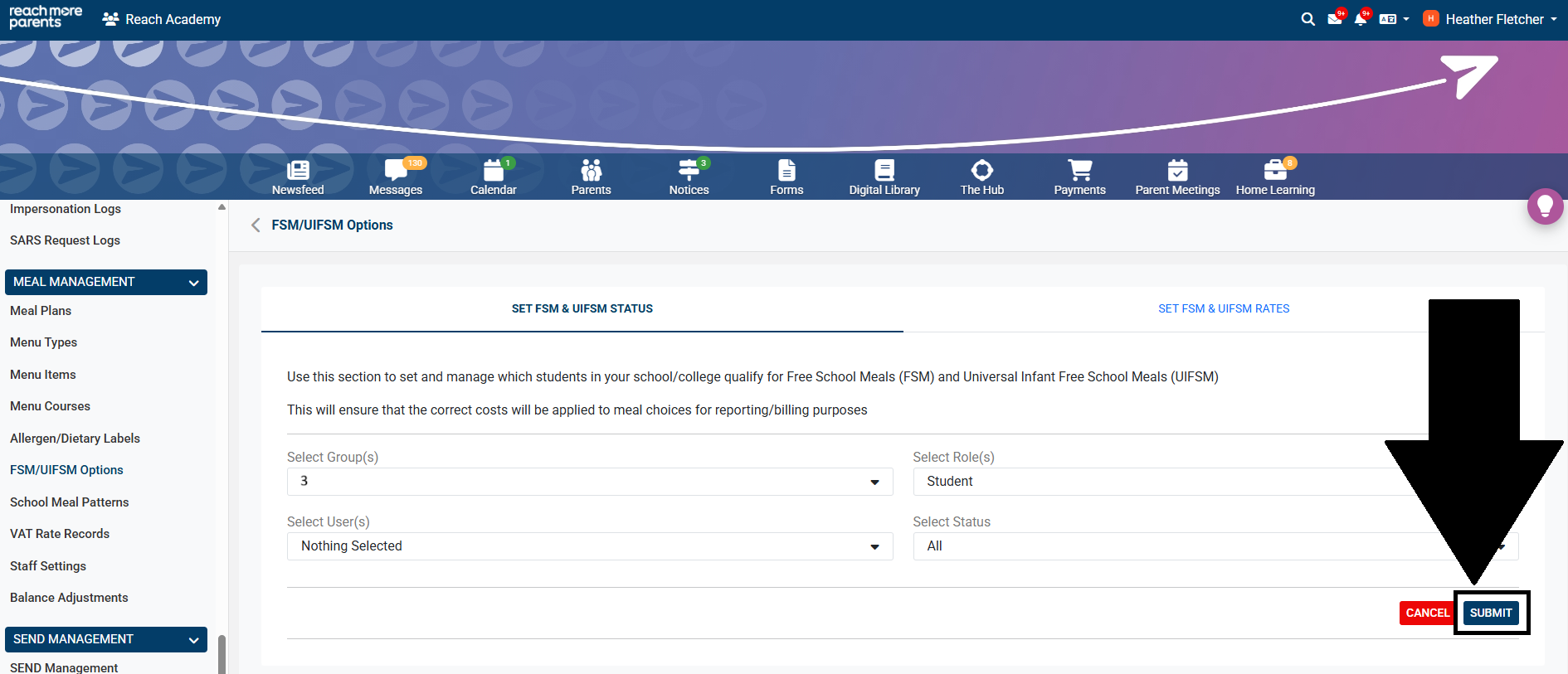
5) Tick the box at the very top of the list of pupils to select all.
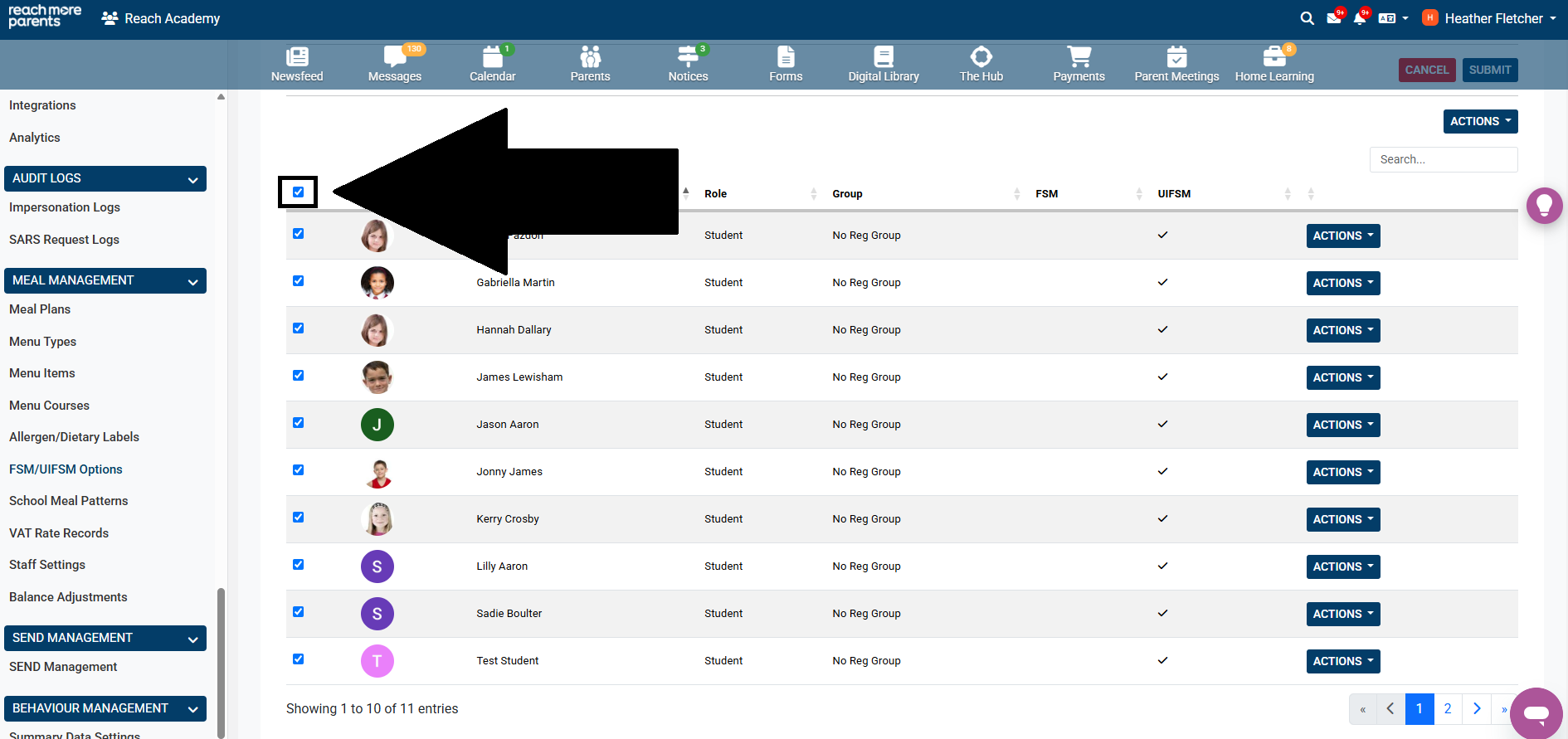
6) Click the ‘Actions’ button to the top right of the table and select ‘Remove UIFSM Status’.
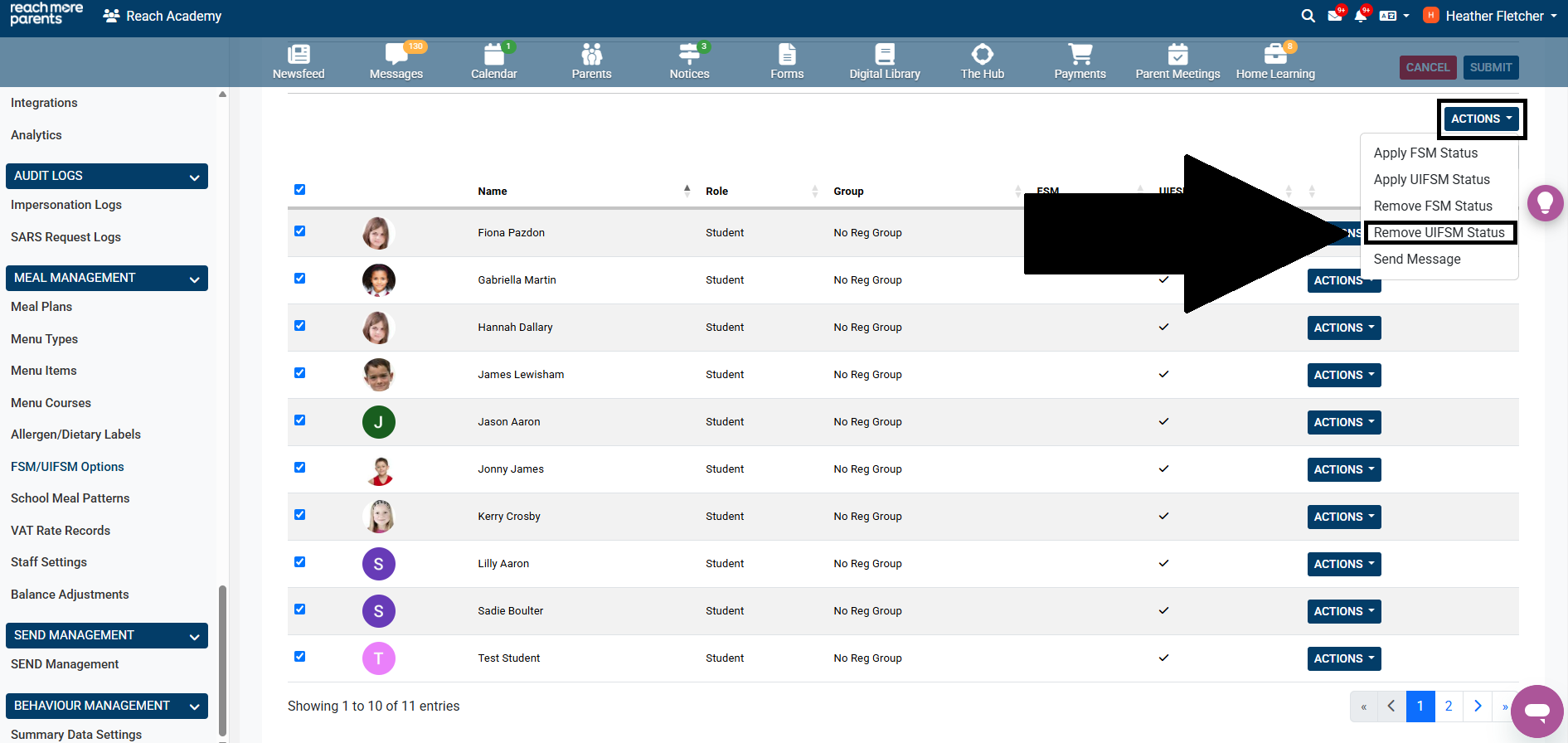
7) Once removed, all ticks will disappear from the 'UIFSM' column against every pupil in the list. This means that UIFSM status has now been removed.
**IMPORTANT**
1) Please ensure you apply/remove UIFSM status to your pupils BEFORE creating any meal plans.
2) Please ensure you have set your FSM/UIFSM rates in your ReachMoreParents platform once pupils have been assigned their FSM/UIFSM status. To find out more on how to set FSM/UIFSM rates, please review our guide here .
**Failure to carry out these processes correctly may result in your parents being incorrectly billed for meals.**