
Who this is for:
- Parents/Carers
Summary:
By the end of this article you will know:
- How to report your child’s absence using the ReachMoreParents app
Video walkthrough:

Step-by-step instructions:

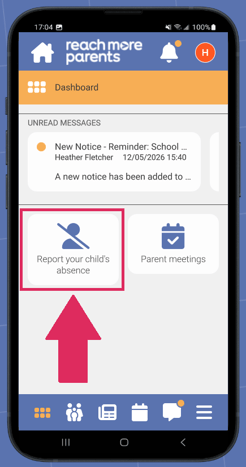
2) Tap the 'Report your child's absence' tile on the app dashboard.
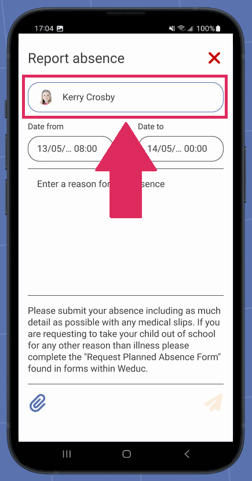
3) If you need to change the child you are reporting the absence for, click on your child's name at the top of the screen.
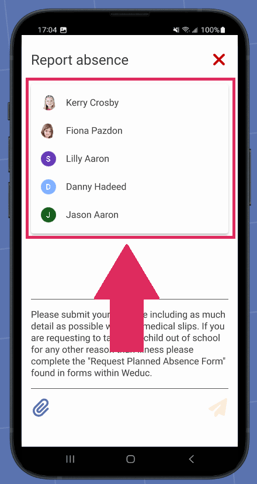
4) From the list, select which child you would like to report the absence for.
5) The 'Date from' field shows the first date of the absence and will automatically default to today's date. The 'Date to' field shows the last date of the absence and will automatically default to tomorrow's date.
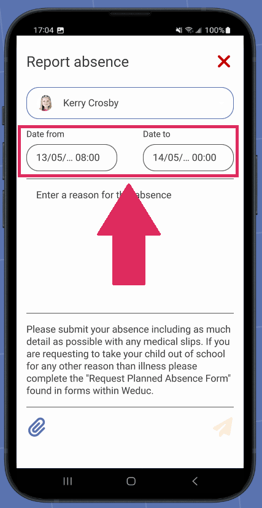
If the start and end dates displayed match the dates you would like to report the absence for, please skip ahead to step 7.
If the start date needs to be amended, please see step 5a.
If the end date needs to be amended, please see step 6a.
Amending the first date of absence
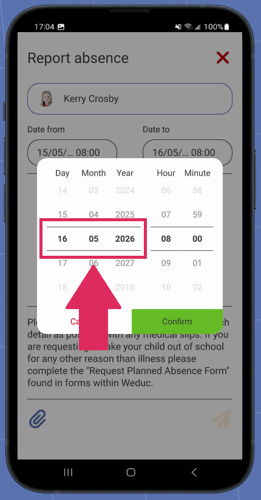
5a) To amend the first date of absence, tap inside the 'Date from' field.
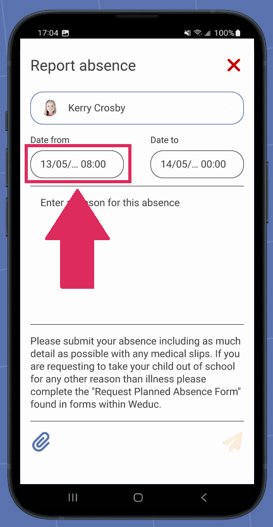
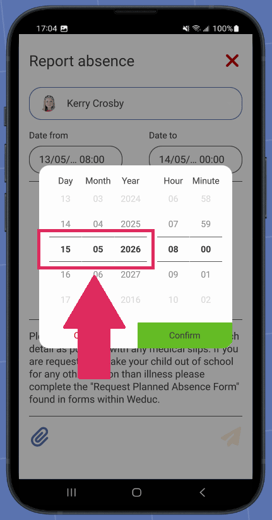
5b) Select the date which marks the first date of the absence.
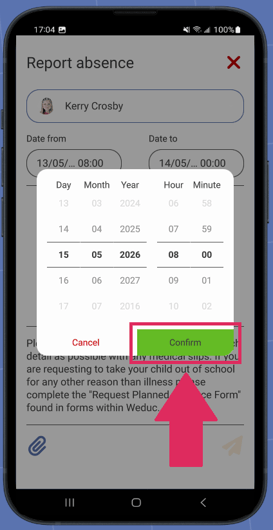
5c) Tap 'Confirm.'
Amending the last date of absence
6a) To amend the last date of absence, tap inside the 'Date to' field.
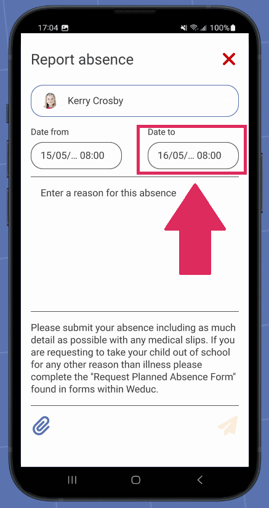
6b) Select the date which marks the last date of the absence.
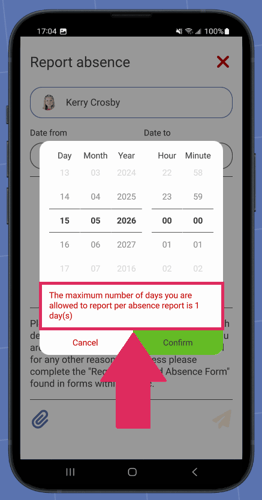
Please note that your child's school may have limited the number of days you can report your child's absence for. If this is the case, you will see a red warning message which means you will be required to adjust the 'date to' for the absence so that it falls in line with the school's absence policy.
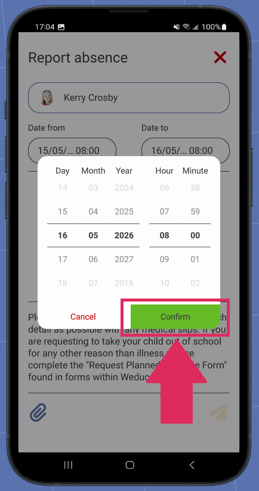
6c) Once you have adjusted the end date (if required), tap 'Confirm.'
Adding a reason for absence
7) Type a reason for the absence.
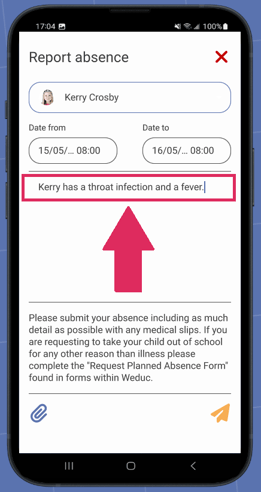
If you would like to add an attachment to your absence request (optional), see step 8a.
If you would like to continue without adding an attachment, please skip ahead to step 9.
Adding an attachment
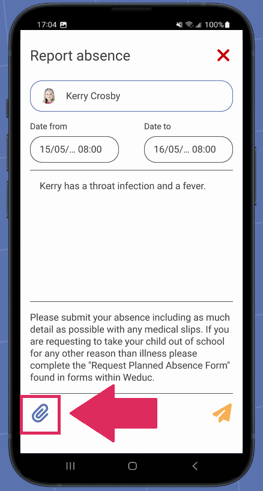
8a) Tap the paper clip icon.
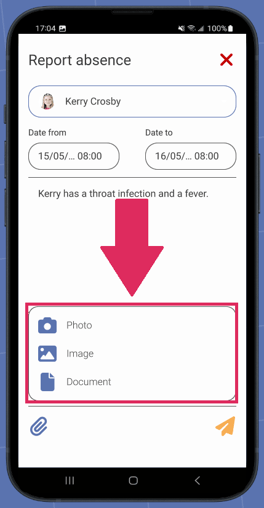
8b) Tap 'Photo,' 'Image' or 'Document' to select the file type you would like to attach. You will then be prompted to select the relevant file(s) if attaching an image or document, or take a photo.
Sending your absence request
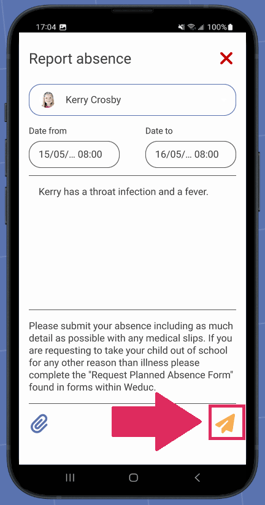
9) Tap the paper airplane icon to send your absence request.
Troubleshooting & FAQs:
-
I need to report my child's absence for more than one day but when I try to do this, a message displays saying, 'The maximum number of days you are allowed to report per absence report is 1 day(s).' What should I do?
If your child is absent from school due to illness, you will need to submit an absence request form every day that your child is ill. If your child is absent for another reason, we recommend checking the school's absence policy or contacting the school for further information on how you should report the absence.
Related articles:
Still need help?
Contact our team at support@weduc.com or on 01509 221349 (option 2).