
Why Use Two-Factor Authentication (2FA)?
Two-factor authentication helps protect your account by adding an extra layer of security. Even if someone gets hold of your password, they won’t be able to log in without a unique code from your phone. It’s a simple way to keep your data safer.
How to set up Two-Factor Authentication (2FA)
- Log in to the platform, then click your name in the top right-hand corner.
- Then select “User Account” from the dropdown menu
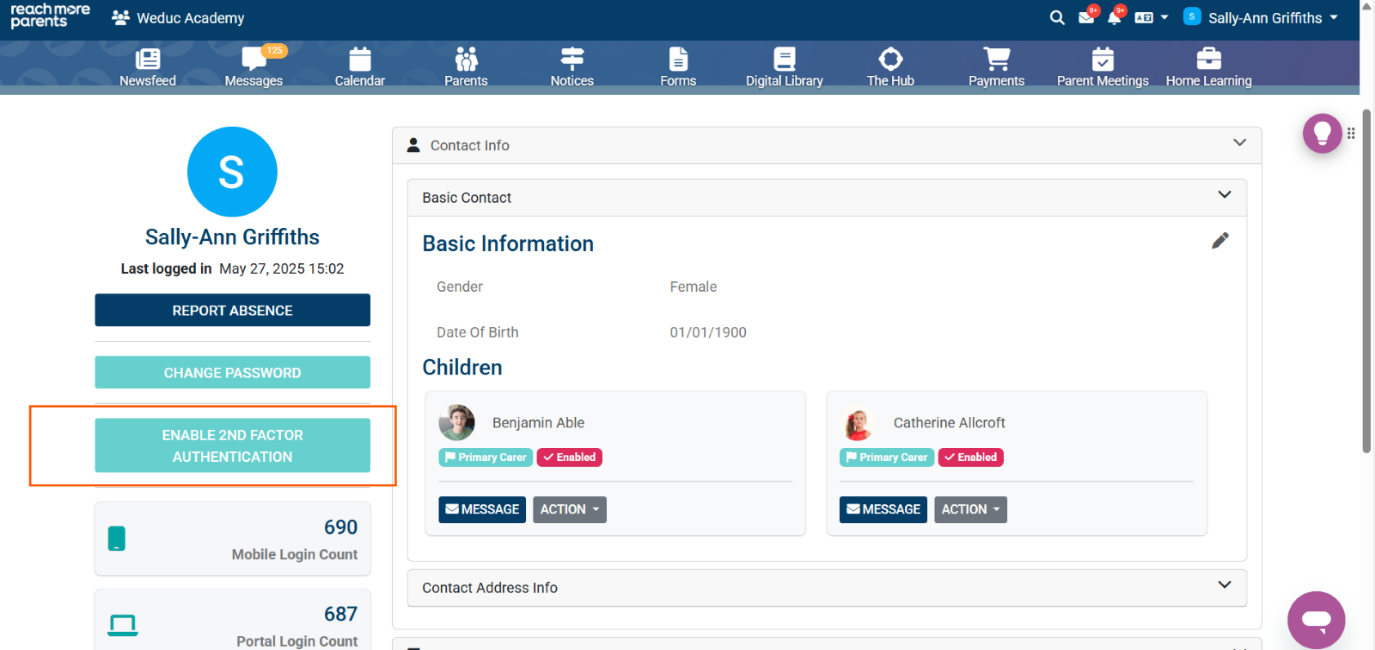
- Click the button labelled “ENABLE 2ND FACTOR AUTHENTICATION” (see screenshot below).
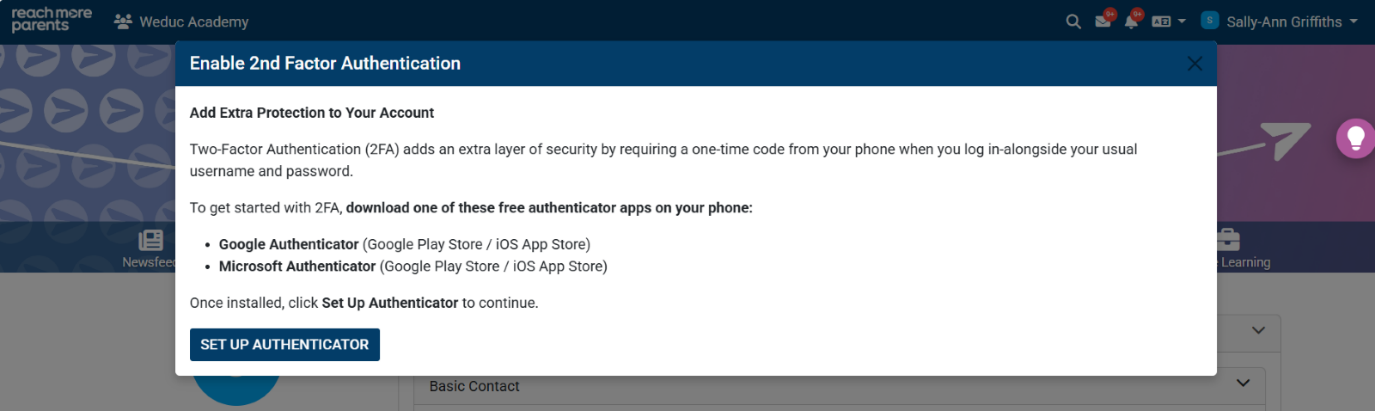
4. A screen called Enable 2nd Factor Authentication will load, asking you to download an authenticator app on your mobile phone. Please choose your preferred method and download the appropriate app.
-
- Google Authenticator – Google Play Store / Apple Store
- Microsoft Authenticator – Google Play Store / Apple Store
- Download your preferred app
- Click the button labelled “SET UP AUTHENTICATOR”
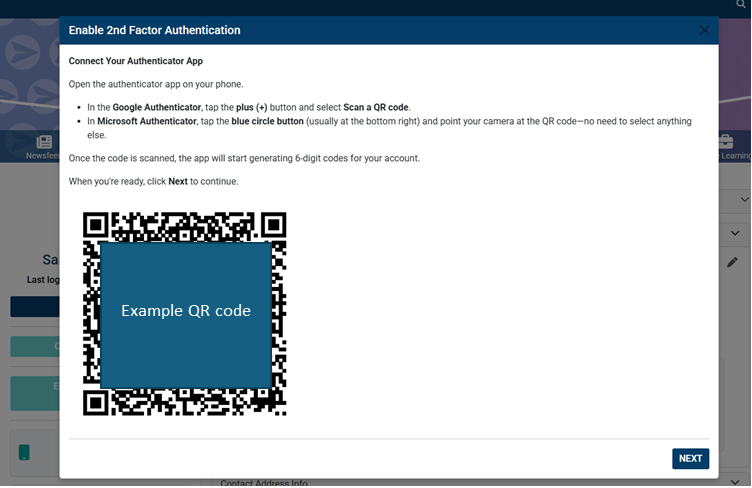
 5. A pop-up screen will load, asking you to connect your authenticator app.
-
- In Google Authenticator, tap the plus (+) button and select “Scan a QR Code”
- In Microsoft Authenticator, tap the blue circle button (usually at the bottom right)
- Scan the QR code
- Once the QR code is scanned, the app will start generating 6-digit codes for your account.
- Click the button labelled “NEXT” on the Enable 2nd Factor Authentication screen within RMP to continue.
6. A new pop-up screen will load, and your authenticator app on your mobile device will display a 6-digit code for your account.
7. Enter the code and click the button labelled “verify”
Note: This code refreshes every 30 seconds. If the code is not entered within 30 seconds or is entered incorrectly, a “failed to verify the code” message will appear. Please try again You will also not receive an email or SMS with your verification code. When the box above is visible within the RMP platform, please visit your chosen authenticator app and type in the code on screen that is associated with RMP.
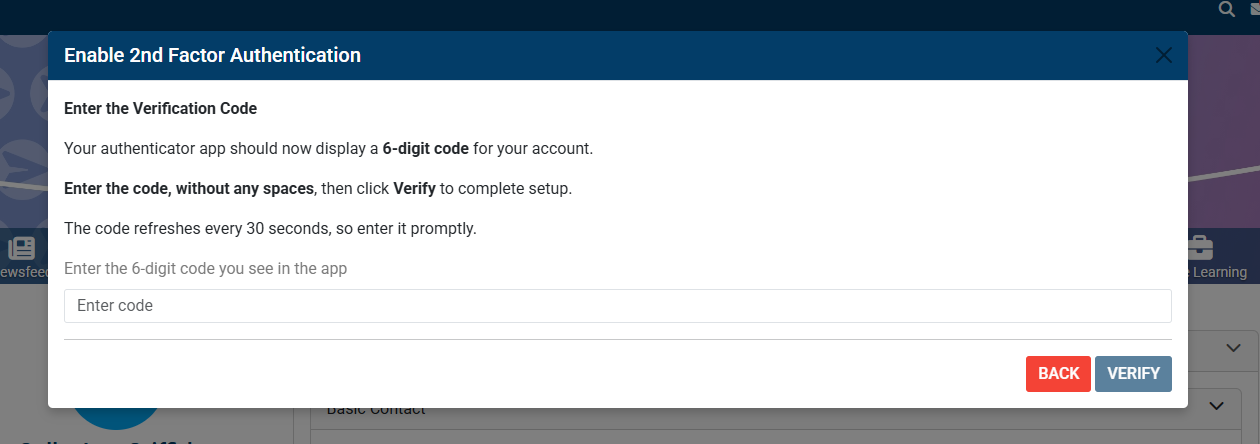
Please note: You will not receive an email or SMS with your verification code. When the box above is visible within the RMP platform, please visit your chosen authenticator app and type in the code on screen that is associated with RMP.
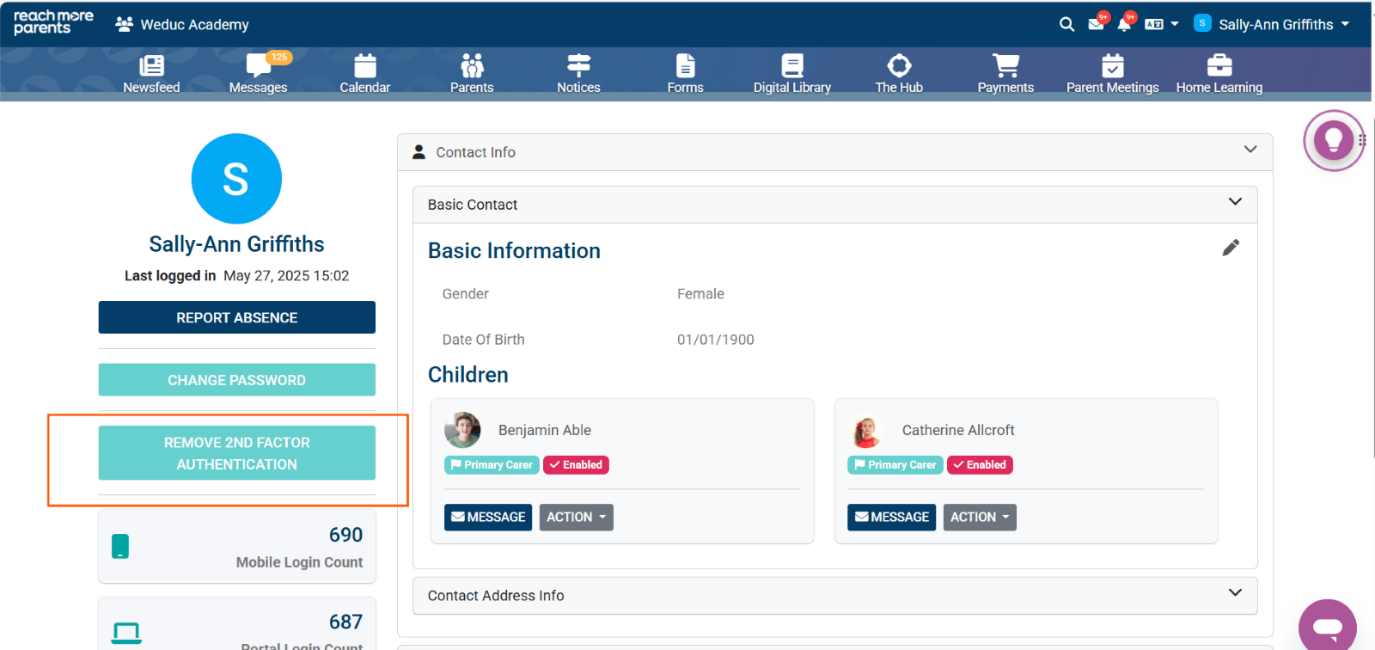
8. Once your code is accepted, 2FA is enabled.
You will notice the button label will be changed to REMOVE 2ND FACTOR AUTHENTICATION. (see screenshot below).
If you need any help setting up 2FA, please contact our Support Team by emailing us at support@weduc.co.uk or calling us on 01509 221 349 and selecting the option for Support.