
Within the ReachMoreParents PEMS feature, booking your parents evening appointments is for both parents as a default.
If you want to export the appointments you've made through the app to the other parent/carer for your child, this is possible and easy to achieve within the "View/Amend appointments" screen.
To get started, you need to access "Parent Meetings" through the App:
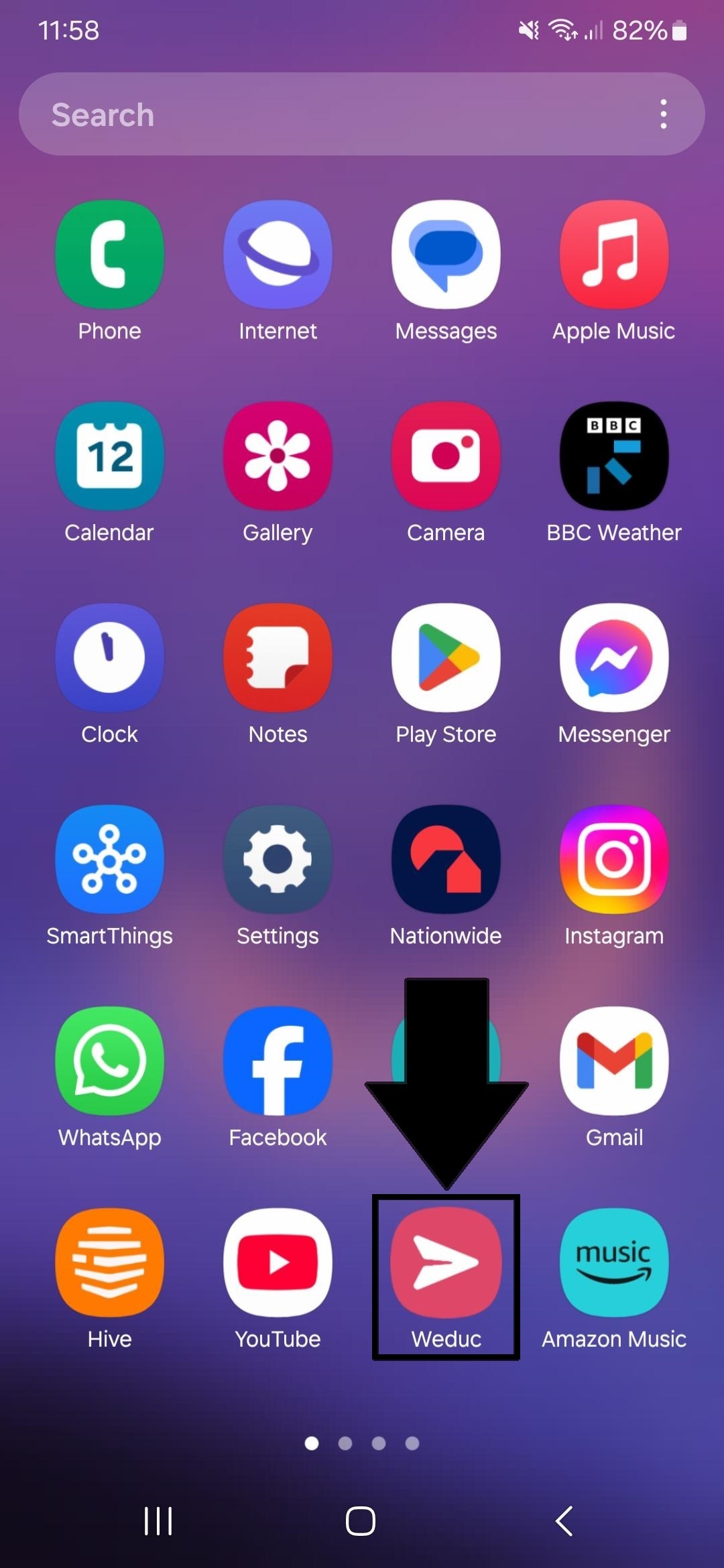
1) Tap on the ReachMoreParents app on your device home screen
2) Login using your Parent login username and password
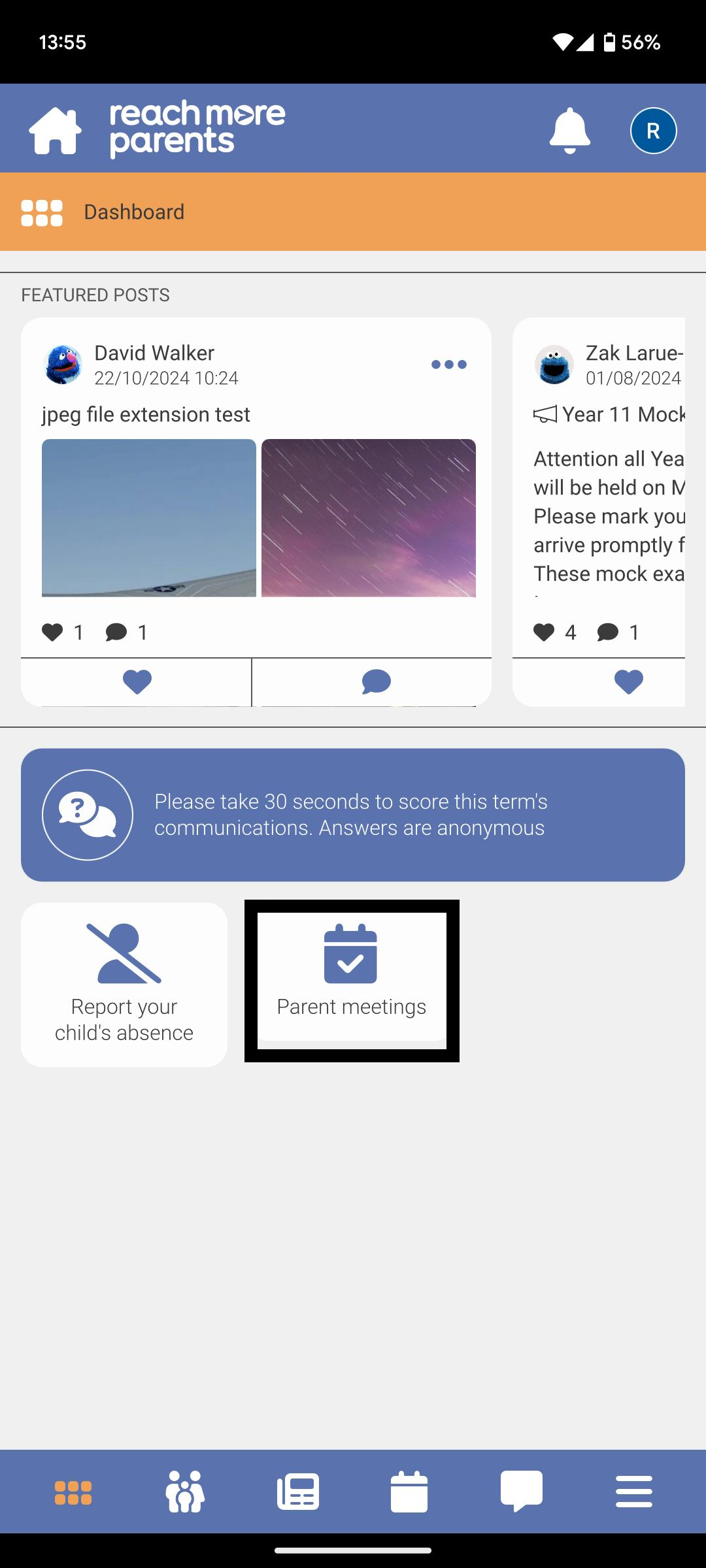
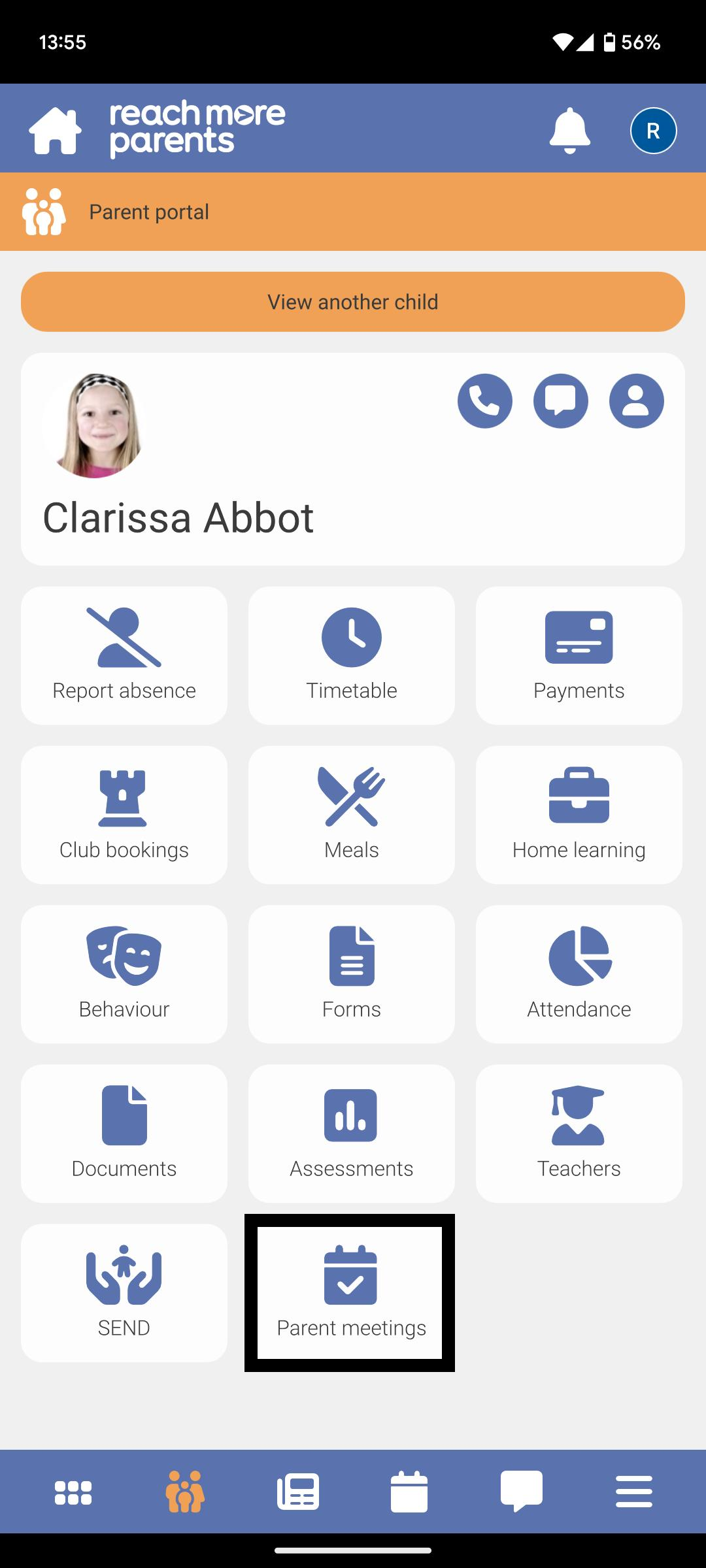
3) The "Parent meetings" tile will be present on the Dashboard if any eligible* events are available for the parent - (* Parent has at least one child associated with event, event is in the future or for the current day, the booking window is still open)
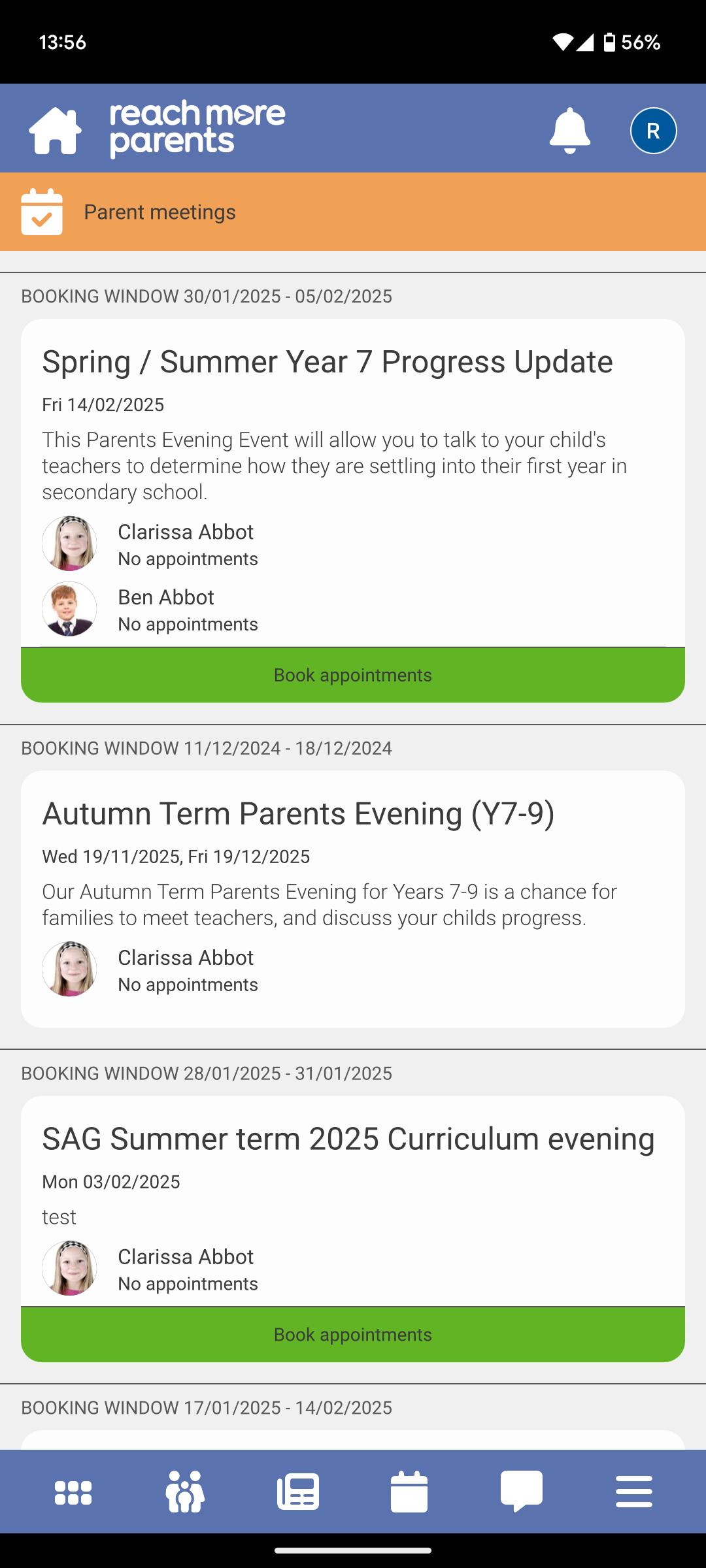
4) Tap on the Parent Meetings tile and any eligible* Parents Evening event(s) will be list in ascending event date order - (* Parent has at least one child associated with event, event is in the future or for the current day, the booking window is still open)
5) Alternatively, you can tap on the Parent Portal
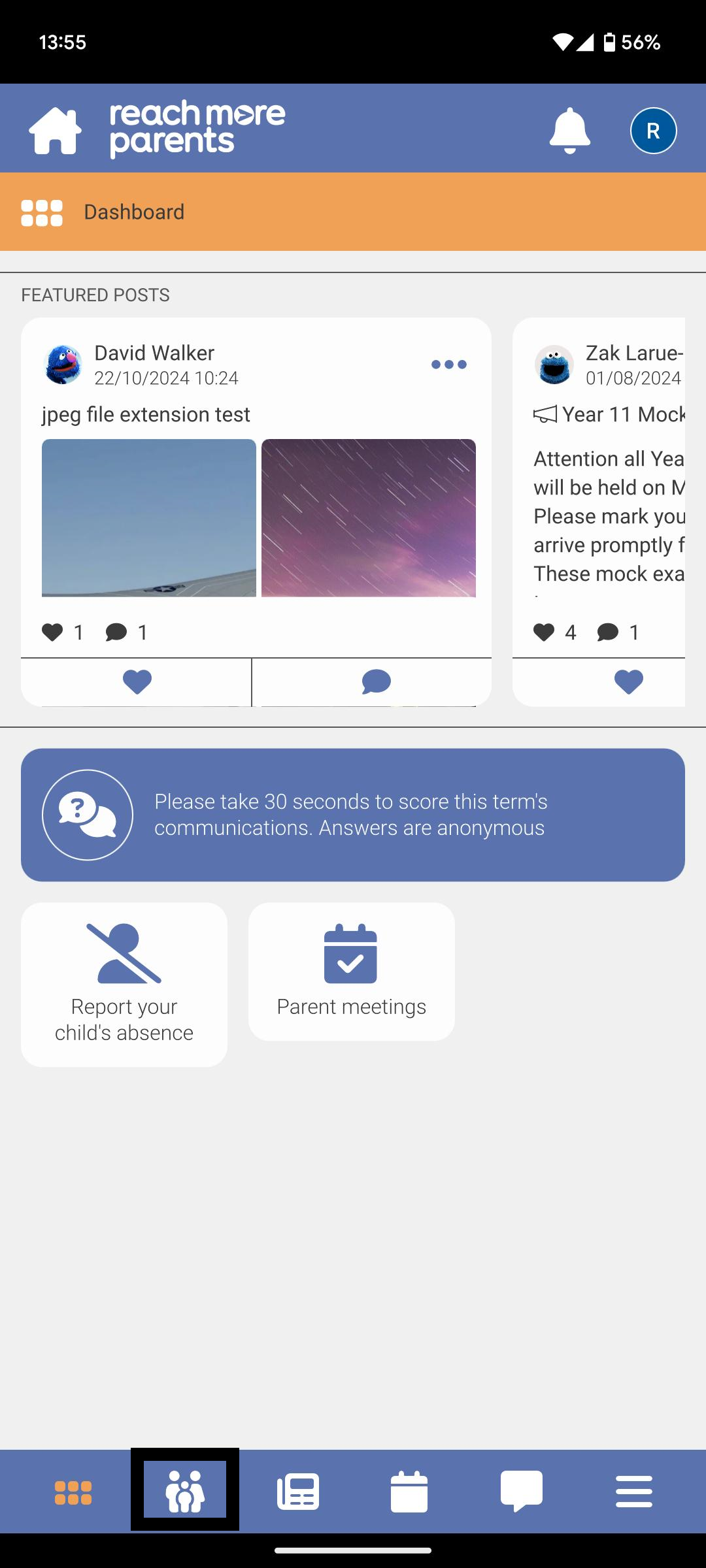
6) Then tap on the Parent meetings tile here to access your Parents Evening event(s)
Downloading a copy of a Child's Appointment Schedule
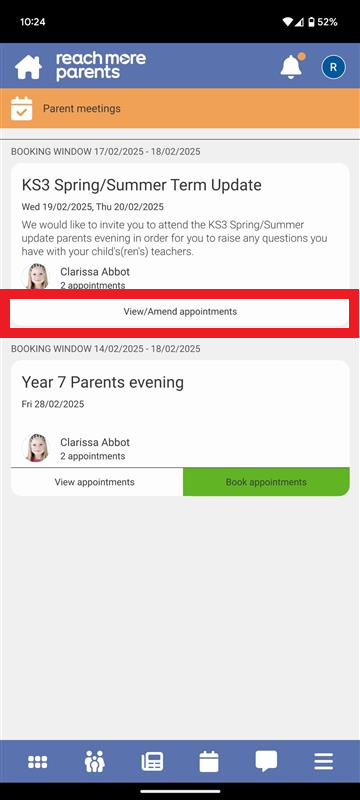
1) Tap on the "View/Amend appointments" button against the event you need to download the schedule for
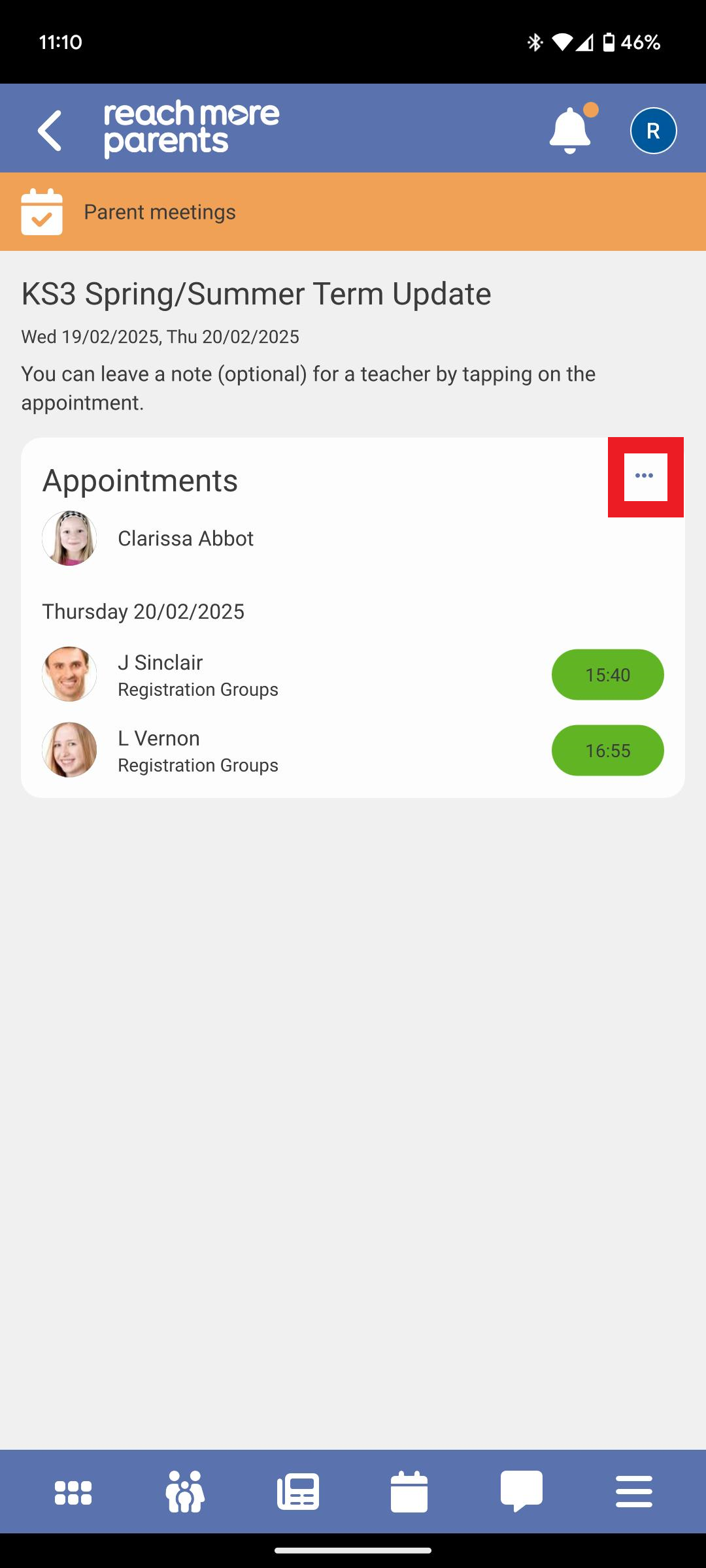
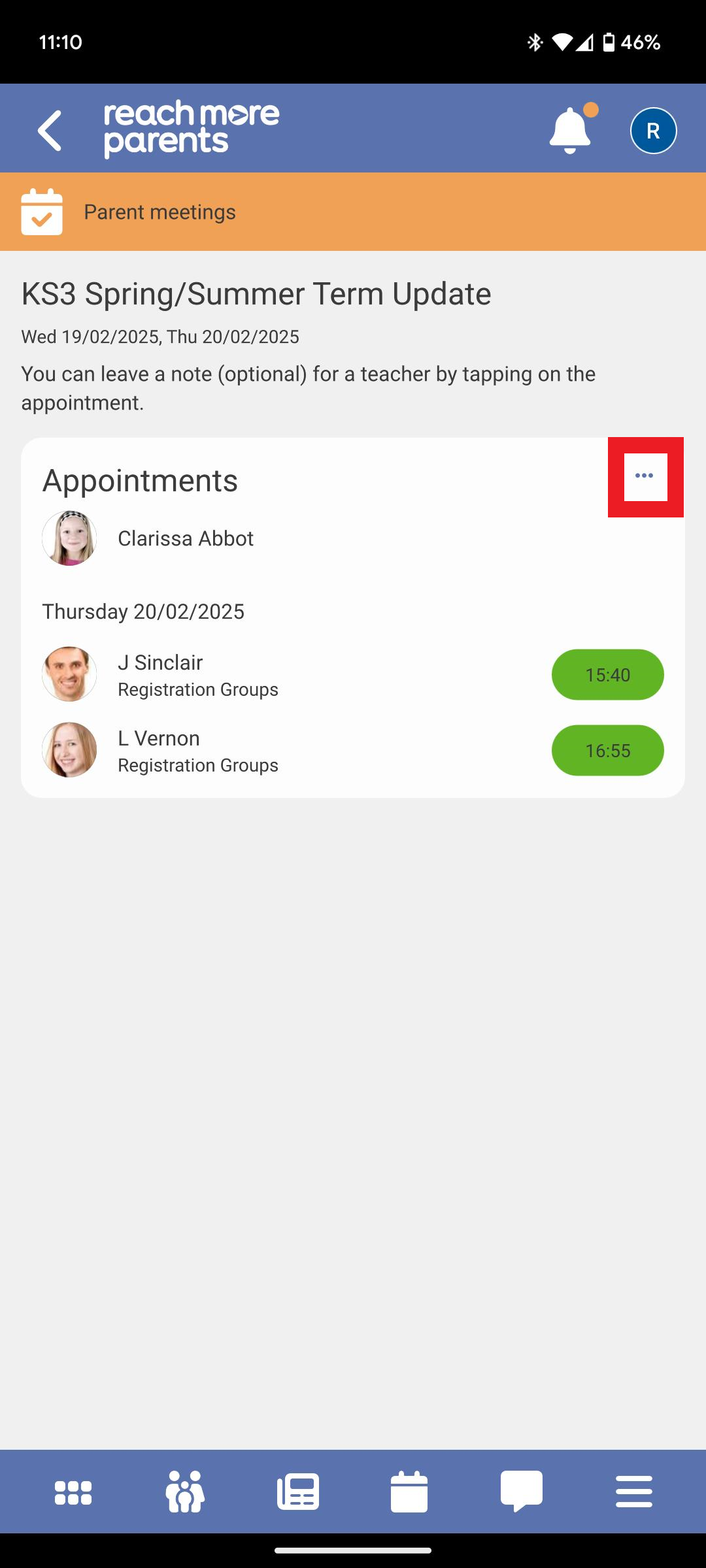
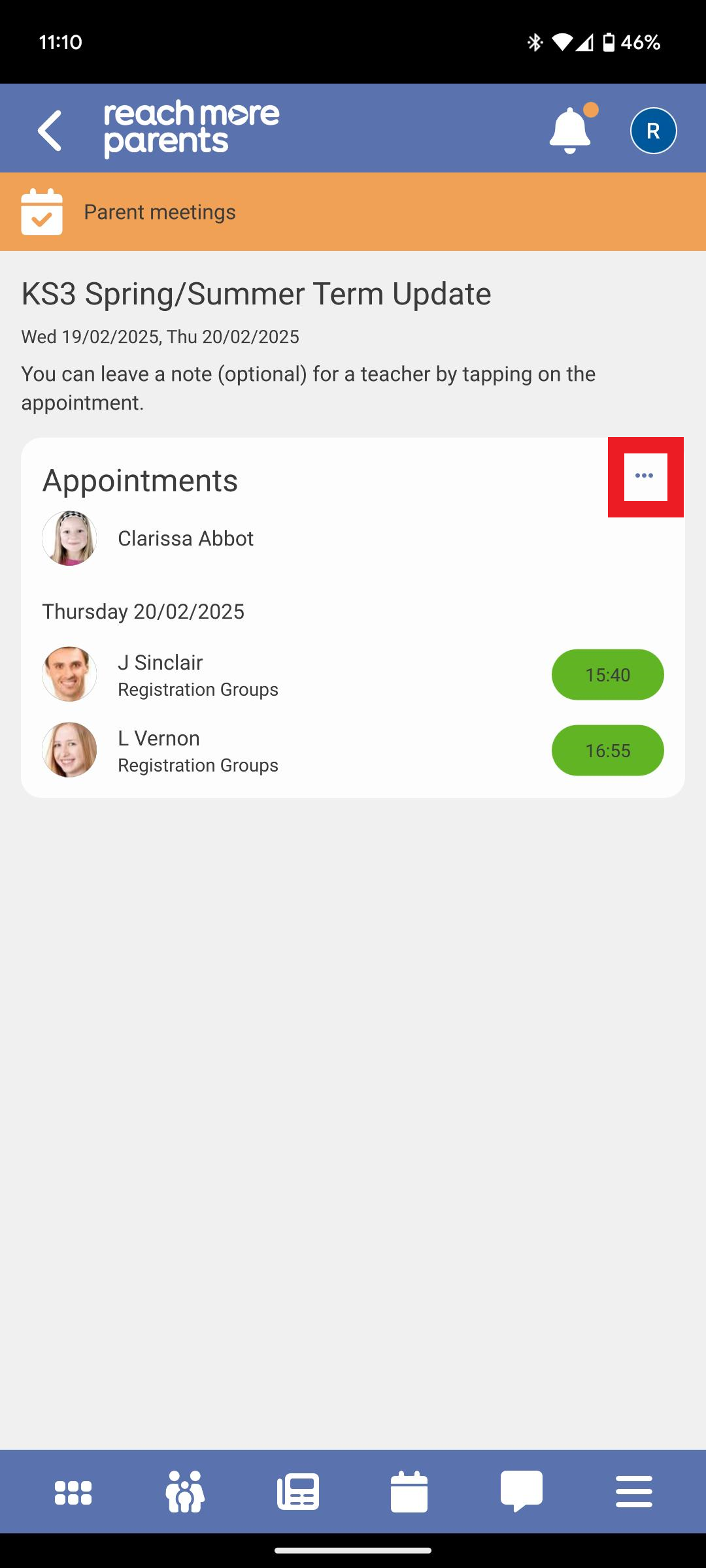
2) Within the block for the specific child, tap on the "..." ellipsis menu to access "Appointment options"
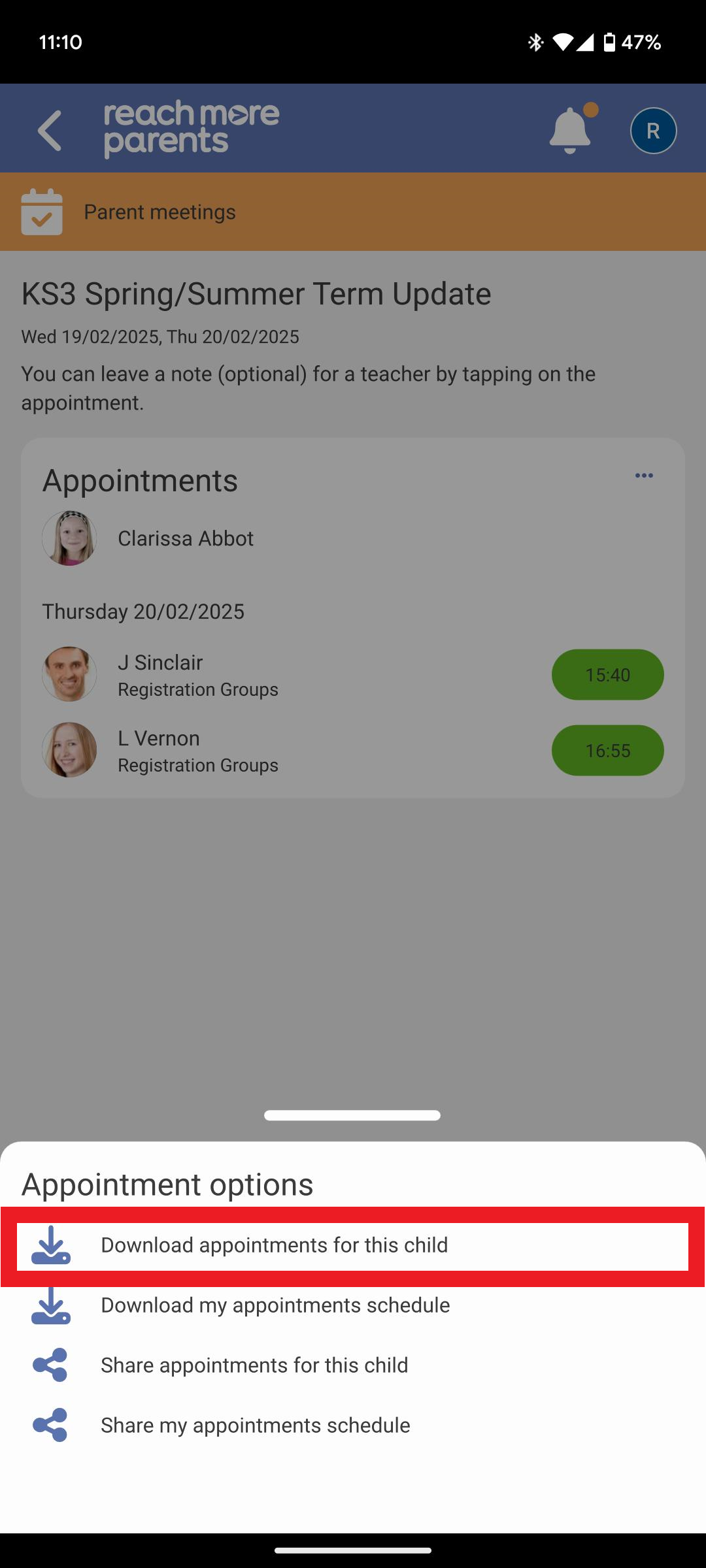
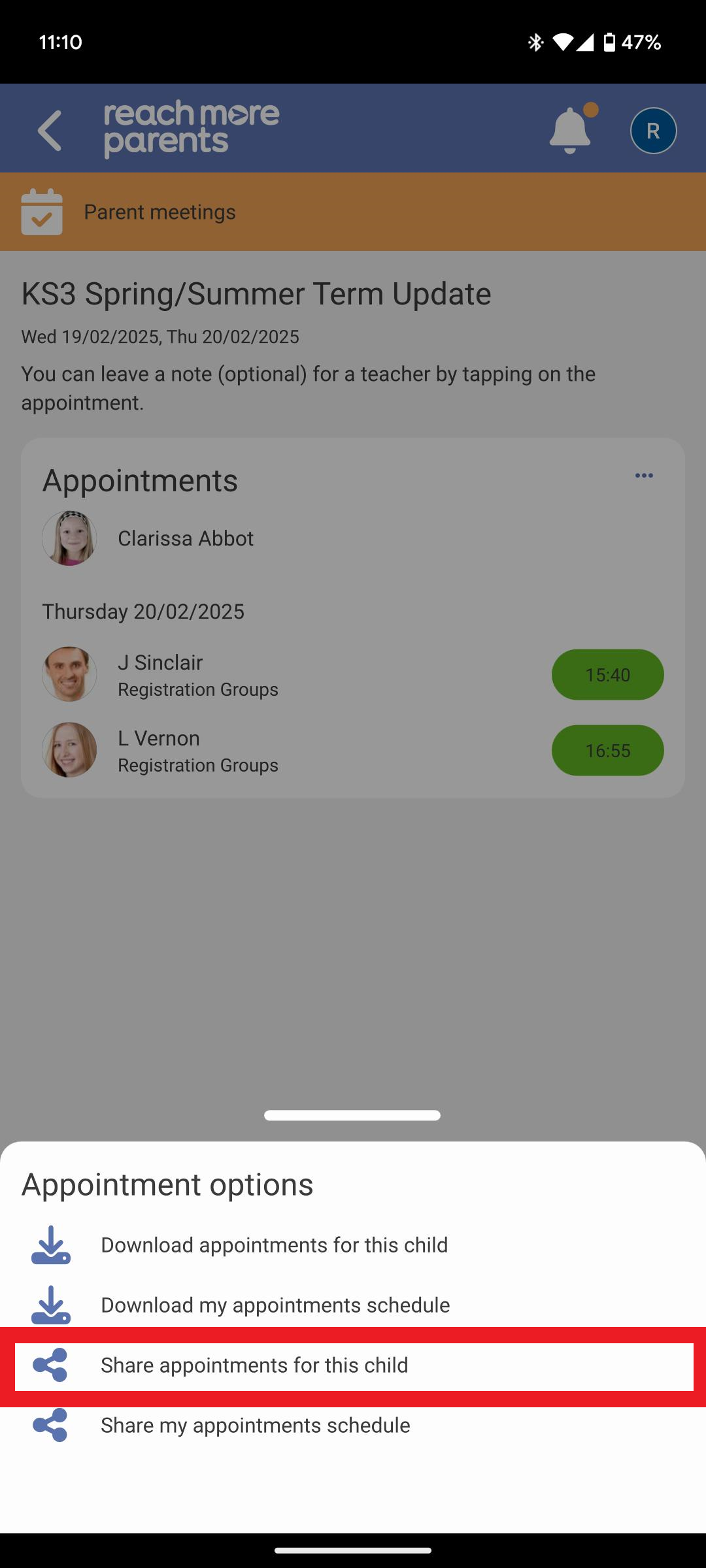
3) Tap on "Download appointments for this child"
4) Choose the file download location on your mobile device
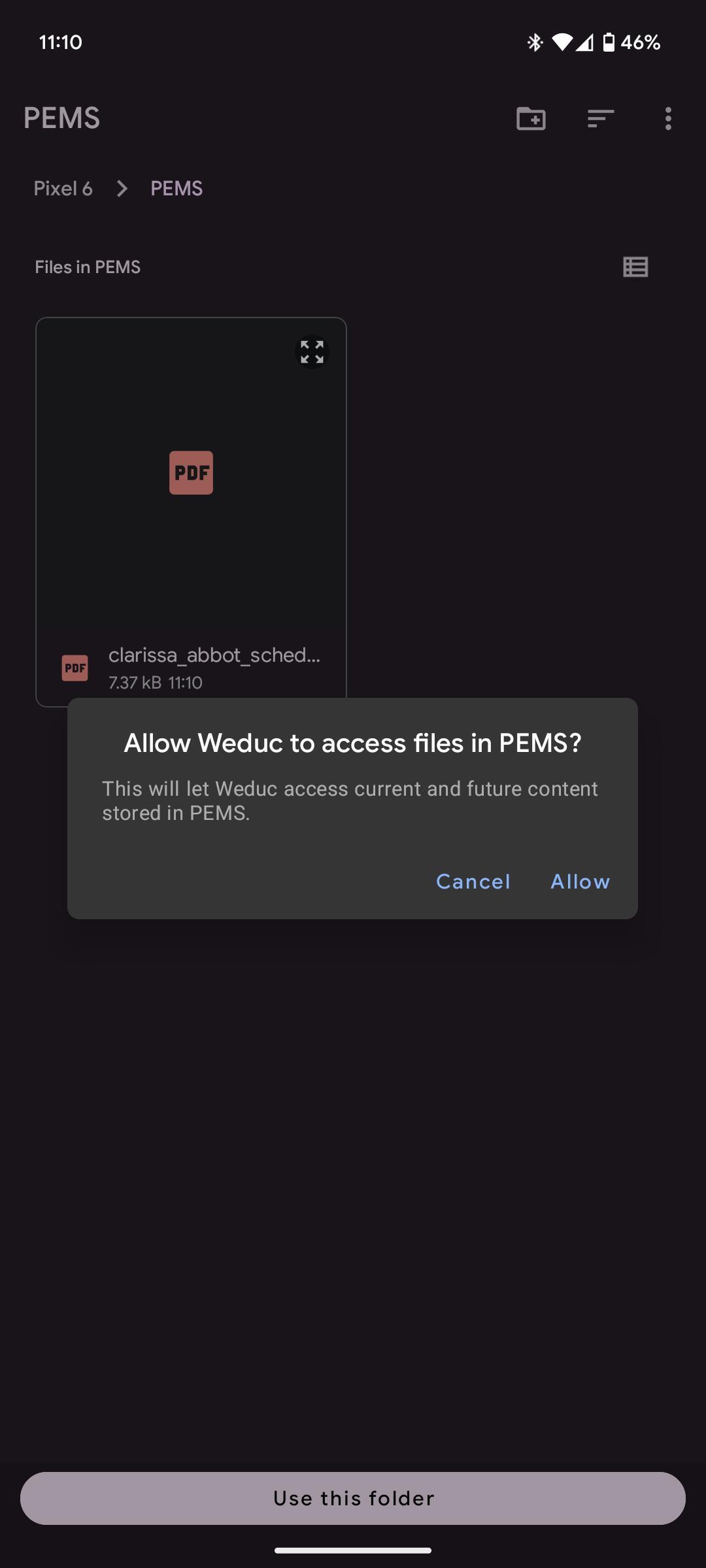
5) Tap on "Use this folder" to download the PDF to this location on your device
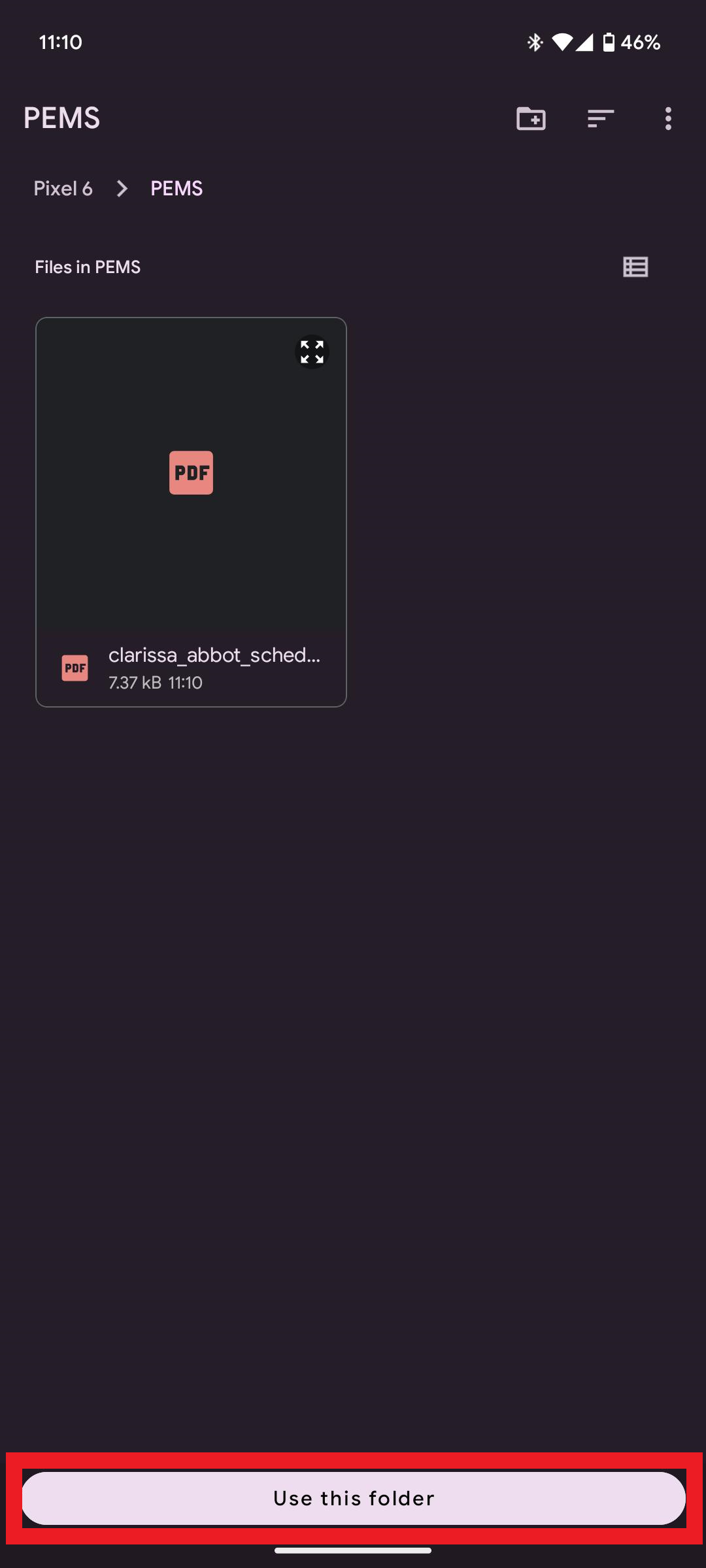
6) You can open the file at any time from this file location
Downloading a copy of your Appointment Schedule
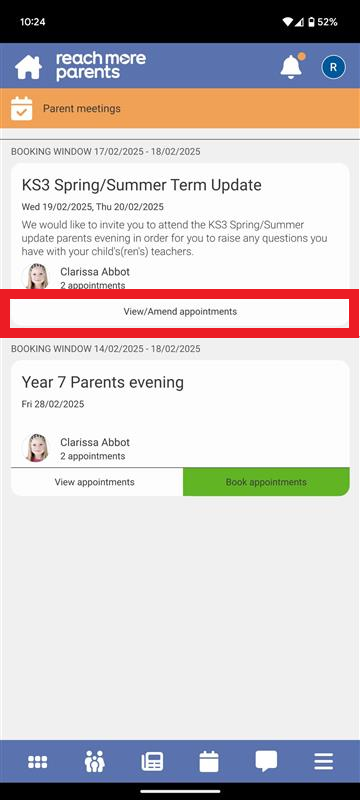
1) Tap on the "View/Amend appointments" button against the event you need to download the schedule for
2) Within the block for the specific child, tap on the "..." ellipsis menu to access "Appointment options"
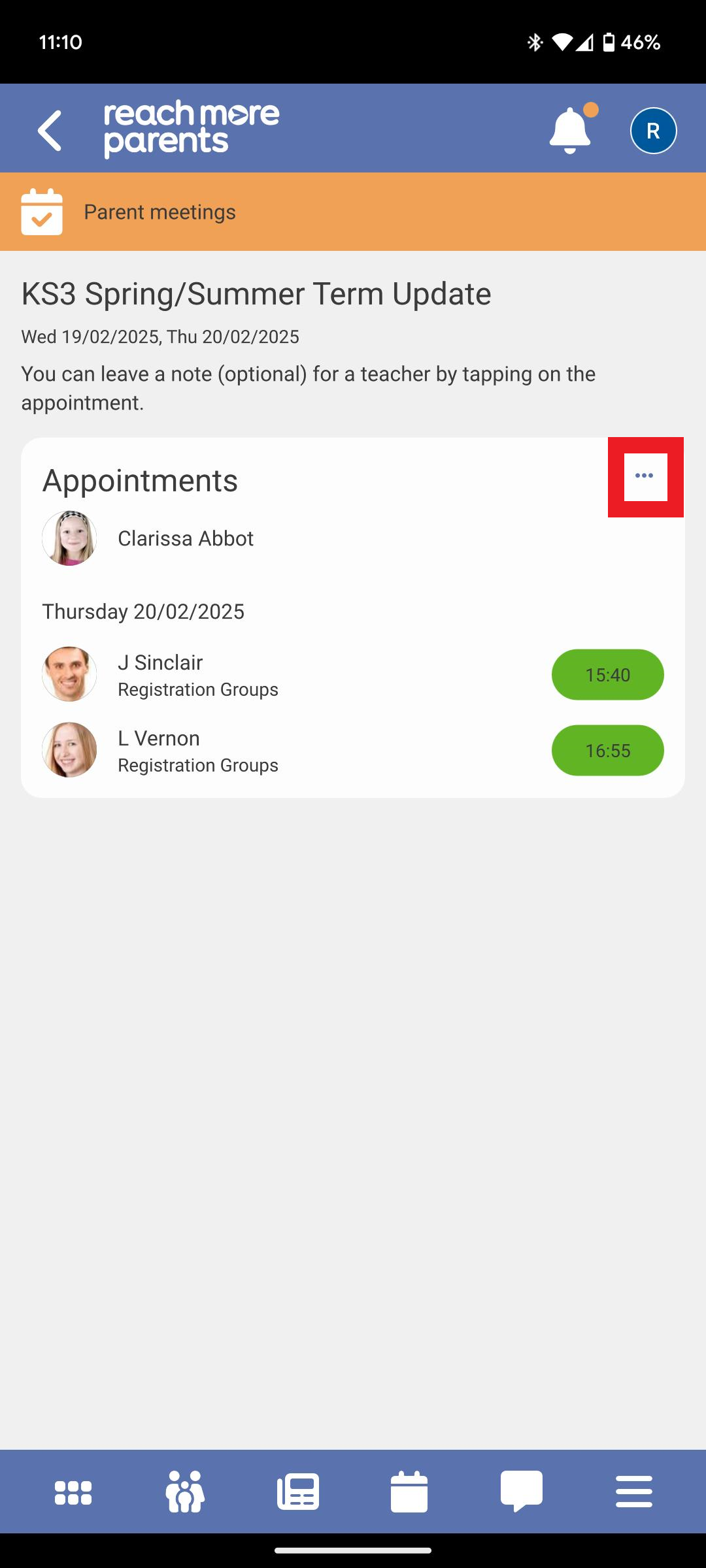
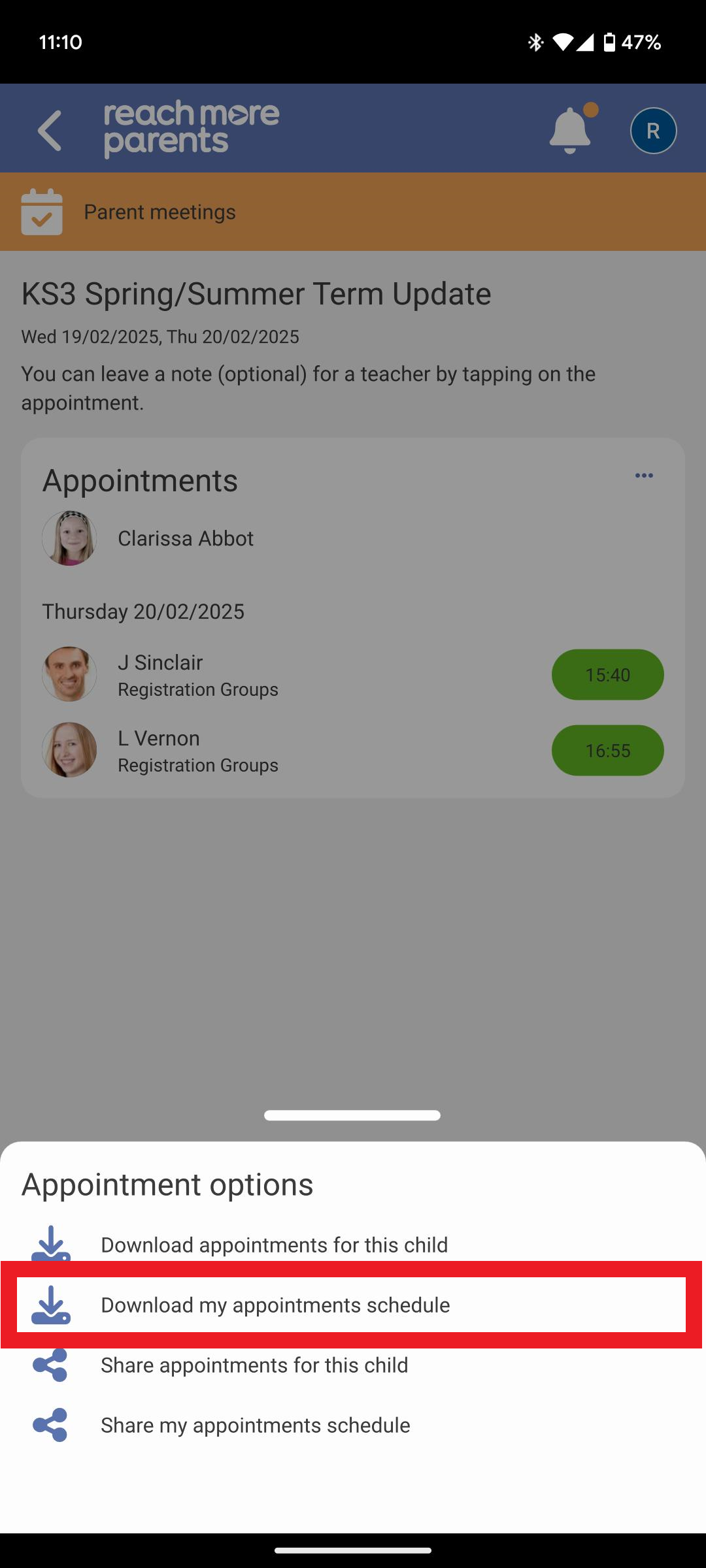
3) Tap on "Download my appointments schedule"
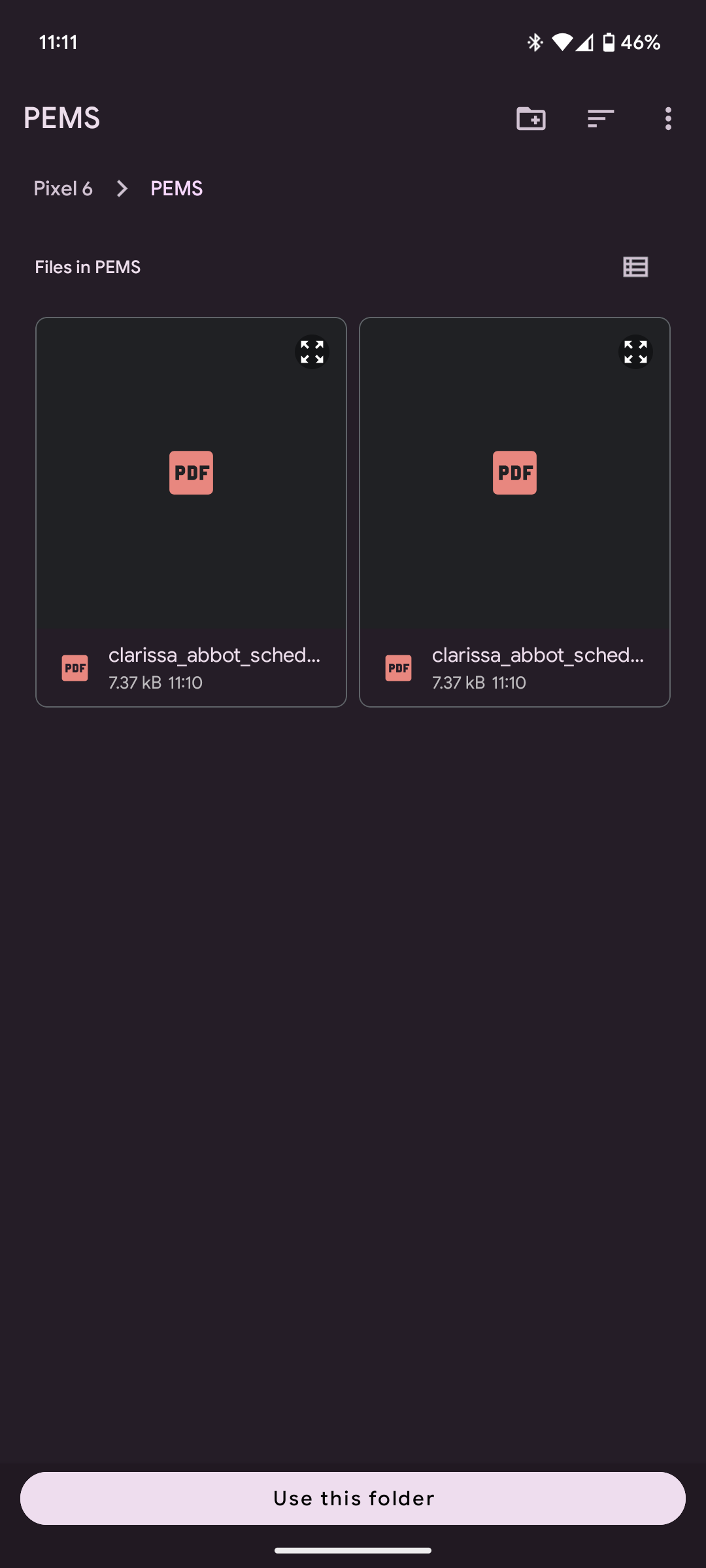
4) Choose the file download location on your mobile device
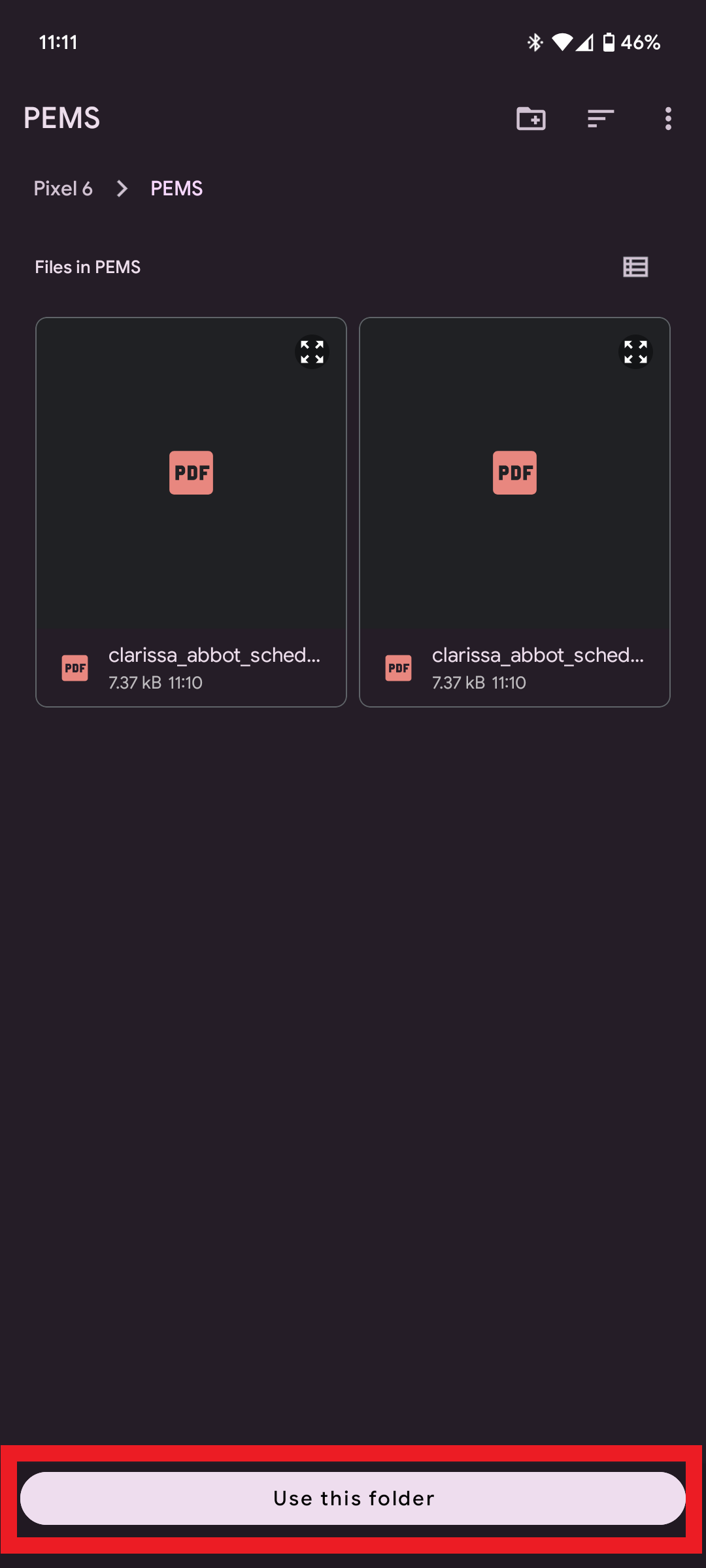
5) Tap on "Use this folder" to download the PDF to this location on your device
6) You can open the file at any time from this file location
Sharing a copy of a Child's Appointment Schedule
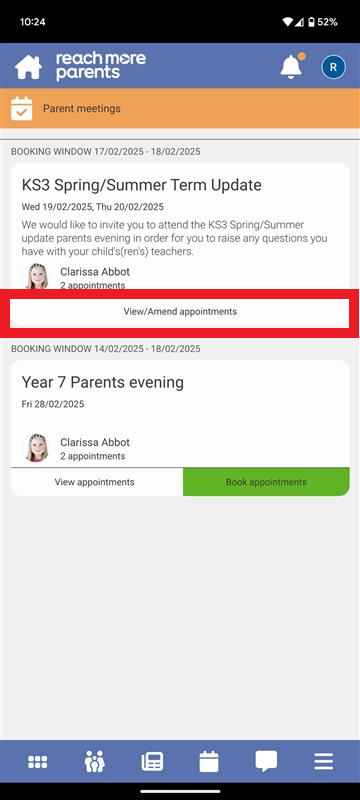
1) Tap on the "View/Amend appointments" button against the event you need to download the schedule for
2) Within the block for the specific child, tap on the "..." ellipsis menu to access "Appointment options"
3) Tap on "Share appointments for this child"
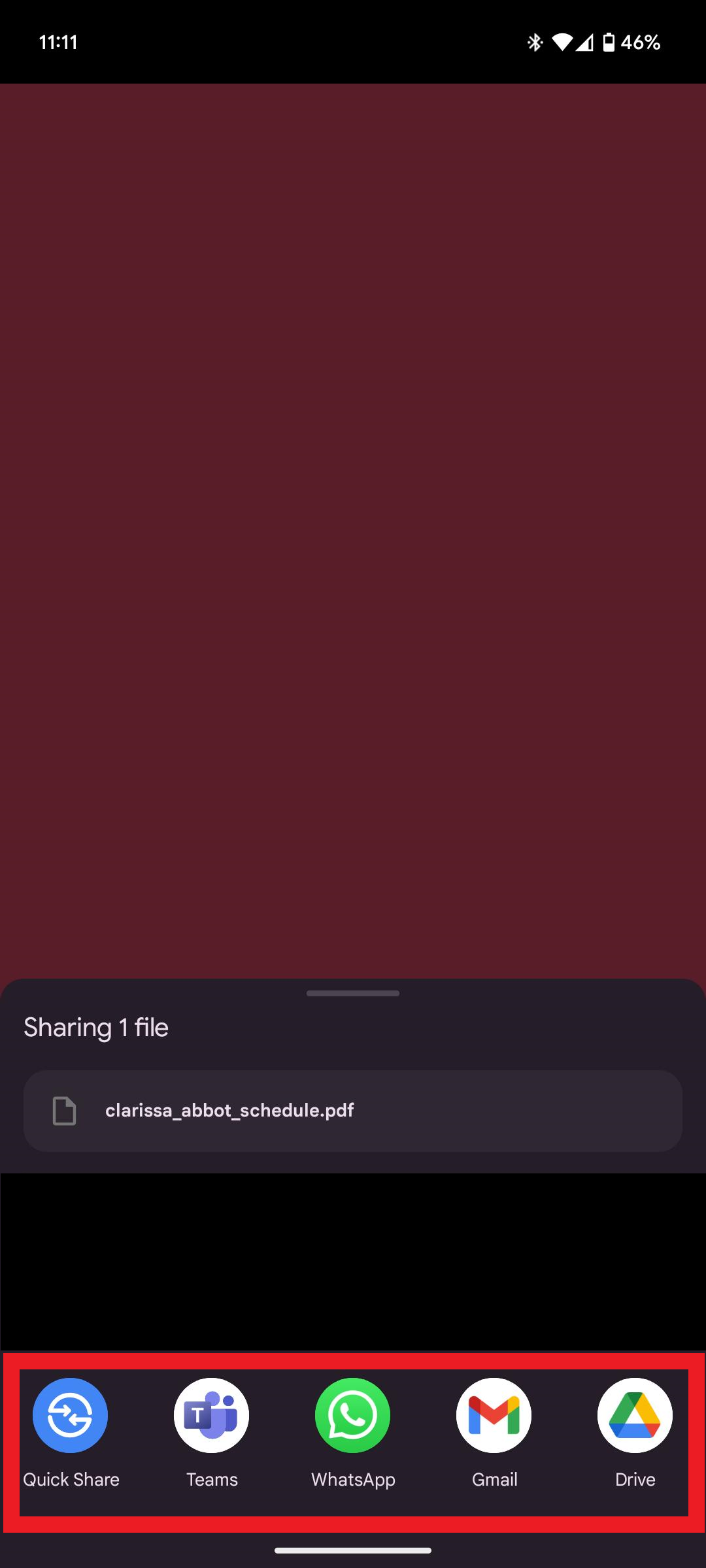
4) Top on the app you want to share the PDF through
5) Tap on the "Send" icon for the chosen app and chosen recipient
Sharing a copy of your Appointment Schedule
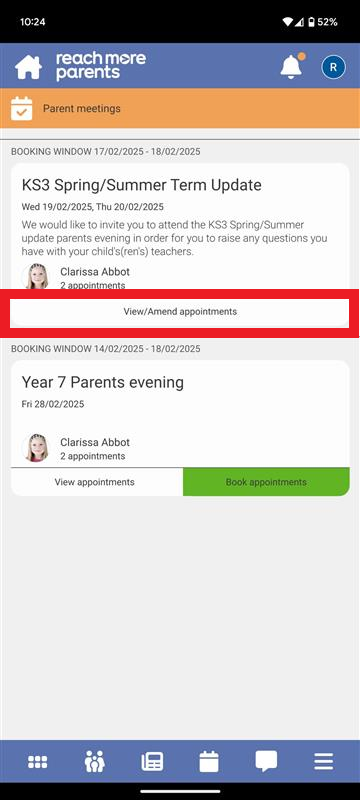
1) Tap on the "View/Amend appointments" button against the event you need to download the schedule for
2) Within the block for the specific child, tap on the "..." ellipsis menu to access "Appointment options"
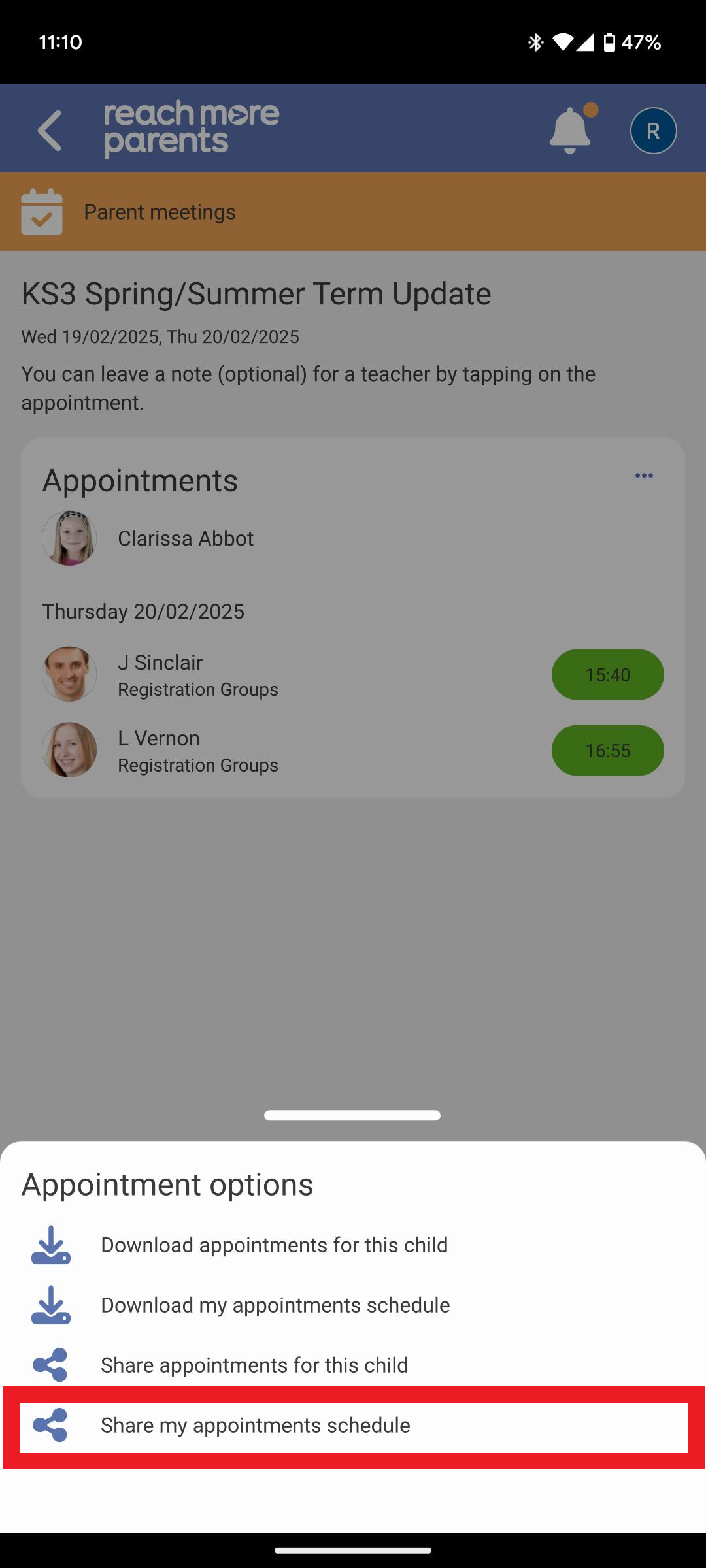
3) Tap on "Share my appointments schedule"
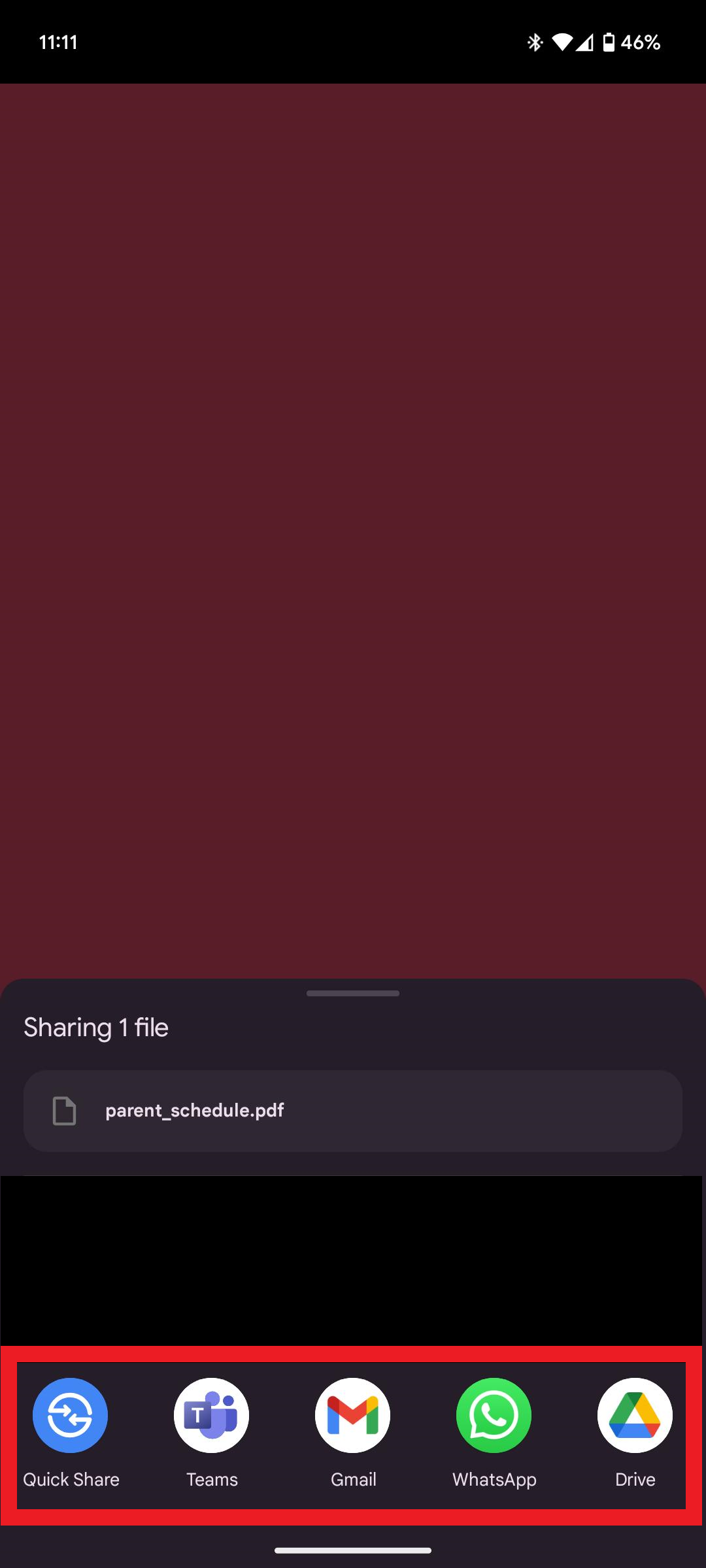
4) Top on the app you want to share the PDF through
5) Tap on the "Send" icon for the chosen app and chosen recipient
This concludes the four methods of circulating your schedule with other required parent / carers.