In this article, we will detail how to amend the Date and Time that an event will be open for bookings as an admin. You may need to do this if you need to extend or reduce the Booking window.
Firstly, you need to log in as an Admin:
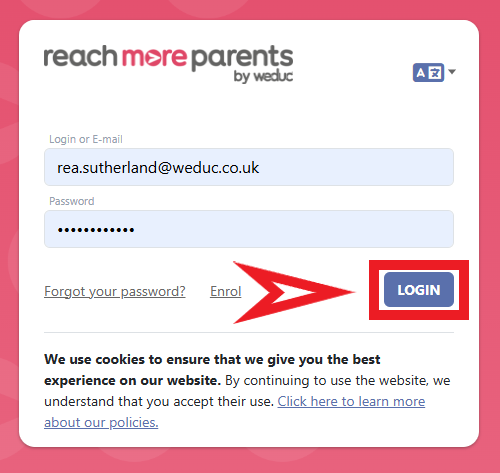
1) Log in to ReachMoreParents.
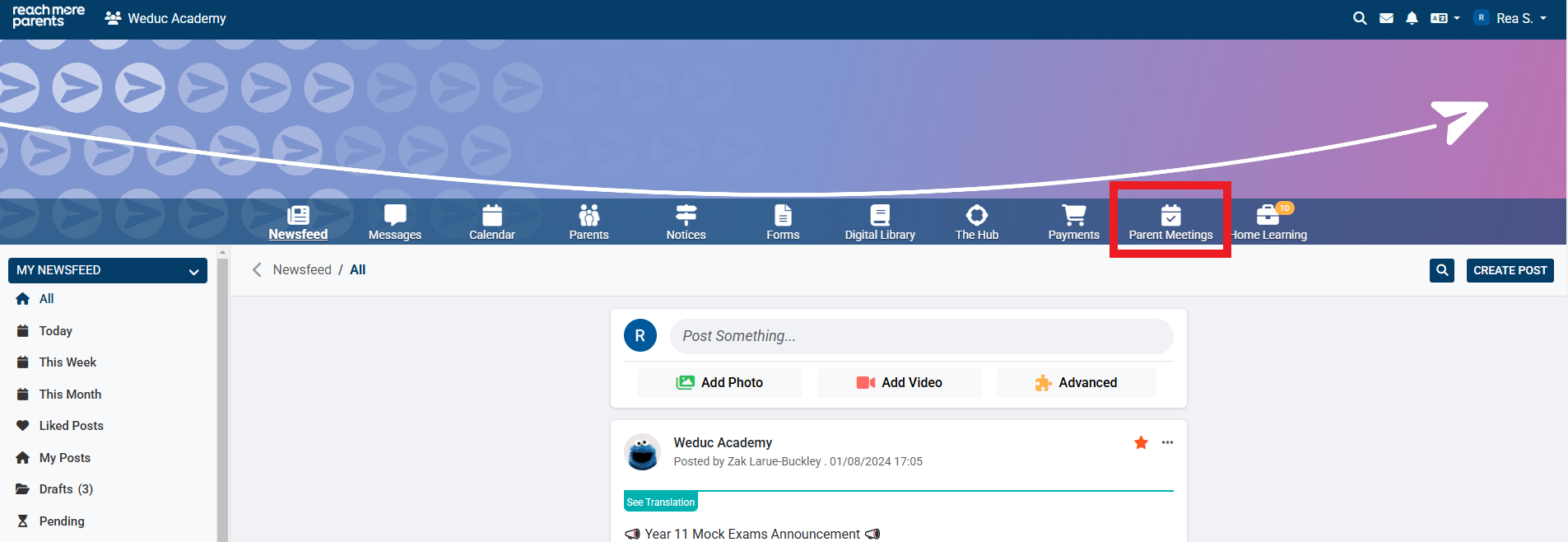
2) Click on the Parent Meetings icon
From this point, you need to carry out the following steps:
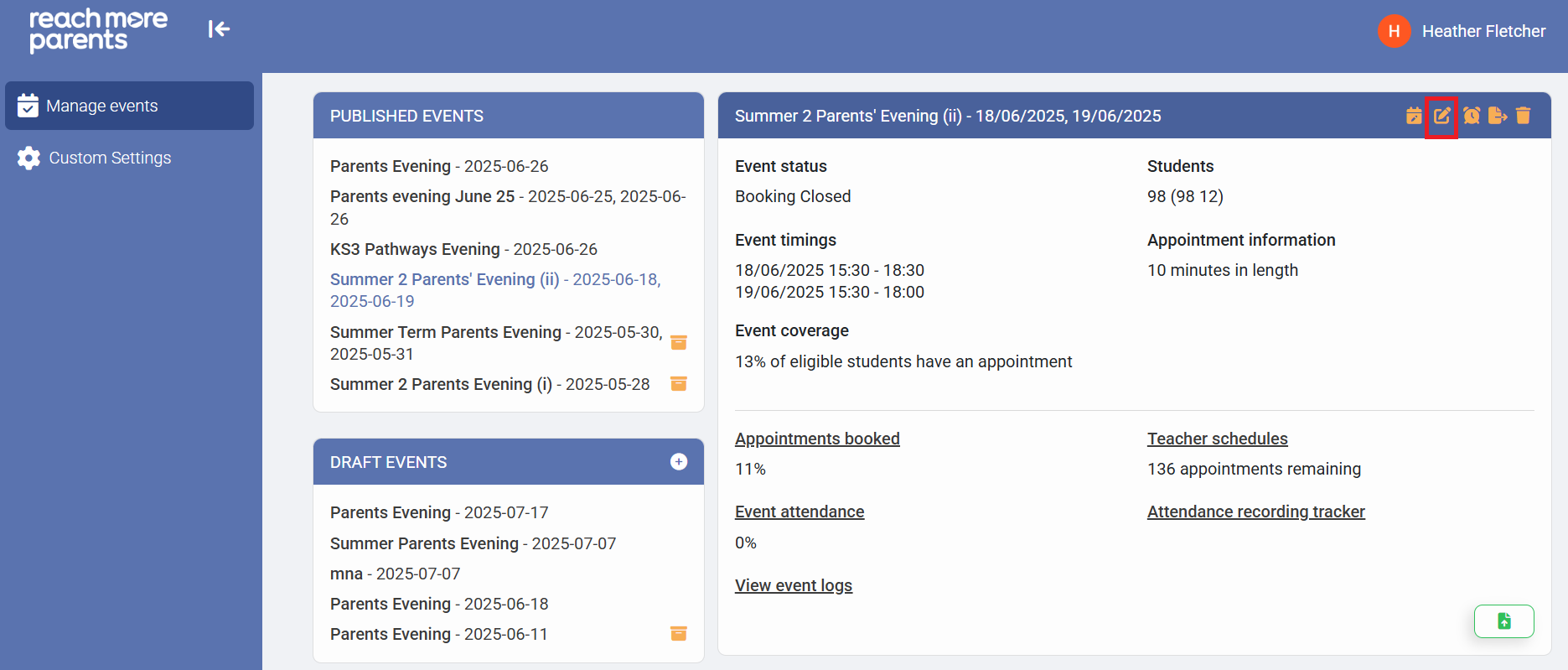
3) Click on the "Event Title" required from either "Draft Events" or "Published Events"
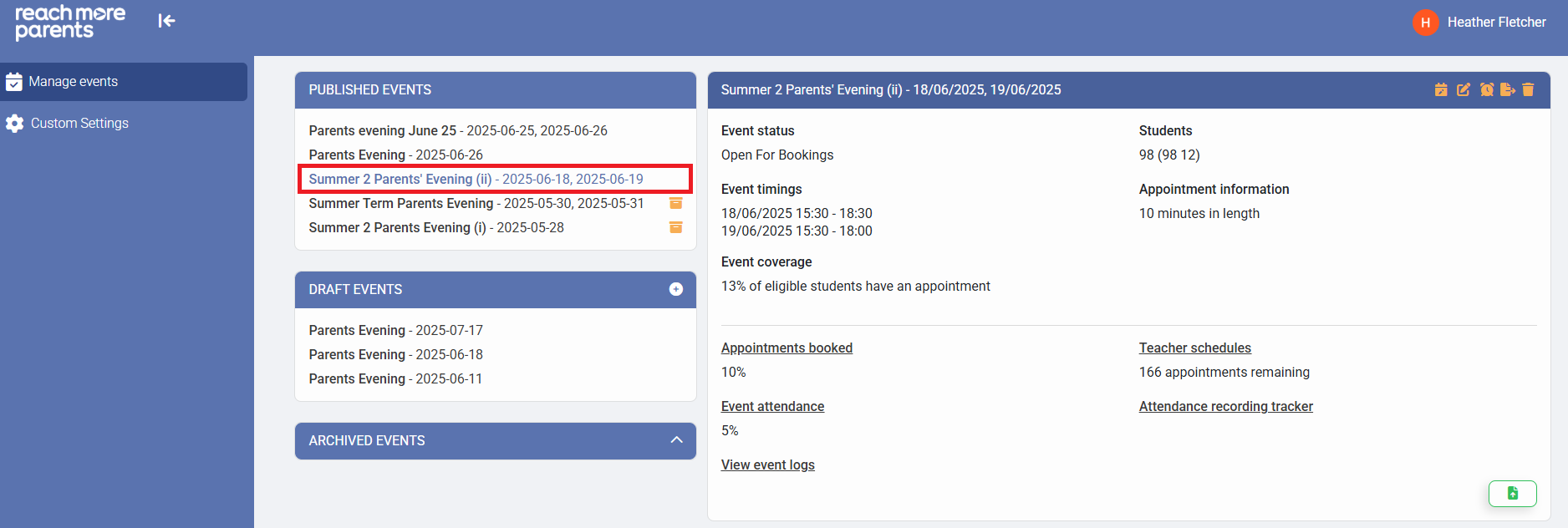
4) Click on the "Edit Event" icon
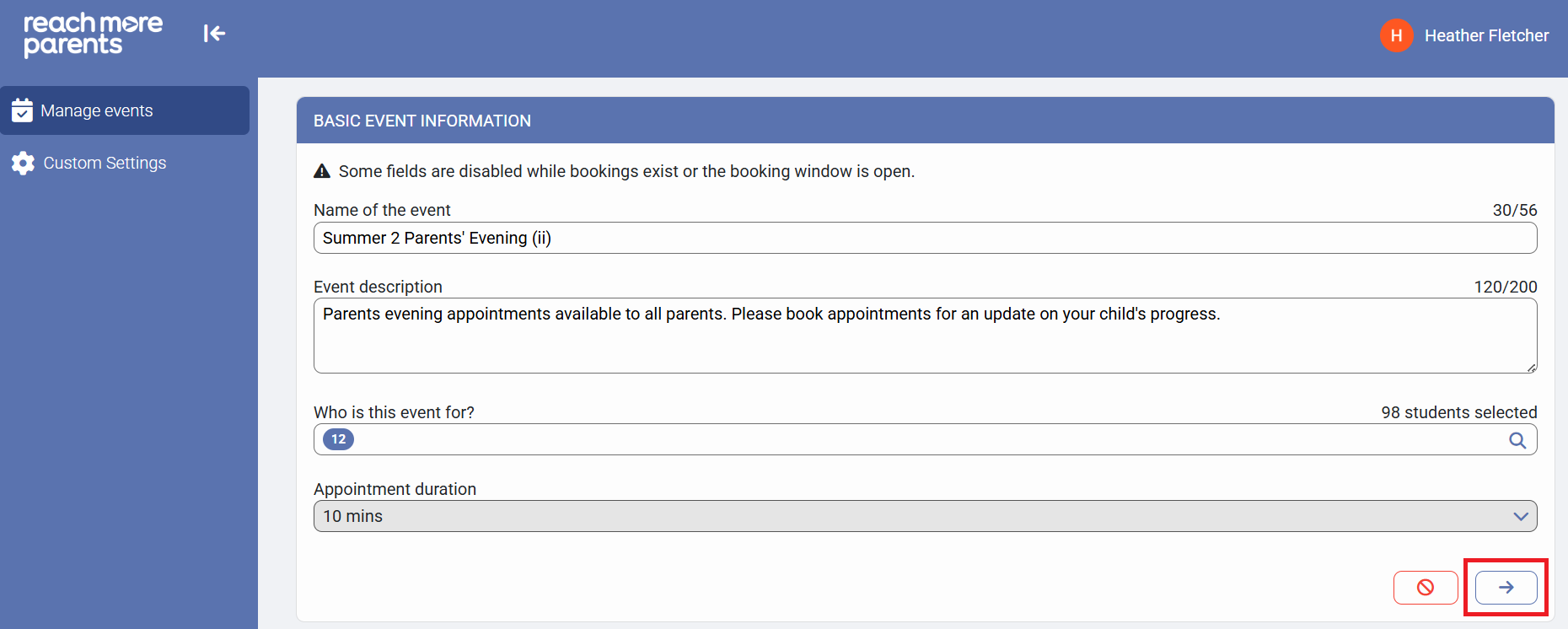
5) Click on "Next" to proceed to the "Event Date & Times for [Event Name]" screen
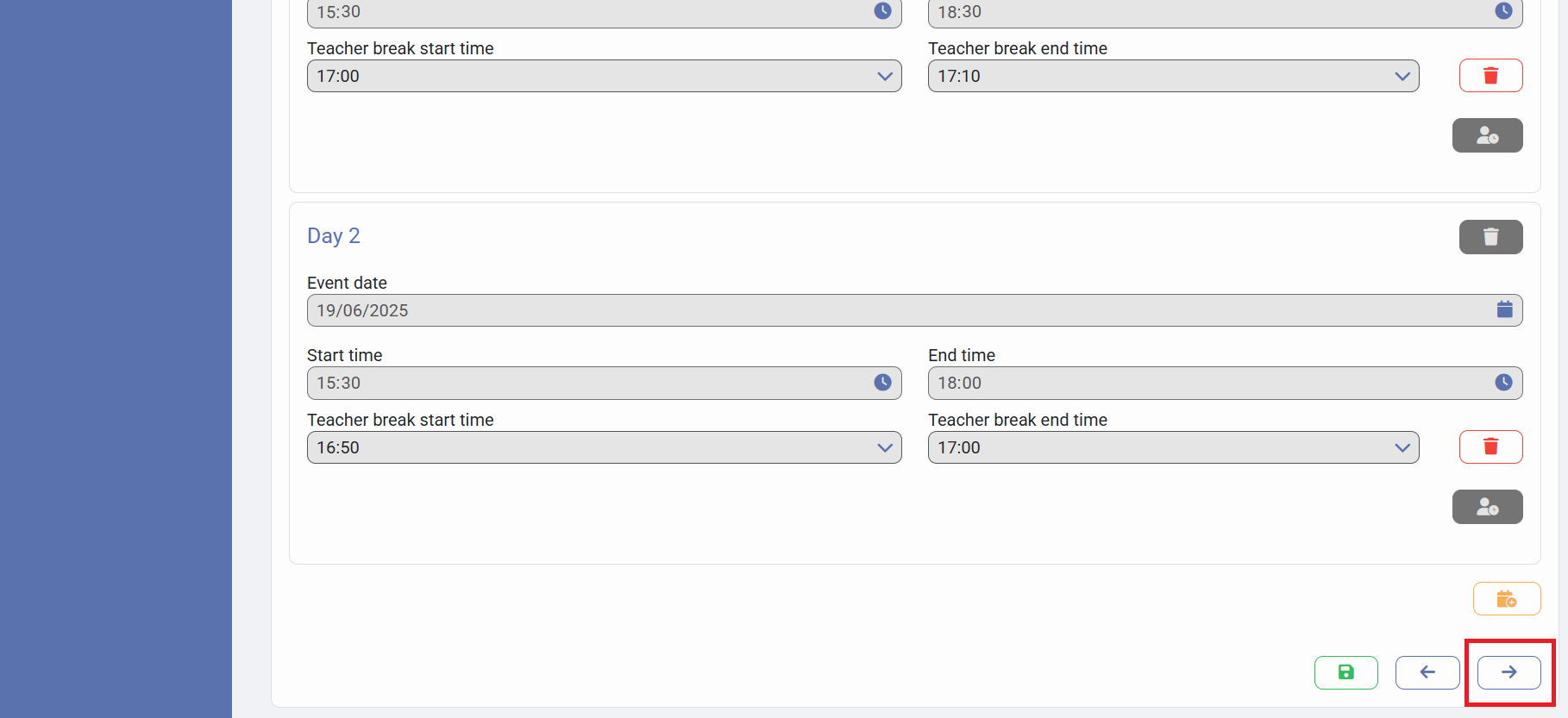
6) Click on "Next" to proceed to the "Appointment Booking Settings for [Event Name]" screen
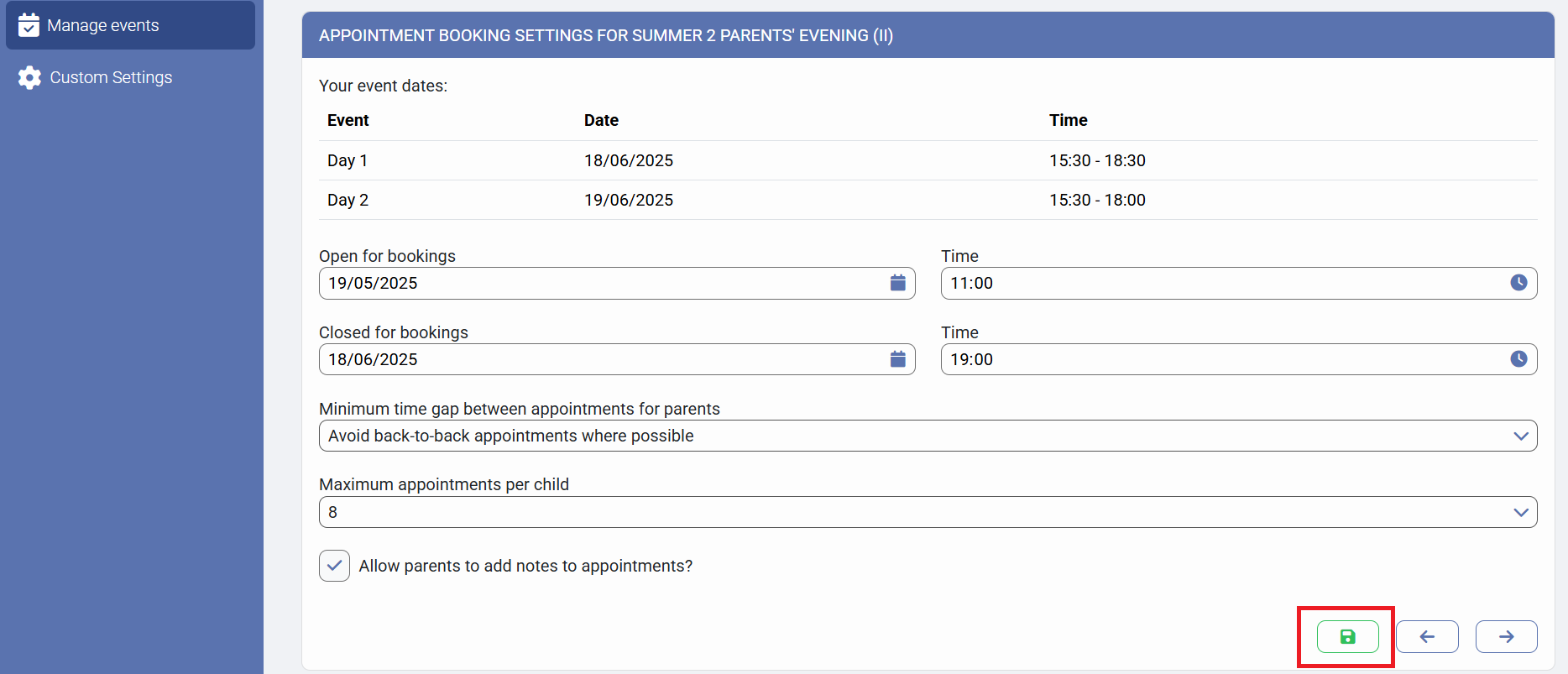
7) Click on the "Open for bookings" date field and type the new open for bookings date
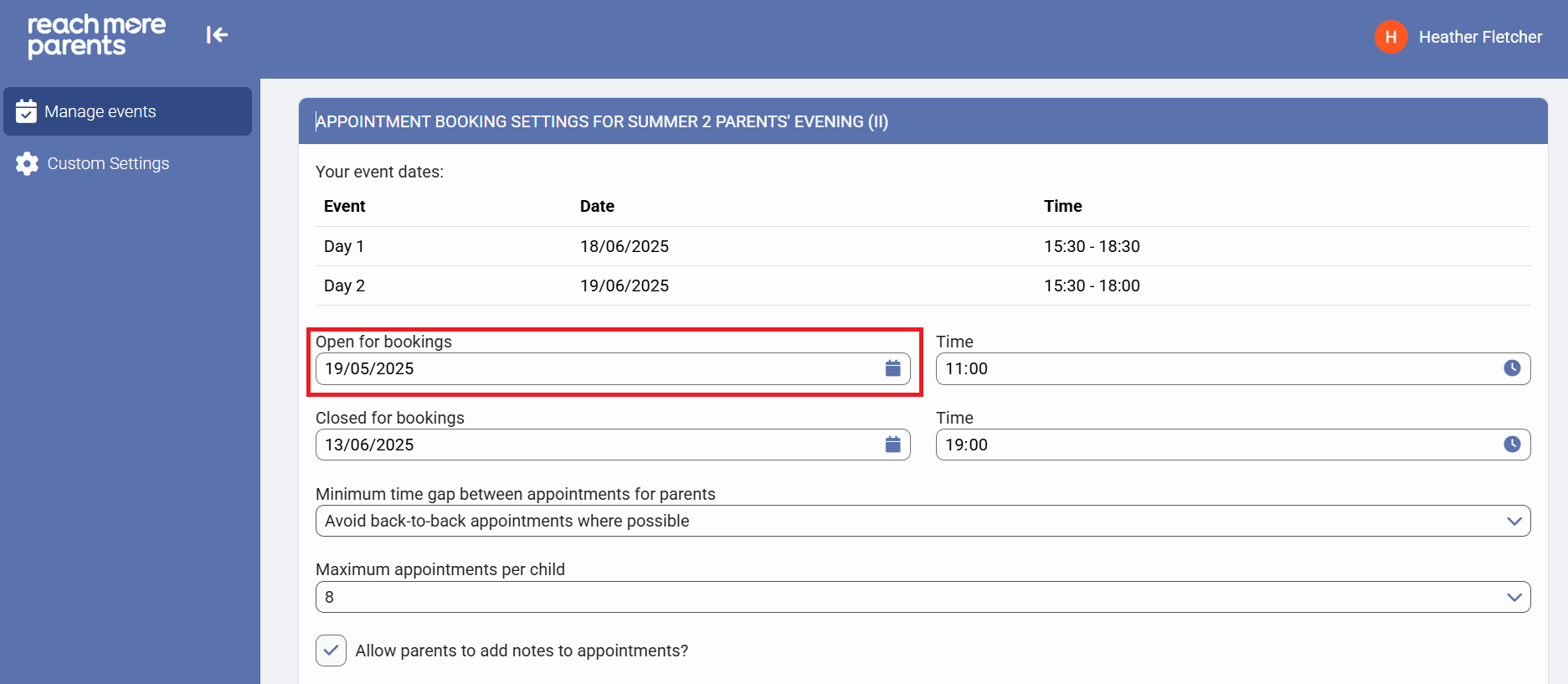
Alternatively, click on the Calendar icon in the "Open for bookings" to choose the date from the calendar
8) Click on the "Time" field for the "Open for bookings" date field and type the new time you will be closing the booking window
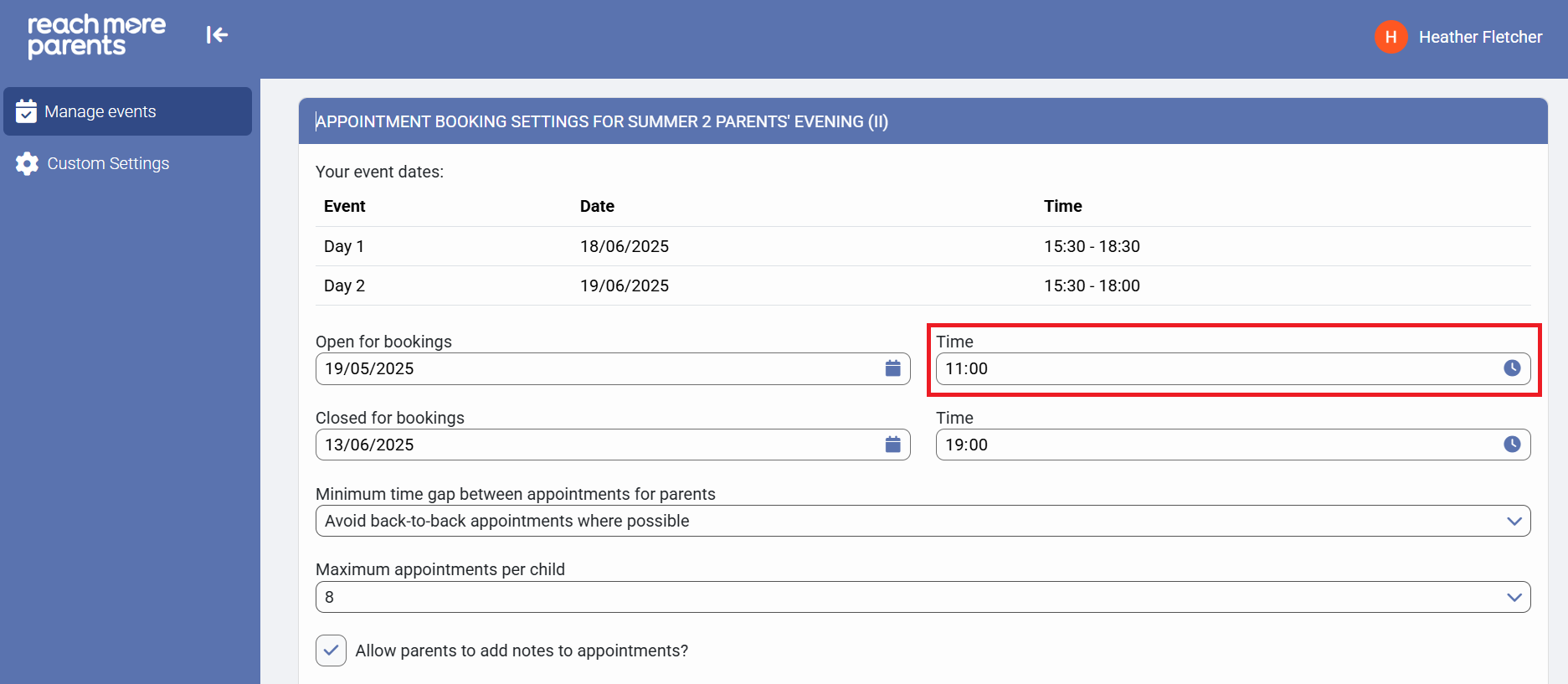
Alternatively, click on the "clock" icon to select the hour, then the minute that the event booking window will open
9) Click on "Save" to accept your changes