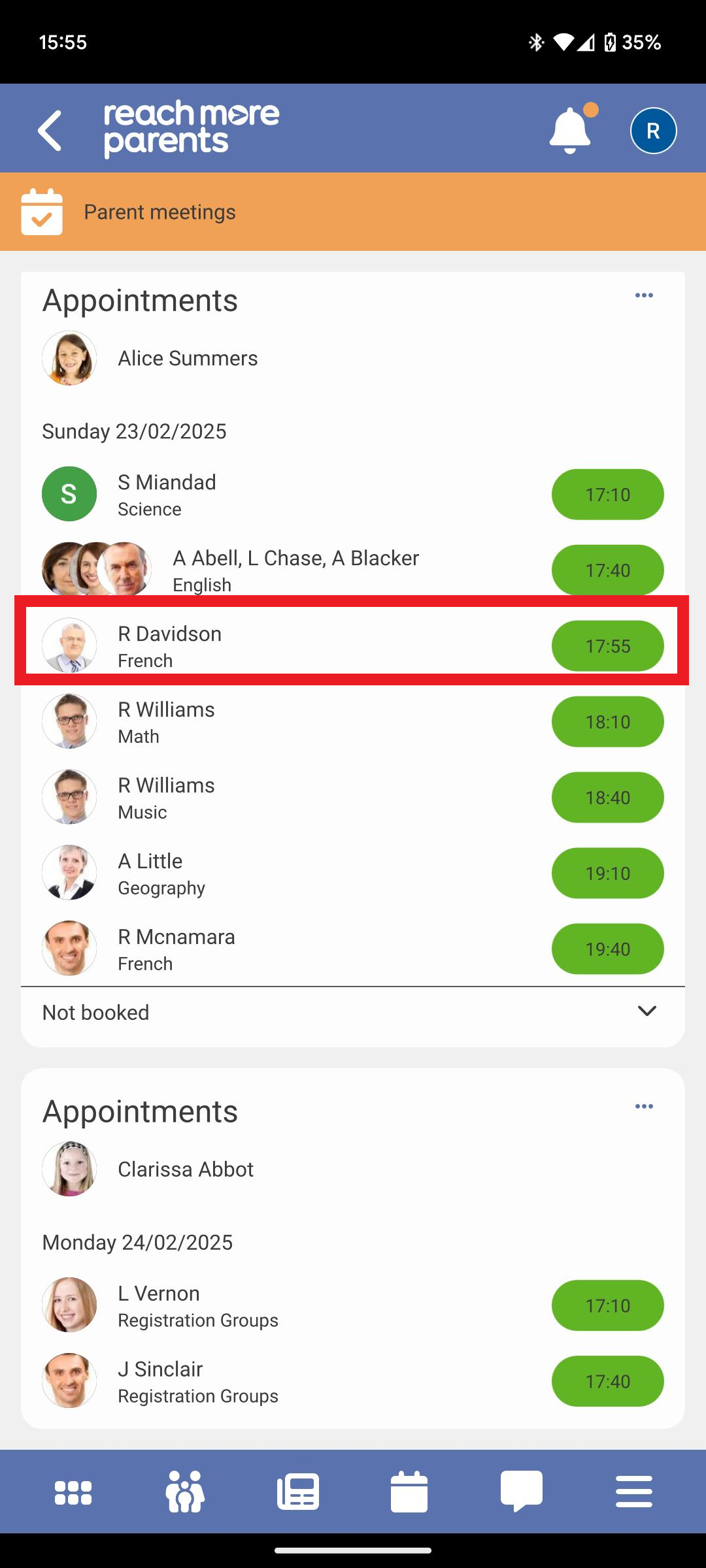
When you're a parent to more than one child who has been invited to a Parent Event, you will need to manage bookings for both children at once.
In this article, we will detail how the Auto-Generate booking process functions when you have more than one child.
You will firstly need to access Parent Meetings in the ReachMoreParents App:
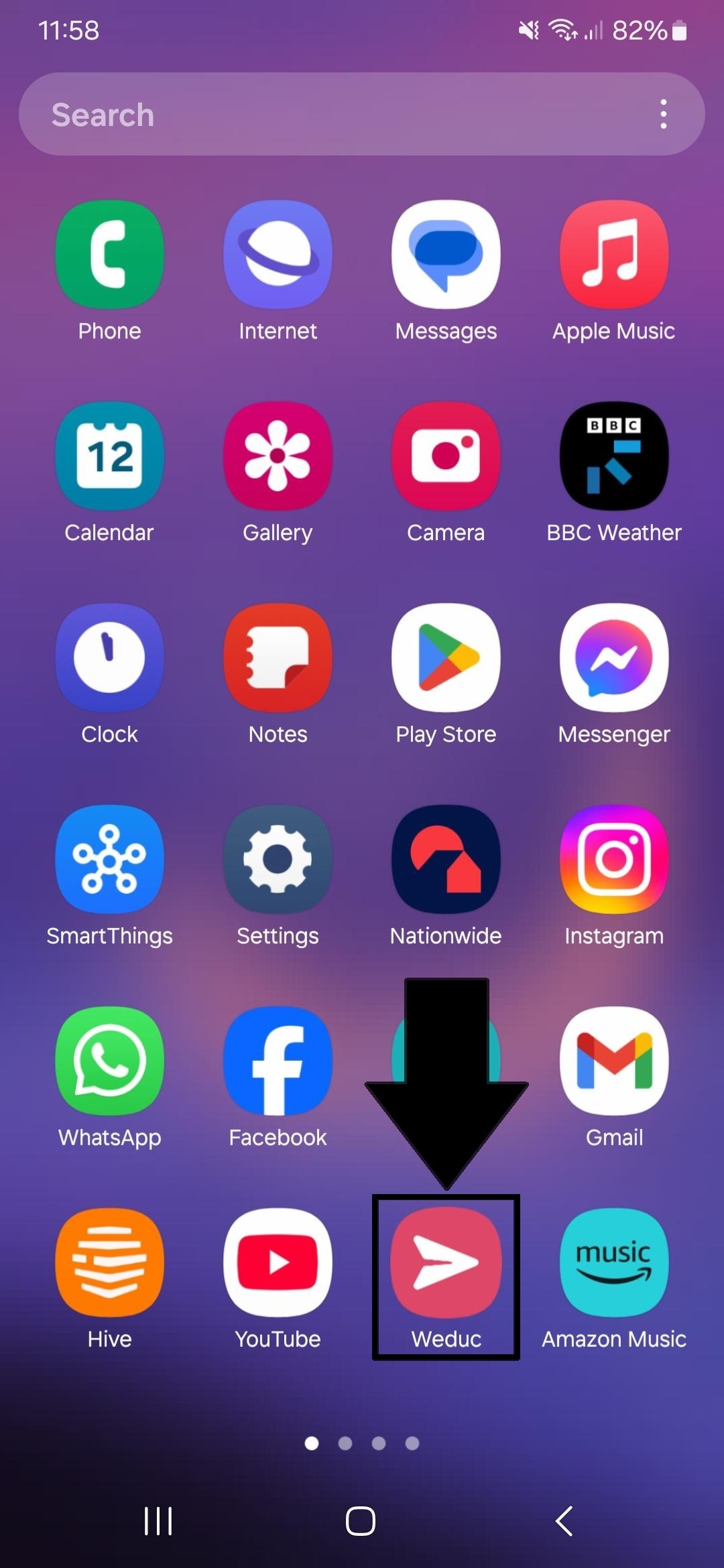
1) Tap on the ReachMoreParents app on your device home screen
2) Login using your Parent login username and password
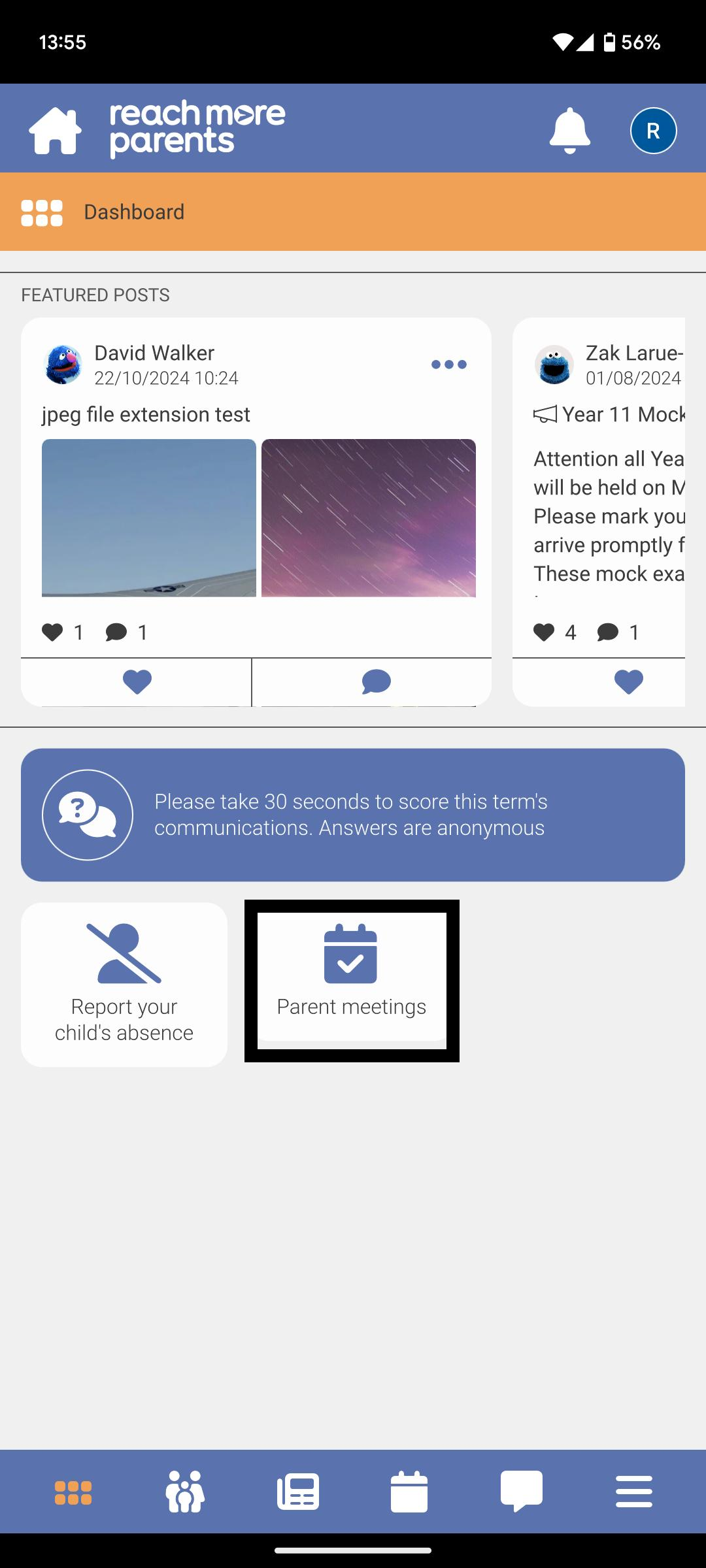
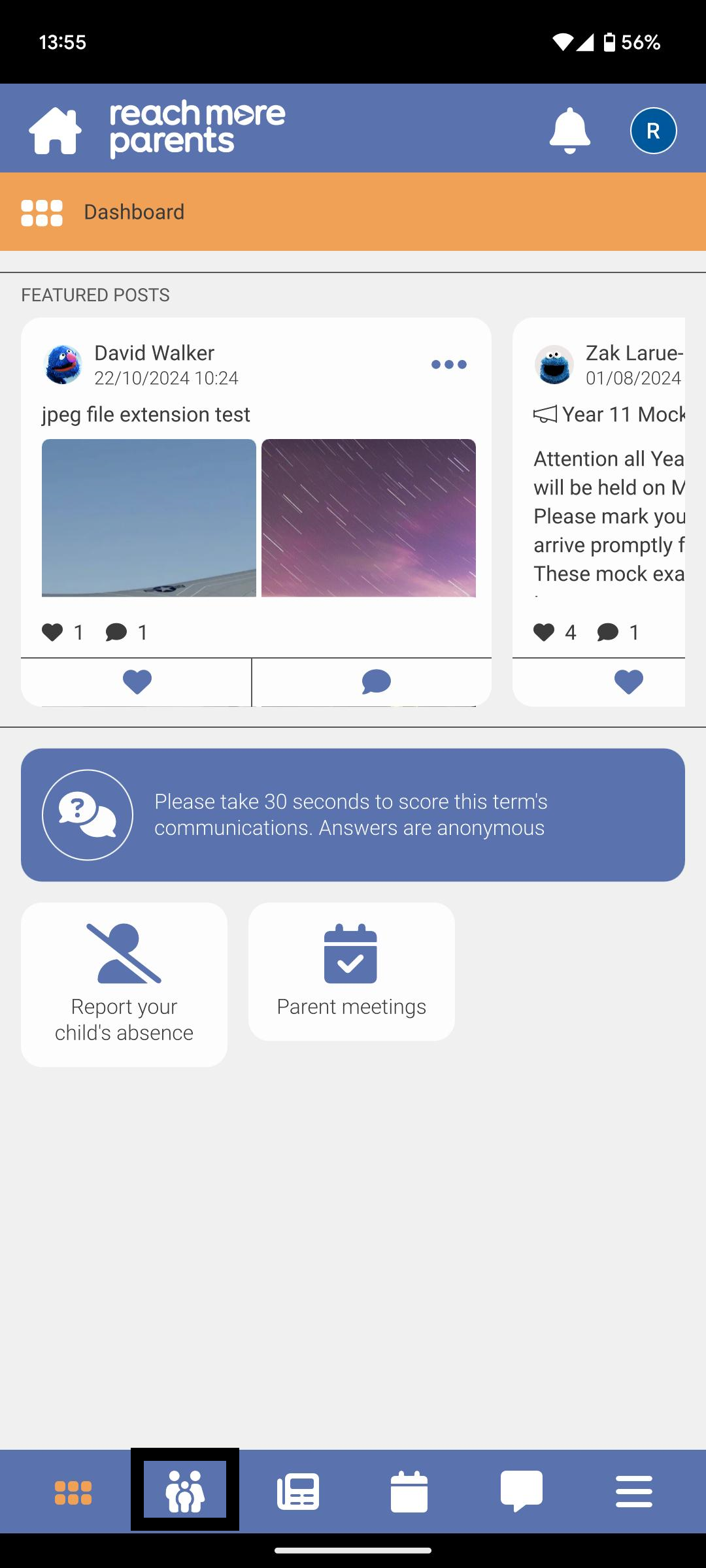
3) The "Parent meetings" tile will be present on the Dashboard if any eligible* events are available for the parent - (* Parent has at least one child associated with event, event is in the future or for the current day, the booking window is still open)
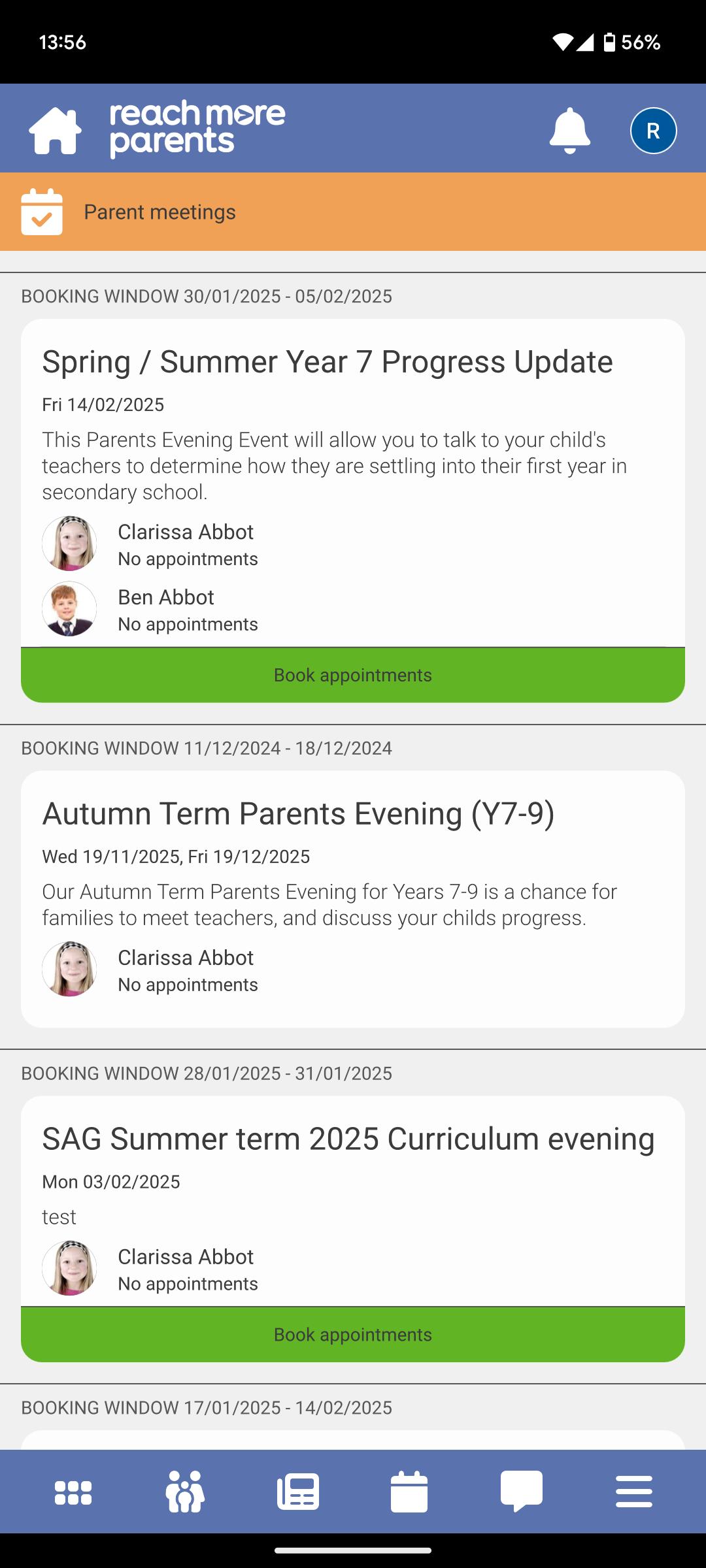
4) Tap on the Parent Meetings tile and any eligible* Parents Evening event(s) will be list in ascending event date order - (* Parent has at least one child associated with event, event is in the future or for the current day, the booking window is still open)
5) Alternatively, you can tap on the Parent Portal
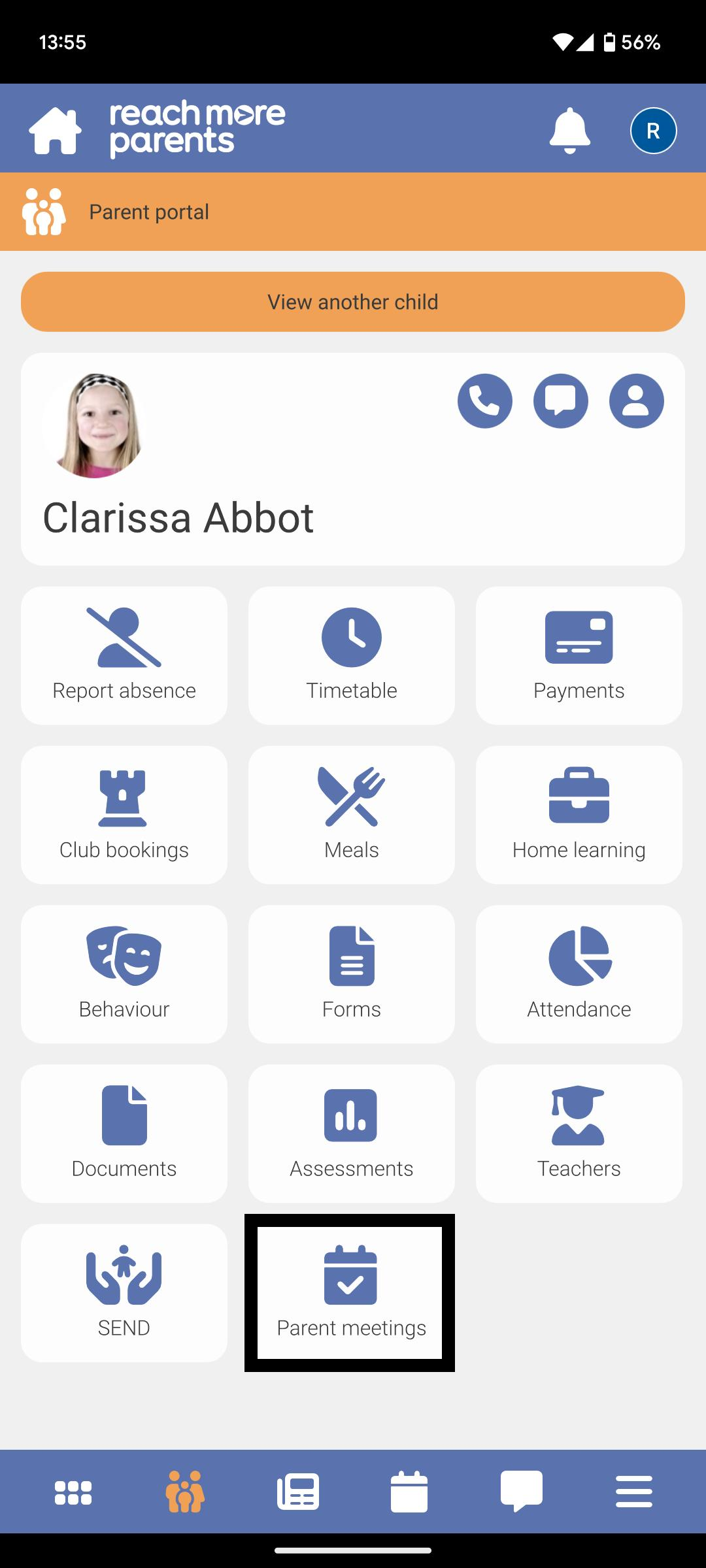
6) Then tap on the Parent meetings tile here to access your Parents Evening event(s)
From this point, you need to carry out the below steps:
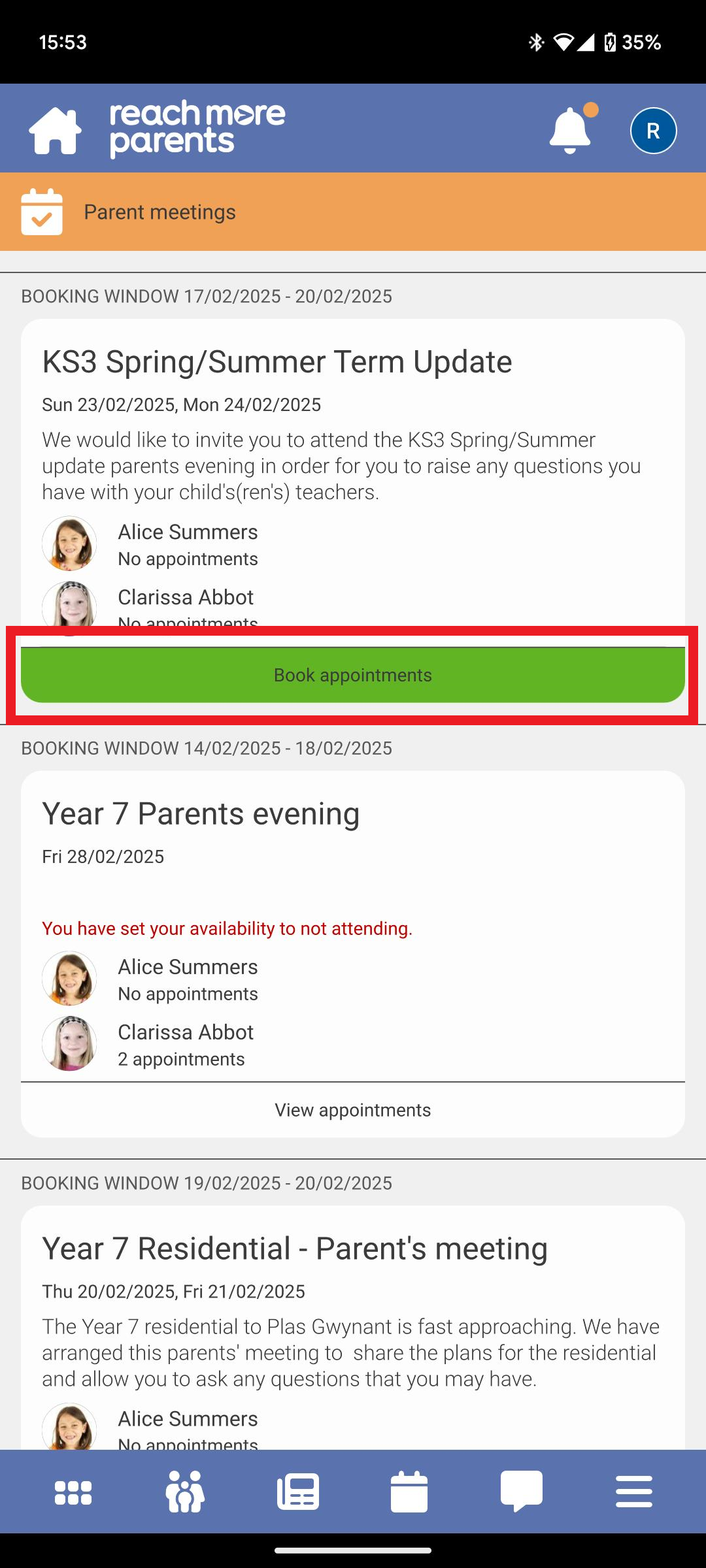
1) Tap on "Book Appointments" for the event that has an active booking window
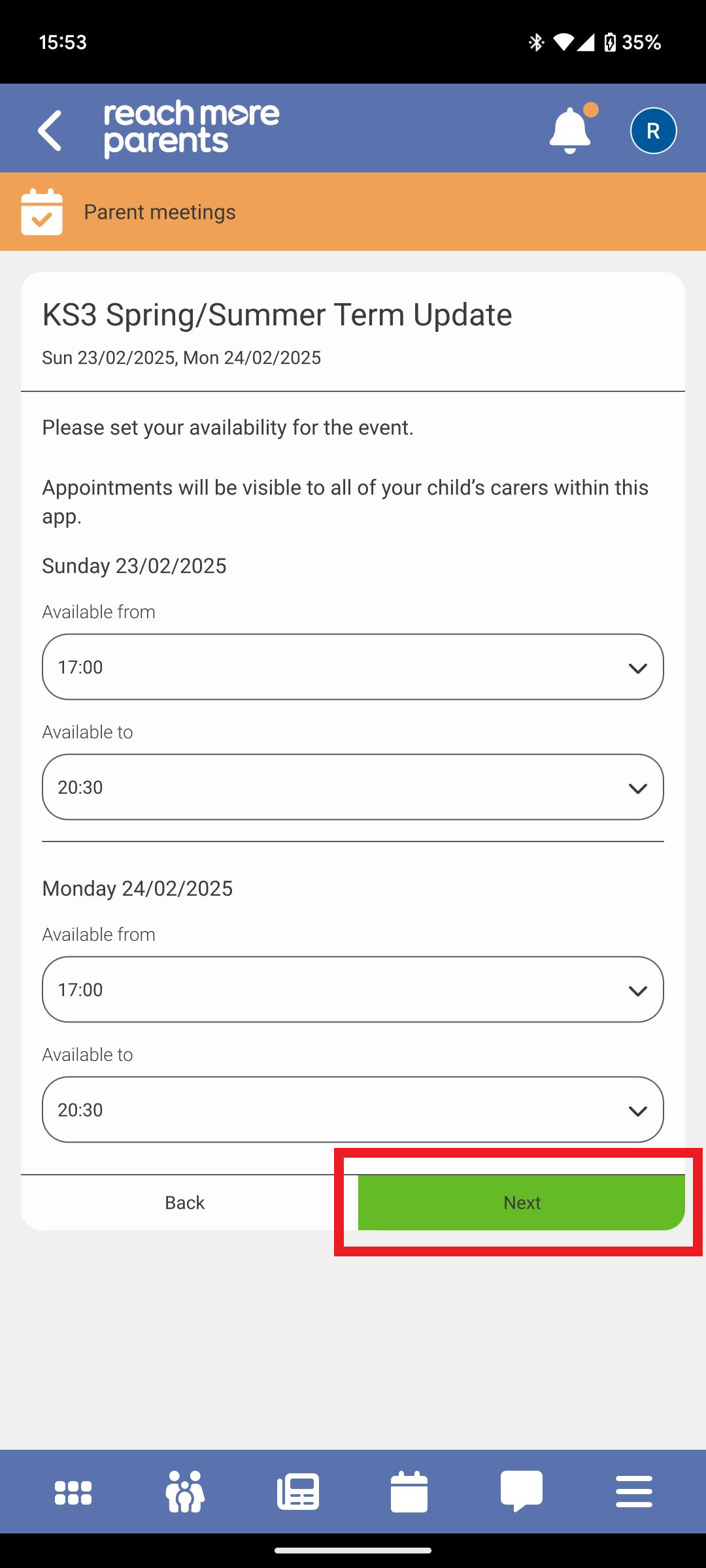
2) Set your availability for the event by defining your Available From and Available To settings
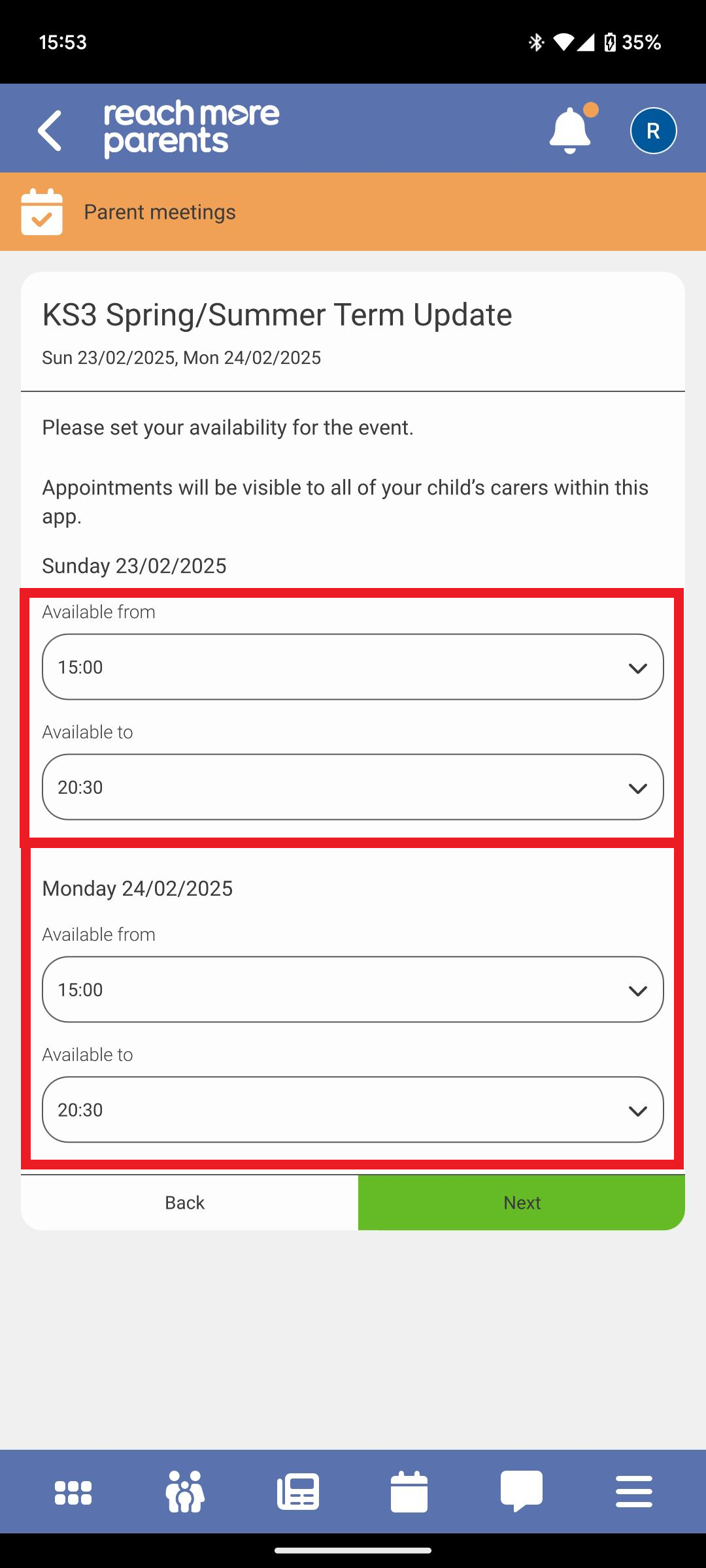
3) Tap on "Next" to proceed to the teacher selection for your first child
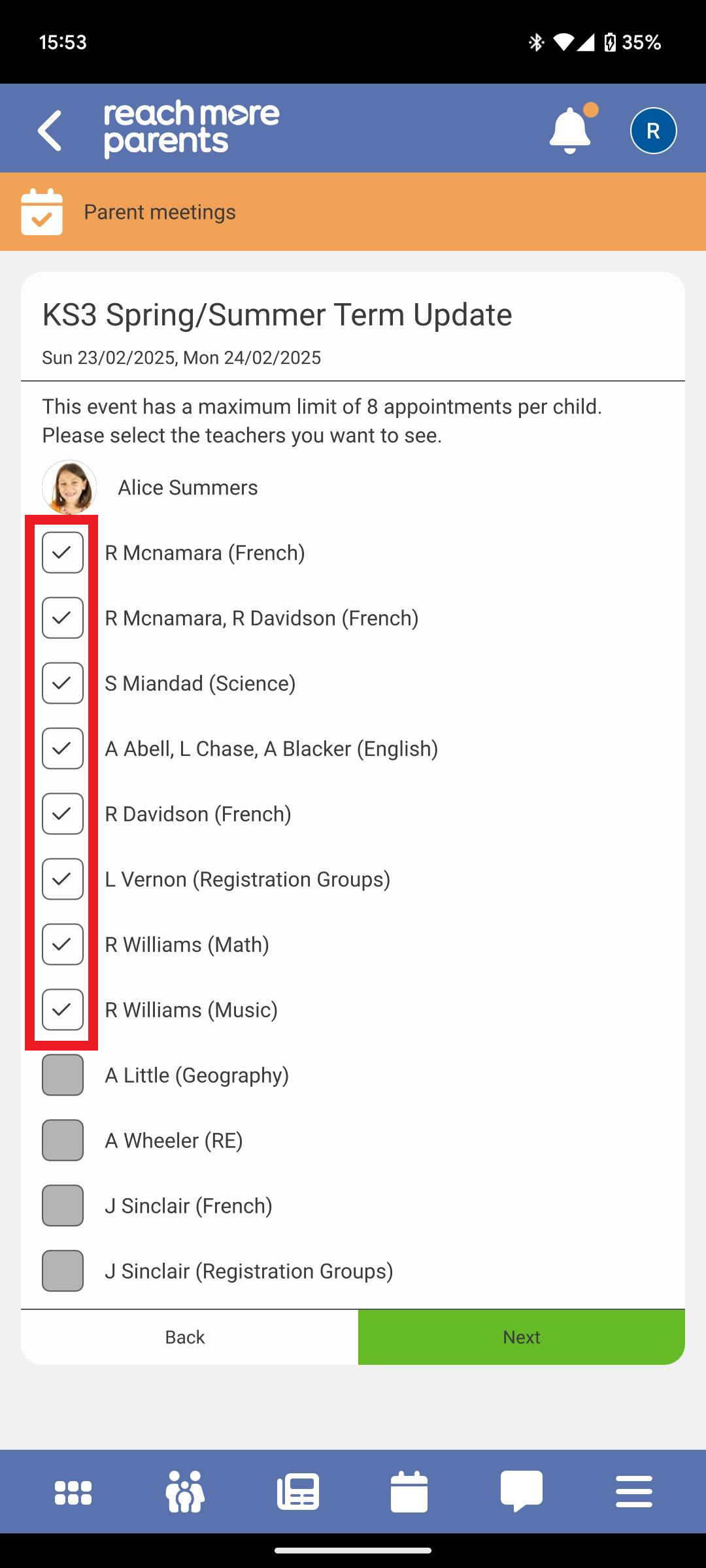
4) In the Teacher selection screen, all teachers will be pre-selected up to the appointment limit for the event. Tap on the check mark to remove those teachers from the booking process
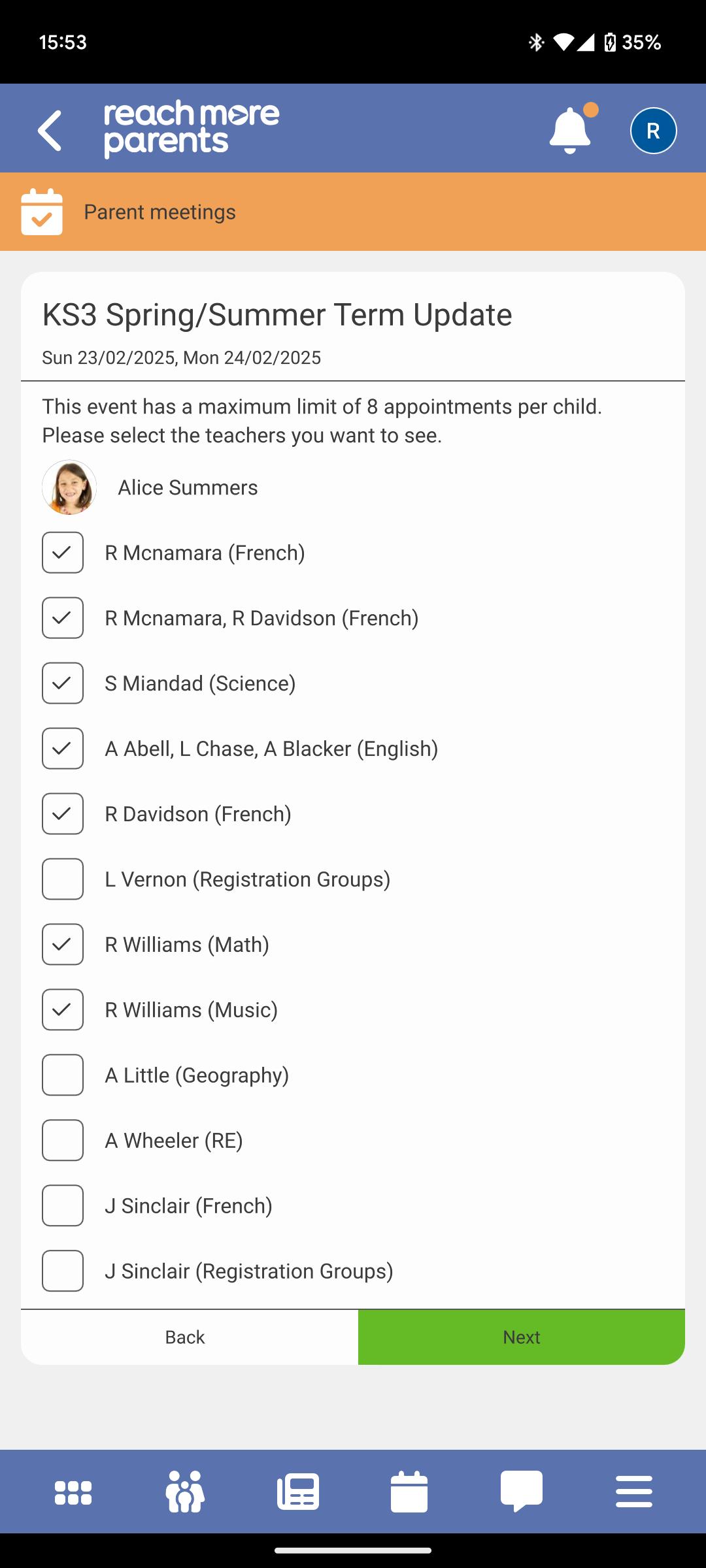
5) Tap on the empty checkbox against any teachers you would like to include in your bookings
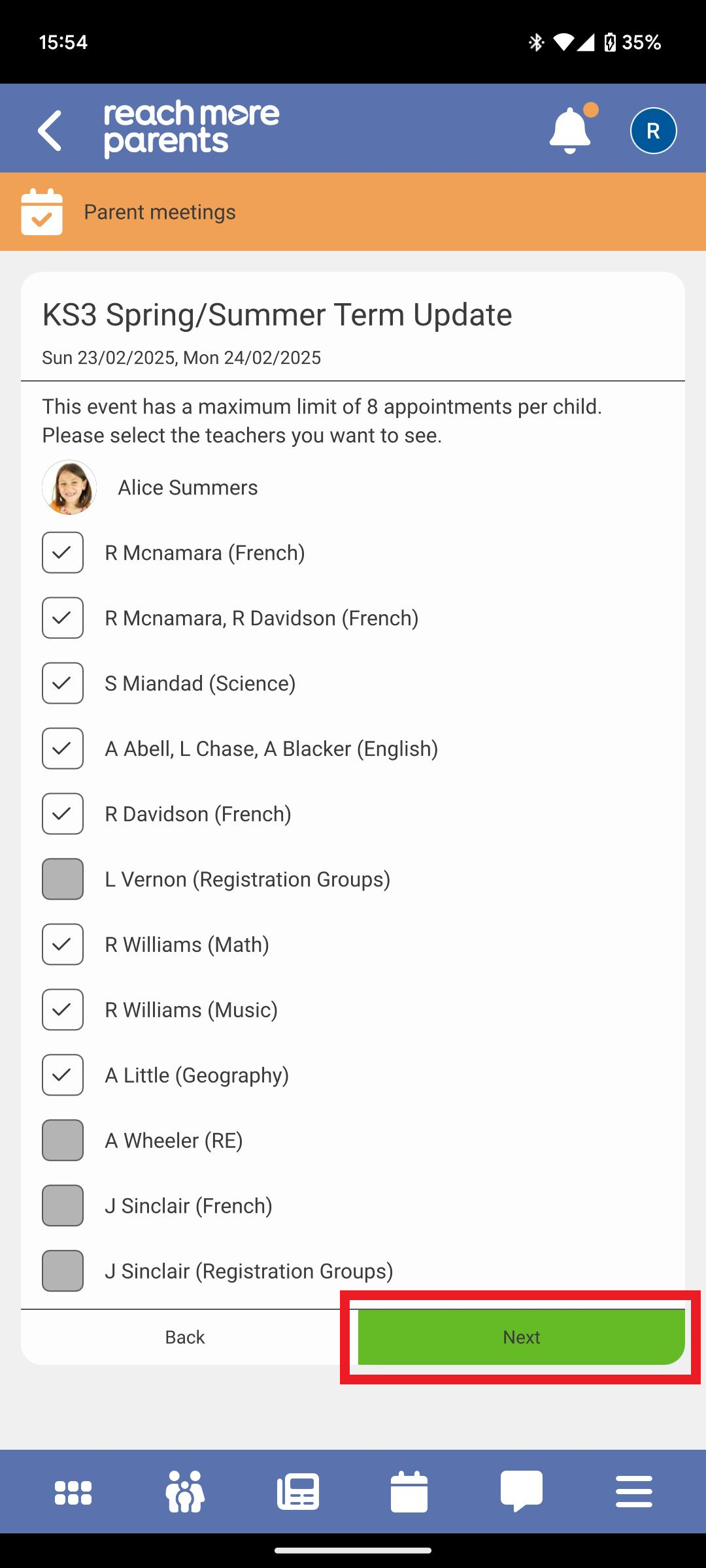
6) Tap on "Next" to proceed to your second child's teachers
7) Repeat steps 4 and 5 for your second child's teachers
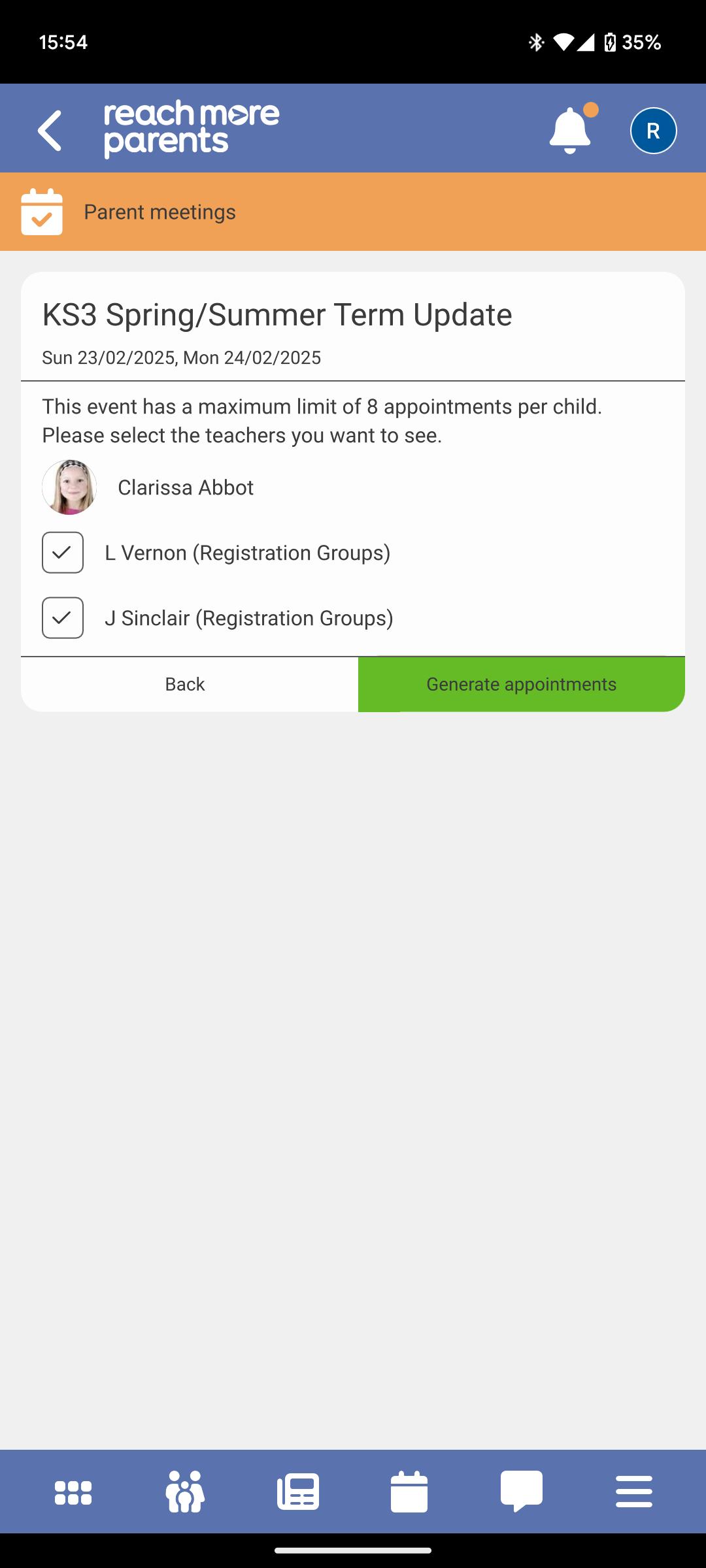
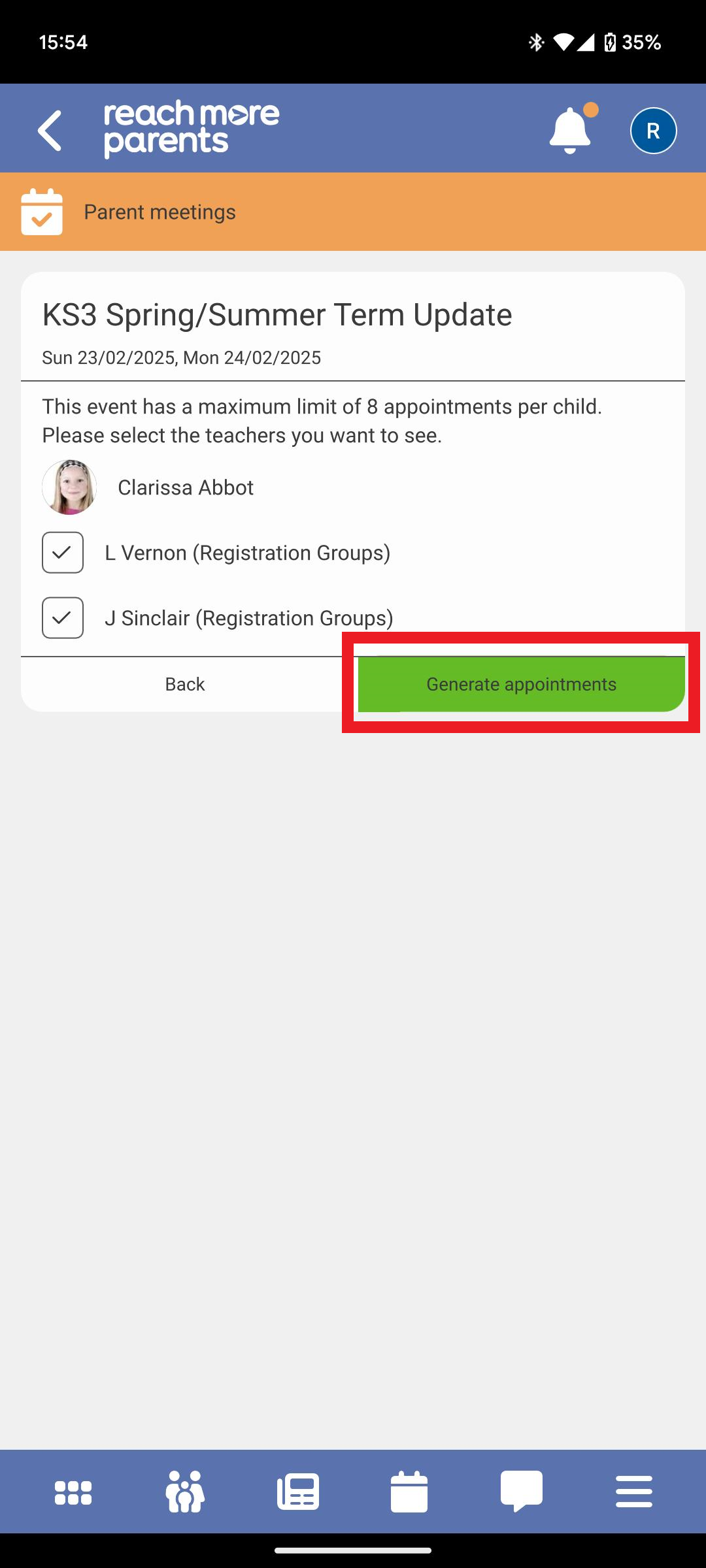
8) Tap on "Generate Appointments"
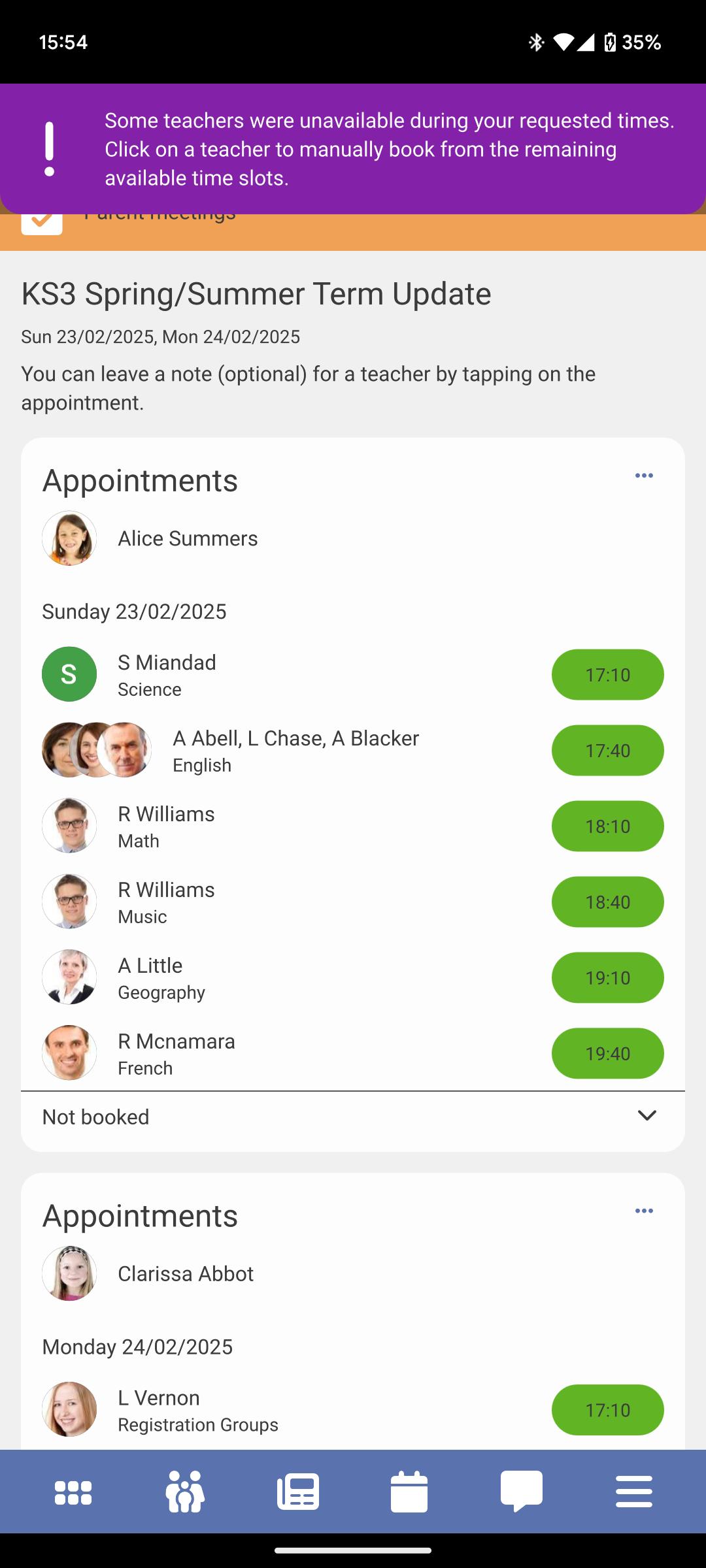
9) Any appointments that could be booked are created for you
10) Any appointments that couldn't be booked you can expand the "Not booked"
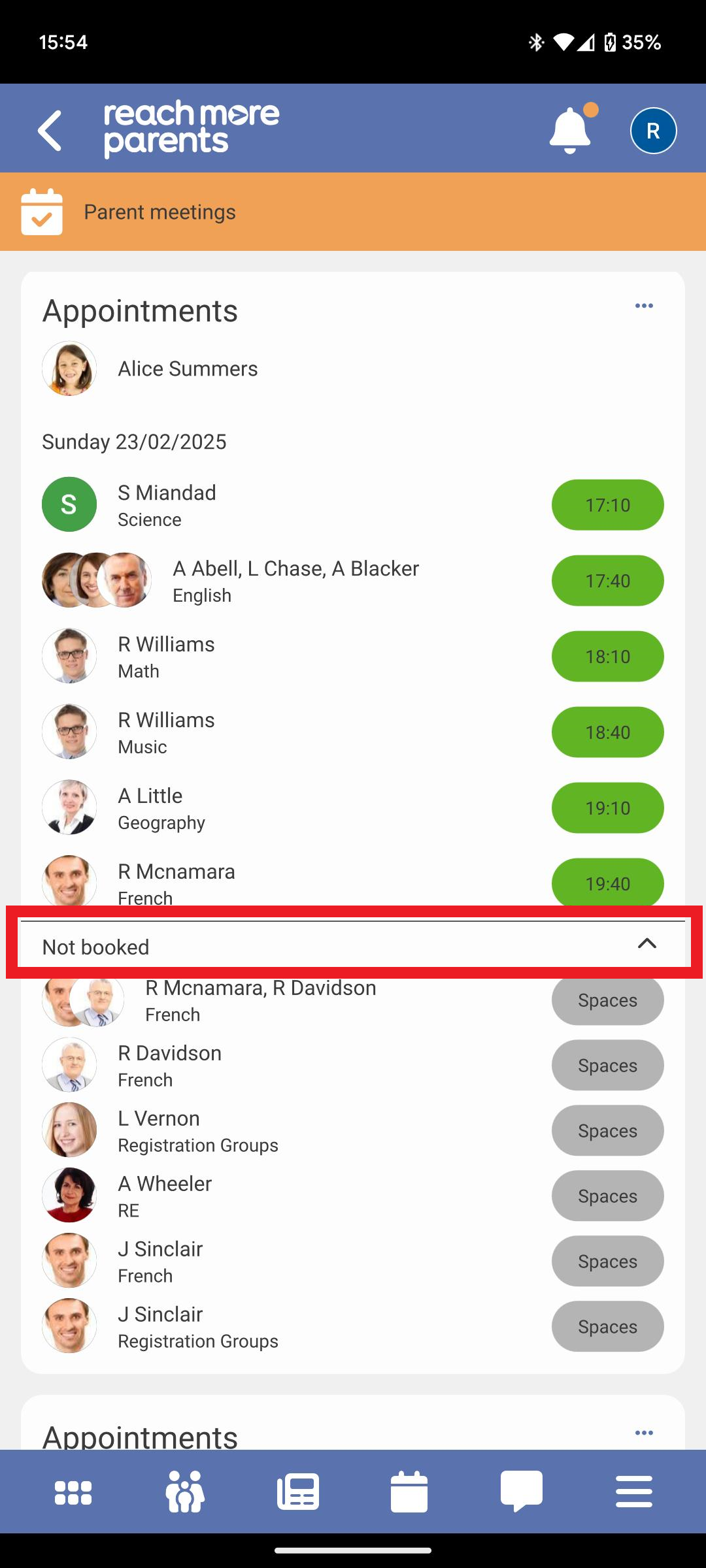
11) If you want to try to find a slot that works for you, click on the "Spaces" button against the required teacher
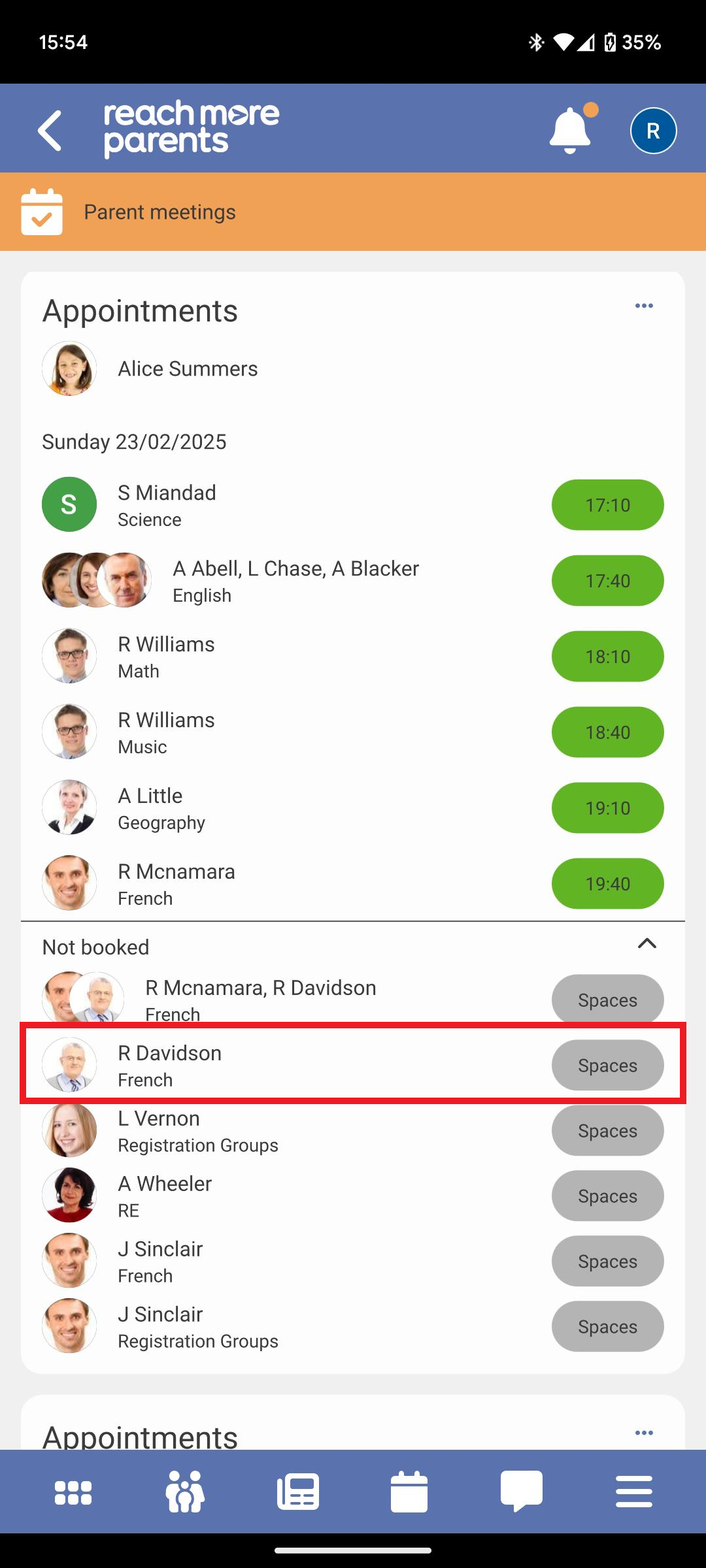
12) After you've chosen a time slot that works for you, this will appear in you "booked" appointments section