
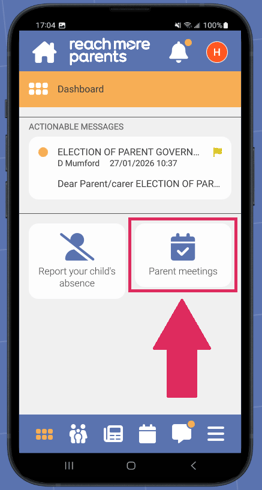
2) The 'Parent Meetings' tile will be present on the app dashboard if any Parent Meetings events are available to be booked. Tap on the 'Parent Meetings' tile.
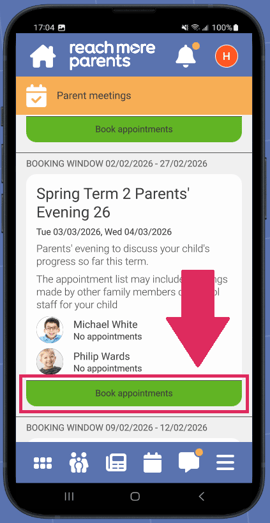
3) Locate the Parent Meeting event you would like to book appointment(s) for and tap 'Book Appointments.'
4) Tap the 'Available from' and 'Available to' drop-downs to select the times you are available on the event date.
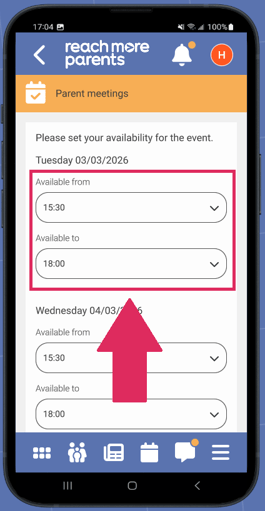
5) If you cannot attend an Event Date, tap 'Not Attending' in the 'Available From' field.
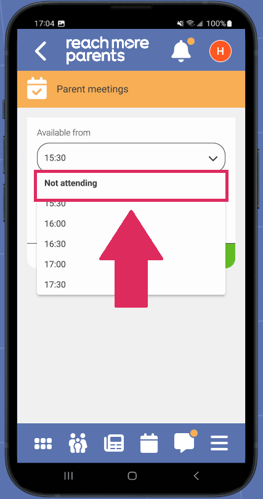
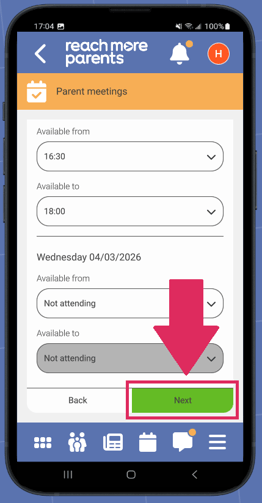
6) Tap the 'Next' button.
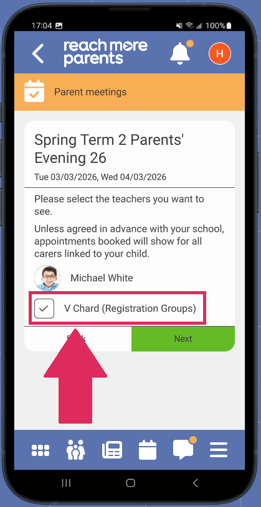
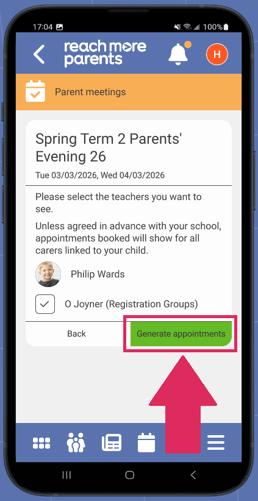
7) Tap in the box next to each teacher to select who you would like to see for your child. If there is a maximum limit for appointments, this will be indicated at the top of the booking screen and you will be prevented from selecting too many teachers when this limit is reached.
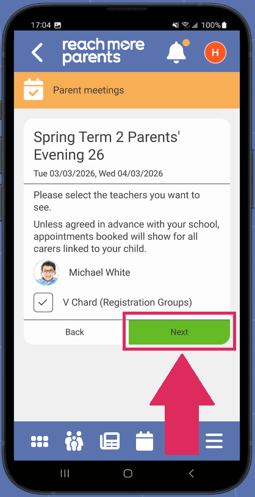
8) If you have more than one child that is eligible for appointments, tap 'Next' to make your teacher selections for any subsequent children, then repeat step 7.
9) Tap the 'Generate Appointments' button.
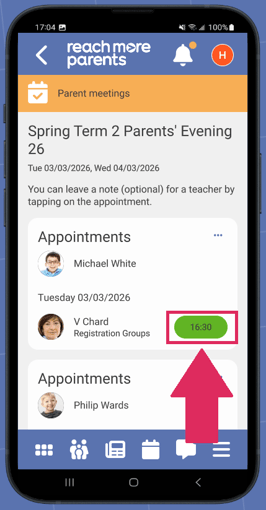
10) When your appointments have been booked, you will see the appointments times listed.
If you need to view your appointment schedule, please follow the steps on how to do so in the article here.