
In this article, we will cover the scenario where a teacher for a subject, for whatever reason, cannot attend the parent event. We will be removing one teacher and replacing them with a substitute.
Firstly, you need to access PEMS as an Admin:
1) Log in to ReachMoreParents.
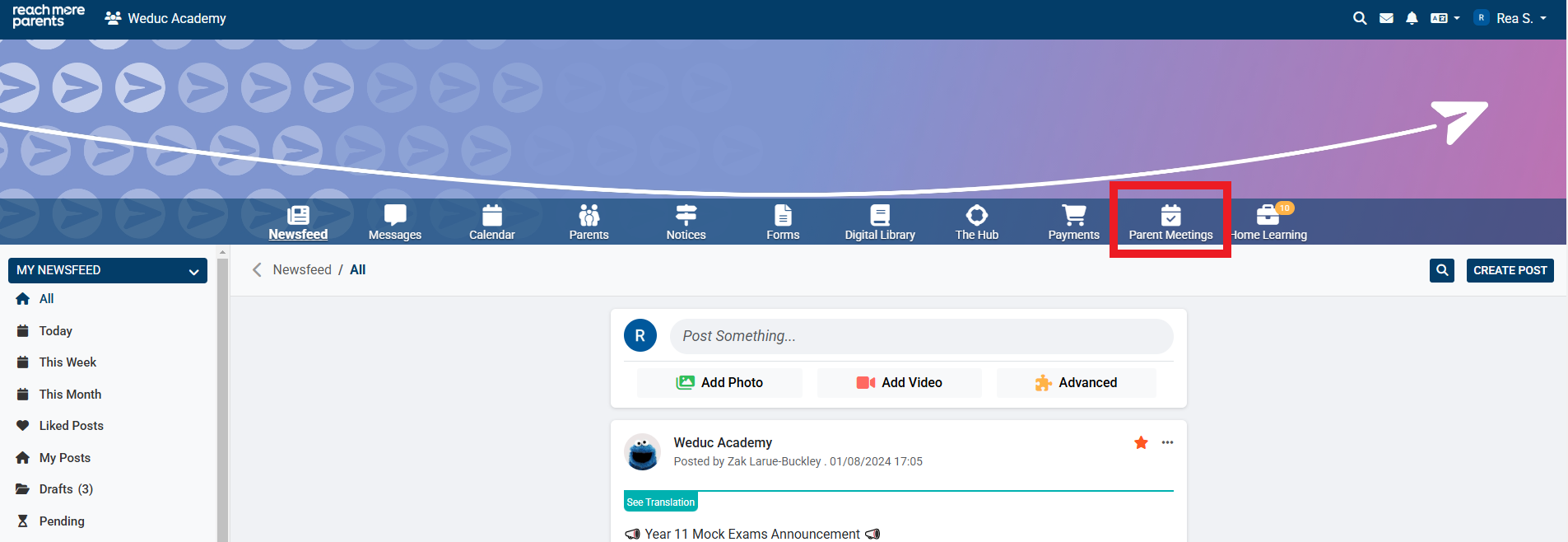
2) Click on the Parent Meetings icon
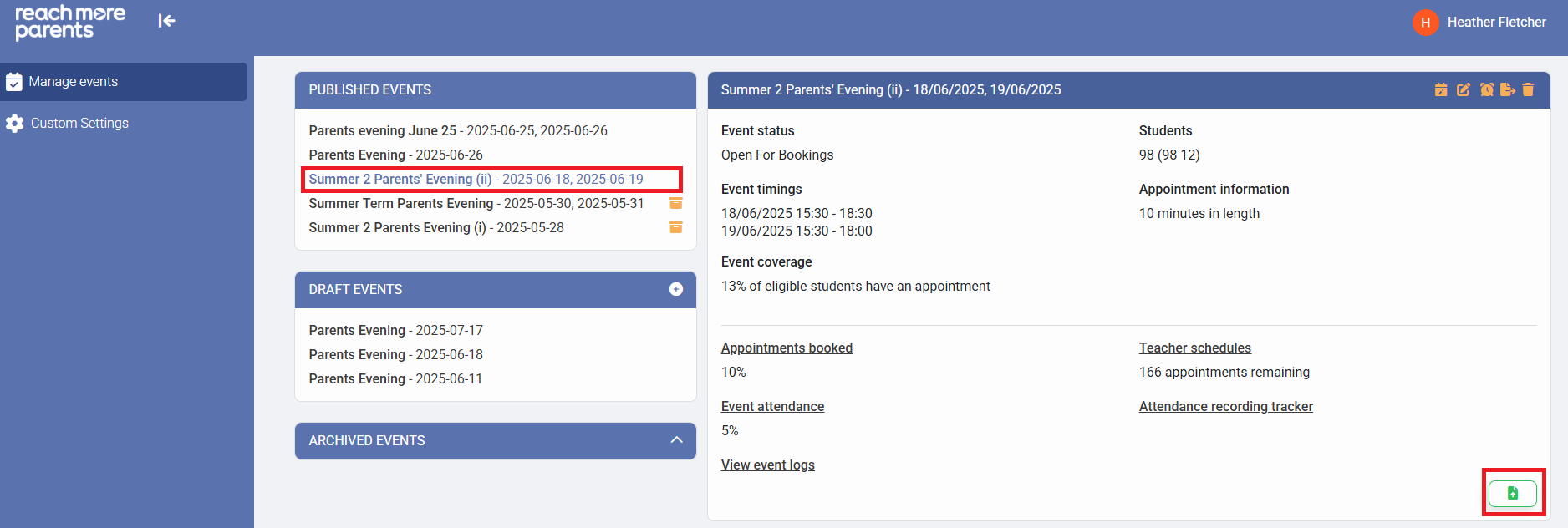
If your parent event has already been published, you will need to move it to "Draft Events" before you can make any changes to teaching staff. Please follow the steps below to find out how to do this.
If your parent event is already in "Draft Events", please skip ahead to step 3 to find out how to cancel appointments for the teacher who can no longer attend. If there are no teacher appointments to cancel, then please skip ahead to step 8.
1) If your event has been published, you will first need to move it to drafts. Click on the event name and then select the Green "Move to Draft" button in the bottom right of the event tile.
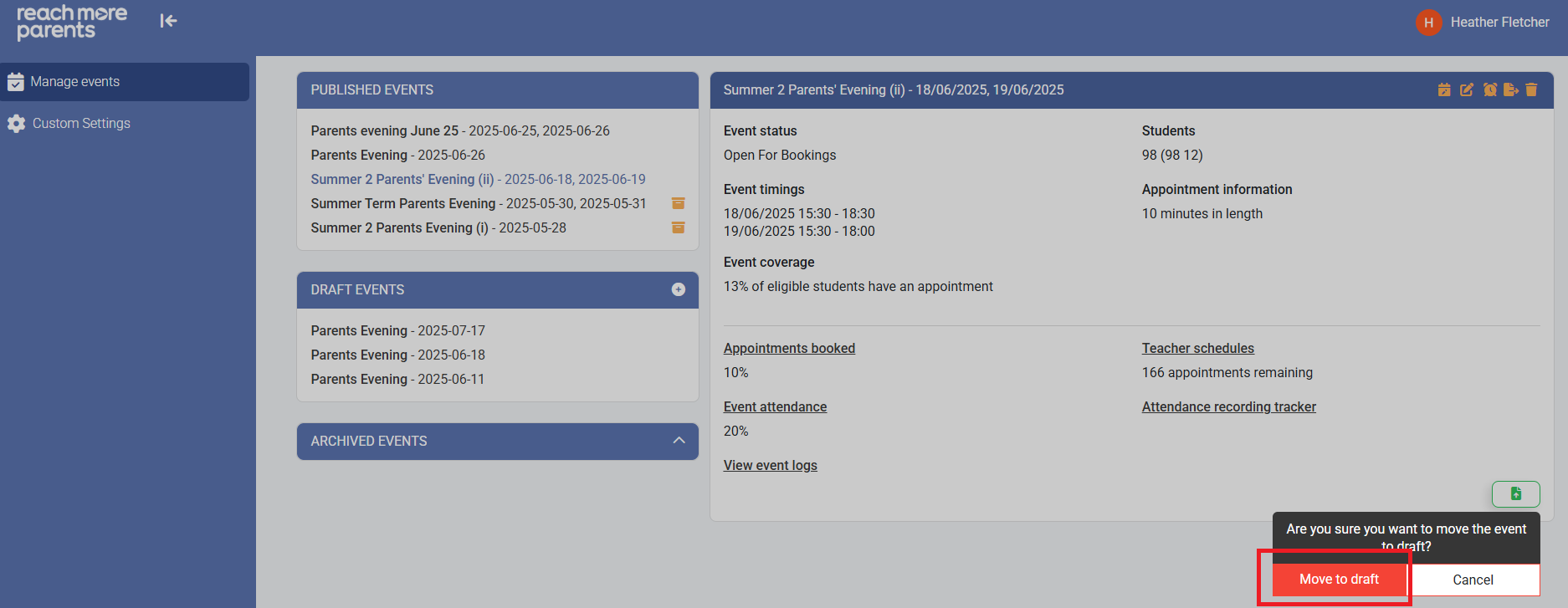
2) Then select "Move to Draft."
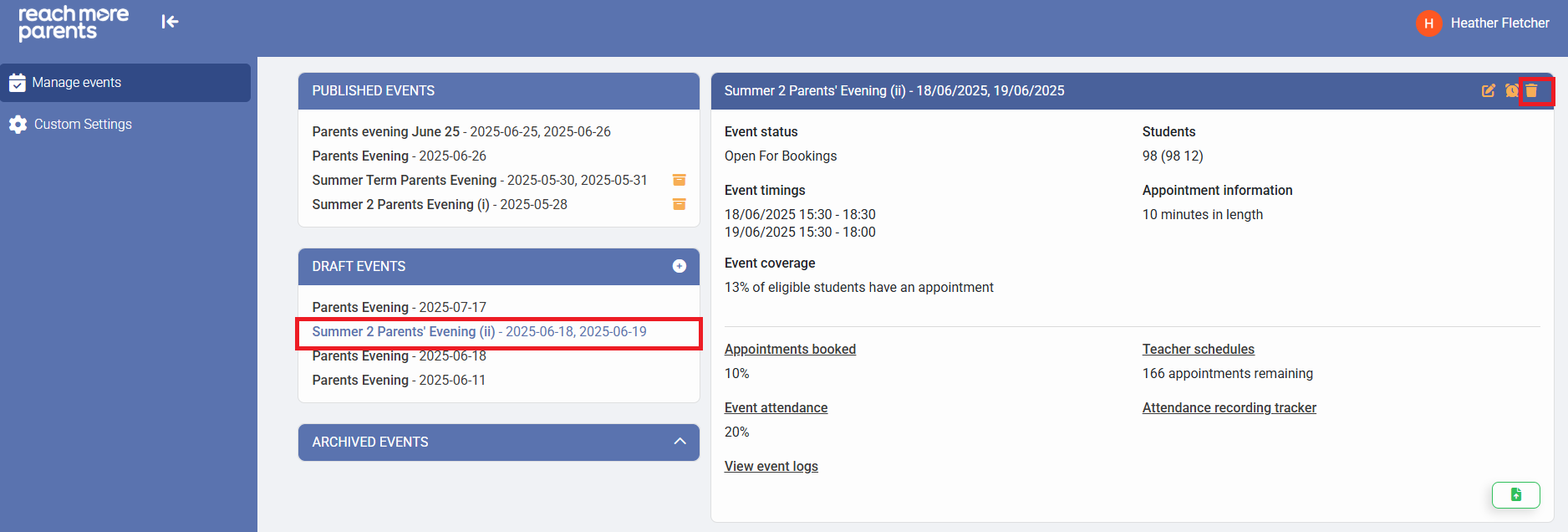
3) Once you have moved the event, click on the event name again in the drafts section and then click the bin icon.
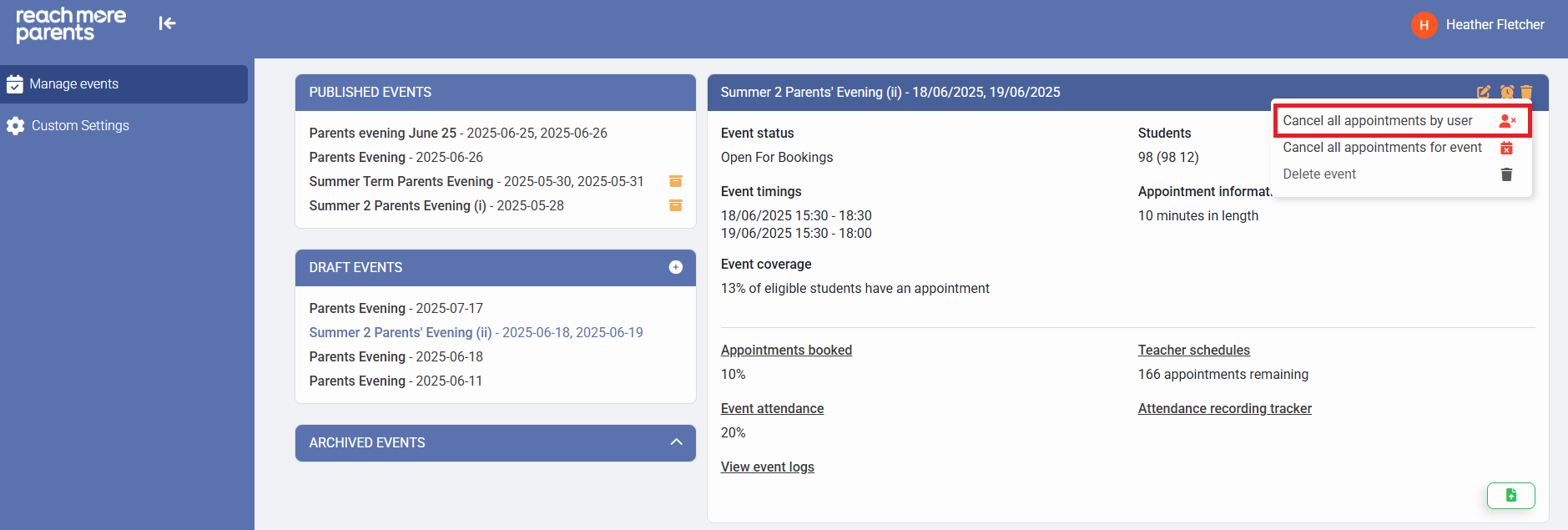
4) Select "Cancel all appointments by user."
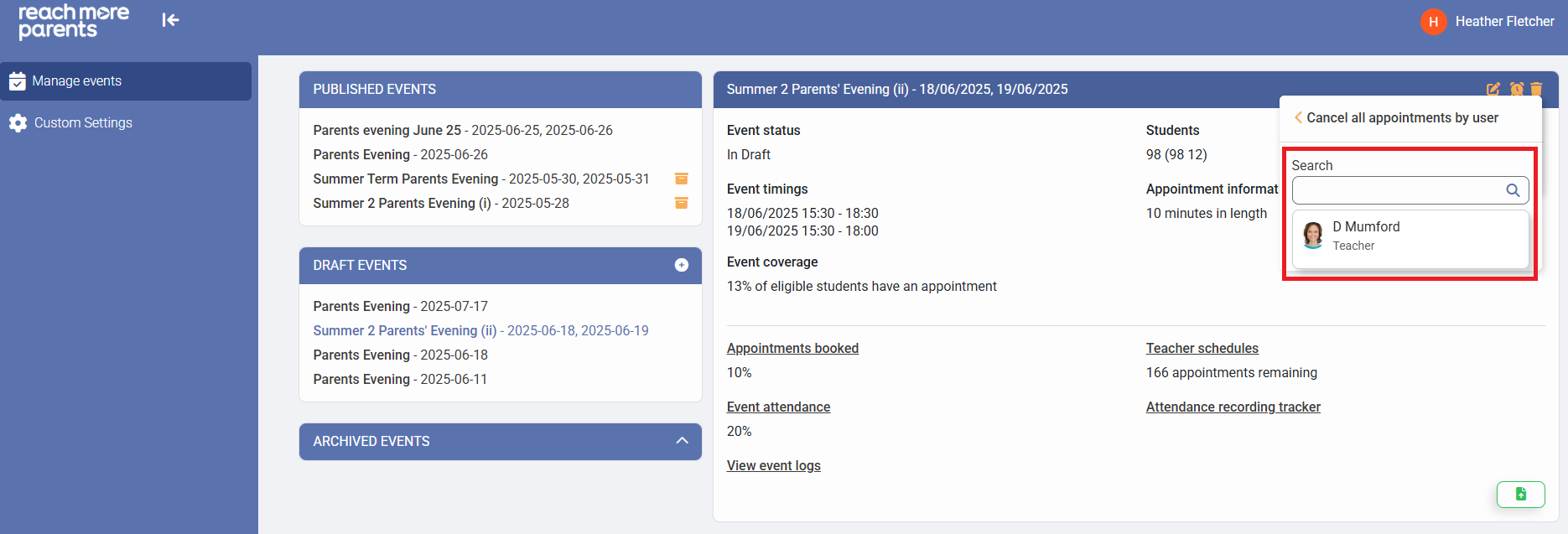
5) Type the name of the teacher who can no longer attend the event and select them from the drop-down.
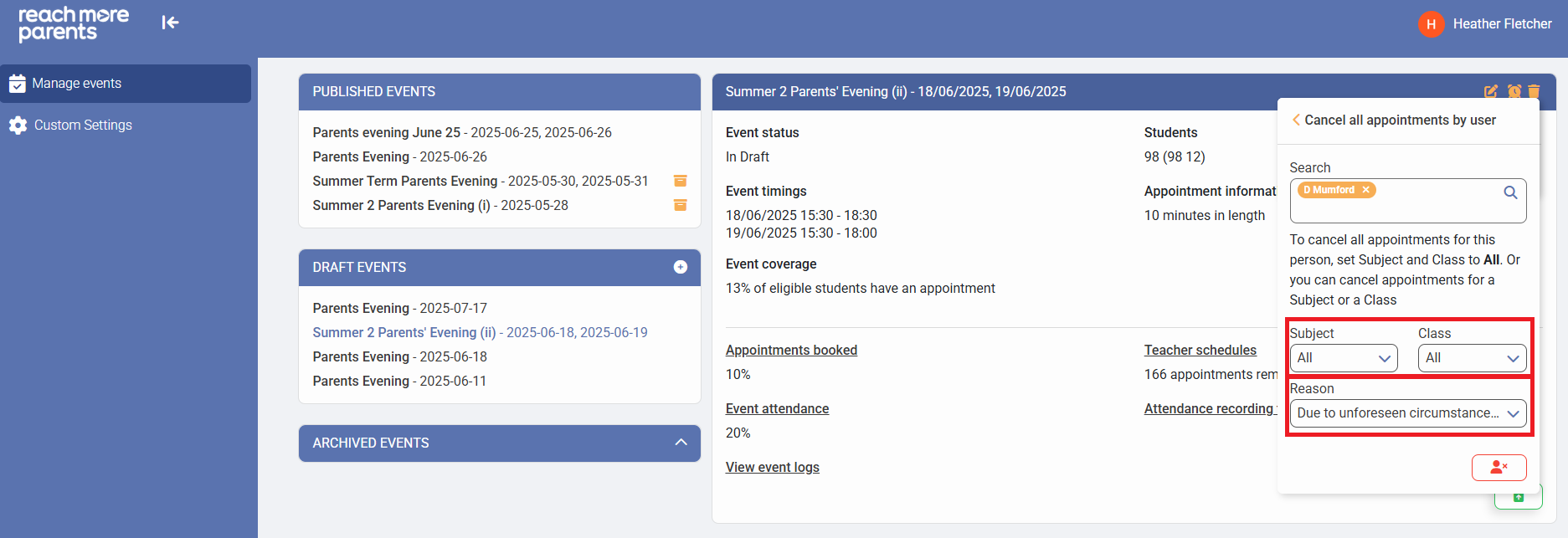
6) Select the subject(s) and class(es) you wish to cancel appointments for, along with a reason why the teacher can no longer attend.
7) Select the "Cancel appointments for this user" icon.
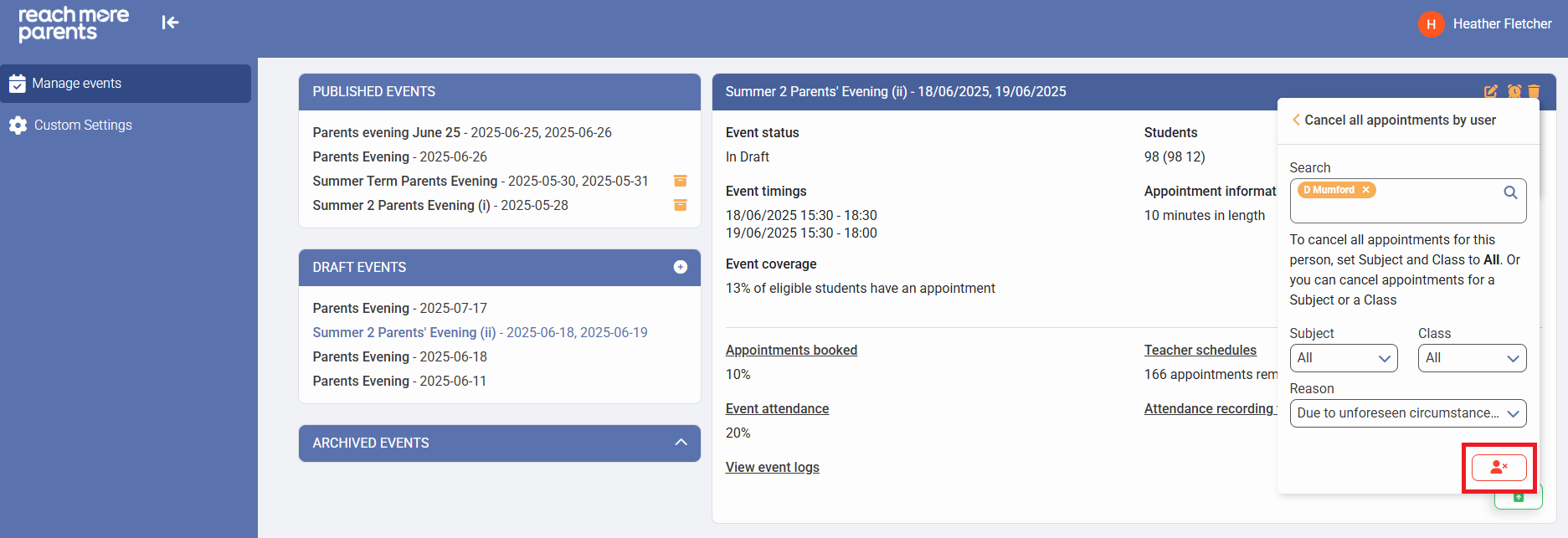
Now you have cancelled all relevant appointments for the original teacher, you can remove them from the parent event and add a substitute teacher in their place. To do this, please follow the steps below:
8) Click on the Event in question within the "Draft Events" block.
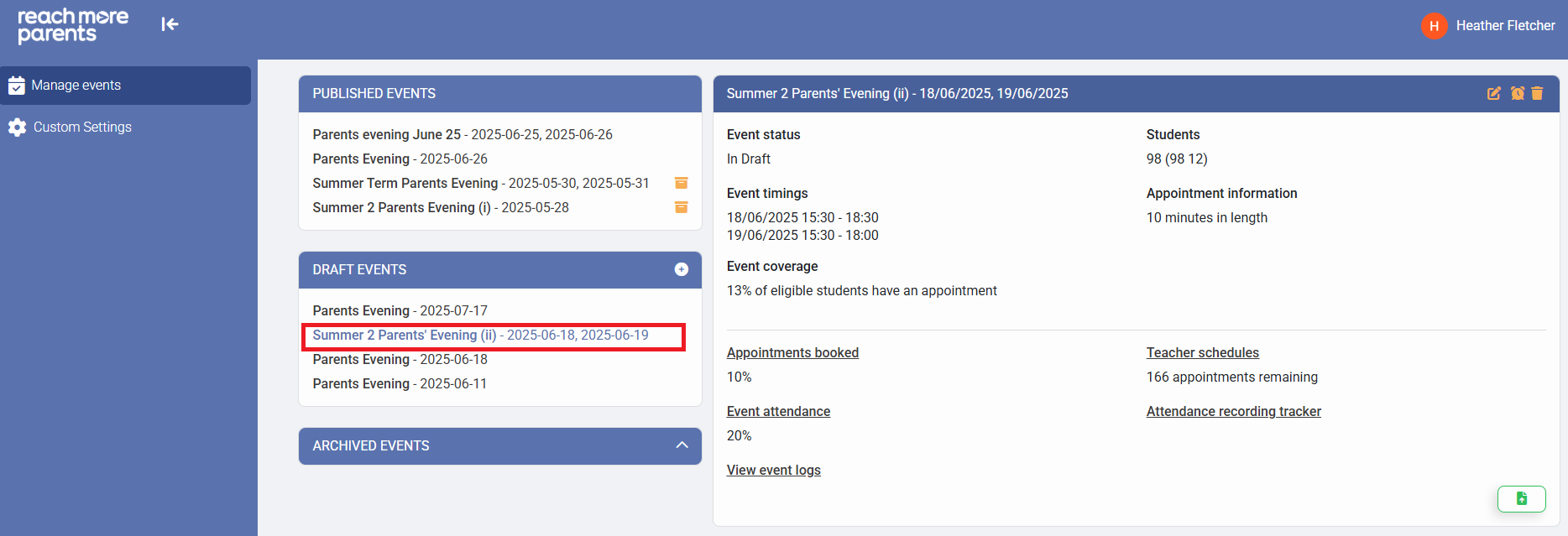
9) Click on "Edit Event" within the Event Summary block
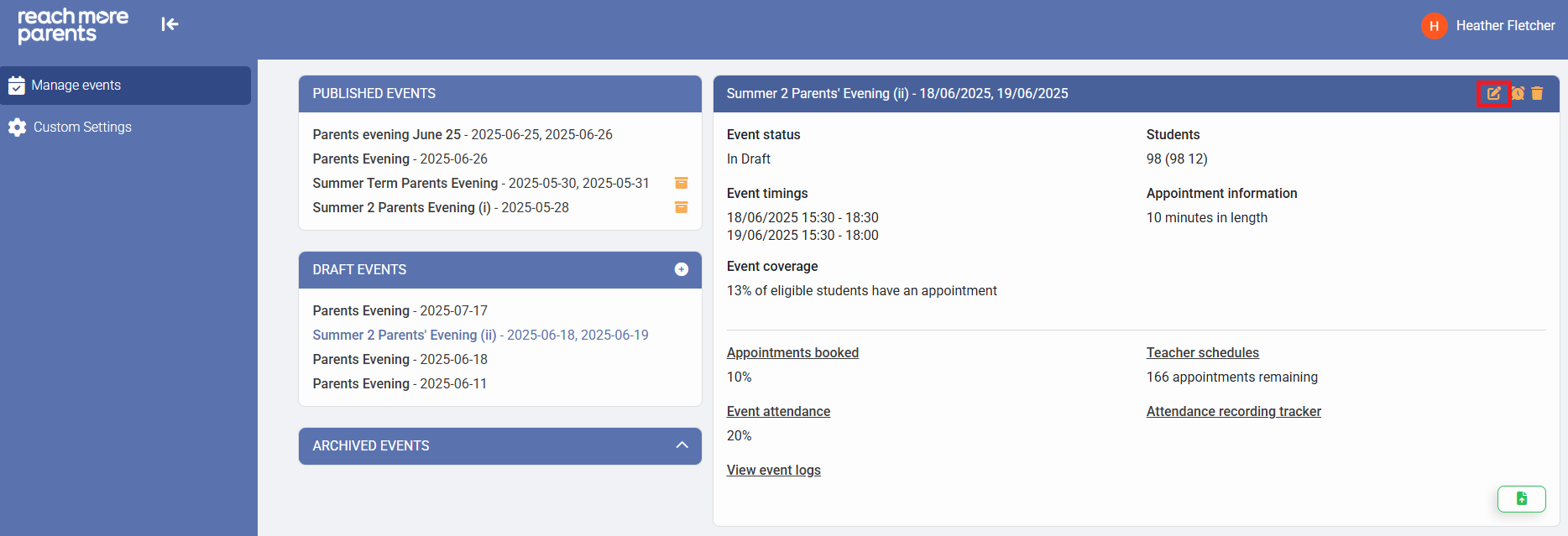
10) Click on "Next" to progress to the "Event Date & Times" screen
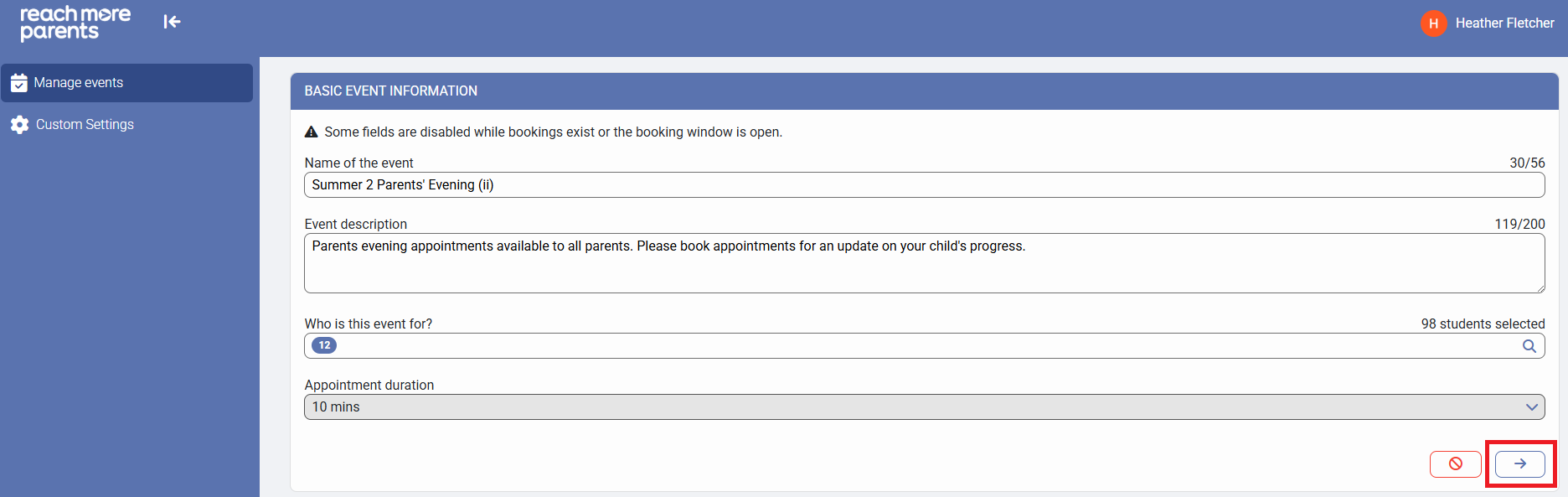
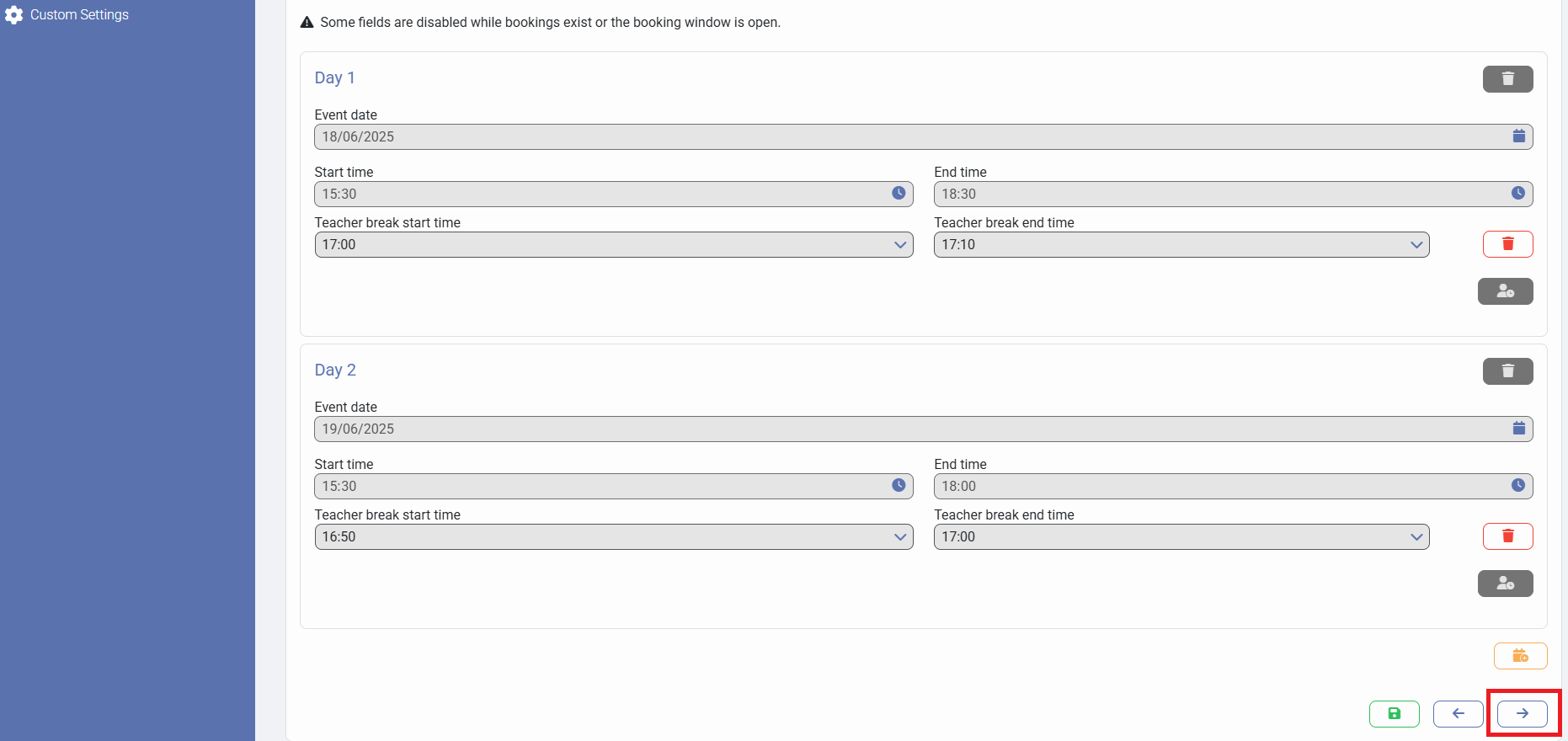
11) Click on "Next" to progress to the "Appointment Booking Settings" screen
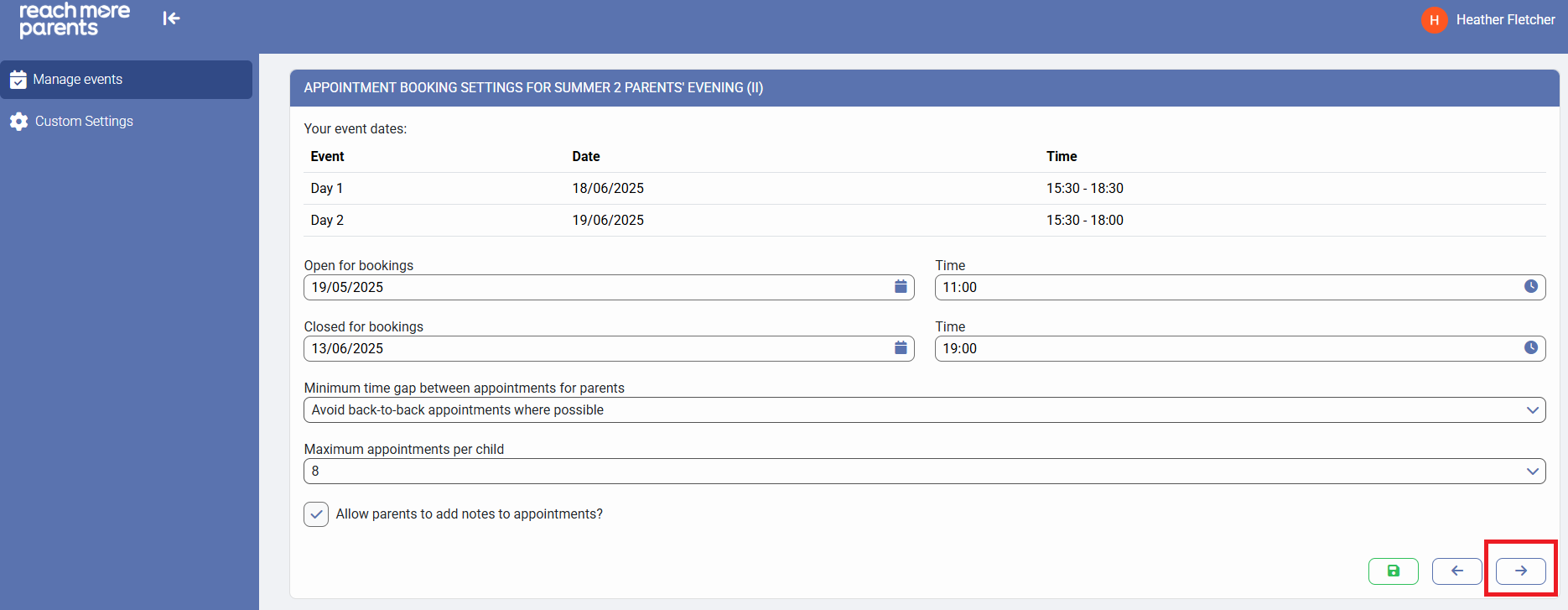
12) Click on "Next" to progress to the "Classes & Teacher Settings" screen
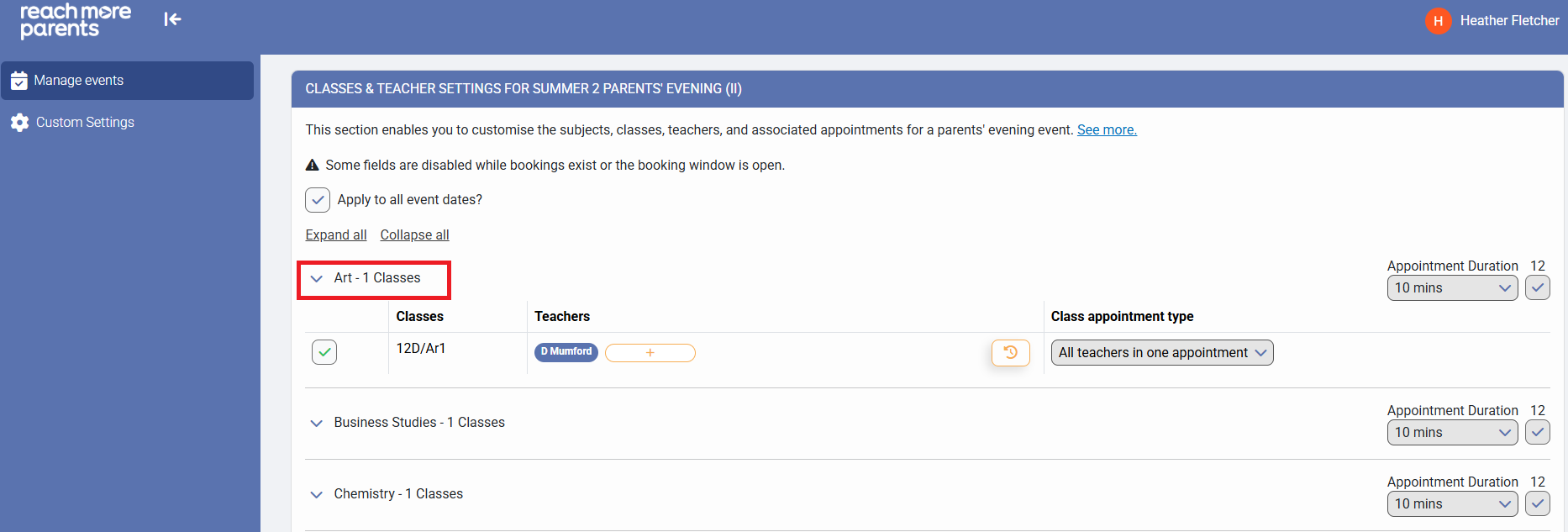
13) Locate the subject/class where you need to substitute a teacher and click on the subject/class heading to expand the details
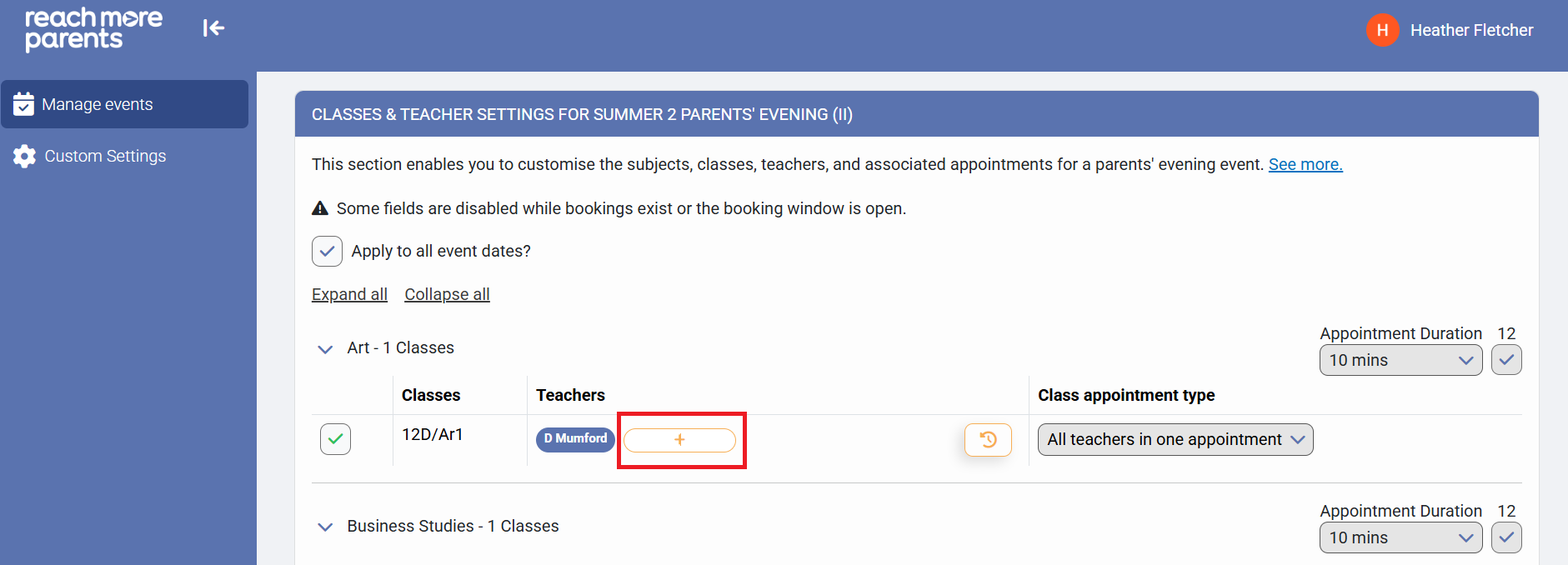
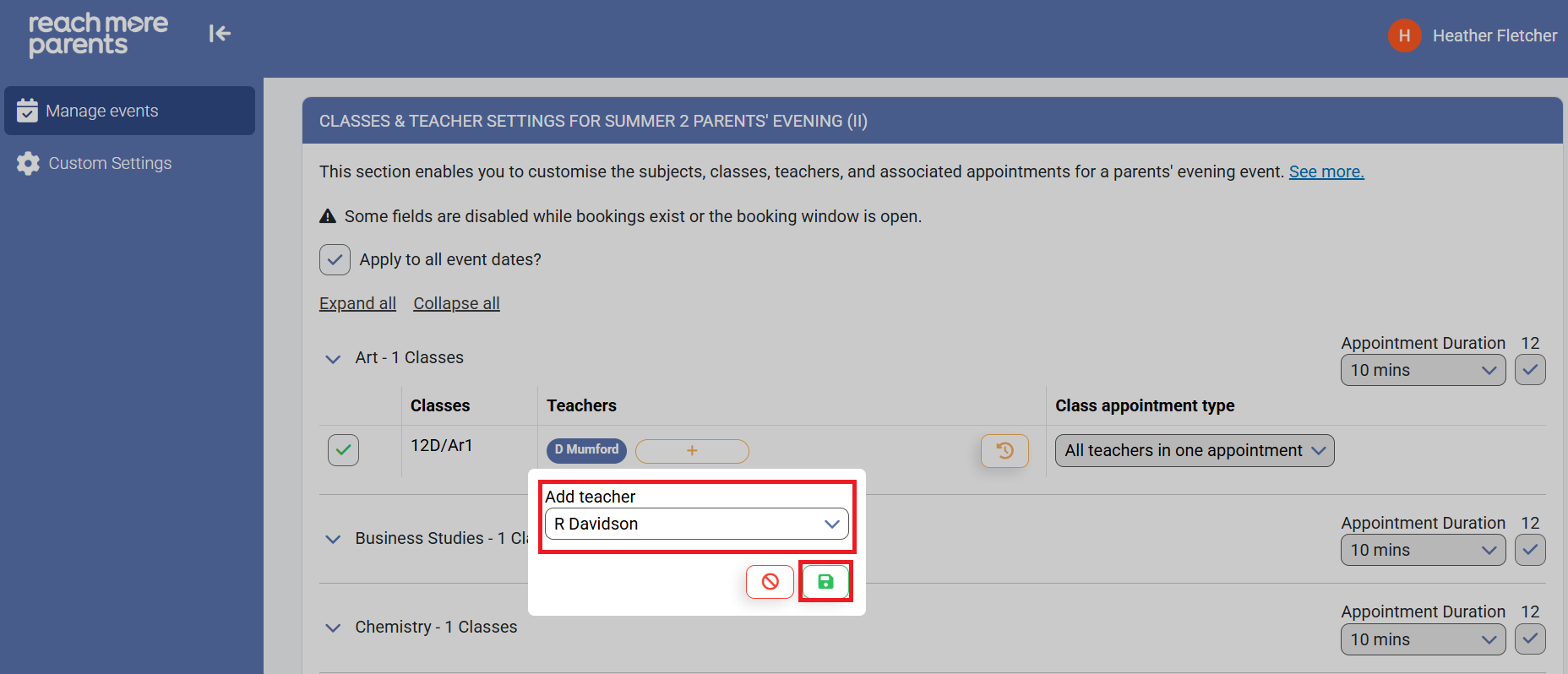
14) Click the plus icon
15) From the drop-down, select the teacher who will be acting as a substitute for the subject/class and click the green "save" icon.
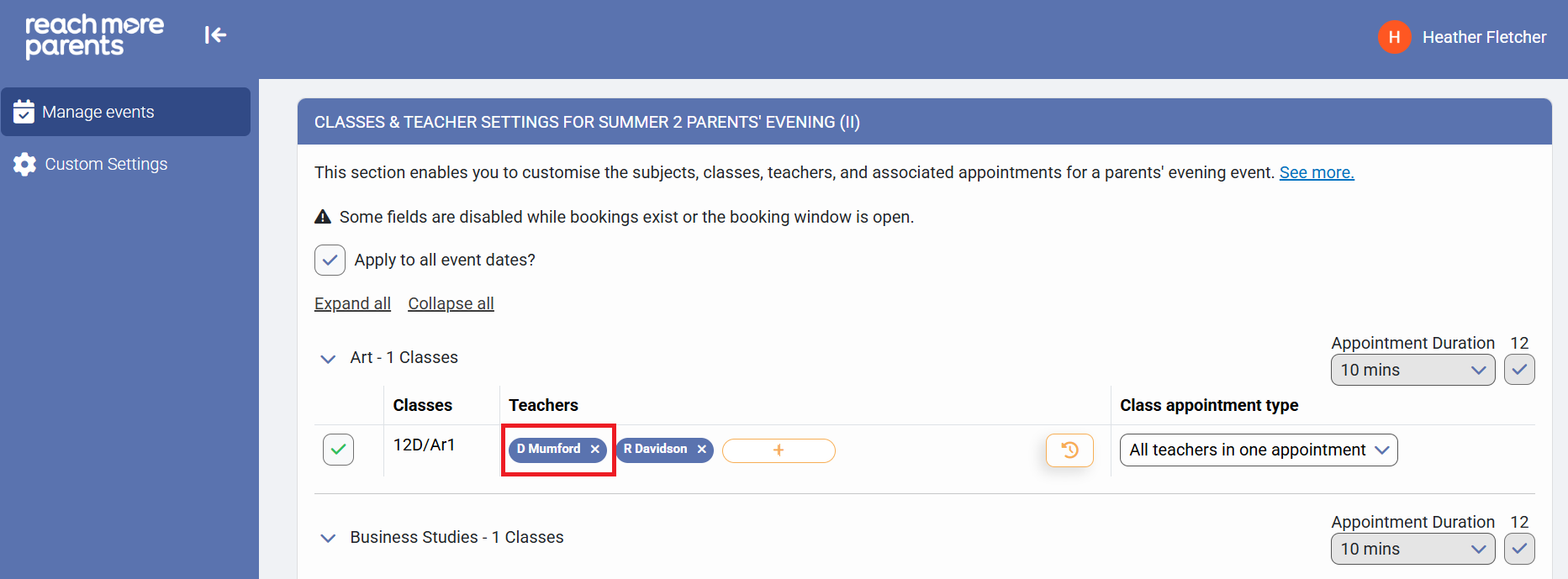
16) To remove the teacher from the subject/class, click on the small cross next to the teacher you wish to remove
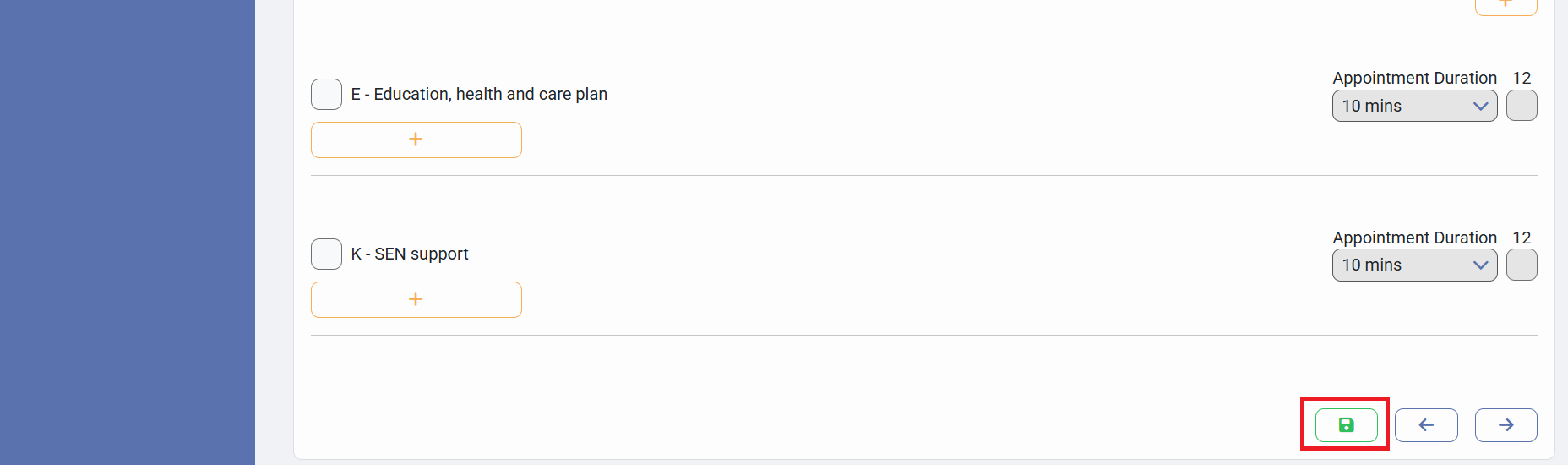
17) Scroll down to the bottom of the page and click the green "Save" icon to save your changes
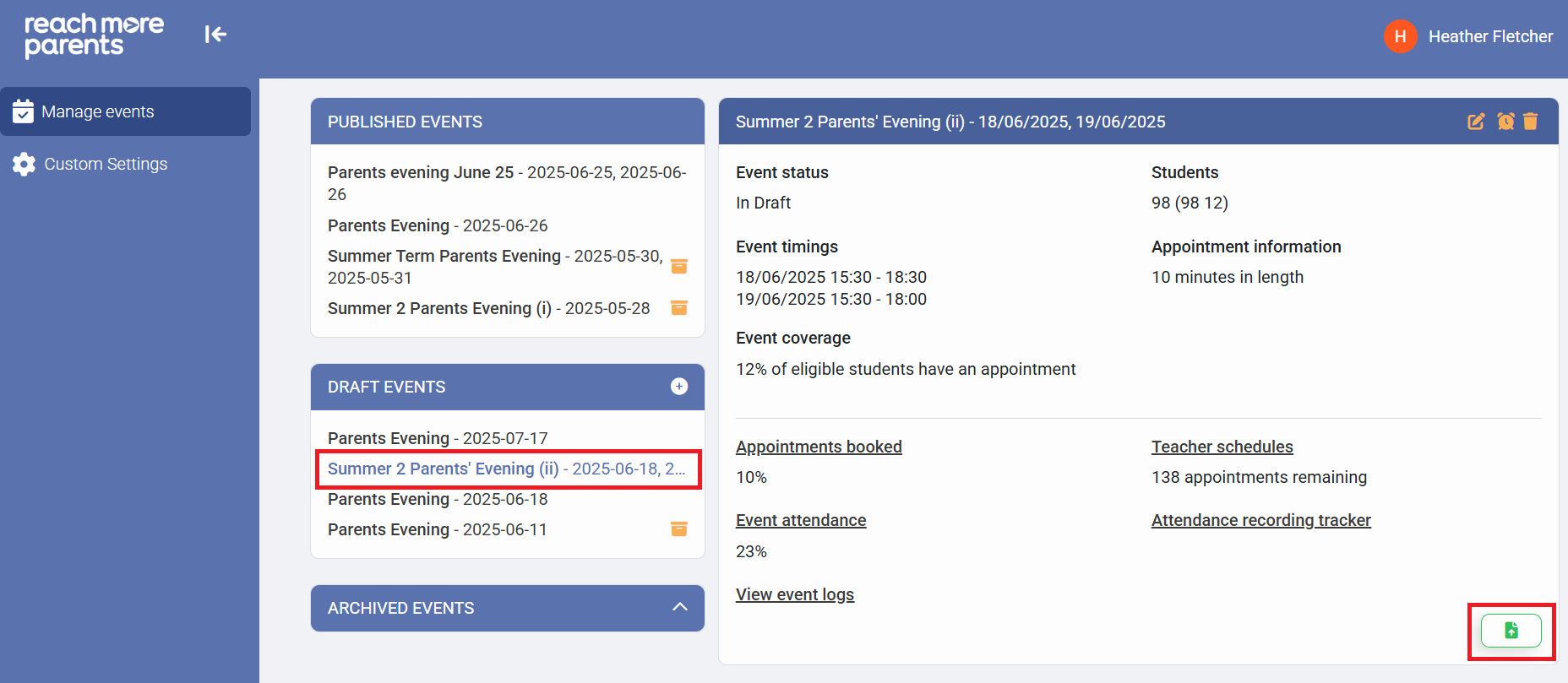
18) Once saved, you will need to publish your parent event to allow parents to continue booking. To do this, select the parent event from the "Draft Events" block and the click the green "Publish Event" icon.
*NB: If you have cancelled any appointments (as outlined in steps 3 to 7), parents will need to re-book their appointment(s) with the substitute teacher that has been added to the event.
For further information on how to message parents to remind them to book their appointments, please see our guide here.