As you have already read in our Full Guide for Administrators, we have created some automated messages to take the worry and effort out of managing your Parent event. We do however know that sometimes a manual additional prod to parents is needed.
With this in mind, we have added a report with messaging functionality to allow you to still manually communicate with your parents who haven't yet created an appointment for your Parent Event. This article details how to create and send this message, step by step.
Firstly, you need to access PEMS as an Administrator:
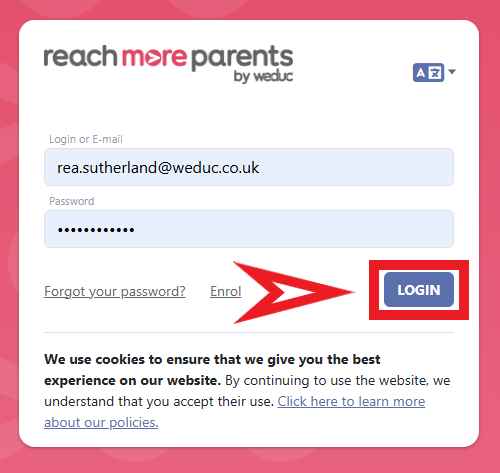
1) Log in to ReachMoreParents.
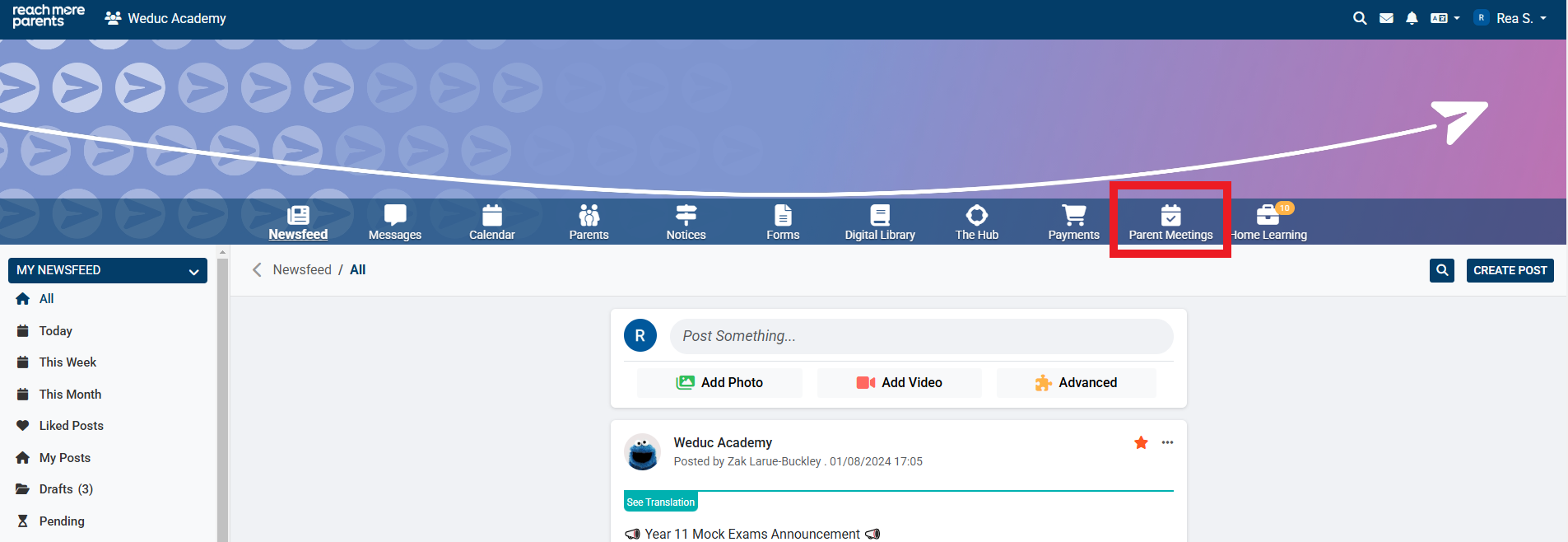
2) Click on the Parent Meetings icon
Now you proceed with the process from here:
1) Click on the Parent Event you want to communicate to parents through
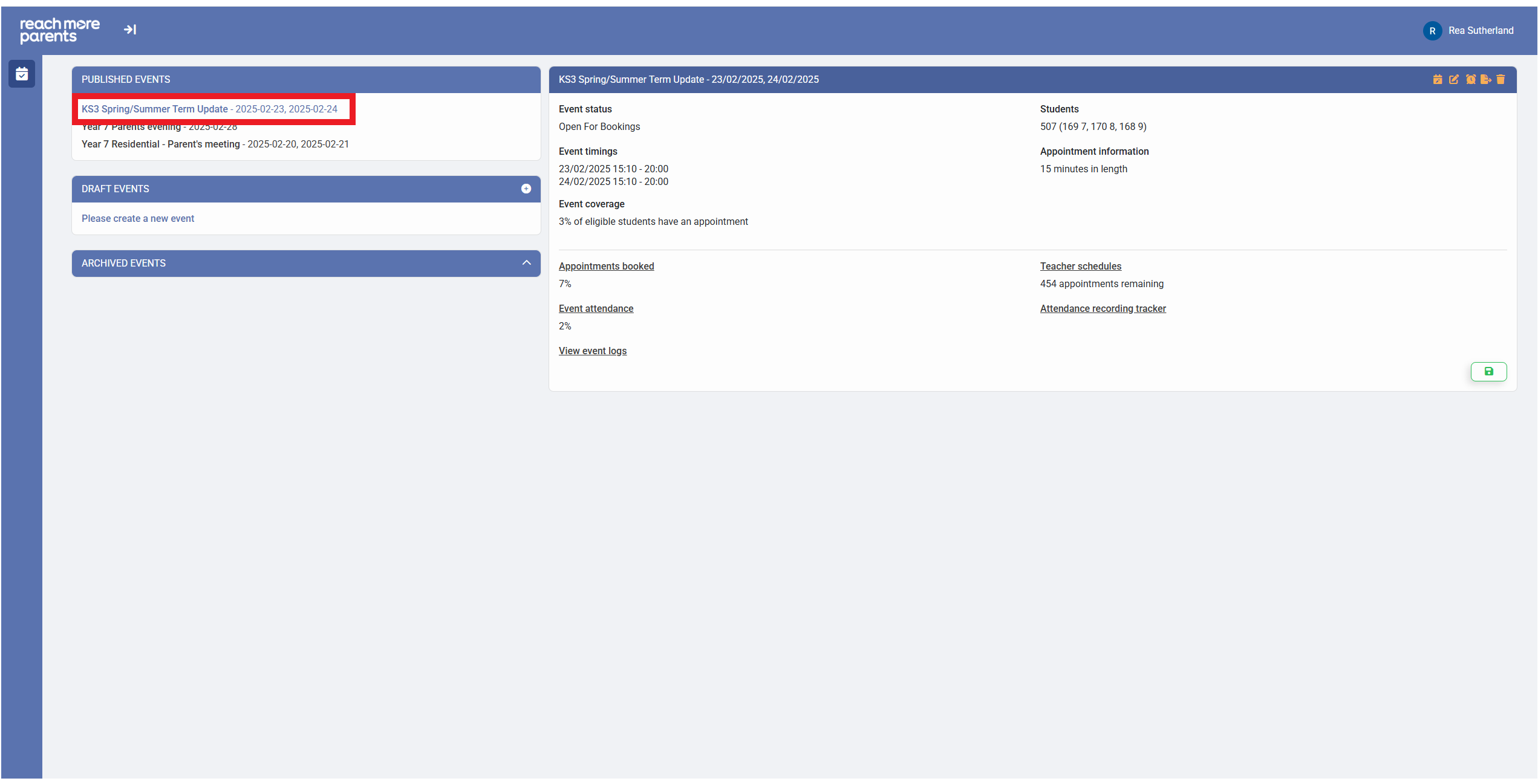
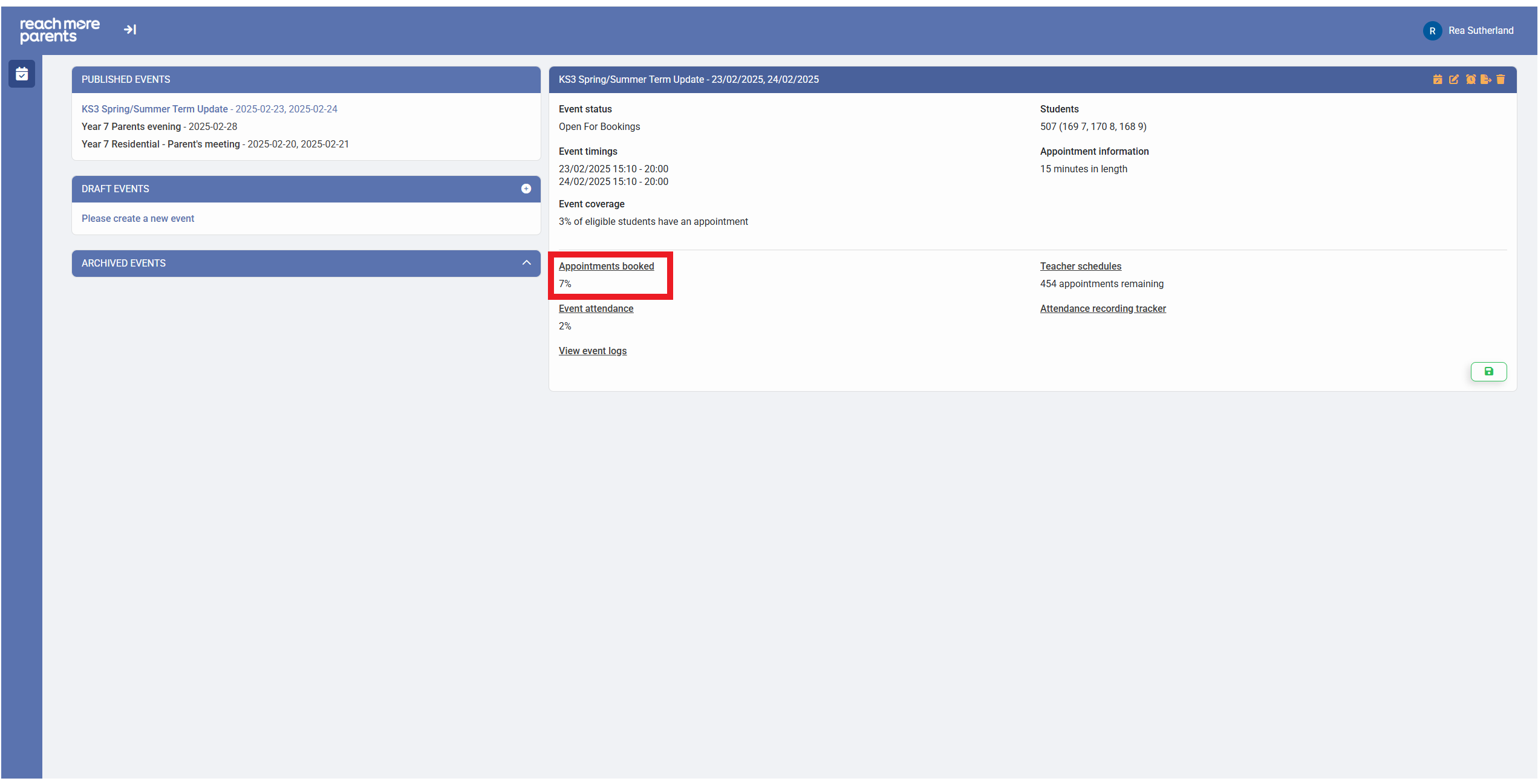
2) Click on the "Appointments Booked" report heading
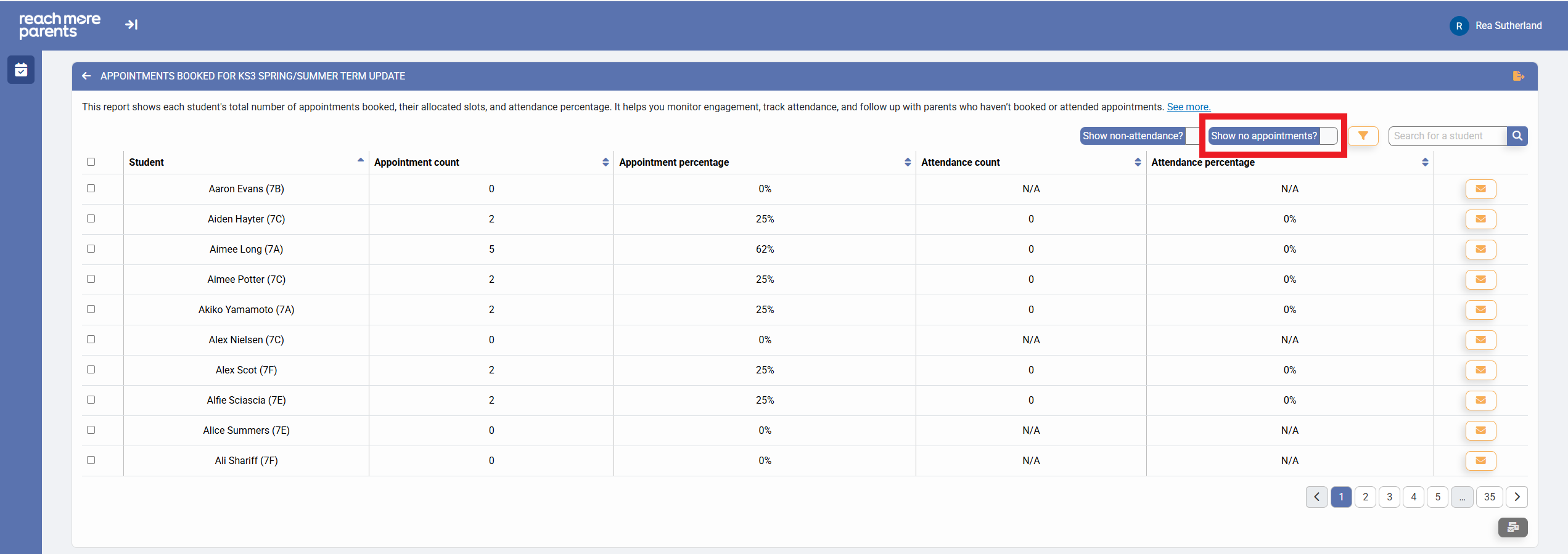
3) To filter to the Students who don't have appointments booked, click on the "Show no appointments?" option
4) Click on "Select All on this Page"
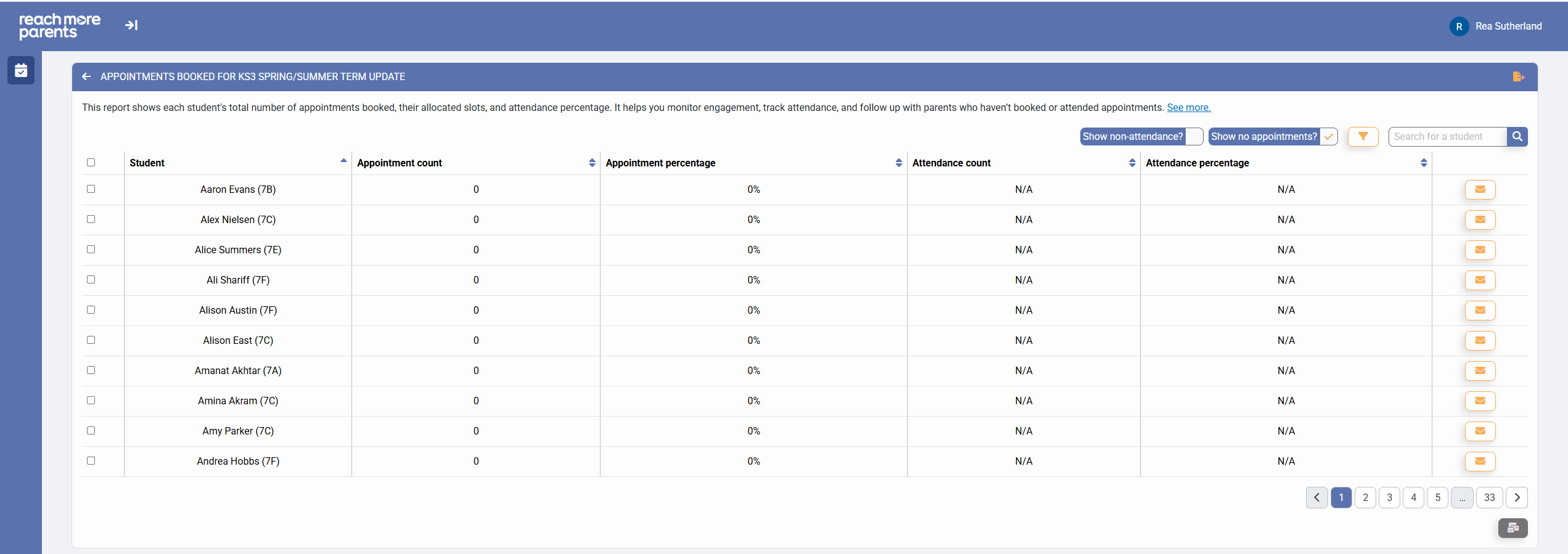
5) Click on "Next" to progress to the next page of results
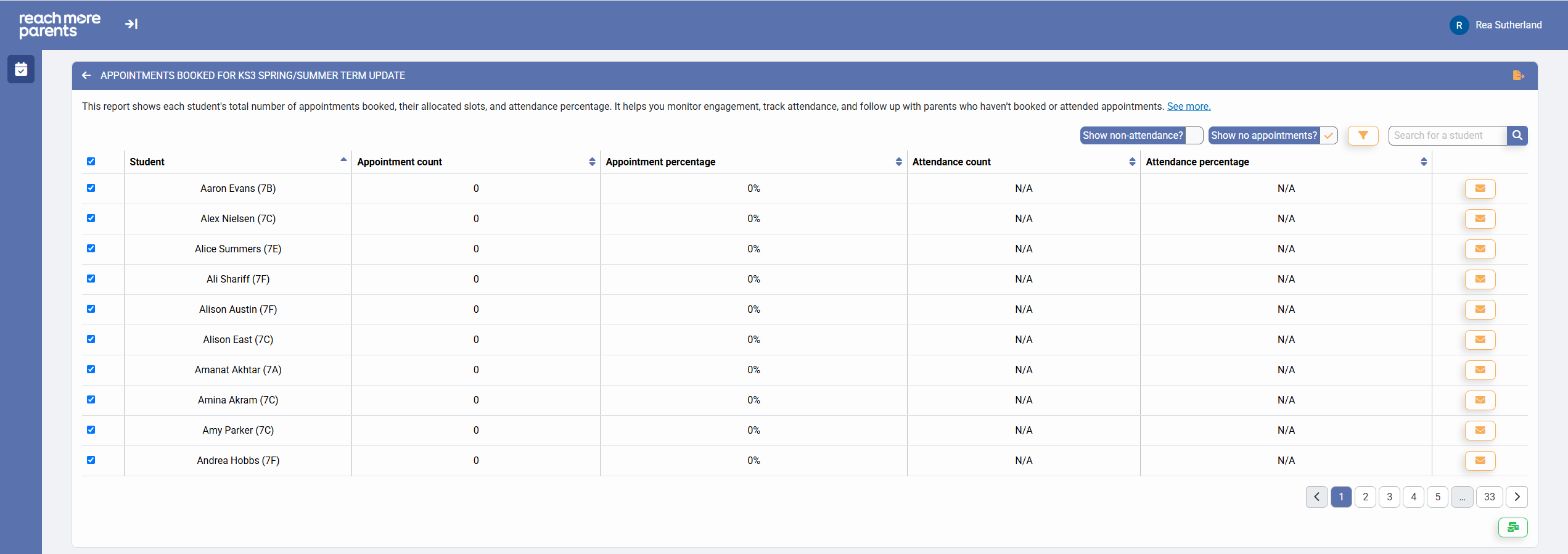
6) Click on "Select all on this page" to select this page's users
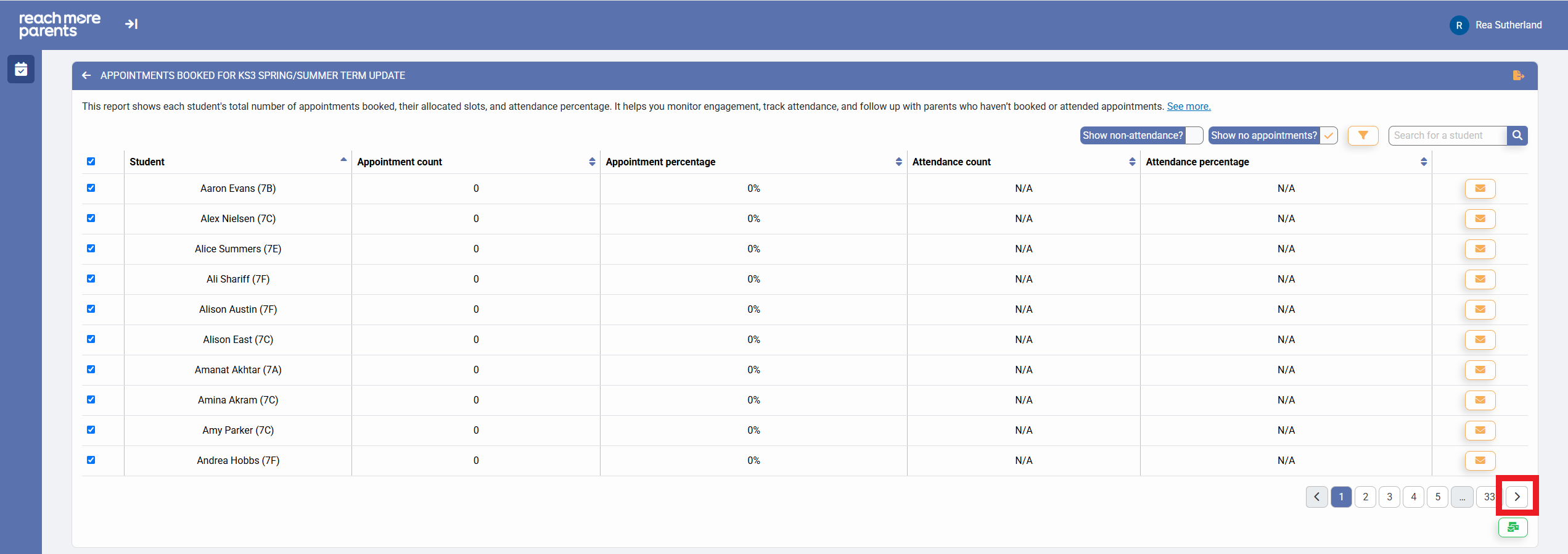
7) Repeat Steps 5 and 6 for all remaining pages of the Appointment Bookings report
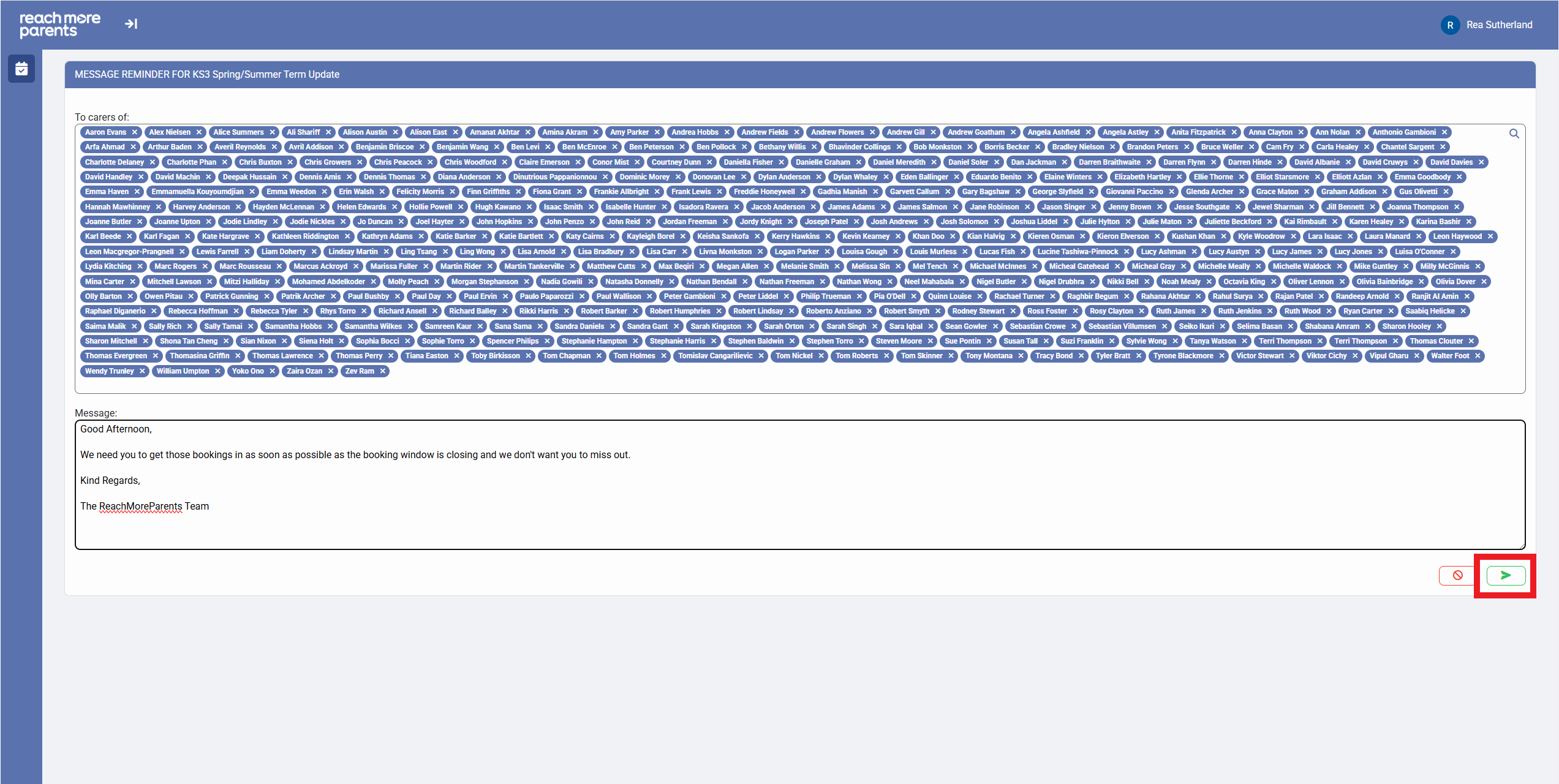
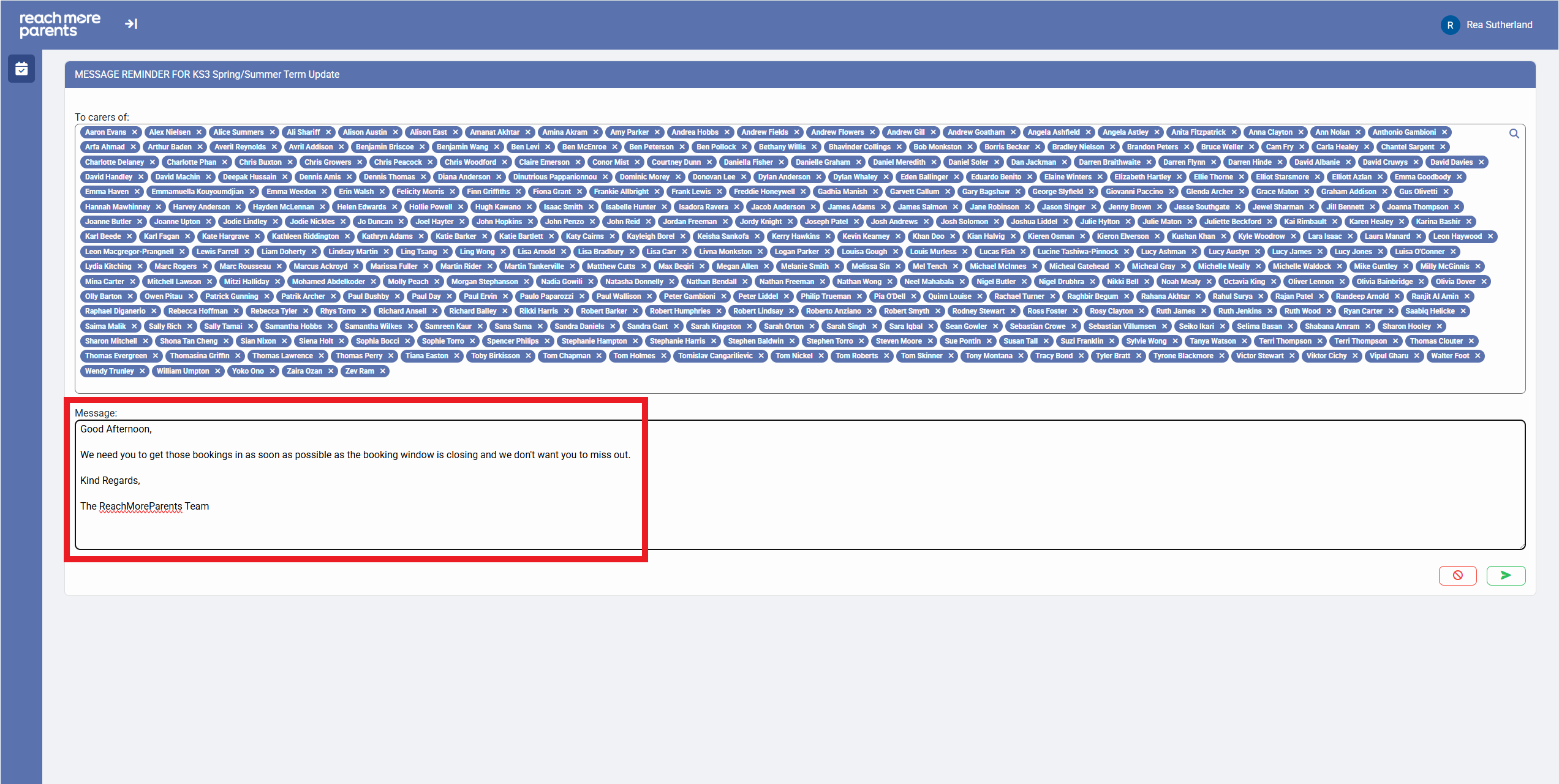
8) Click on "Message selected accounts" and the message screen opens with all selected users in the "To" field (Parent/Carers of these children will be messaged)
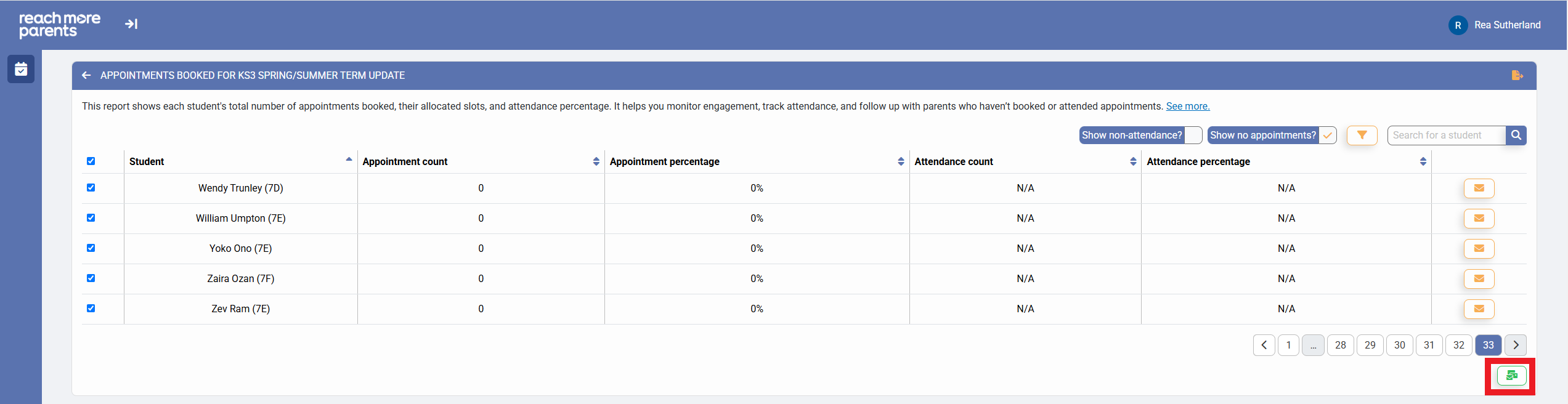
9) Compose your In-Message text
10) Click on "Message selected accounts" and the message will be sent