
New Help and Product Update Shortcuts
As part of the navigation update, you will notice a few new icons within the portal designed to make it easier to access help, discover available features and understand what is included in your Reach More Parents package.
 Help Button
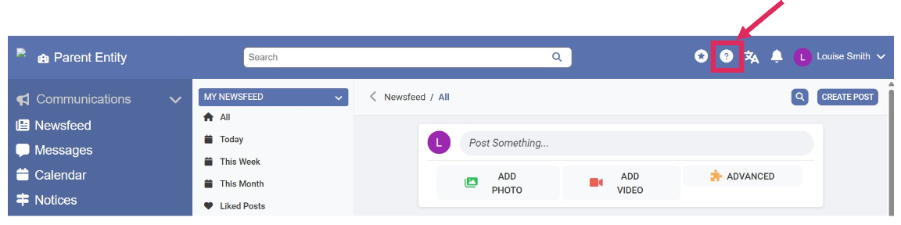
You'll now find a dedicated Help button within the portal.
Selecting this button gives you quick access to support resources by opening our Knowledge Base in a new tab. This allows you to search articles and videos, helping you find answers quickly.
This change makes support more visible and easier to access, helping staff get the assistance they need exactly when they need it.
 Product Updates Page
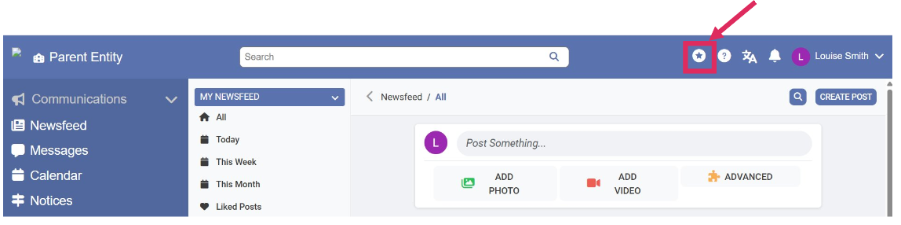
A new Products button has been added to the navigation.
This provides a central place to view any updates to the product, such as new feature releases, bug fixes and tips and tricks to get the most from the platform. Rather than just relying on email updates, the latest product information can now be accessed from a single, consistent location.
The aim is to make it easier for users to see updates and information, helping them to get the best from the platform.
 Gem Icons
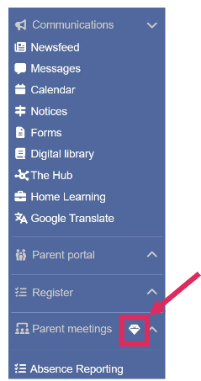
If you see a gem icon alongside a feature, this means the functionality is available within Reach More Parents, but it is not currently included in your organisation's package.
The feature is visible so that users can see the wider capabilities available within the platform and become aware of additional tools that may benefit their school or trust.
To gain access to a feature marked with a gem icon, your organisation would need to upgrade its Reach More Parents package.
If you would like to find out more about a feature displaying a gem icon, please contact the Reach More Parents team.
 Disabled Icons
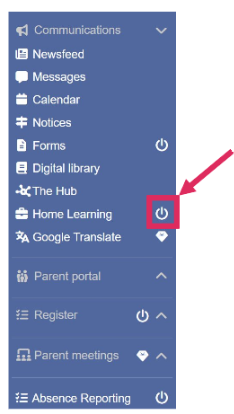
If a feature appears with a disabled (greyed-out) icon, this means the feature is included within your organisation's package, but your user role does not currently have permission to access it.
This is different from a gem icon. The functionality is already available to your organisation, but access has been restricted through role permissions.
If you believe you need access to a feature that is displayed as disabled, please contact your school's System Administrator. They can review and update your permissions if appropriate.
Why Are These Icons Being Introduced?
These icons are designed to provide greater transparency and reduce confusion about feature availability.
They help you quickly understand:
- Which features are included in your organisation's package
- Which features are available as part of an upgrade
- Which features are restricted by role permissions
By making this information visible within the portal, users can more easily discover functionality, understand access restrictions and find the right route to request additional access or services.