
Why did you make these changes?
The navigation update is designed to make Reach More Parents:
- easier to navigate
- more consistent across products
- quicker for new users to learn
- more accessible
- easier for us to continue improving in future
Most functionality remains exactly the same. It's simply organised in a clearer, more intuitive way.
Why has my portal branding changed?
As part of the navigation update, we've simplified the branding experience within the portal.
You can still choose your own portal colours, but the colour picker now helps ensure your selections meet accessibility standards before they can be saved. We've also introduced a selection of recommended colour combinations to make choosing an accessible design even easier.
These changes only affect the staff portal. Branding within the parents app will remain unchanged.
Can I still change my portal colours?
Yes.
You can still personalise your portal using the approved colour combinations available within:
System Settings > School Setup > Appearance > Portal Layout
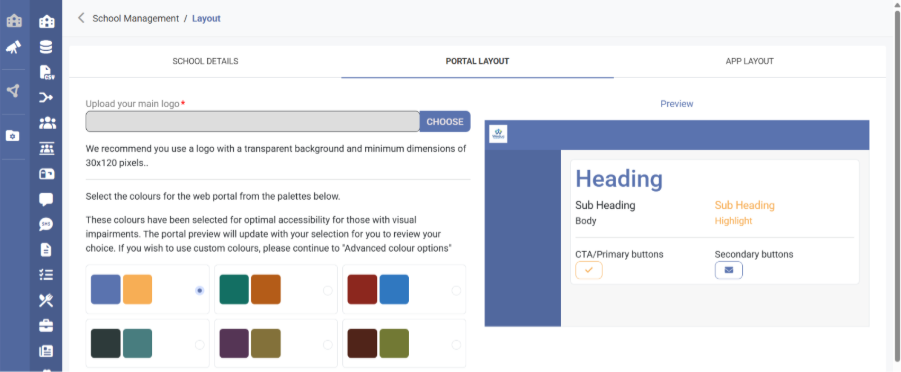
The available options have been simplified to help ensure a consistent and accessible experience across the platform.
Any custom colours you choose must meet accessibility requirements before they can be saved. This helps ensure the portal remains clear and easy to use for everyone.
Where has my portal banner image gone?
The portal banner image option has been removed as part of the navigation update.
Removing banner images helps create a cleaner, more consistent interface, improves accessibility, and ensures important information remains easy to find regardless of screen size or device.
Where do I find Registers?
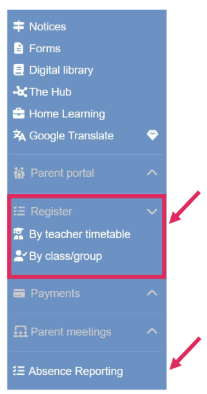
Registers have moved into the left-hand area of the navigation. The functionality hasn't changed, only where you access it.
If you require Absence reporting, this is also on the lefthand menu, slightly further down.
Where do I find System Settings?
System Settings is now located within the left-hand navigation menu.
It remains the place to manage your organisation's setup, users, permissions and configuration. Clicking on it opens a new menu.
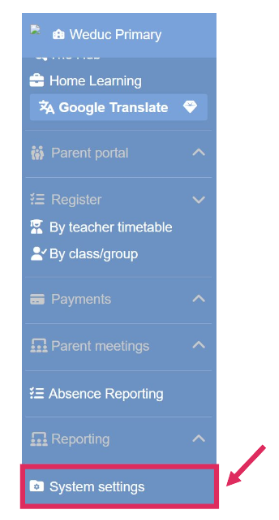
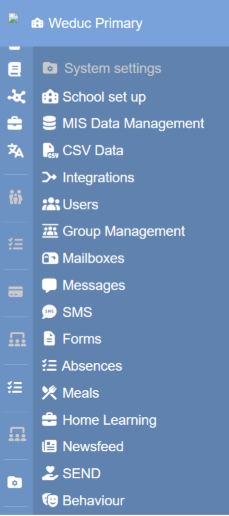
System settings System settings menu
Where have Messages, Calendar and Newsfeed gone?
These features haven't changed, they've simply moved.
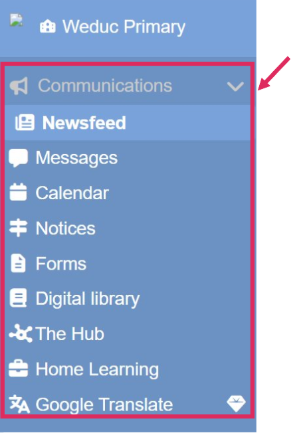
You'll now find them grouped together under Communications in the left-hand navigation.
This brings all communication tools into one consistent location.
Why can't I see communications from another school anymore?
Messaging and Calendar are now specific to the school or organisation you are currently viewing.
This means that if you have access to more than one school, you will only see the messages and calendar items linked to the school or organisation selected at that time.
This change has been made to keep each view clearer and more relevant, particularly for staff who work across multiple schools.
To view messages or calendar items for another school, simply switch to the appropriate organisation.
Why does the menu look different?
The navigation has been redesigned to make Reach More Parents easier to use.
Features have been grouped into clearer sections with a consistent layout across the platform, helping you find what you need more quickly.
Although things may be in a different place, the functionality you're familiar with remains the same.
Have any features been removed?
No major functionality has been removed.
Most changes are to the layout and organisation of the navigation.
The main exceptions are the portal branding changes, including the removal of custom banner images and the introduction of approved colour combinations.
Do I need to learn new processes?
Generally, no.
The majority of day-to-day tasks work exactly as they did before.
You'll simply access them from different areas of the navigation.
Why can't I access a feature that another colleague can?
Some features are controlled by user permissions.
If you don't have access to a feature that someone else in your organisation can see, please contact your system administrator.
Why does my navigation look different from my colleague’s?
This is most likely due to one being MAT View and one being School View. MAT and school users have slightly different navigation because they perform different tasks.
Schools are focused on day-to-day communications and administration, the top of their left-hand menu will reflect this by showing “Communications” at the top. MAT users have access to additional reporting and oversight features, including “School Insights.” They can still access Communications areas under the “Legacy Functions” tab.
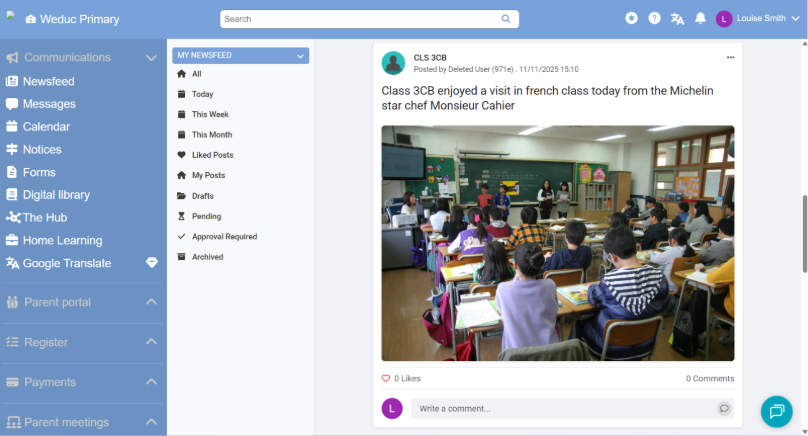
Example - School View
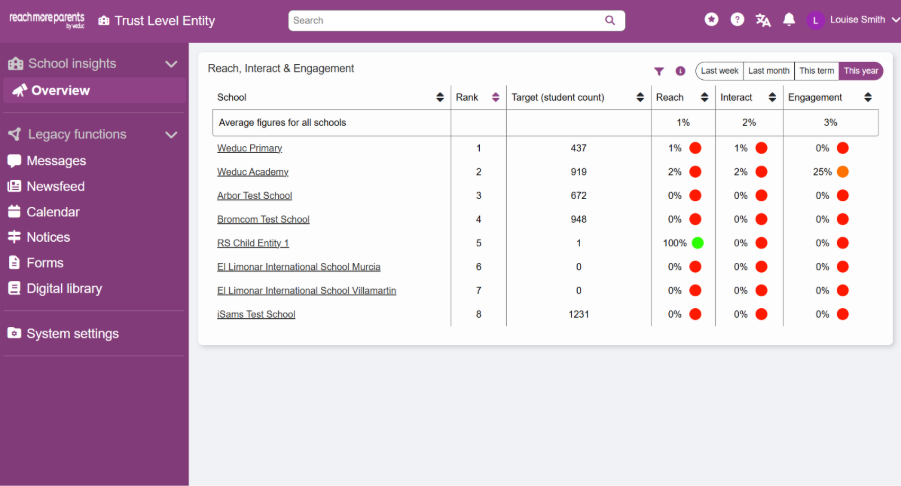
Example – MAT View
What does the disabled icon mean?
The disabled icon indicates that the feature exists, but your current user role doesn't have permission to access it.
If you believe you should have access, please speak to your organisation's system administrator, who can review your permissions.
What does the gem icon mean?
The gem icon indicates that the feature is available within Reach More Parents, but isn't included in your organisation's current package.
If you'd like to learn more about that feature or discuss upgrading, please contact the Reach More Parents team.
Is anything changing for parents?
No.
The navigation update only affects the staff portal.
Parents can continue using the app and portal as normal, with no changes to how they receive communications.
Where can I see where everything has moved?
We've produced a Quick Reference guide and table appendix that shows where commonly used areas have moved within the new navigation.
We also recommend watching the short navigation walkthrough video for a quick overview of the changes.
Where have the System Administrator walkthroughs gone?
As part of the navigation update, the System Administrator walkthroughs are no longer available within the portal.
Product guidance, announcements and useful resources will now be shared through the new Product Updates area. This gives users a central place to keep up to date with new features, improvements and important information.
You can access Product Updates by clicking the star icon in the top menu bar of the portal.
For more detailed guidance, you can also access articles, videos and support resources through our Knowledge Base.
The Knowledge Base can now be accessed directly from within the portal by clicking the question mark icon in the top menu bar.