The appearance of the ReachMoreParents Parent Mobile app is customisable to meet your school's branding guidelines.
This guide will assist you with setting up the logo and colour scheme of your ReachMoreParents Parent Mobile app – ensuring it meets accessibility guidelines.
What is customisable on the ReachMoreParents Parents Mobile app?
Schools can customise the app to include the school logo and edit the colour palette of the app's design, either using our pre-set options or custom choosing them.
There is also the ability to view/edit the appearance of the app when it is in dark mode. Guidance will be given over accessibility of the colour palette chosen, to ensure content will be viewable by users with visual impairments.
Who should customise the app's appearance?
Due to system access and knowledge, it is recommended that one of the following roles carries out this task:
- System administrator
- In-school IT technician
How to change the logo/ colours on your ReachMoreParents Parent Mobile app
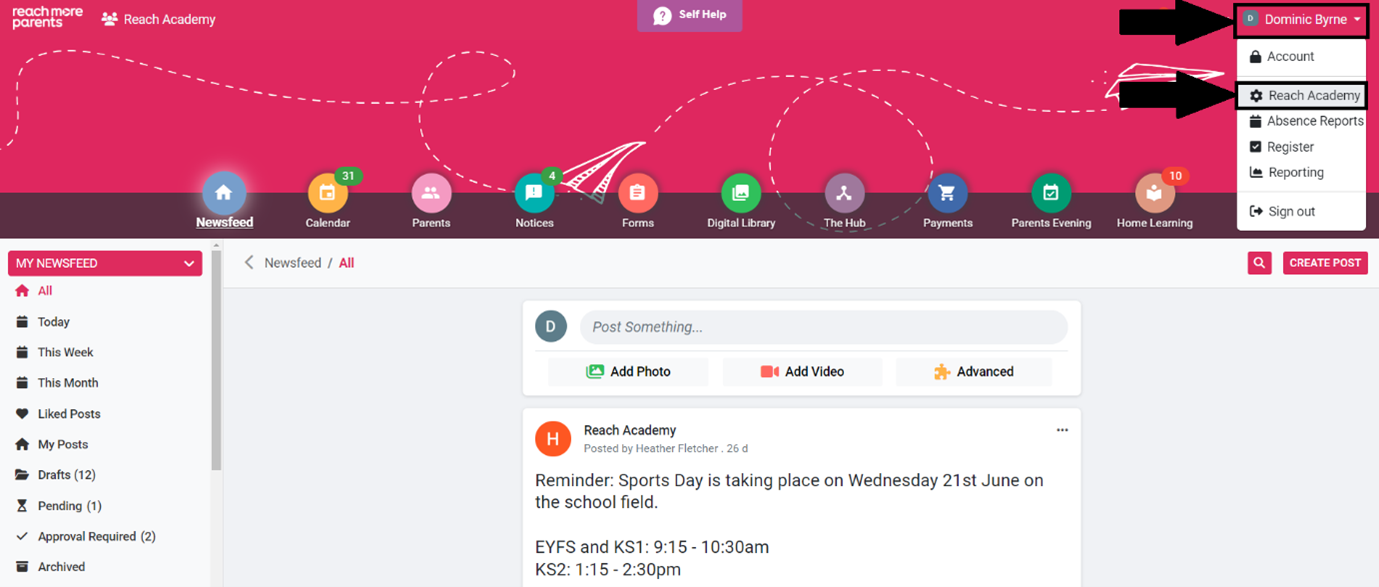
1) Browse to the administration menu by clicking on your name in the top right corner of the screen and clicking the name of the school.
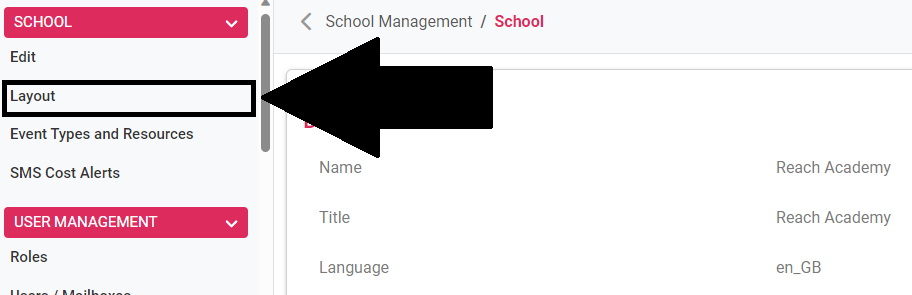
2) Click Layout under the School area via the navigation pane.
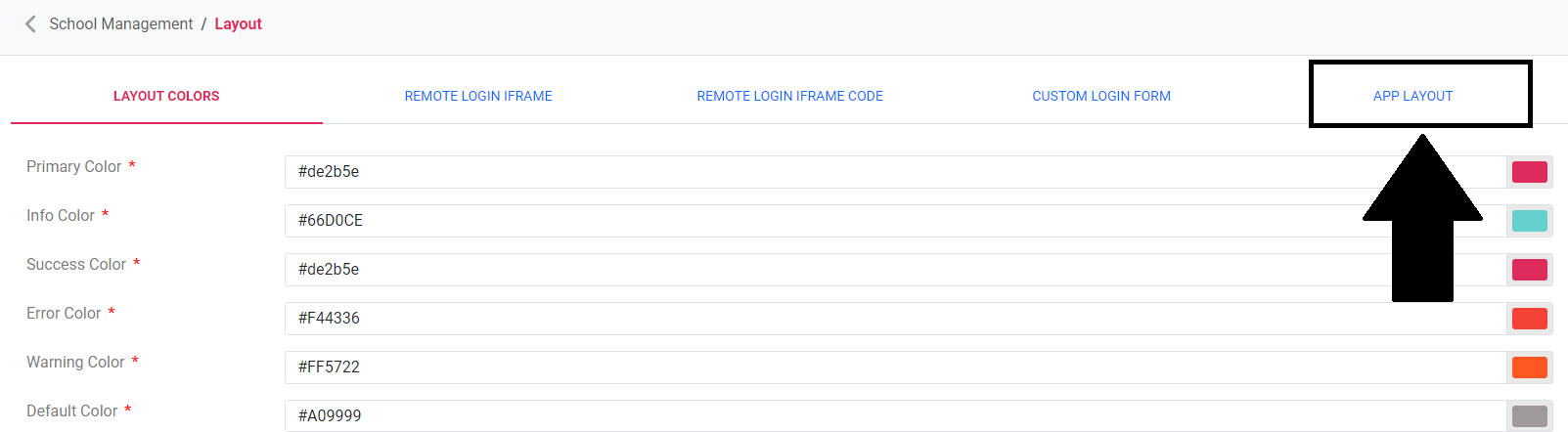
3) Browse to the App Layout tab.
How to update the app layout settings
4) Scroll down and click UPDATE YOUR APP
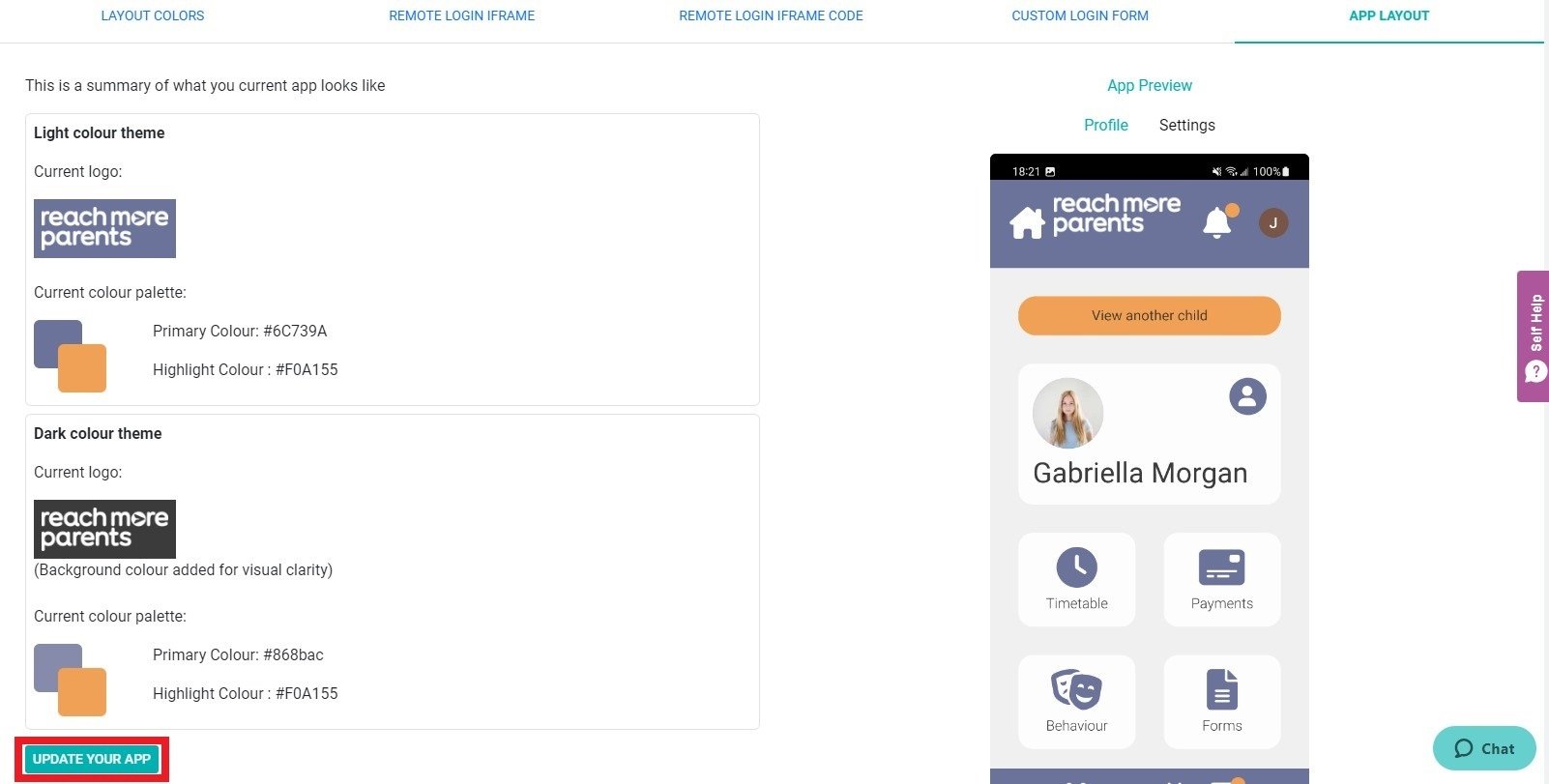
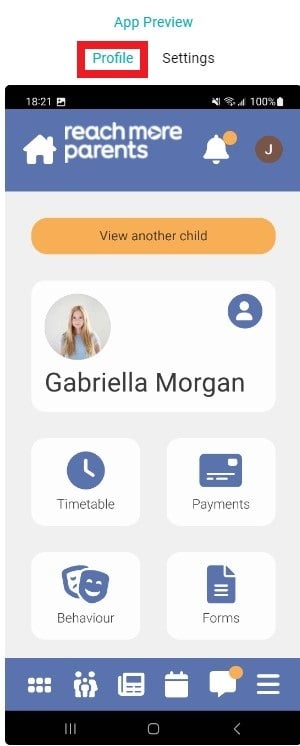
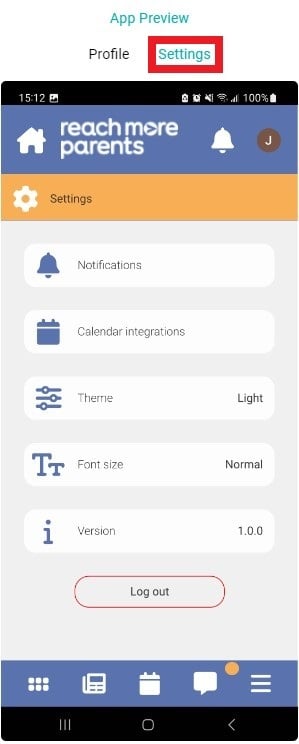
As you make changes to the logo and colour scheme, the App Preview on the right-hand side will update automatically, so you can see how the changes you make will look in the app. You can toggle between a preview of the Profile and Settings pages. This is advisable to ensure the changes made will work for all areas of the app.
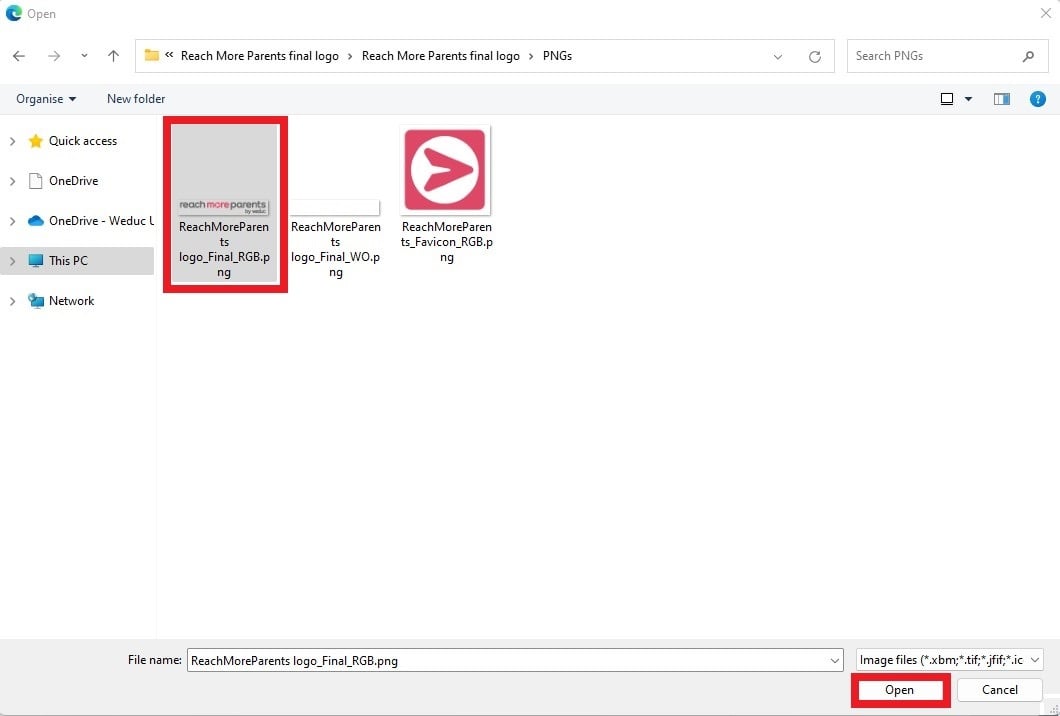
5) Click CHOOSE under the Upload your main logo field, select your logo in file explorer and click Open.

3) Select your preferred colour palette from the pre-defined options.
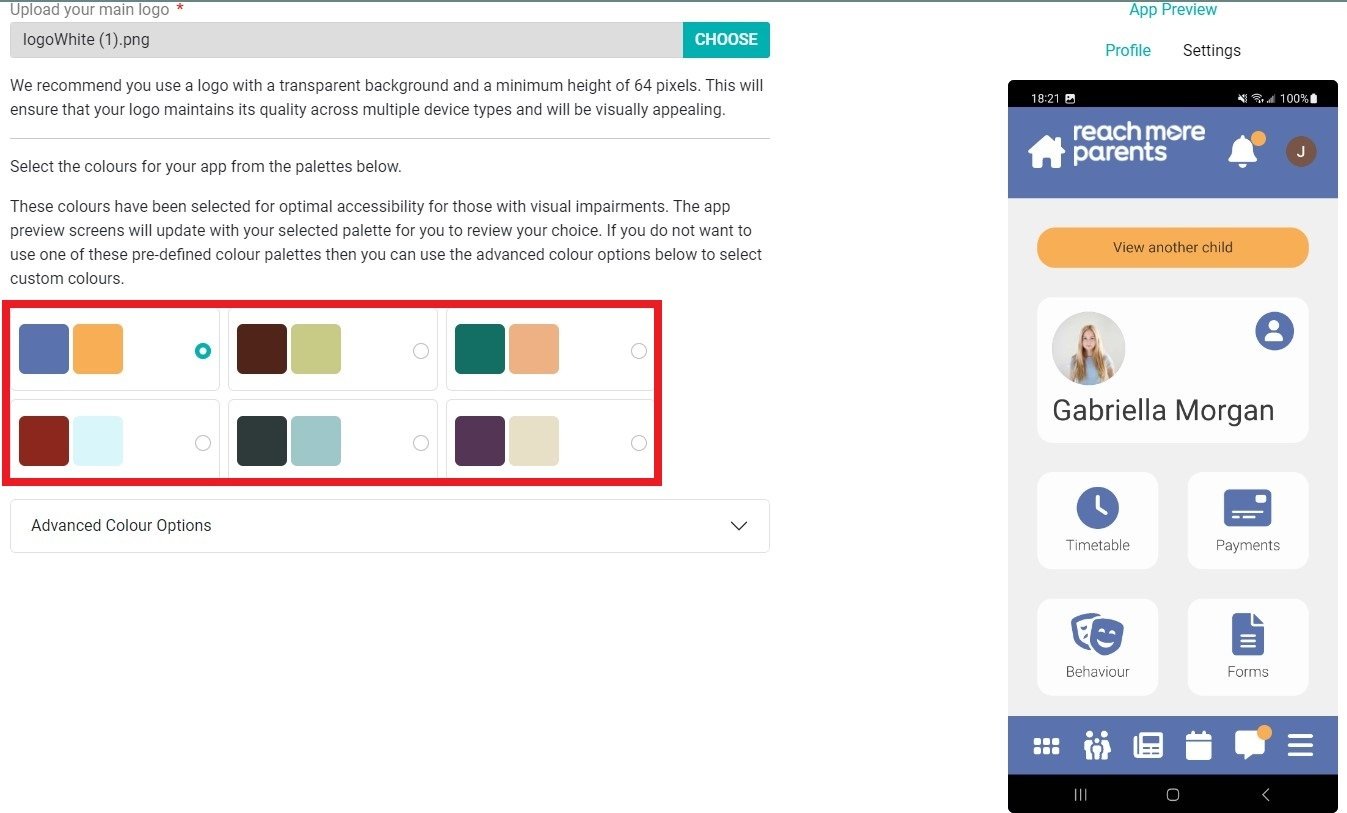
Optional Additional Steps
If you wish to use a bespoke colour scheme, follow steps 4 - 6. If you are satisfied with the pre-defined options, advance to step 7.
4) Click Advanced Colour Options.
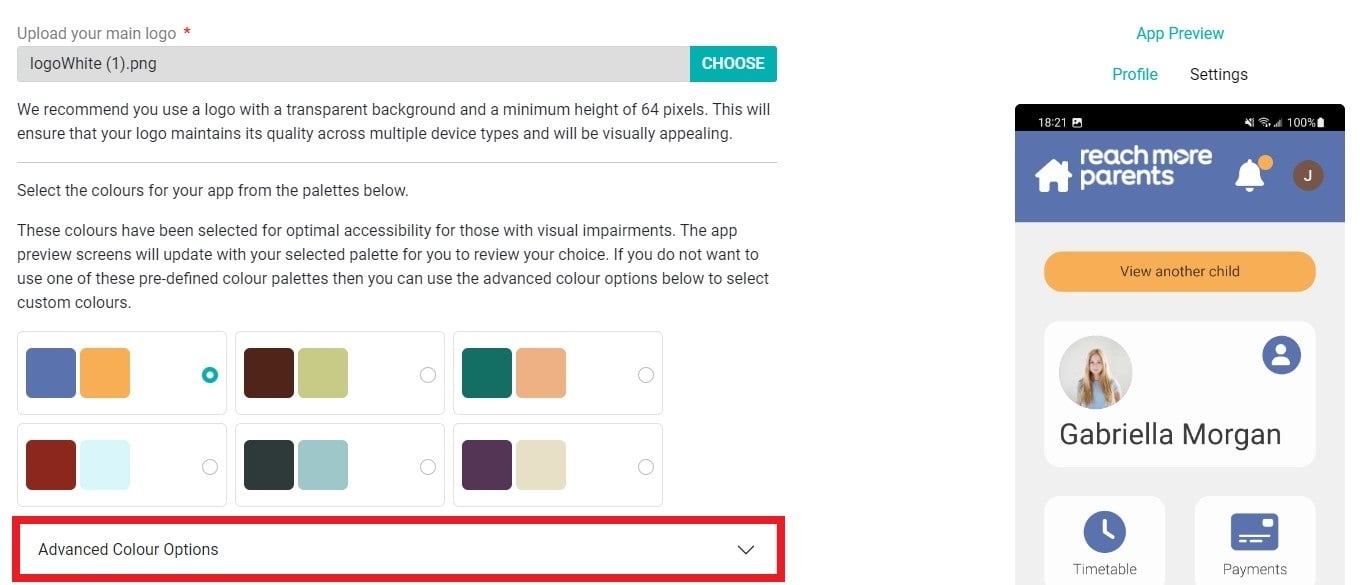
5) Change the Primary colour by typing the HEX code or using the colour picker provided.
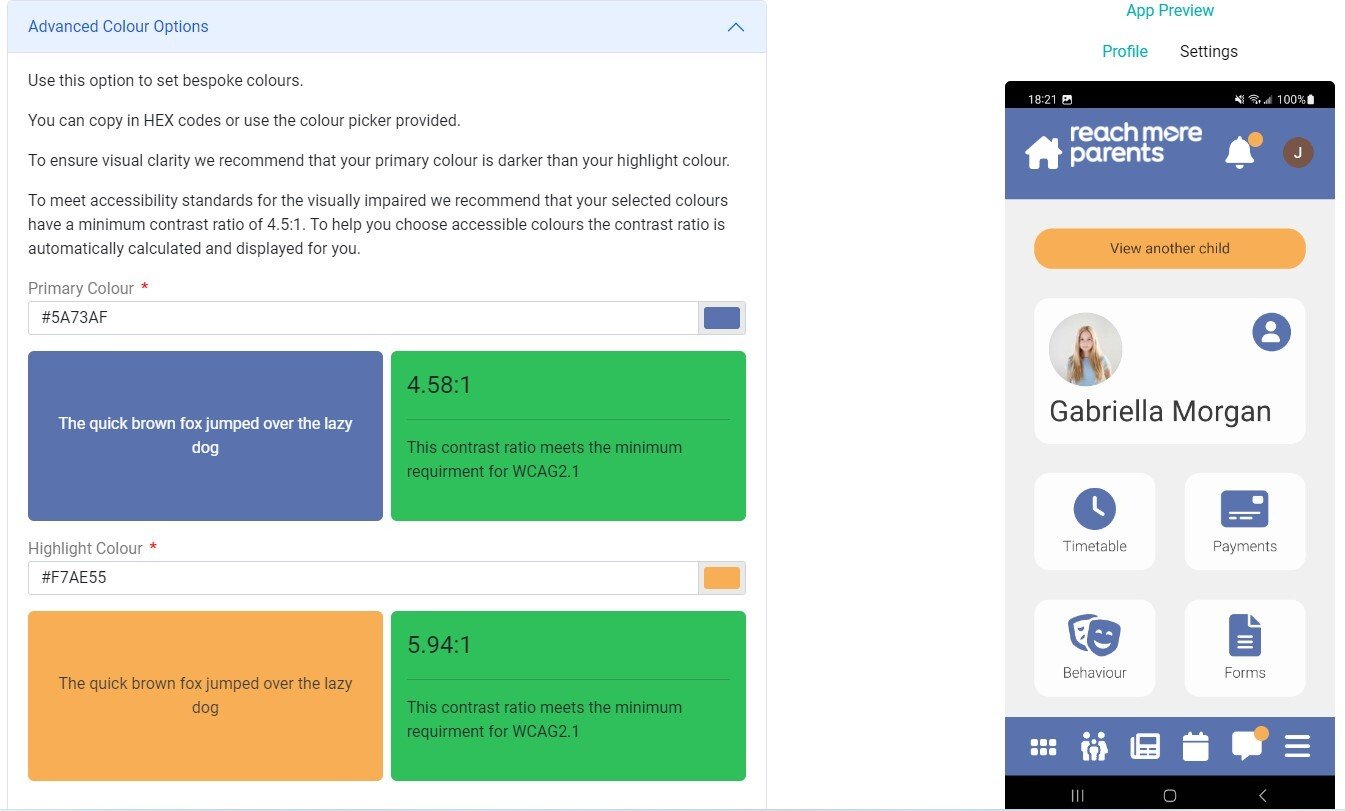
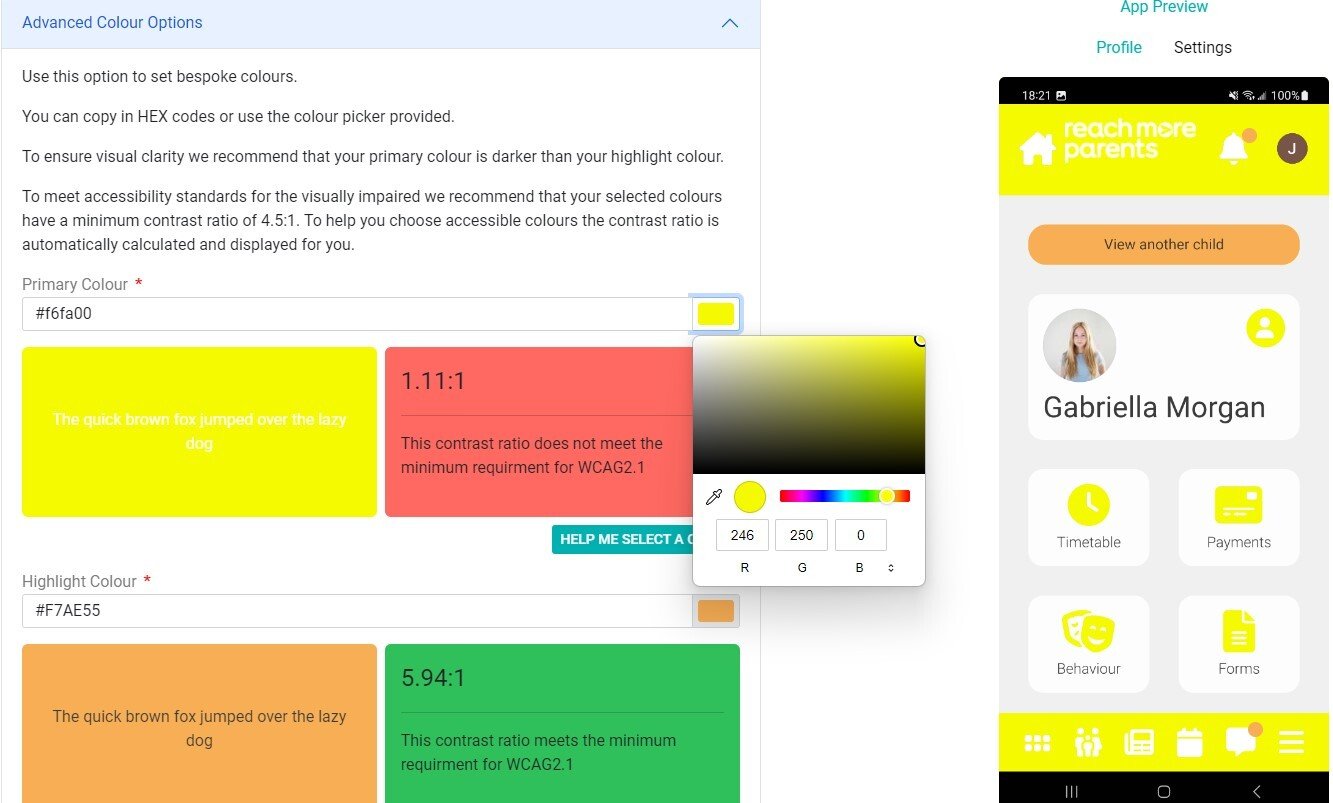
If you choose a Primary or Highlight colour that does not meet the minimum requirement for accessibility standards, the contrast ratio box will show as red. If you choose a colour that does meet the minimum requirement, the contrast ratio box will show as green. If you have chosen a colour with a poor contrast ratio, you can click HELP ME SELECT A COLOUR, which will select a similar colour to the one you selected that meets the minimum requirements.

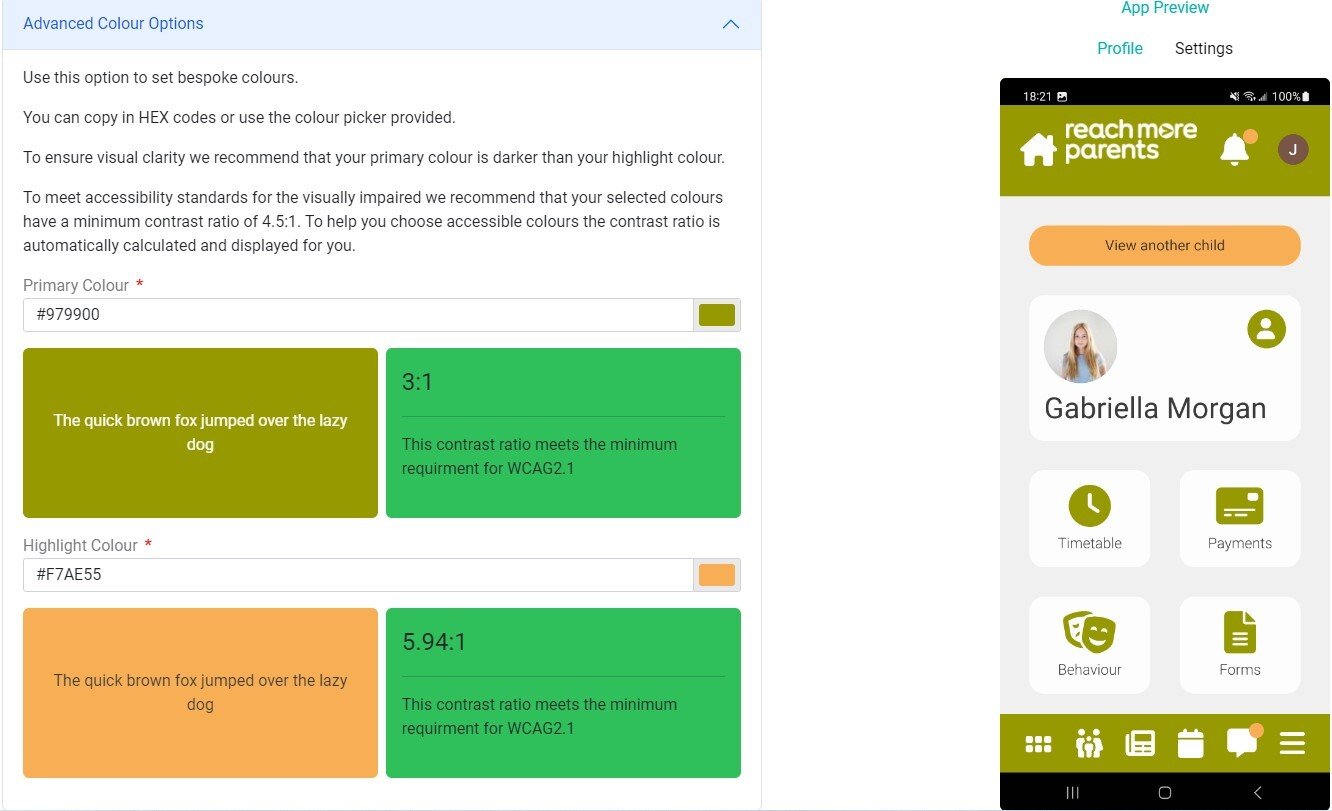
6) Change the Highlight colour by typing the HEX code or using the colour picker provided.
7) Click NEXT at the bottom of the page.
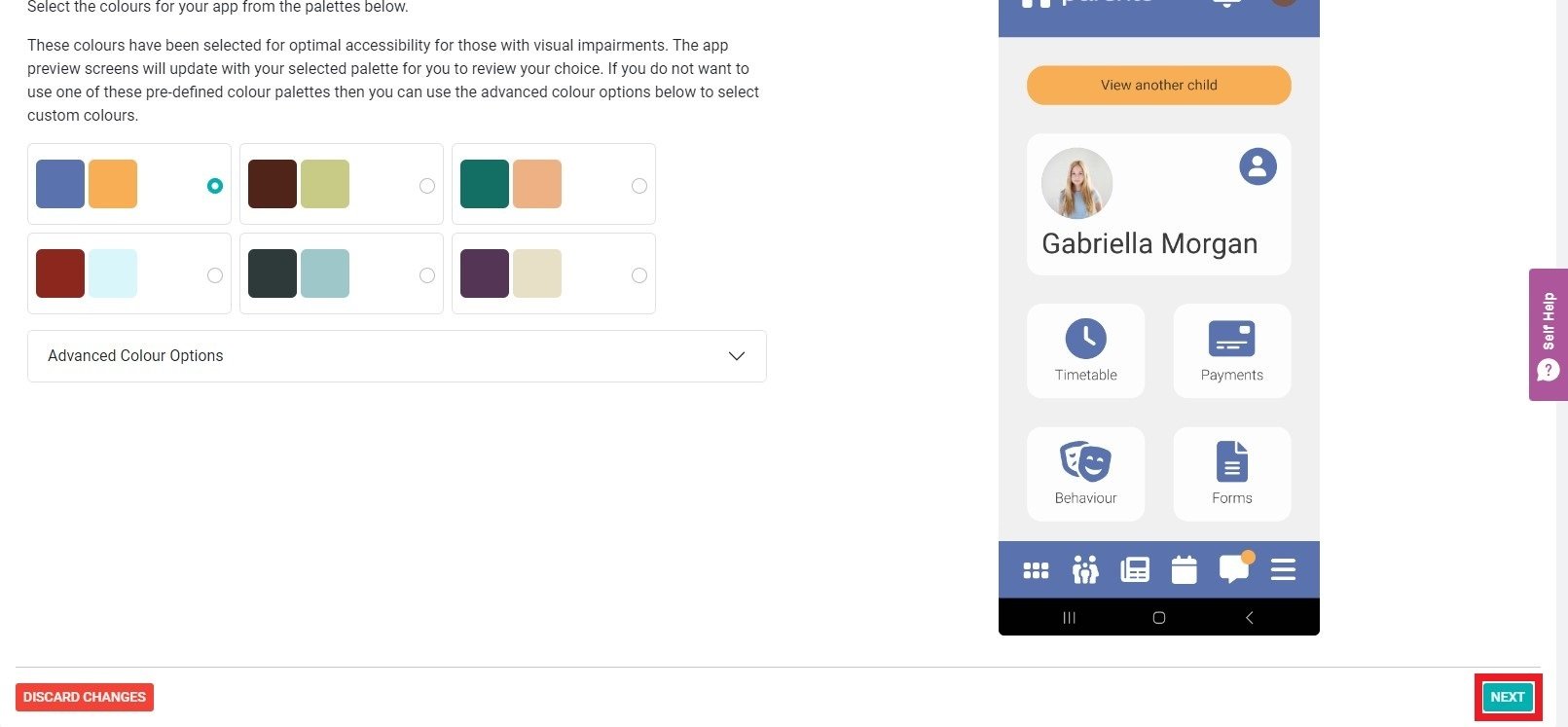
8) Repeat steps 2 – 7 for the Dark colour theme.

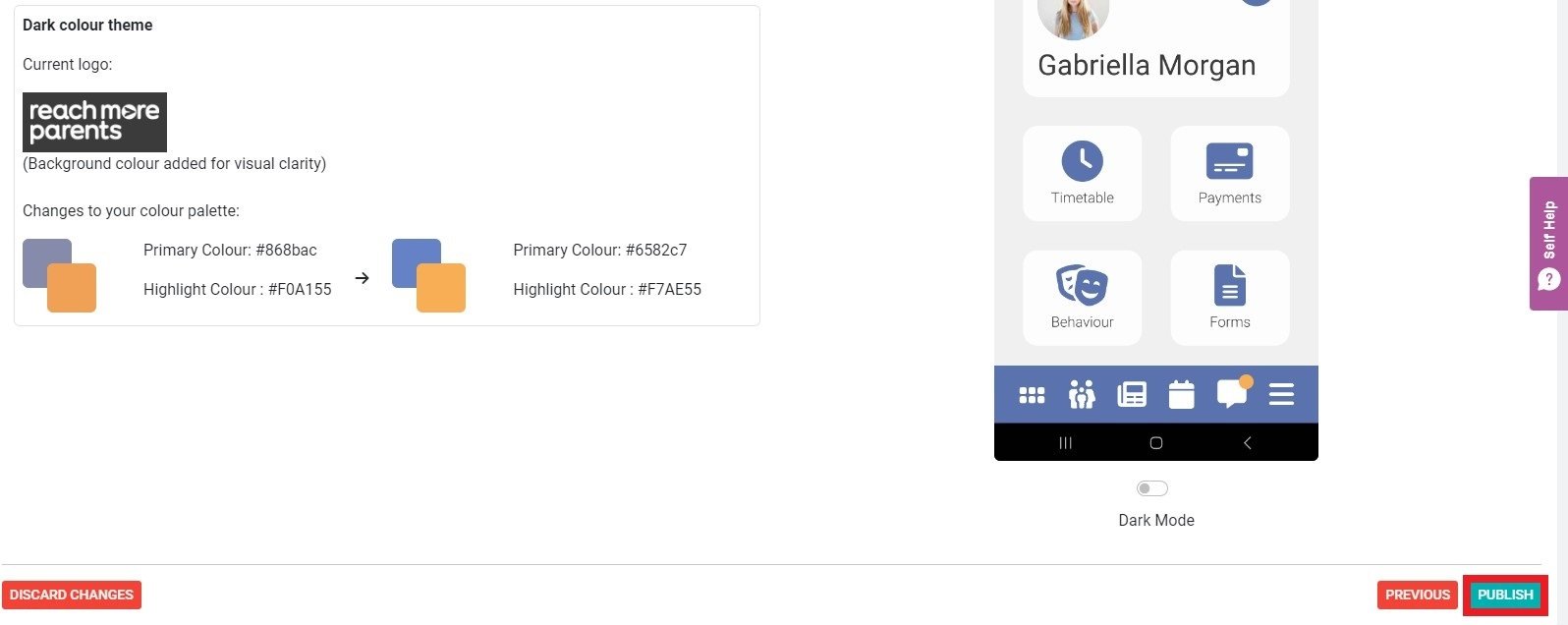
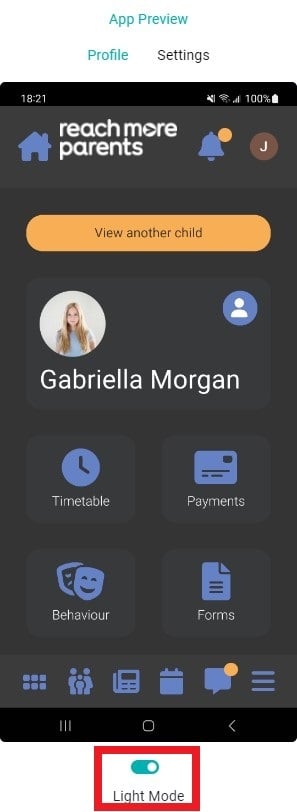
9) Use the Summary tab to review the changes you have made. You can toggle between light and dark mode via the App Preview.
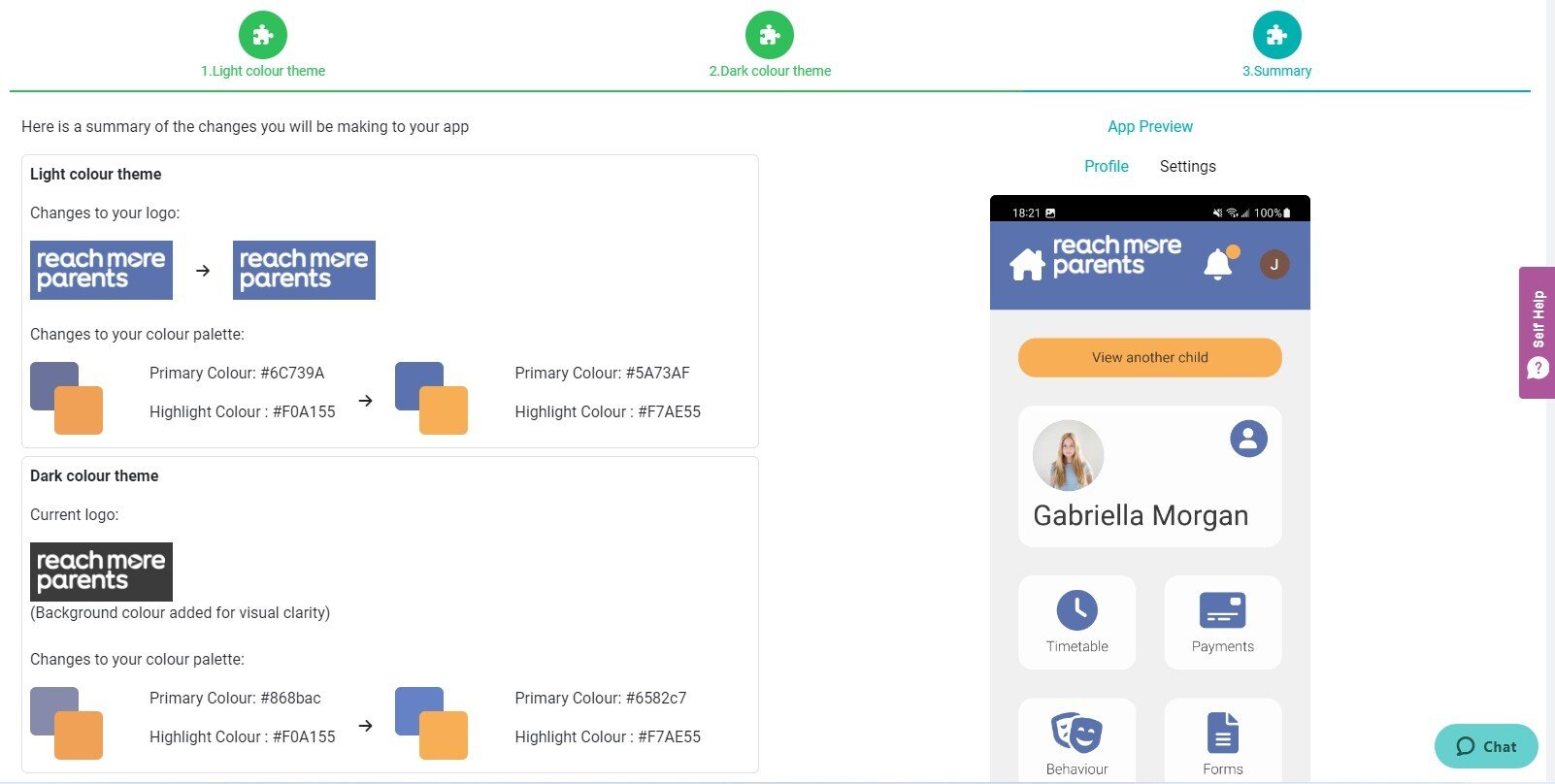

10) Click PUBLISH at the bottom of the page.