
Message templates help you to streamline and simplify communication with parents. By creating templates for recurring messages, you can save valuable time and ensure consistency. This guide will walk you through how to share templates with other staff members, so they can utilise them too.
For full instructions on how to create a message template, please refer to our guide here.
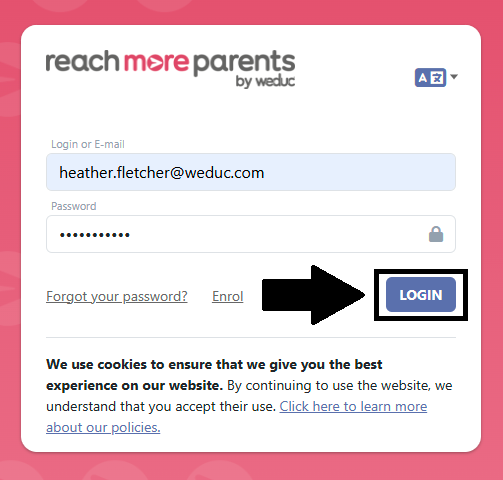
1) Log in to ReachMoreParents.
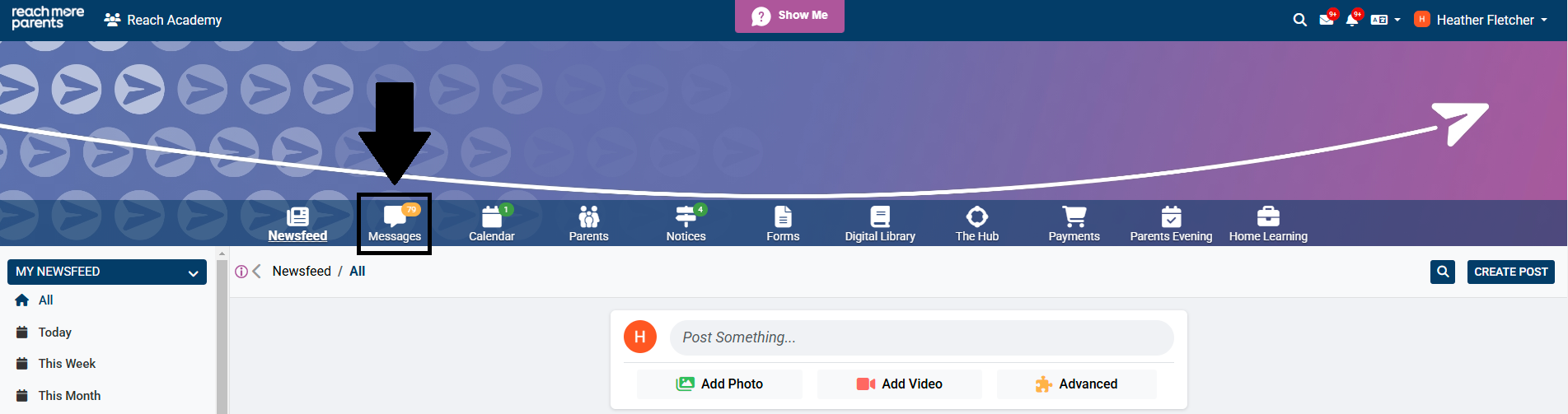
2) Click the 'Messages' icon.
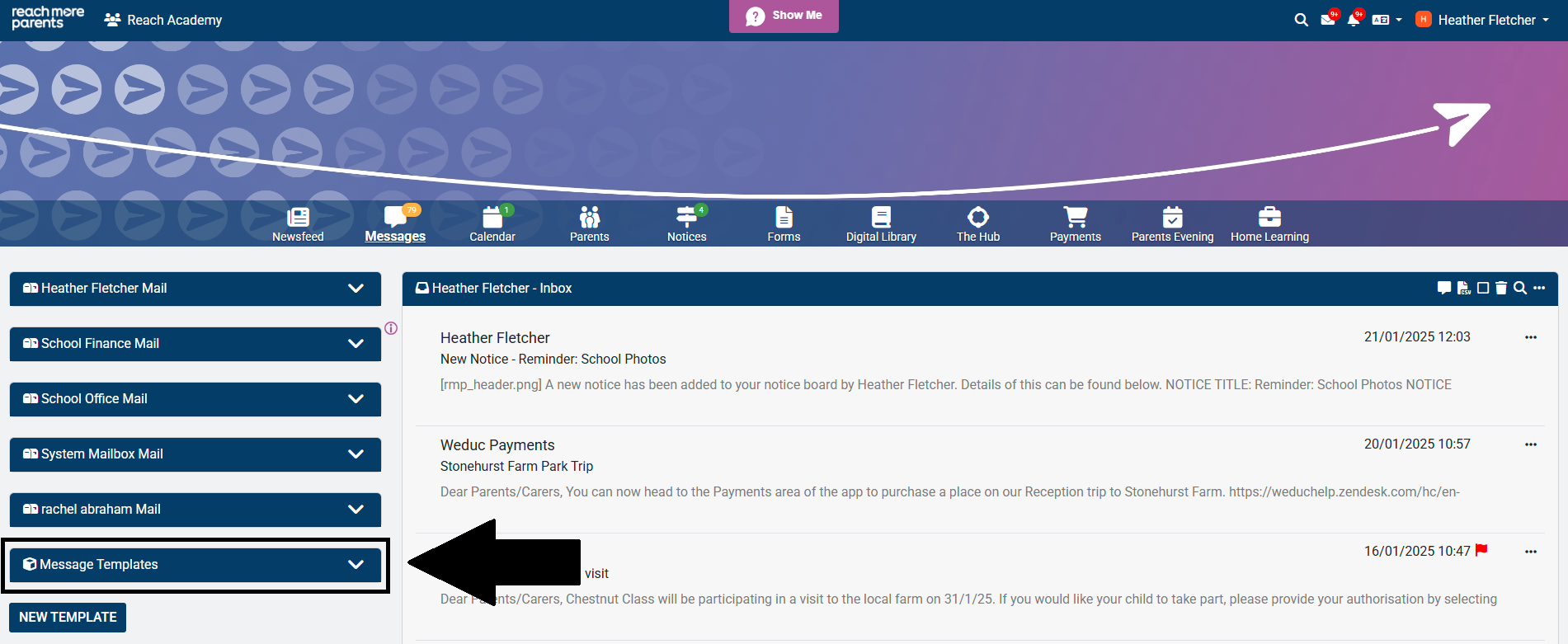
3) Click on the 'Message Templates' dropdown on the left hand side of the screen.
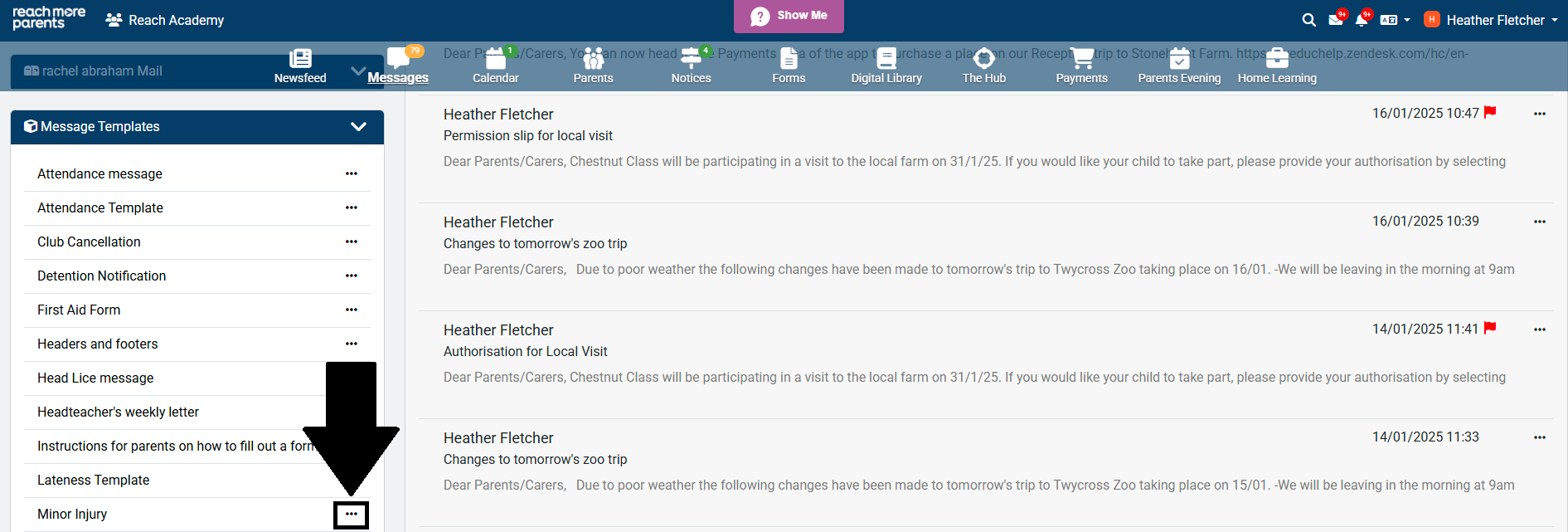
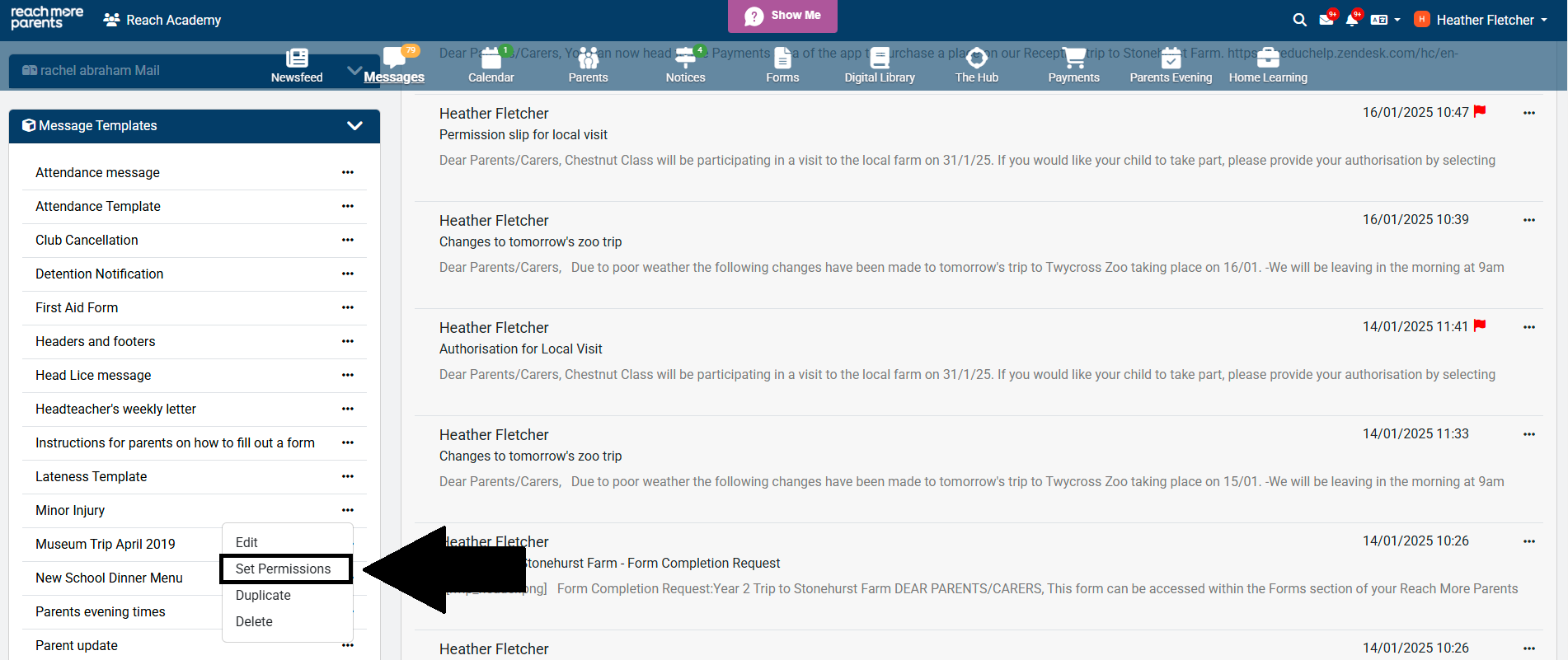
4) Locate the message template you would like to share, then click the three dots next to it.
5) Click 'Set Permissions.'
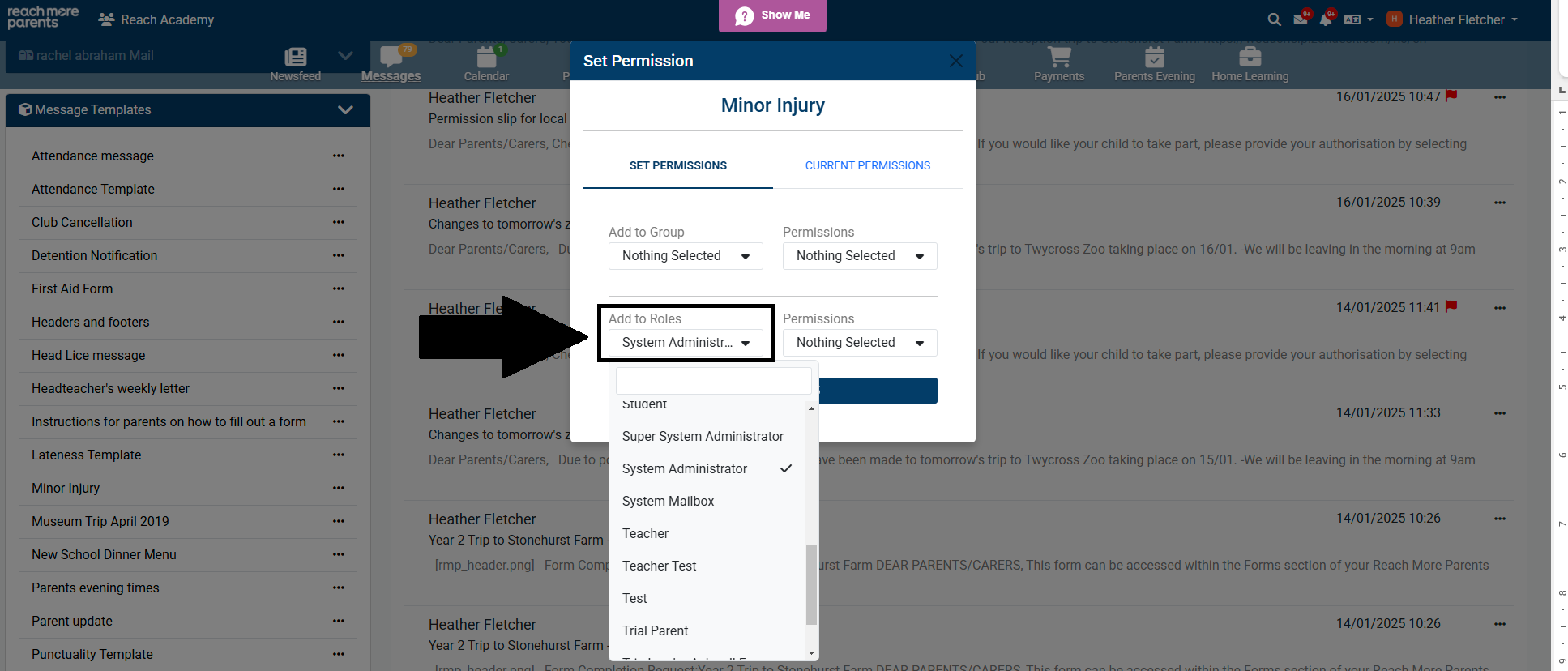
6) Click on the 'Add to Roles' dropdown and select any staff roles you would like to share the template with.
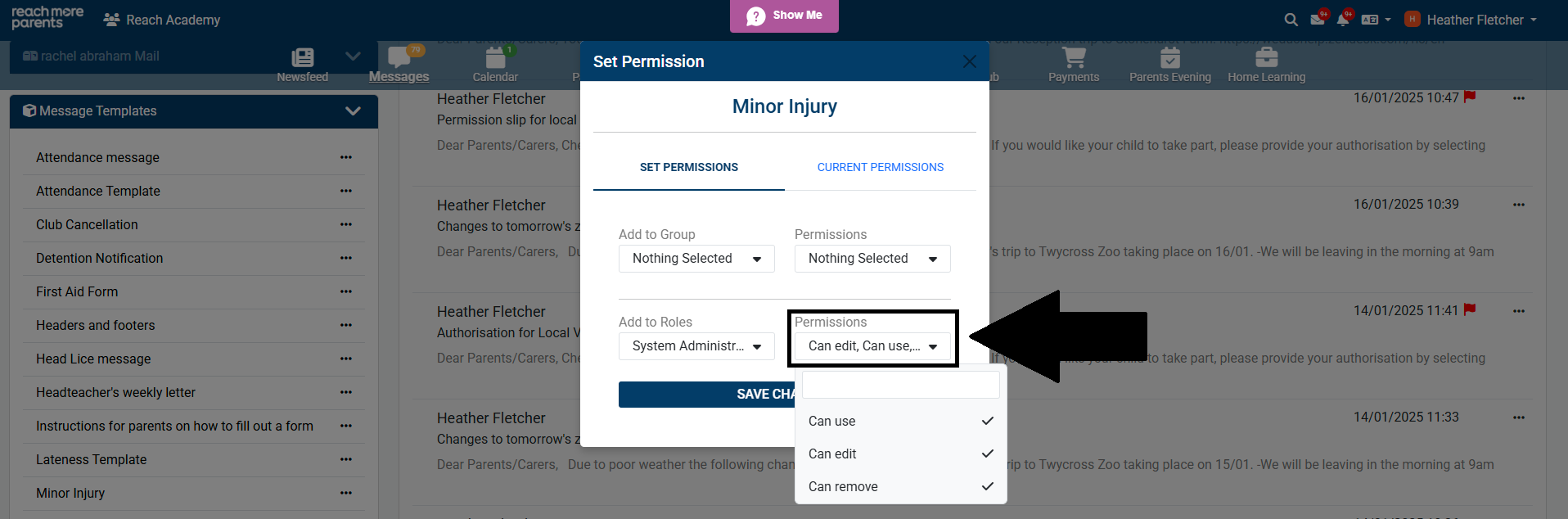
7) Click the 'Permissions' dropdown to the right and select the permissions you would like the selected staff role(s) to have. As best practice, we would recommend selecting all three permissions for your System Administrator role. For other staff roles, we would recommend selecting the 'Can Use' permission only.
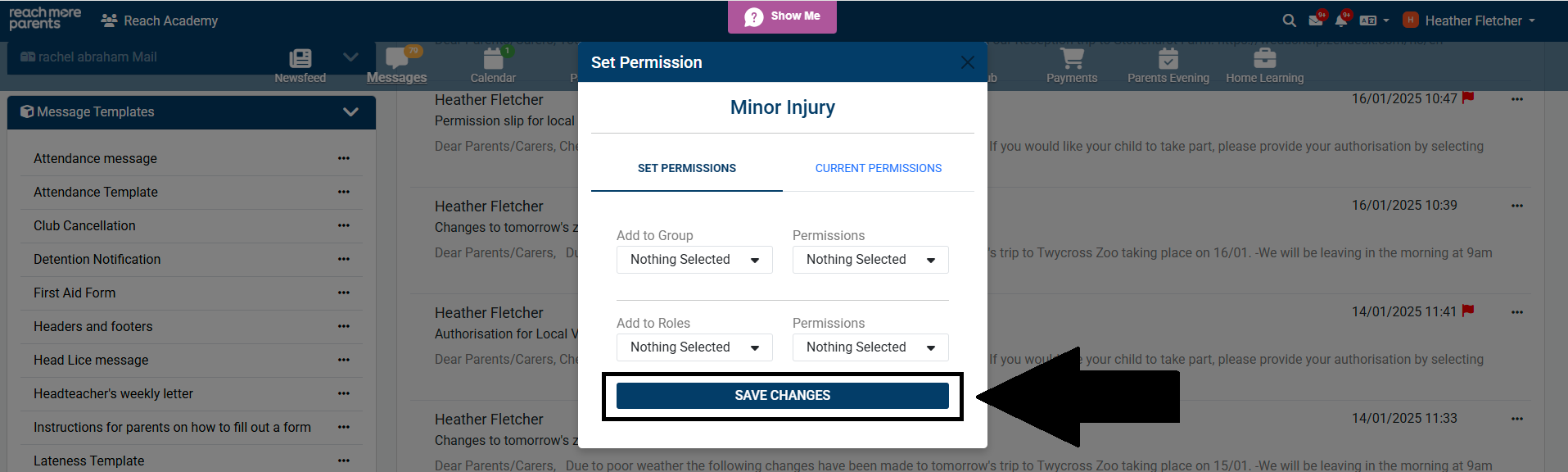
8) Click 'Save Changes.'
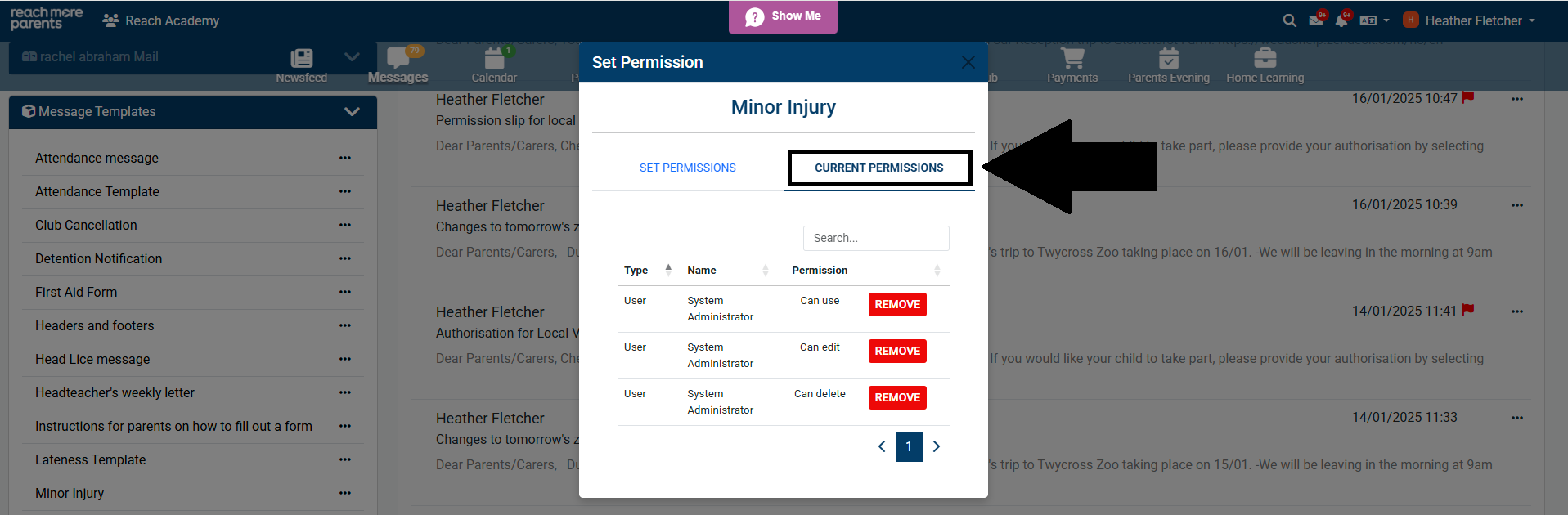
9) Any permissions which have been applied can be viewed and removed from the 'Current Permissions' tab.
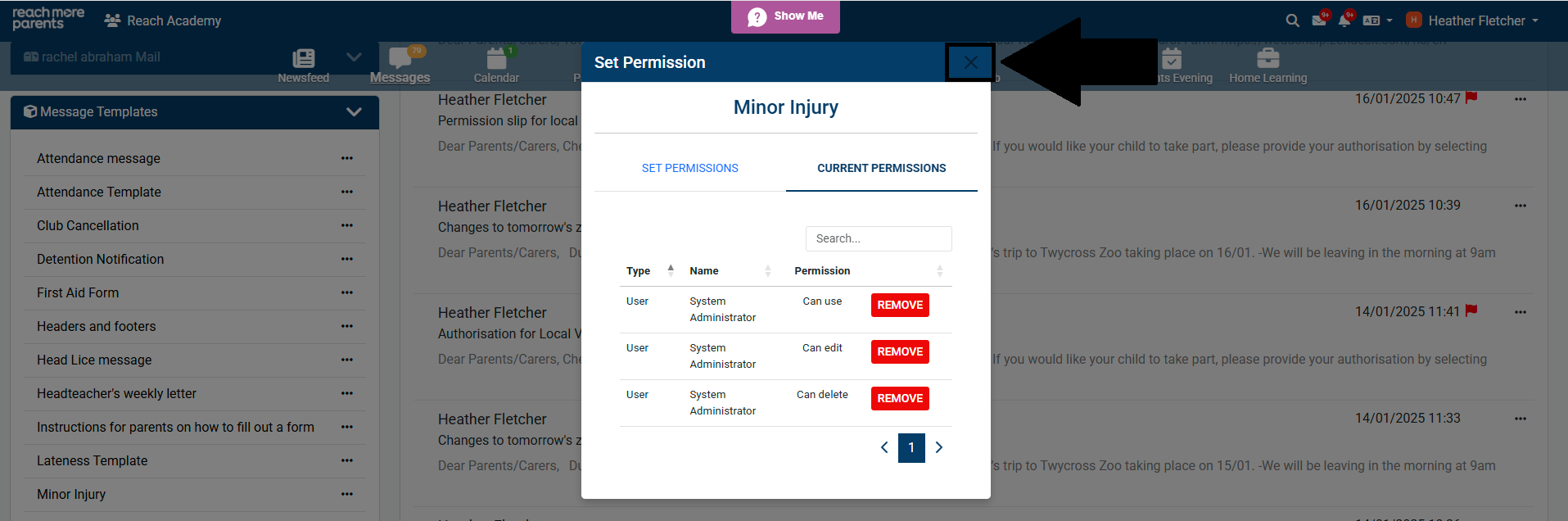
10) Close the 'Set Permission' window.
Your message template can now be applied by the staff role(s) it was shared with.
For instructions on how to apply a message template to a message, please refer to our guide here.