<img src="https://secure.7-companycompany.com/795789.png" style="display:none;">
Skip to content
English - United Kingdom
  • There are no suggestions because the search field is empty.

How to Apply a Message Template

This guide will help you to apply any message templates that have been created by you or shared with you by another staff user.

For full instructions on how to create a message template, please refer to our guide here.


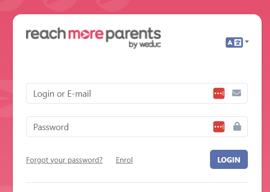
1) Log in to ReachMoreParents.
 

Screenshot 2025-01-21 121624.png


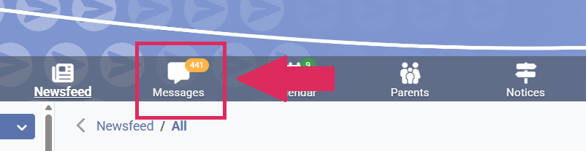
2) Click the 'Messages' icon.


Screenshot 2025-01-21 122029.png


3) Click the speech bubble icon to create a new message.
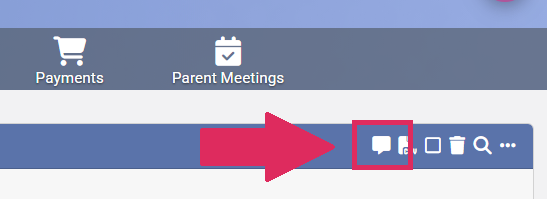
 

Screenshot 2025-01-22 143934.png


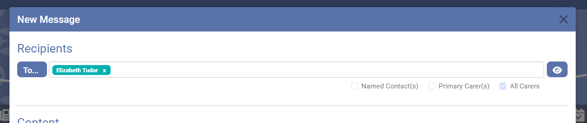
4) Start typing the name of the recipient user or group in the 'To' field. Once the name of the user/group appears in the drop-down, select it. This will add the user/group as a recipient to your message.


Screenshot 2025-01-22 144932.png


5) If your recipient group/user contains students, tick either 'Primary Carer(s)' or 'All Carers' to send the message to parents/carers of your recipients. Alternatively, if you have typed a parent or staff name into the 'to' field, tick 'Named Contact(s)' to communicate directly with the user.


Screenshot 2025-01-22 145436.png


6) Click the 'Use Message Template' drop-down and select the message template you would like to apply.
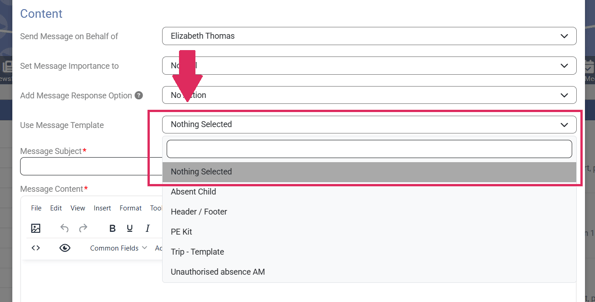
 

Screenshot 2025-02-05 090954.png


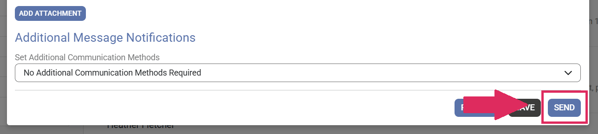
7) Scroll down and click 'Send.'


Screenshot 2025-02-05 091317.png


If the recipient is actively using ReachMoreParents, they will receive the message via the app (for parents/carers) or web portal (for staff). A green confirmation notification will appear in your web portal to confirm this (see below).


Screenshot 2025-02-05 103232.png


*If you do not see the confirmation notification and the below window appears, please refer to our guide here on how to send a simple message.


Screenshot 2025-02-05 103915.png