
Who this is for:
- System Administrators
- School Administrators
- Senior Leadership Team
- Content Managers
- Teachers
Summary:
By the end of this article you will understand:
- How to send urgent communications or important updates straight to a parent's inbox within the ReachMoreParents app.
Video walkthrough:

Step-by-step instructions:
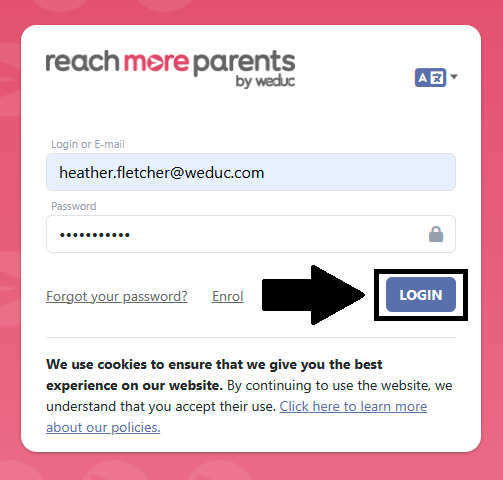
1) Log in to ReachMoreParents.
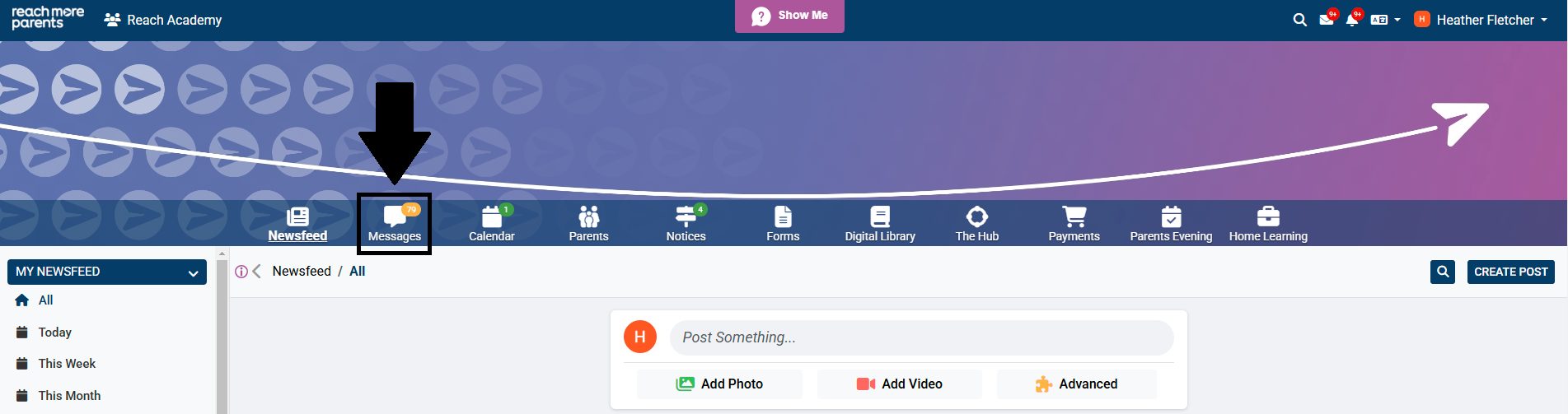
2) Click the 'Messages' icon.
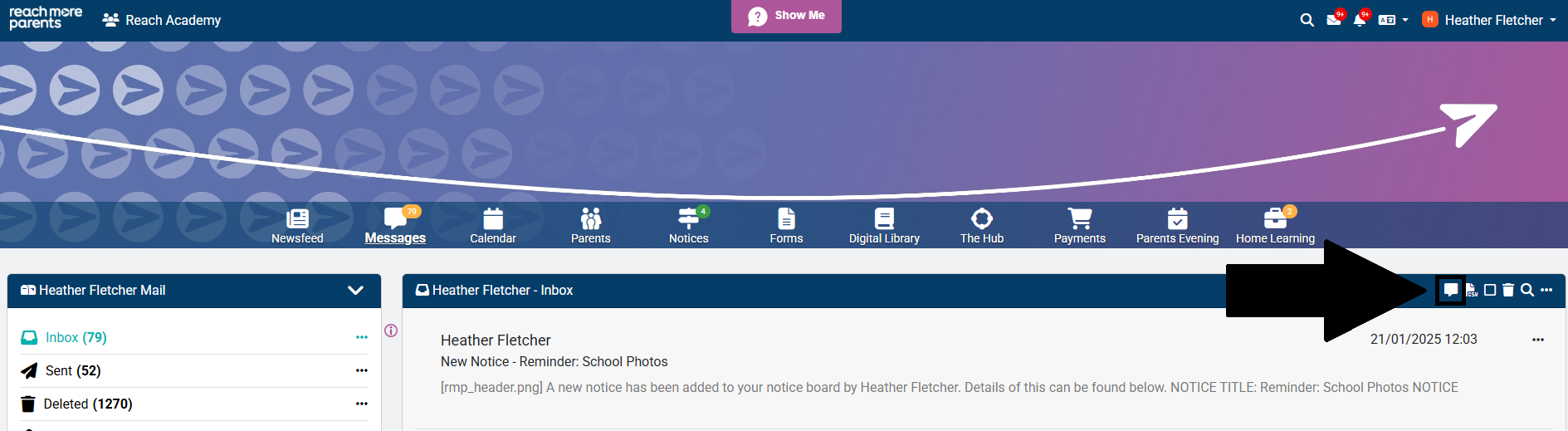
3) Click the speech bubble icon to create a new message.
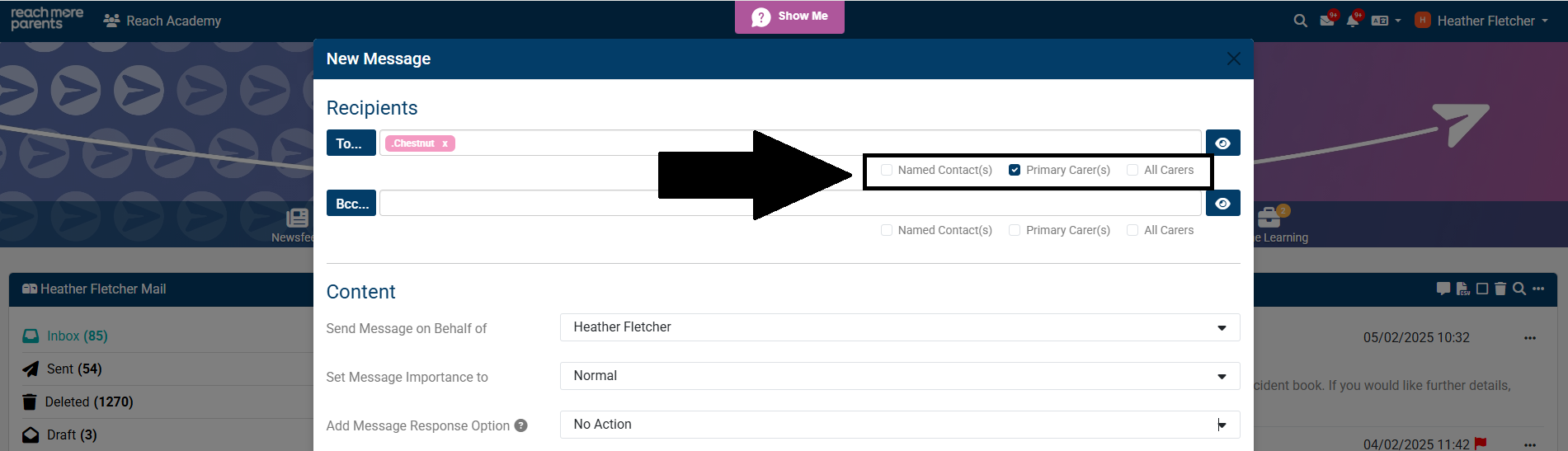
4) Start typing the name of the recipient user or group in the 'To' field. Once the name of the user/group appears in the drop-down, select it. This will add the user/group as a recipient to your message.
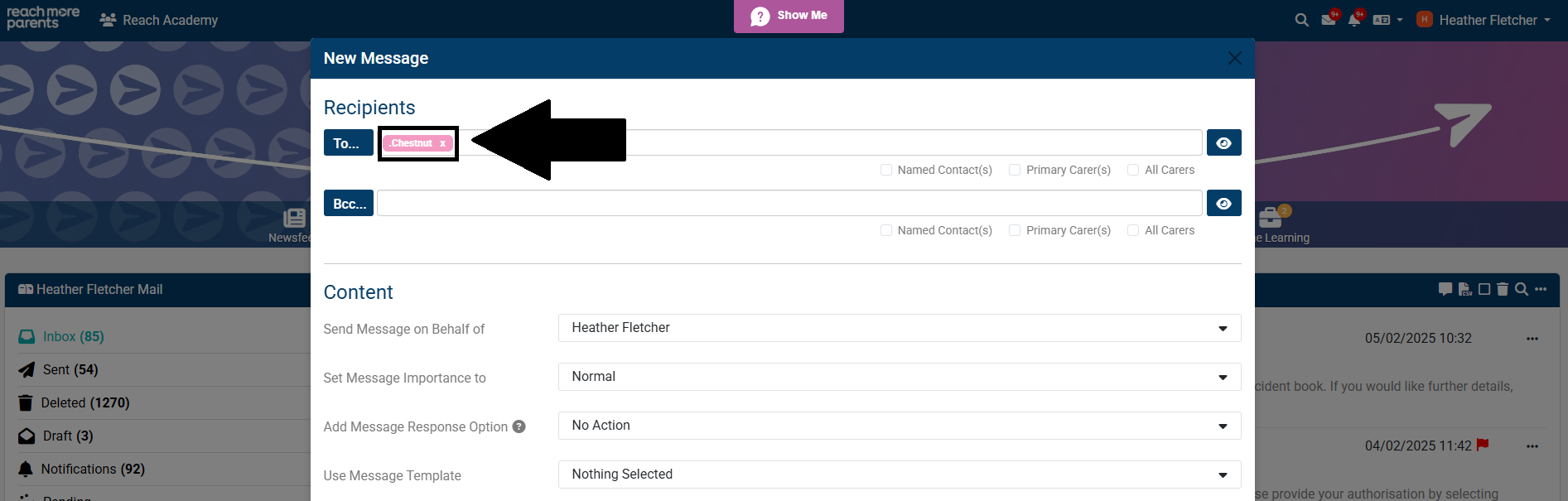
5) If your recipient group/user contains students, tick either 'Primary Carer(s)' or 'All Carers' to send the message to parents/carers of your recipients. Alternatively, if you have typed a parent or staff name into the 'to' field, tick 'Named Contact(s)' to communicate directly with the user.
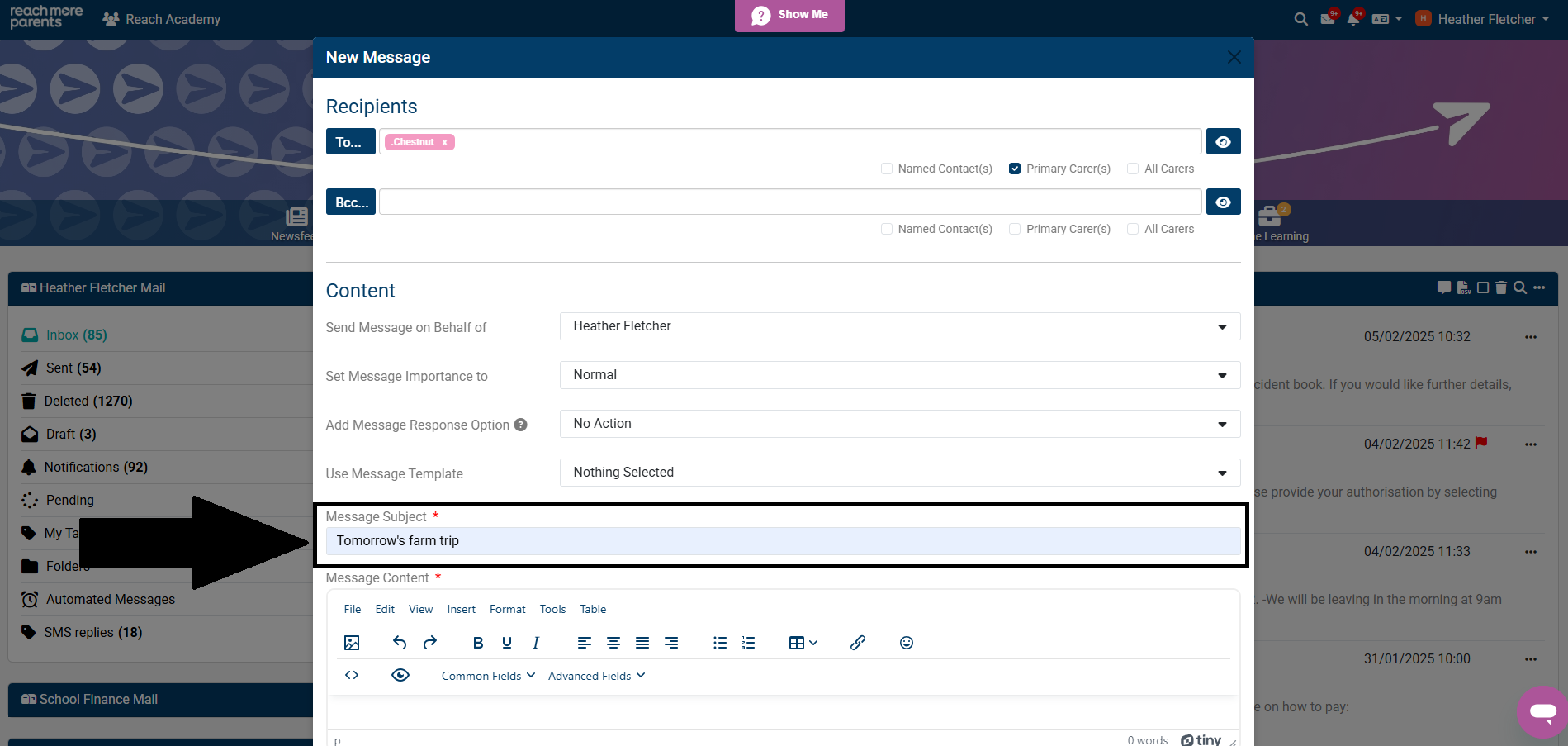
6) Type your subject in the 'Message Subject' box.
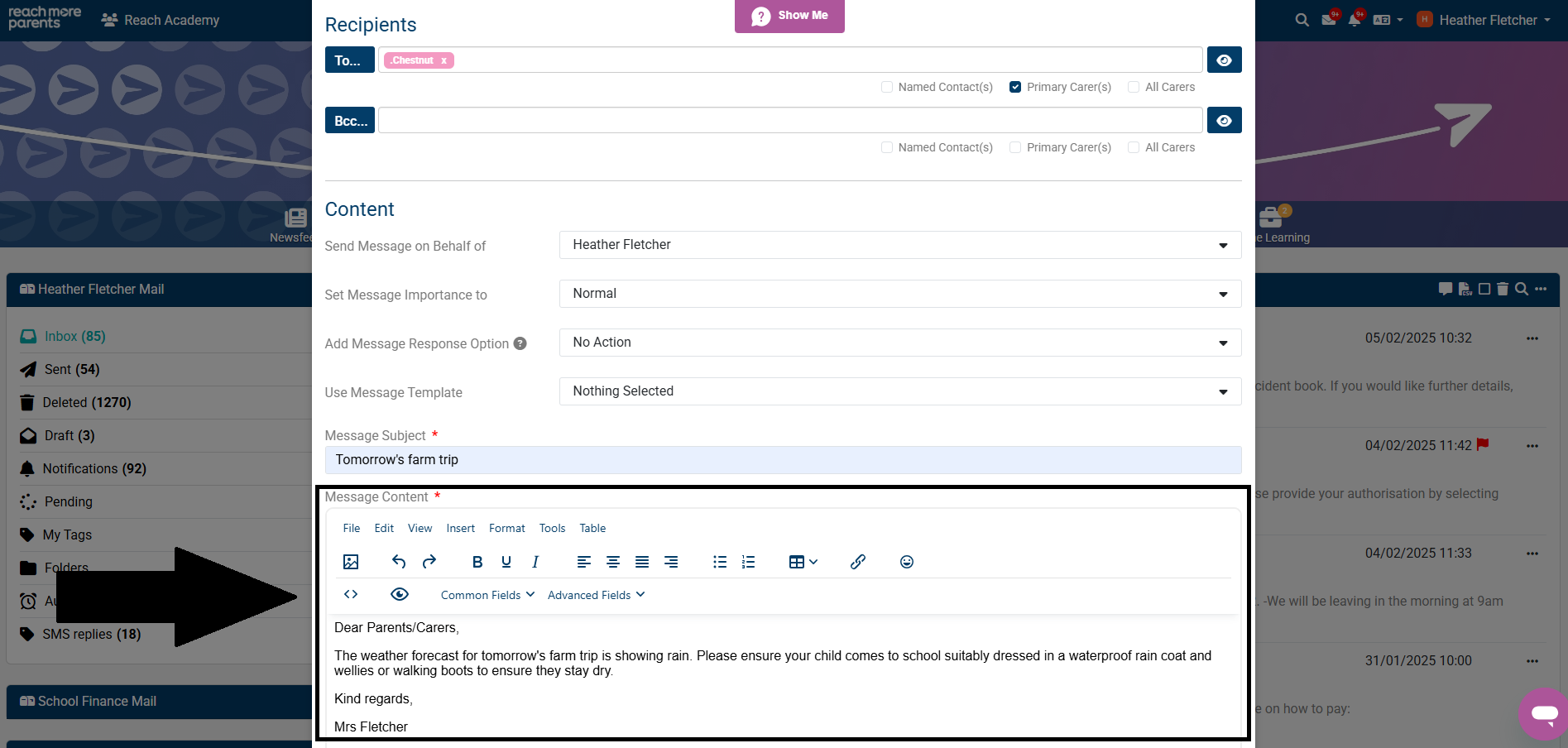
7) Type your message into the 'Message Content' box.
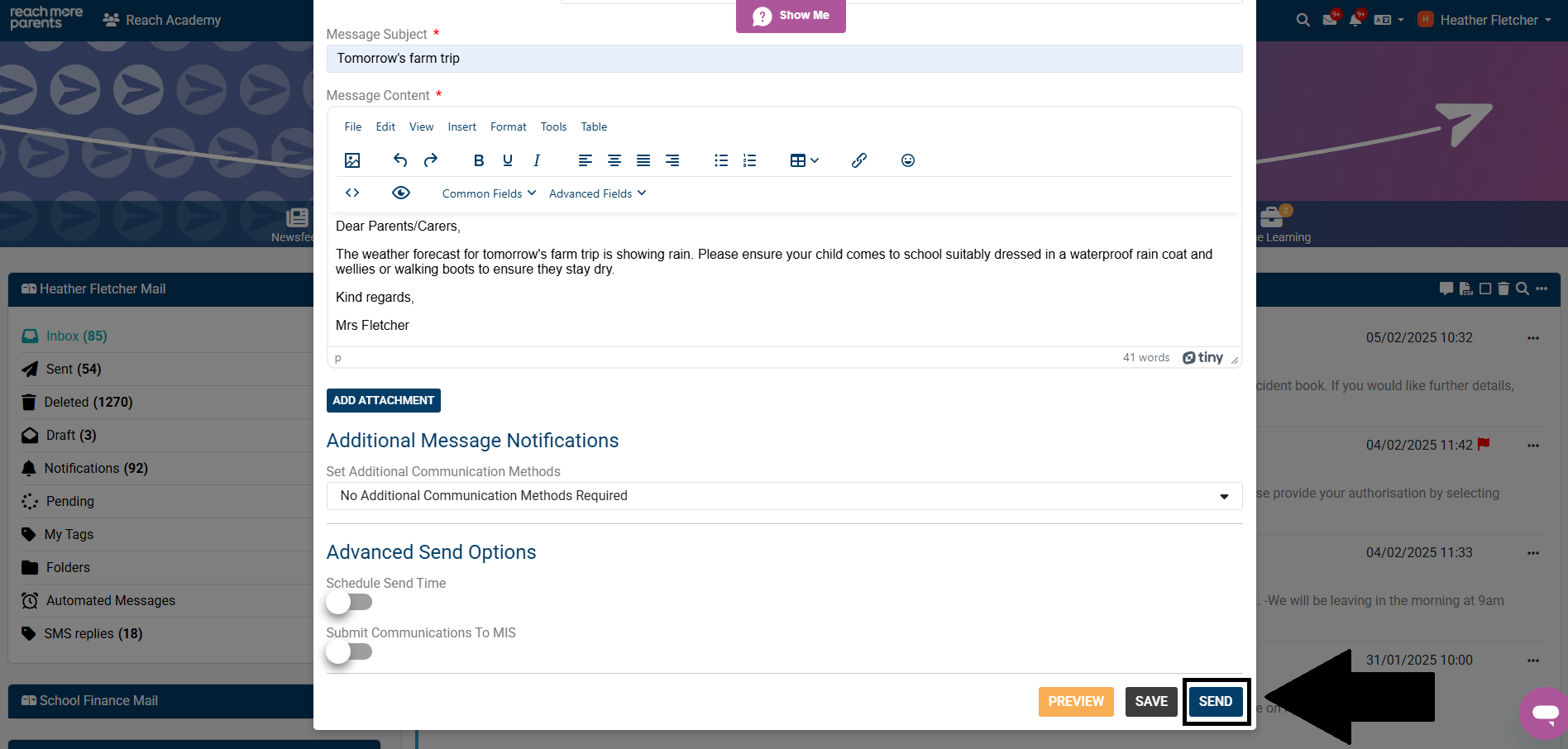
8) Scroll down and click 'Send.'
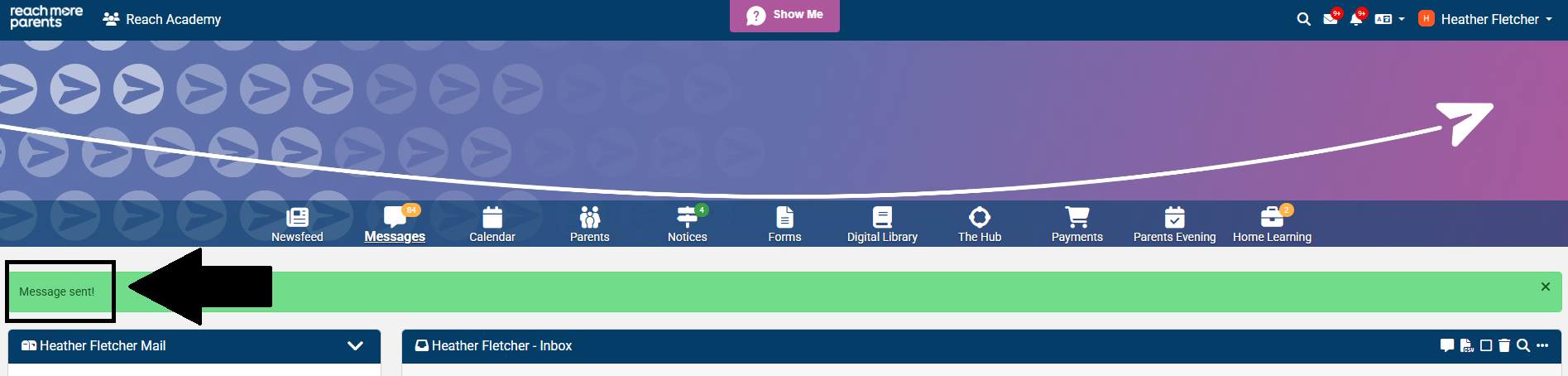
If the recipient is actively using ReachMoreParents, they will receive the message via the app (for parents/carers) or web portal (for staff). A green confirmation notification will appear in your web portal to confirm this (see below).
If the recipient of your message hasn't enrolled or logged in to ReachMoreParents recently, they will be classed as an inactive user and as a result, the below message will show in your web portal.
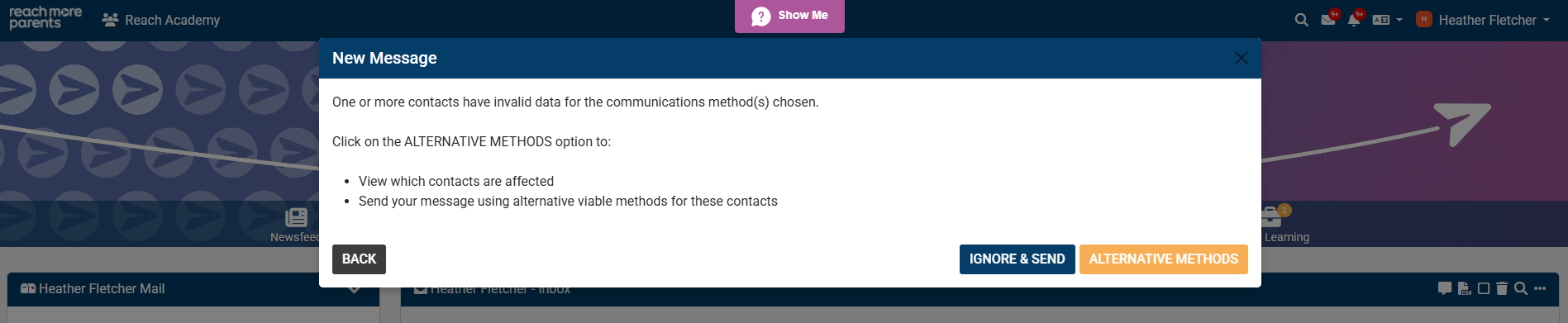
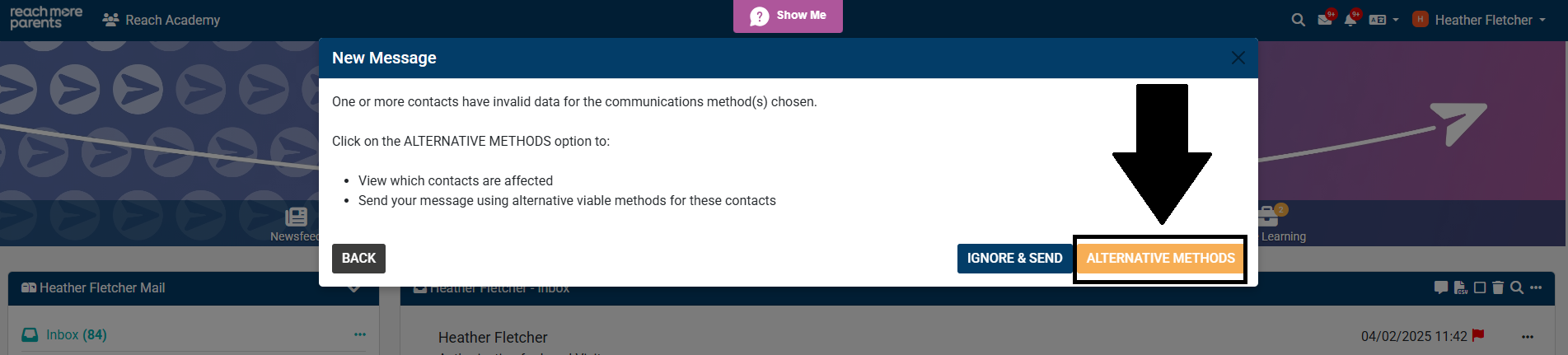
If this message shows, please follow the instructions below to explore alternative ways to reach recipients with your message.
1) Click 'Alternative Methods' to explore alterative methods of communication.
2) Your system will automatically choose the best alternative method of communication for each recipient based on the contact details available in your platform. If the pre-selected methods needs to be amended, you will need to select the appropriate box(es) in the table to choose your preferred method(s) of communication for each recipient.
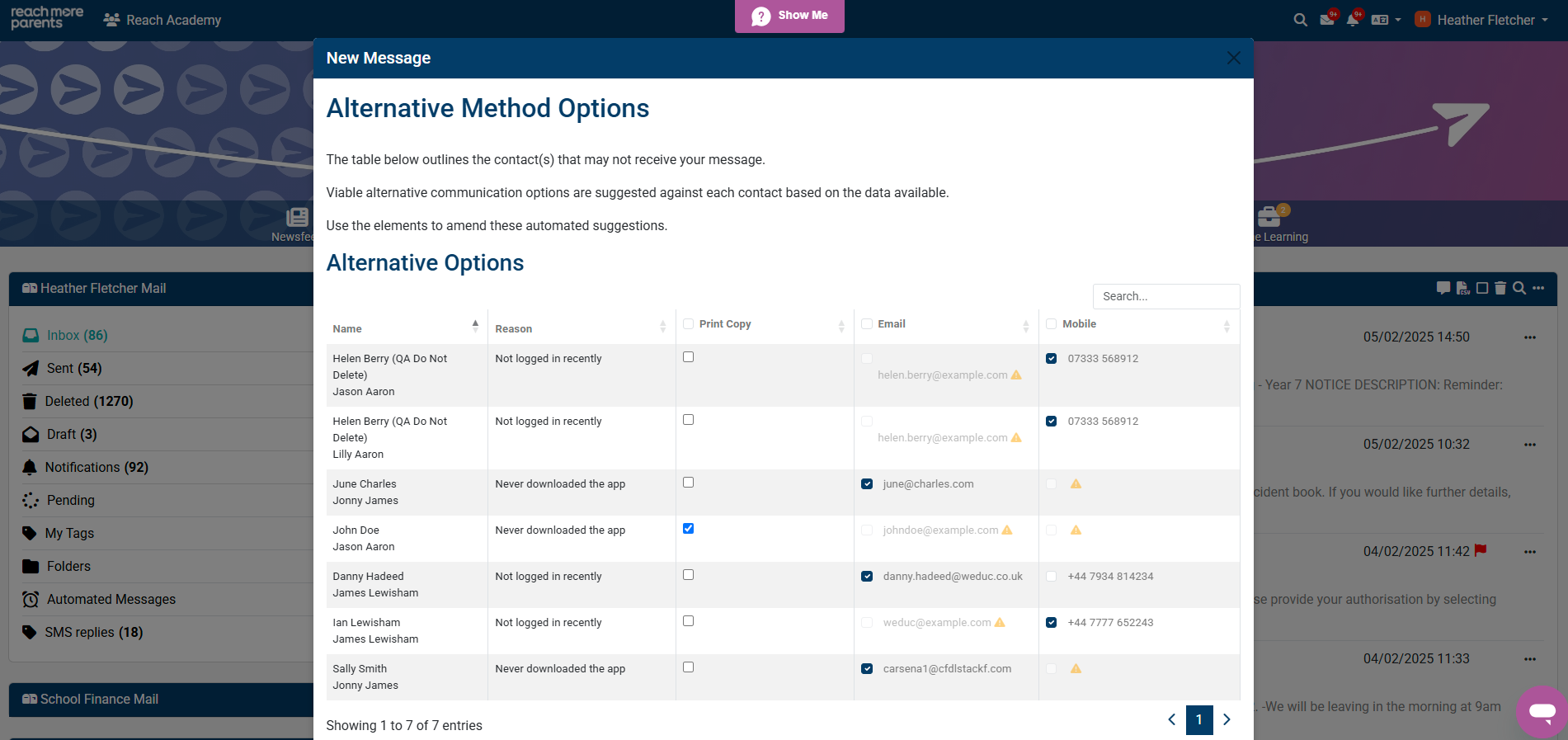
Please see the steps below to find out more on how to send your message via email, SMS or print copy.
To opt to send your message via email
1) If you would like to send your message via email, select the 'email' box next to the recipient(s) within the 'Alternative Options' table. This will allow the system to send your message via email.
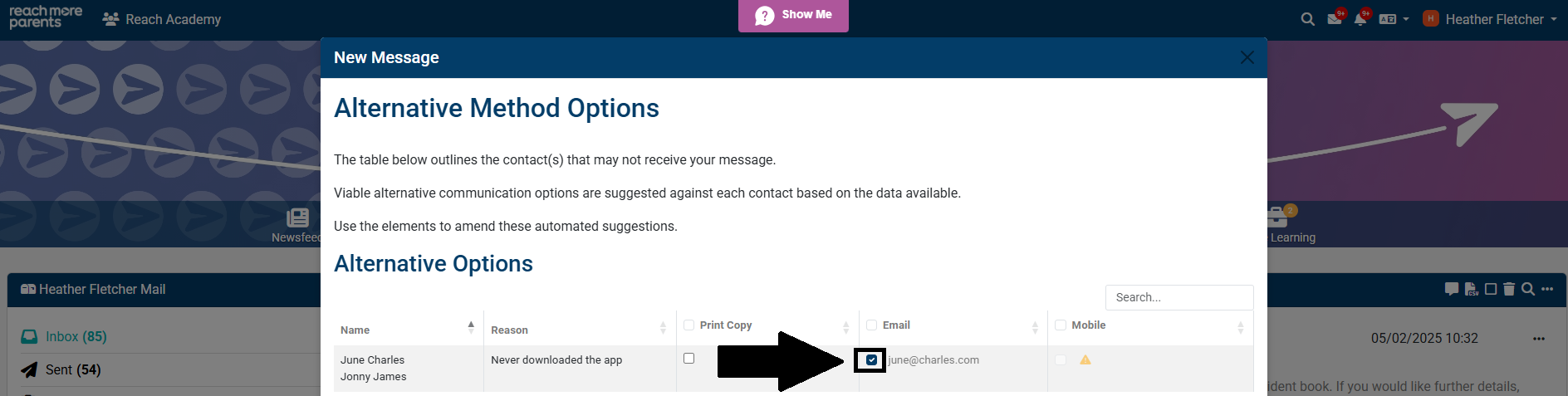
To opt to send your message via SMS
1) If you would like to send your message via SMS, select the 'Mobile' box next to the recipient(s) within the 'Alternative Options' table. This will allow the system to send a message to the recipient via SMS.
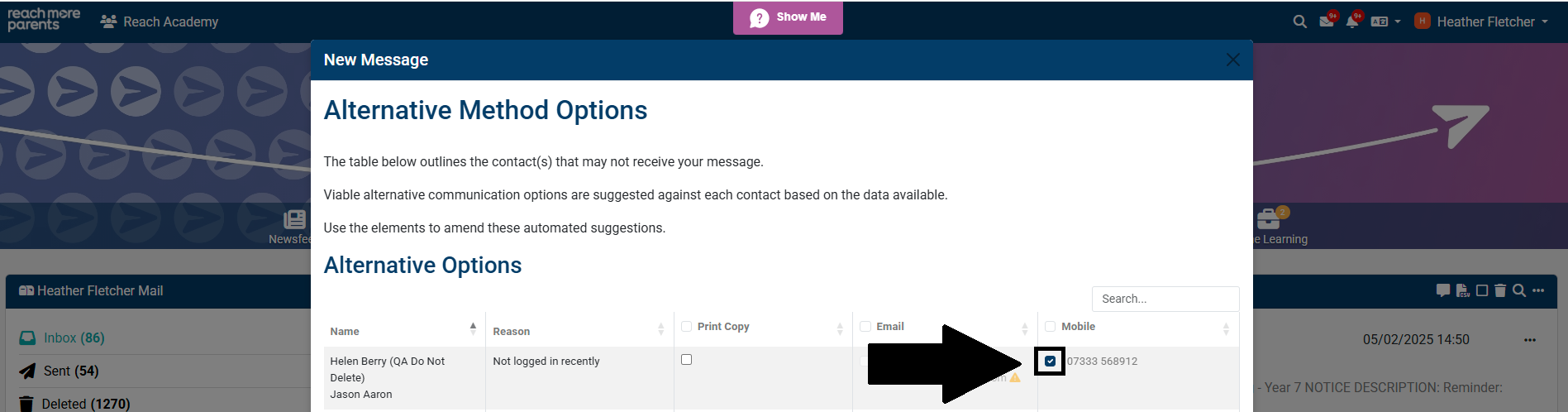
*Please be aware that sending SMS messages through ReachMoreParents will incur an additional charge. By selecting mobile numbers in the 'Mobile' column, you are authorising the system to send SMS messages to the selected number(s).
2) Type your SMS message in the 'SMS Content' box.
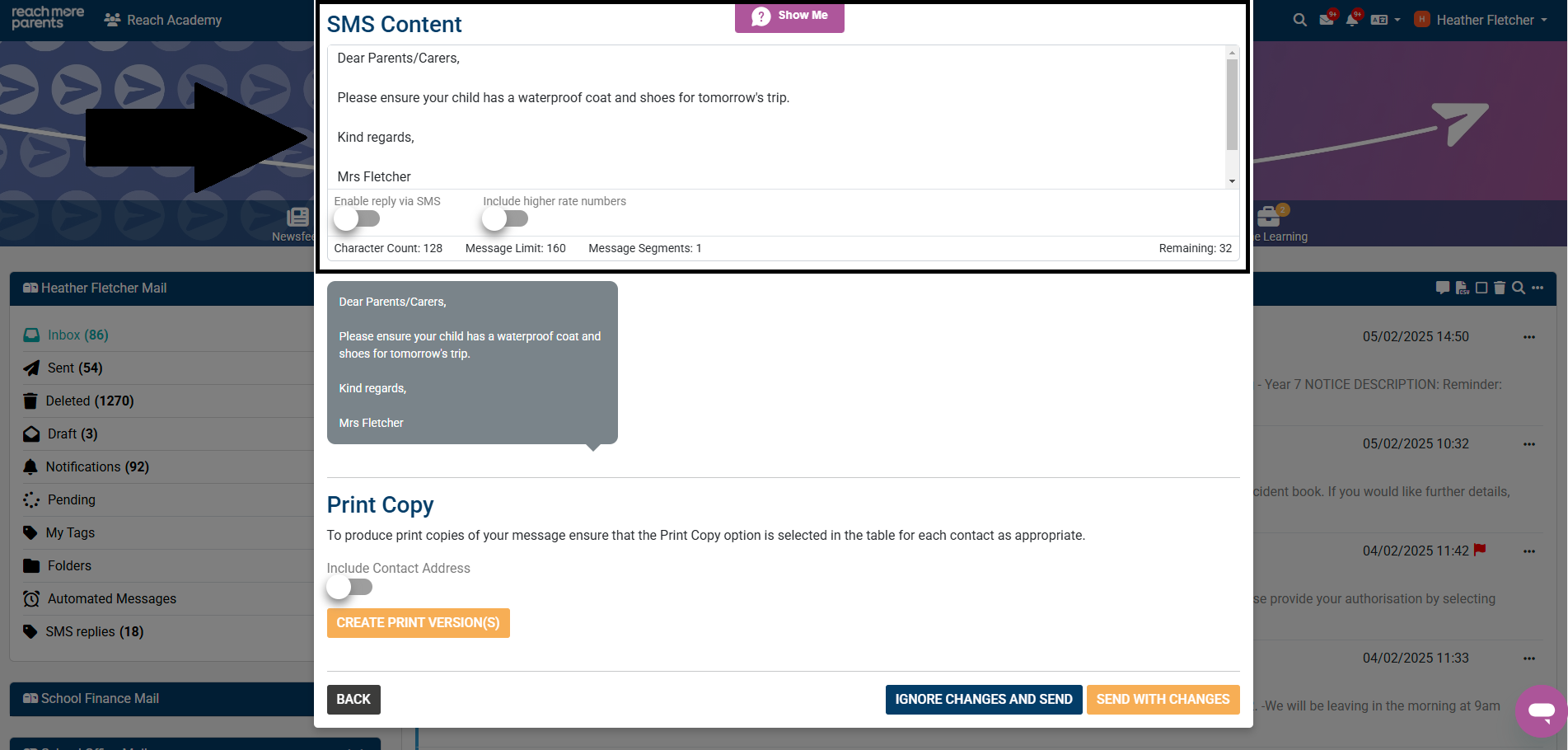
*Please be aware that you are limited to 160 characters per message segment. If your message exceeds 160 characters, and runs over into a second or third message segment, you will incur further charges.
To opt to send your message via print copy
1) If you would like to send your message via print copy, select the 'Print Copy' box next to the recipient(s) within the 'Alternative Options' table. This will allow you to instruct the system to generate a PDF file containing your original message which can be printed off and sent out to each recipient.
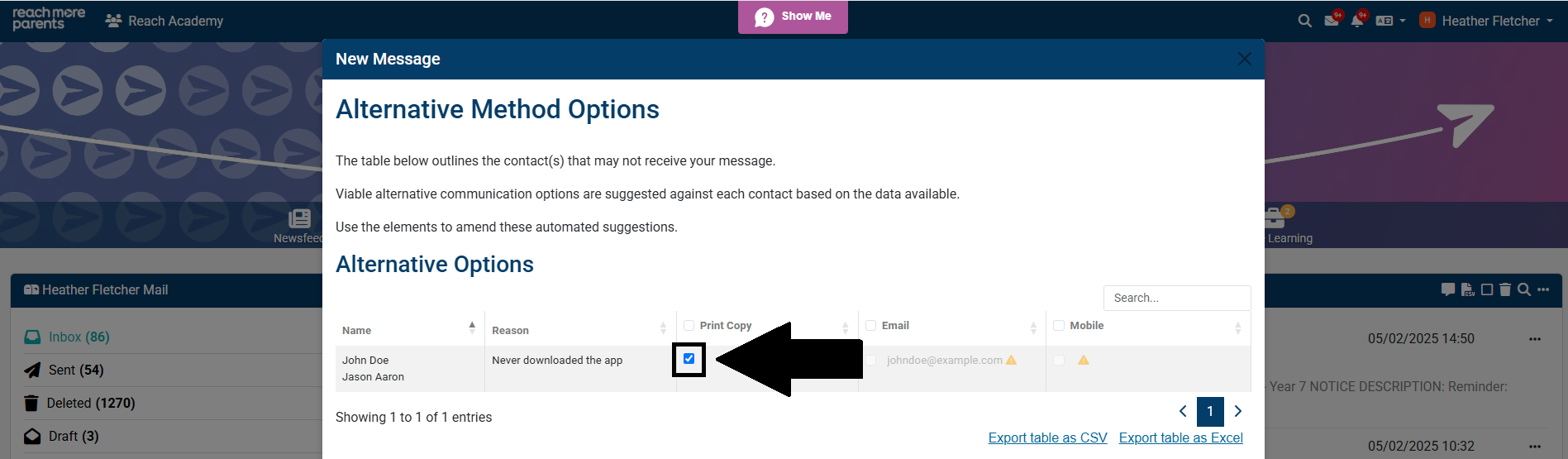
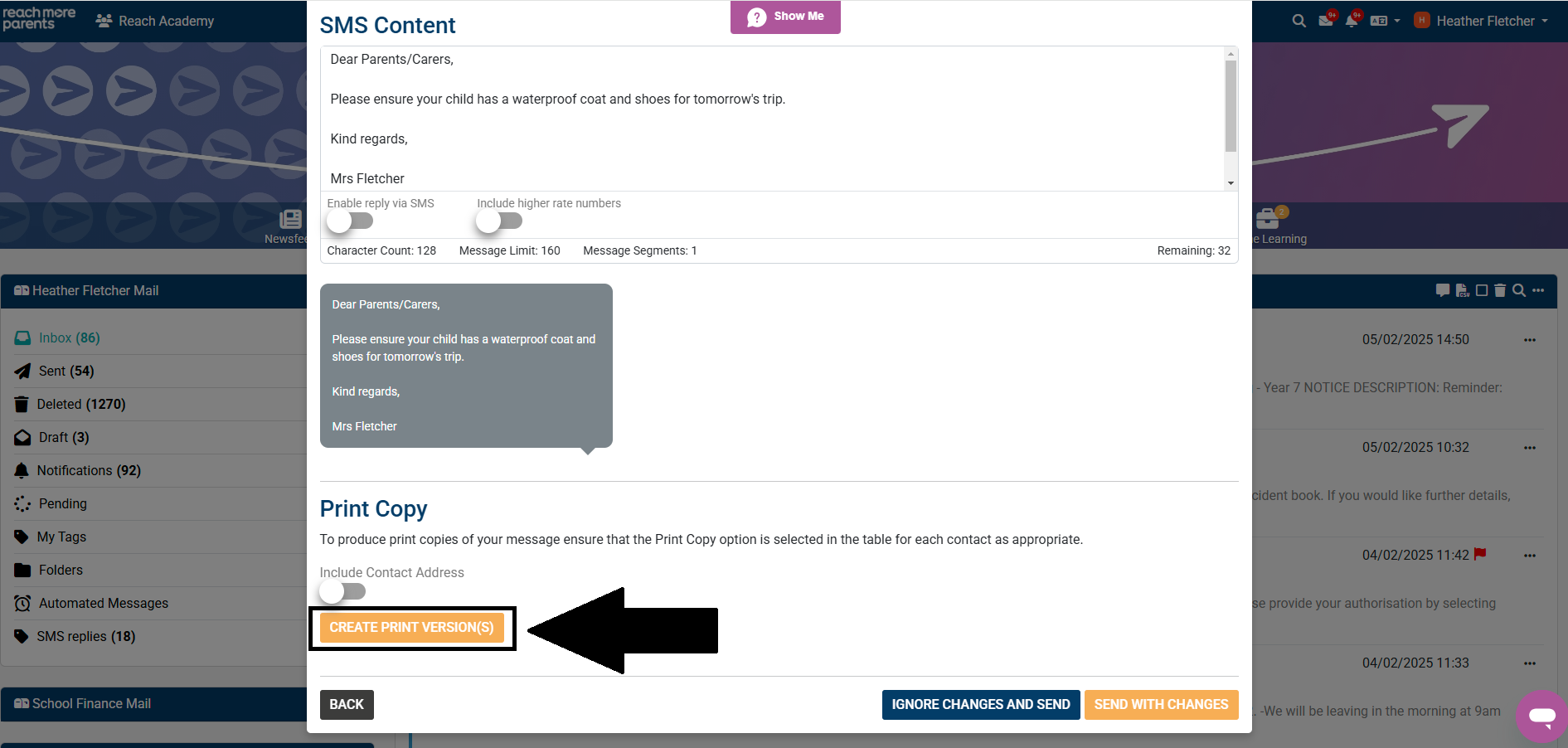
2) To download your print copies, scroll down and click 'Create Print Version(s).'
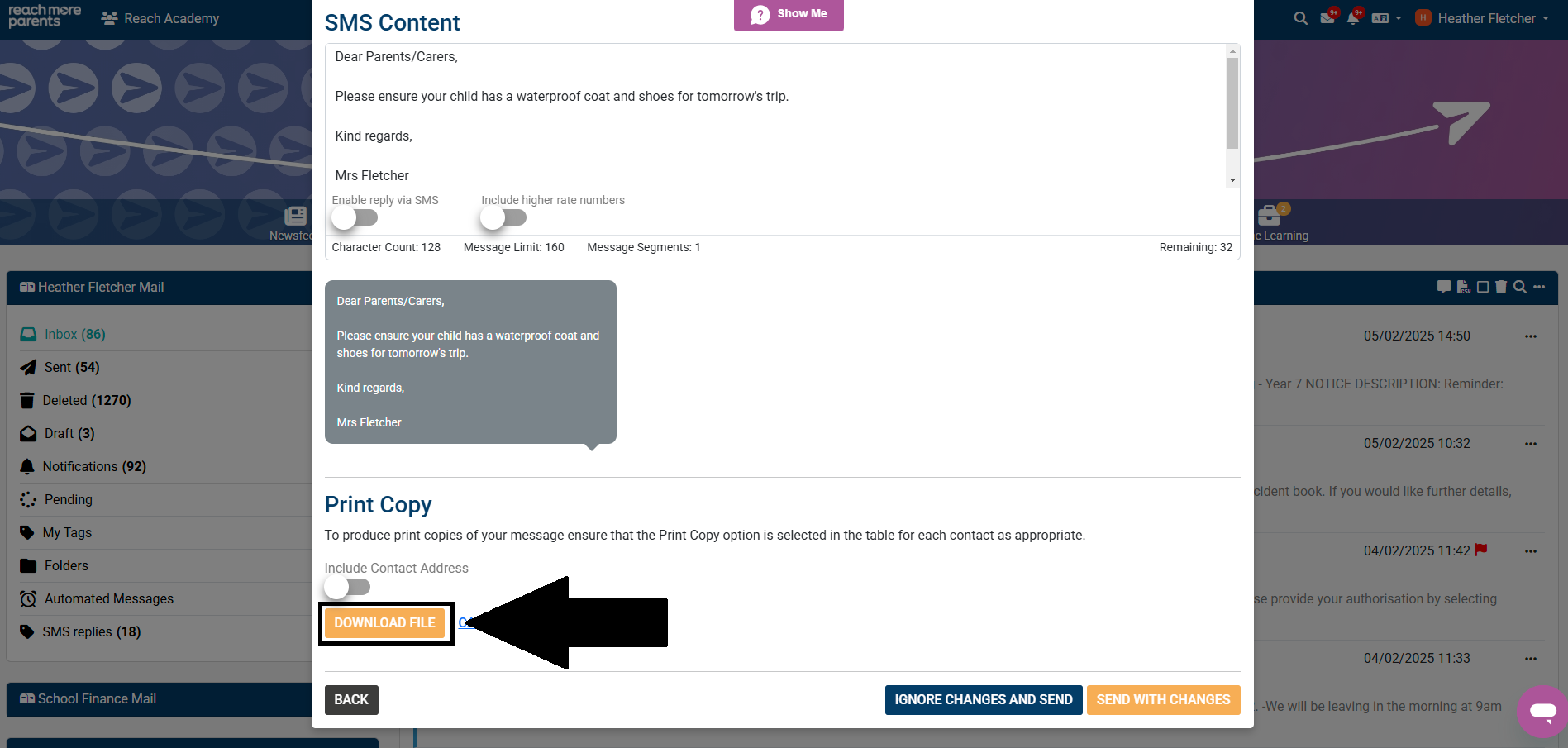
3) Click 'Download File.'
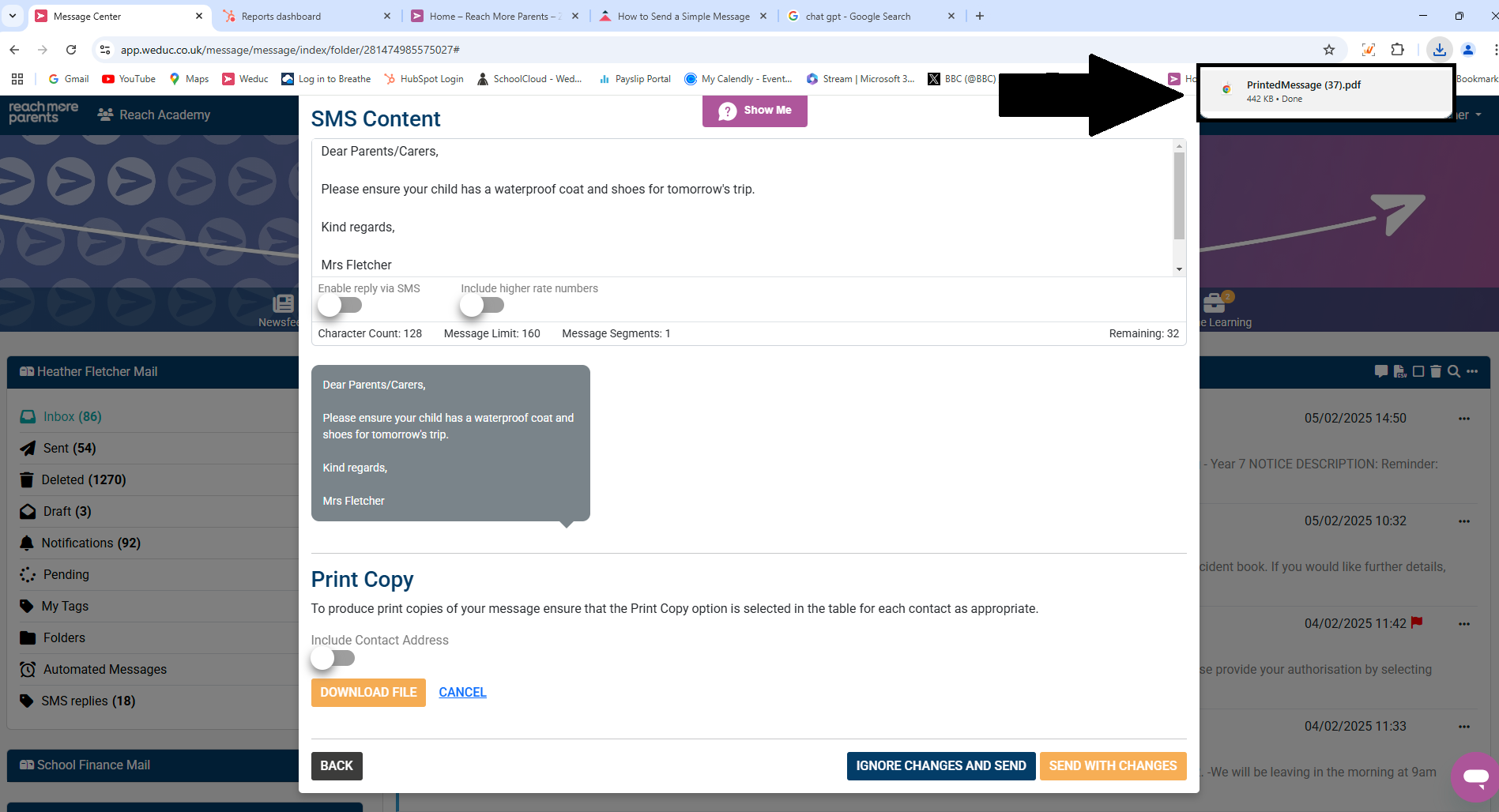
4) Print copies can now be opened from your downloads and printed off, ready to be sent to your recipients.
To send your message
1) Click 'Send with Changes' to send any emails or SMS. For any recipients needing print copies of your communication, please ensure you print off the PDF file from within your downloads and send to the appropriate recipients.
To send messages that allow you to gather responses from parents quickly and efficiently, please see refer to our guide on 'How to Send an Action Message.'
Related Articles:
Still need help?
Contact our team at support@weduc.com or on 01509 221349 (option 2).