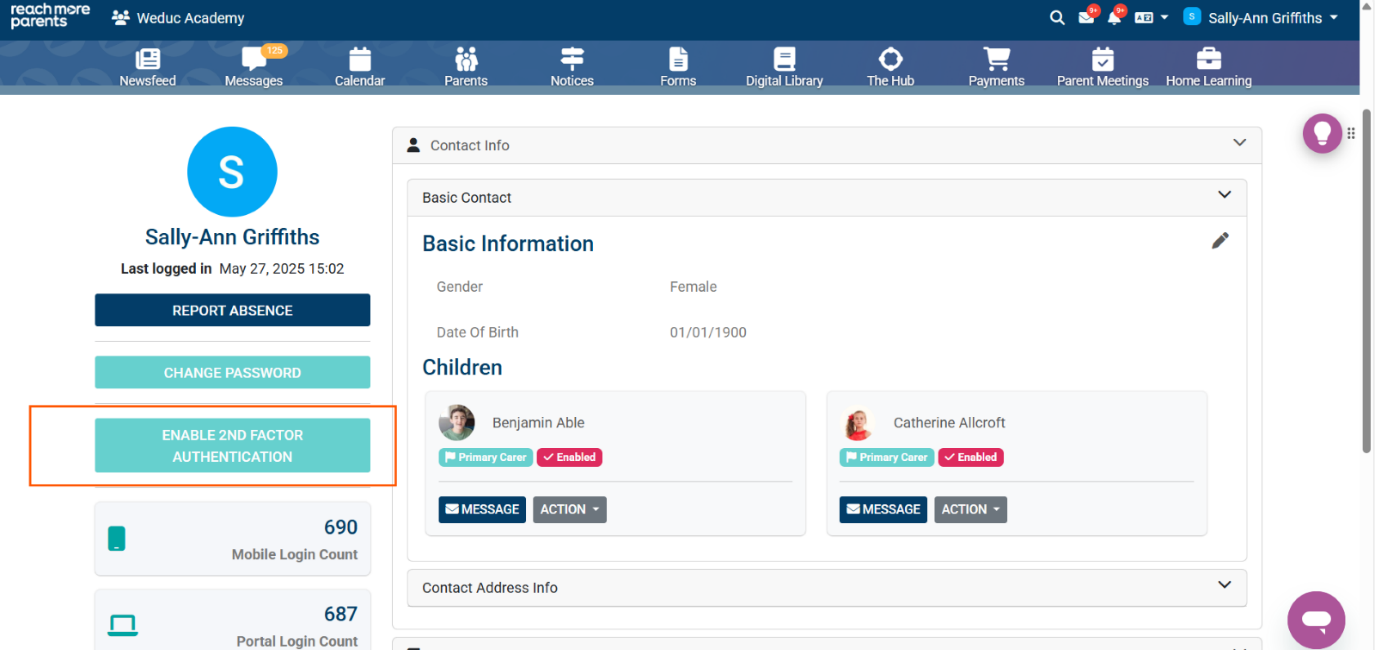
1.Log into the platform, then click your name in the top right-hand corner.
2. Then select “User Account” from the dropdown menu.
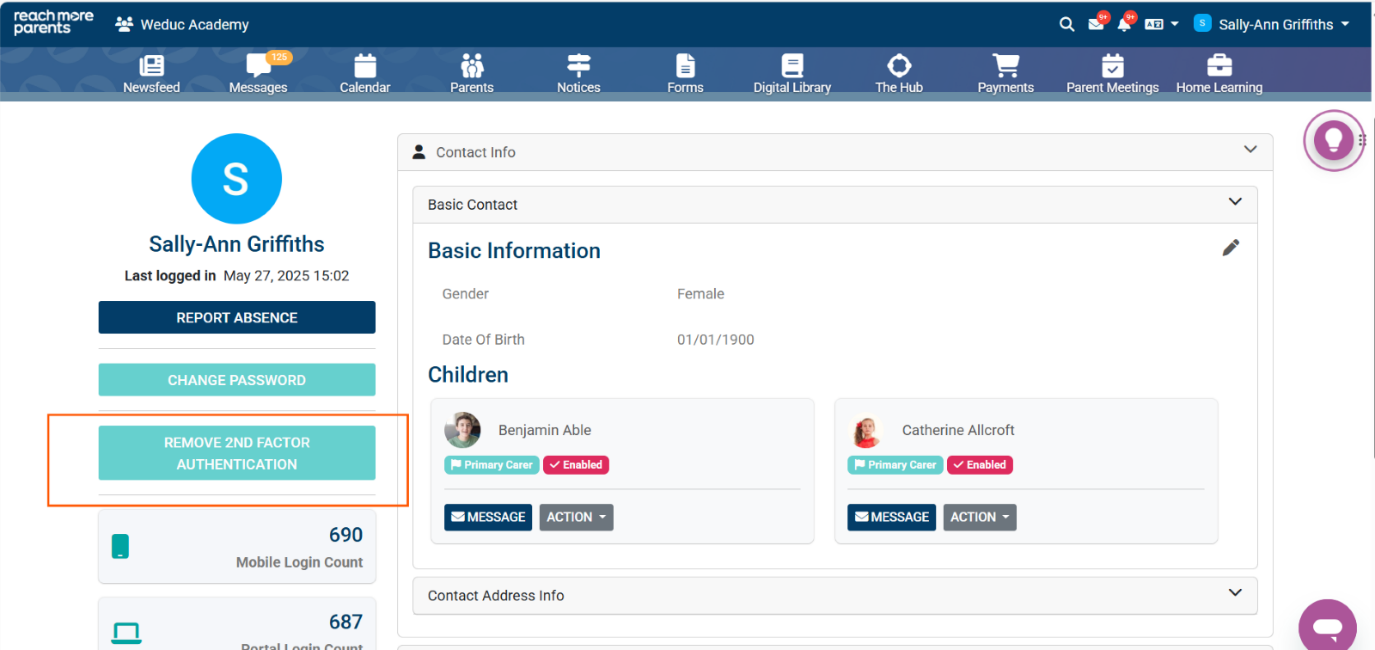
3. Click the button labelled “REMOVE 2ND FACTOR AUTHENTICATION” (see screenshot below).
4. A pop-up screen will load
5. Open your Authenticator app on your mobile device
6. Enter the code associated with ReachMoreParents
7. Click the button labelled “REMOVE”
Note: This code refreshes every 30 seconds. If the code is not entered within 30 seconds or is entered incorrectly, a “failed to verify the code” message will appear. Please try again You will also not receive an email or SMS with your verification code. When the box above is visible within the RMP platform, please visit your chosen authenticator app and type in the code on screen that is associated with RMP.
8. Once your code is accepted, 2FA is disabled.
You will notice the button label will be changed to ENABLE 2ND FACTOR AUTHENTICATION