How to bulk order and bill daily meals for a simple meal plan
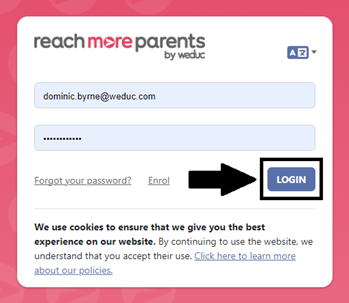
1) Log in to ReachMoreParents.
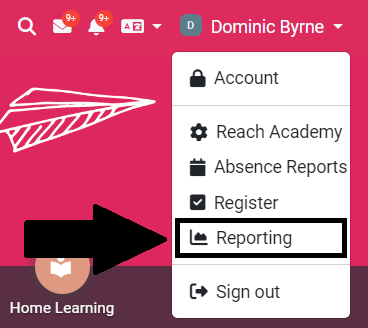
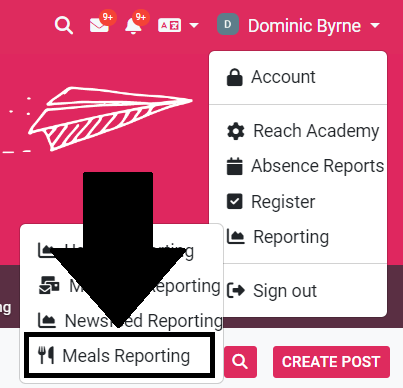
2) Click on your name in the top right hand corner.

3) Click Reporting.
4) Click Meals Reporting.
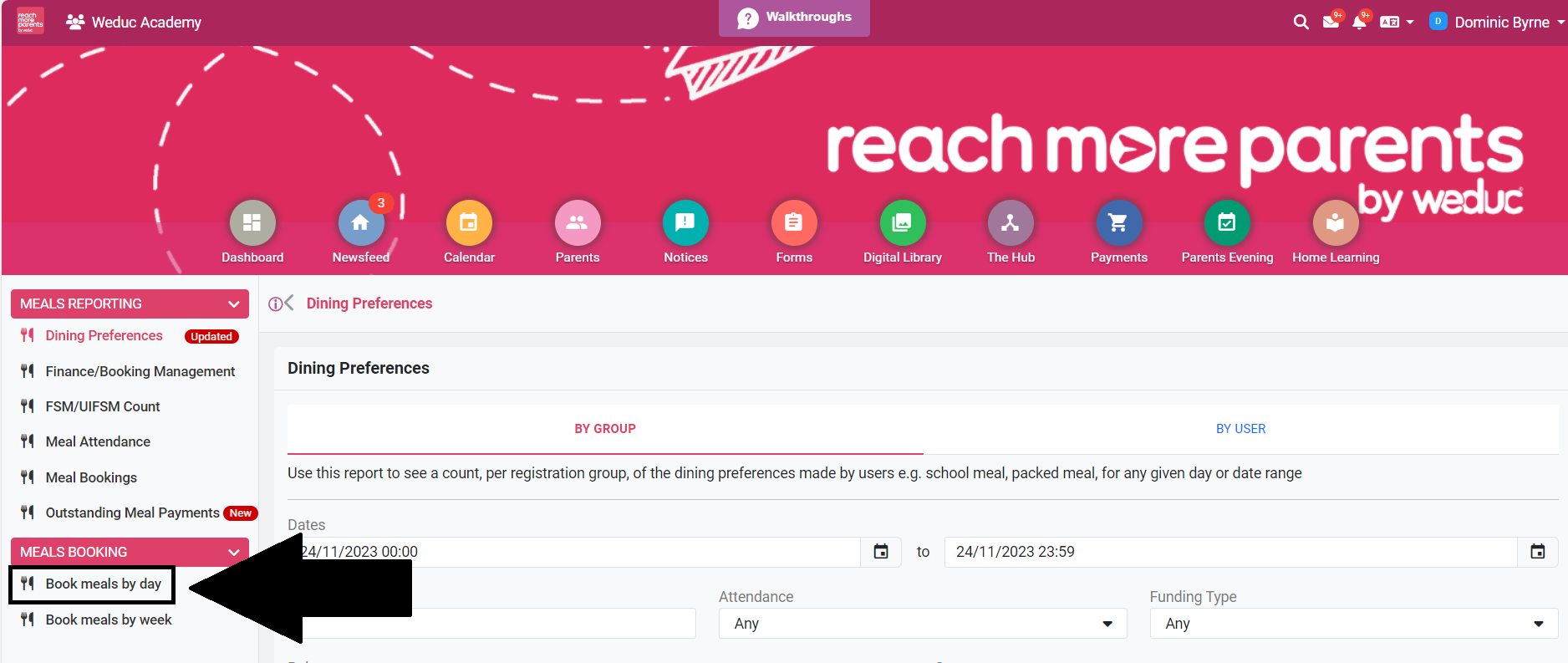
5) Click Book meals by day.
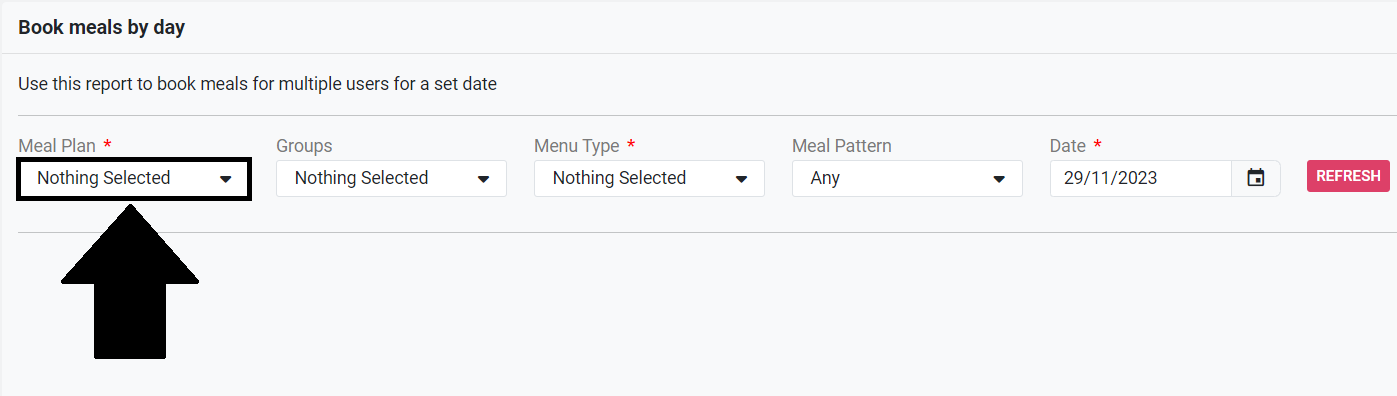
6) Select Meal Plan.
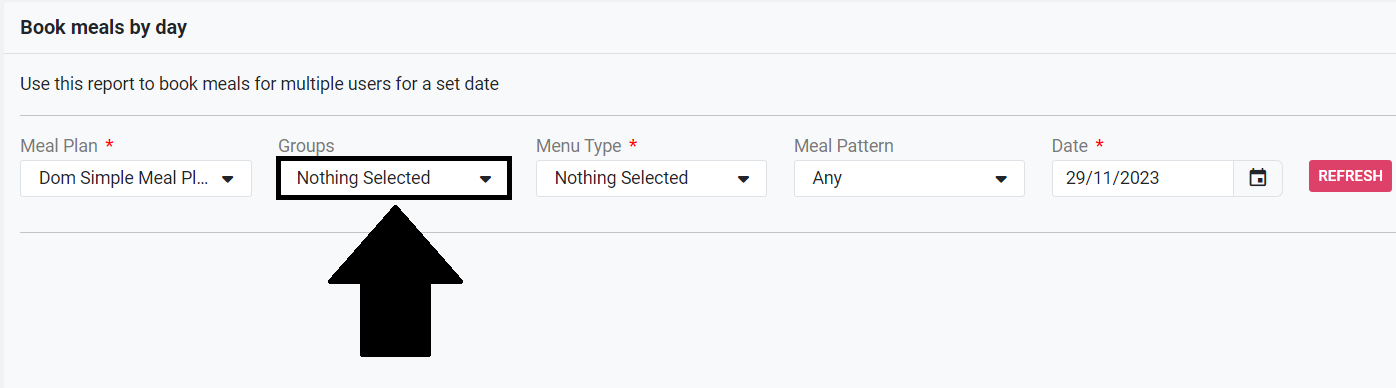
7) Select Group.
8) Select Menu type (typically lunch).
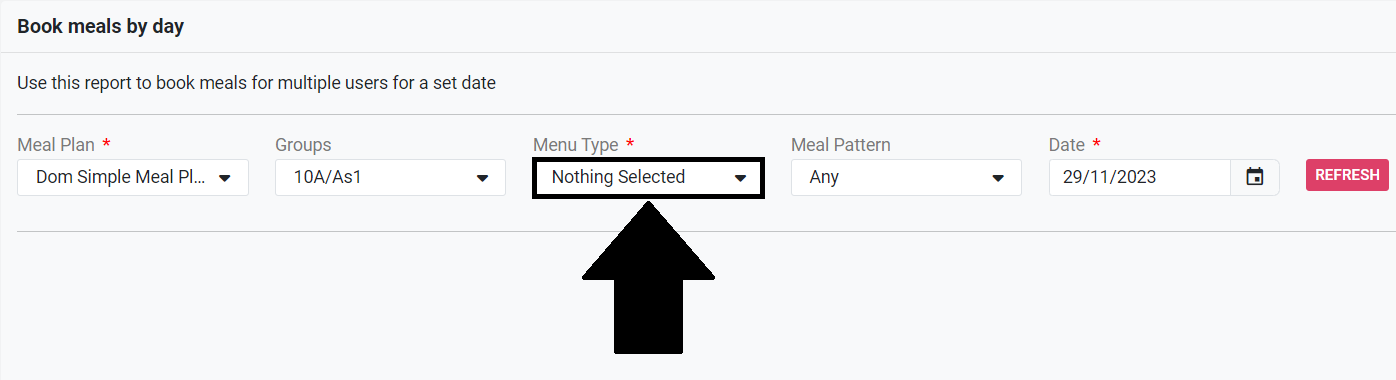
9) (Optional) Select Meal Pattern. This is useful for identifying students that are missing a meal choice.
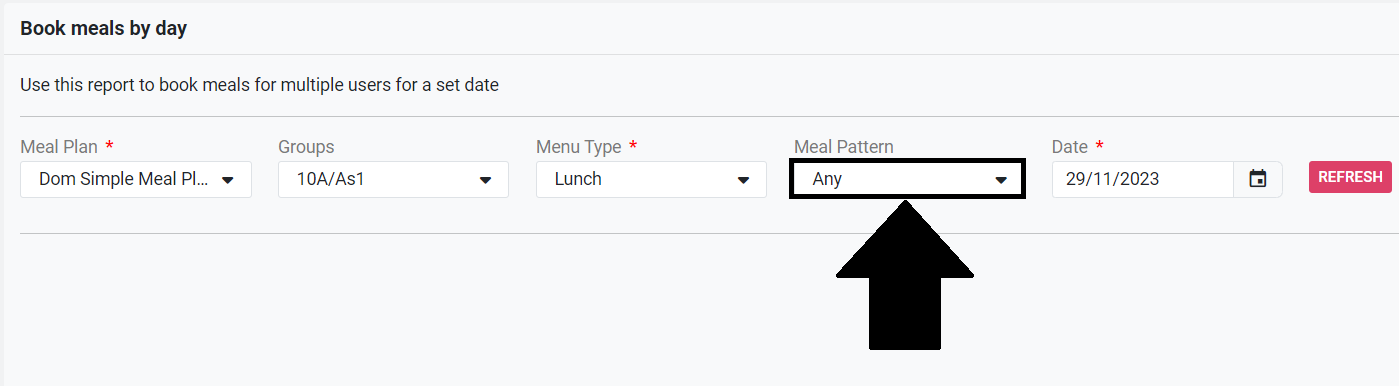
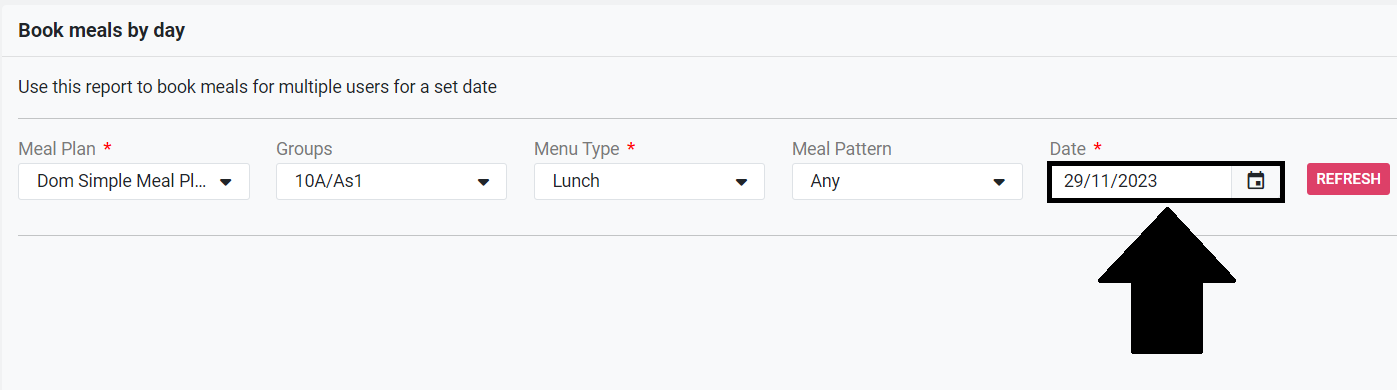
10) Select Date.
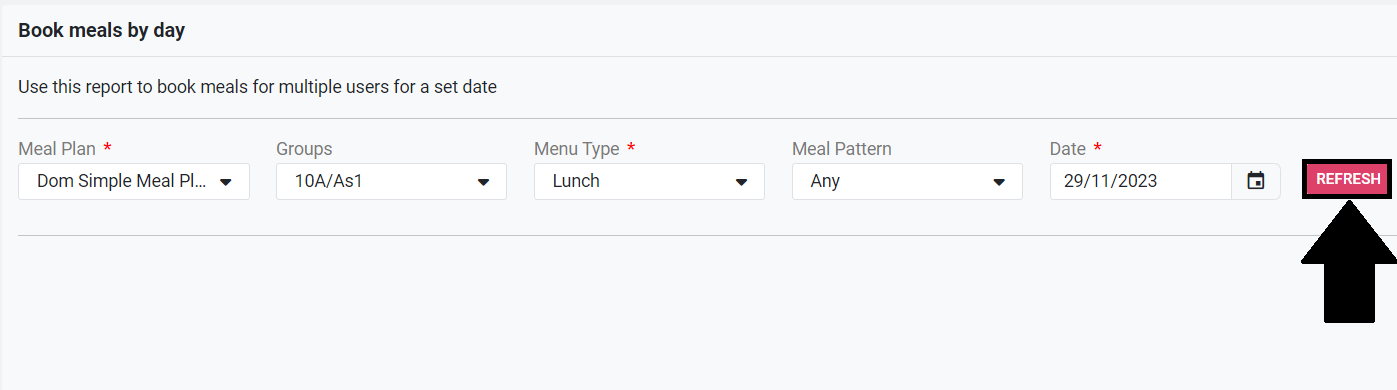
11) Click Refresh.
12) Tick the tick-boxes next to each user you wish to set the same meal choice for.
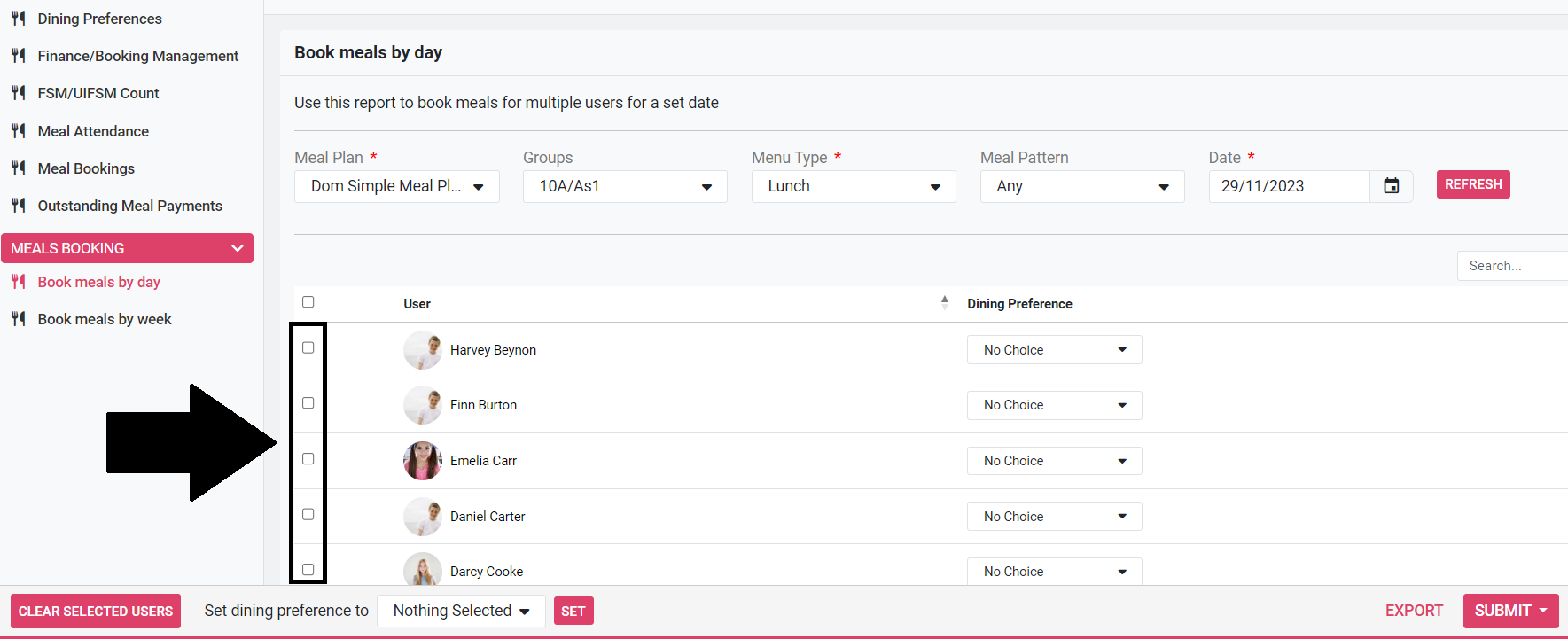
13) Select In School Meal, Offsite or Packed Meal in the Set dining preferences to drop-down menu.
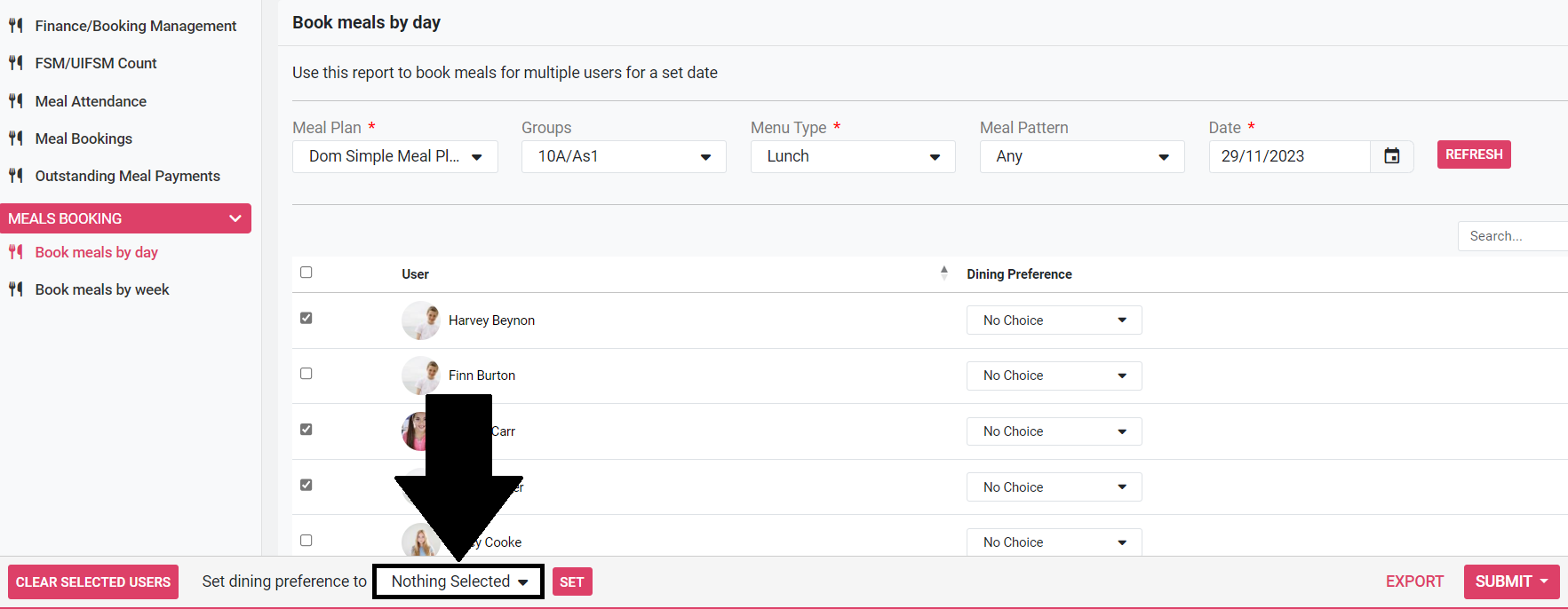
14) Click Set to apply your changes.
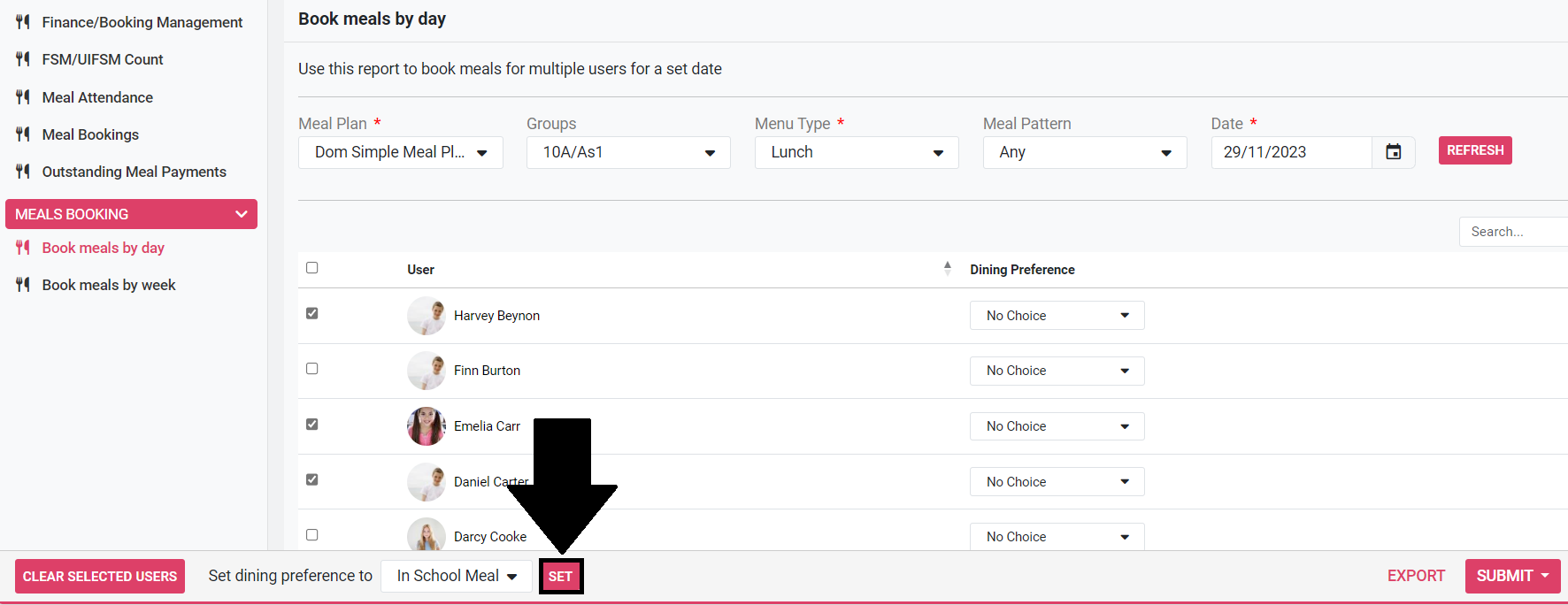
15) If you wish to repeat this process for any further dining preferences, click Clear Selected Users and repeat steps 13 - 14.

16) Click Submit.
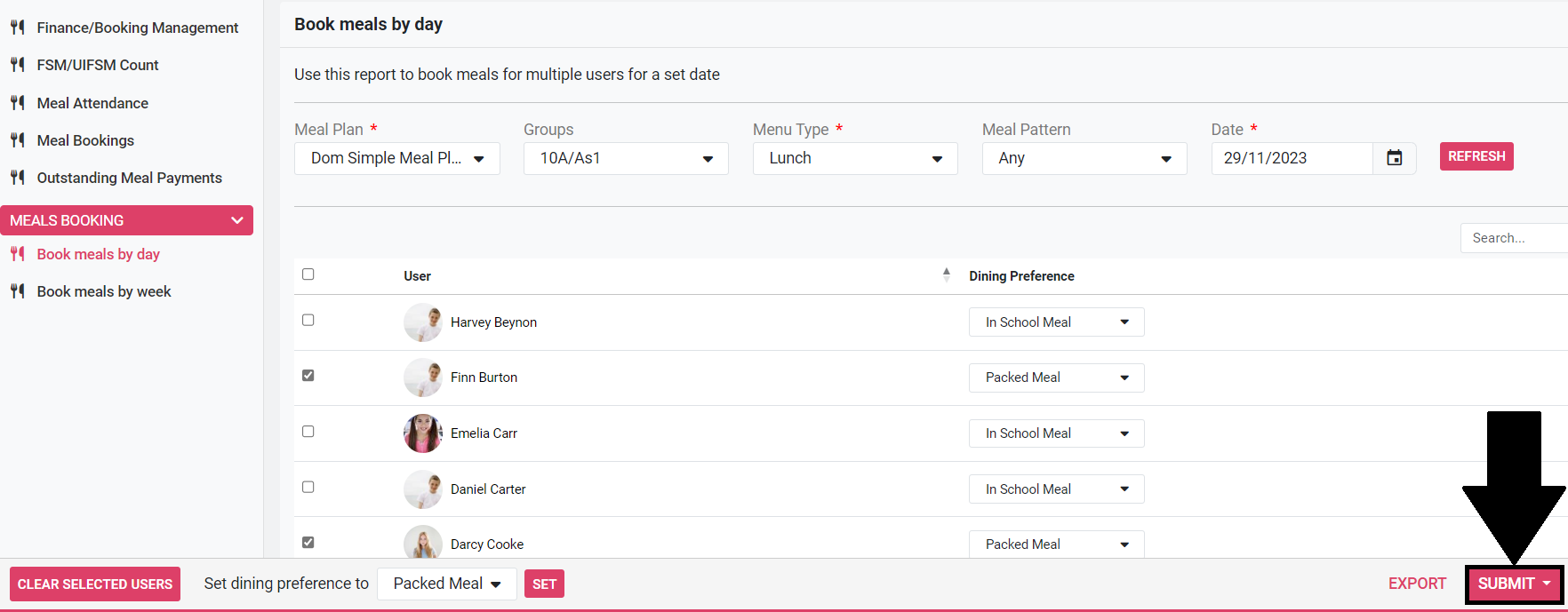
17a) If you wish to charge for In School Meals at a later date, or if your school does not charge for meals via ReachMoreParents, either because the school charges for meals via a separate payments system or doesn't charge for meals at all, click Book. If you have only selected Packed Meal or Offsite, click Book.
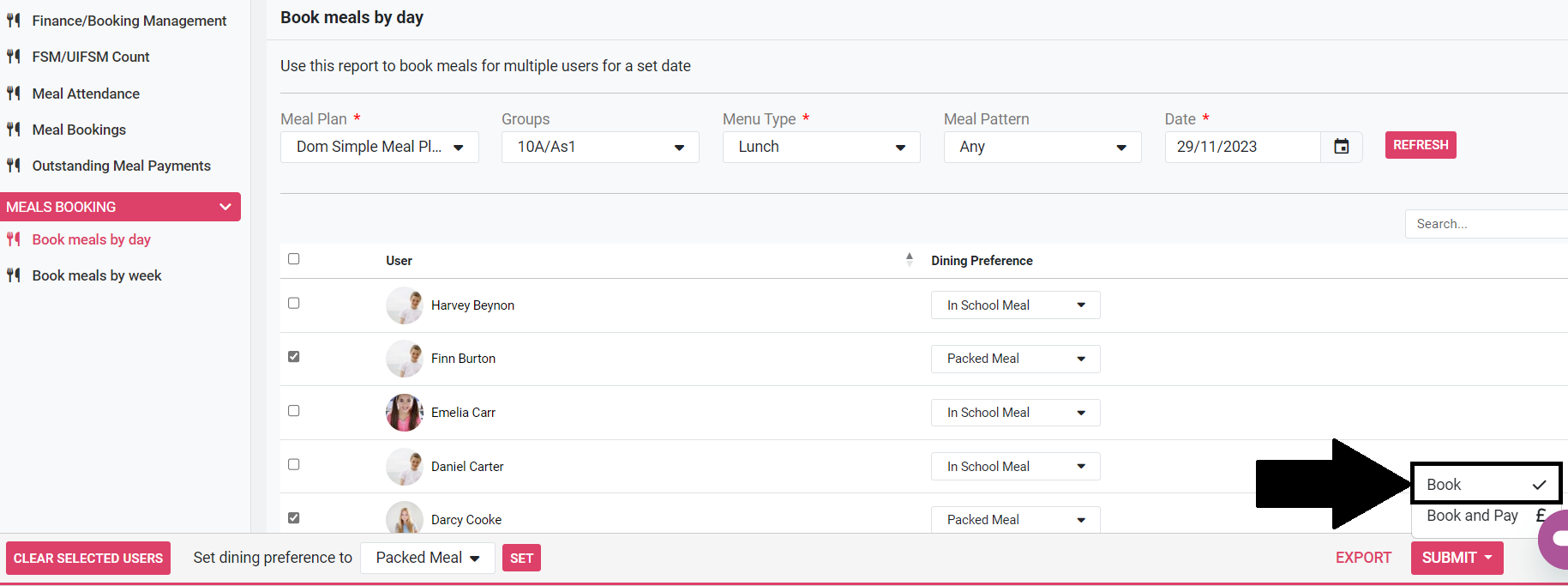
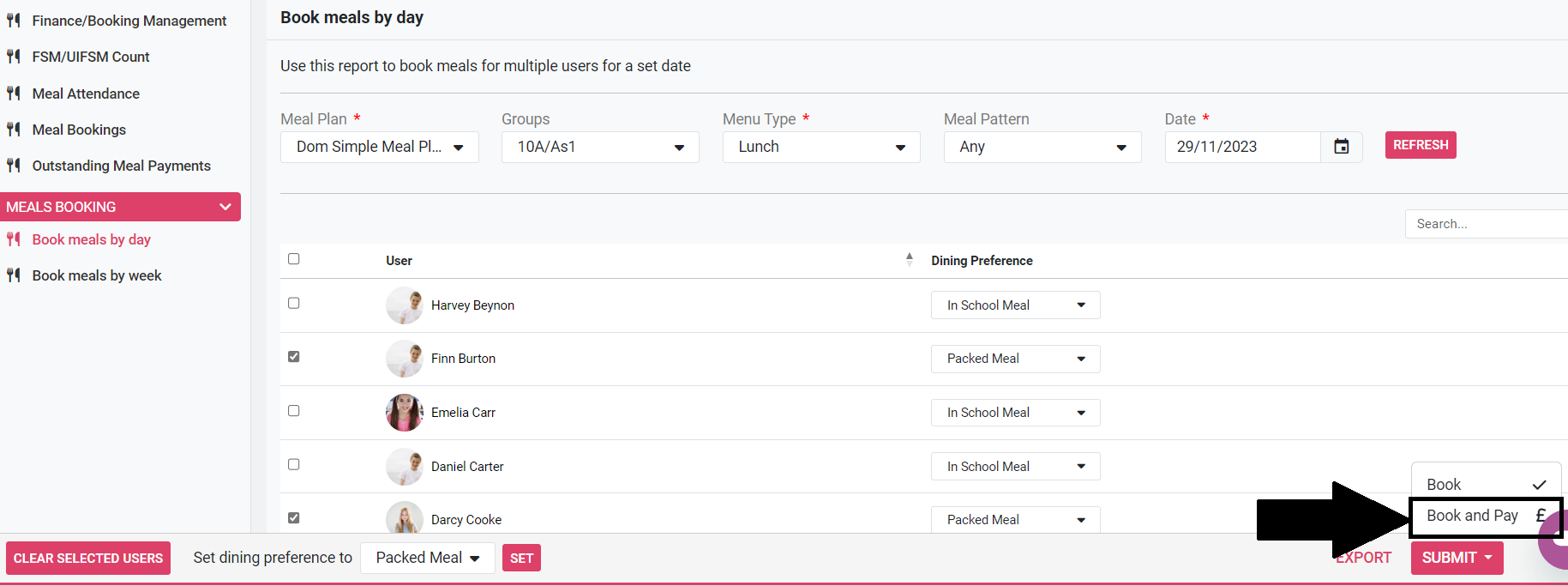
17b) If you wish to charge for In School Meals now, click Book and Pay. This option will confirm the meal booking and where applicable will also deduct the necessary funds from the student’s meal purse. If a student does not have enough available funds, then the meal will still be booked but a payment failure error will be displayed in a notification panel at the top of the user table.
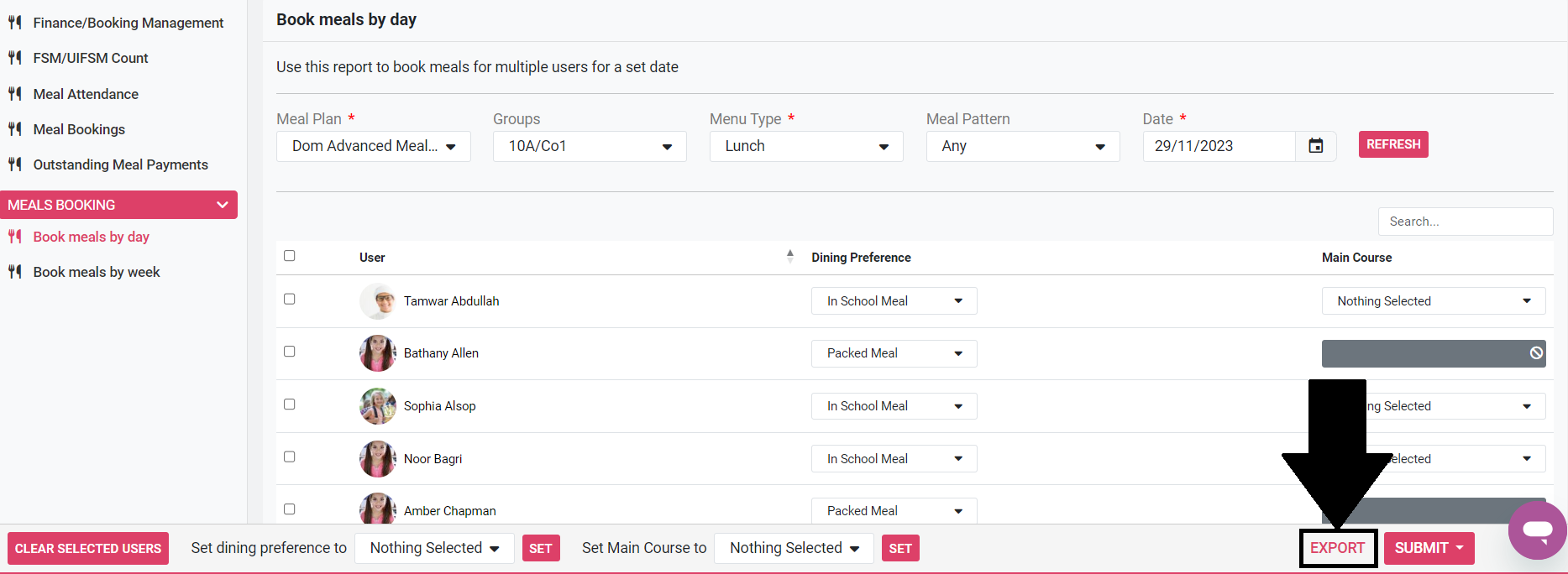
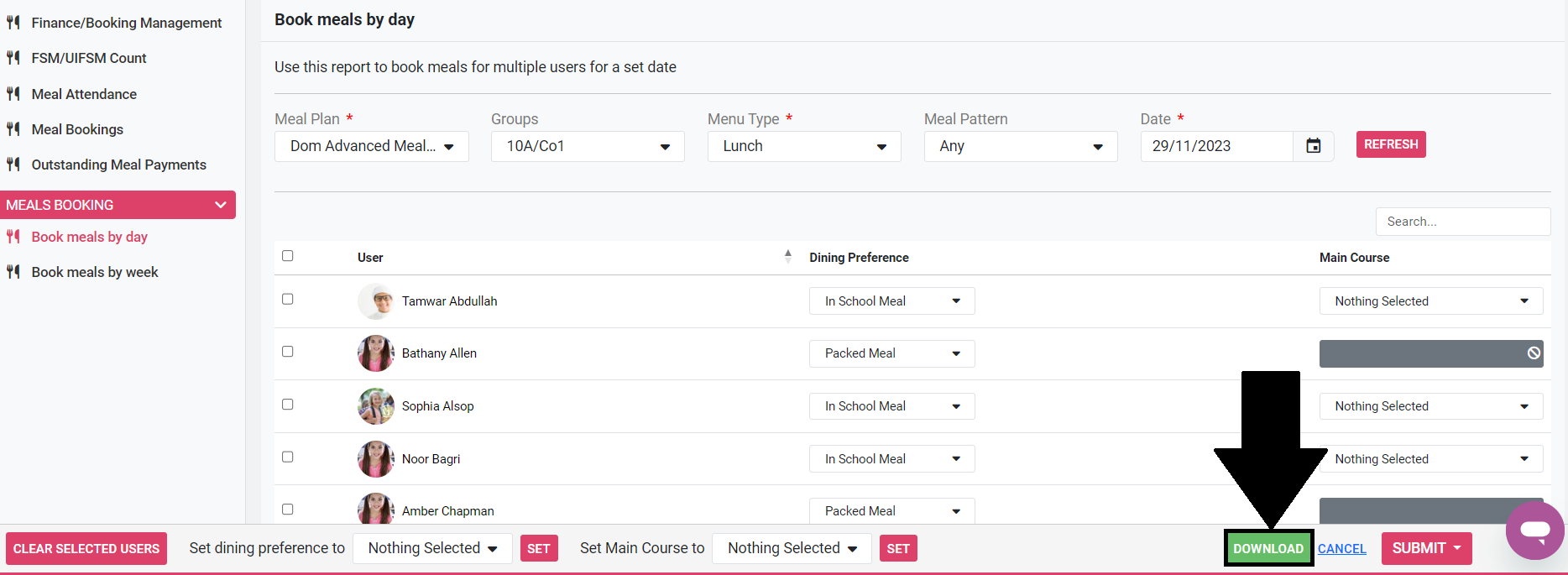
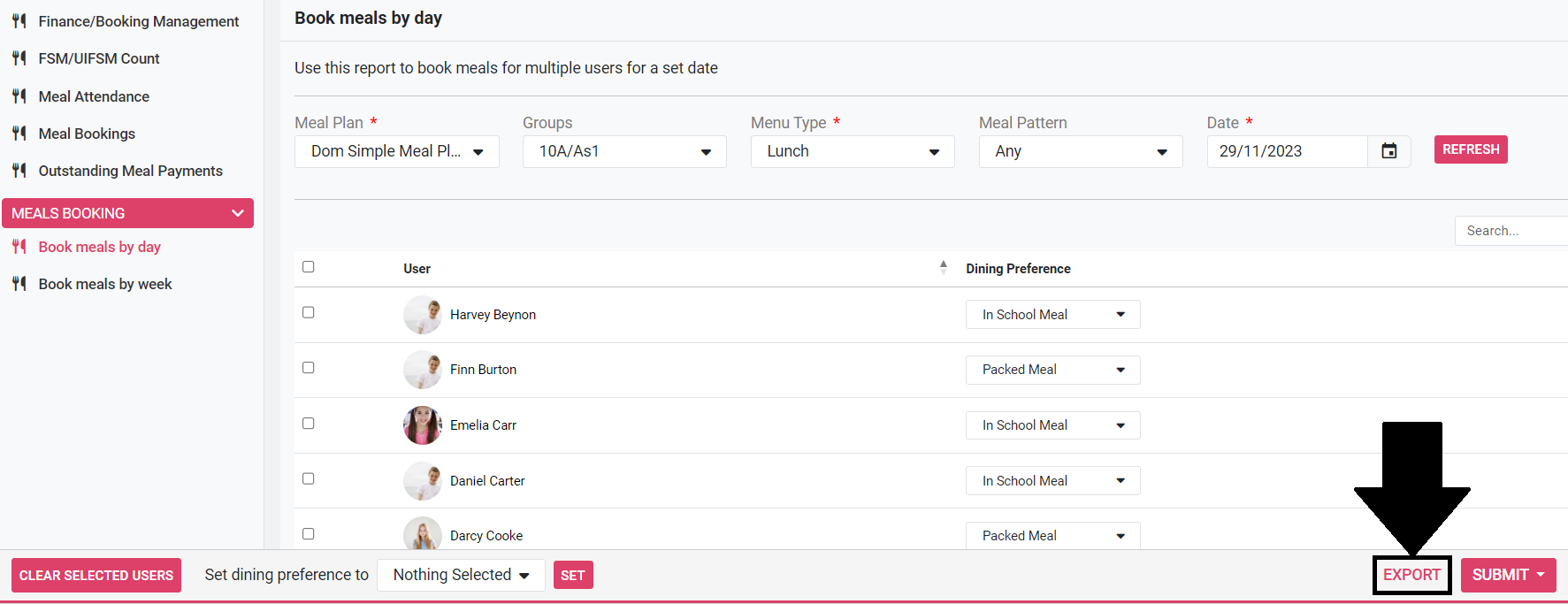
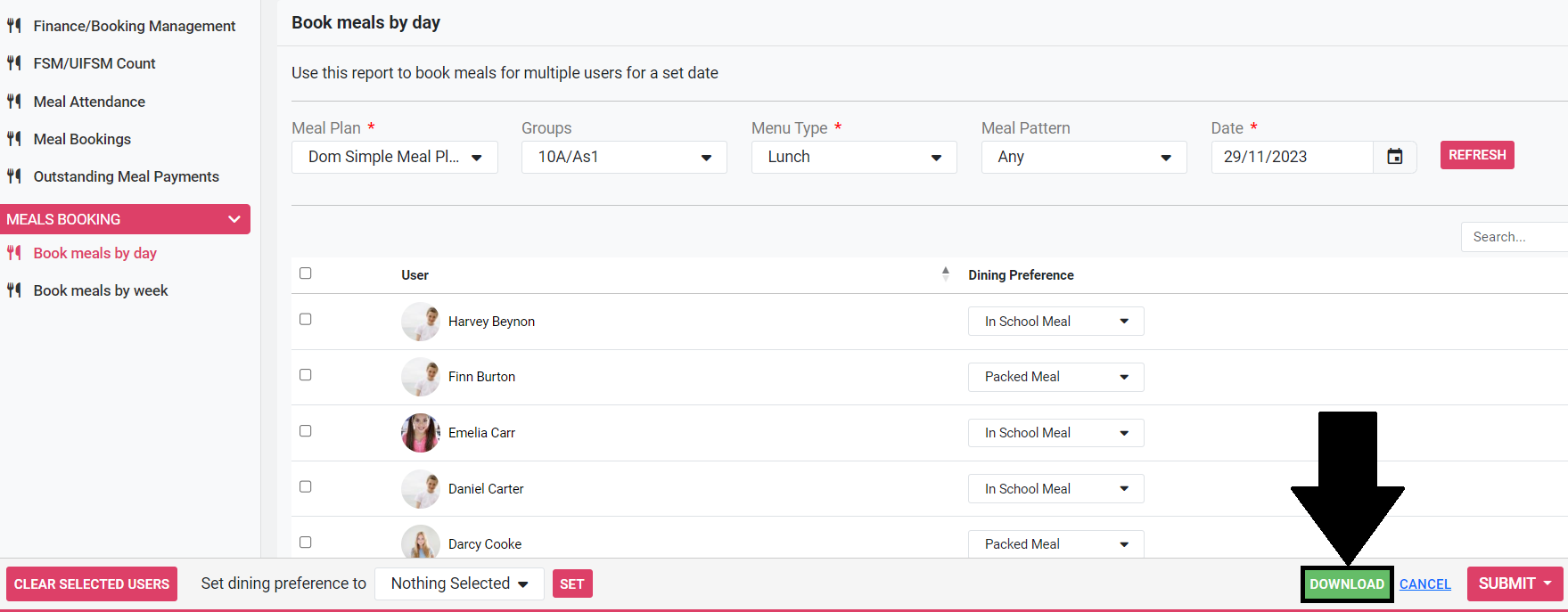
18) (Optional) You can export the student’s meal choices to excel by Clicking Export and Download.
How to bulk order and bill daily meals for an advanced meal plan
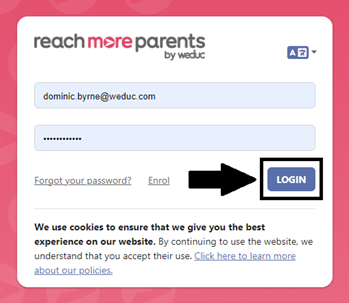
1) Log in to ReachMoreParents.
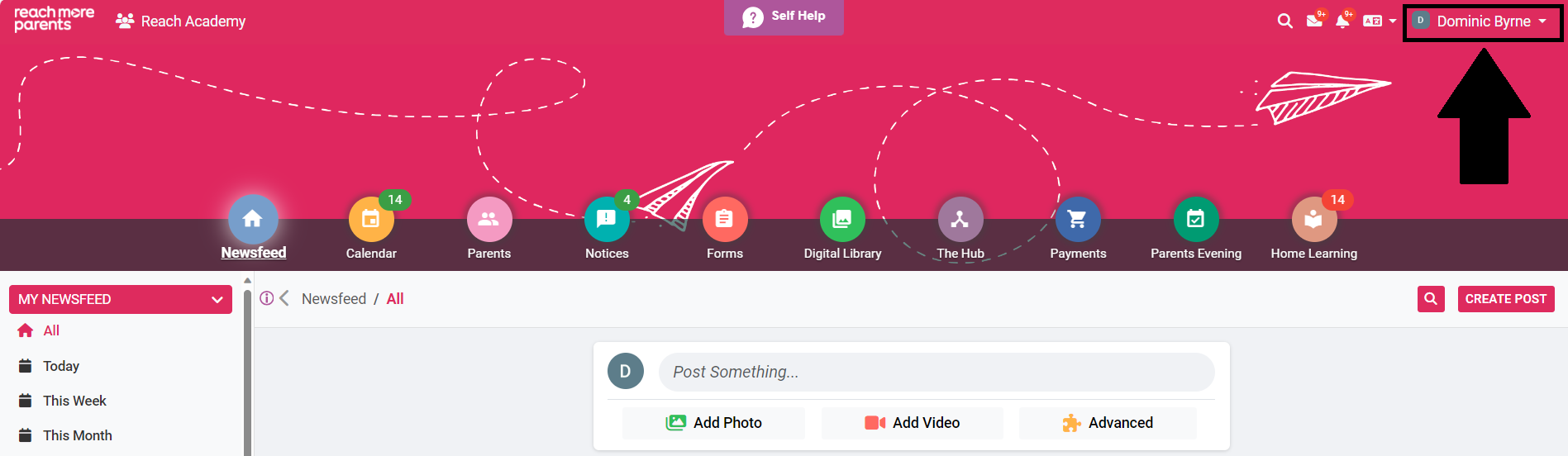
2) Click on your name in the top right hand corner.
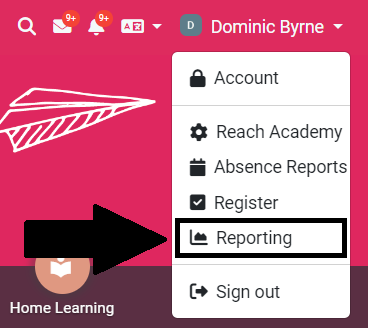
3) Click Reporting.
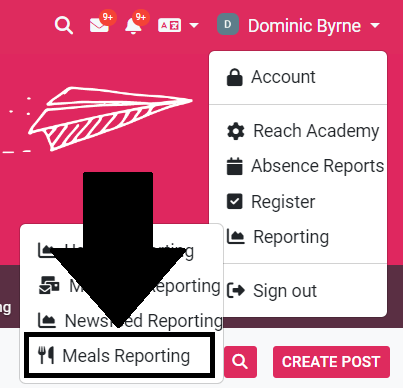
4) Click Meals Reporting.
5) Click Book meals by day.
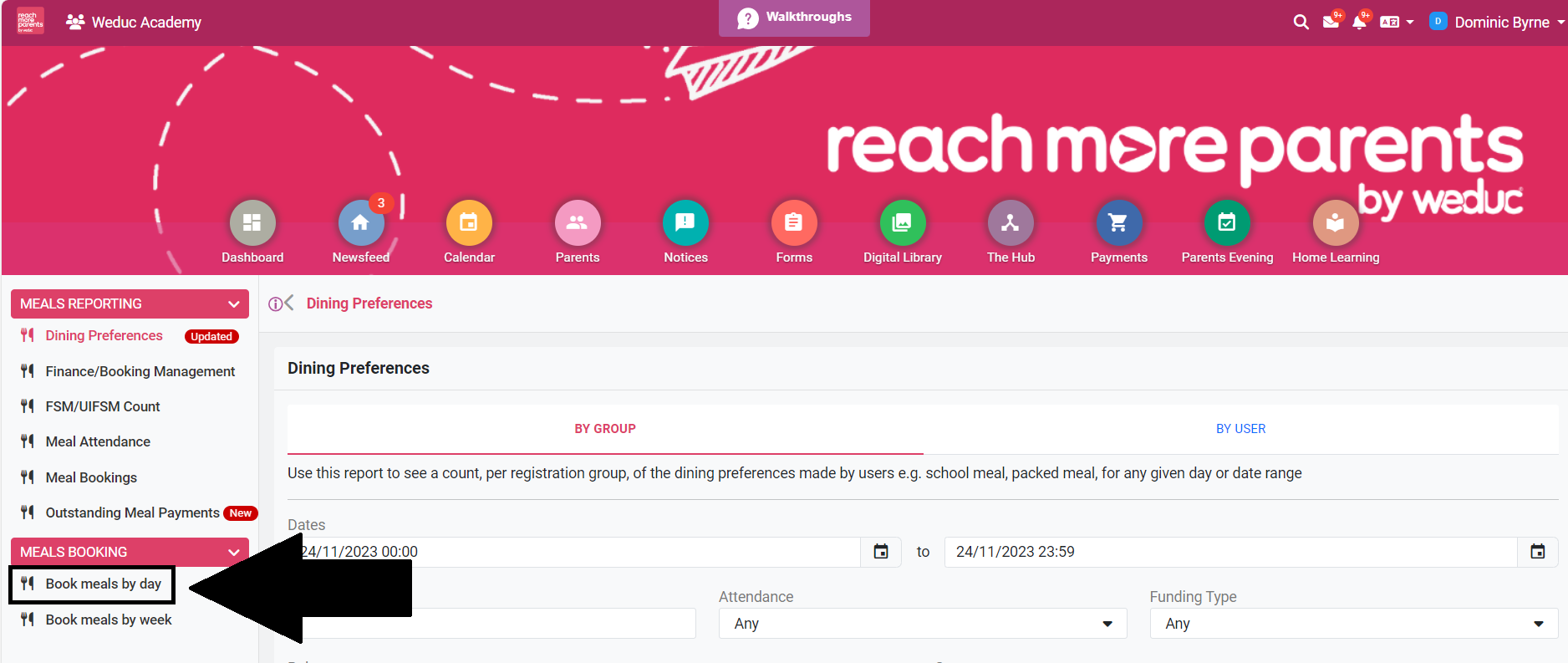
6) Select Meal Plan.
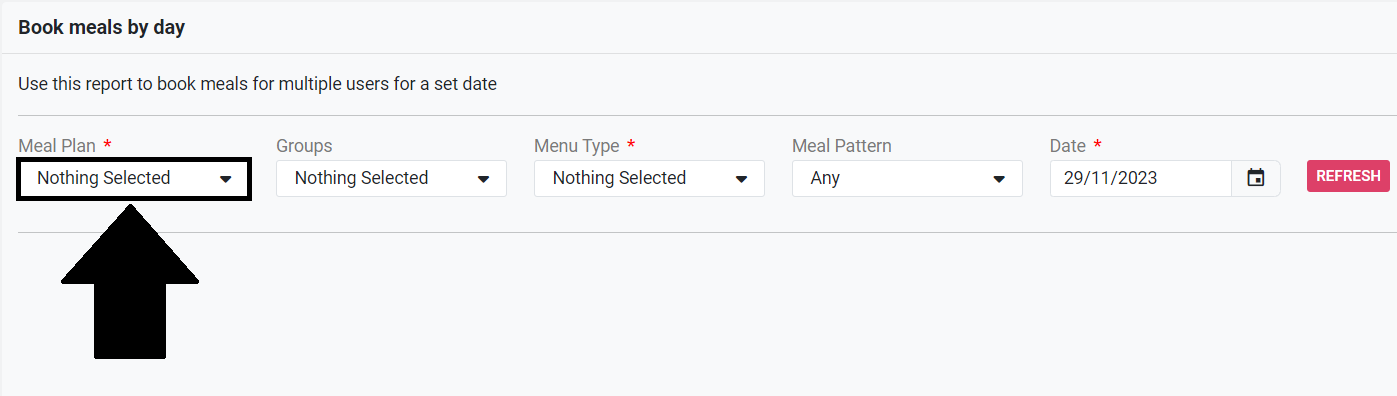
7) Select Group.
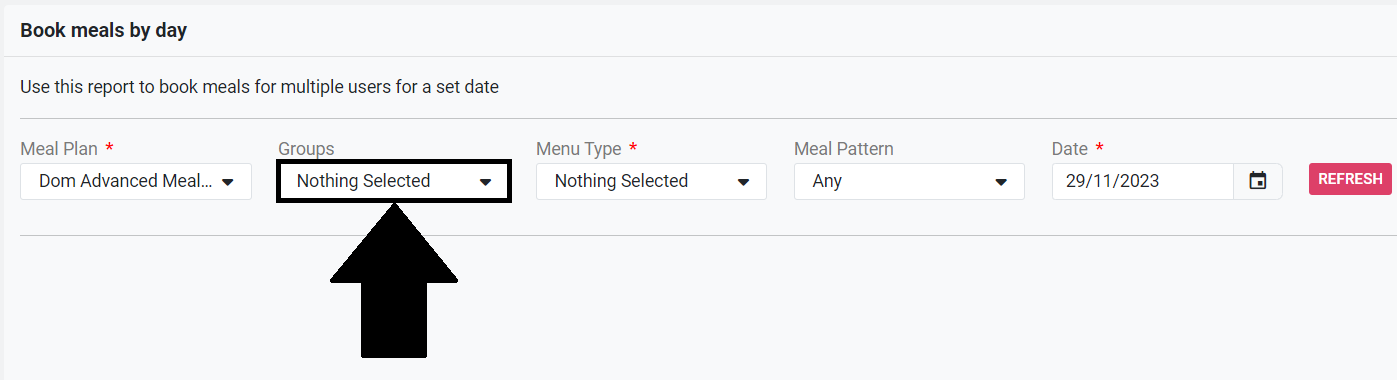
8) Select Menu type (typically lunch).
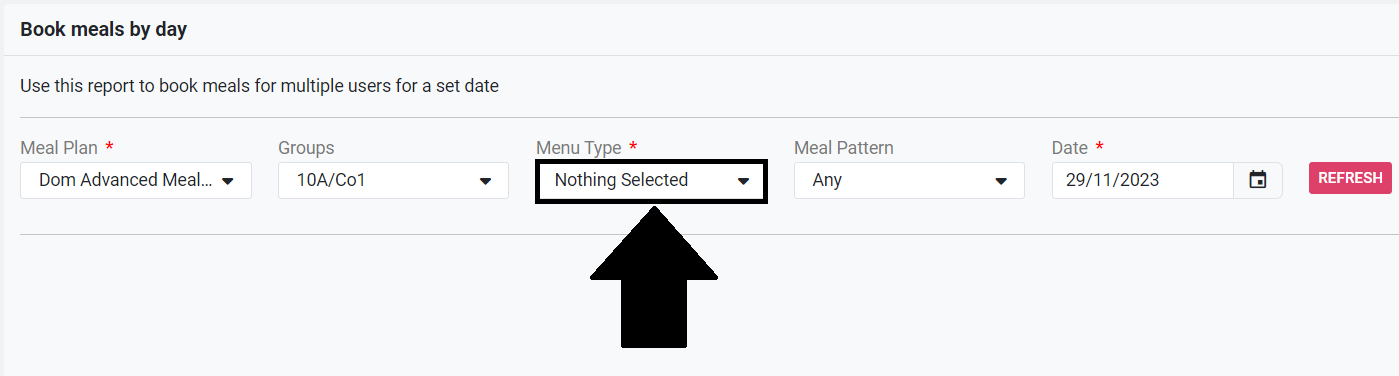
9) (Optional) Select Meal Pattern. This is useful for identifying students that are missing a meal choice.
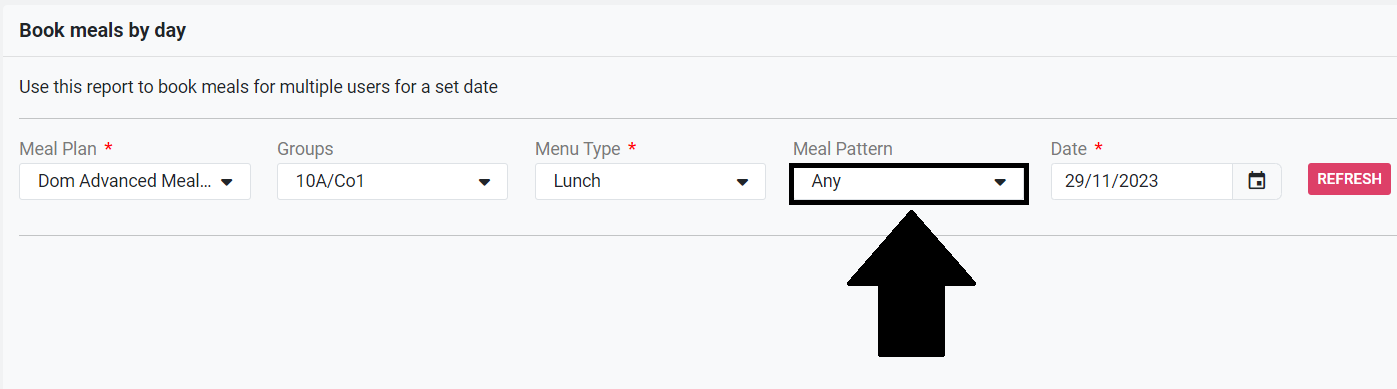
10) Select Date.
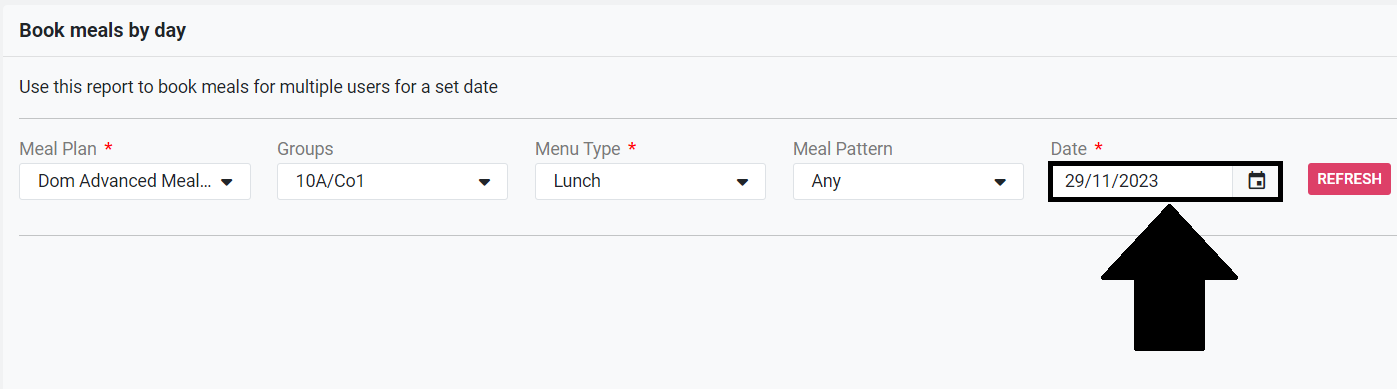
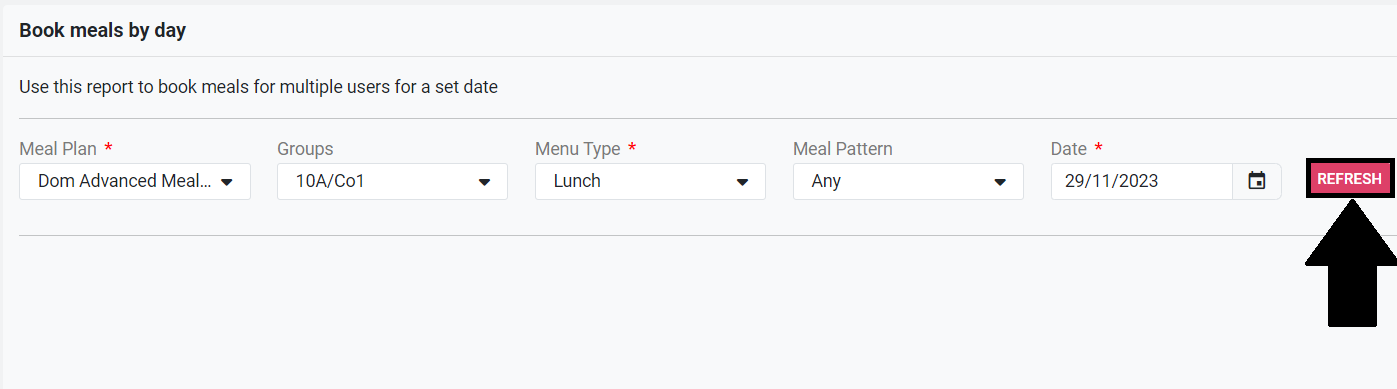
11) Click Refresh.
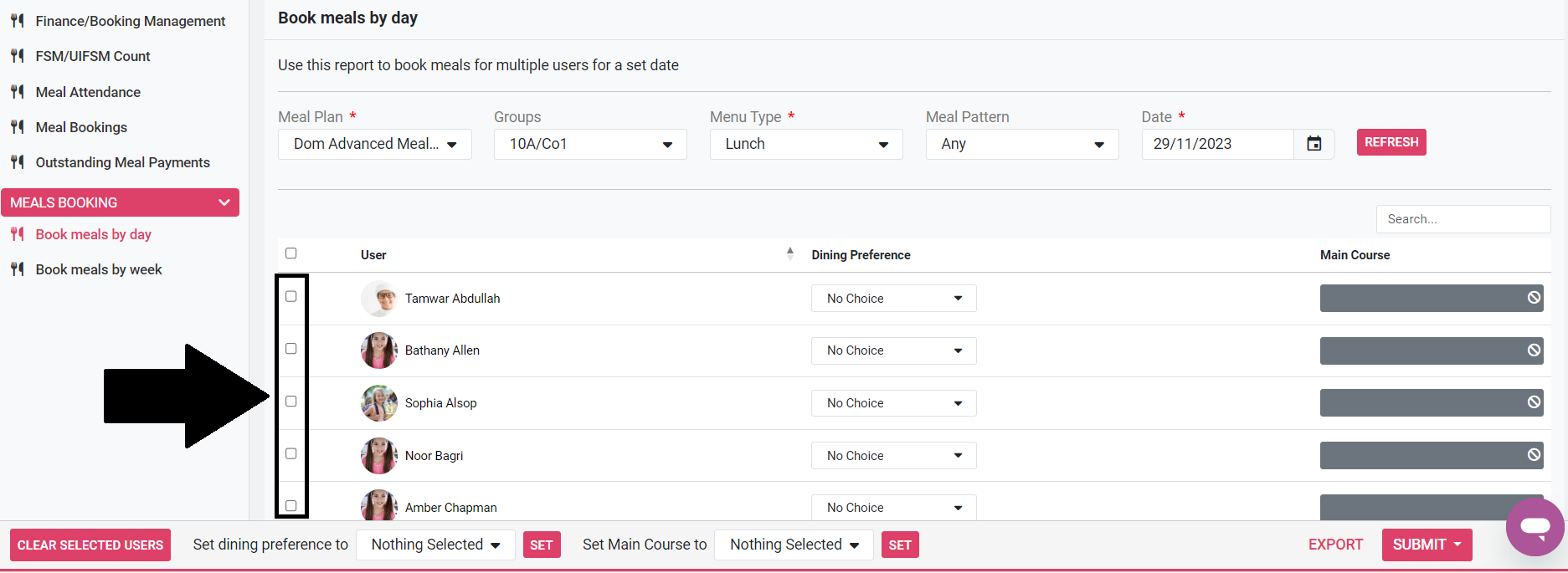
12) Tick the tick-boxes next to each user you wish to perform an action on.
13) Select In School Meal, Offsite or Packed Meal in the Set dining preferences to drop-down menu.
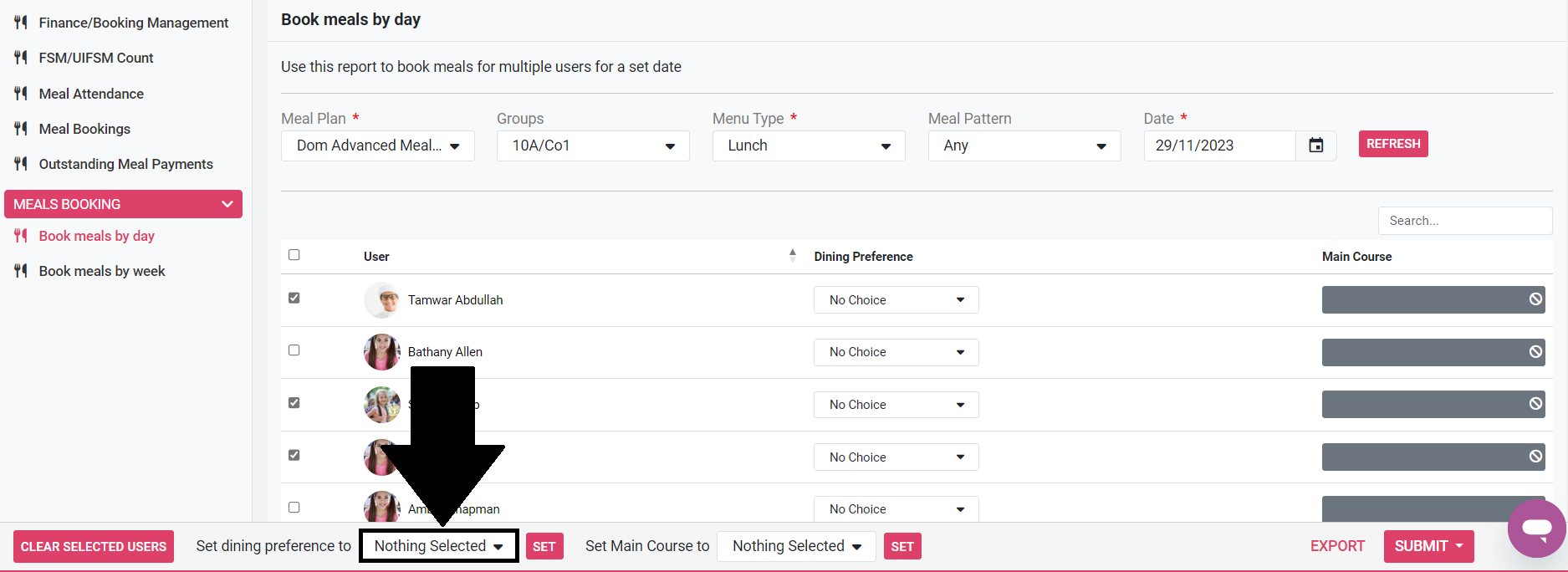
14) Click Set to apply your changes.
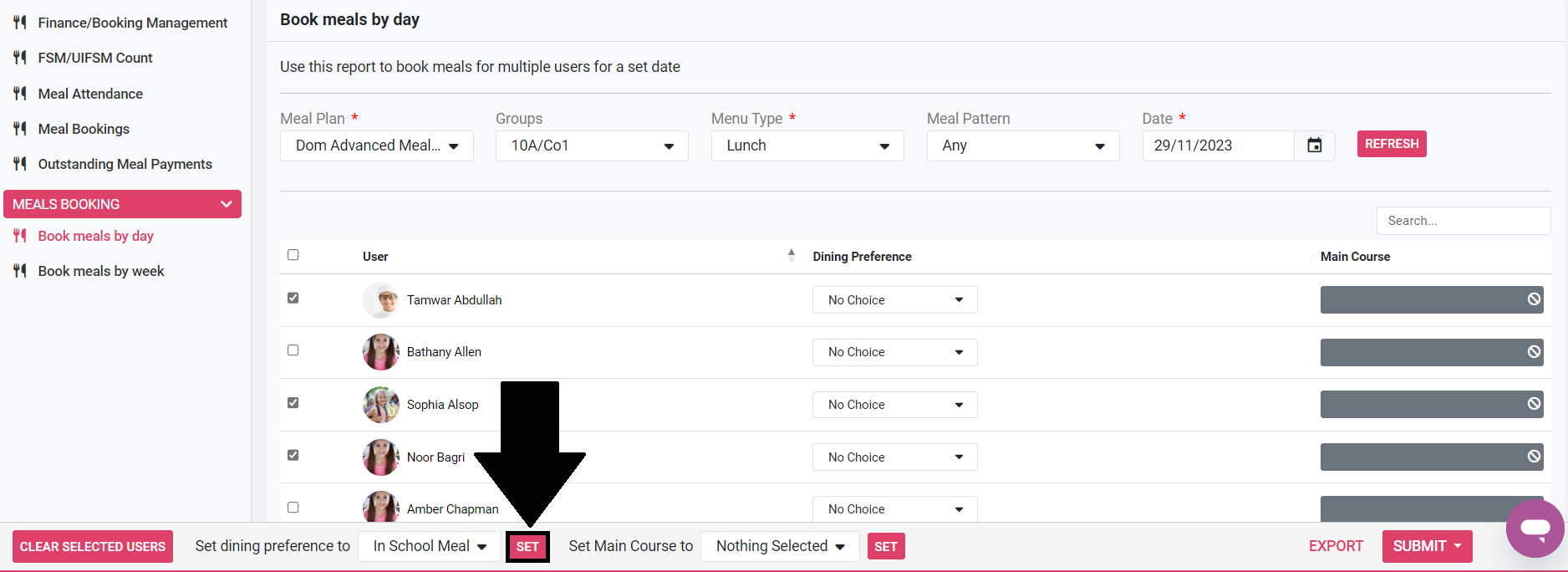
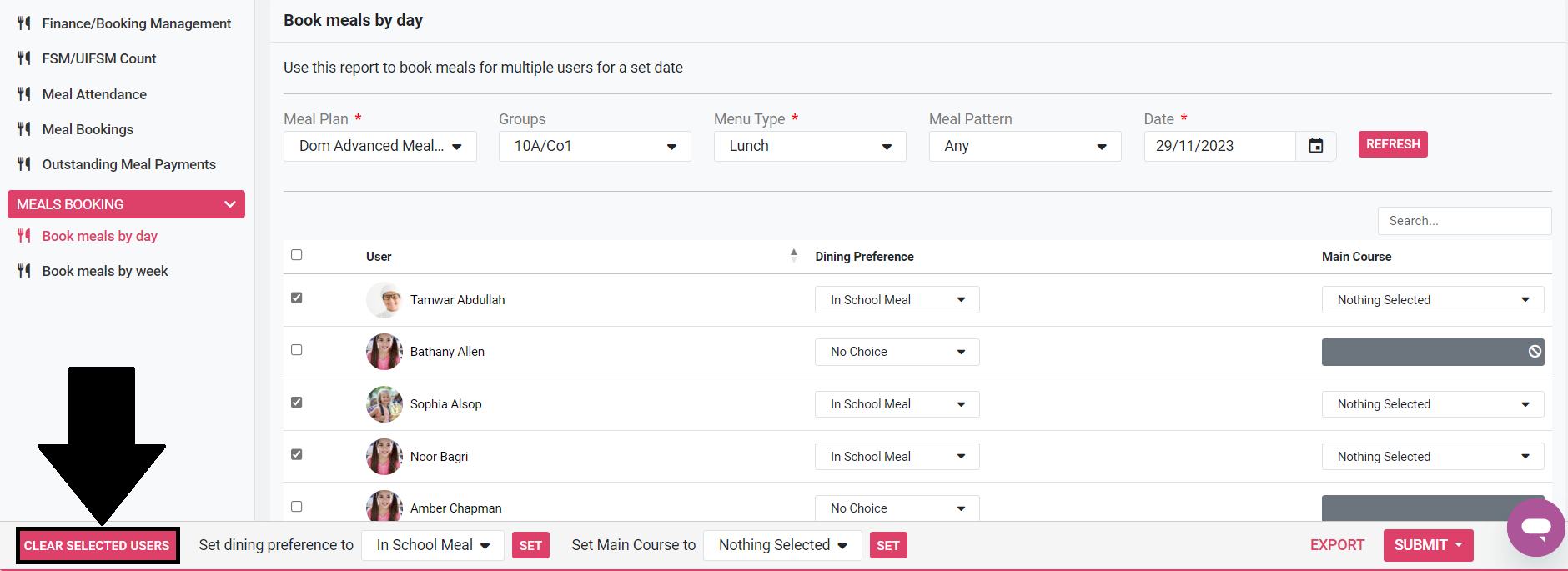
15) If there are any other dining preferences you want to set, click Clear Selected Users and repeat steps 12 - 14. If you are setting any students to In School Meal, click Clear Selected Users and follow below from step 16. If you are not setting any students to In School Meal, and you have finished setting your dining preferences, skip to step 24.
16) Tick the tick-boxes next to each user you wish to perform an action on.
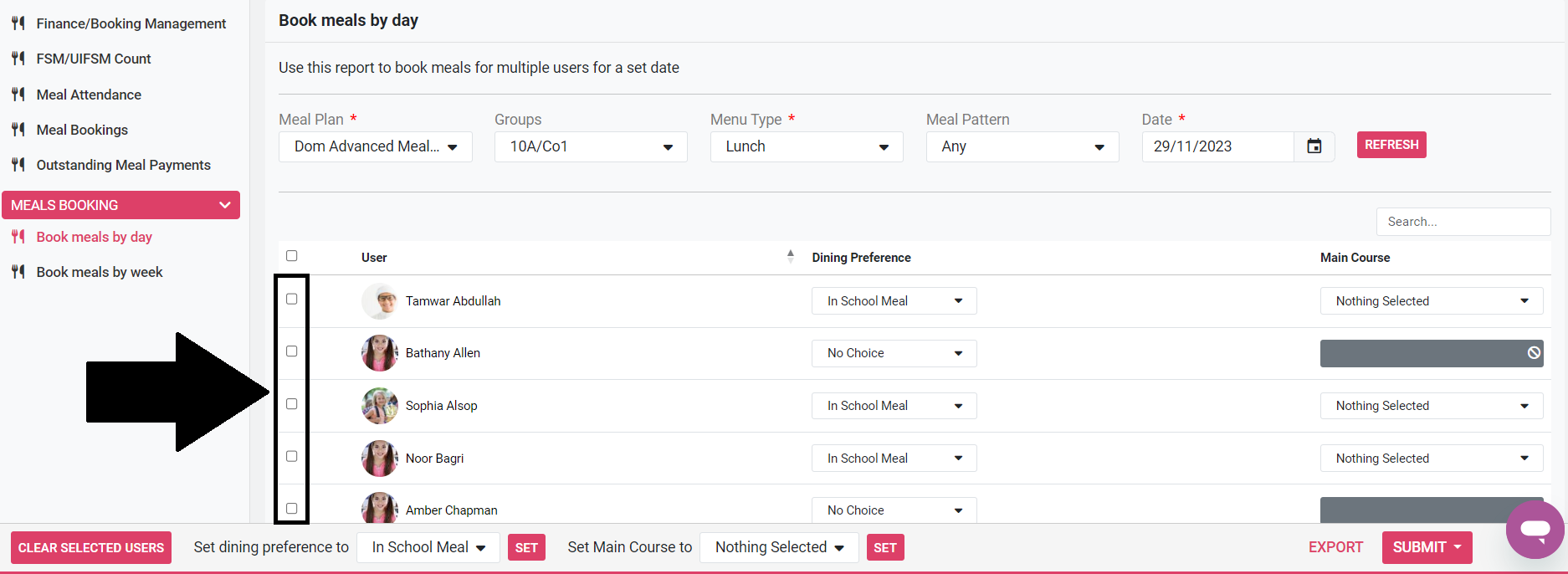
17) Select one of your menu items in the Set Main Course to drop-down menu.

18) Click Set to apply your changes.
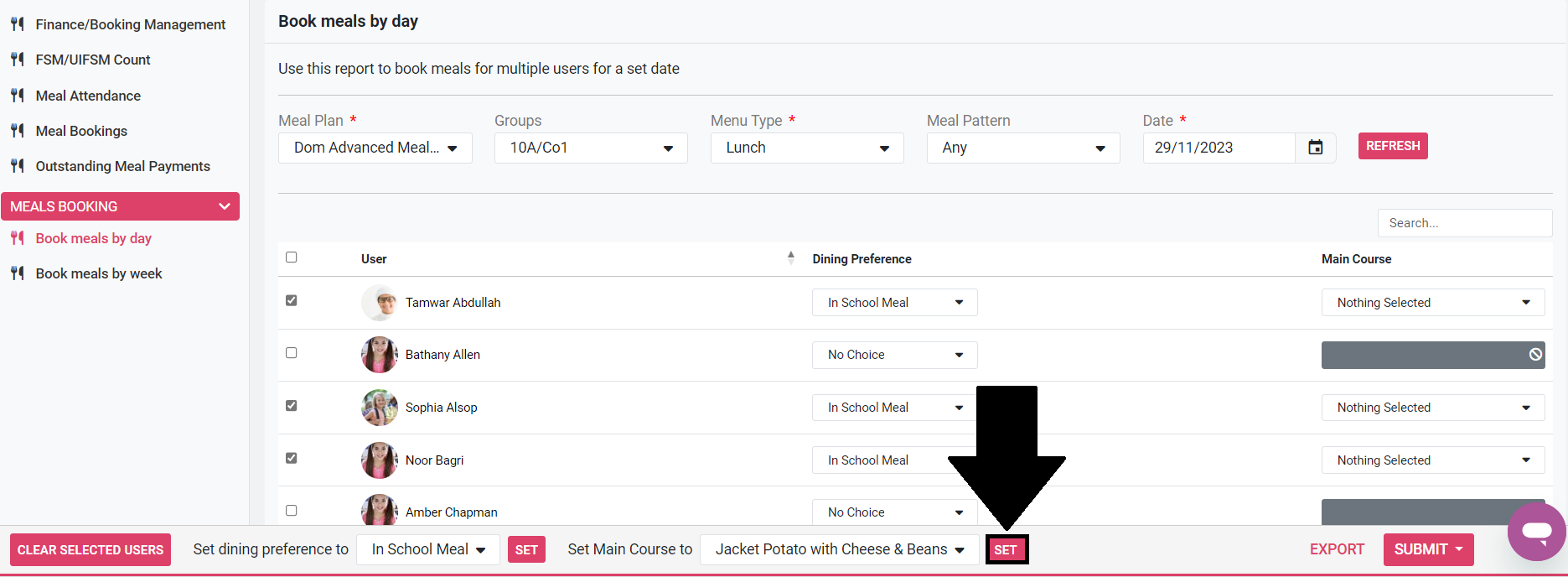
19) If you need to set any more main courses to other students, click Clear Selected Users and repeat steps 16 – 18.
If your meal plan only includes main courses, and you have finished setting your main courses, skip to step 24. If your meal plan also includes other courses such as a side dish or pudding, click Clear Selected Users and follow steps 20 – 23.
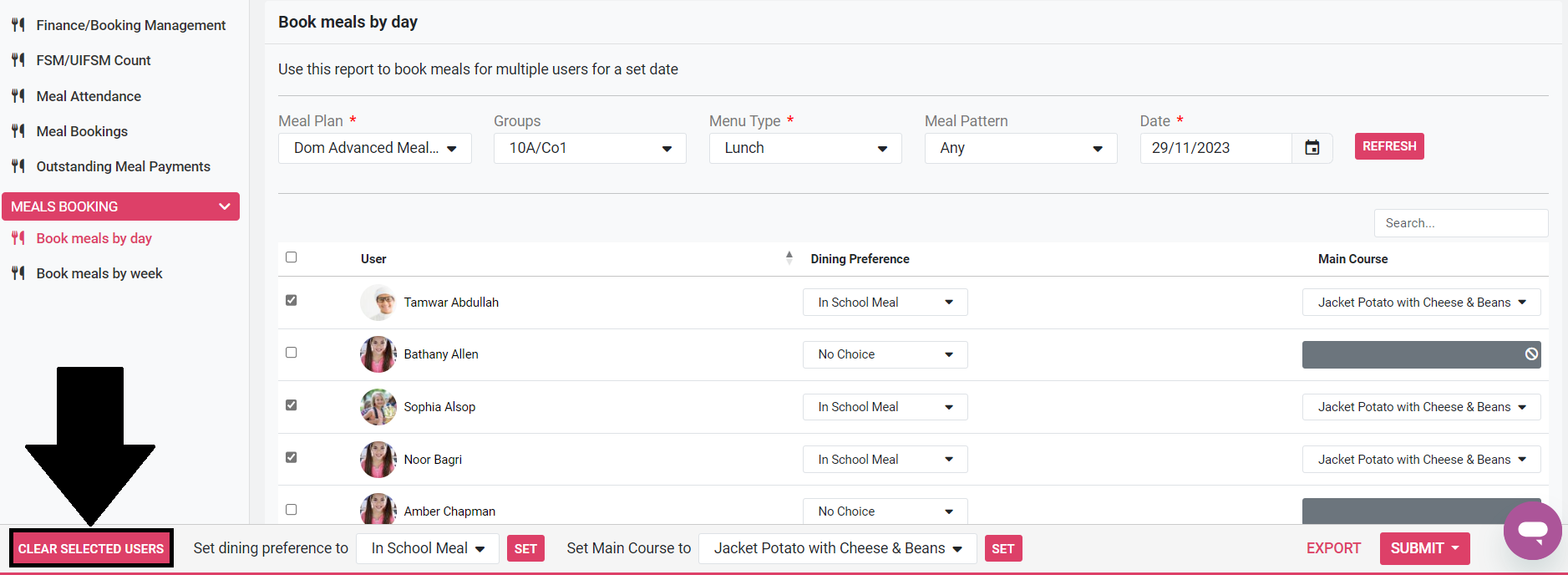
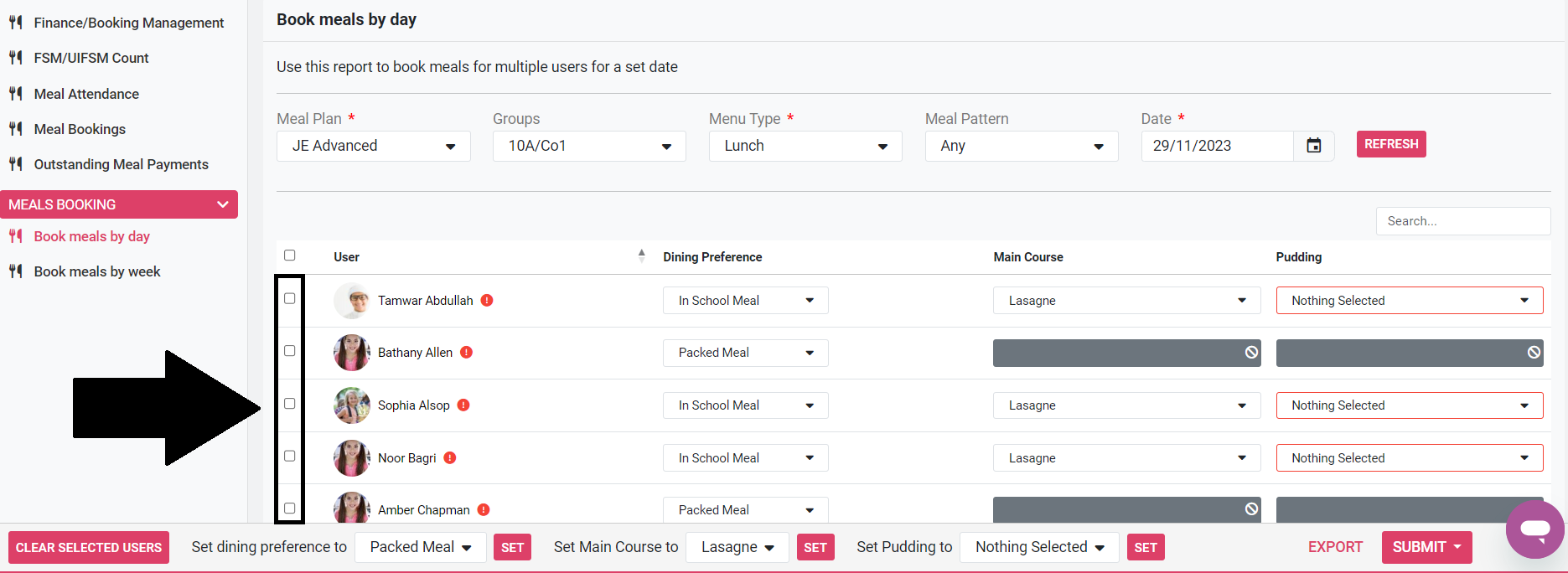
20) Tick the tick-boxes next to each user you wish to order another menu item for.
21) Select one of the menu items in the Set Side Dish to/ Set Pudding to/ Set ‘other course’ to drop-down menu.
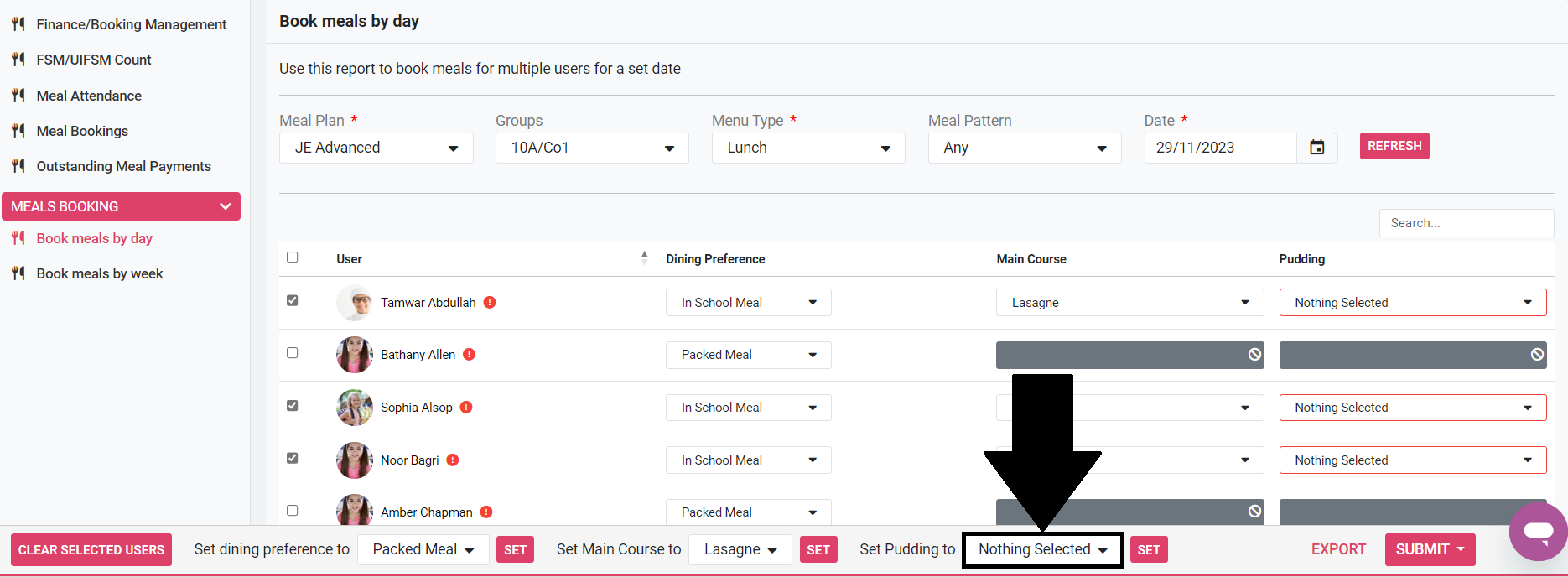
22) Click Set to apply your changes.
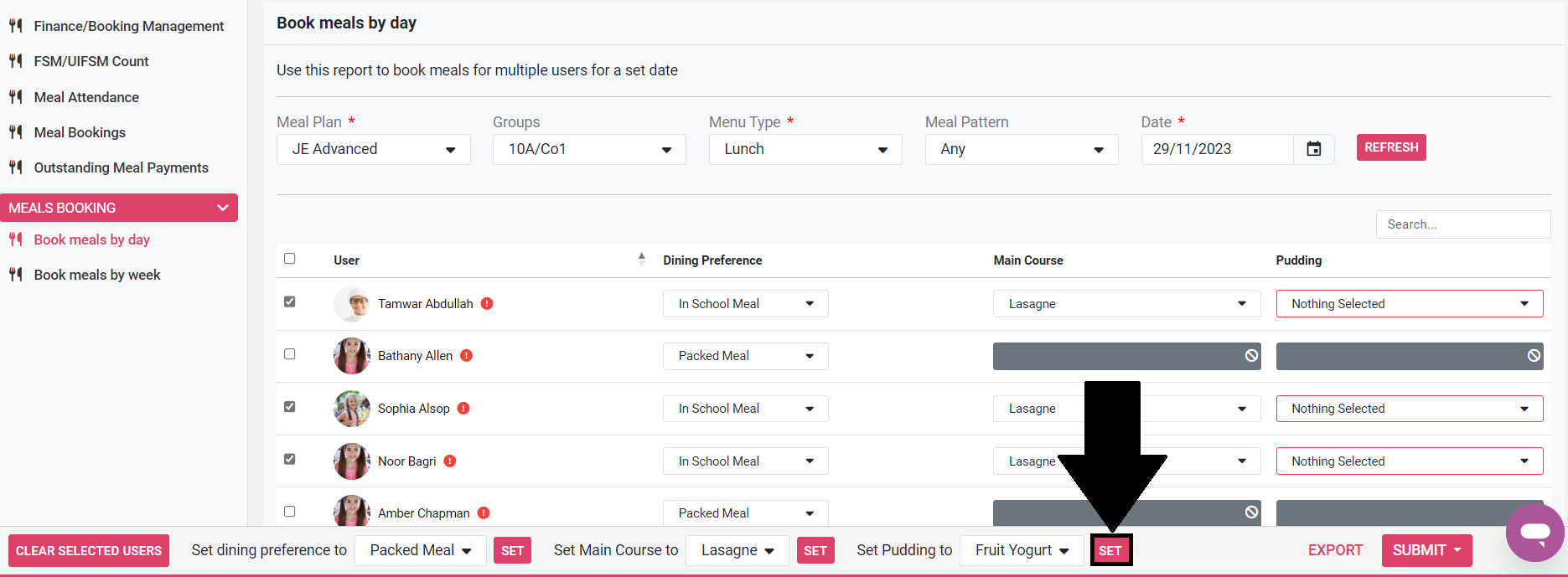
23) For any remaining menu items, click Clear Selected users and repeat steps 20 – 22.
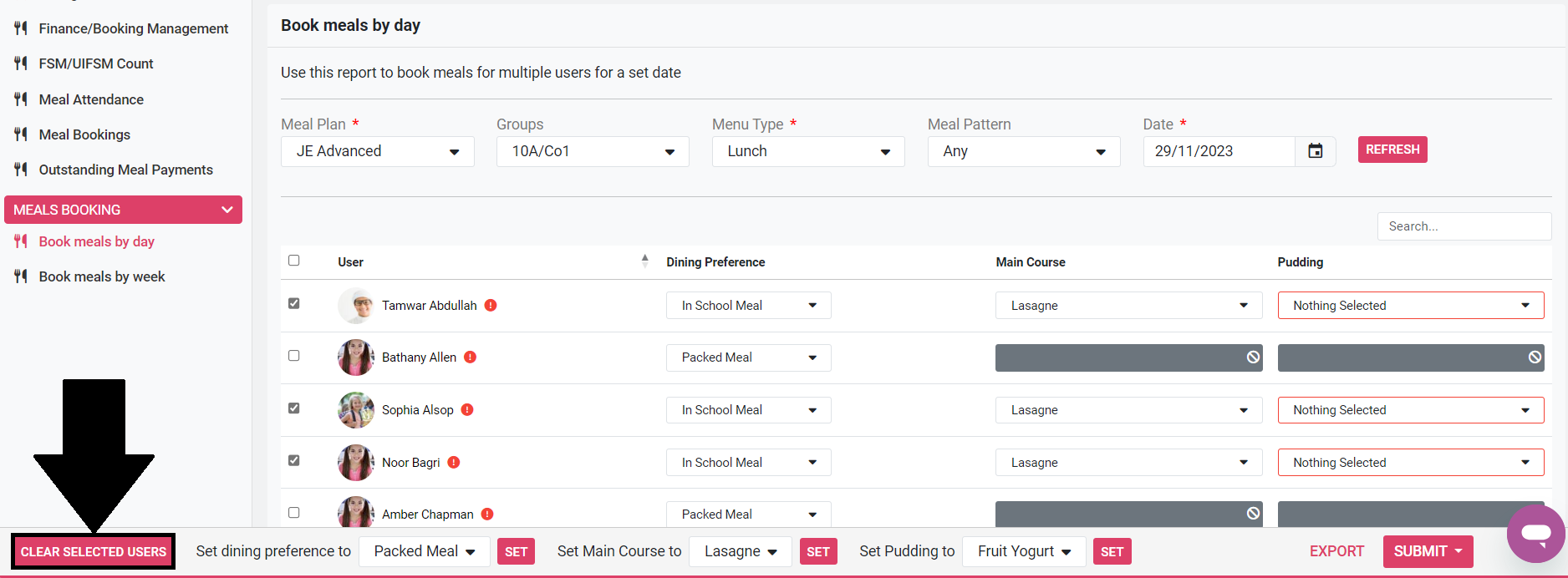
24) Click Submit.
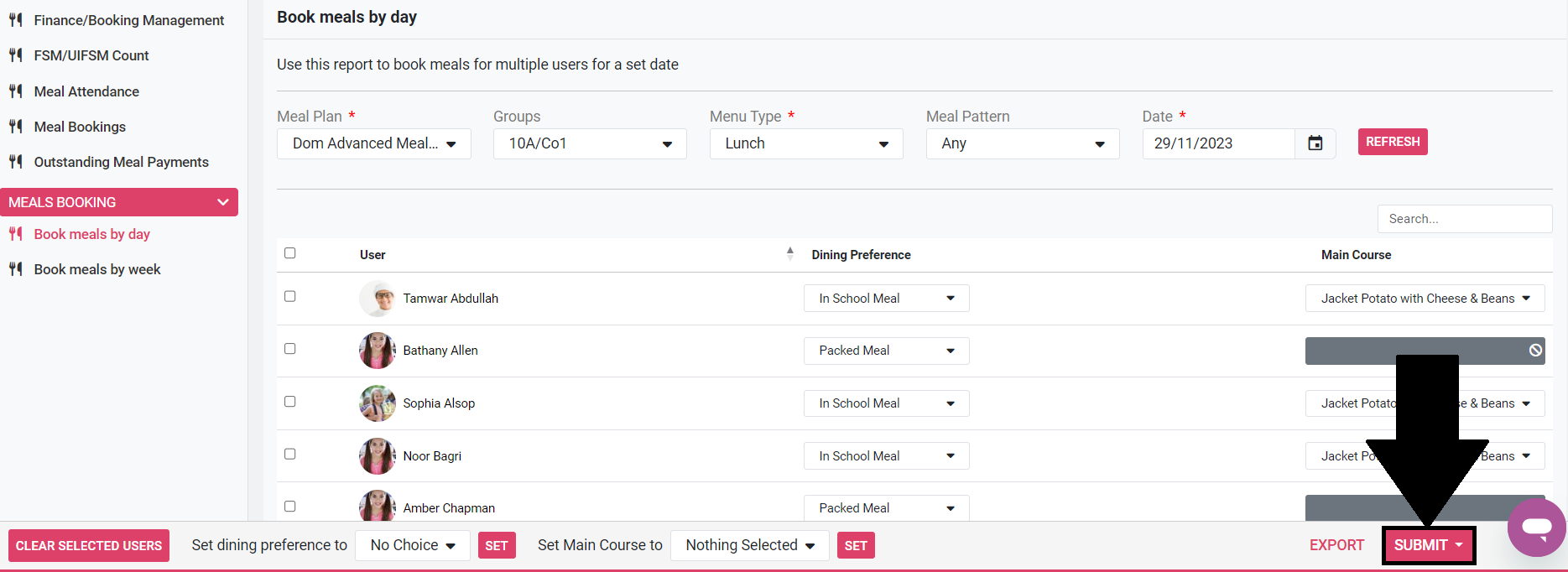
25 a) If you wish to charge for In School Meals at a later date, or if your school does not charge for meals via ReachMoreParents, either because the school charges for meals via a separate payments system or doesn't charge for meals at all, click Book. If you have only selected Packed Meal or Offsite, click Book.

25 b) If you wish to charge for In School Meals now, click Book and Pay. This option will confirm the meal booking and where applicable will also deduct the necessary funds from the student’s meal purse. If a student does not have enough available funds, then the meal will still be booked but a payment failure error will be displayed in a notification panel at the top of the user table.

26) (Optional) You can export the student’s meal choices to excel by clicking Export and Download.