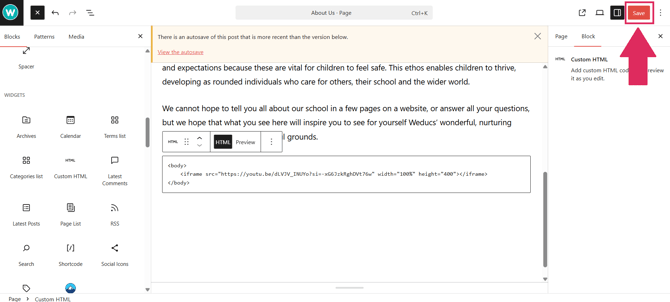
When it comes to adding a video to your site, there are a number of different ways that this can be done.
- Direct Upload
- YouTube
- Animoto
- Custom HTML
Whichever way you choose, first start by logging into your website. For help with logging in, click here.
1) Once logged in, click on 'Pages' on the left.
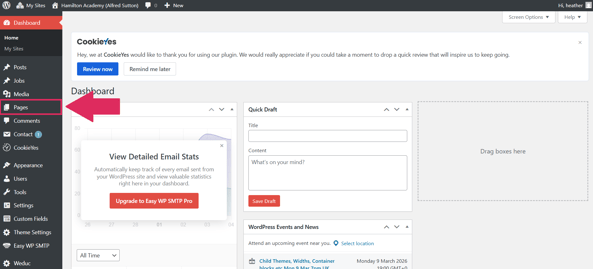
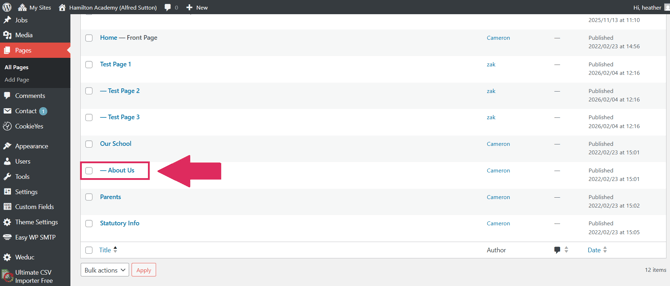
2) Now, find the page you wish to add the video to and click the page title to open the page editor.
3) Click the '+' icon in the top left corner.
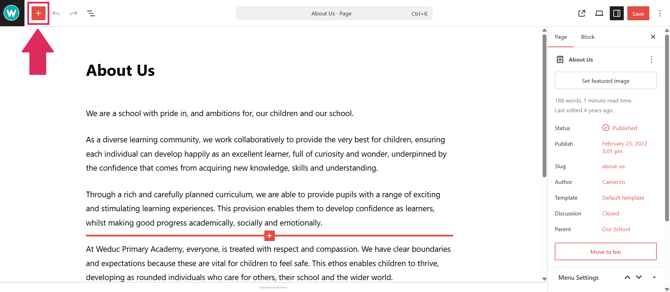
If you would like to upload a video file, please continue at step 4.
If you would like to embed a YouTube video, please continue at step 9.
If you would like to embed an Animoto video, please continue at step 17.
If you would like to embed a Custom HTML video, please continue at step 27.
Direct Upload
4) To do this, search for the module titled "Video" and click it to add the module.
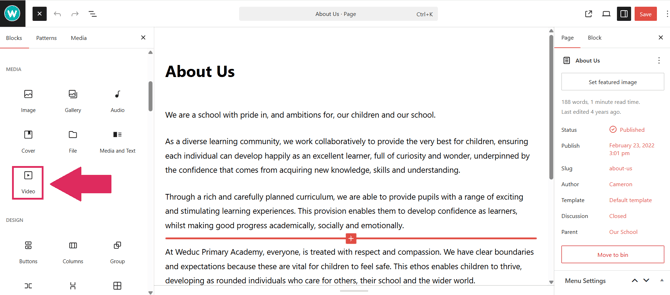
5) Once clicked, you will see a module like this appear on your page.
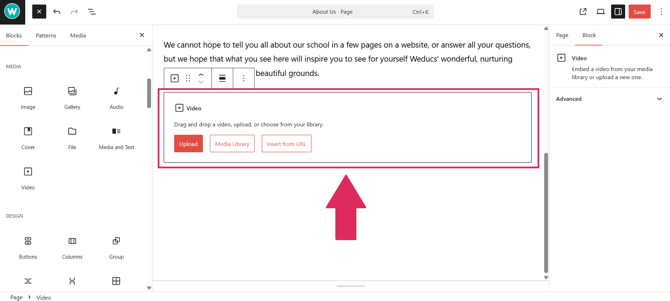
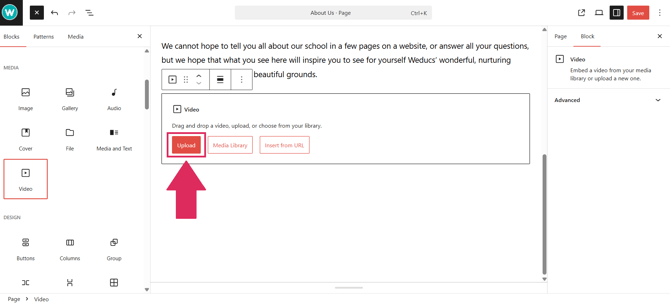
6) Click 'Upload.'
7) This will now open the File Explorer on your PC. Find the video file and double click it.
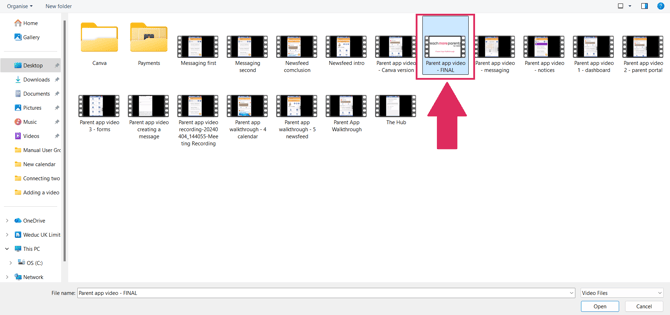
Please note: There is a maximum file size of 64mb per video file.
Your module will then proceed to upload your video.
8) Press 'Save' in the top right corner once completed.
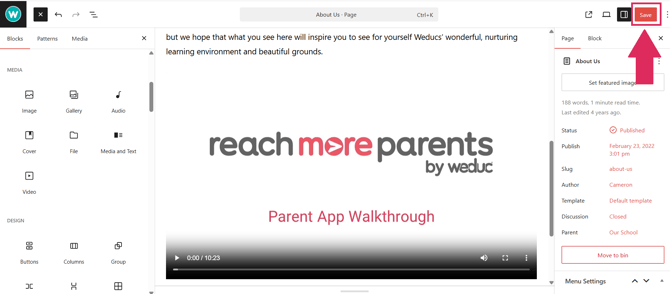
Pros - Very easy to do
Cons - File size limit, no control over video size on page or position.
YouTube
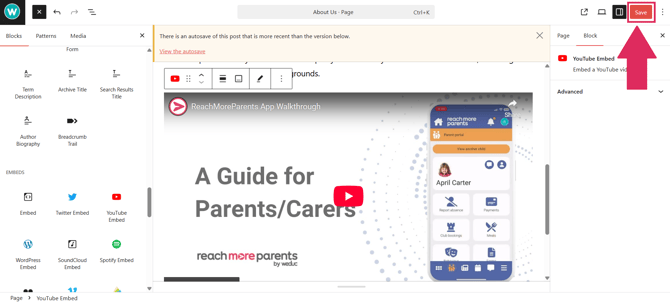
9) Select the 'YouTube Embed' icon.
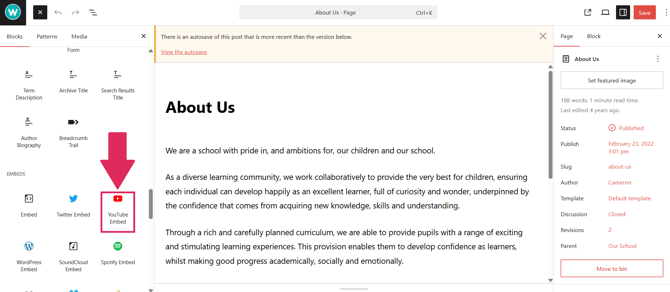
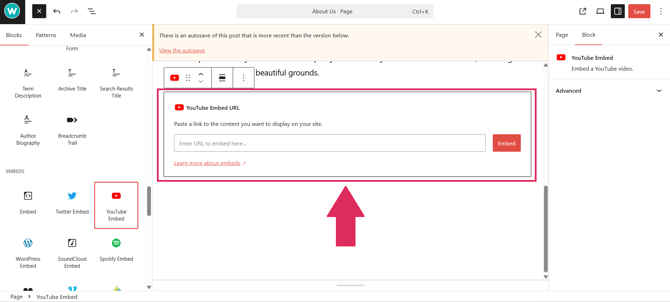
10) You will then see this module appear.
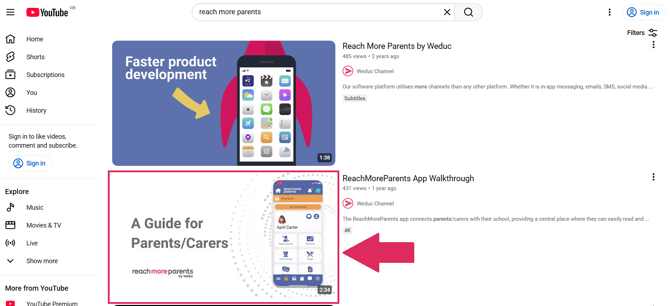
11) Now, head directly to the YouTube website and find the video you wish to have play on your website. Select the video to open it.
12) Click Share.
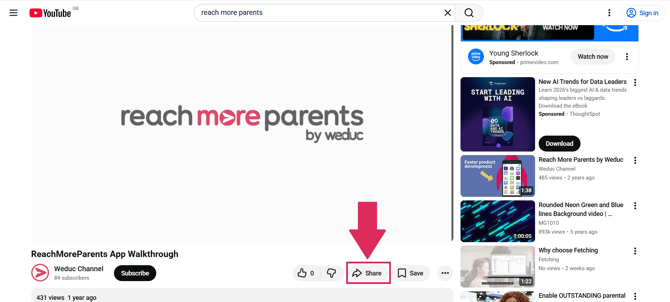
13) You will then be presented with a link. Click Copy.
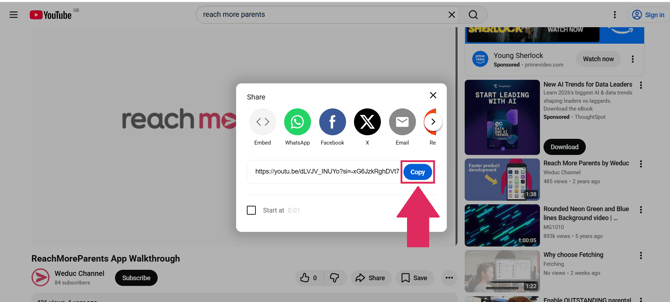
14) Head back to your website page and paste this link into the YouTube module.
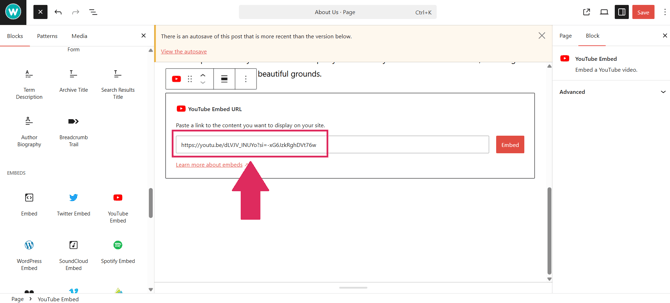
15) Click Embed.
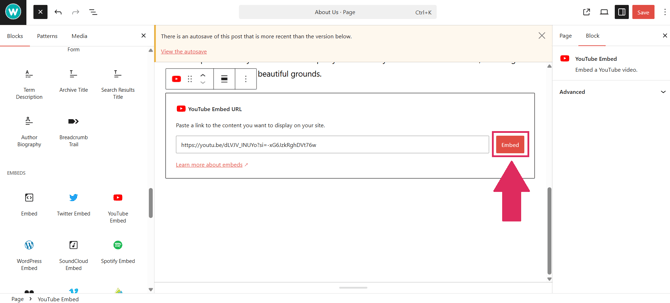
Your video will now appear on your page.
16) Now click 'Save' to save your changes.
Pros - Very easy to do
Cons - No control over appearance on page. Requires a YouTube account.
Animoto
17) Select the Animoto icon to add the module.
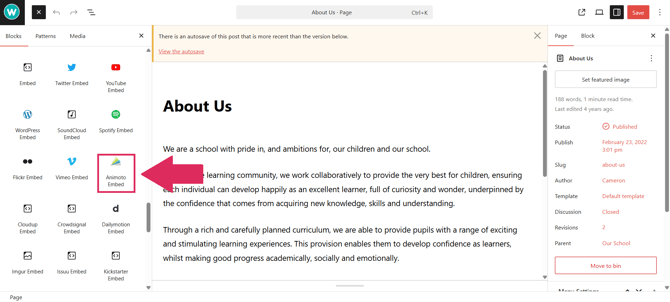
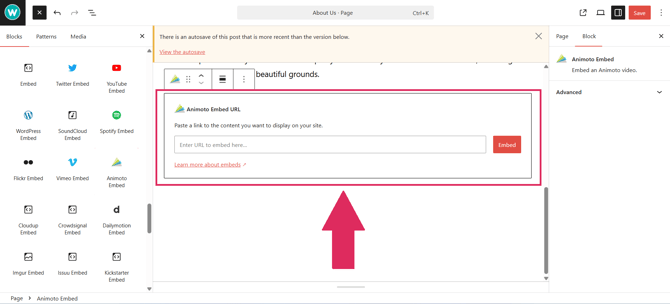
18) You will then see a module appear below.
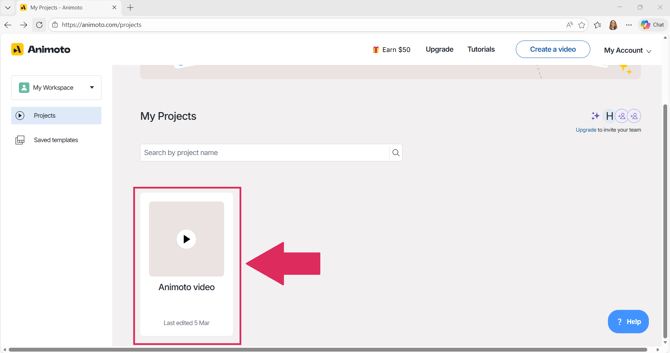
19) Login to your Animoto account and select the video you wish to use.
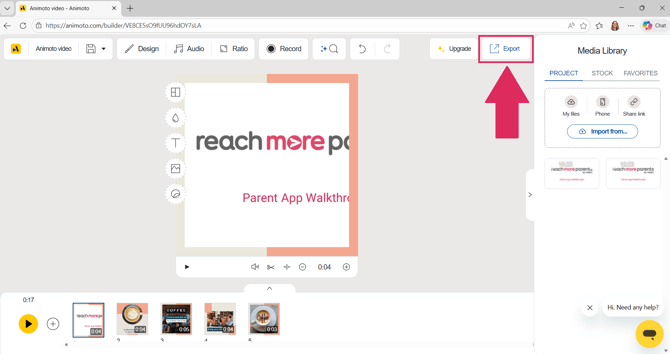
20) In the top right, click Export.
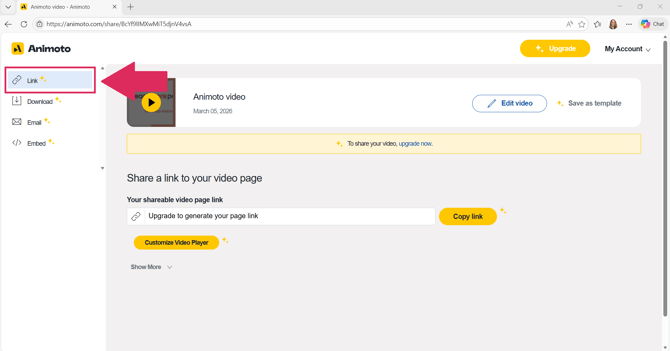
21) Select 'Link.'
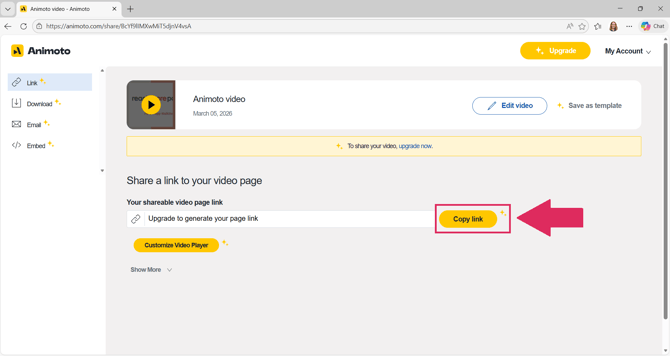
22) Click 'Copy Link.'
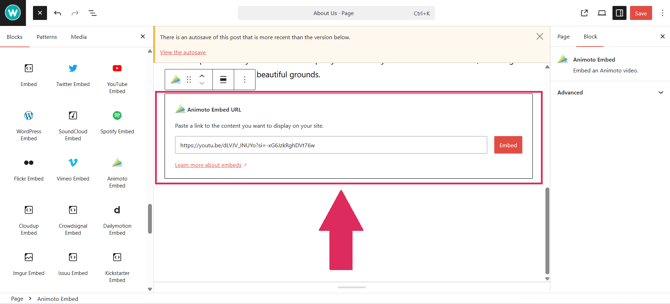
23) Head back to your website page and paste this link into the Animoto module.
24) Click Embed.
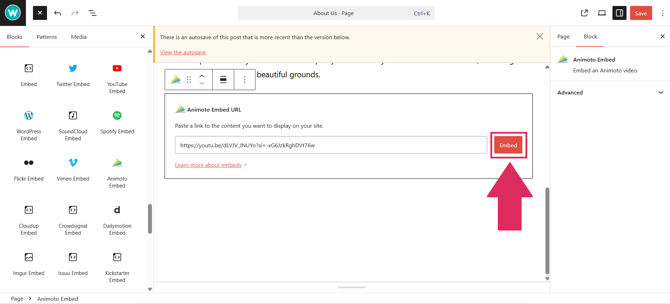
Your video will then appear on the page.
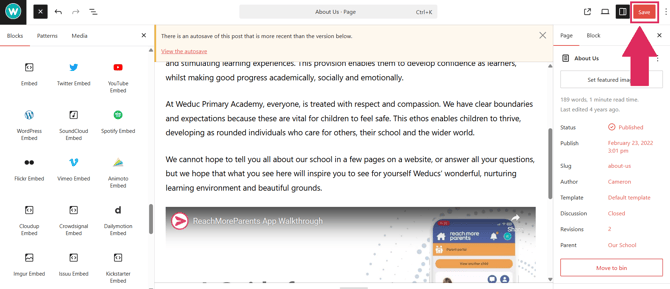
25) Click 'Save' to save your changes.
Pros - Very easy to do
Cons - No control over appearance on page. Requires Animoto account.
Custom HTML
To do this, your video will first need to be hosted somewhere online such as YouTube, Weduc, OneDrive, GoogleDrive, etc.
26) First start by getting the link for this video. Should you need assistance, please contact the relevant website provider or check their Help Guides.
27) Select the 'Custom HTML' icon.
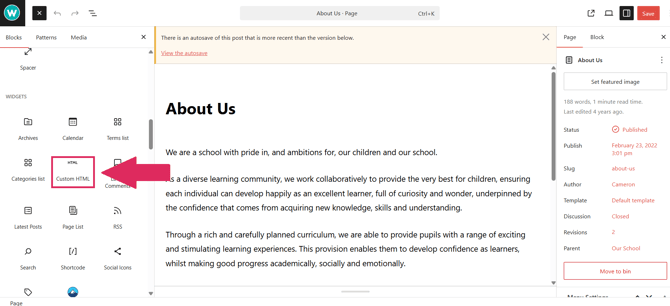
28) You will see the below module appear.
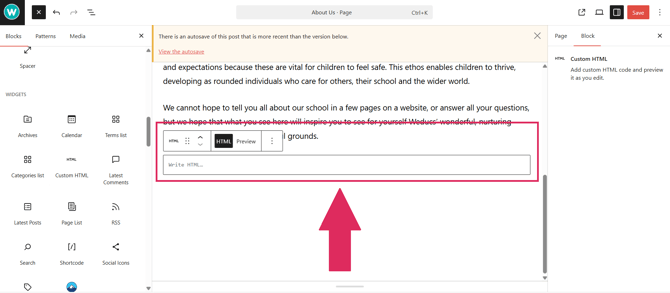
29) Now, copy and paste the below code into the field:
<body>
<iframe src="https://linuxhint.com/c-getsockname-function-usage/" width="100%" height="400"></iframe>
</body>
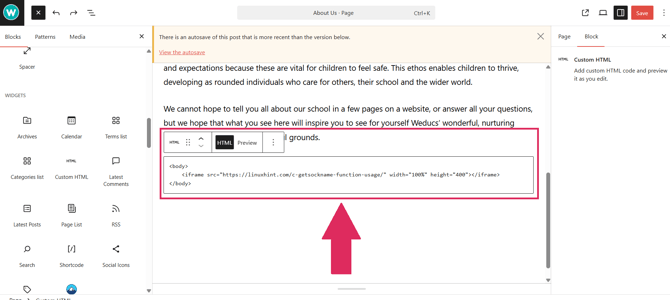
30) Next, delete the link in bold (ensuring you keep the quotation marks) and replace it with the link for your video.
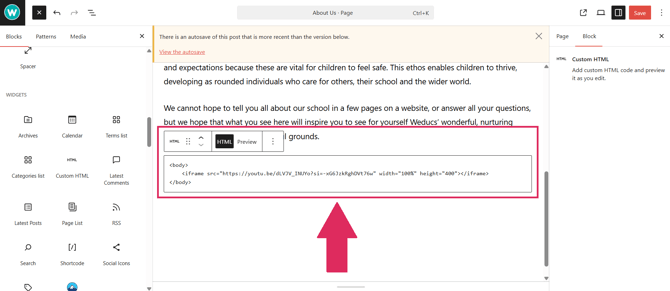
31) Click 'Save' to save your changes.