
What is a Recurring Calendar Event?
A recurring calendar event is an activity that takes place regularly and needs to be shared with parents and carers through the ReachMoreParents app. This might include things like extra-curricular clubs, weekly activities or parents’ evenings that happen on the same day over multiple weeks. Once added, these events appear in the app’s calendar so families can easily see what’s coming up and stay organised.
Who Can Edit or Delete a Calendar Event?
By default, school users in the following system roles will have permission to edit or delete a calendar event:
- System Administrator
- School Administrator
- Senior Leadership Team Member
- Content Managers
System Administrators have the ability to change the system permissions. Should you have difficulty accessing any of the features outlined in the steps below, please contact your school's System Administrator.
Why Should I Edit or Delete a Calendar Event?
You may need to edit or delete a calendar event when details change. For example, if the date or time is updated or if the event is no longer needed.
For recurring events, editing or deleting helps you keep the ReachMoreParents calendar accurate and up to date for parents. You can choose to adjust or remove:
-
A single occurrence: For example, if one week’s meeting is cancelled or rescheduled.
-
The entire series: If the event no longer takes place at all or the recurrence pattern has changed.
Making these updates ensures your calendar stays clear, current and reliable for everyone who views it.
Follow the step-by-step instructions below:
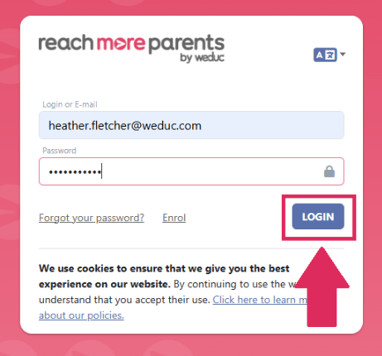
1) Login to ReachMoreParents.
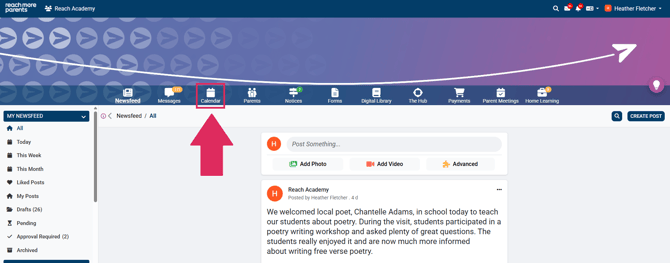
2) Click the 'Calendar' icon.
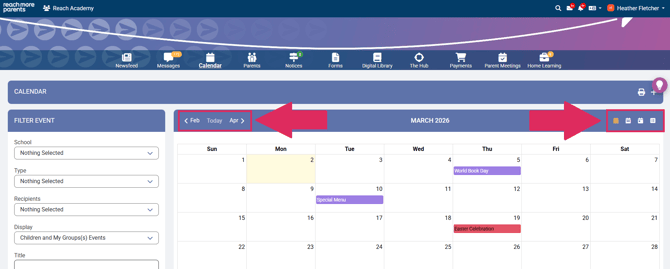
3) Navigate to the event you wish to edit or delete. You can do this by clicking the arrow buttons on the top left hand side of the screen and by amending the view by selecting one of the icons on the top right of the screen.
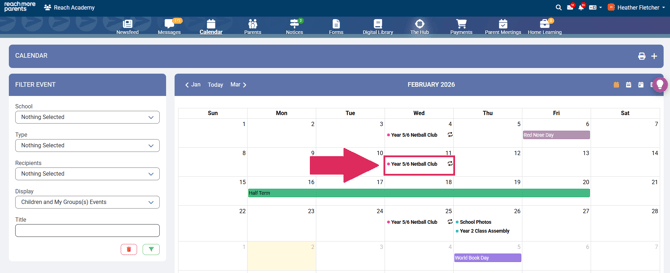
4) Select the event you wish to edit or delete.
- If you would like to edit the event or event series, please see step 5 - Editing your Recurring Event.
- If you would like to delete the event or event series, please see step 9 - Deleting your Recurring Event.
Editing your Recurring Event
5) Click the pencil icon.
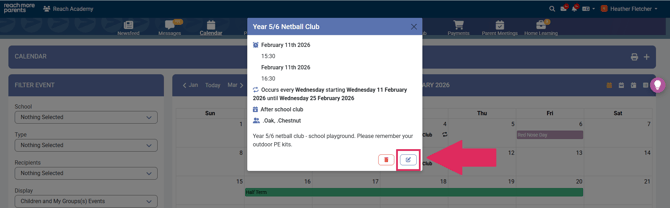
6) Select the drop-down and select whether you would like to 'Edit this occurrence' (this will allow you to edit the selected occurrence only) or 'Edit the series' (this will allow you to edit the entire series in the recurrence).
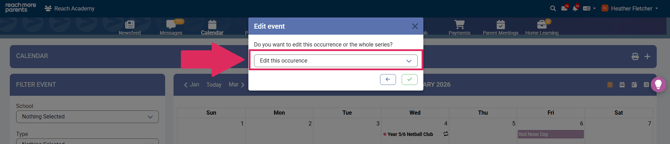
-
If you wish to edit the single occurrence only, please see step 7a - Editing a Single Occurrence
- If you wish to edit the entire series, please see step 8a - Editing an Entire Series
- If you wish to delete the event or occurrence of events, please see step 9 - Deleting your Recurring Event
Editing a Single Occurrence
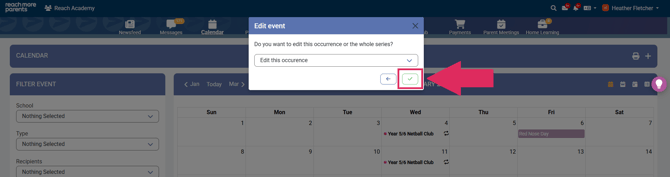
7a) Click the tick icon.
7b) Edit any of the appropriate fields on screen. For example, you might need to change the date and/or time of the occurrence.
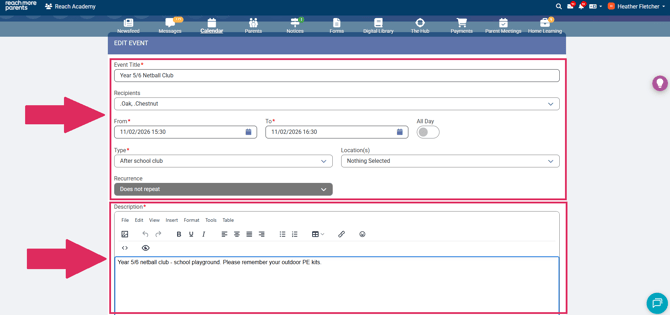
NB: If you need any help with the fields on this screen, please refer to our 'Creating a Simple Calendar Event' guide.
7c) Scroll down and click the green save icon.
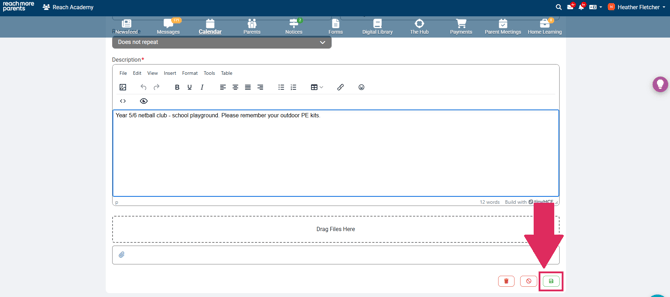
7d) Choose whether you would like to notify your recipient parents of the changes you have made by turning the toggle on/off.
IMPORTANT: The notification toggle will be switched ON by default. This means that unless you switch it off, parents will be notified each time you make changes to a calendar event.

7e) Click the green save icon to save the changes.

Any changes made to the event will now reflect in your ReachMoreParents web portal and the ReachMoreParents app. If the notification toggle was switched on at step 7d, parents will also receive a notification to the parent app, notifying them of the changes that have been made.
Editing an Entire Series
8a) Click the tick icon.

8b) Click 'Edit Recurrence' to change when the recurrence repeats, or to set, amend or remove exclusion dates.
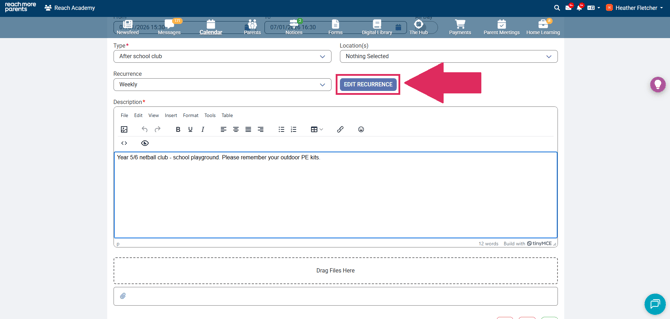
NB: You can also edit any of the fields within the 'Edit Event' window (for example, the 'Event Title,' or 'Description'). If you need any help with how to edit a recurrence, please see our 'Creating a Recurring Calendar Event' guide. For help with amending fields within the 'Edit Event' screen, please refer to our. 'Creating a Simple Calendar Event' guide.
8c) Scroll down and click the green save icon.
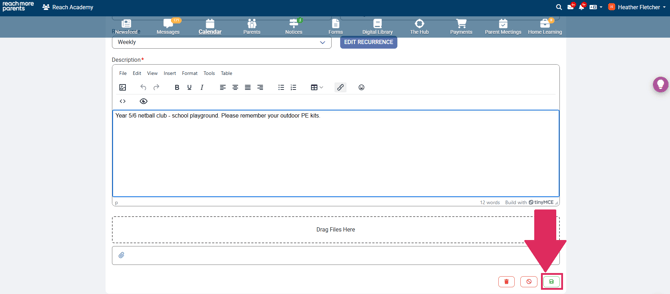
8d)) Choose whether you would like to notify your recipient parents of the changes you have made by turning the toggle on/off.
IMPORTANT: The notification toggle will be switched ON by default. This means that unless you switch it off, parents will be notified each time you make changes to a calendar event.
8e) Click the green save icon to save the changes.
Any changes made to the event will now reflect in your ReachMoreParents web portal and the ReachMoreParents app. If the notification toggle was switched on at step 8d, parents will also receive a notification to the parent app, notifying them of the changes that have been made.
Deleting your Recurring Event
9) Click the bin icon.
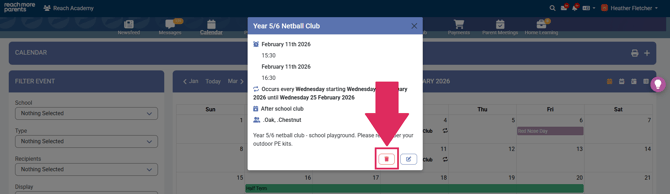
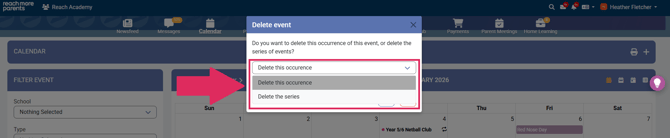
10) Click the drop-down and select whether you would like to 'Delete this Occurrence' or 'Delete this Series.'
11) Choose whether you would like to notify your recipient parents of the changes you have made by turning the toggle on/off.
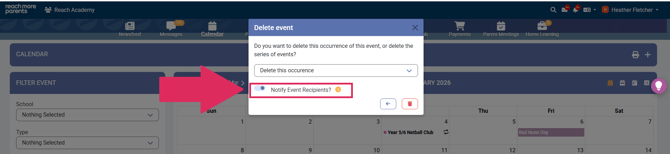
IMPORTANT: The notification toggle will be switched ON by default. This means that unless you switch it off, parents will be notified each time you delete a calendar event.
12) Click the red bin icon to delete the occurrence/series.

Any changes made to the event will now reflect in your ReachMoreParents web portal and the ReachMoreParents app. If the notification toggle was switched on at step 11, parents will also receive a notification to the parent app, notifying them of the changes that have been made.
Top Tips on Editing or Deleting a Recurring Calendar Event
1. Review before saving
Always double-check the summary of your changes before hitting Save or Delete. This helps prevent accidental updates or removals and ensures your calendar stays accurate.
2. Notify only when necessary
When making updates, only send notifications to parents if they need to take action (for example, if the event time or location has changed). Avoid sending notifications for minor edits (like fixing a typo), as this helps reduce unnecessary alerts and keeps communication clear and relevant.
3. Keep details consistent
If you’re updating recurring events, make sure any changes apply to the correct instance(s) and that the event description and timing remain consistent across the series.
4. Use clear event titles
When editing, check that the event title still makes sense after your changes since clear titles make it easier for parents to understand at a glance.