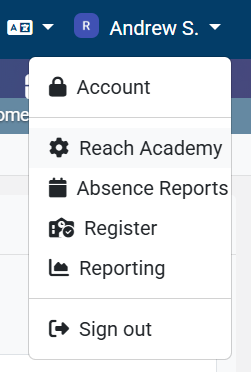
In order to add an on-site payment on to Meal Manager, firstly, select your name in the top right hand corner of Weduc, then select the settings cog that states the name of the school:
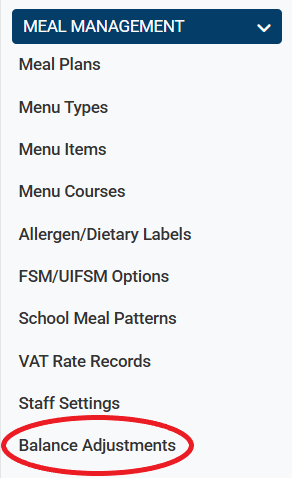
Next, scroll down on the left hand menu to Meal Management and select Balance Adjustments at the bottom of that list:
You will then be presented with this page:

Select the user whose account you want to add the money to, this should be the child's name, once you've done that press the "find" button.
Once you have pressed that button you will then be presented with the following:

For Wallet top-ups
On the right of the child's name is an actions button, select that and from there select what type of on-site payment was taken:
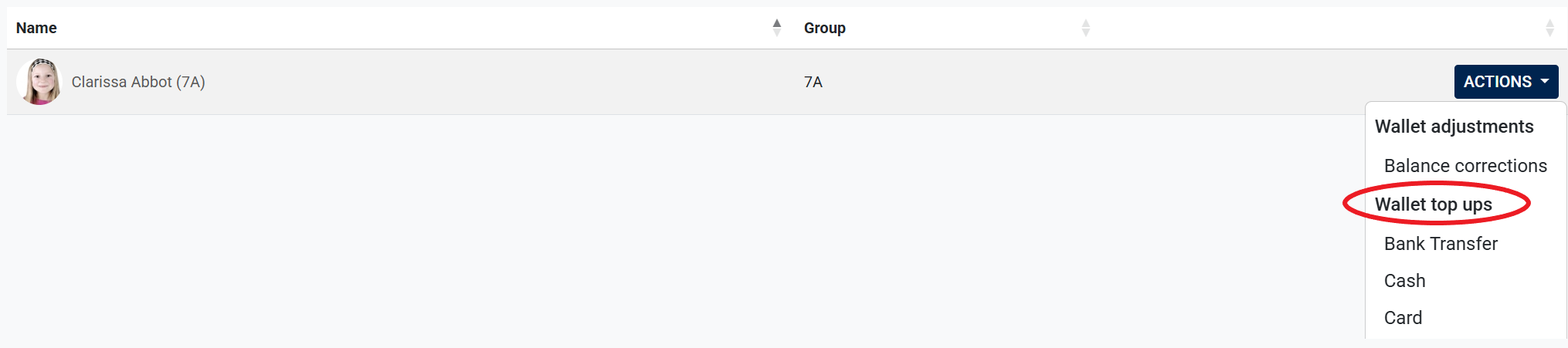
Select the relevant payment method and then follow the steps on the screen to finish off the process, this money will then be available for the parent to use on Meal Manager.
For Wallet Adjustments - NEW
Wallet adjustments is new and we would strongly encourage you to only use this after discussing with our support team first!
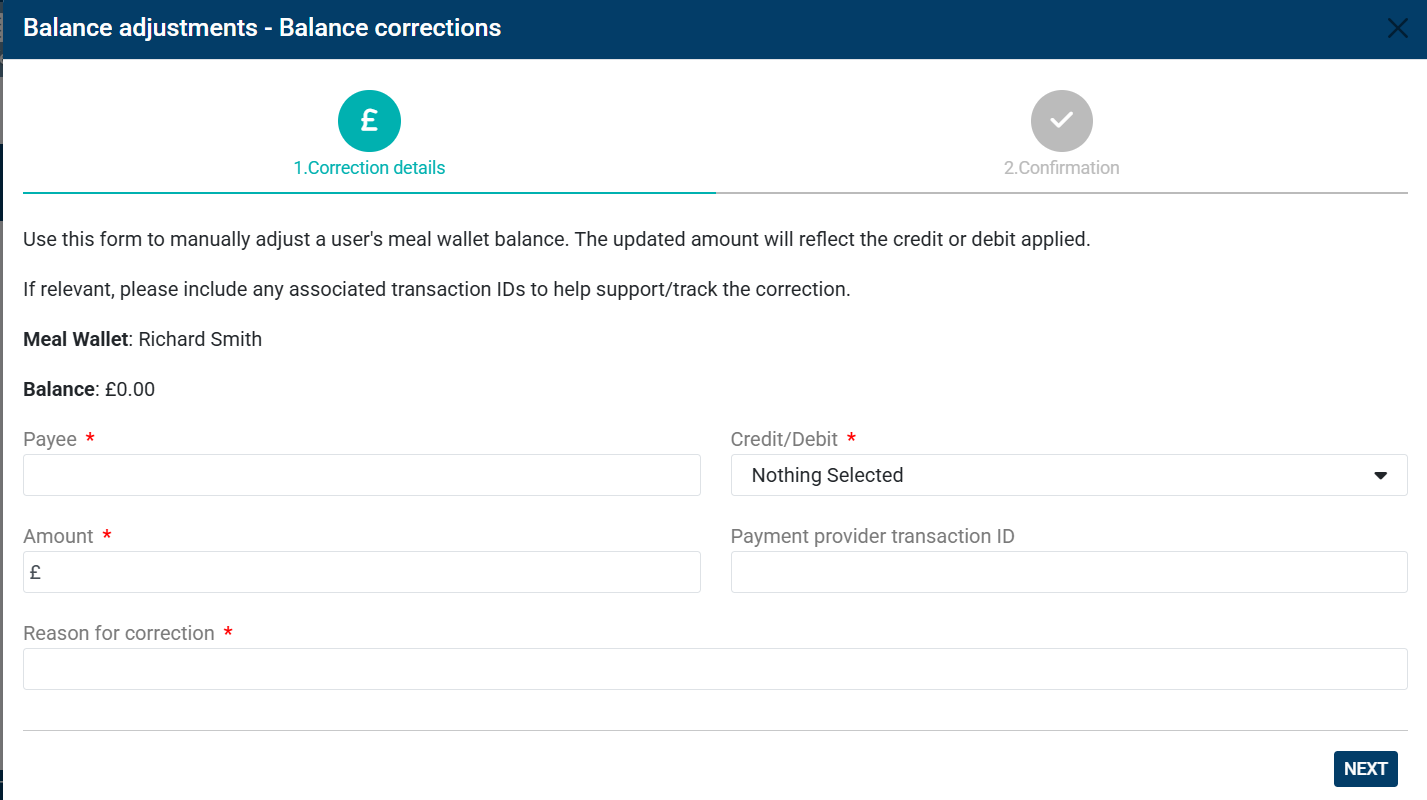
This new 'Balance corrections' option will enable an admin user to be able to manually adjust the current balance for a wallet by either adding a credit or a debit.
It may be used by a school using Stripe for payments and wanting to process a refund back to a parent/carers' bank account/ card e.g. at the end of the school year and the pupil is leaving so a refund to the MM wallet is not suitable.
Alternatively, it could be used for adding credit for a remaining balance that was added on a previous system which needs to be migrated to the ReachMoreParents Meal Manager wallet.
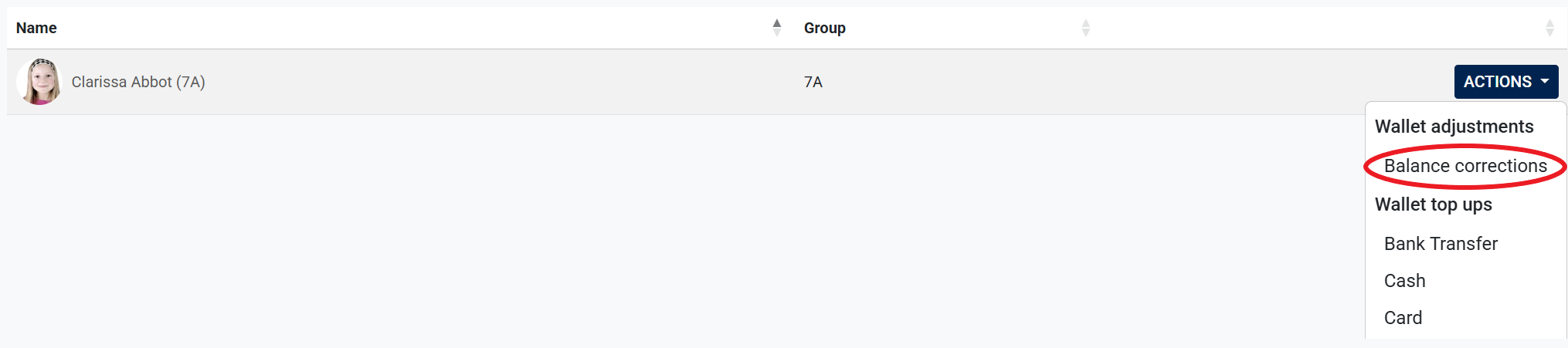
First, click on the Action button and select Balance Corrections:
Fill in the details below. A reason for correction is a required before moving on for auditing trail purposes.
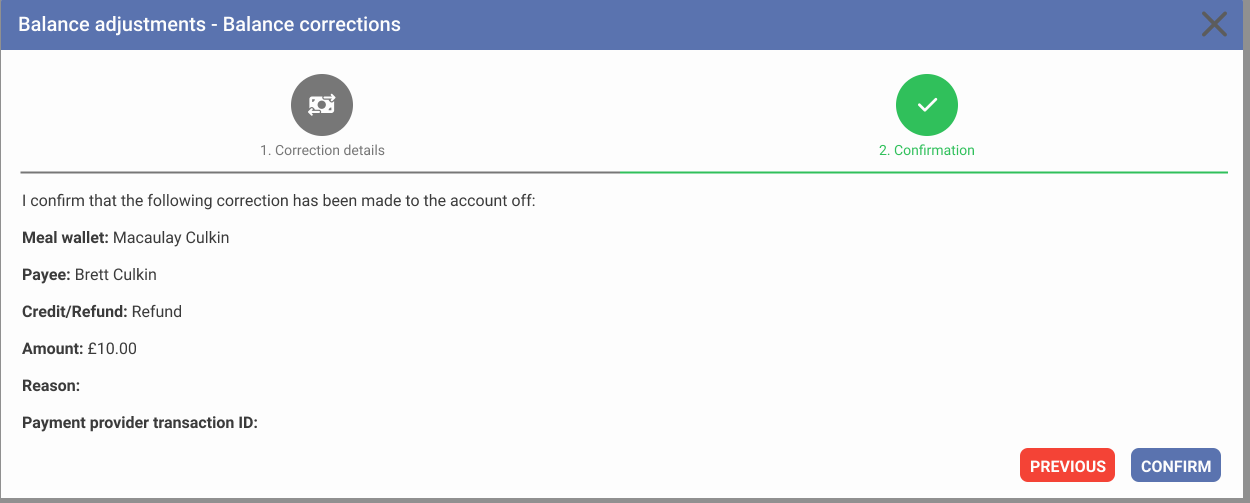
You will then be taken to a confirmation screen. Closely check the details before continuing with the balance adjustment. Click confirm if you are happy everything looks correct.