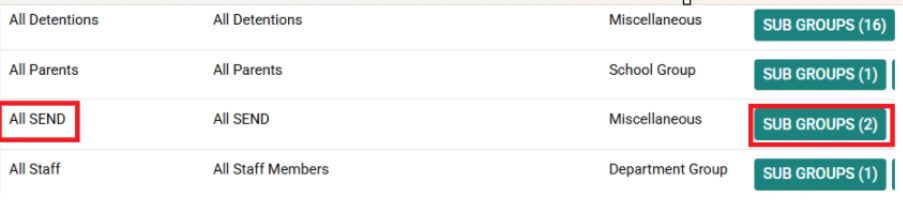
This guide explains the process of how to enable SEND code information to sync between Wonde and ReachMoreParents. It also outlines how to enable automated groups linked to these codes that can then be used to target communications/ content to.
What does the new SEND sync do?
We have improved our integration with Wonde to draw in the SEND E (Children with an EHCP) and SEND K (Children without an EHCP) pupil code set up and create the Automated Groups for these SEND Codes on your behalf.
Please note, if any codes are changed manually against a student's SEND record in ReachMoreParents, then those changes will be overwritten by what is in the MIS once this option is enabled.
Why is this useful?
This update means you will now be able to target your content/ communications to families of SEND pupils e,g. a Noticeboard post informing parents about an upcoming SEND information session.
If you have the ReachMoreParents Parents’ Evening management system, these SEND codes can pull through to help you set up meetings between the SENDCO and families.
Configuration in Wonde
For the following steps to work, you need to first ensure that the “Student SEN Read” permission is enabled in Wonde. Without this permission, SEND data (E and K codes) cannot be synced into ReachMoreParents.
How to sync SEND data between Wonde and ReachMoreParents
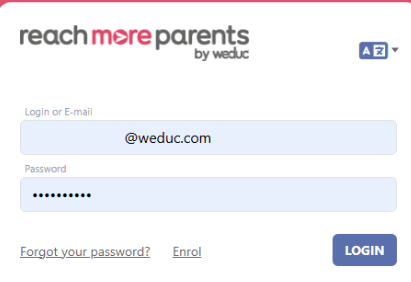
- Access the ReachMoreParents online Portal and log in using your System Administrator account.
2. Click on your name in the top right corner to open the “Profile Menu”.

3. Click on the “[School Name]” option.

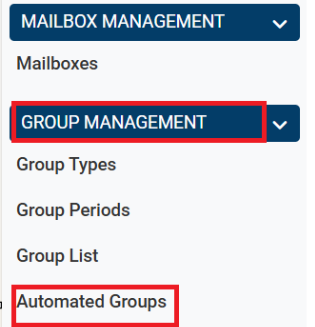
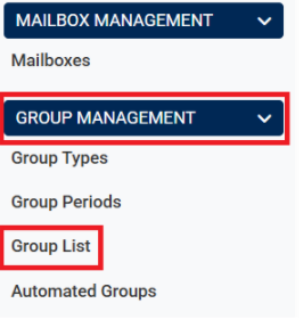
4. Scroll down the School Administration menu (left side of the page) until you reach ‘Group Management’ and then click on ‘Automated Groups’.
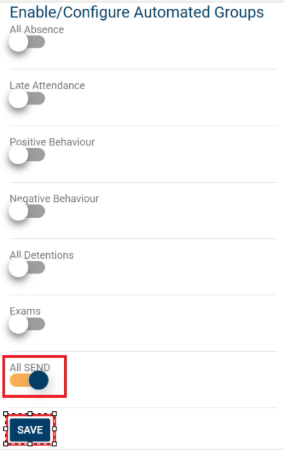
5. Click on the ‘All SEND’ toggle switch and then click ‘Save’.
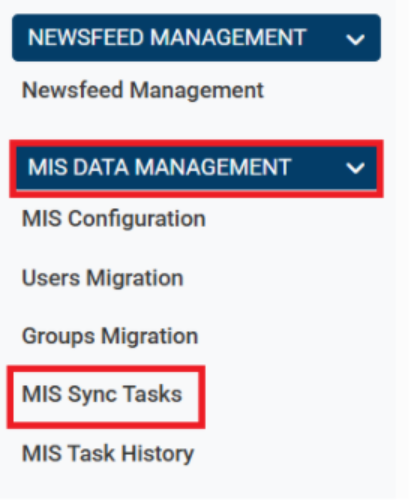
6.Return to the School Administration menu (left side of the page), scroll down to ‘MIS Data Management’ section and click on the ‘MIS Sync Tasks’ link.
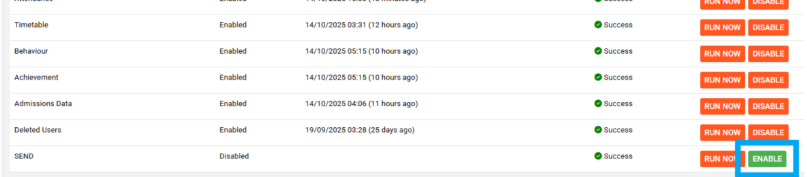
7. For the “SEND” sync task type, click on the “Enable” button.
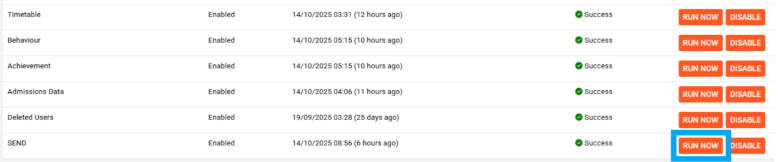
8. To capture your MIS data for SEND, click on “Run Now” to get the data through immediately.
Please Note - For this to work best, ensure all pupils who have SEN codes manually added in ReachMoreParents also have this setup in your MIS.
9. Once this has completed, return to the School Administration menu (left side of the page), scroll back up to the ‘Group Management’ section and click on the ‘Group List’ link.
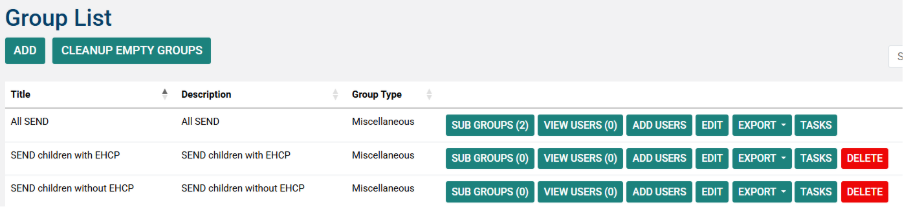
10. You should now see an ‘All SEND’ group with two subgroups of “SEND Children with EHCP” and “SEND Children without EHCP”