
Need to remove a user from a group in your platform? This article outlines the steps needed to remove users from a manually created group within your ReachMoreParents platform.
IMPORTANT: To remove a user from a group that is synced with ReachMoreParents via your MIS, you must make this change directly in your MIS. Once updated, the user will be automatically removed from the group in ReachMoreParents within 24 hours, after the next sync occurs.
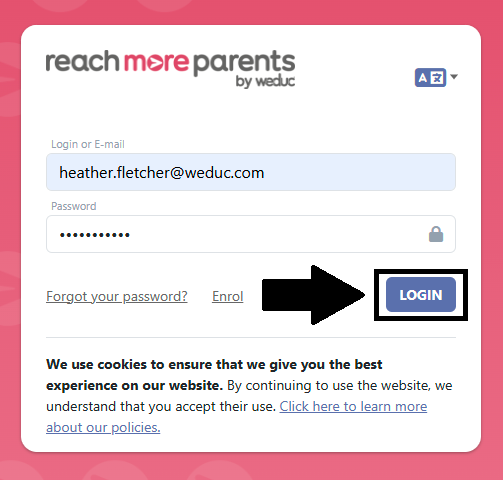
1) Login to ReachMoreParents.
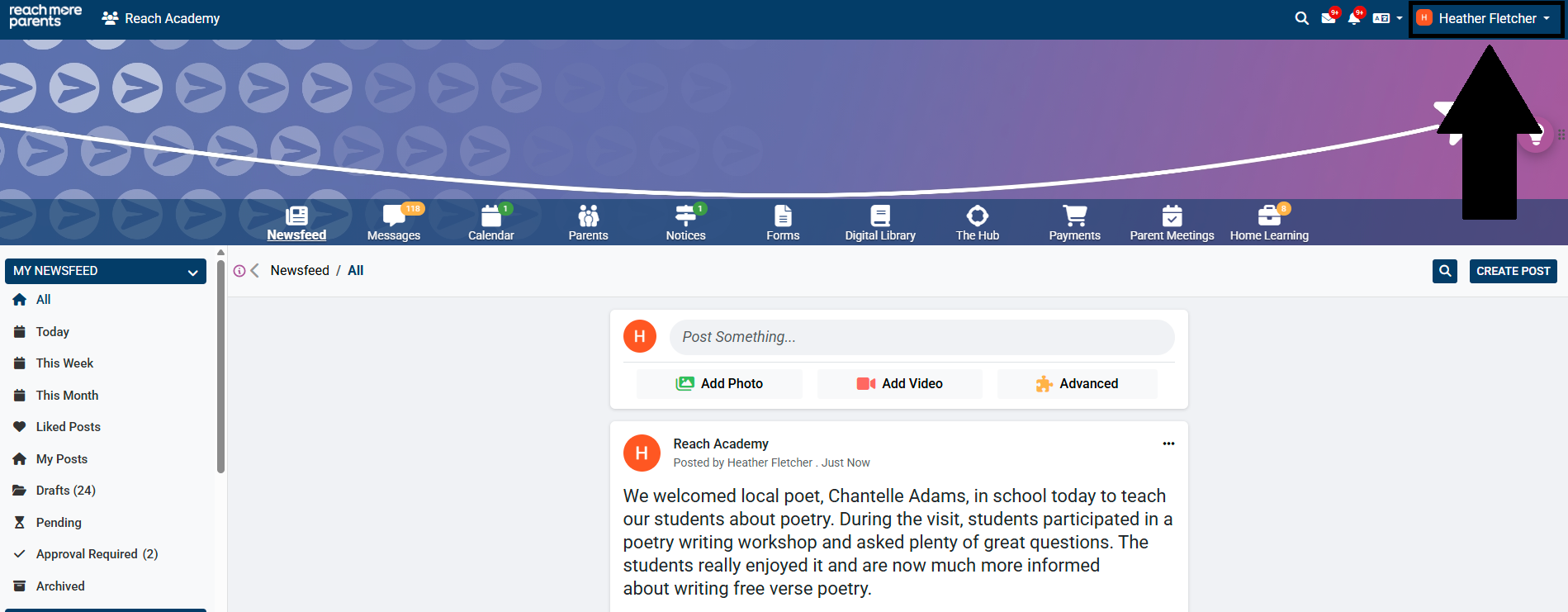
2) Click on your name in the top right hand corner.
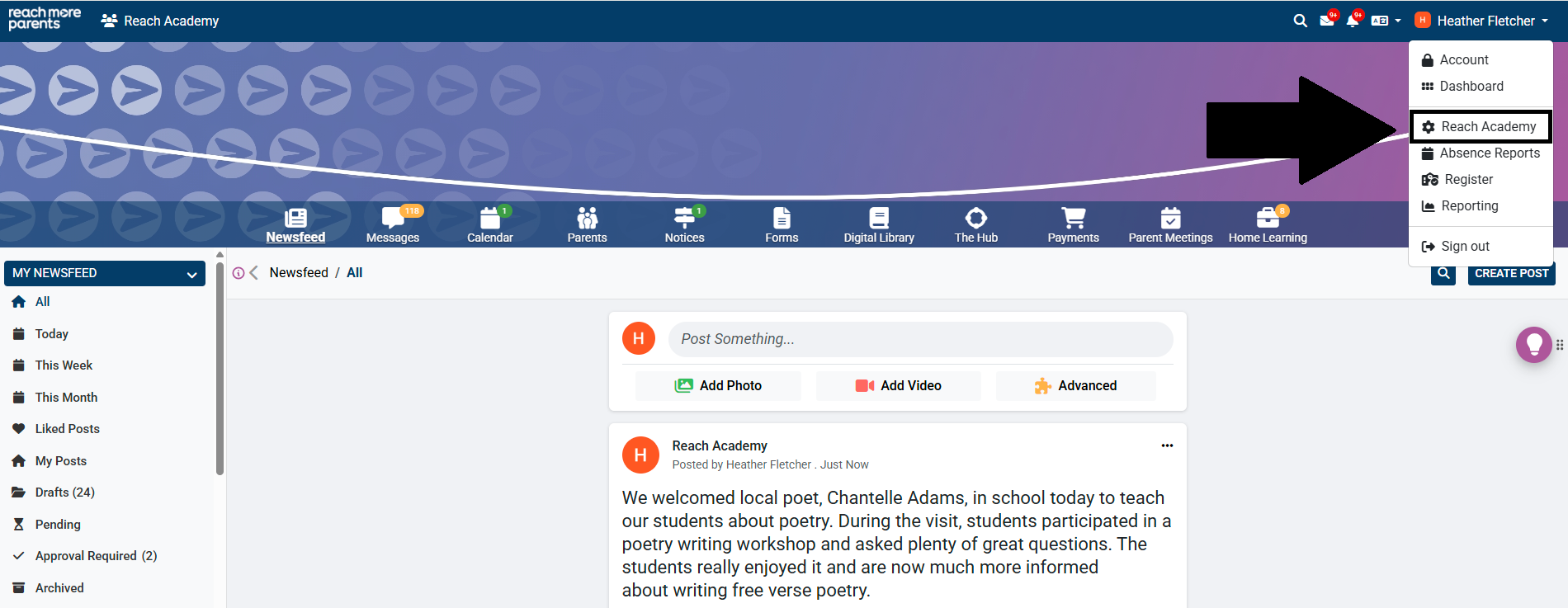
3) Click your school name to access the administration menu.
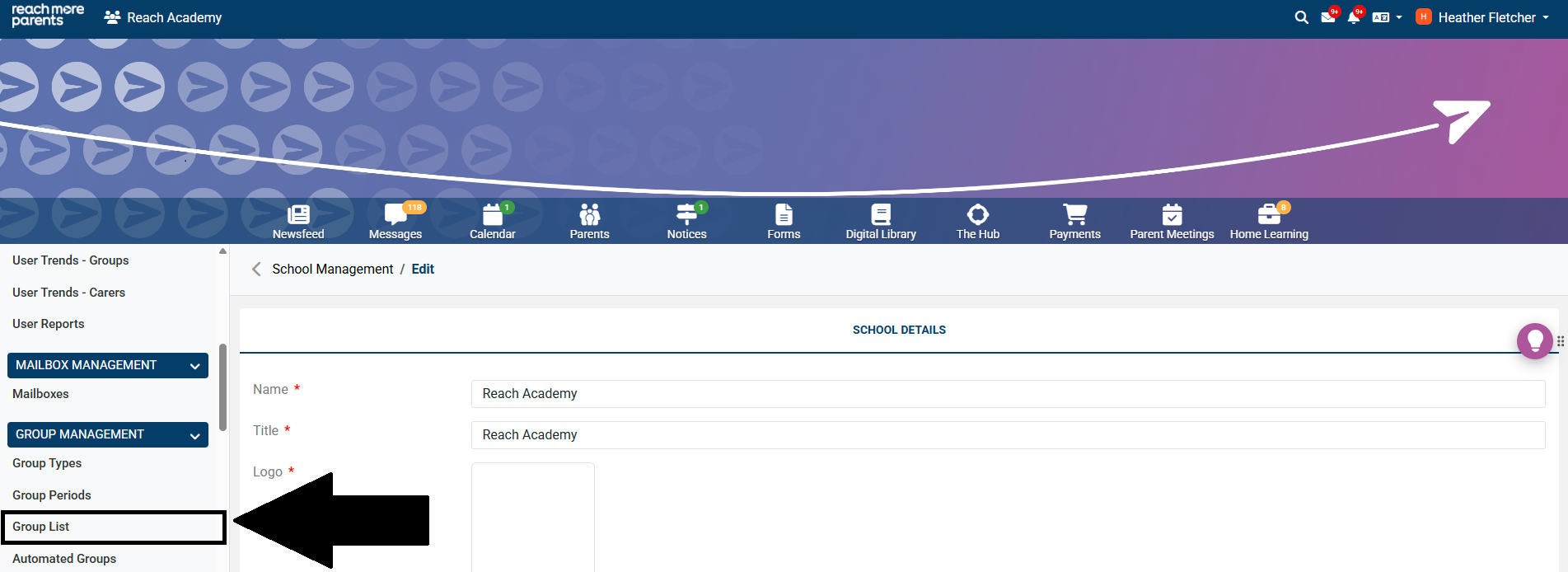
4) Click Group List under the Group Management menu.
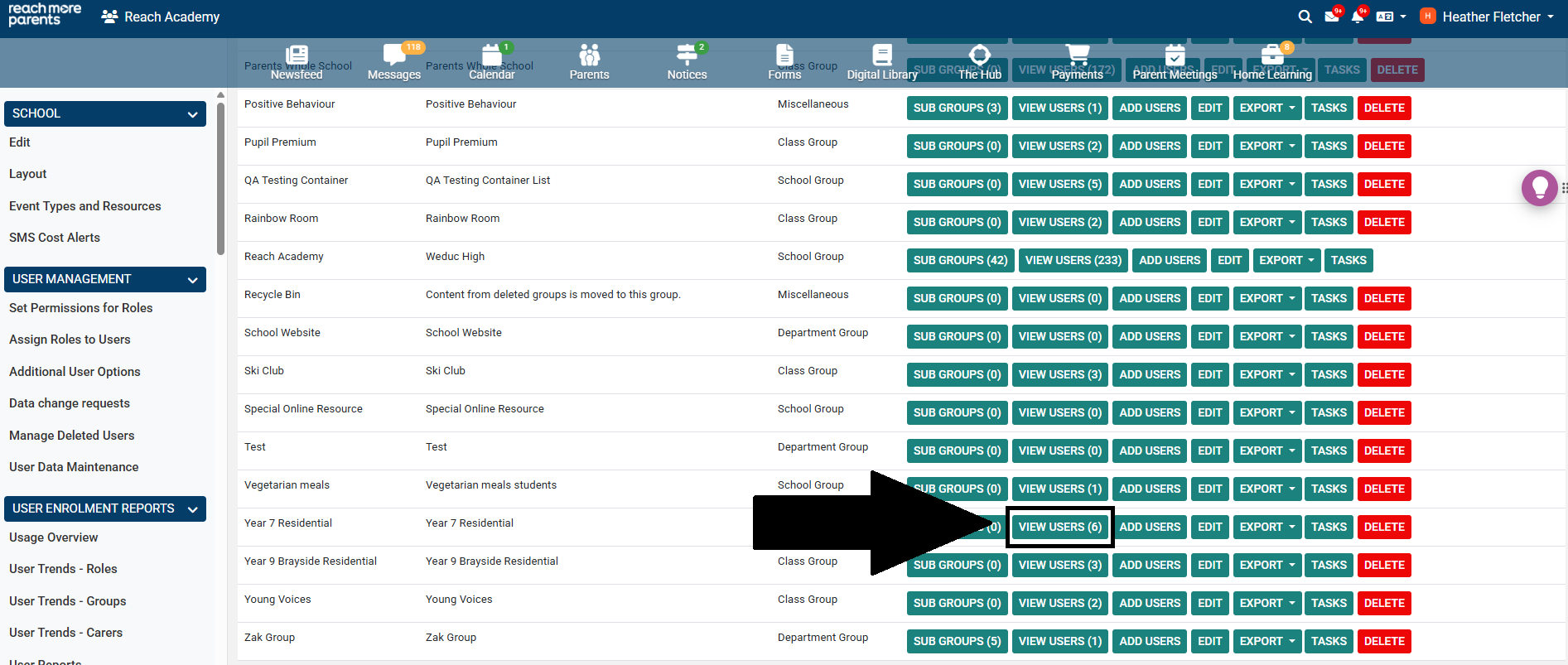
5) Locate the group you wish to remove the user from and click View Users to the right of the group.
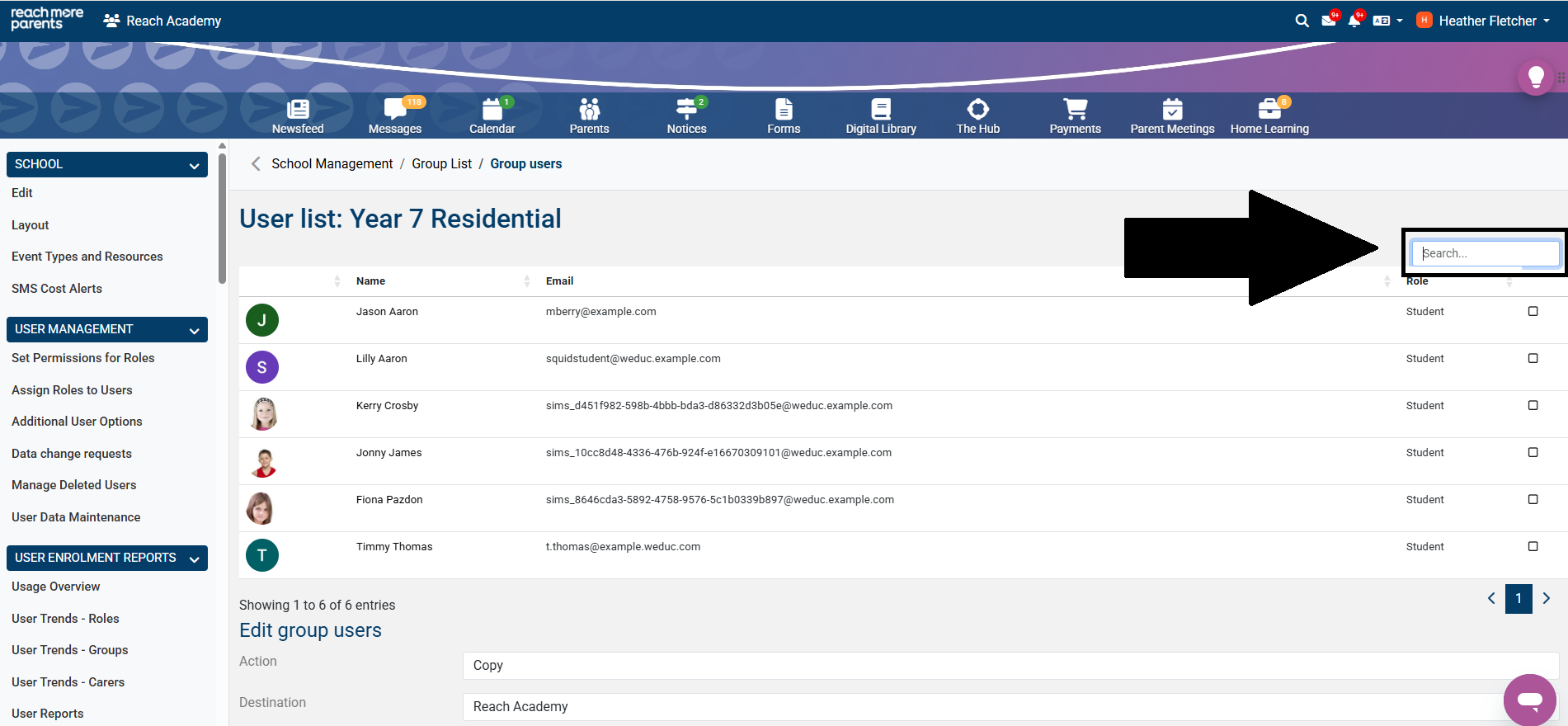
6) Locate the user's name within the list (you can also type their name in the Search box if needed).
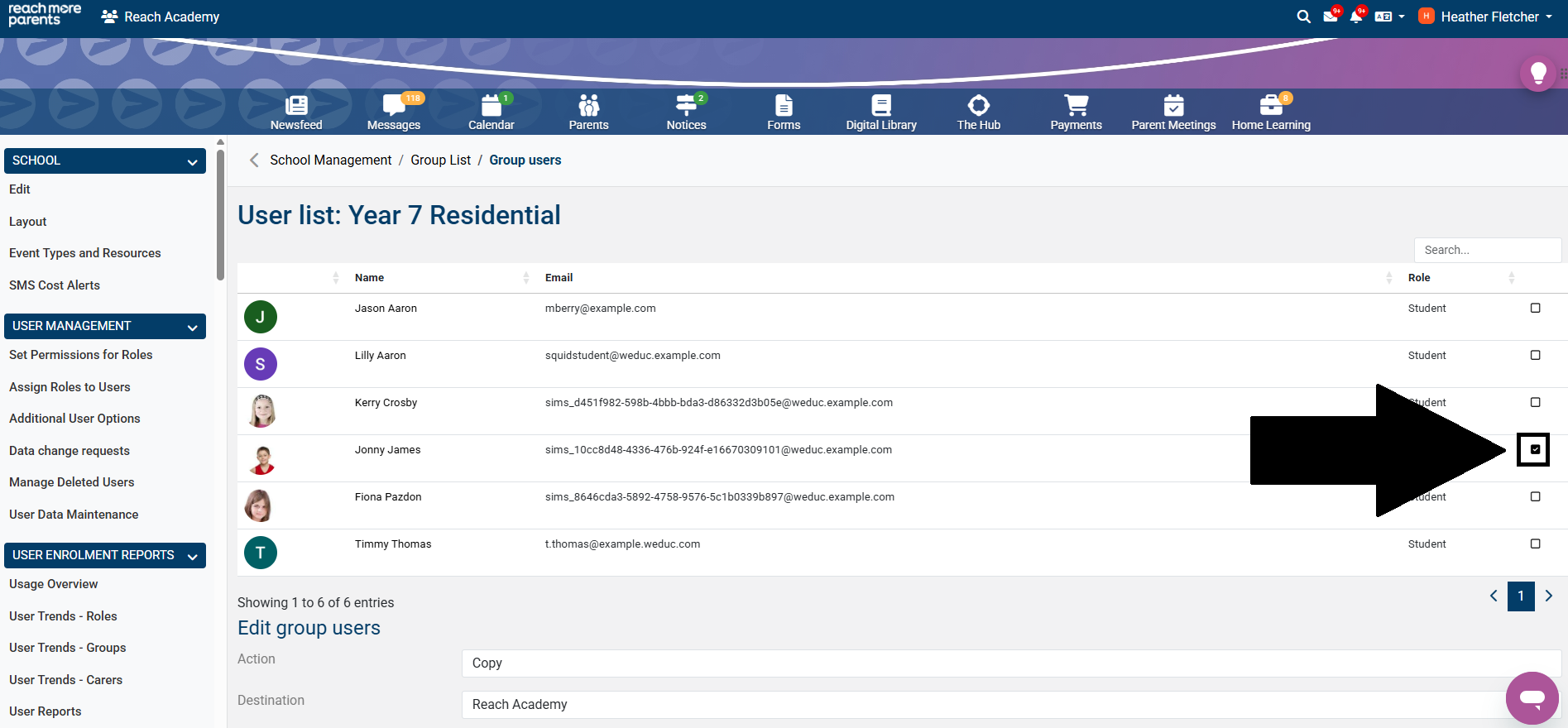
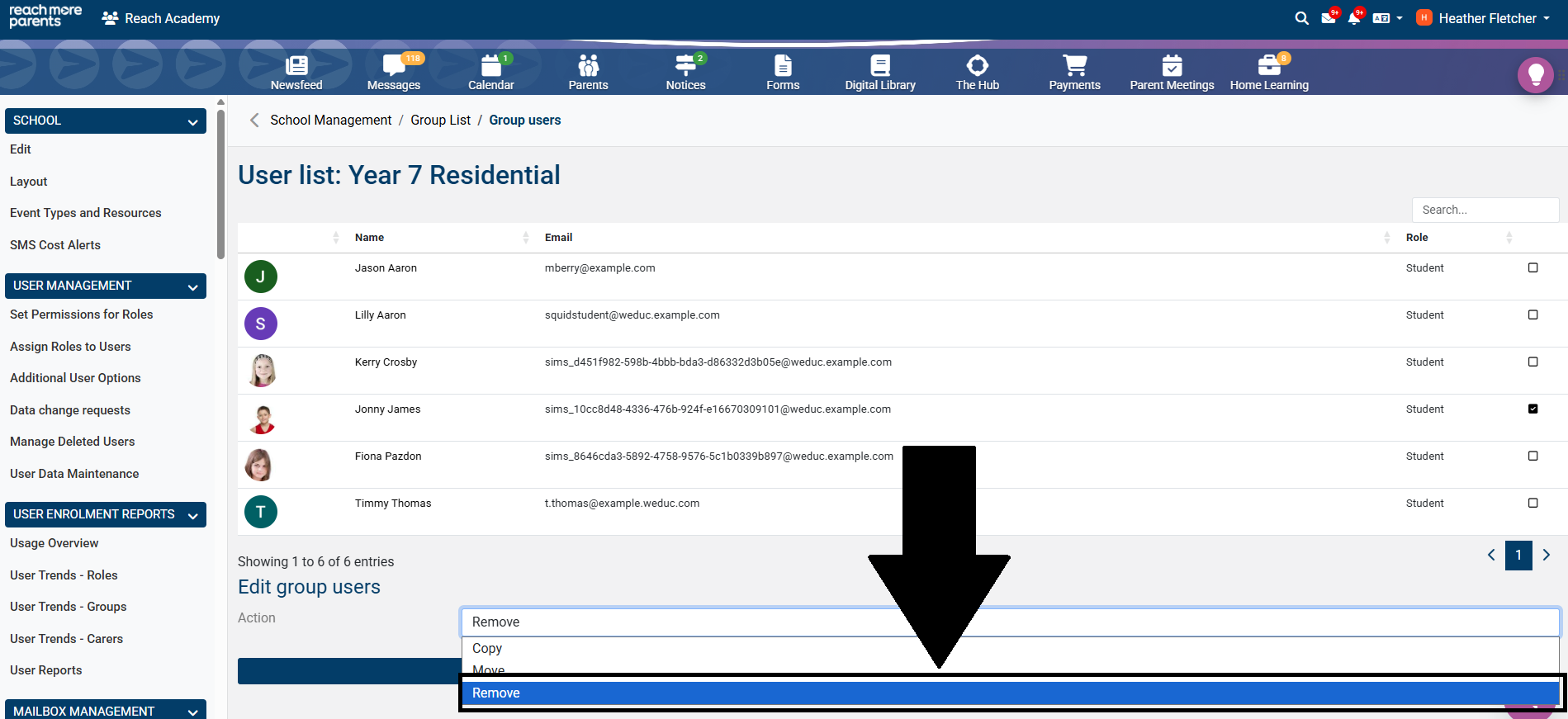
7) Place a tick next to the user's name by clicking in the box on the right hand side of the screen. Repeat this step if you need to remove multiple users from the group.
8) Click on Copy to reveal the full range of actions for the selected user(s).
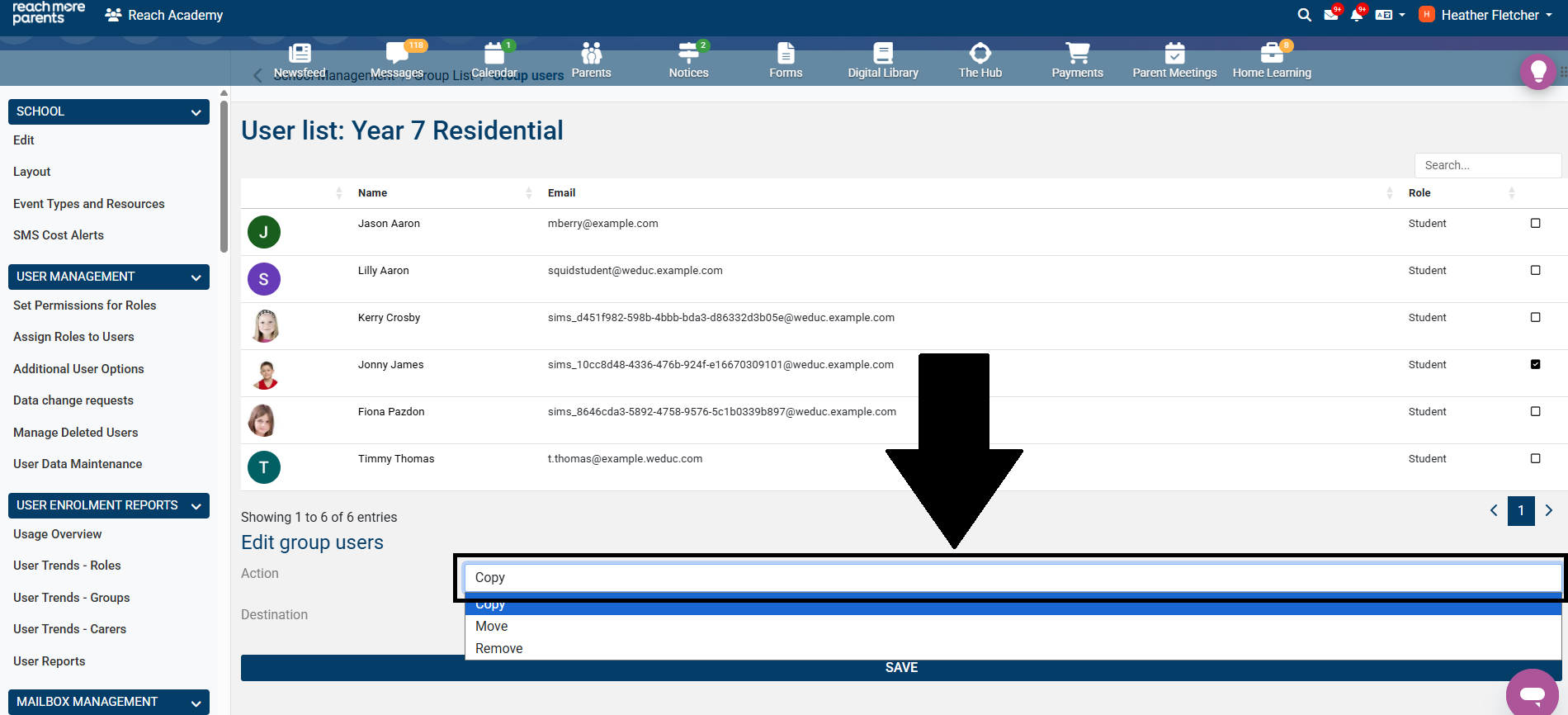
9) Select Remove from the list of actions.
10) Click the Save button to save your changes.
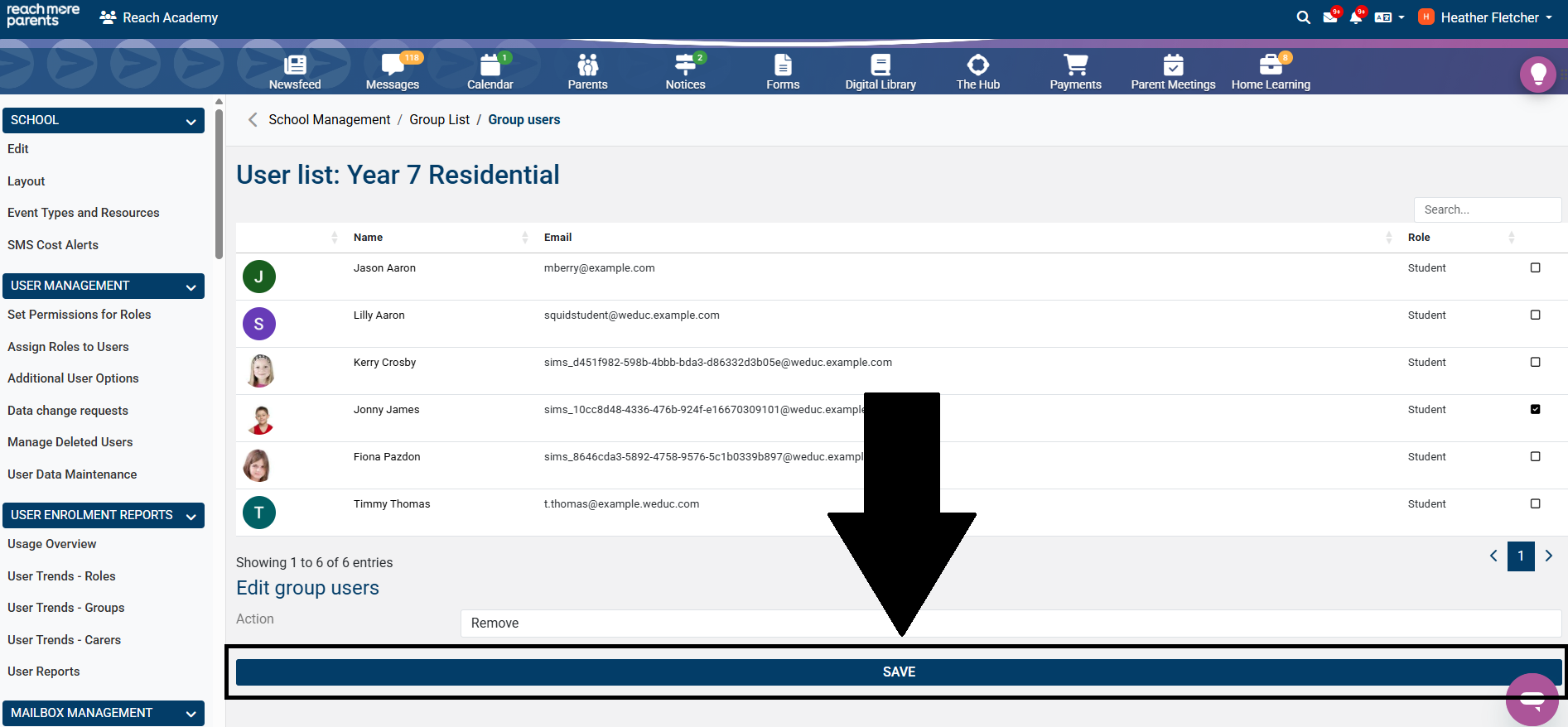
Your user(s) will now be removed from your manual group.