Firstly, you need to access PEMS as an Admin:
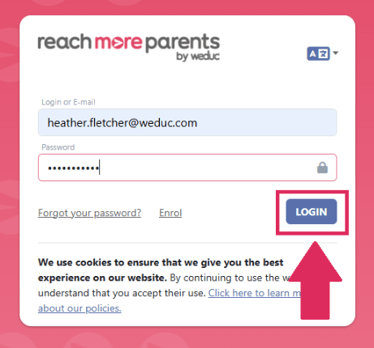
1) Log in to ReachMoreParents.
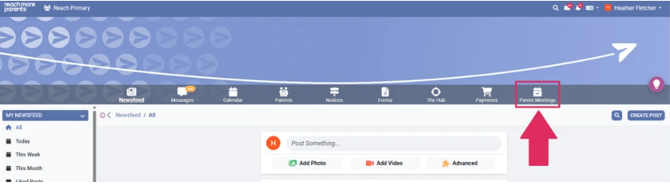
2) Click on the Parent Meetings icon
From this point, you will need to carry out the below steps:
3) Click on the "Event Title" from the "Published Events" block
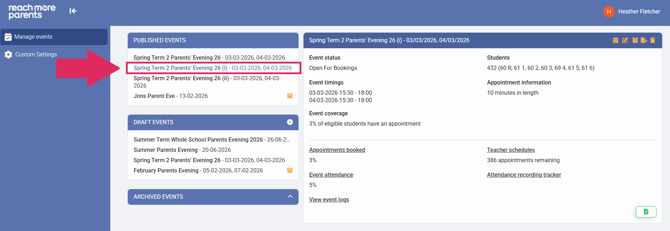
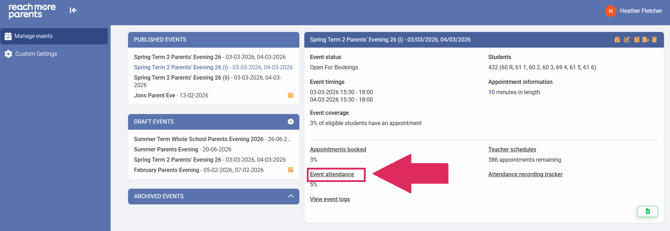
4) Click on the "Event Attendance" report heading in the "Event Summary" block
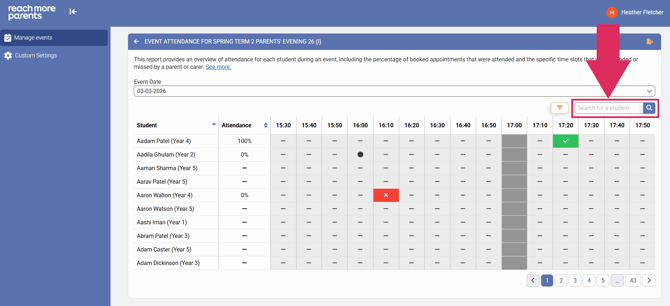
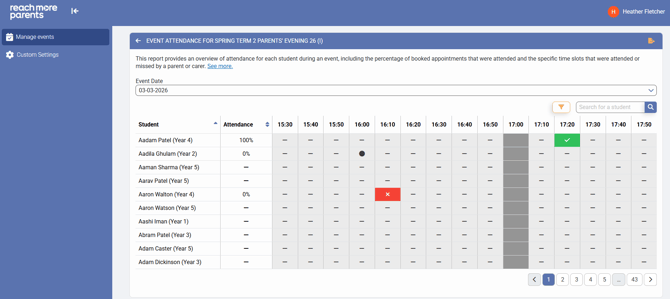
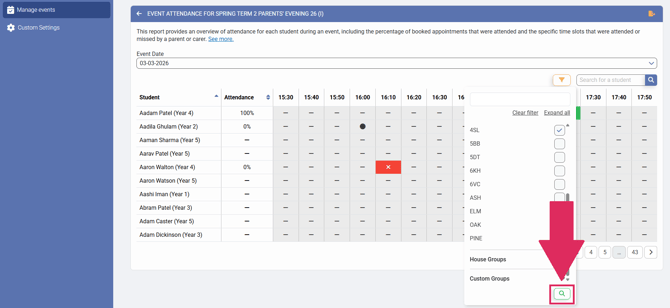
5) In this report, you will see
- Student Name(s) - those who have been invited to the event will be listed in alphabetical order
- Attendance - this is a percentage of their total attendance from all the appointments they had booked
- Time slots - each time slot will be listed from left to right for the full event window
- Attendance Statuses - for each time slot where an attendance status is present, you will see the appropriately colour labelled appointment status
 Appointment Booked - the appointment has been booked but no attendance record made yet
 Appointment Missed - the appointment was booked and attendance was flagged as absent
 Appointment Attended - the appointment was booked and attendance was flagged as present
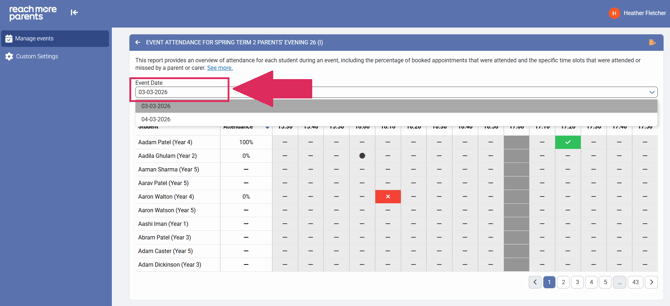
6) If needed, you can choose a different Event Date from the "Event Date" selector (where there's a multi date event)
7) If needed you can use the report filter option to filter by one or all of the following:
- Years - of the year group(s) invited, uncheck the year groups you want to hide from your report
- Class Groups - of the class group(s) invited, uncheck the class groups you want to hide from your report
- Registration Groups - of the registration group(s) invited, uncheck the registration group(s) you want to hide from your report
- House Groups - of the house group(s) invited, uncheck the house group(s) you want to hide from your report
- Custom Groups - of the custom group(s) invited, uncheck the custom group(s) you want to hide from your report
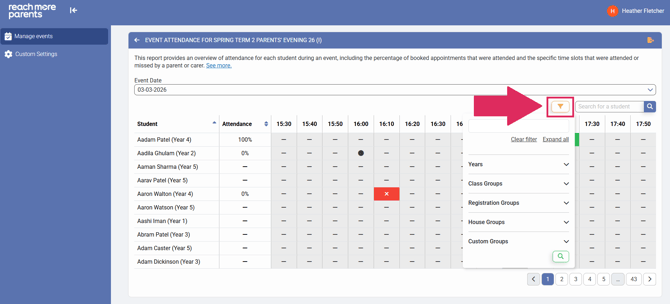
8) Click on the "Search" button when your report is filtered how you require and the report results will filter based on your criteria
9) To filter by a specific Student, click into the Search field, type their name and then hit "Search"