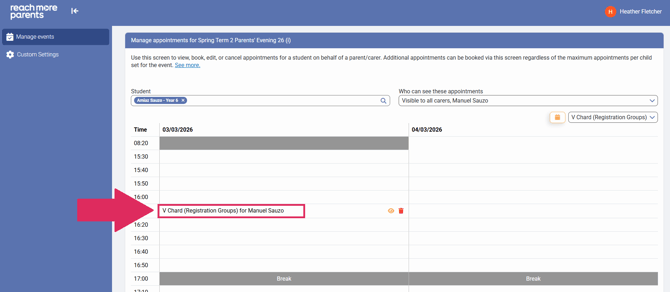
Firstly, you need to access PEMS as an Administrator:
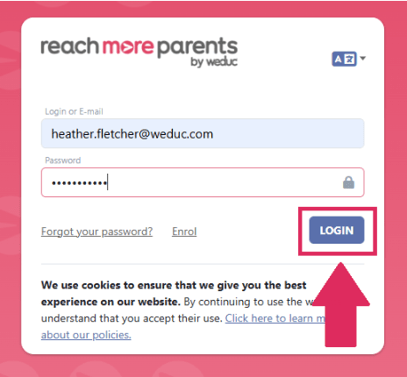
1) Log in to ReachMoreParents.
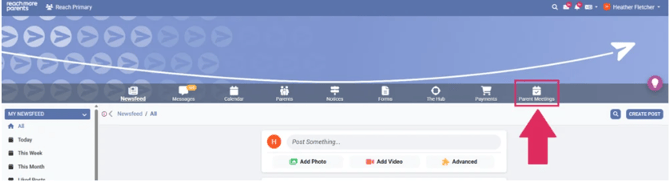
2) Click on the Parent Meetings icon
From here, you will need to carry out the below steps:
1) Click on the Event title where the students schedule is located in the Published Events block
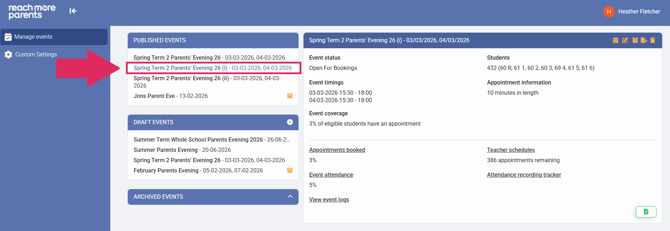
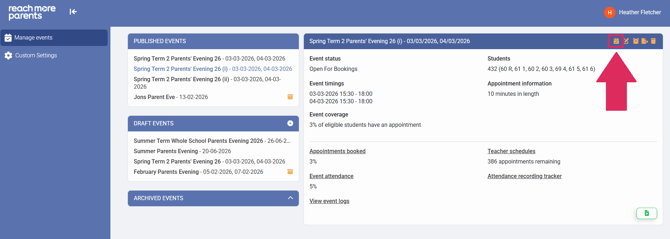
2) Click on the "Add / Edit Appointments" button in the Event Summary Block
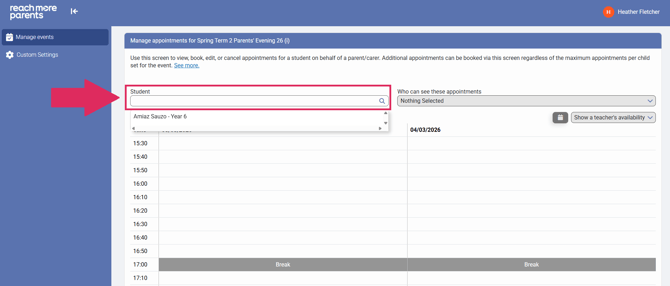
3) In the "Student" field search field, enter the name of the student in the text field
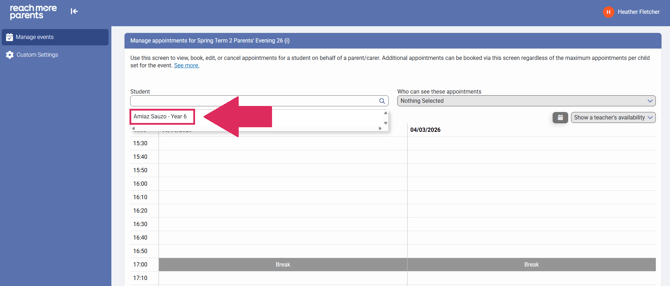
4) Click on the Student's name from the list of results
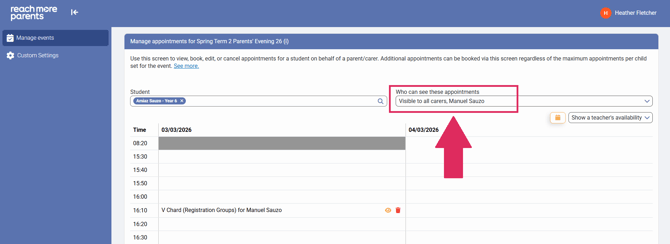
5) Check the 'Who can see these appointments' section looks correct
6) You can now see the full schedule for the selected student. Click on one of the green plus symbols to book an appointment in and then click on which of their available teachers you would like them to meet
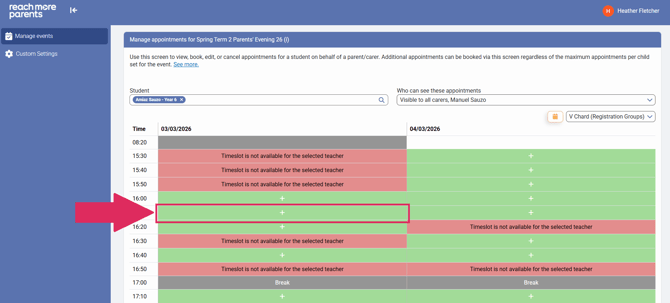
7) You will be taken back to the appointments schedule where you will see your newly booked appointment.