
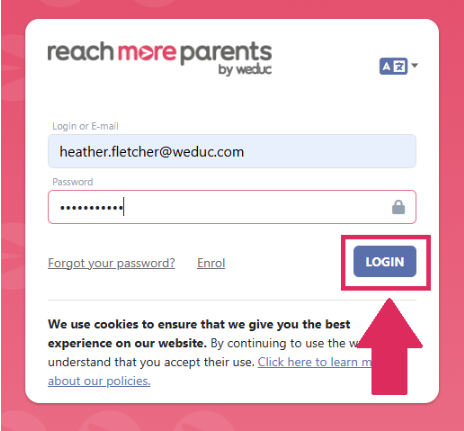
1) Log in to ReachMoreParents.
2) Click on the Parent Meetings icon
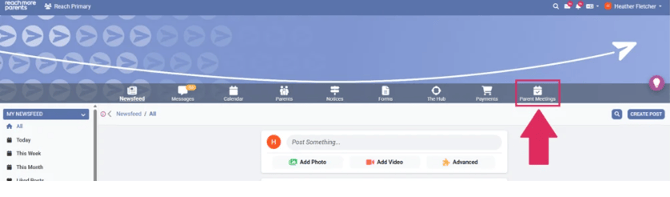
From here you can now view your:
Published Events - Any events that have been created and published in descending event date order (latest event first)
Draft Events - Any events that have been created and not yet published in descending event date order (latest event first)
Archived Events - Any events that have been created, published, have an event date that has passed and have been subsequently archived in descending event date order (latest event first)
Click on the Event which is of interest and at a glance in the Event Summary block you can see the below information:
Event Status -
- Pending (when an event has been added but the booking window start date hasn't been reached yet)
- Open for bookings (when an event has been added and the booking window start date has been reached)
- Bookings closed (when an event has been added and the booking window close date has been reached)
- Completed (when an event date has been passed, the event will be flagged with this status)
Students - This is a total count of all students with a bracketed count of pupils per year group within the event e.g. 339 (169 7, 170 8)
Event Timings - This will be a list of the event date(s), start time and end time for the chosen event
Appointment Information - How long the appointment duration is in minutes
Event Coverage - How many pupils have an appointment booked as a percentage of the total students invited to the event
Within the Event Summary block, you have four reports to engage with to see the performance of your Parents Evening event, these are:
Appointments Booked - Of the available appointments, how many have been booked as a high level percentage. Accessing this report allows you to view the detail beneath this figure and message parents based on their appointment booking and attending status.
Teacher Schedules - How many appointments are remaining for all teachers within the event. Accessing this report allows you to view the detail beneath this figure in the time buckets for the appointment length.
Event Attendance - Of the number of appointments booked, how many were flagged as Attended by the teacher during the event as a percentage. Accessing this report allows you to view the detail beneath and see those appointments booked, attended and not attended within the time buckets for the appointment length.
Attendance Recording Tracker - When you access this report, you will see per teacher how completely they have submitted their appointment attendance data. From their Appointment Count, Recorded and Not Recorded figures you can see which teachers haven't completed logging their attendance and there is a handy message feature to send them a reminder to log their missing attendance data when needed.