
Firstly, you need to access PEMS as an Administrator:
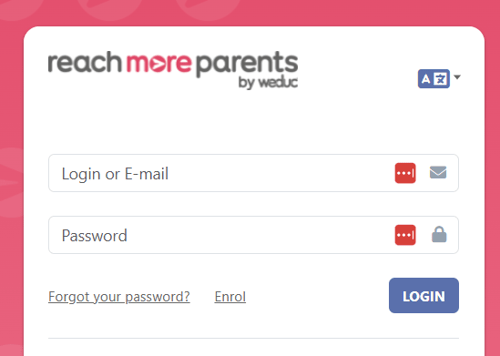
1) Log in to ReachMoreParents.
2) Click on the Parent Meetings icon
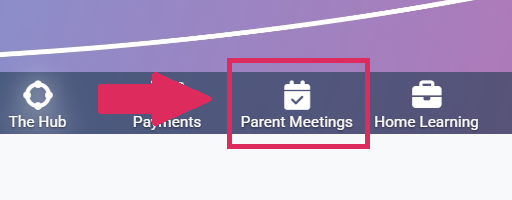
To continue the process, follow the below steps:
1) Find the event you need to review the Event Logs for within the Published Events block
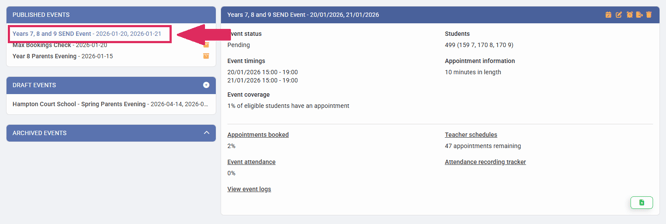
2) Click on the "View event logs" report in the Event Summary block
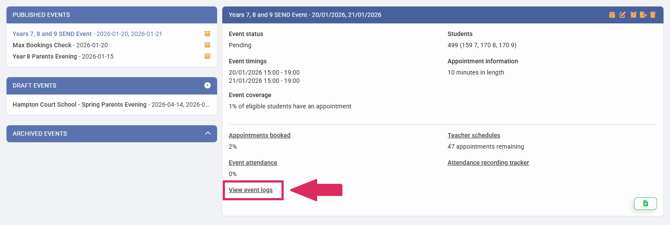
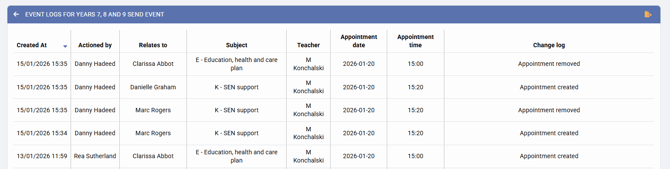
3) In this report you will see several columns:
- Created At - The Date Time that the Appointment was booked
- Actioned By - The user's name who carried out the action
- Relates to - The Student who the Appointment was created or edited for
- Subject - The Subject that the Appointment was created for
- Teacher - The Teacher who the Appointment has been booked with
- Appointment Date - The date the appointment has been booked on
- Appointment Time - The time the appointment has been booked for
- Change Log - The action that was taken when the Appointment was last interacted with, or the Event was edited
If you need to return to the full guide for Admins, follow the link here.