
If there are certain students who have been invited into the Parent Event via their Year Group but whom you do not need to book appointments for the Event you're creating, e.g. you need to remove the year 7 French class as they aren't far enough into the curriculum to have a progress update yet; this article will explain how to remove those students.
Firstly, you need to access PEMS as an Admin:
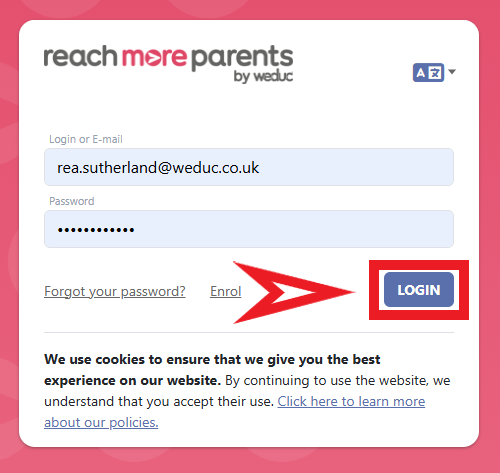
1) Log in to ReachMoreParents.
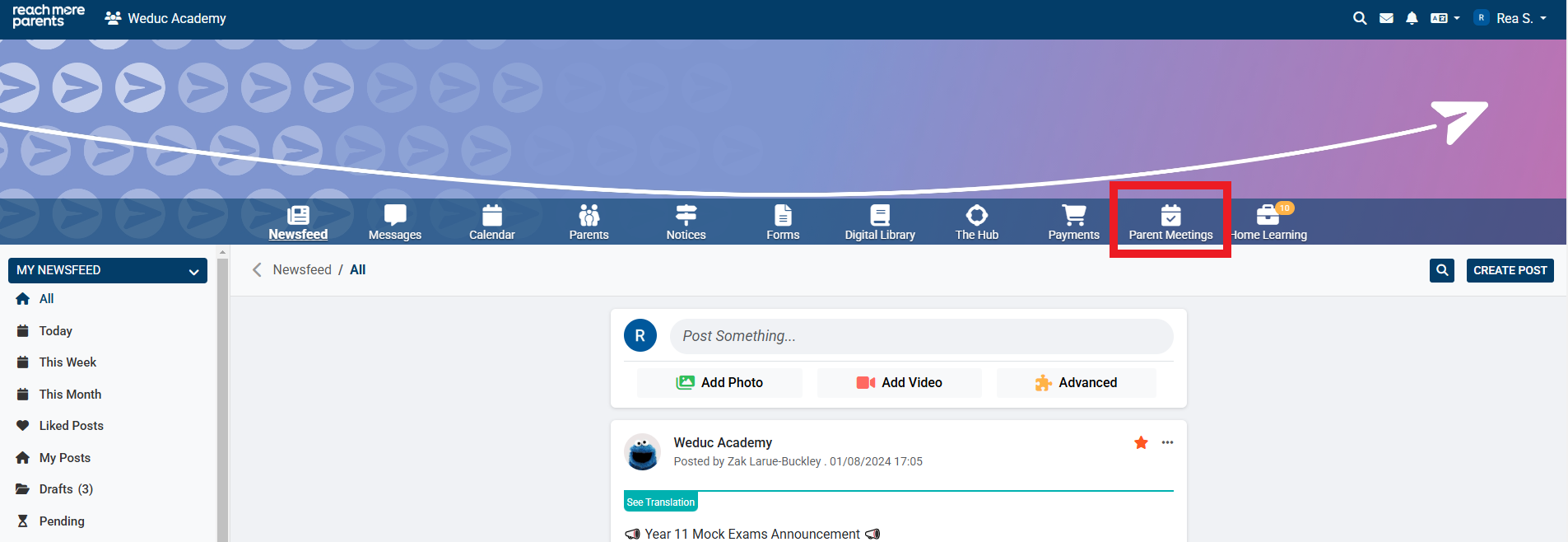
2) Click on the Parent Meetings icon
From this point, you will need to carry out the below steps:
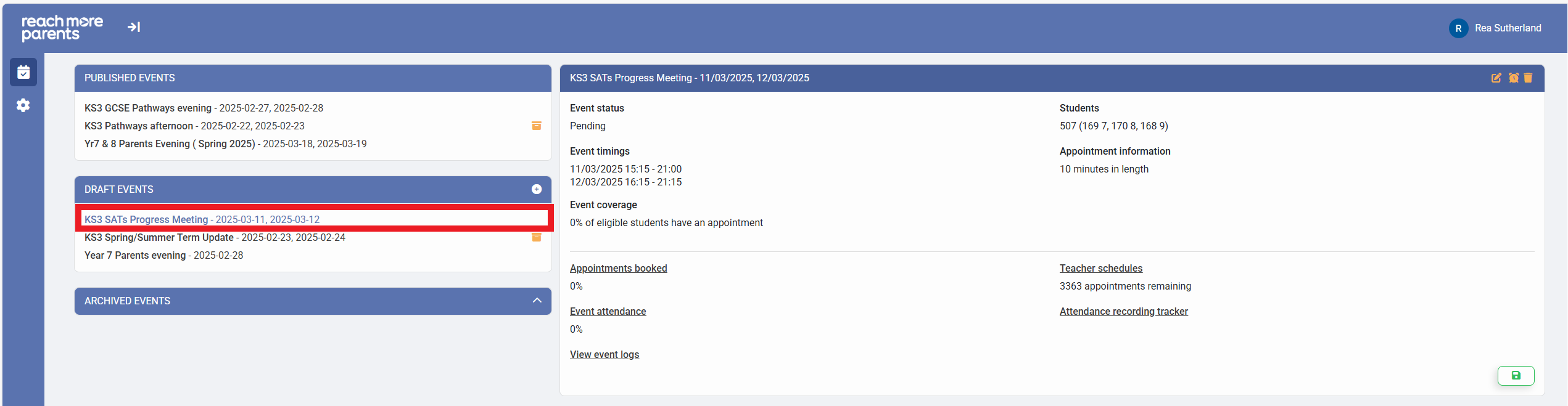
3) Click on the "Event Title" required from the Draft Events blocks
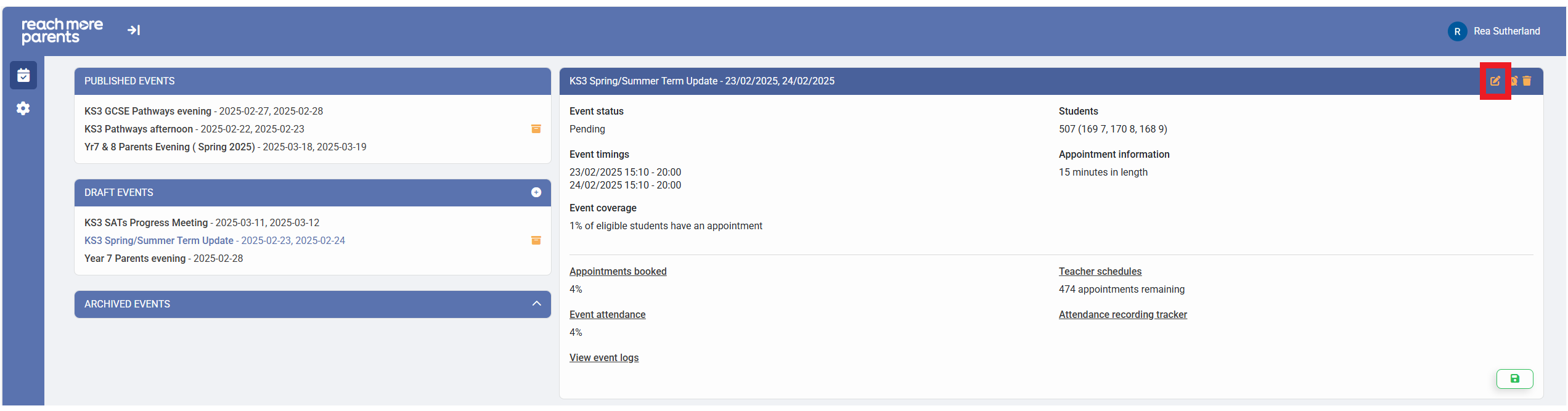
4) Click on the "Edit Event" button
5) Click on "Next" to proceed to the "Event Date & Times for [Event Name]" screen
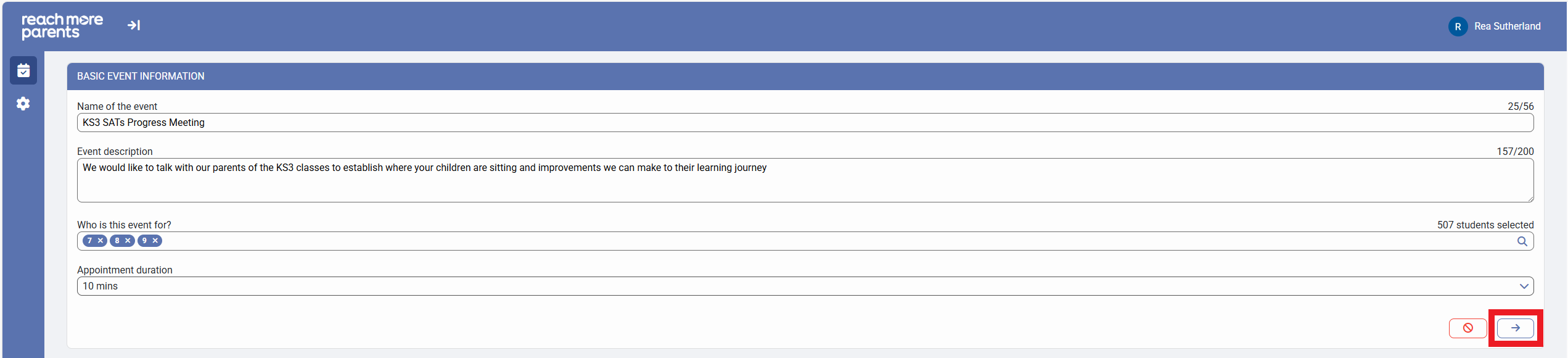
6) Click on "Next" to proceed to the "Appointment Booking Settings for [Event Name]" screen
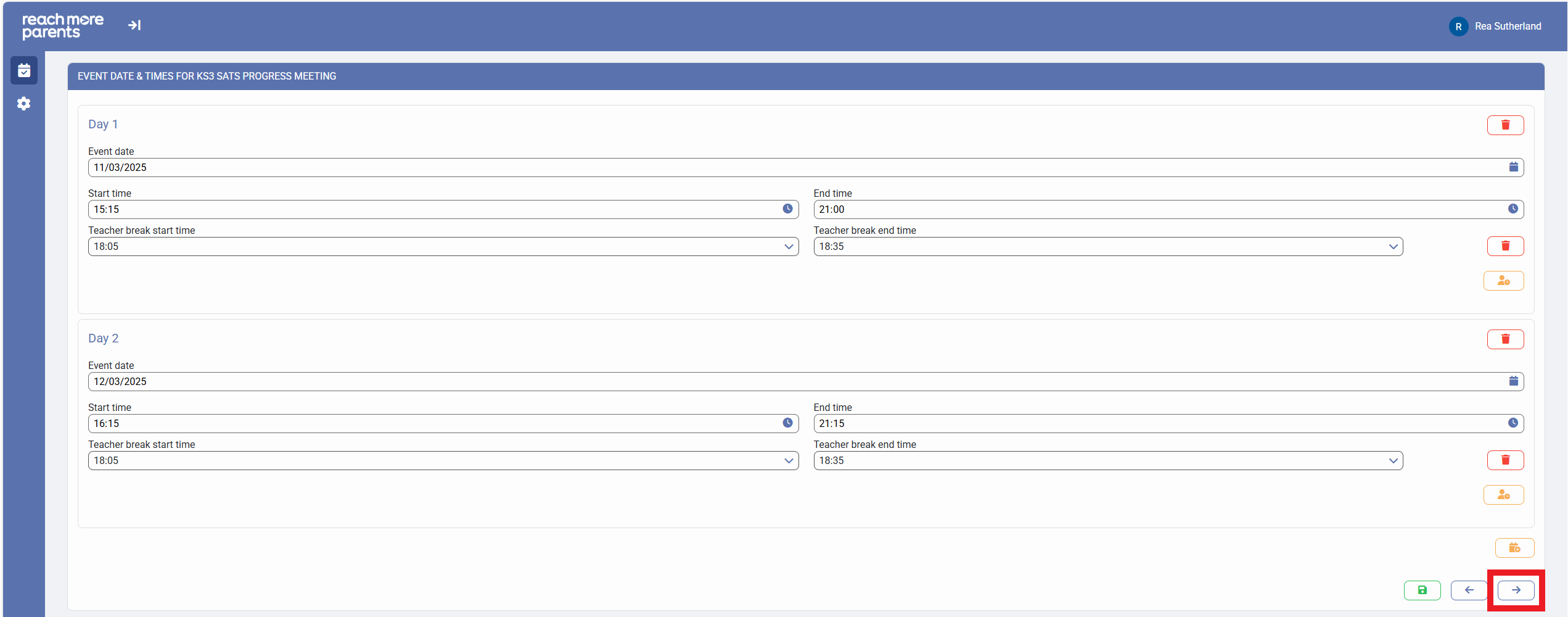
7) Click on "Next" to proceed to the "Classes & Teacher settings for [Event Name]" screen
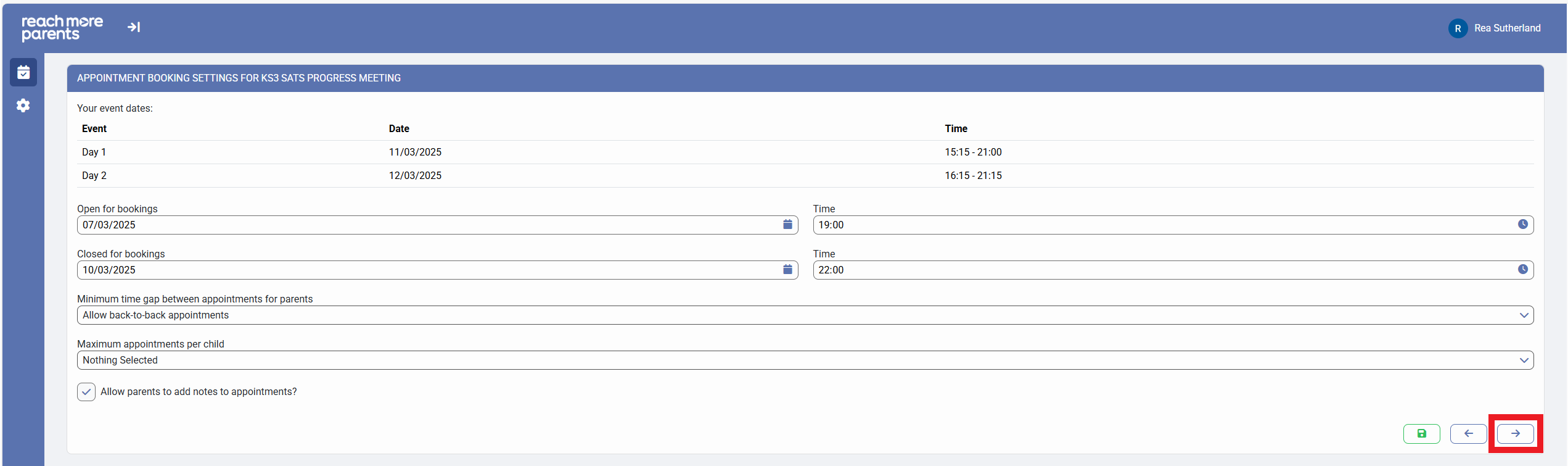
8) If you want to remove all of one year groups' students from a subject, click on the year group within the Subject's heading
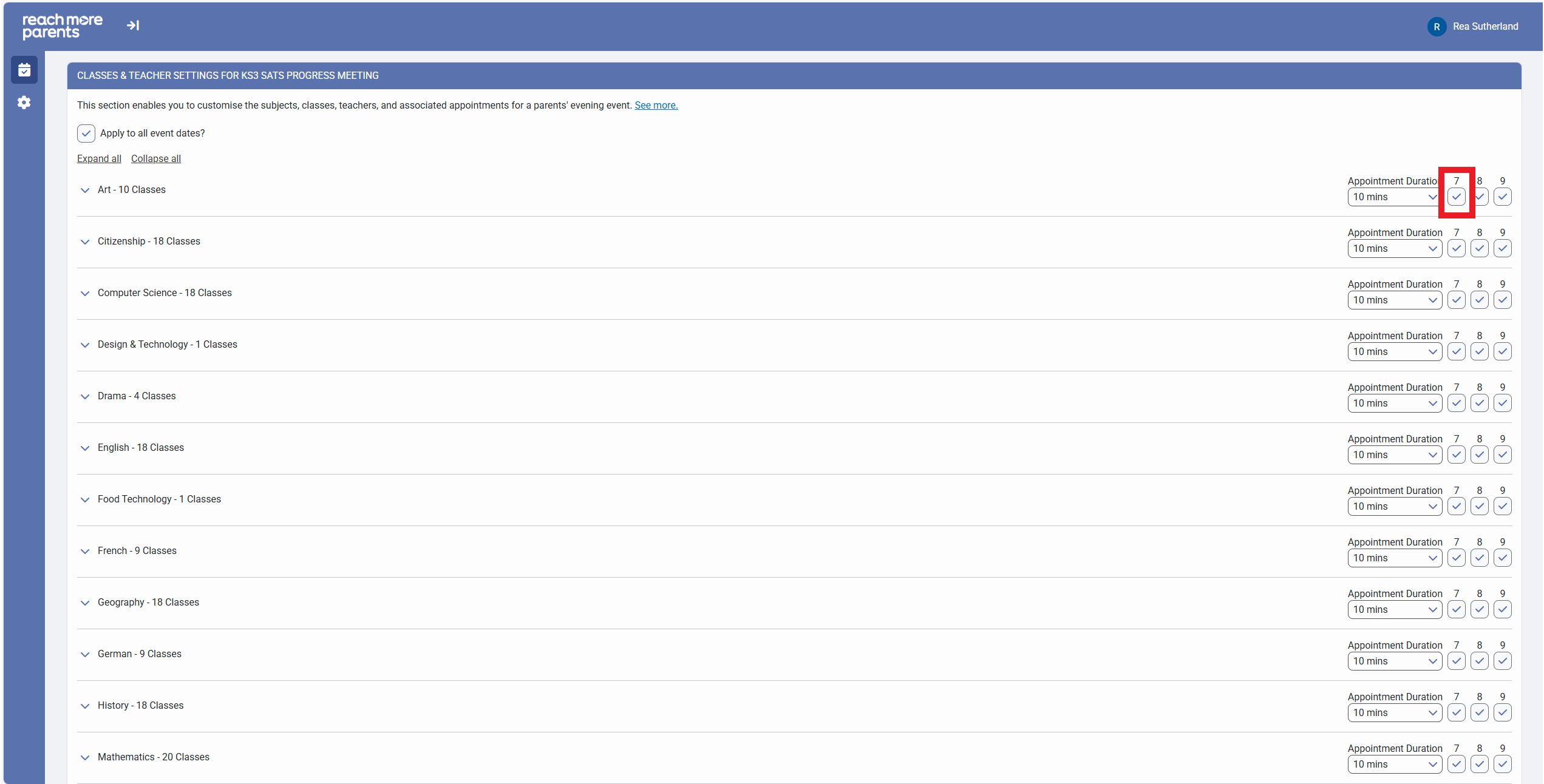
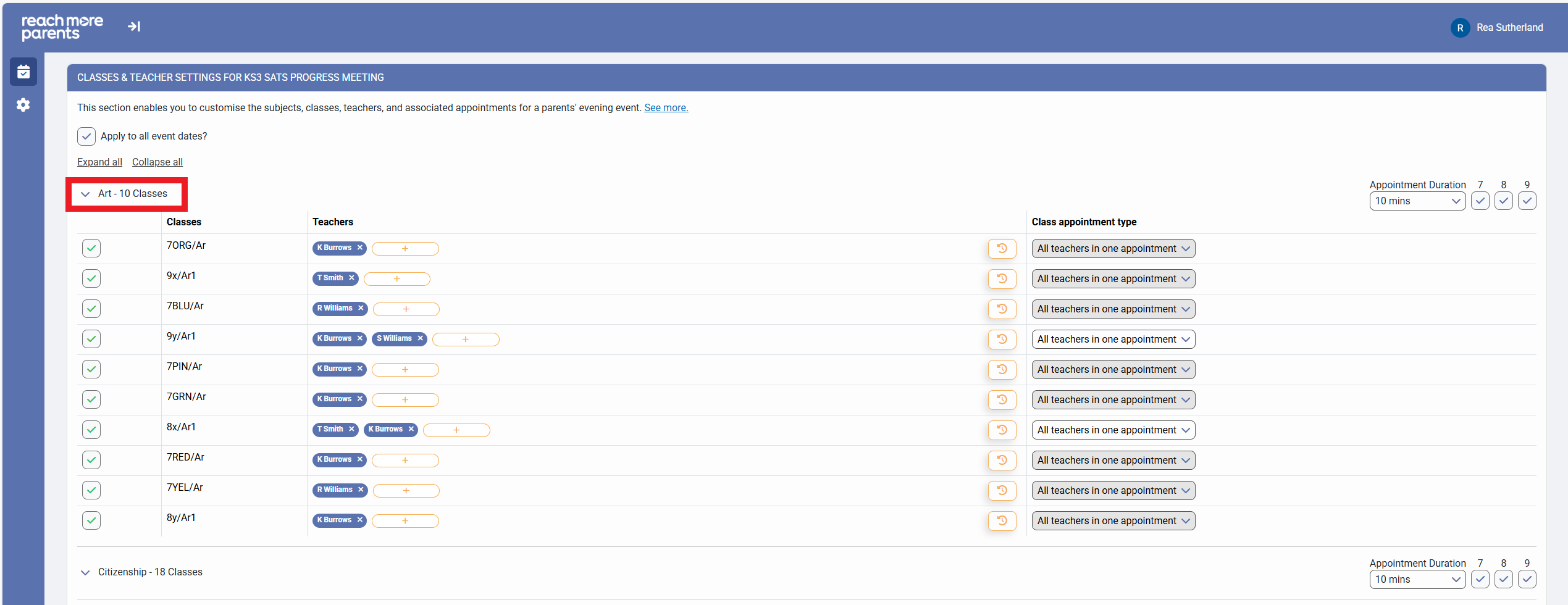
9) If you want to remove a certain class, not the full year group, click on the subject heading to expand it
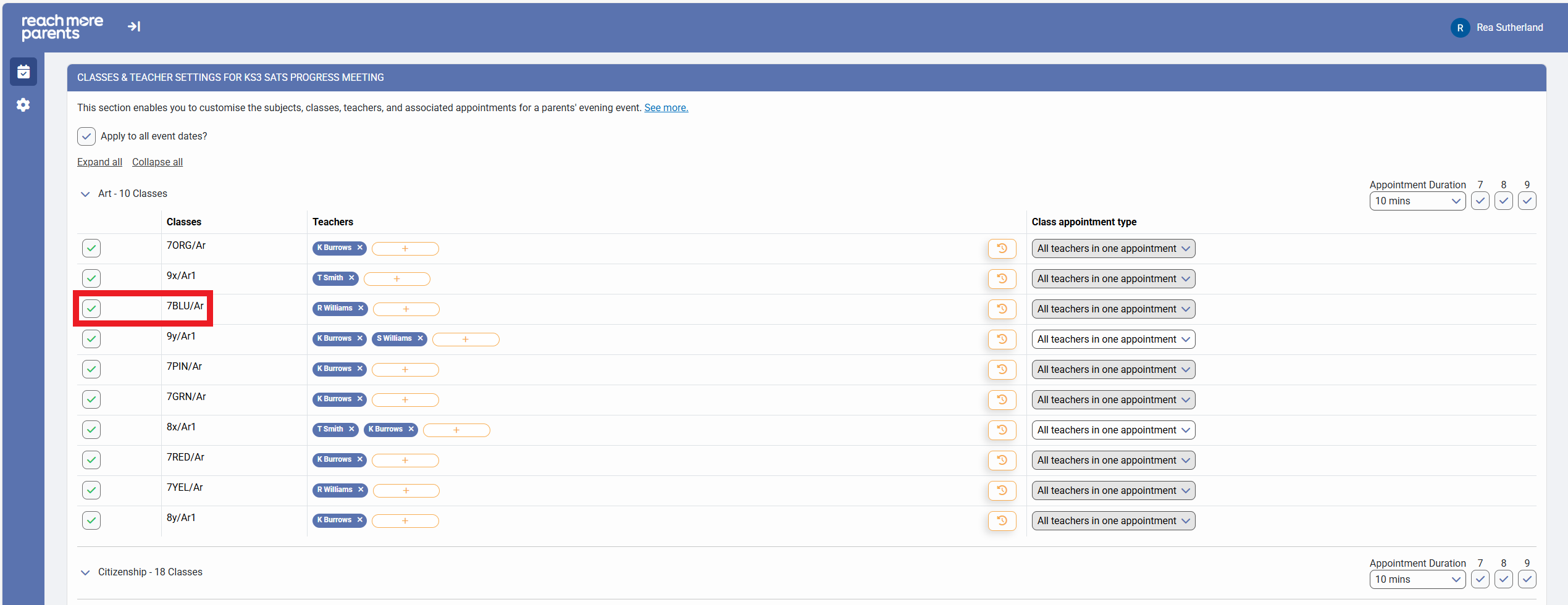
10) Within the Subject block, click on the check mark against the class which you need to remove from the event
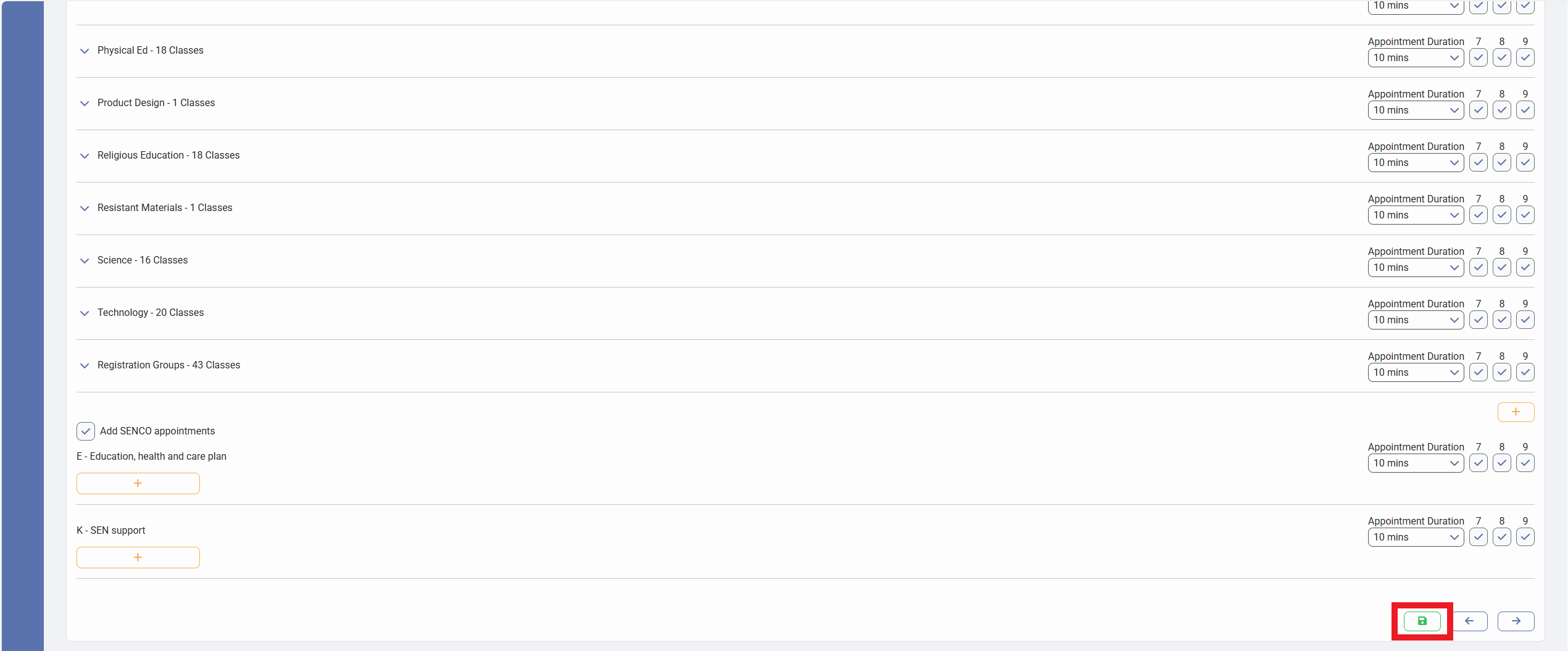
11) Click on "Save" to accept your changes
Now when the Event is published and bookings are being made, any child within either the class or the year group you've unselected from that subject will not have that subject available.