Firstly, you need to access PEMS as an Admin:
1) Log in to ReachMoreParents.
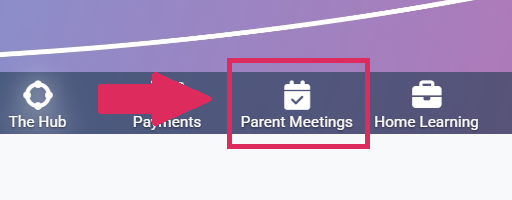
2) Click on the Parent Meetings icon
From this point, you will need to follow the below steps:
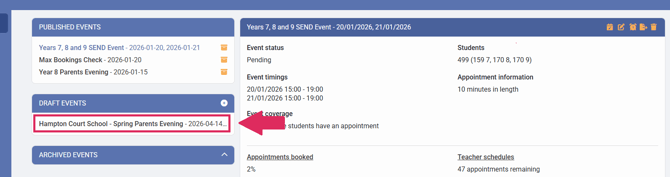
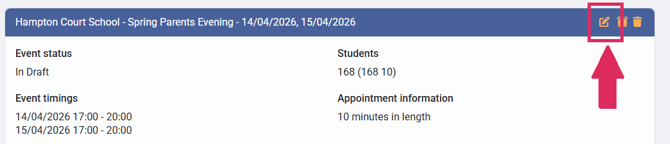
3) Click on the "Event Title" required from the Draft Events blocks
4) Click on the "Edit Event" button
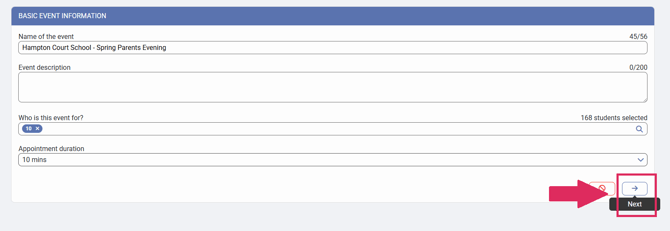
5) Click on "Next" to proceed to the "Event Date & Times for [Event Name]" screen
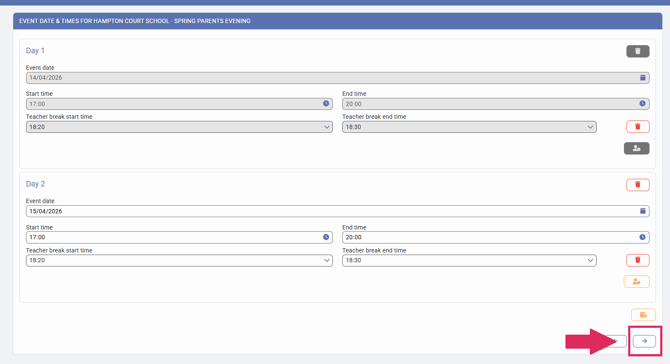
6) Click on "Next" to proceed to the "Appointment Booking Settings for [Event Name]" screen
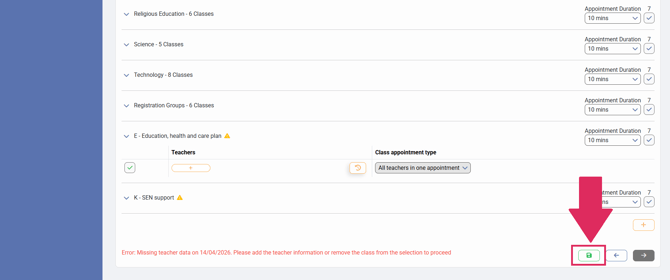
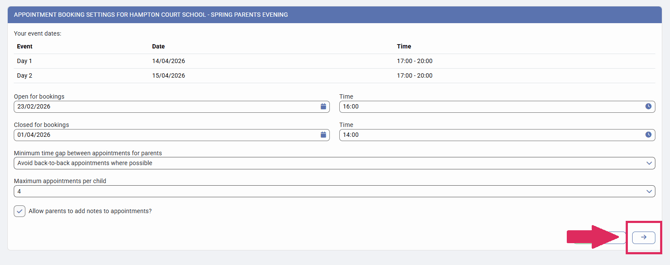
7) Click on "Next" to proceed to the "Classes & Teacher settings for [Event Name]" screen
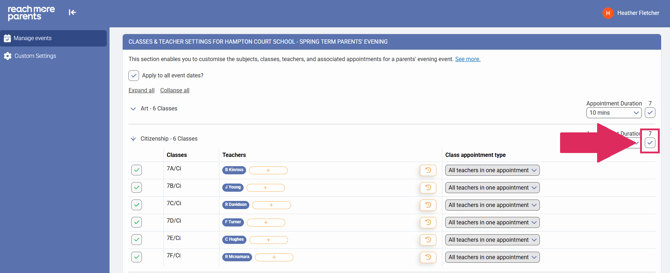
8) To remove an entire Subject's groups, click on the check mark for each of the Year Groups against that Subject header
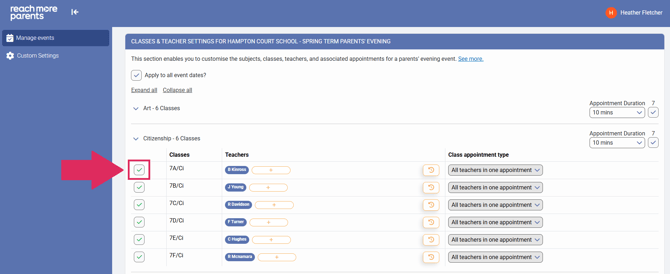
9) To remove specific classes from a Subject Group, expand the Subject header and click on the check mark for each of those class groups to remove them
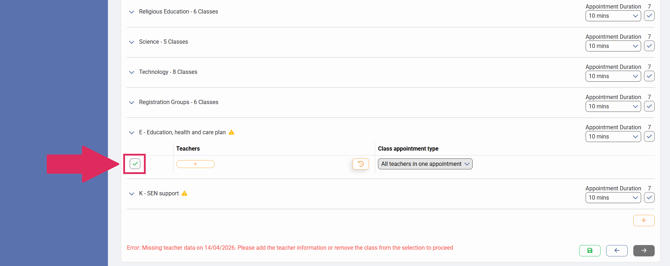
10) To remove the SENCO Groups, click on the check mark against the "Add SENCO appointments" text to remove them
11) When you're happy with your changes, click on "Save Draft" to update your event