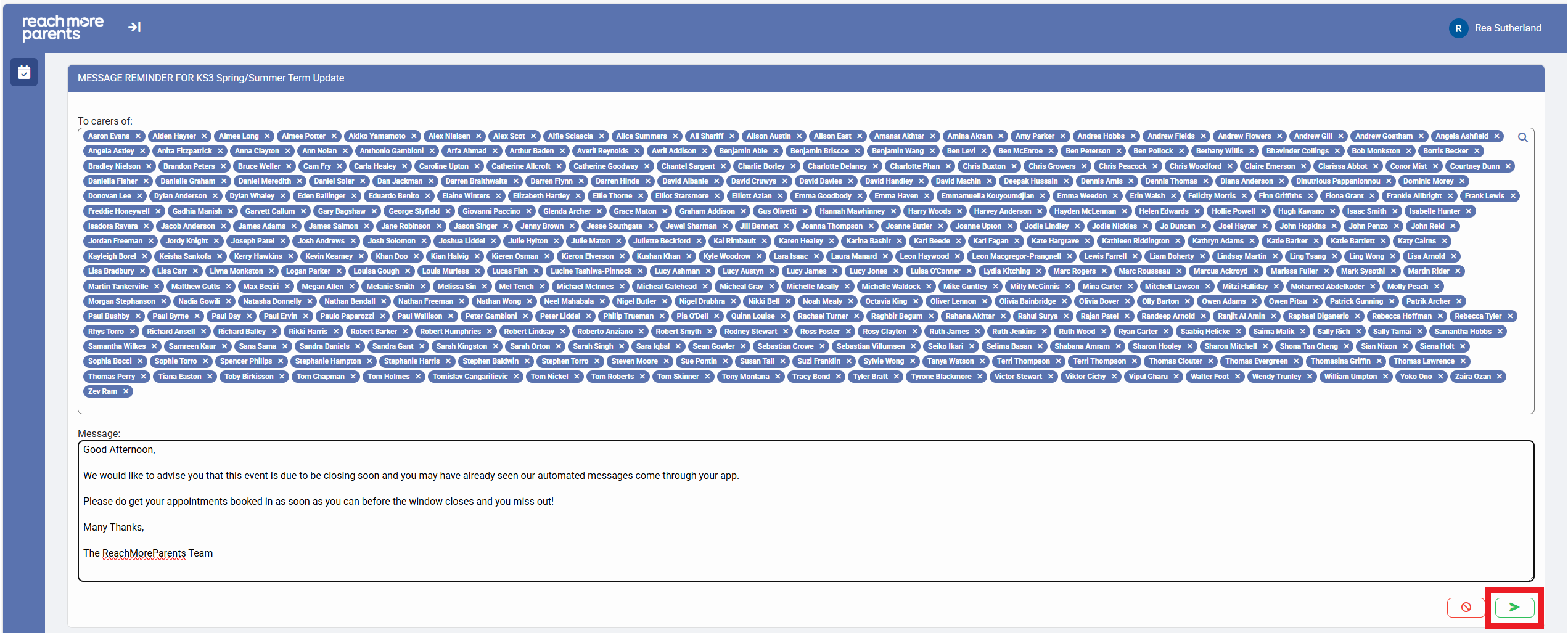
When it comes to messaging all your attendees for an event in the Parents Event Management System (PEMS), there is a simple report and process to follow.
First you need to access PEMS as an administrator:
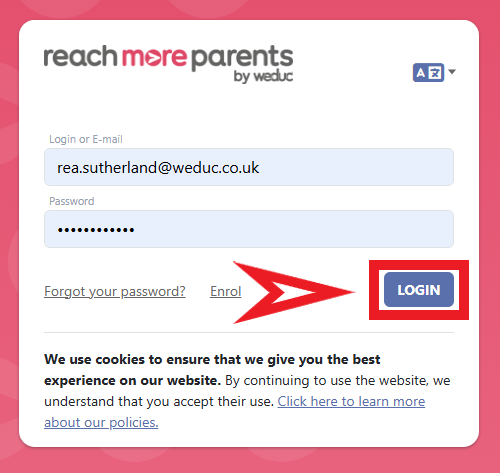
1) Log in to ReachMoreParents.
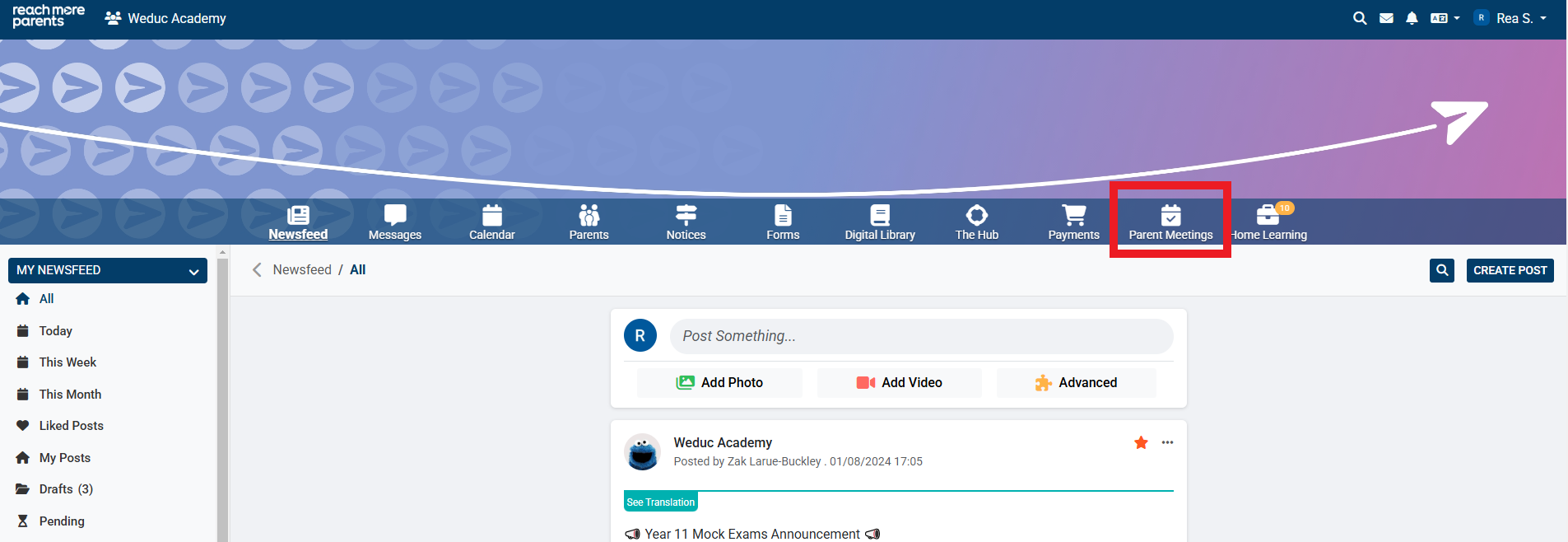
2) Click on the Parent Meetings icon
Now that you're in PEMS, the steps below will allow you to message all your attendees in one message:
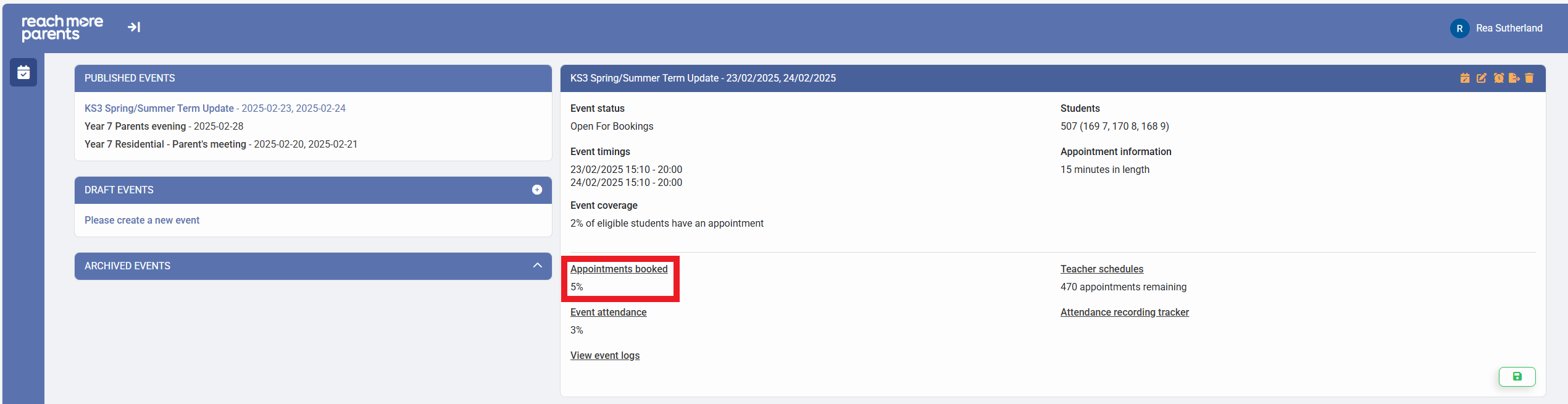
3) Click on the Event title in the Published Events block
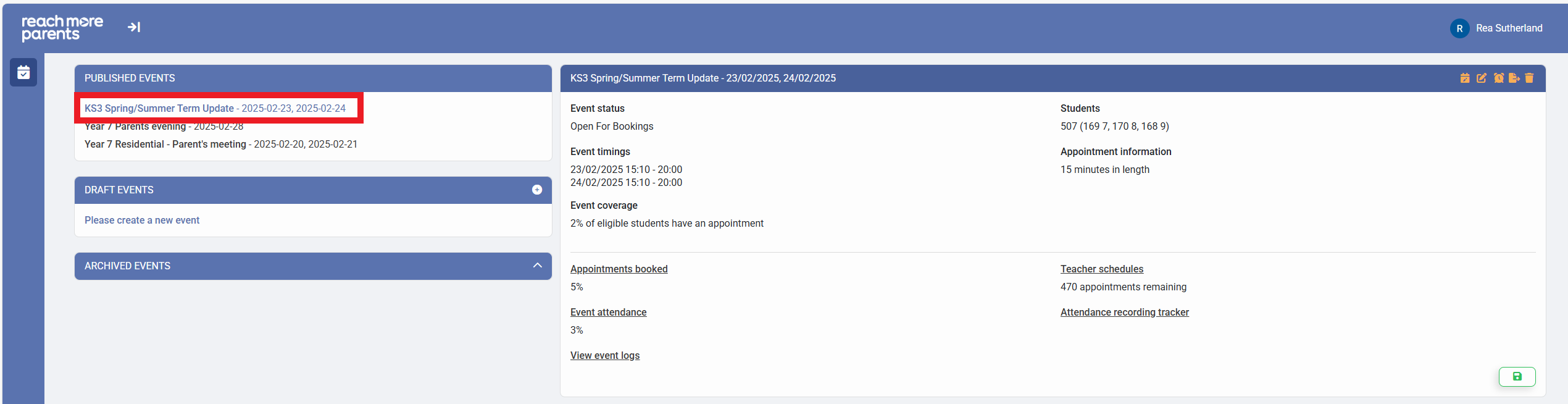
4) Click on the "Appointments Booked" report
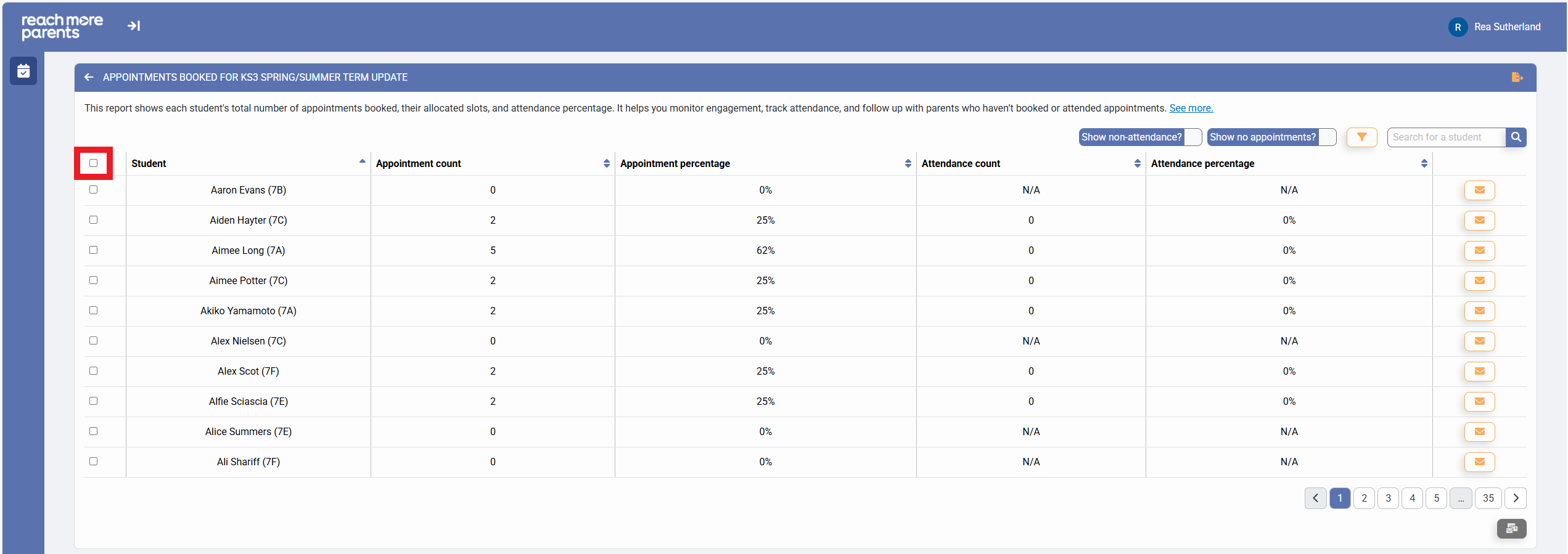
5) Click on the "Select All on this Page" toggle in the data table
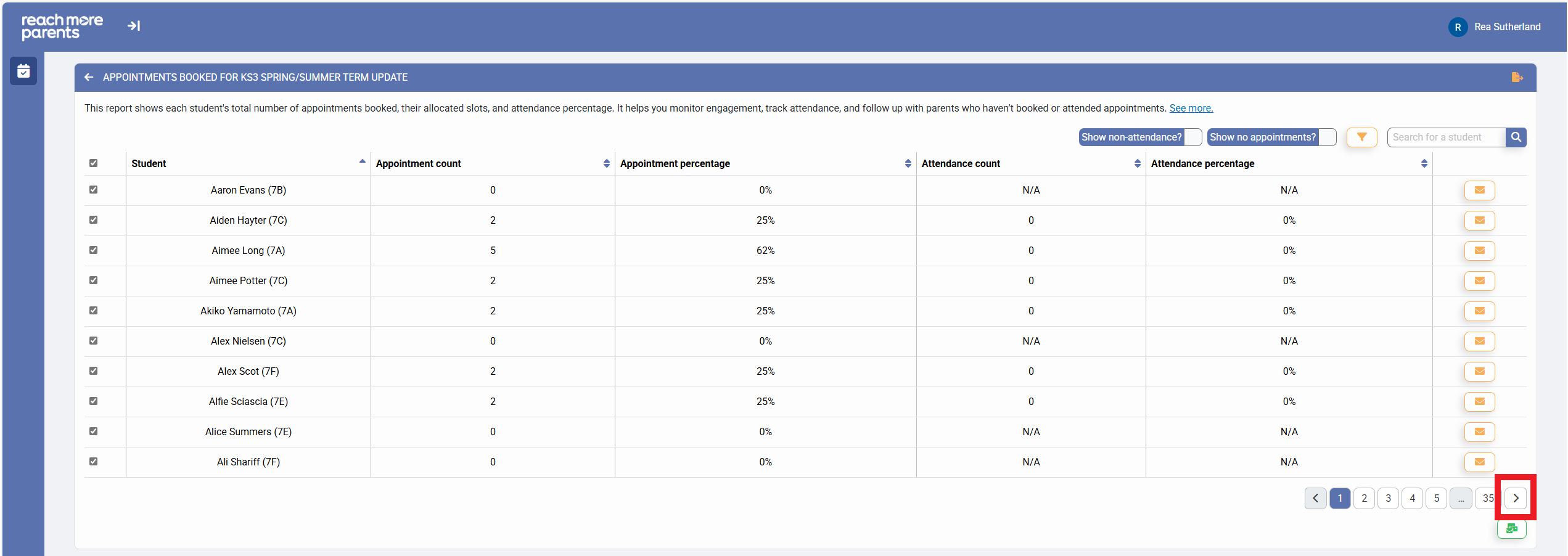
6) Click on "Next" to access the next page
7) Click on the "Select All on this Page" toggle in the data table
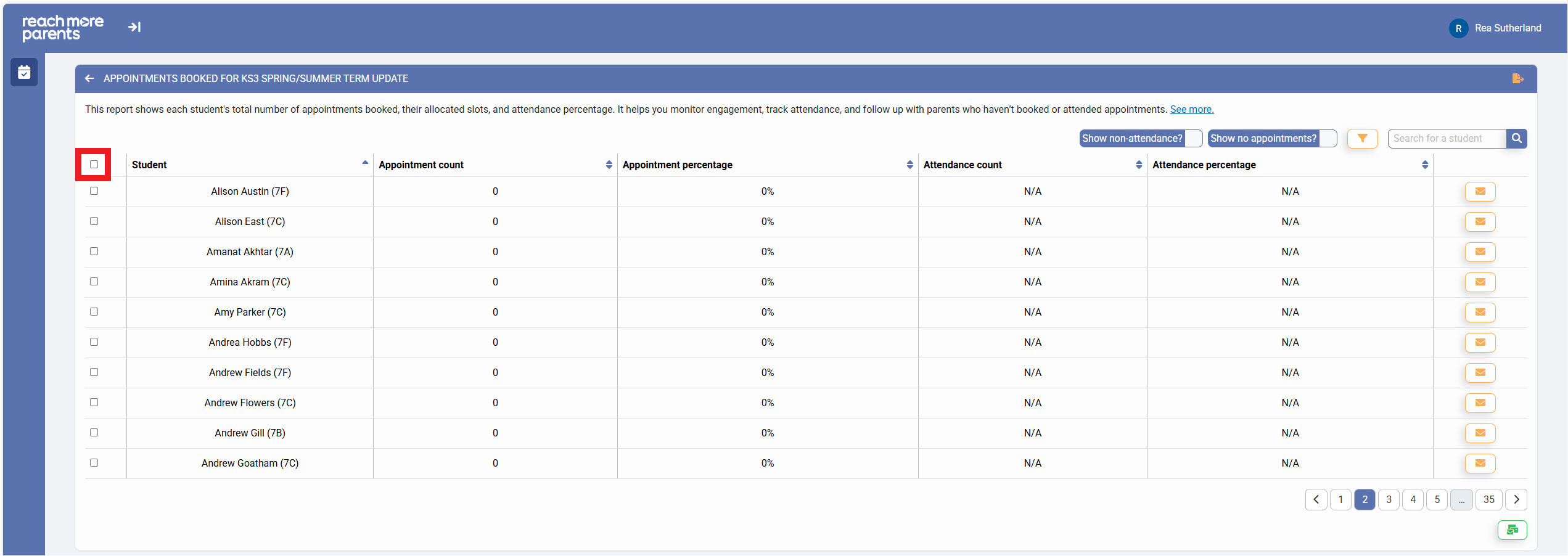
8) Repeat Steps 7 and 8 for all report pages
9) Click on "Message Selected Accounts" button

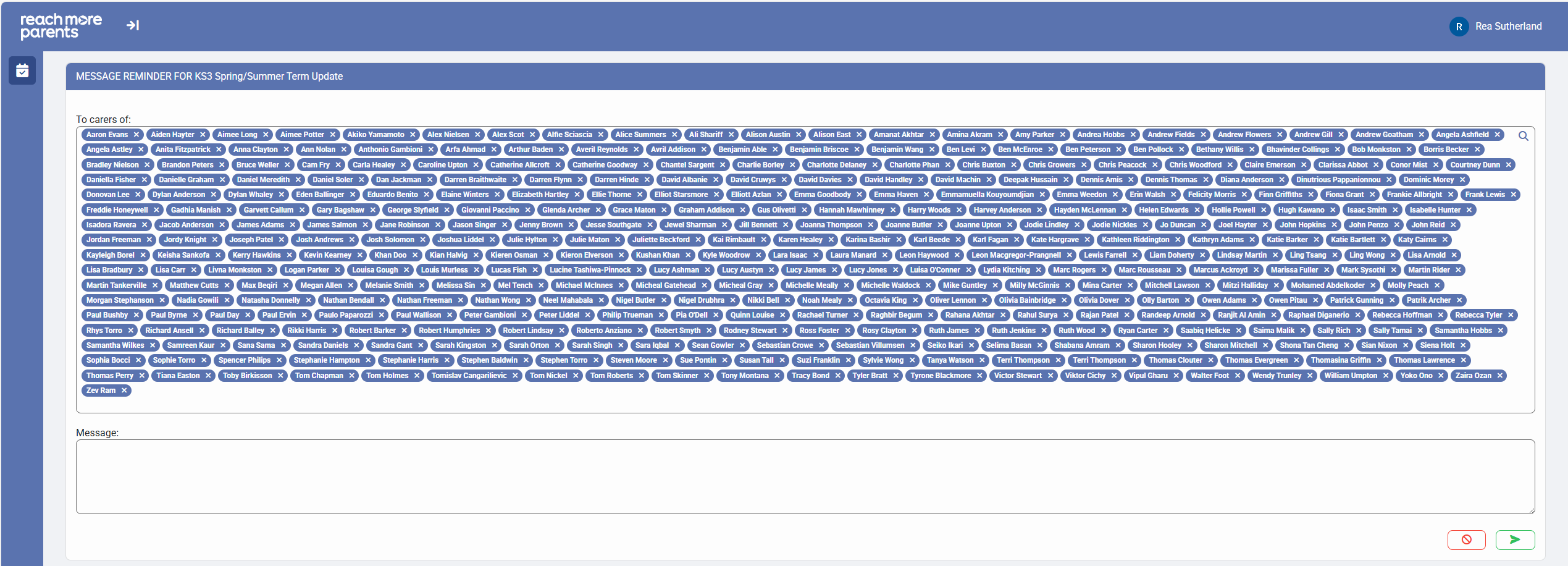
10) A message window will open with all the selected users listed in the "To" field (the parent / carers will be messaged on behalf of these children)
11) Compose your message to the Parent / Carers of the Parent Meetings event
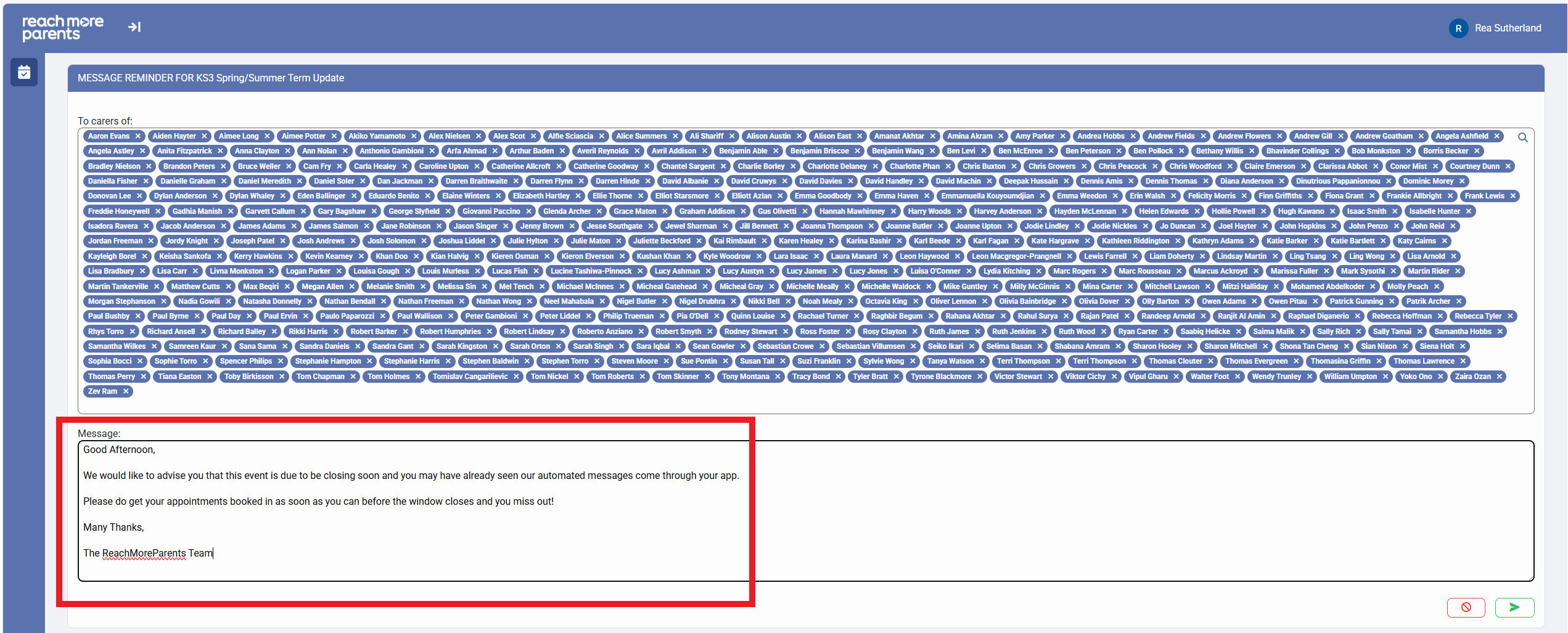
12) Click on "Send" to send out the messages to all recipients