
In this article, we will be going through the steps to add your SENDCO team members into an existing Parent Event.
To start things off, you will need to access PEMS as an Administrator:
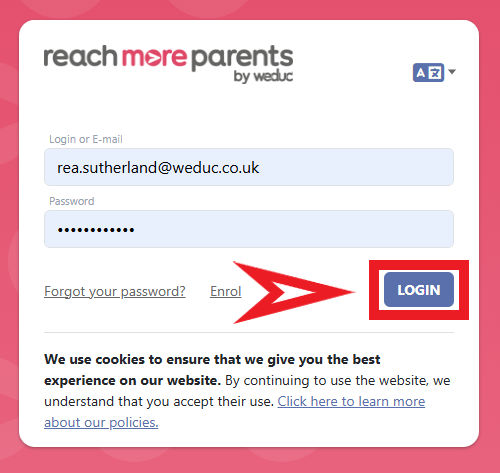
1) Log in to ReachMoreParents.
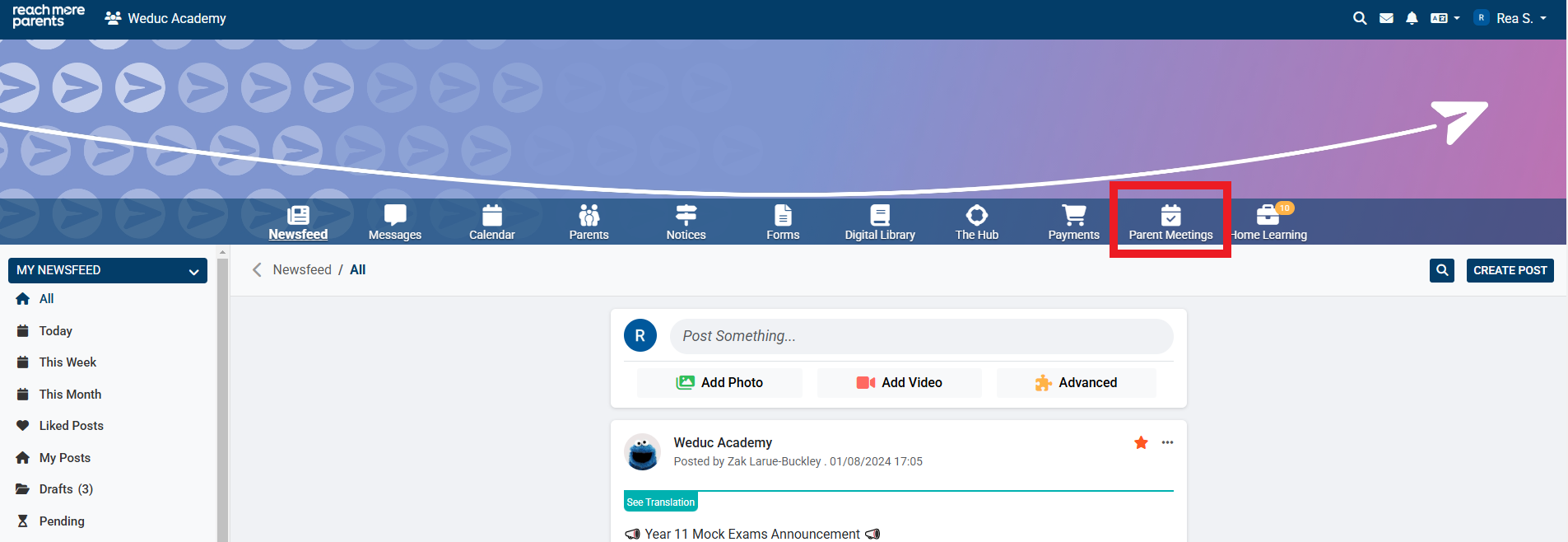
2) Click on the Parent Meetings icon
From this stage you will need to carry out the following steps:
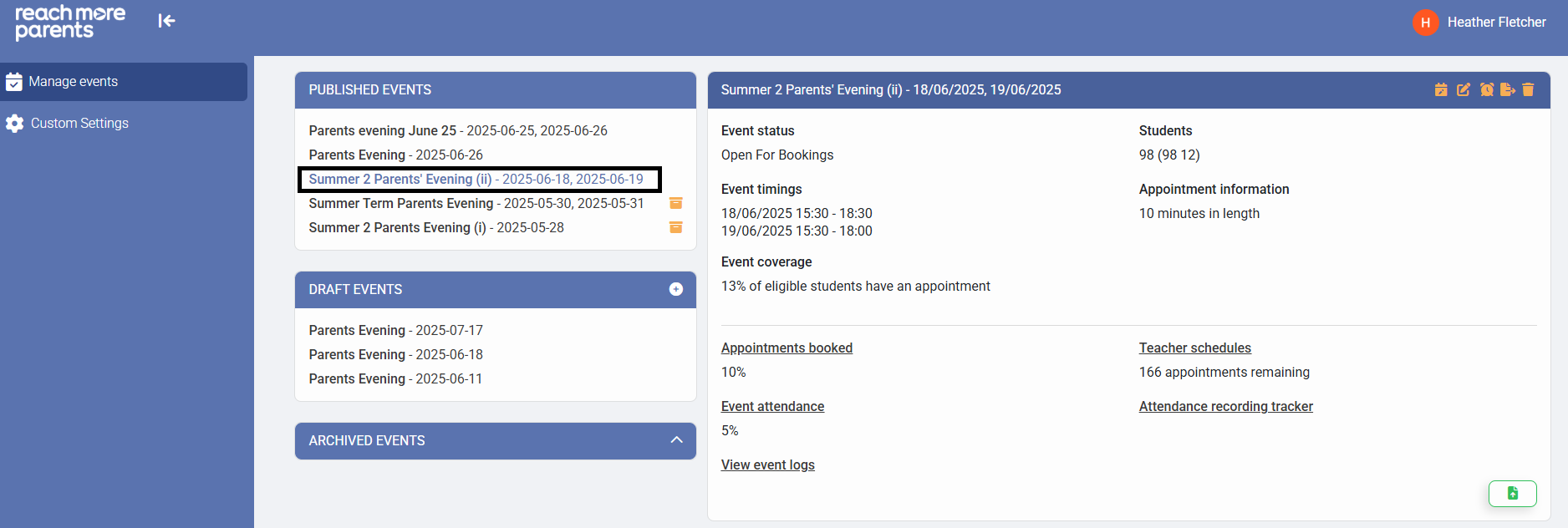
1) Click on the Event which requires your SENDCO team members to attend
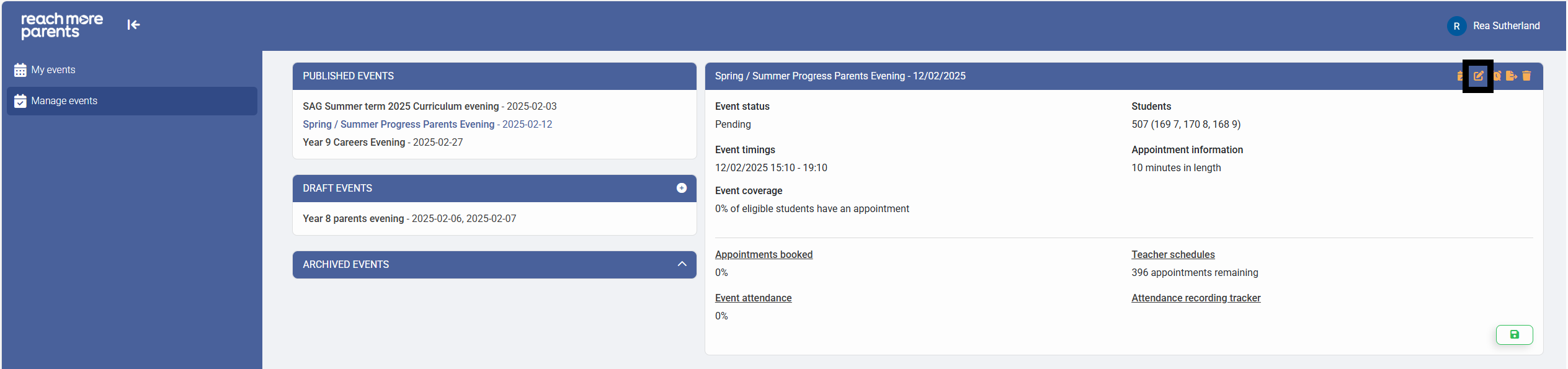
2) Click on "Edit Event"
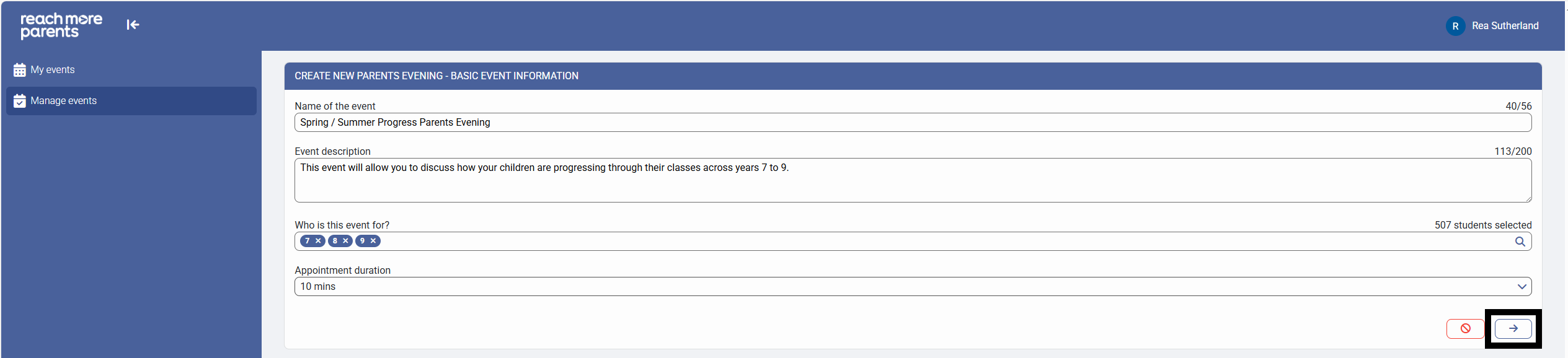
3) Click on "Next" in the "Basic Event Information" screen
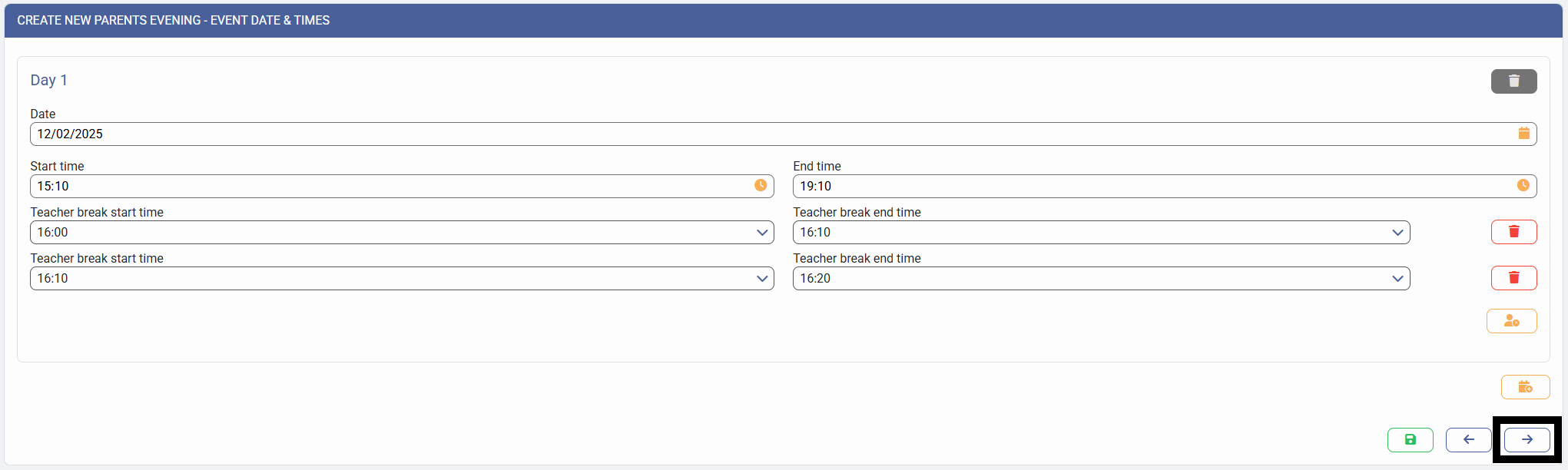
4) Click on "Next" in the "Event Date & Times" screen
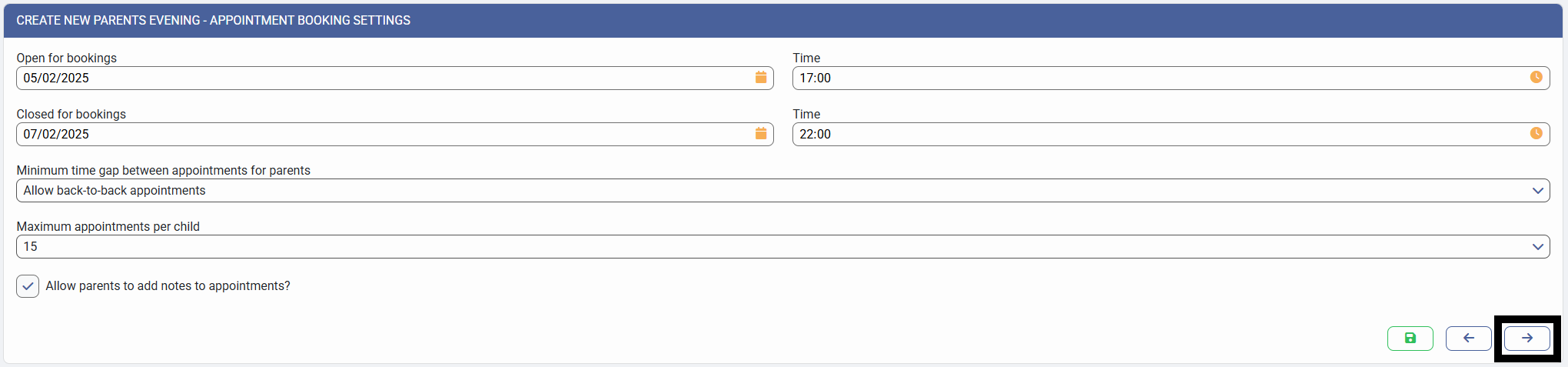
5) Click on "Next" in the "Appointment Settings" screen
6) Expand the "E- Education, health and care plan" section by clicking on the downwards arrow
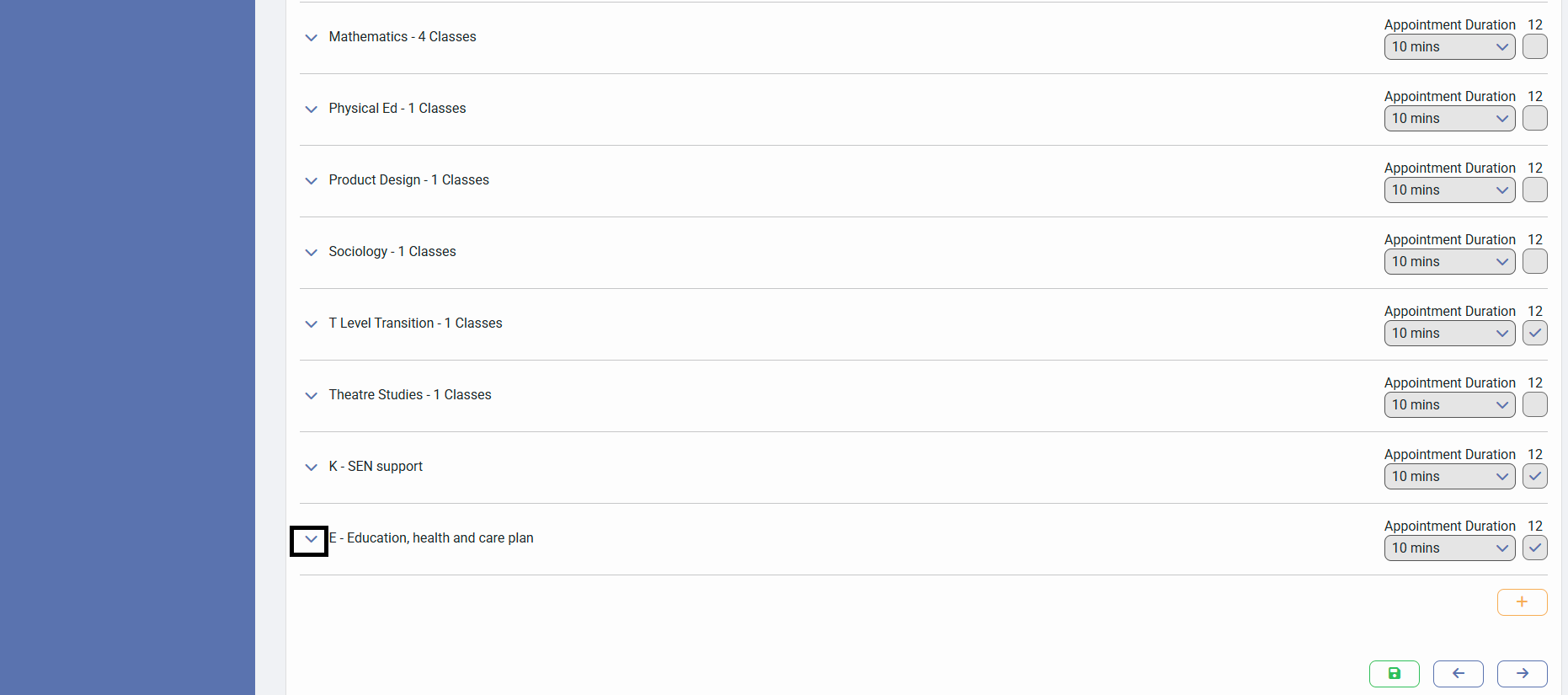
7) Click on the "+" icon against the "E - Education, health and care plan" custom group to open the list of Staff Members
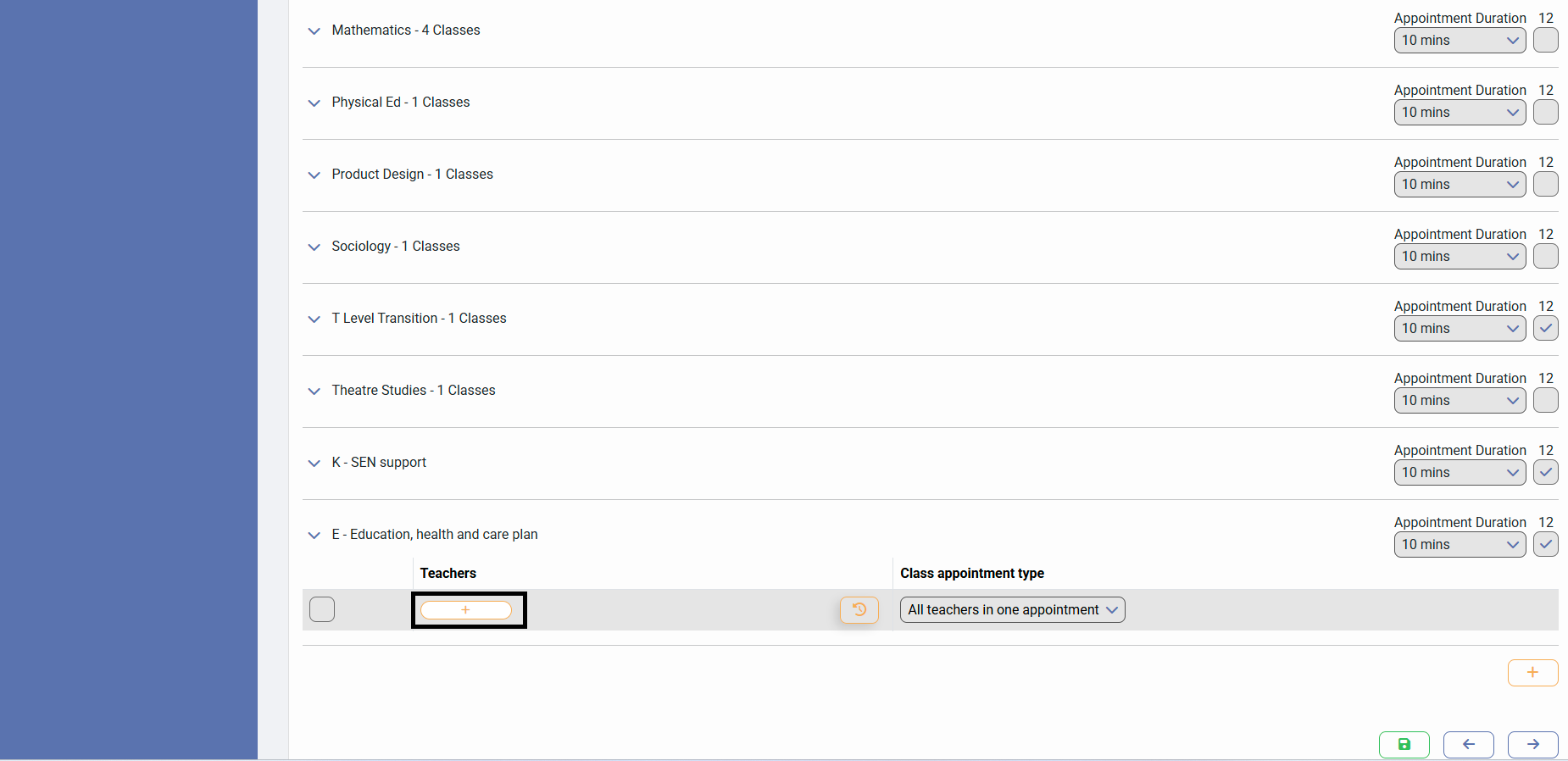
8) Type the staff member's name in the text field
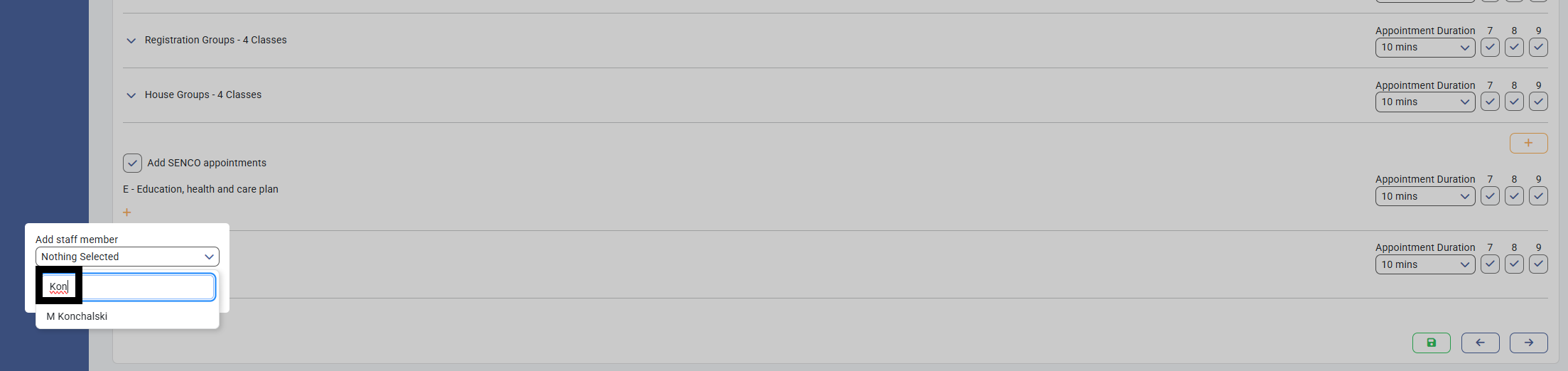
9) Click on the appropriate staff member from the list of results to attend the "E - Education, health and care plan" custom group appointments

10) Click on "Save"
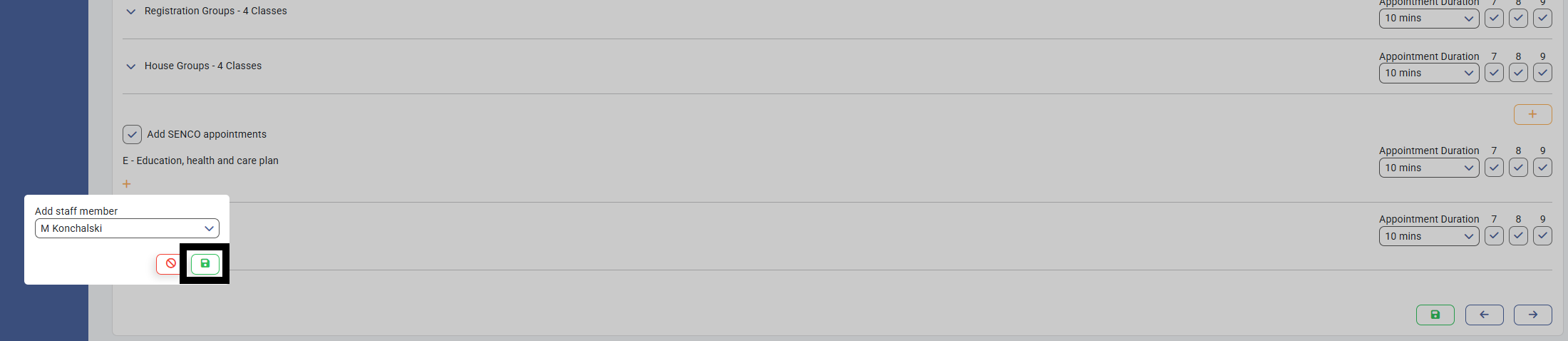
11) Repeat Steps 6 through to 10 until all the staff members who need to attend the "E - Education, health and care plan" appointments have been added to that custom group
12) Expand the "K - SEN support" section by clicking on the downwards arrow
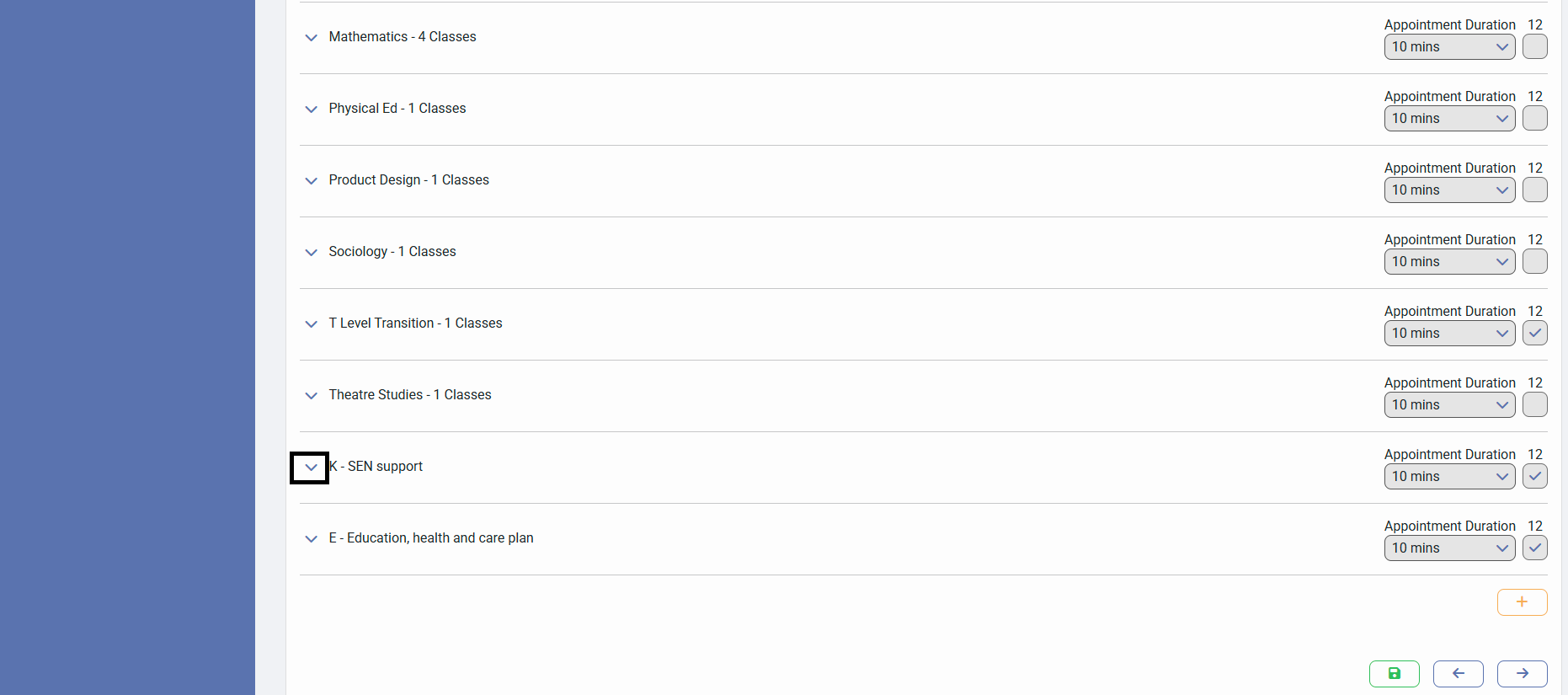
13) Click on the "+" icon against the "K - SEN support" custom group to open the list of staff members
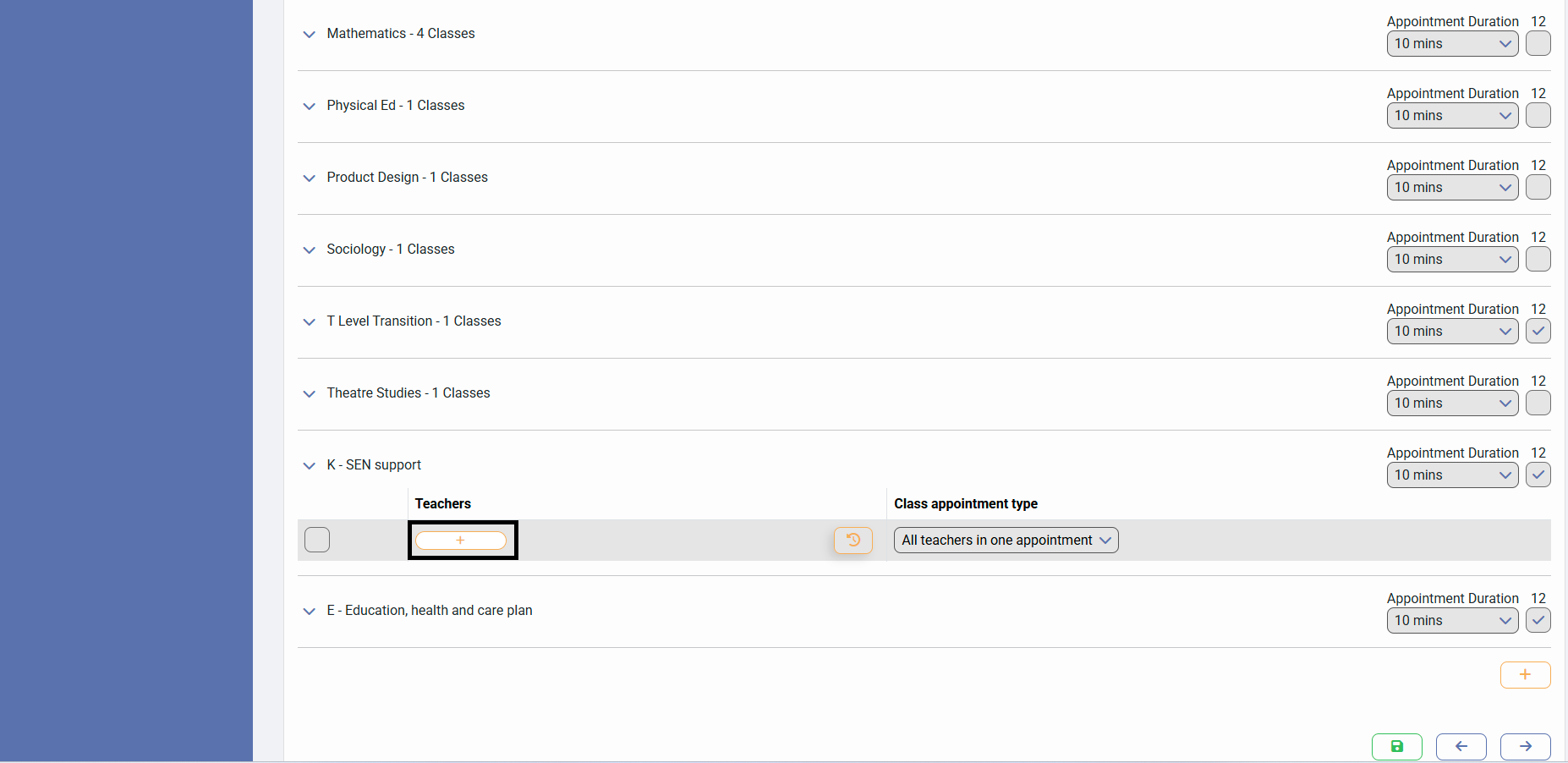
14) Type the staff member's name in the text field
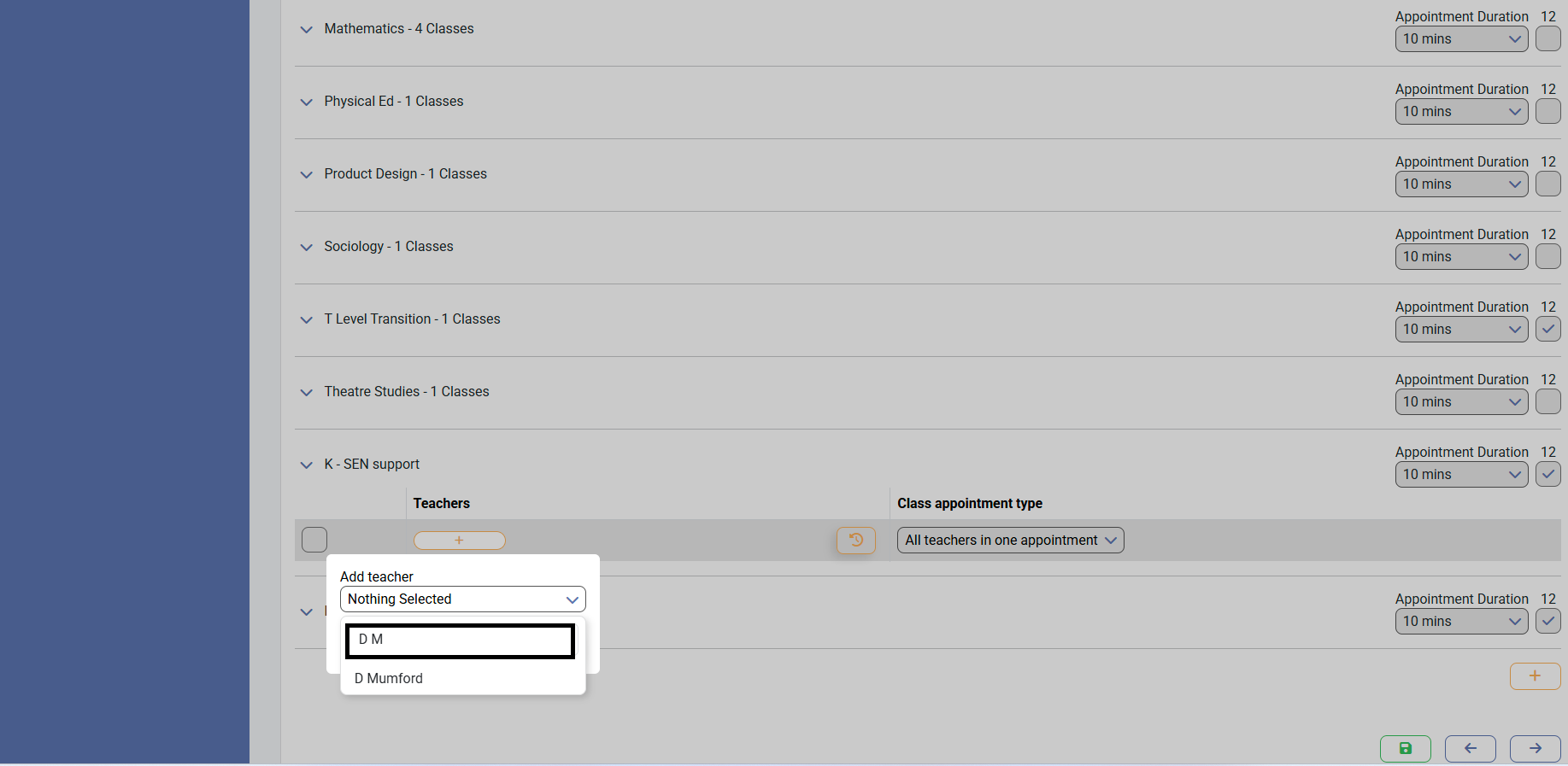
15) Click on the appropriate Staff Member to attend the "K - SEN support" custom group appointments
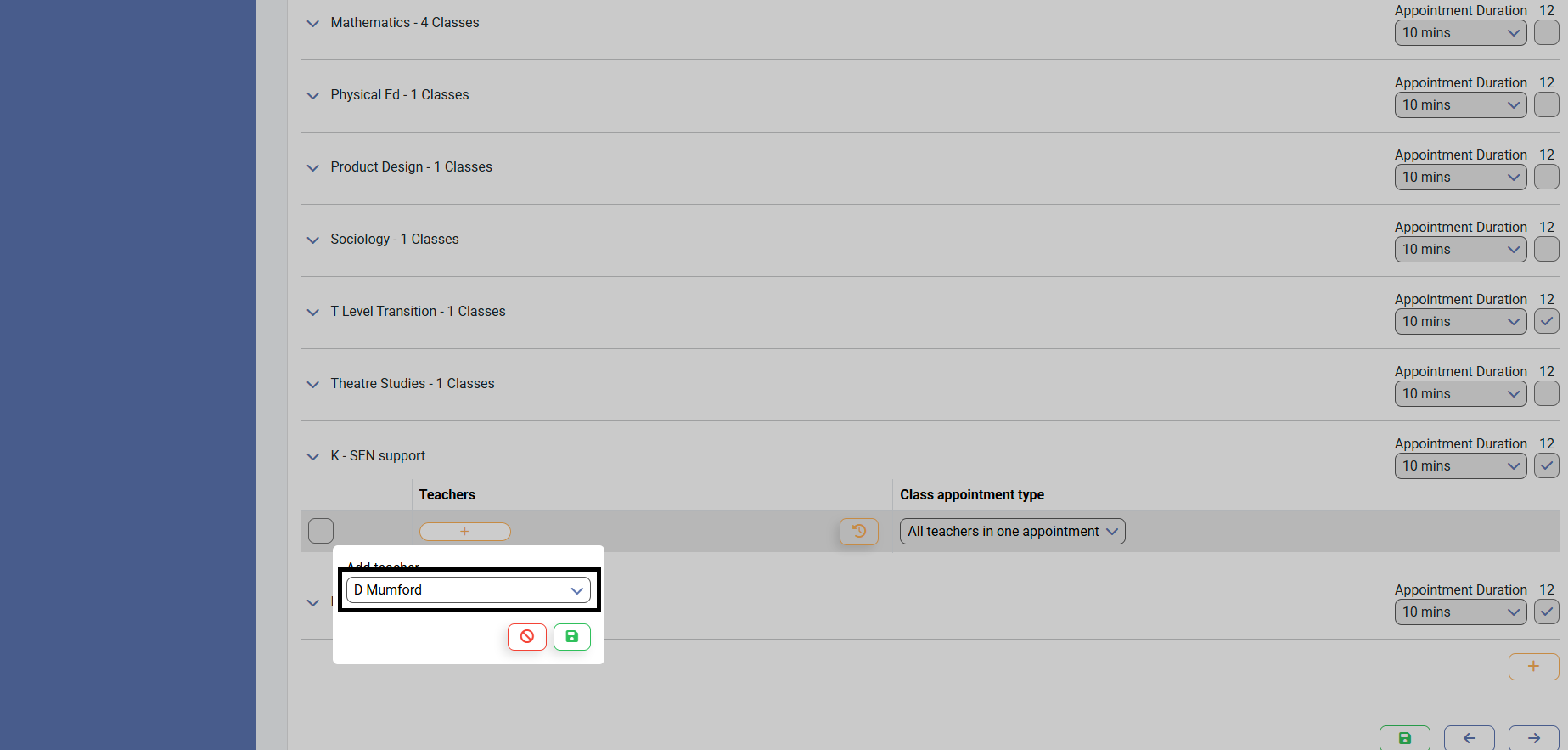
16) Click on "Save" to accept all your changes
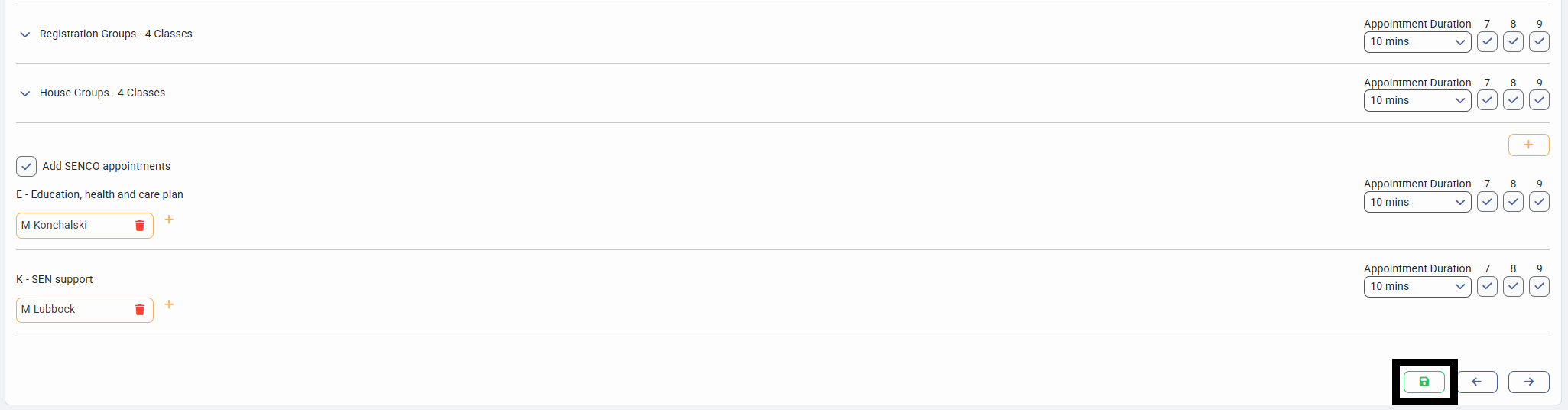
17) Repeat Steps 13 through to 16 until all the staff members who need to attend the "K - SEN support" appointments have been added to that custom group