
In this article, we will cover the two methods of logging attendance as a teacher within the ReachMoreParents Parent Event Management System. There are two places you can achieve this but the best place on the event date is within the App.
Parent Meetings - Mark Attendance (APP)
In order to log attendance in the App, you need to log in as a Teacher as per the below:
1) Open the ReachMoreParents App from your device home screen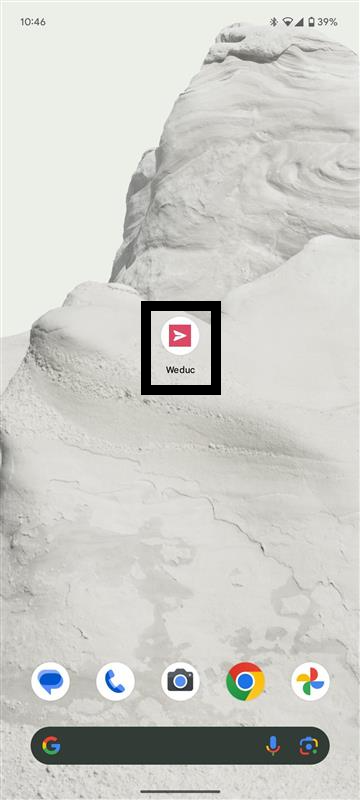
2) Enter your Username and Password for your Teacher login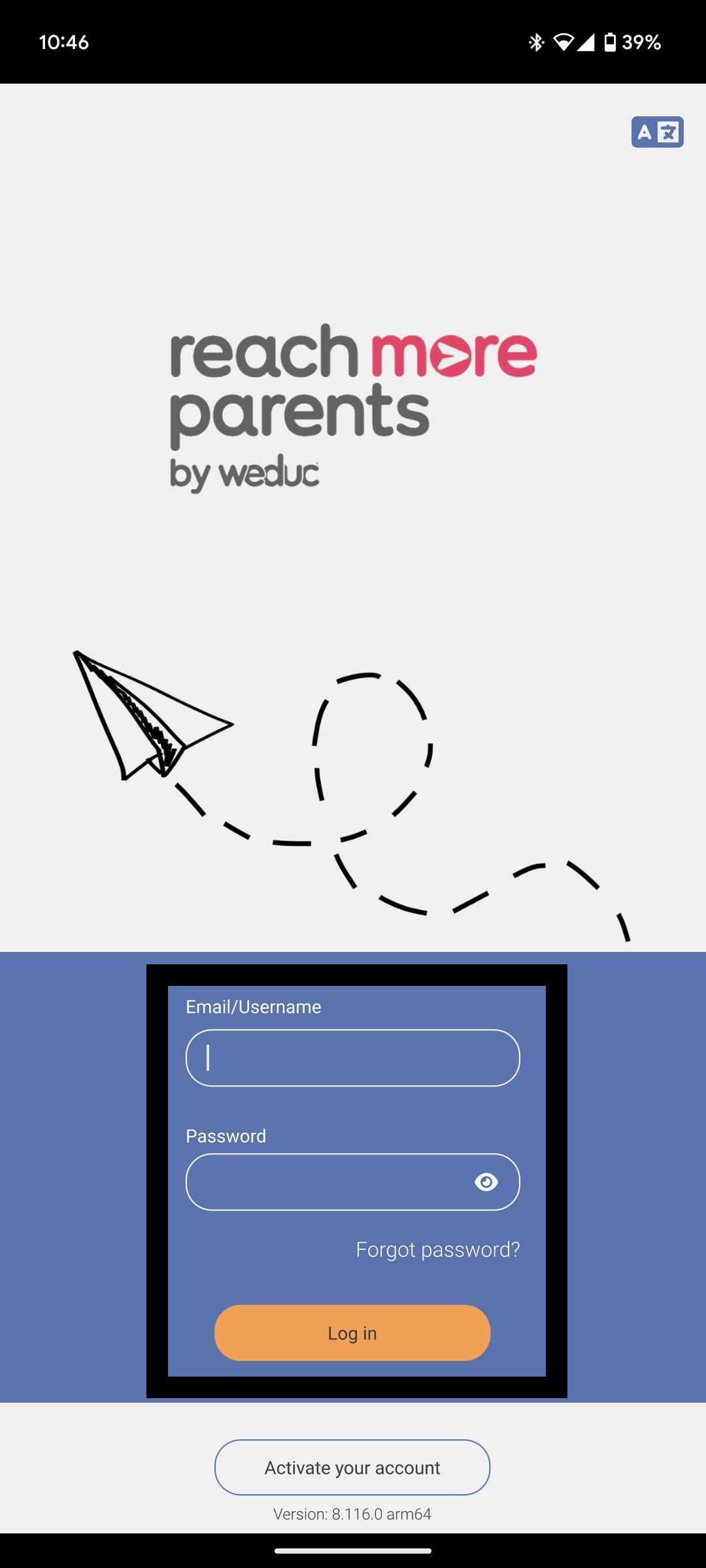
3) On the Dashboard, tap on the "Parent Meetings - Mark Attendance" tile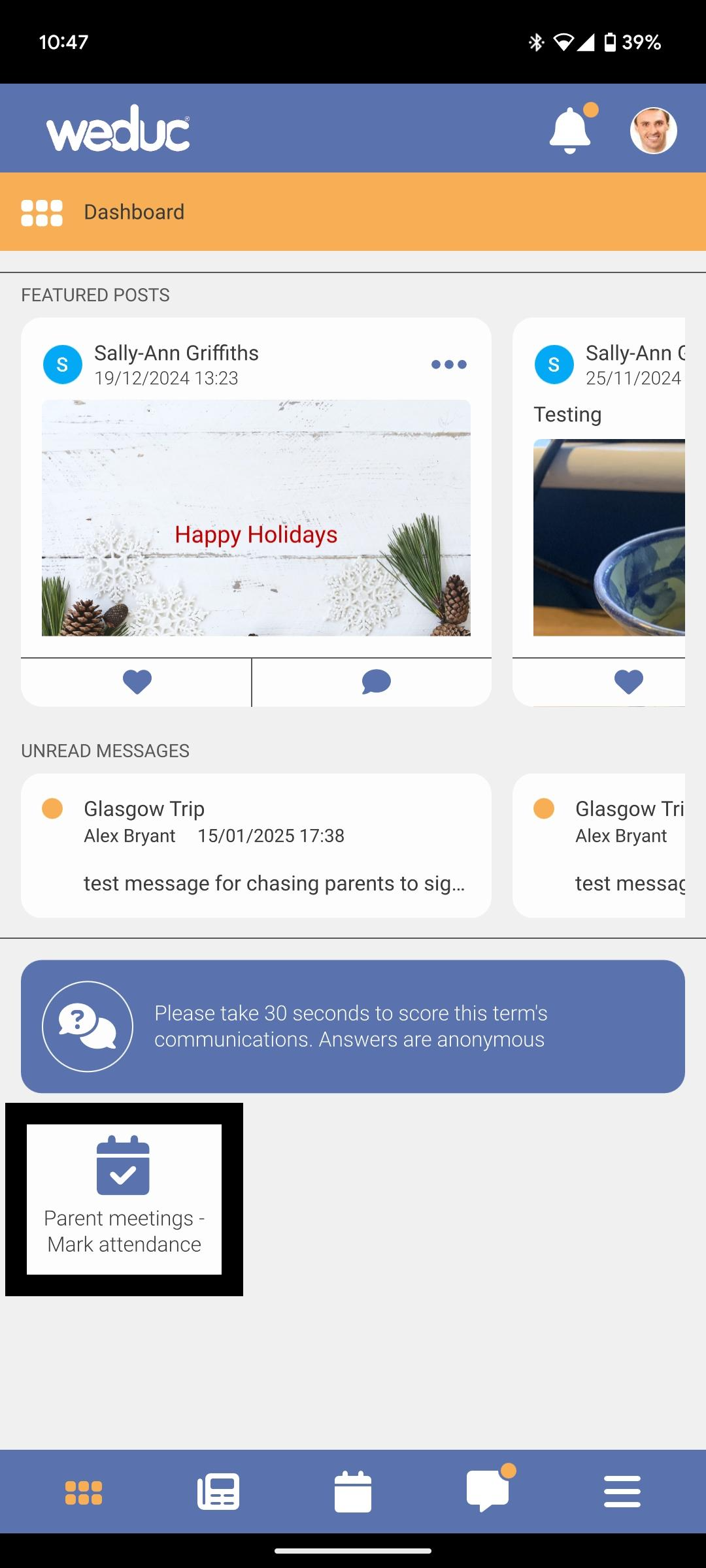
4) Your Event(s) are displayed with the "View Schedule" button available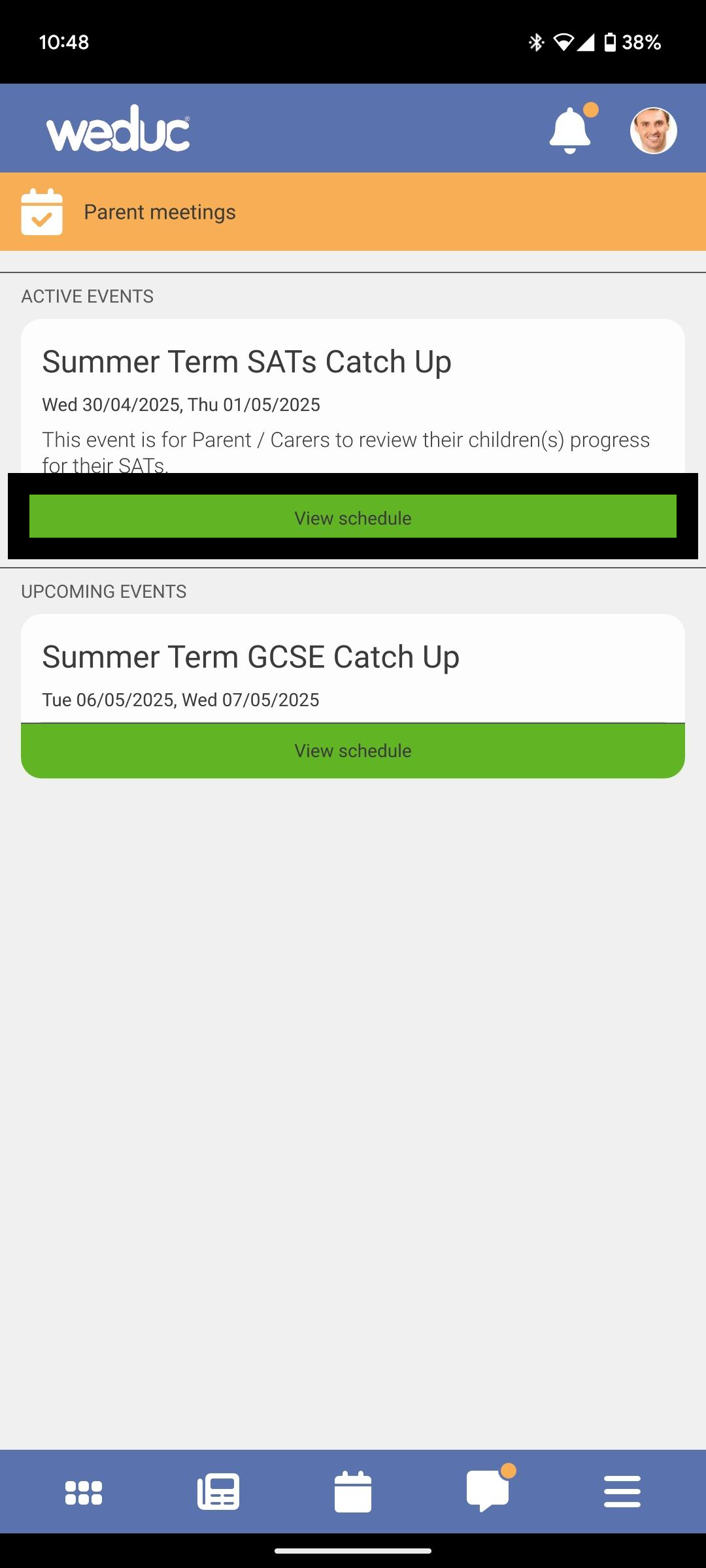
5) Tap on "View Schedule" and the full list of appointments are displayed for your class(es)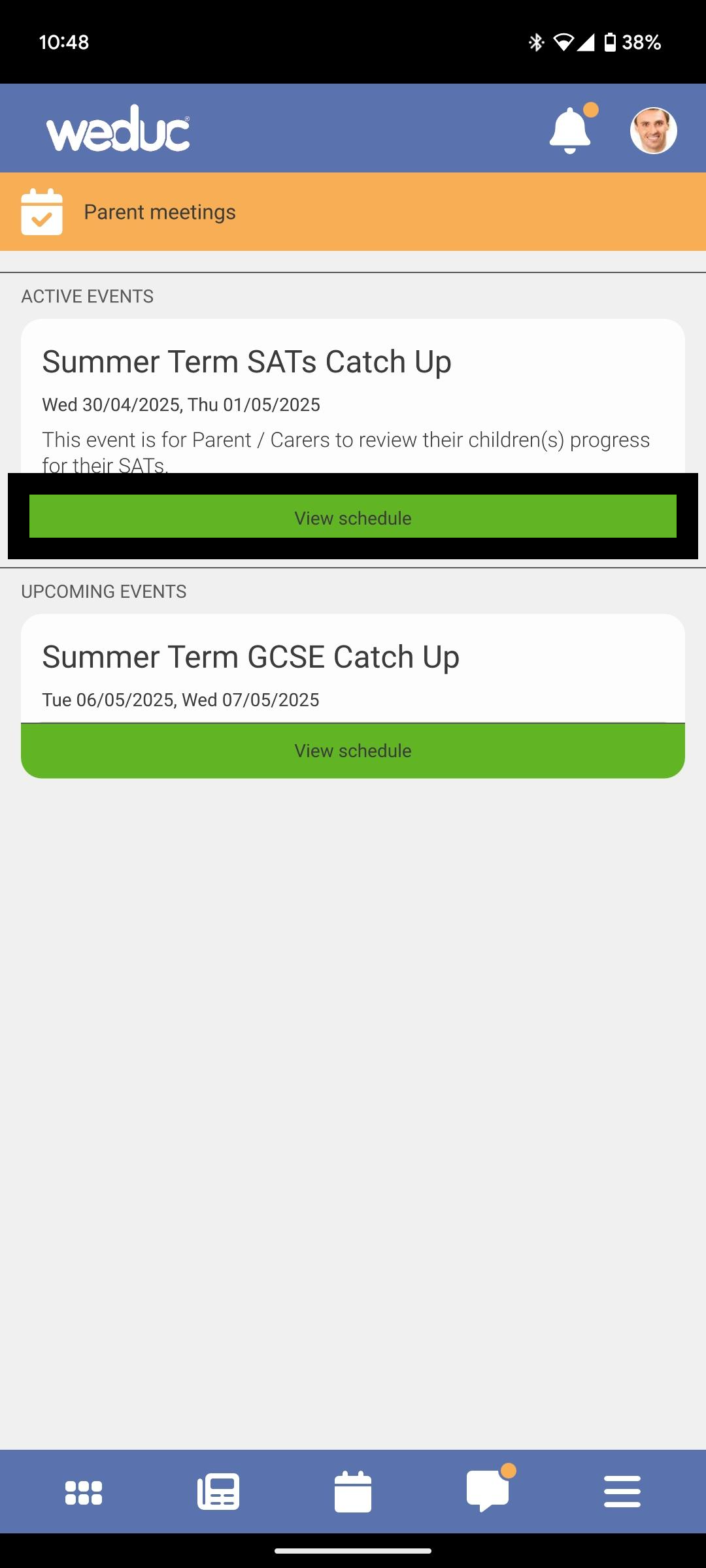
6) Tap on the appointment that you need to log attendance for (any notes from either Parent/Carer(s) or Teachers will be displayed with a little paper sheet icon)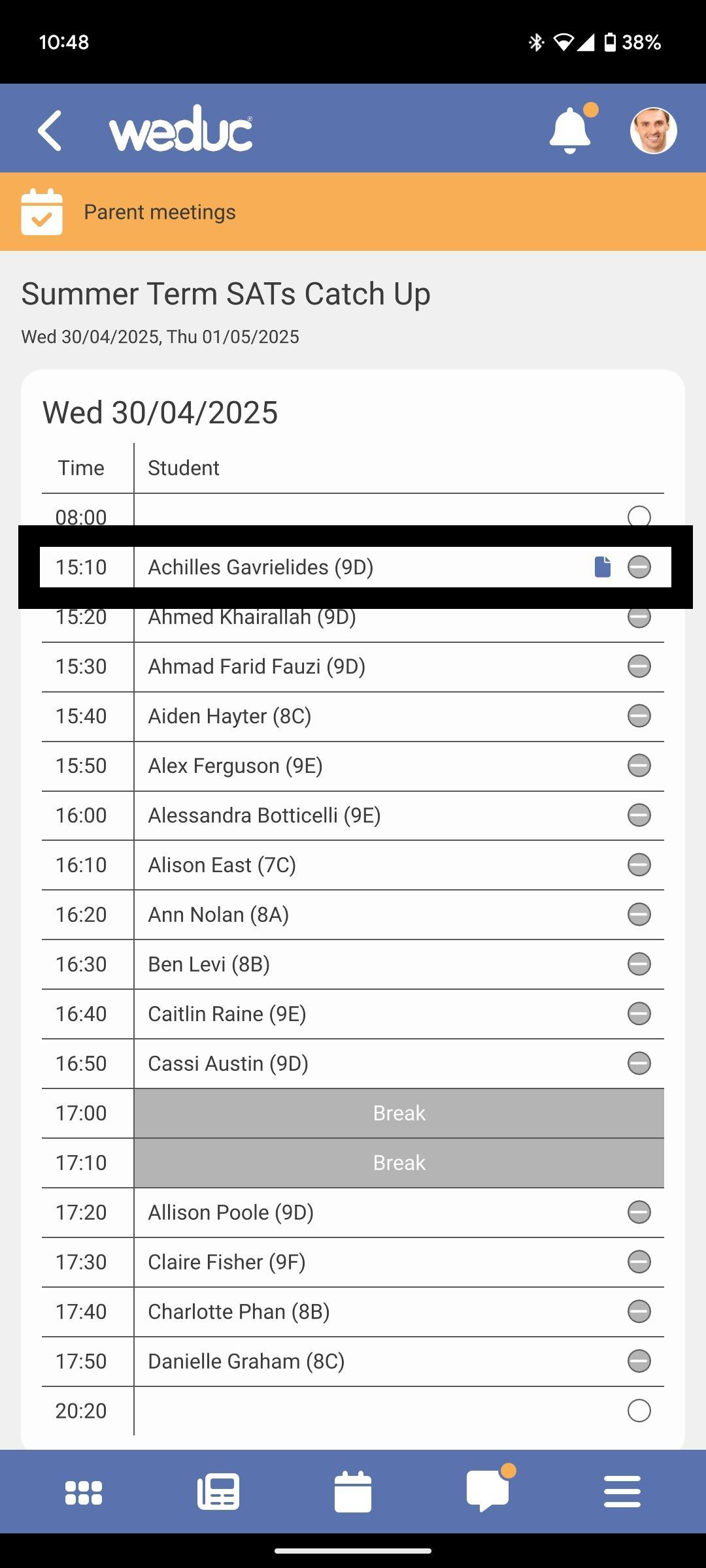
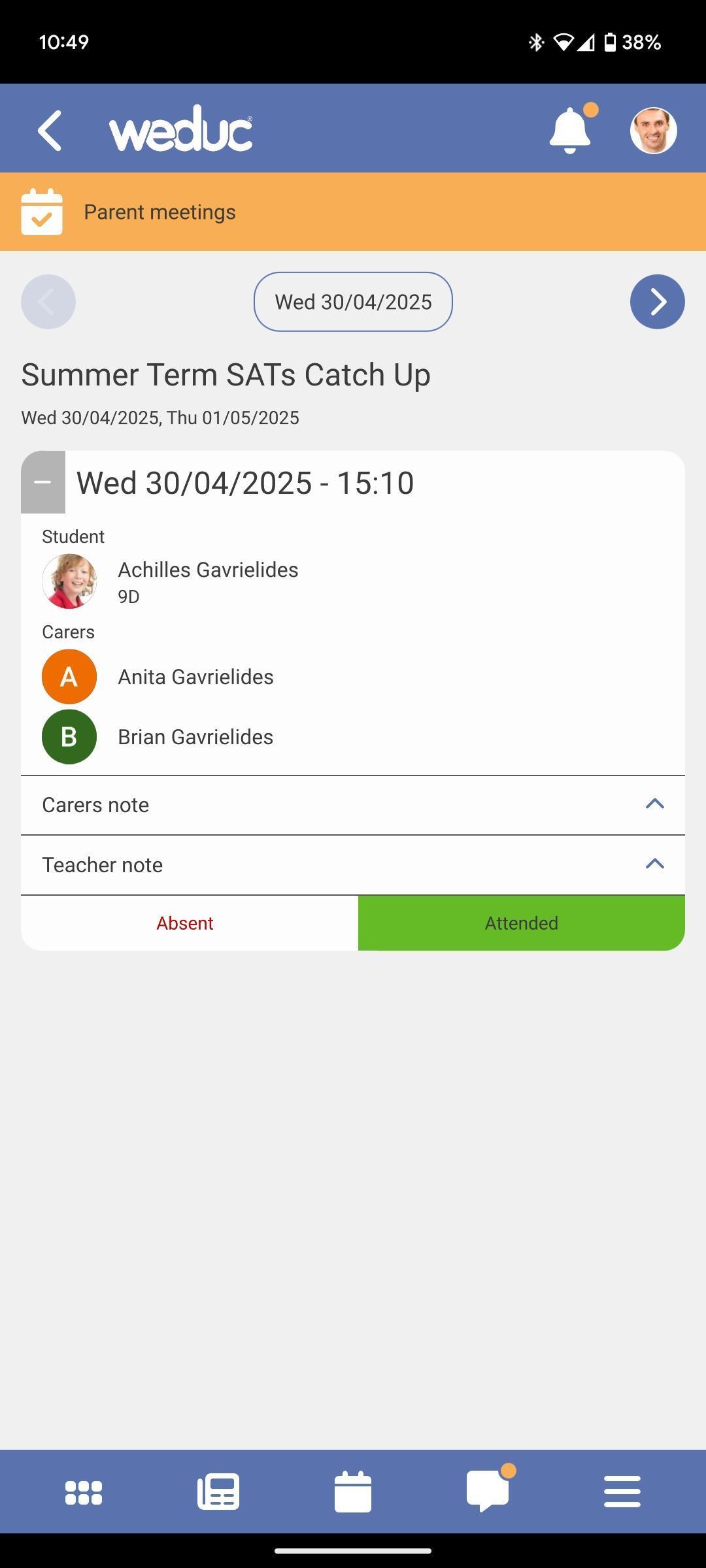
7) You will see the Event Name, it's date(s) as well as the appointment Date and Time you've selected with the details of the child and their Parent/Carers
8) Any Carers notes can be viewed by tapping on the folded heading "Carers note"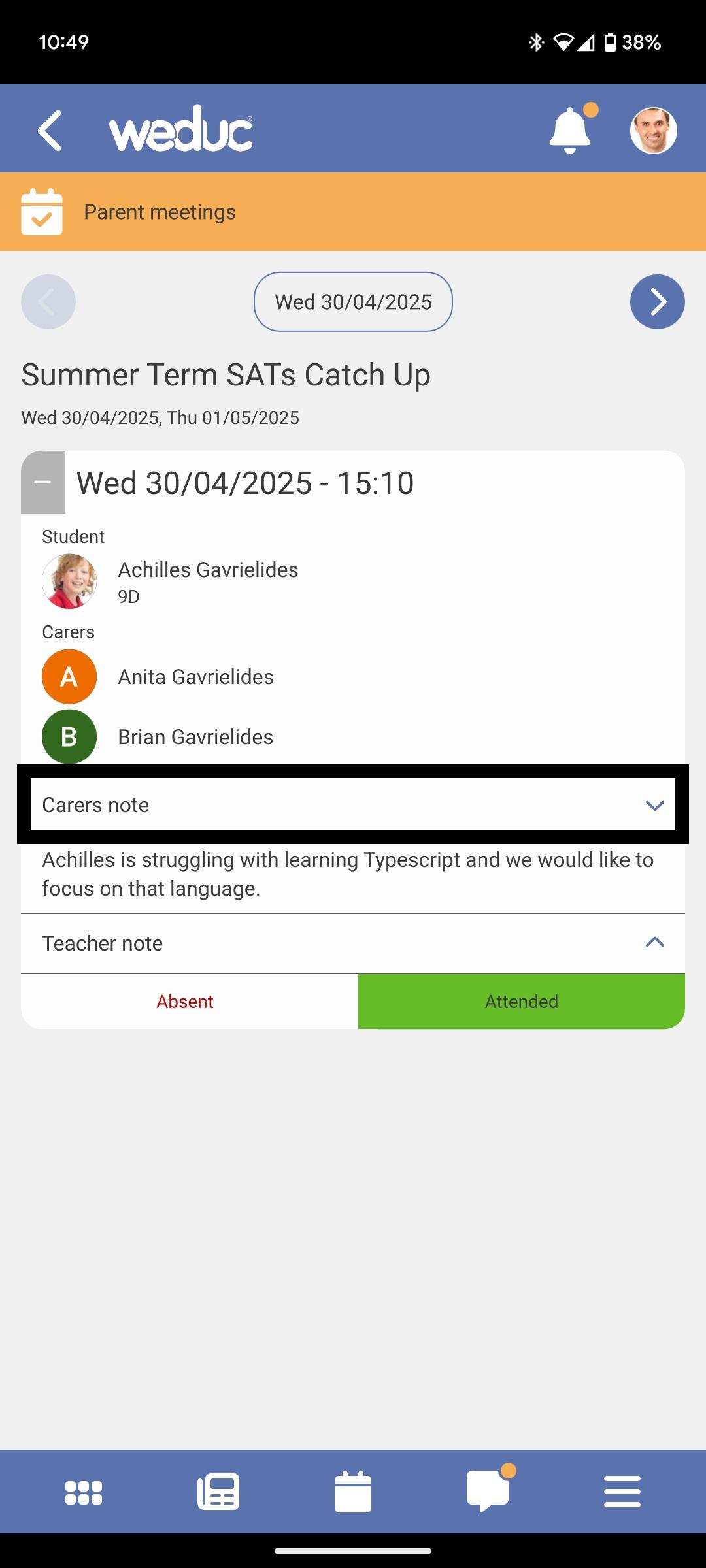
9) Any Teacher Notes can be viewed by tapping on the folded heading "Teachers note"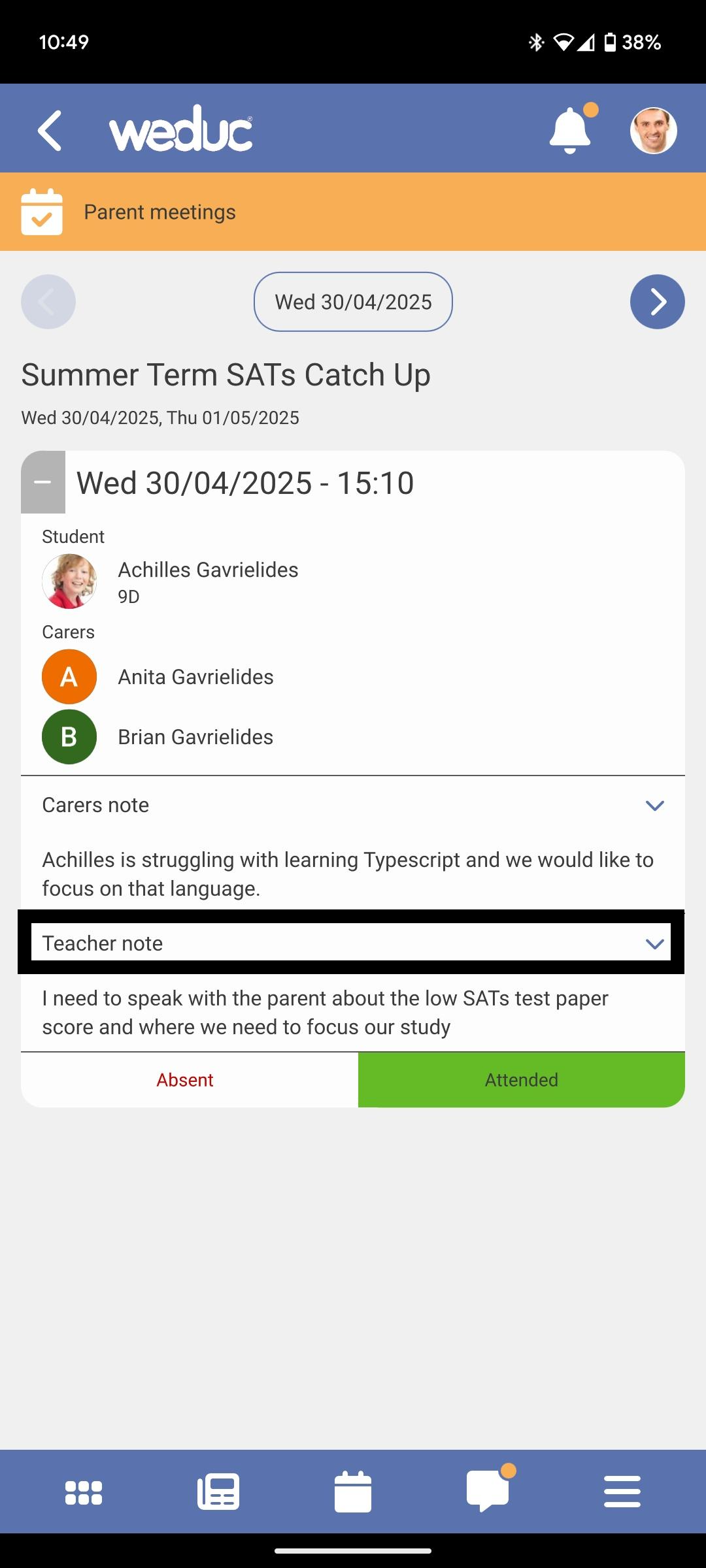
10) If the Parent/Carer(s) were Present, tap on the "Attended" button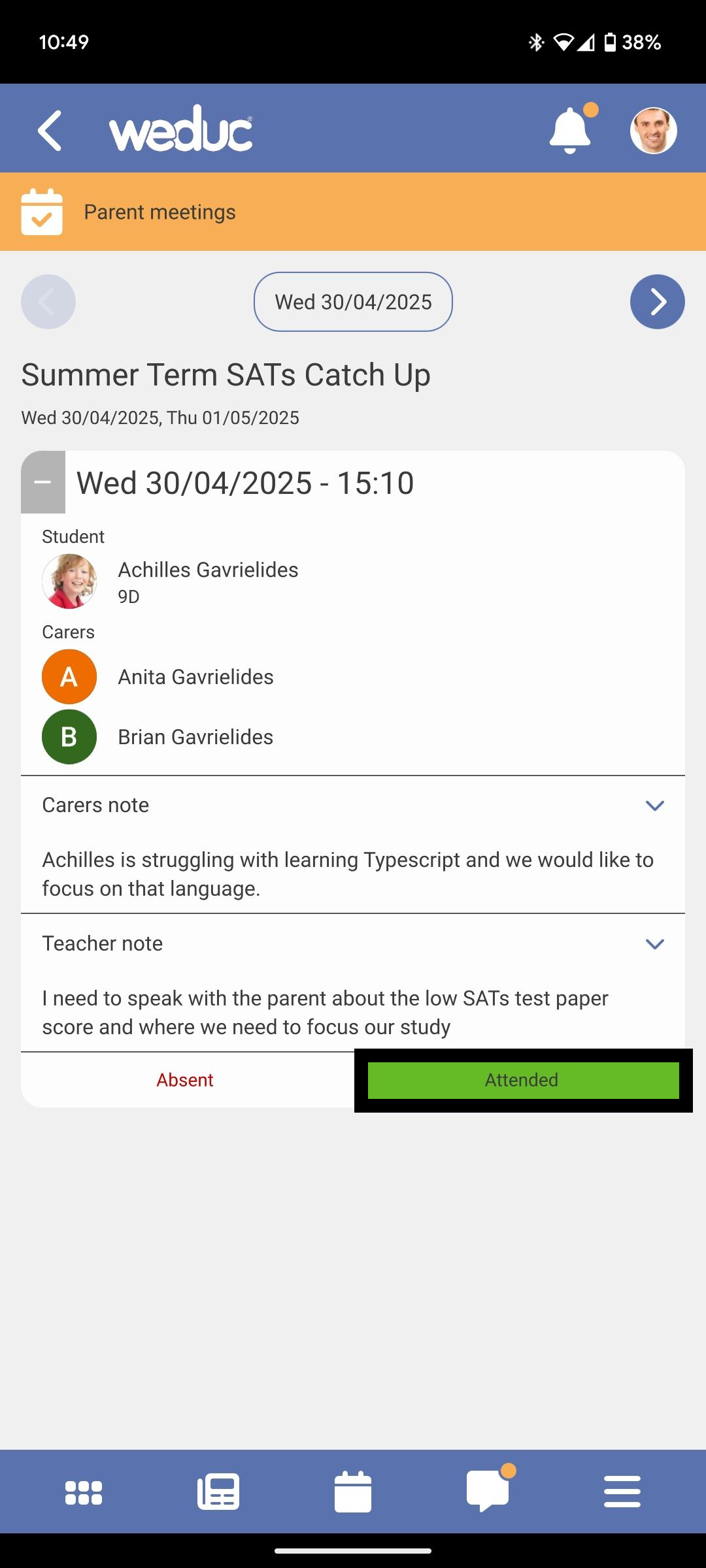
11) If the Parent/Carer(s) were Absent, tap on the "Absent" button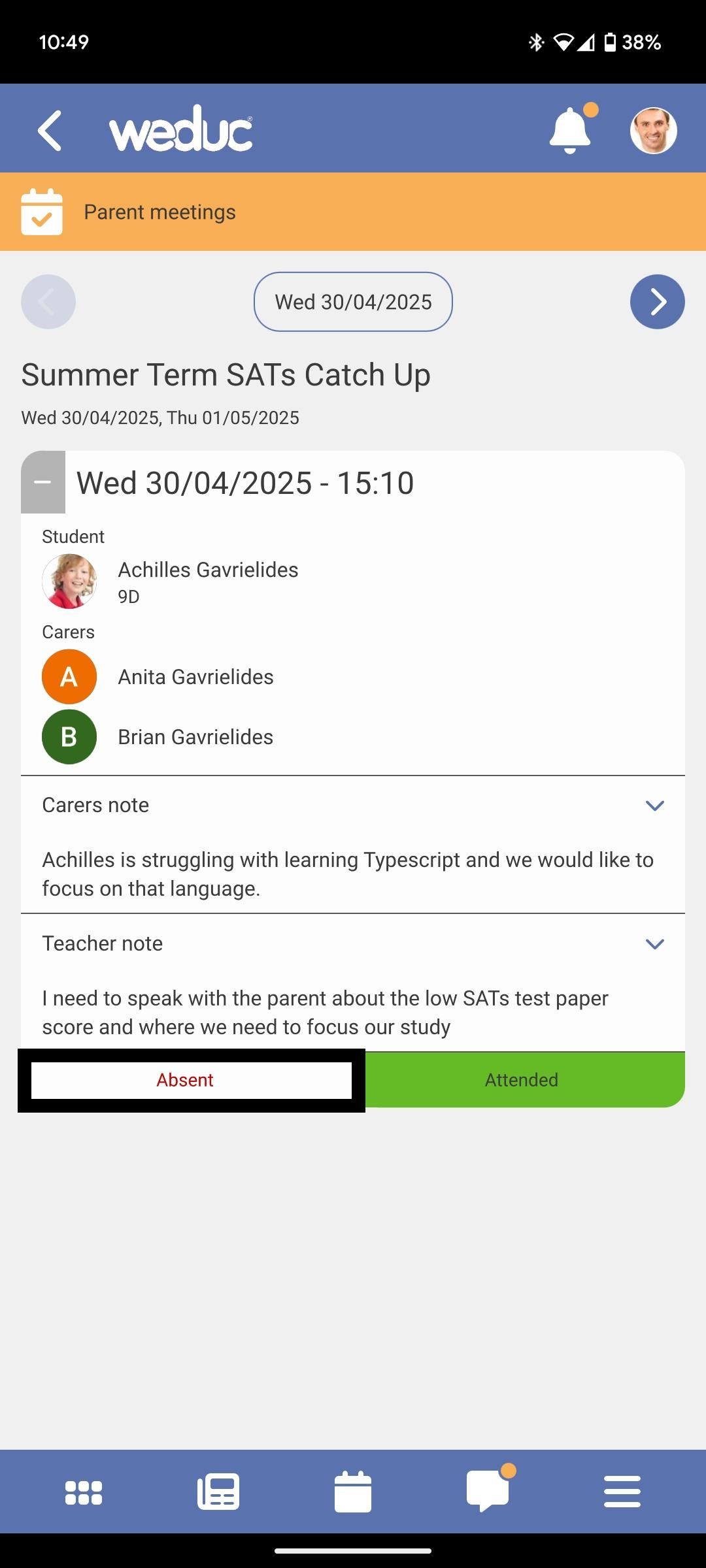
12) The mark you've added will be displayed in the top left hand side of the child's appointment tile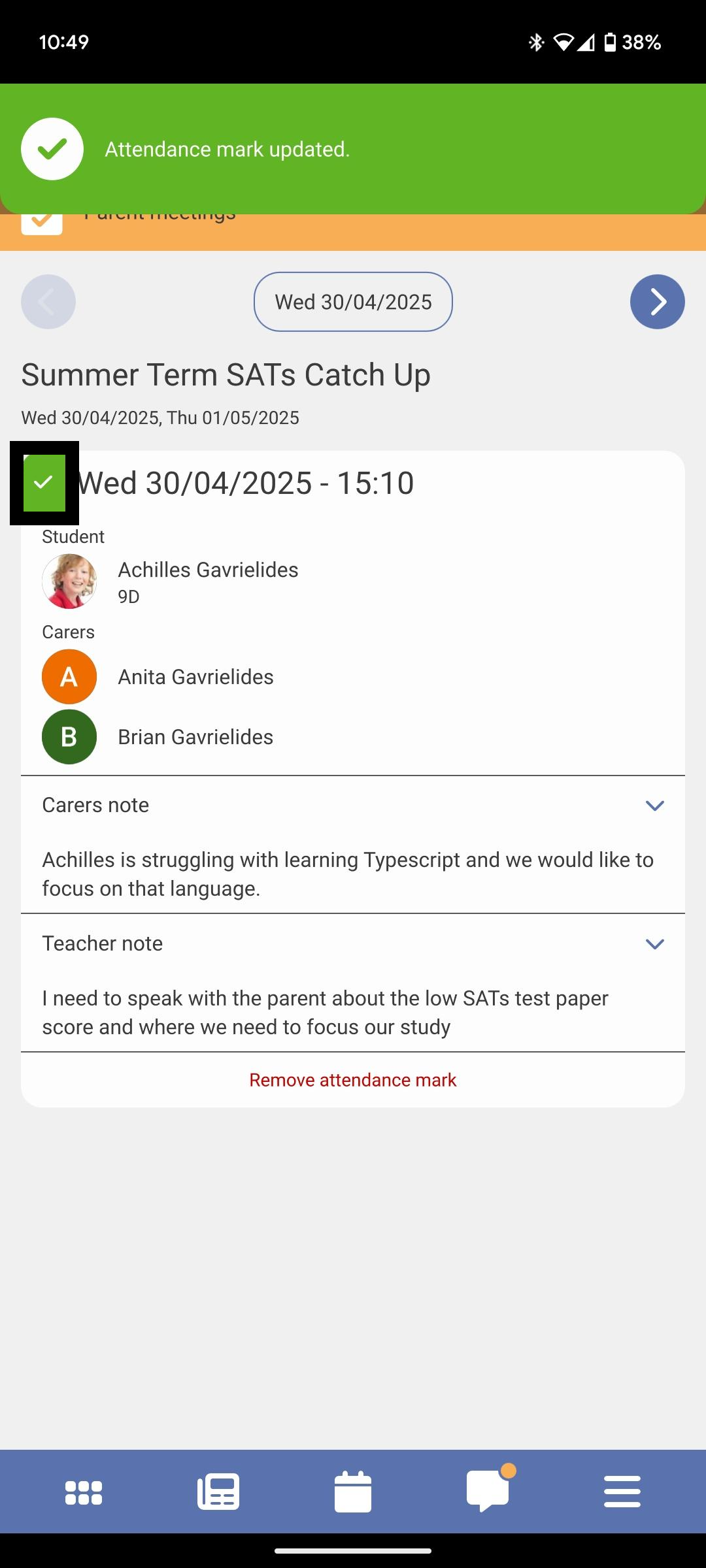
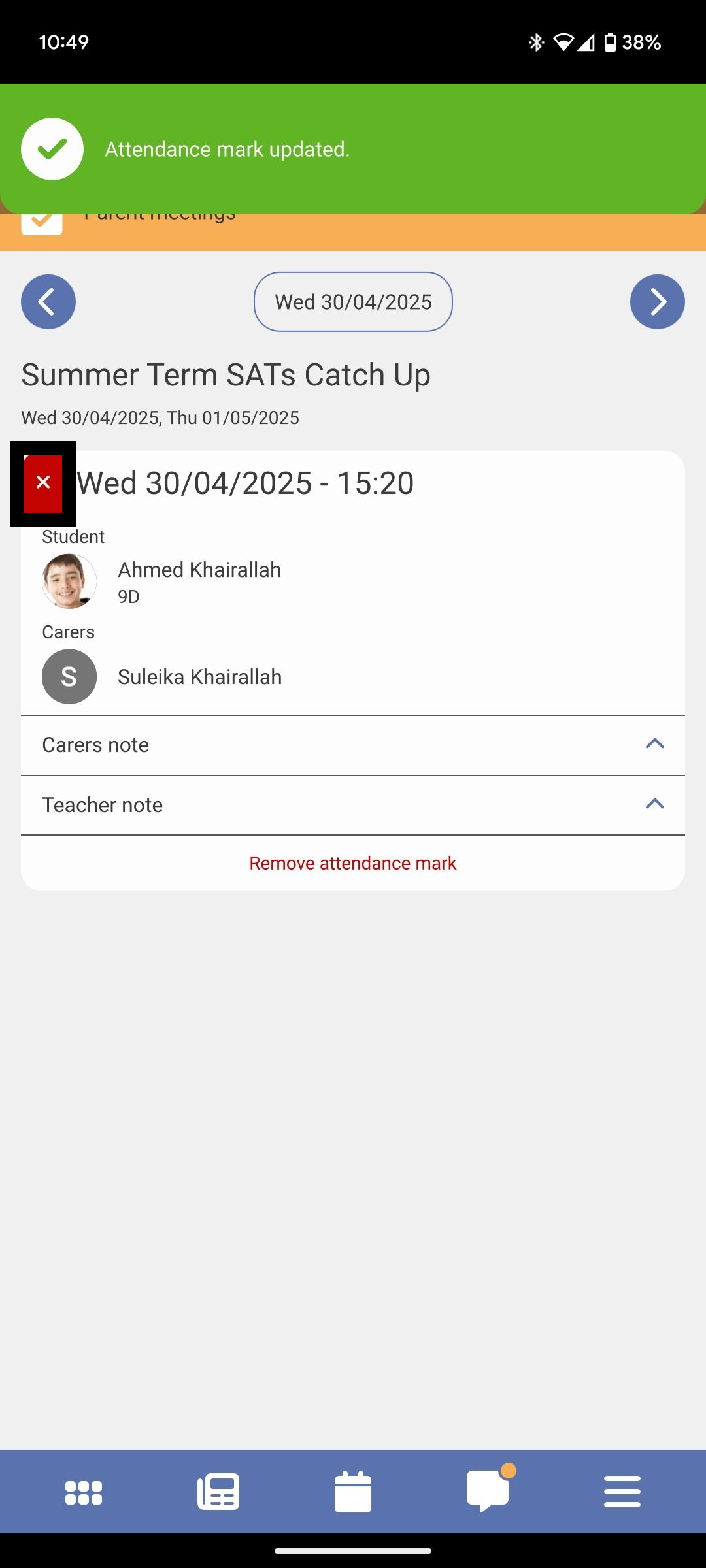
13) Tap on the right arrow to go to the next booked appointment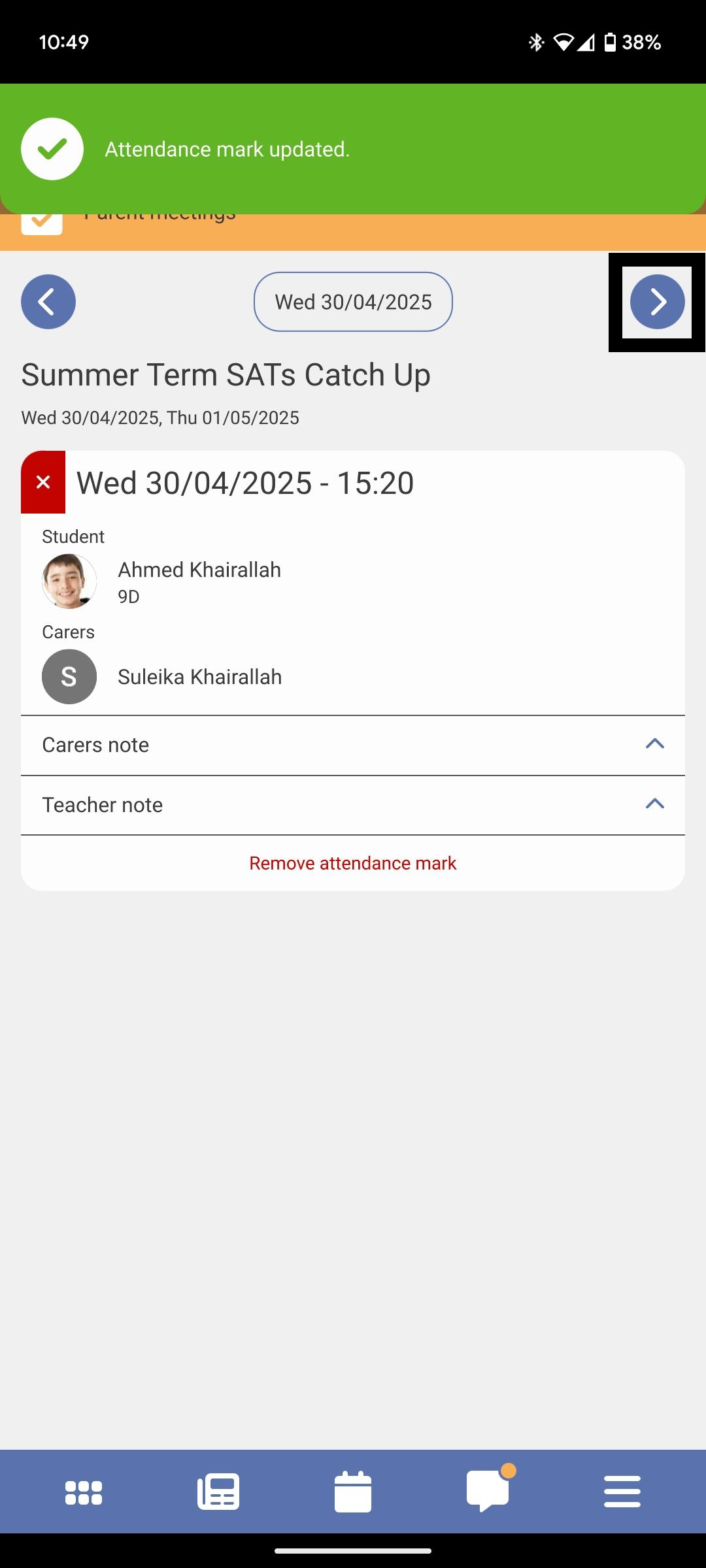
14) If there are multiple event dates, you can go "back" to view all the event date(s) as a full schedule or you can tap on the Event Date pill button to select the next event date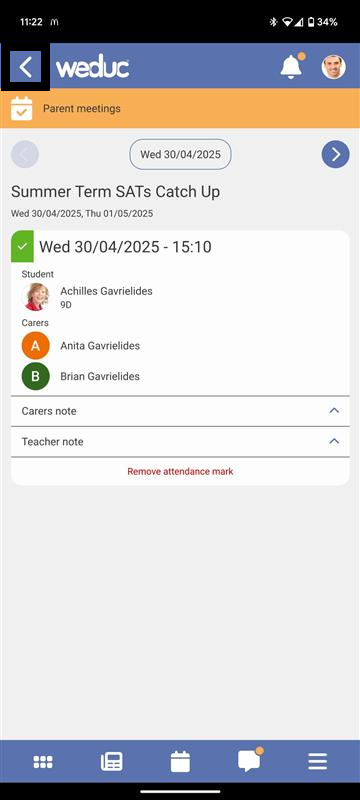
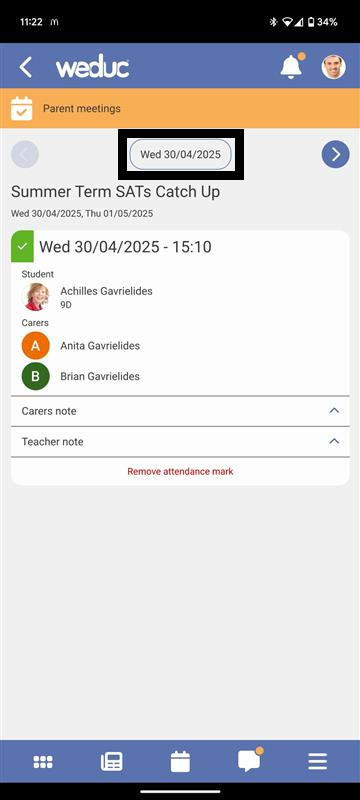
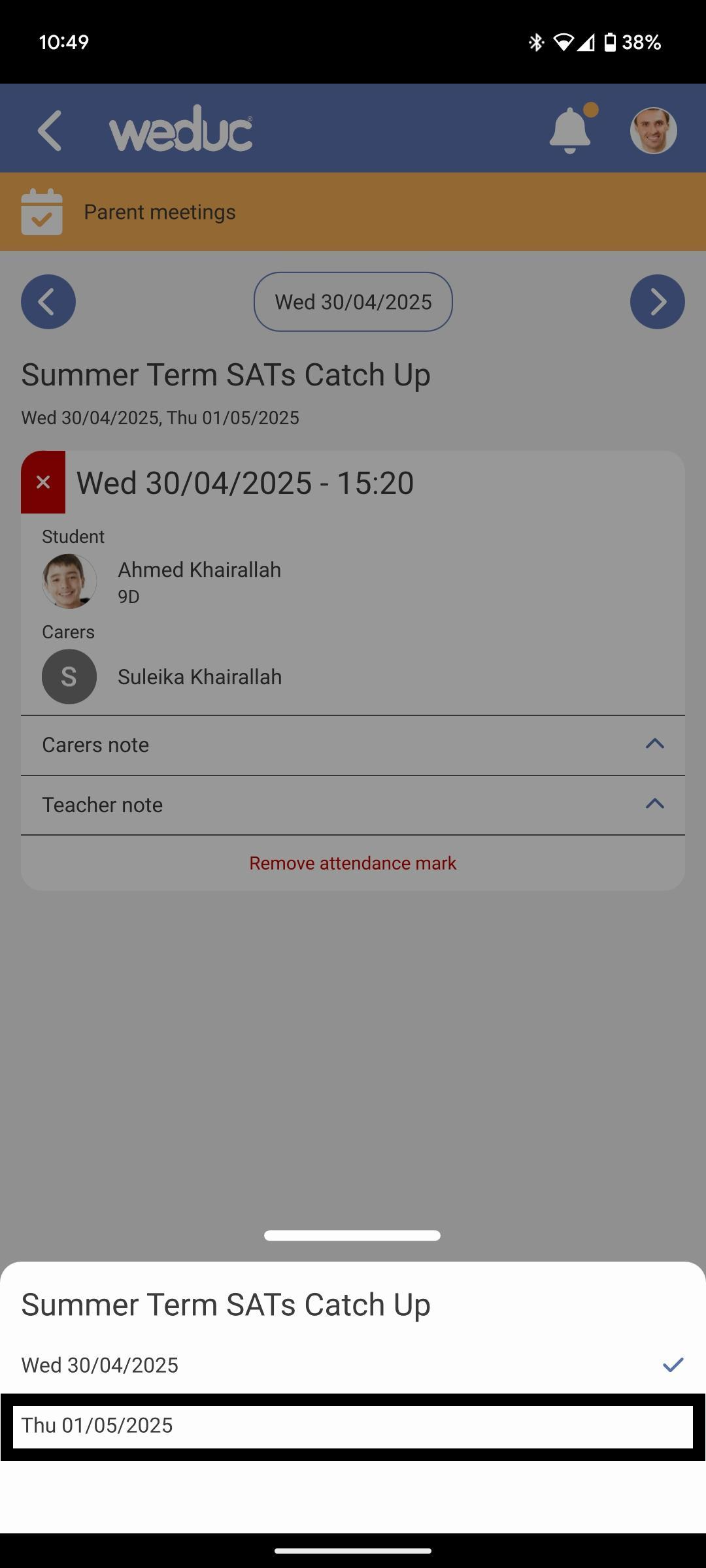
15) When you're done, just exit the App as normal, these changes are saved as you go
Parent Meetings - Portal
In order to log attendance in the Portal, you need to log in as a Teacher as per the below:
1) In your browser, navigate to https://app.weduc.co.uk
2) Enter your Username and Password as a Teacher
3) Click "Login"
4) Click on the "Parent Meetings" tile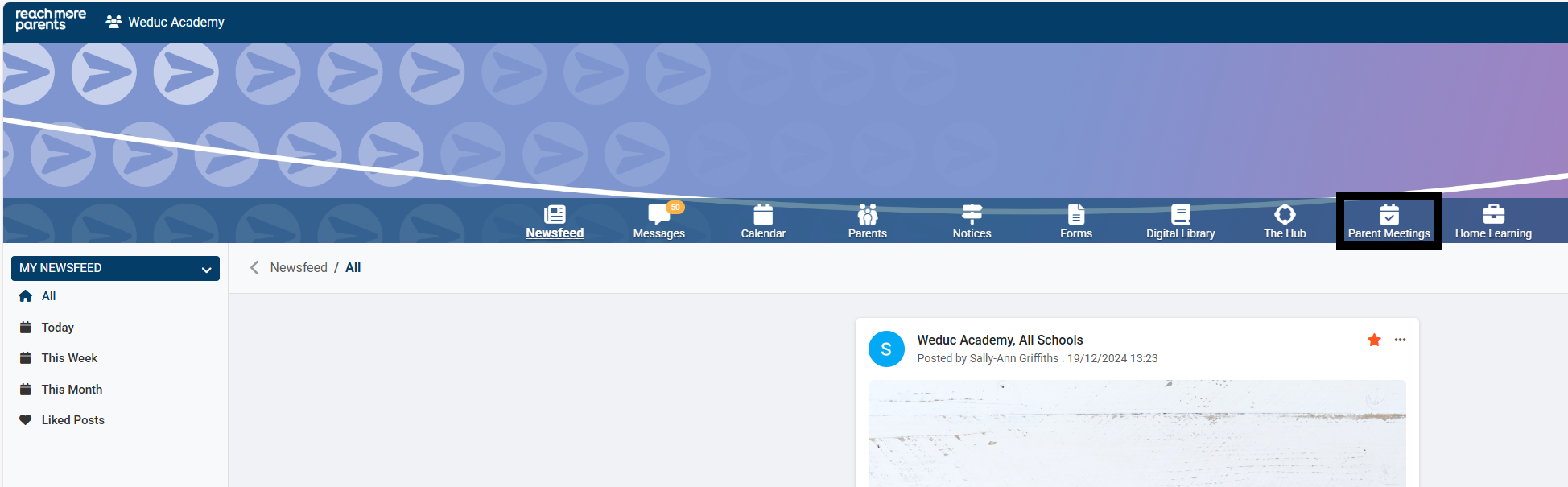
5) Click on the Event Tile where you need to log your attendance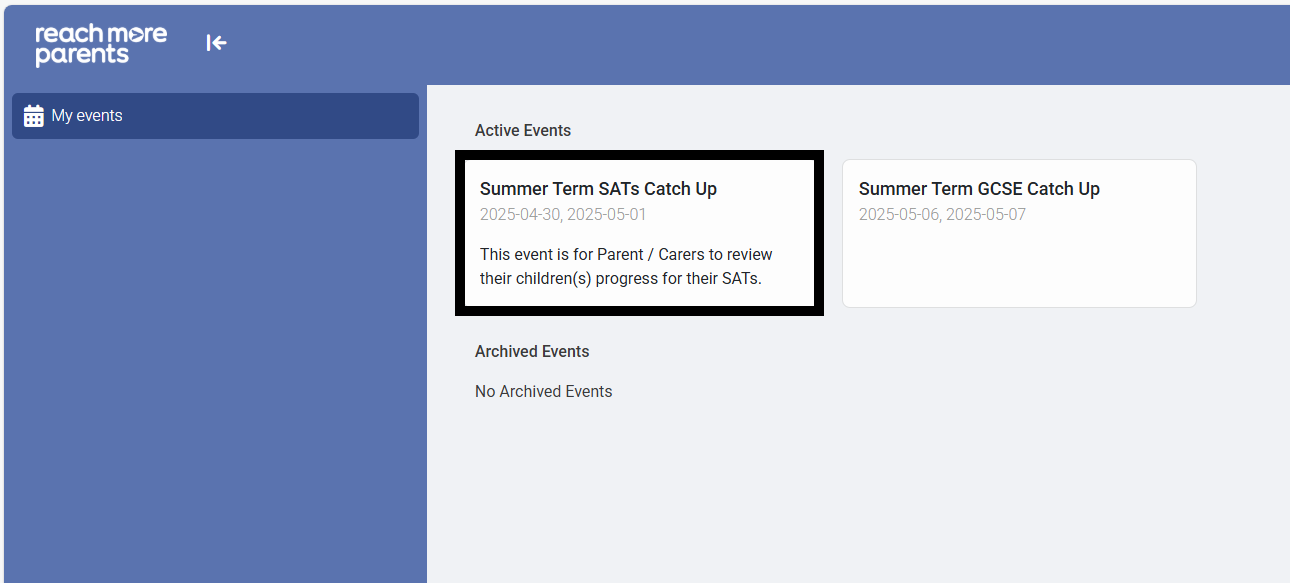
6) Click on the "eye" icon to view appointment details
7) Click on the check mark to flag the appointment as "Attended"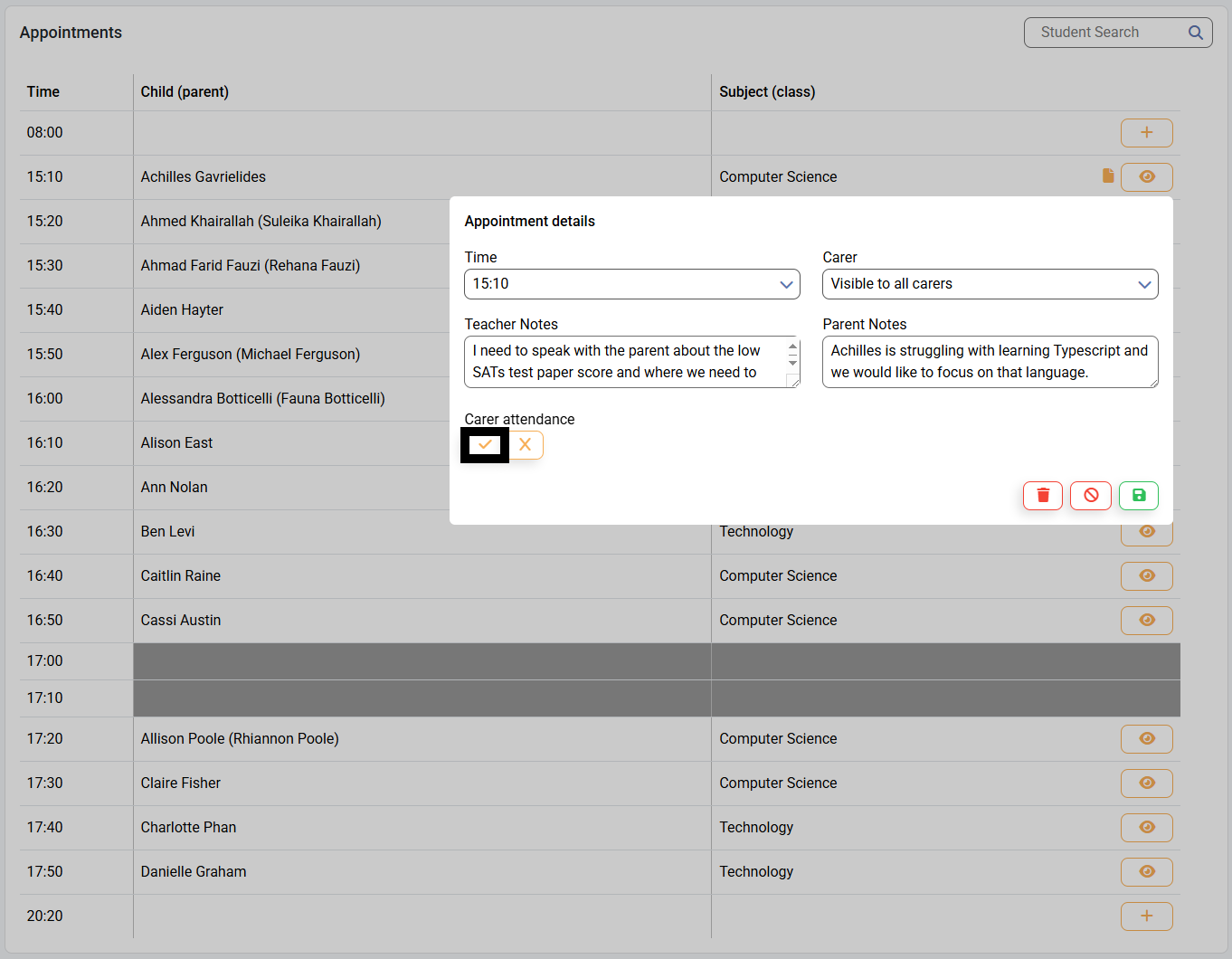
8) Click on the cross mark to flag the appointment as "Absent"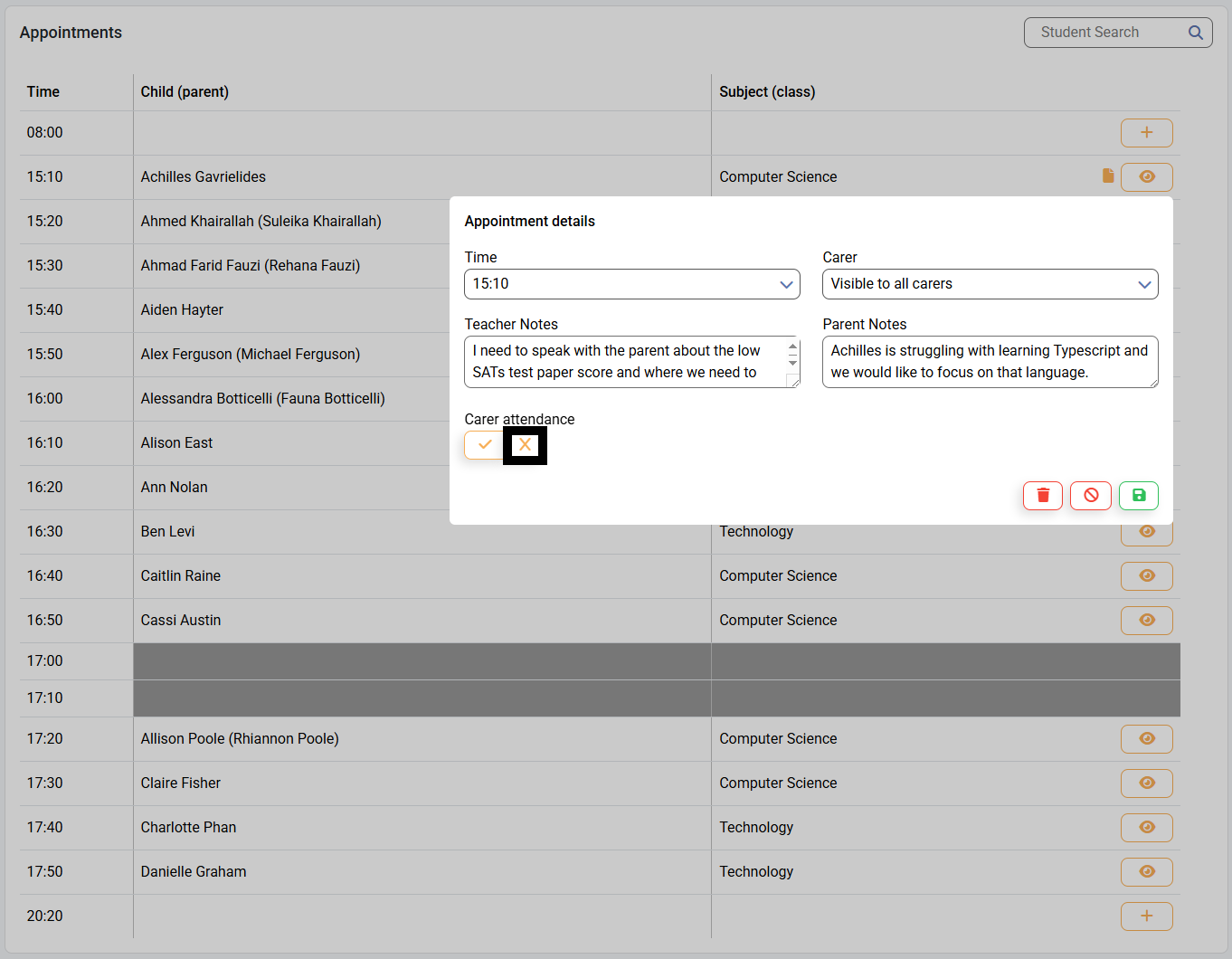
9) Click on "Save" to accept the attendance mark applied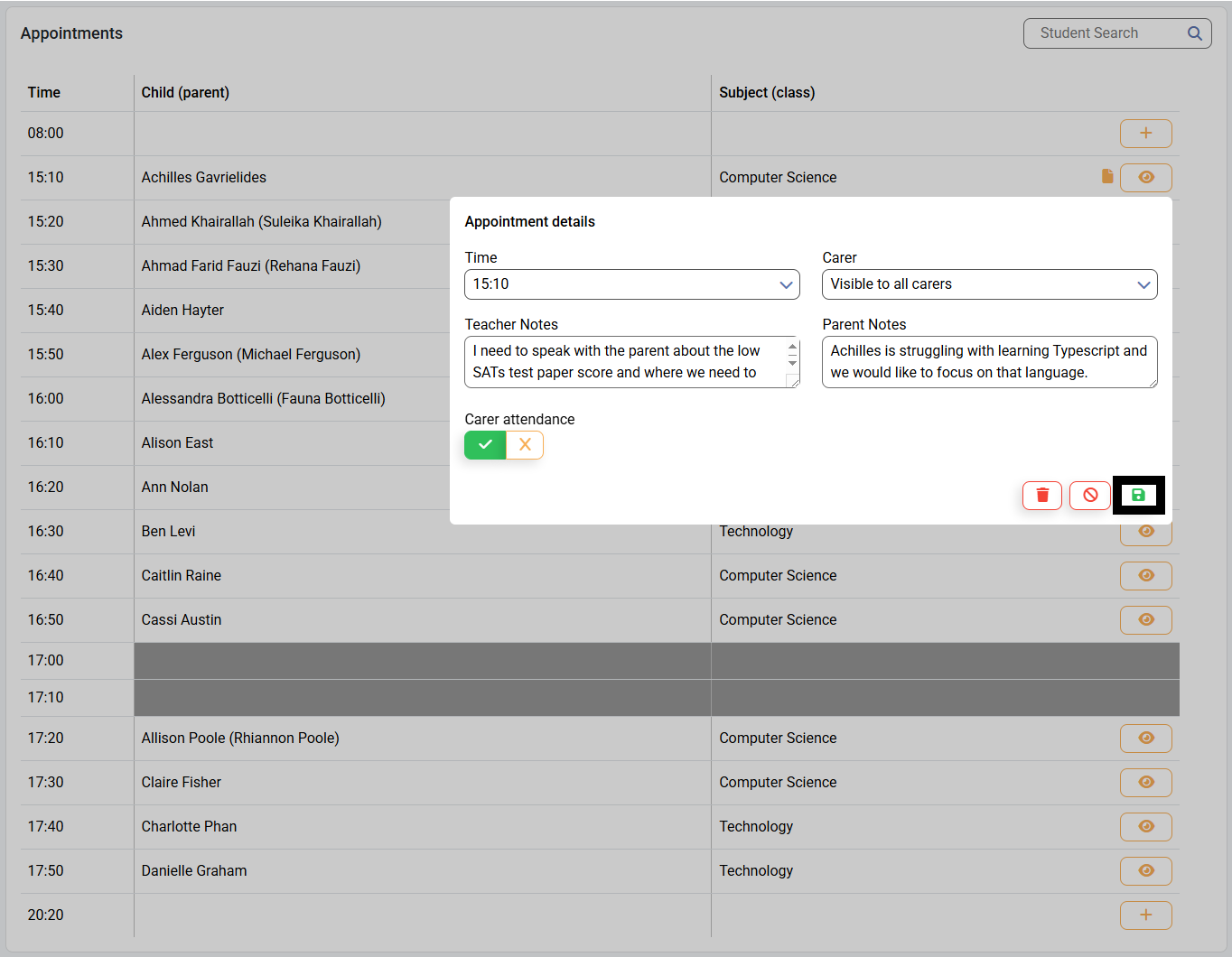
10) Repeat Steps 6 through to 9 for each appointment
11) To go to another event date, click on the Date Selector and choose it from the list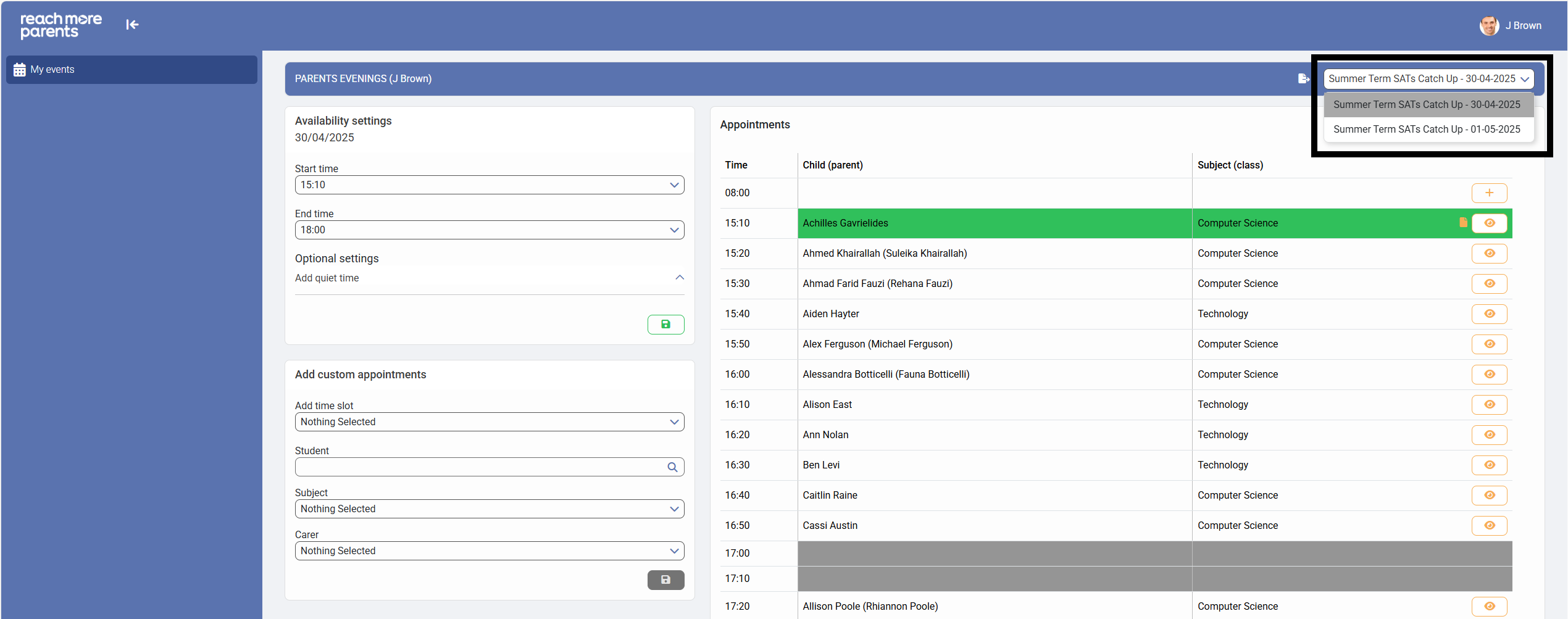
12) Repeat Steps 6 through to 9 for each appointment on subsequent Event Dates