If you're reading this article and you haven't yet gone through the process of creating a Parent Event, head over to this link to catch up with our progress so far.
If you have a Parent Event already created and you're looking to add SENCO appointments to an already existing event, your first step here is to access PEMS as an administrator:
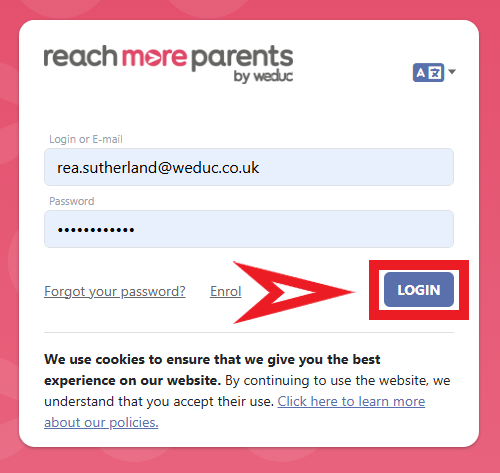
1) Log in to ReachMoreParents.
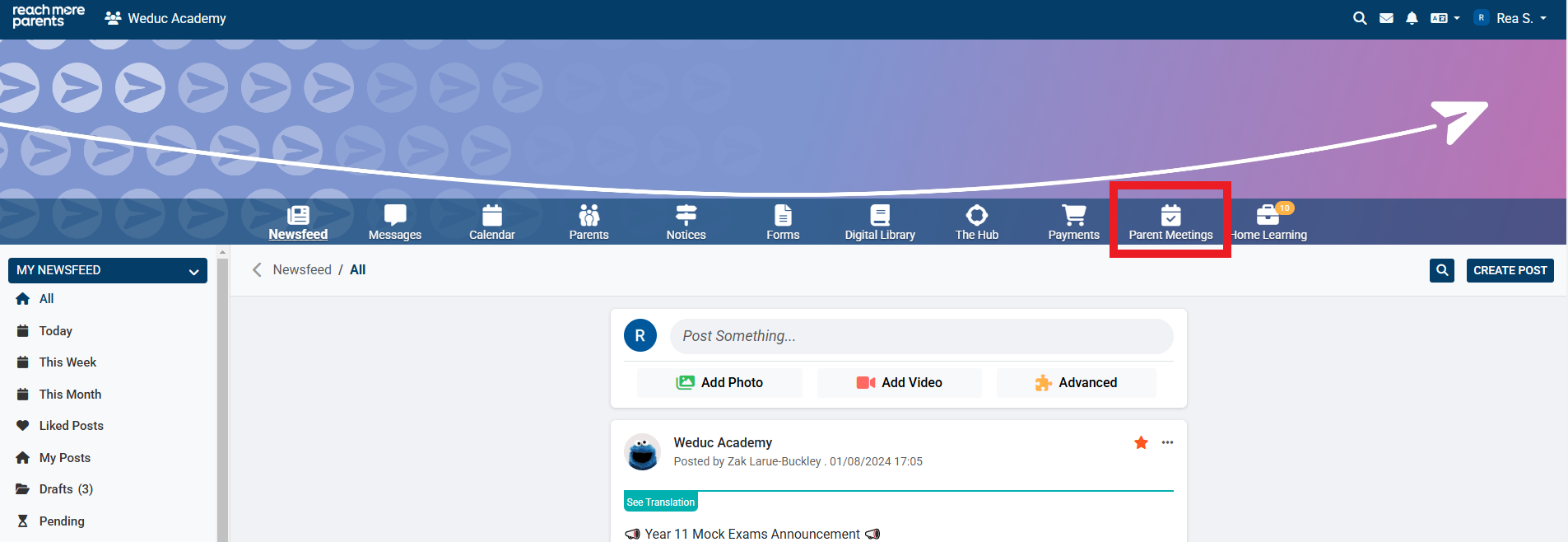
2) Click on the Parent Meetings icon
From this point, follow the steps listed below:
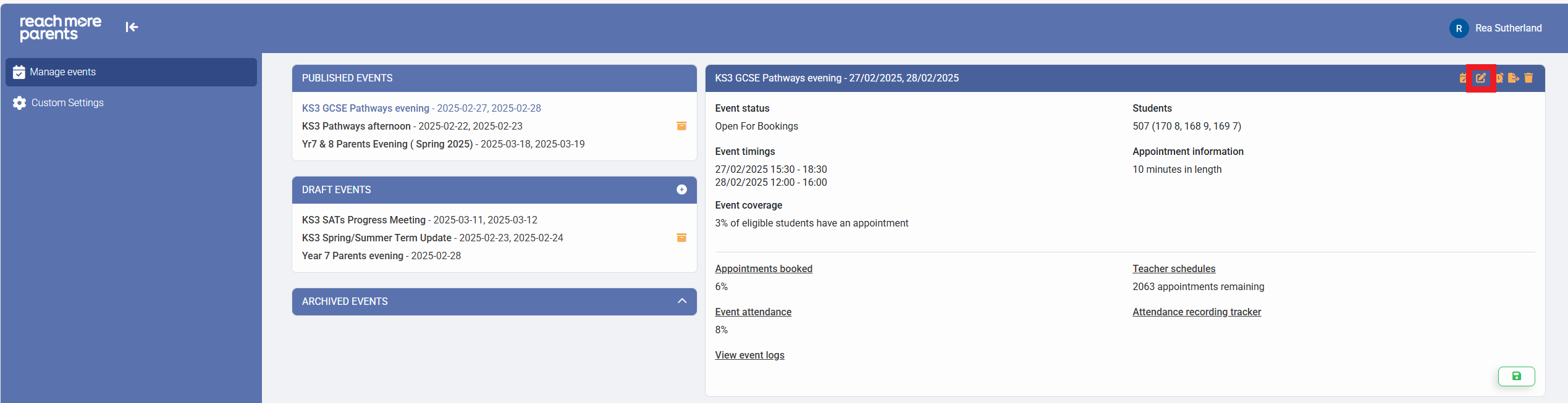
1) Click on the event where you need to add SENCO Appointments
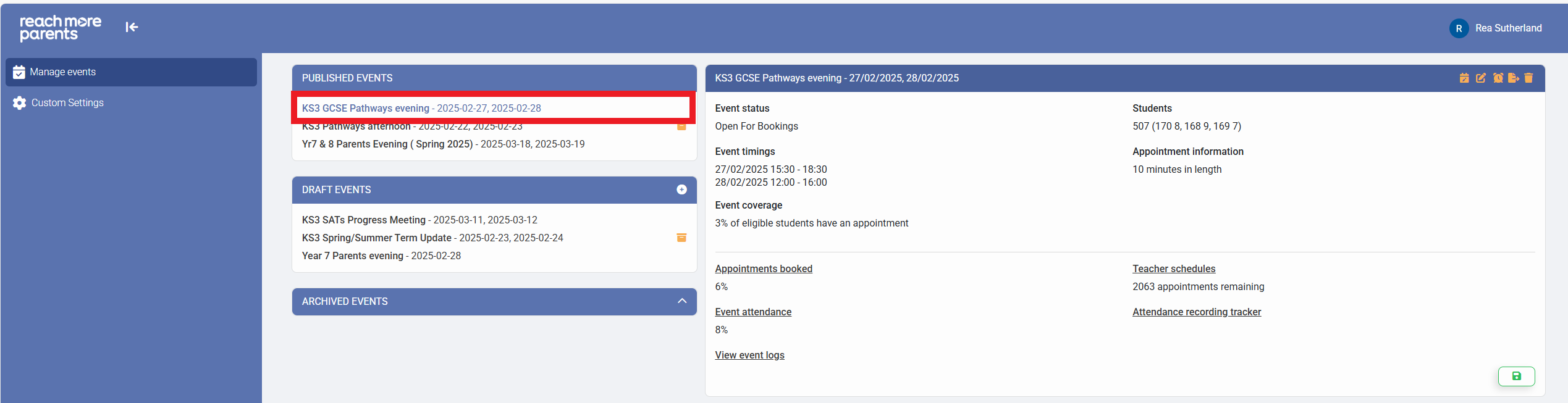
2) Click on "Edit Event"
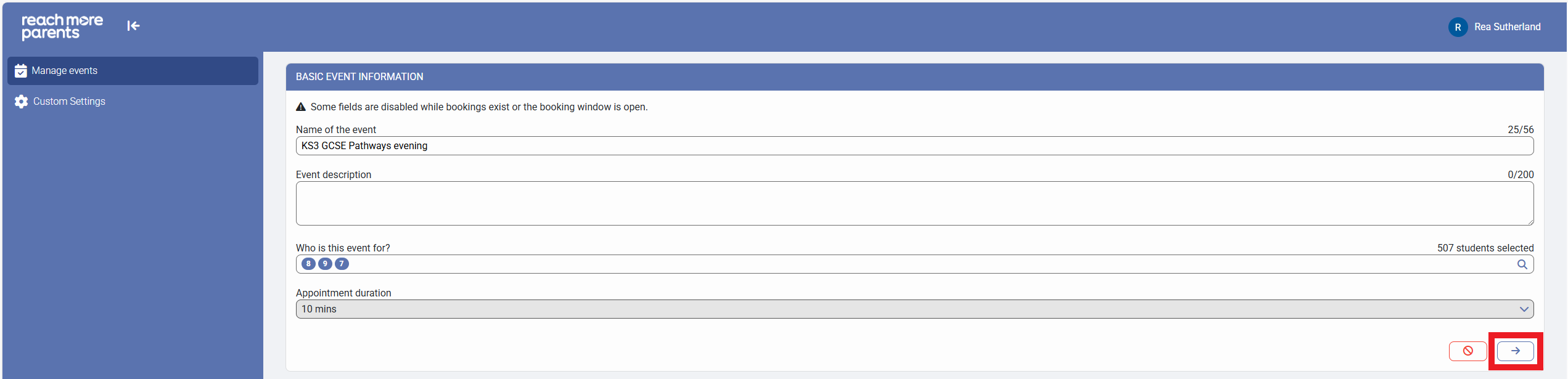
3) Click on "Next" within the "Basic Event Information" screen
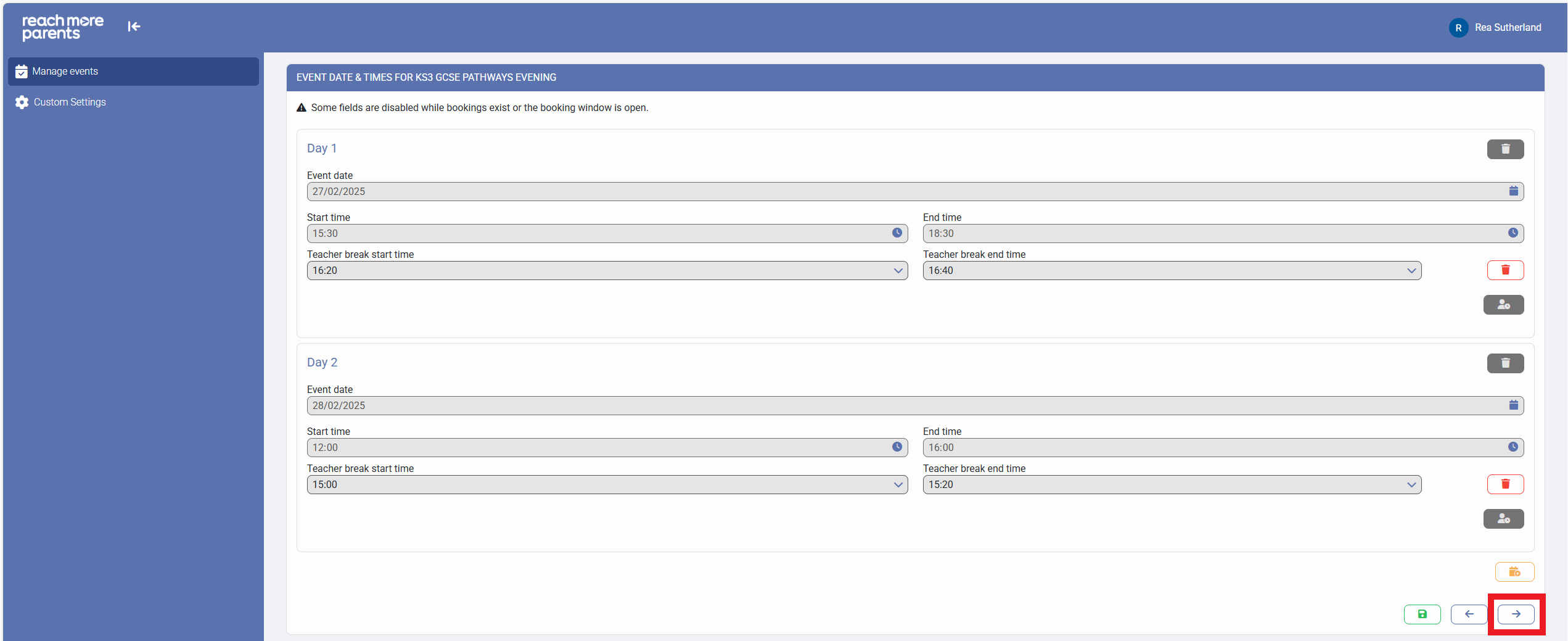
4) Click on "Next" within the "Event Date & Times" screen
5) Click on "Next" within the "Appointment Settings" screen

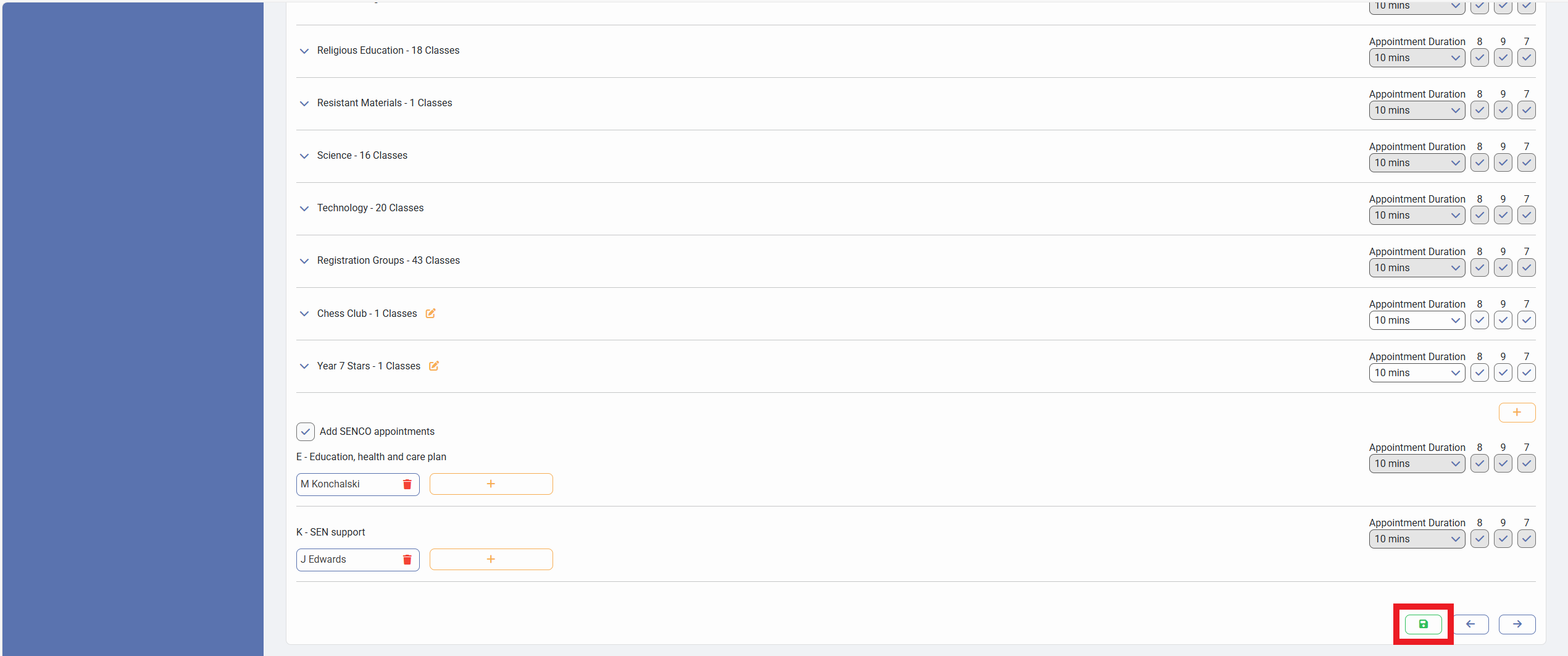
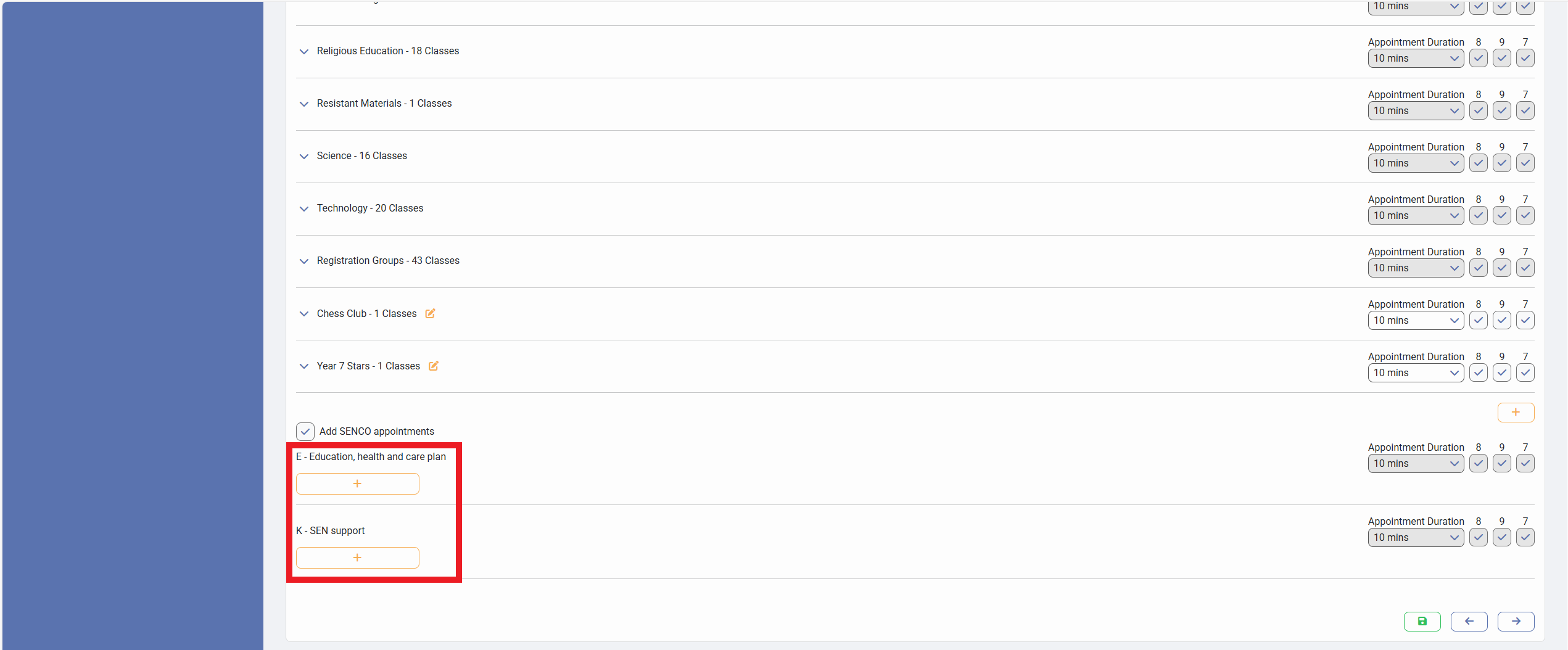
6) We have auto selected the "Add SENCO Appointments" check box for you, with the two SENCO Group Codes "E - Education, health and care plan" and "K - SEN support"
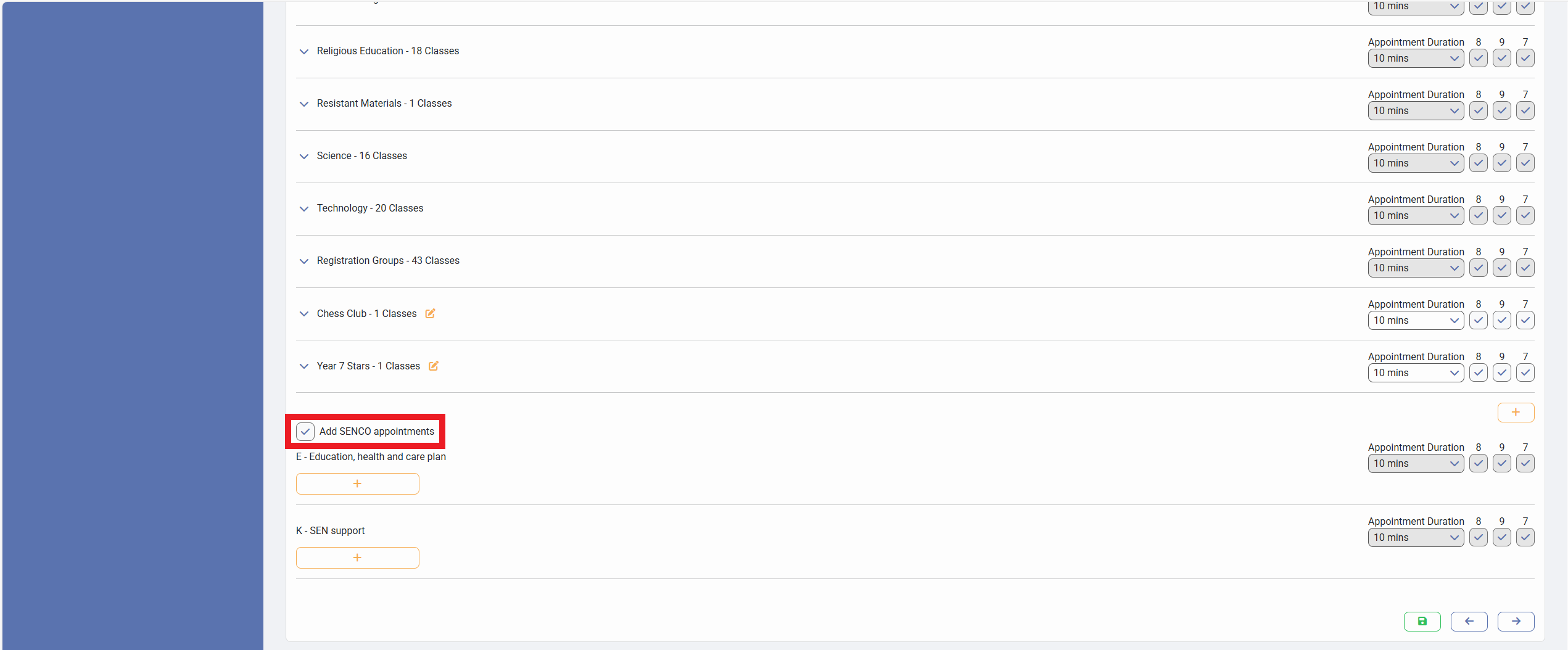
8) To define the staff member(s) who should attend these SENCO group appointments for the event, click on the "+" and add the staff member(s) who need to attend those appointments
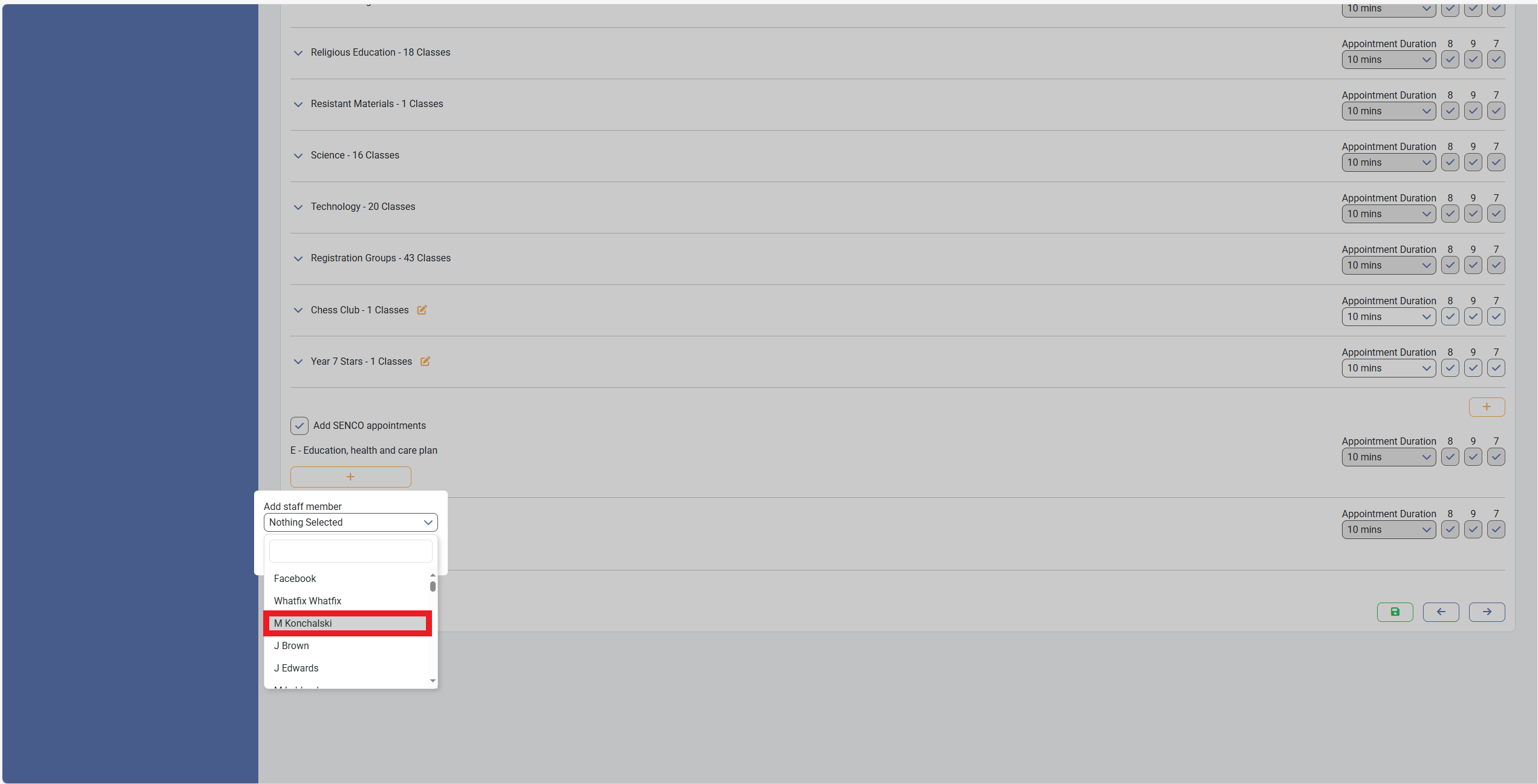
9) Click on "Save" in the "Add Staff Member" block

10) Click on "Save" when you're happy with your changes