
If you have been following the full guide for our Parents Event Management System for Admins, you will have already created your Parent Event. If you're finding this article and you haven't seen the full guide yet, follow this link to catch up on the process so far.
In this article, we will be amending the Notification settings from within the Event Summary block and without having to access the Edit Event menu to do so.
Firstly, you need to access PEMS as an Administrator:
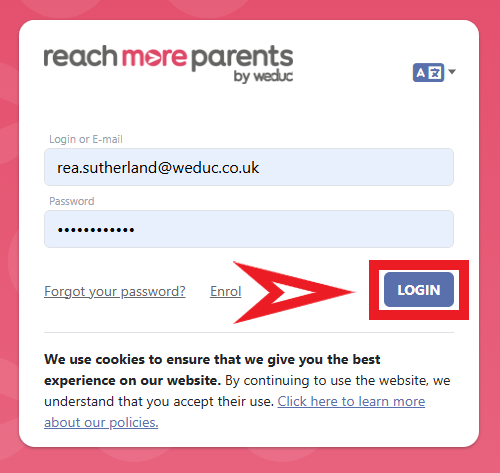
1) Log in to ReachMoreParents.
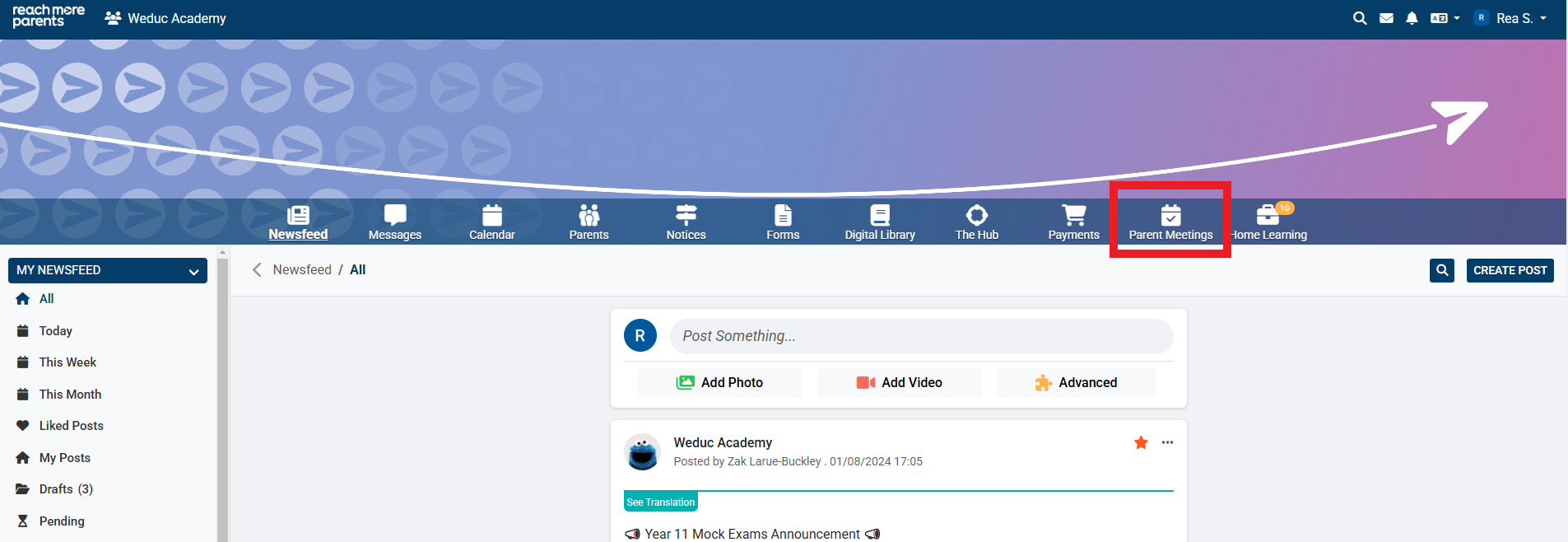
2) Click on the Parent Meetings icon
Continue with the below steps to amend your notification settings:
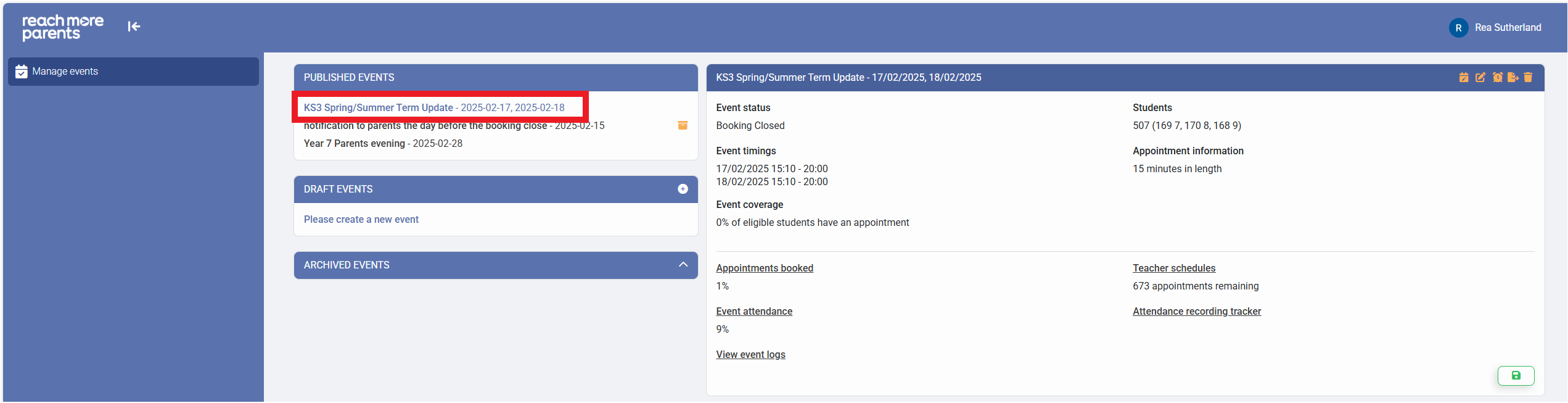
1) Click on the event that you need to amend the notification settings for
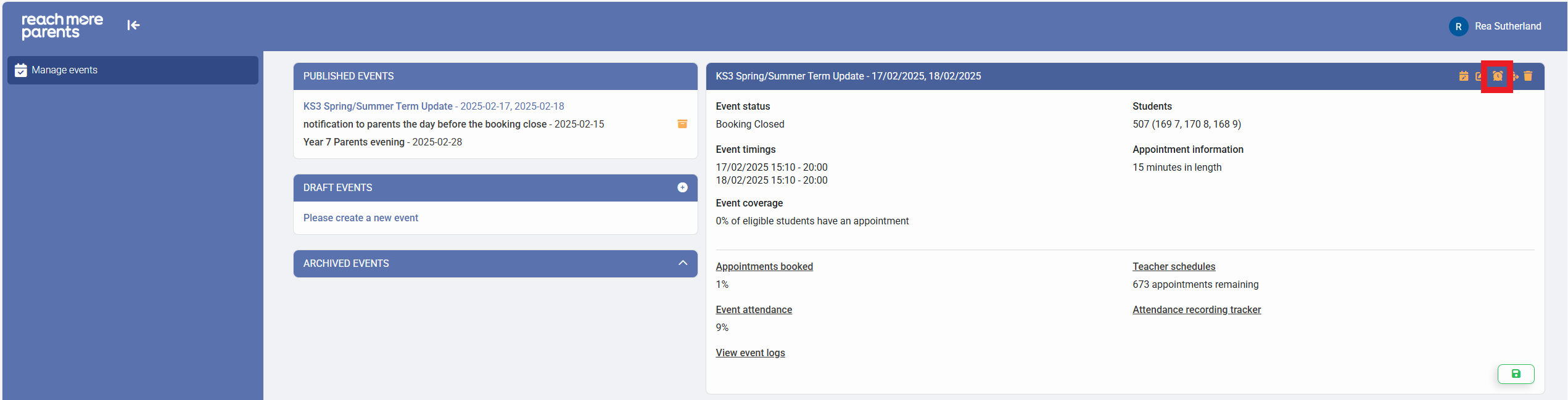
2) Within the Event Summary block, click on the Set Reminders icon
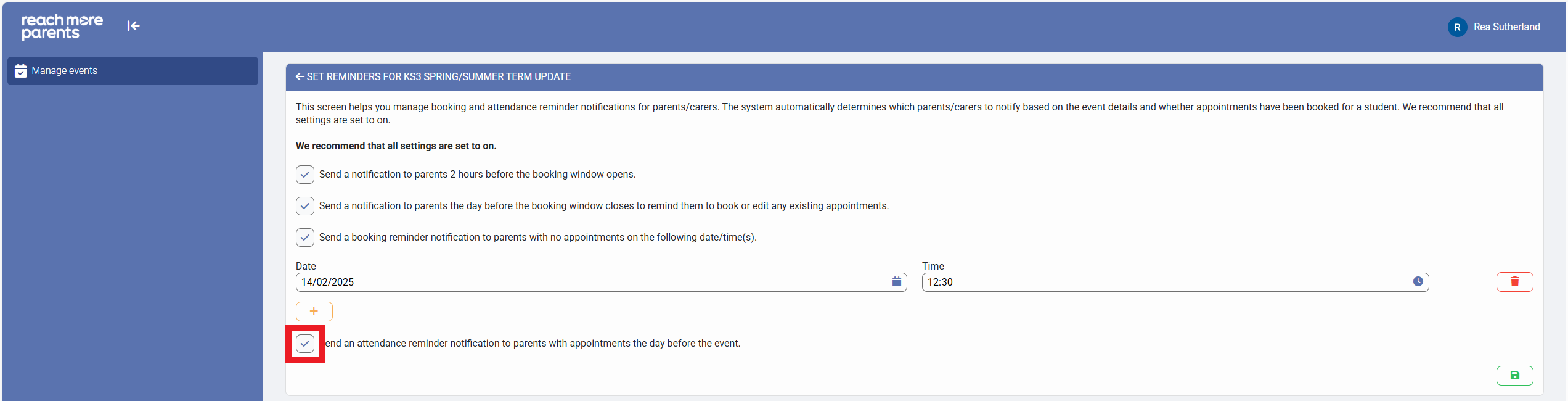
3) This will open the Event Reminders configuration screen with the options
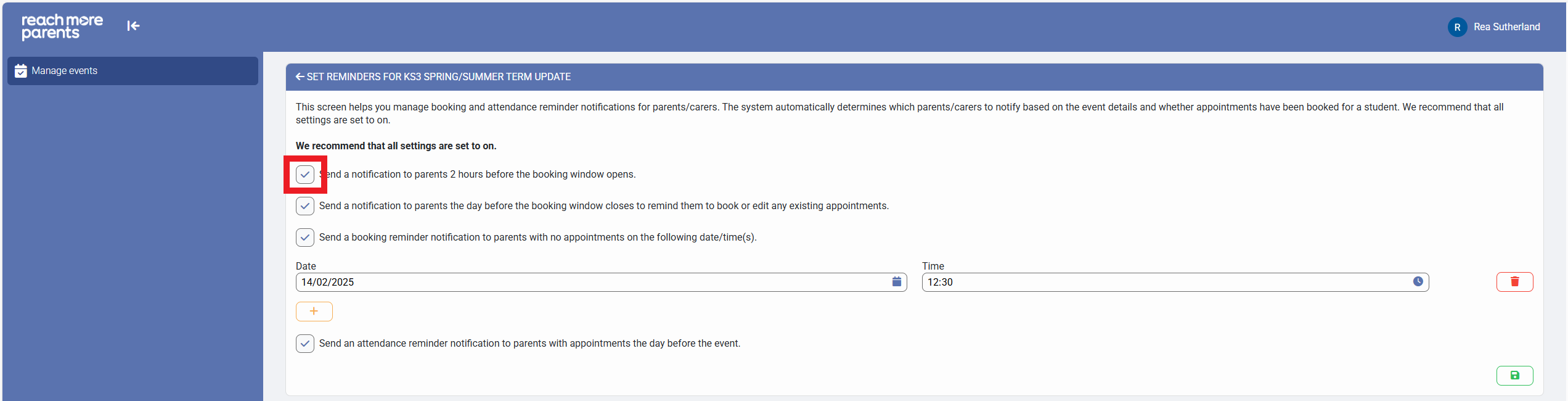
- Send a notification to parents 2 hours before the booking window opens - Set this to true if you want to forewarn parents when they will be able to start making bookings
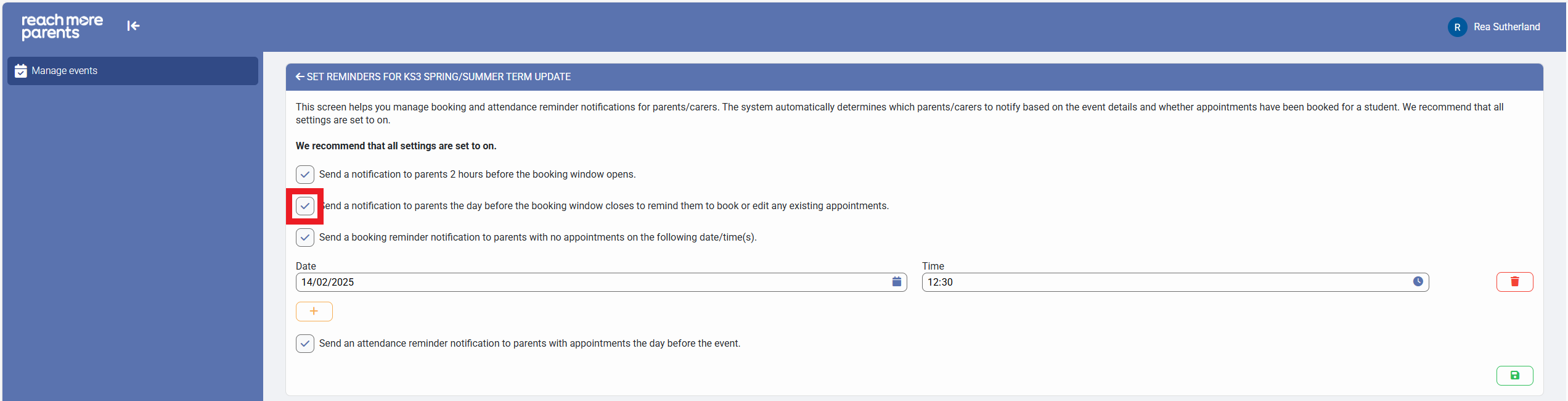
- Send a notification to parents the day before the booking window closes to remind them to book or edit any existing appointments - Set this to true to notify parents automatically when the booking window is due to close
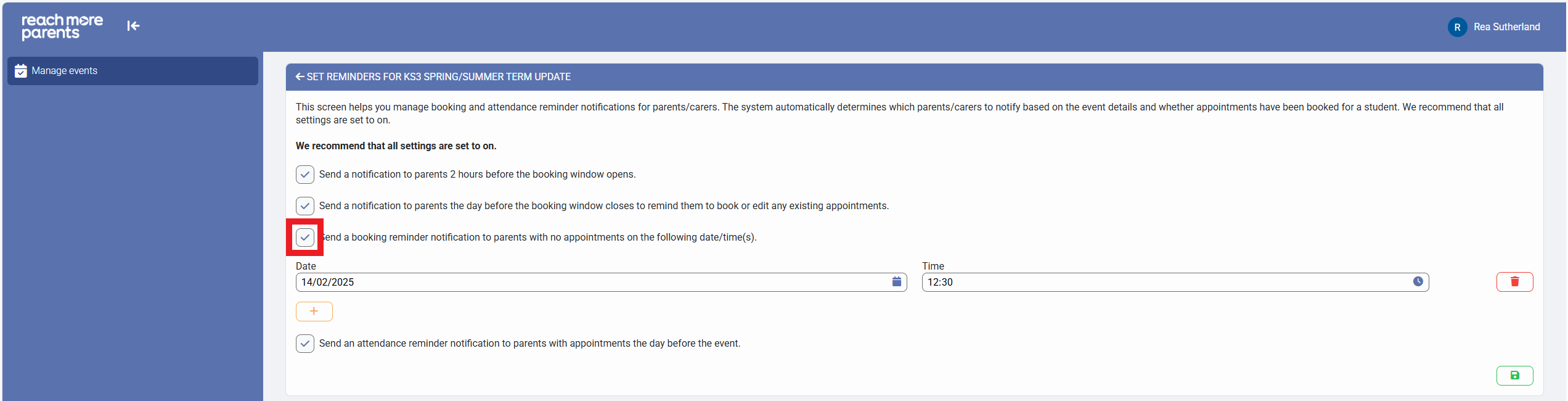
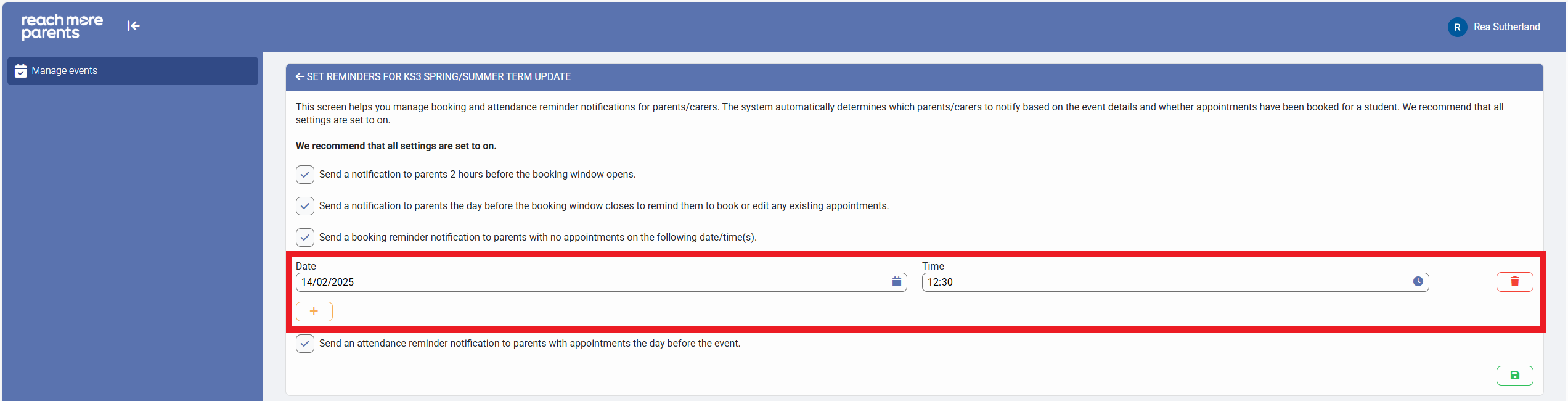
- Send a booking reminder notification to parents with no appointments on the following date/time(s) - Set this to true if you want to add more specifically dated and timed notification(s), click on the + (add) button if you want to add another notification. Click on delete if you no longer want this custom notification.
- Send an attendance reminder notification to parents with appointments the day before the event - Set this to true if you want to remind parents with appointments that they have bookings for the event in question.
4) Click on "Save" to save all your changes and the notifications you've configured will be sent automatically to all your attendees
