Firstly, you need to access PEMS as an Admin:
1) Log in to ReachMoreParents.
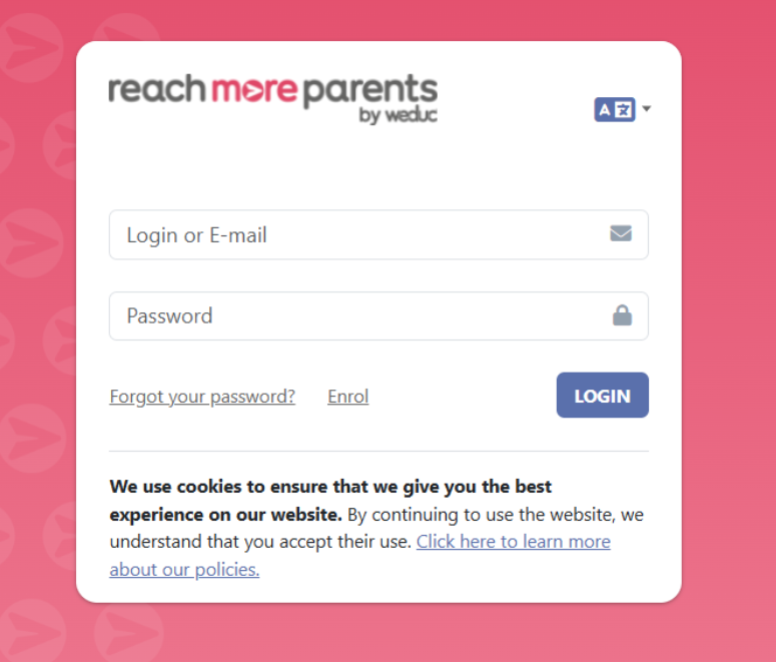
2) Click on the Parent Meetings icon

From this point, you will need to carry out the below steps:
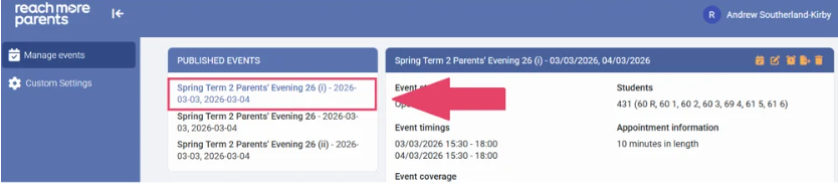
3) Click on the required Event Title
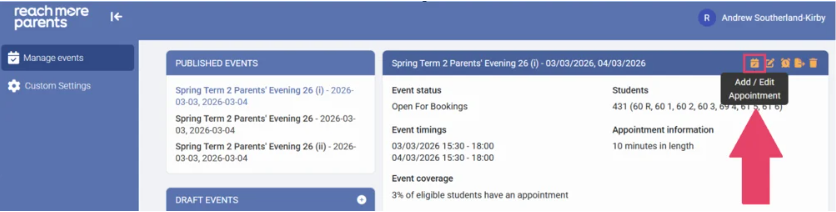
4) Click on the "Add / Edit Appointment" button in the Event Summary block
5) Click into the Student field and type the name of the student
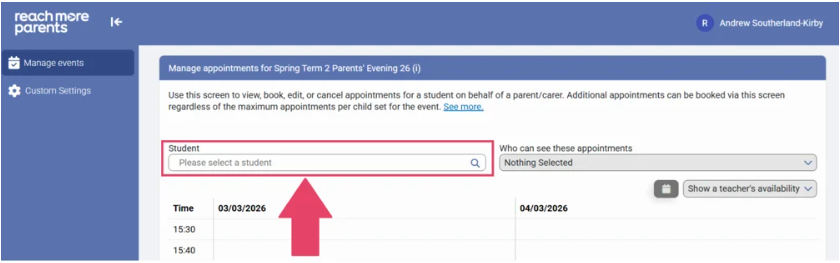
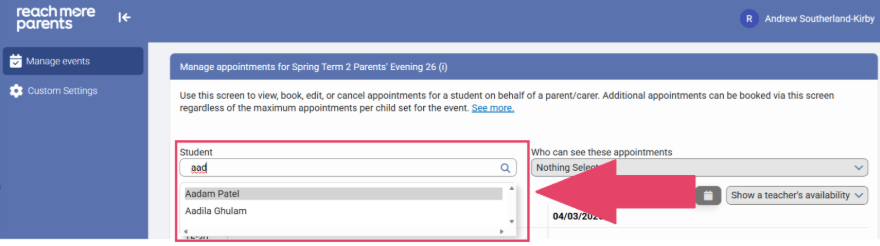
6) Select the Student from the list of results
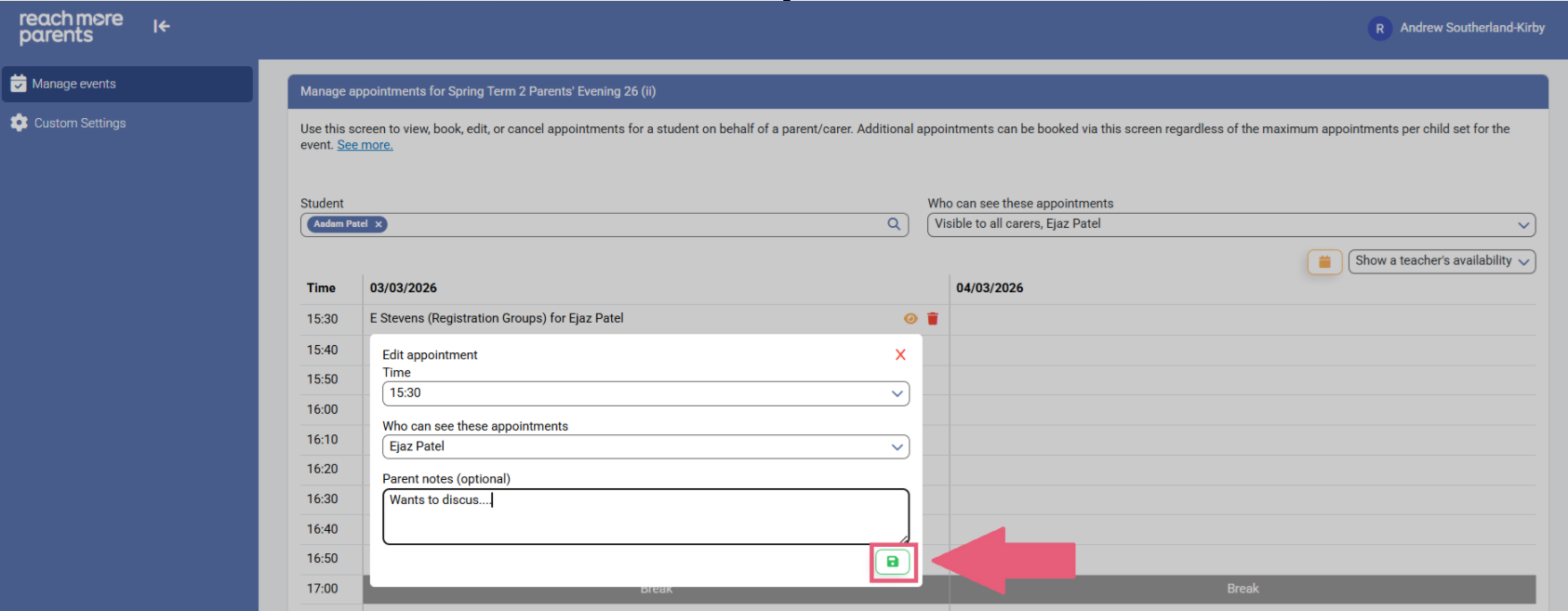
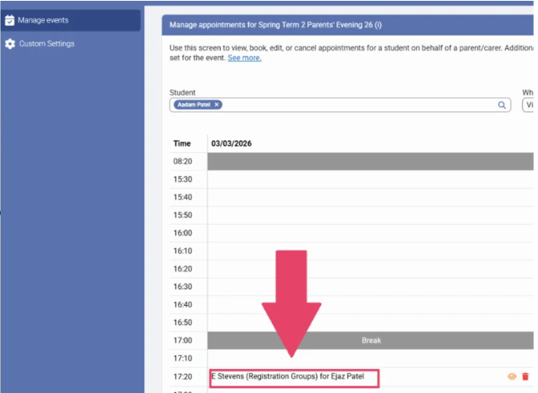
7) Locate the appointment you need to edit
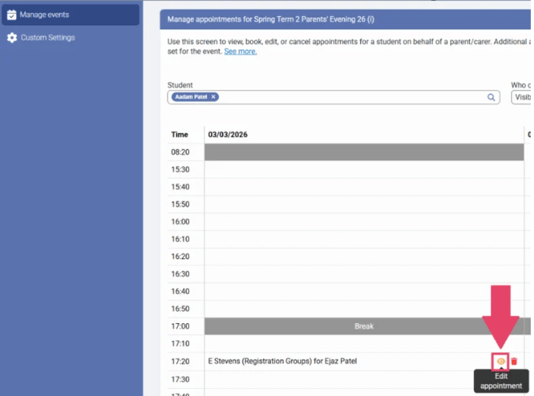
8) Click on "Edit Appointment" against that appointment row
9) If you need to change the appointment time, click on "Edit appointment time" and select a new time
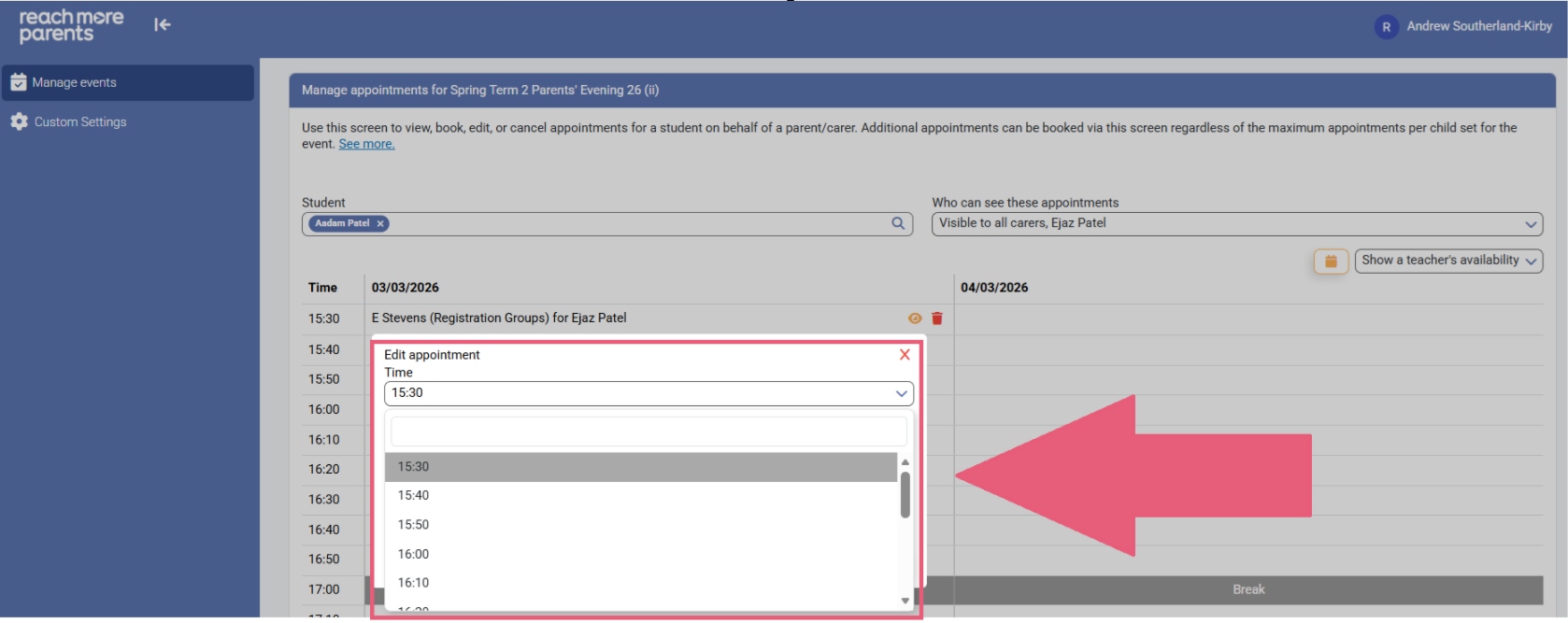
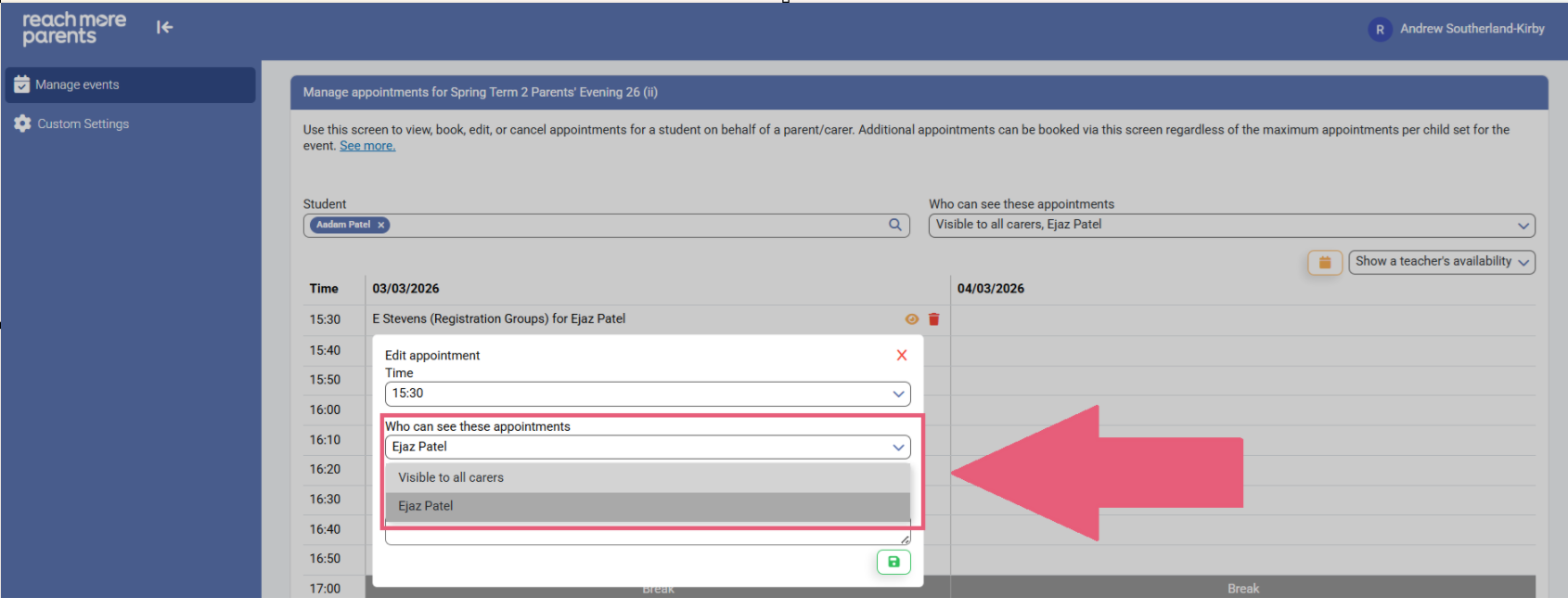
10) If you need to amend the Parent/Carer(s) on the appointment, click on "Who can see these appointments" field and choose the new Parent/Carer attendee
11) If you need to add a note to the appointment, click on "Parent note (optional)" and type your text in the field
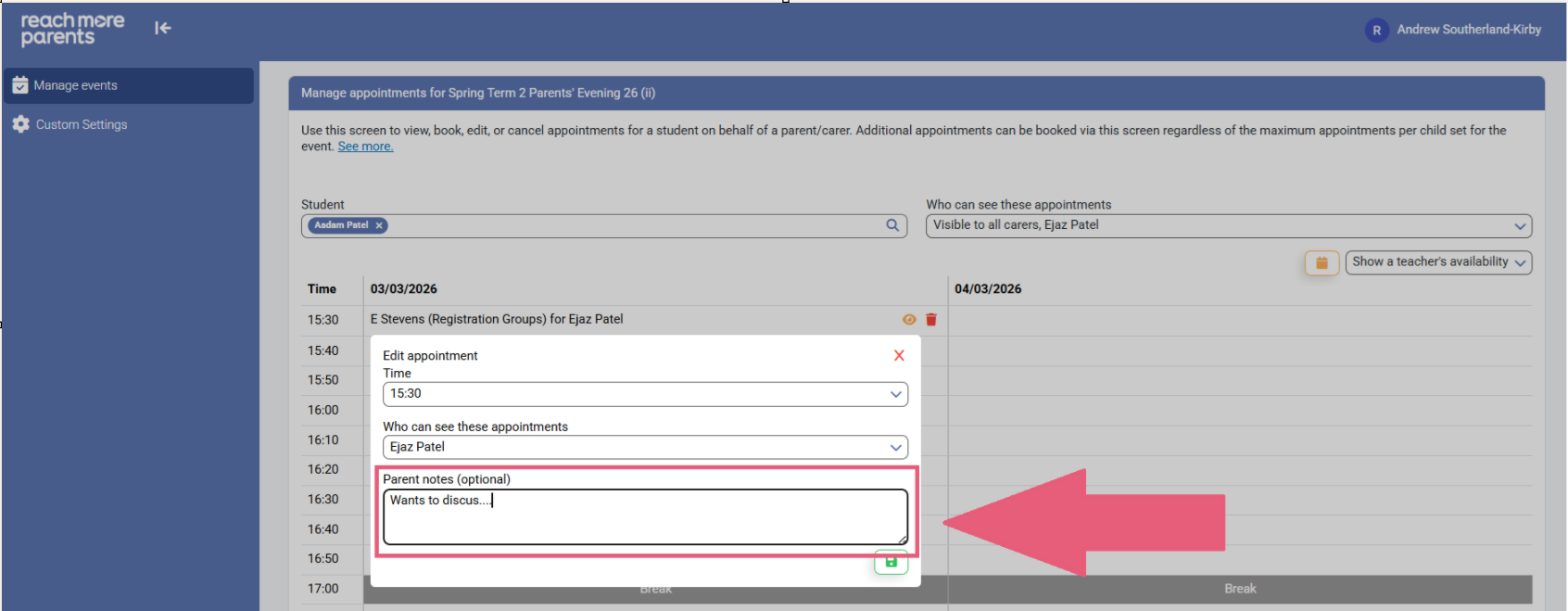
12) Click on "Save" to accept your changes to the appointment