If unforeseen circumstances arise and you need to change the event dates for your Parent Event, you can follow the steps in this article to carry out these changes.
Firstly, you need to access PEMS as an Admin:
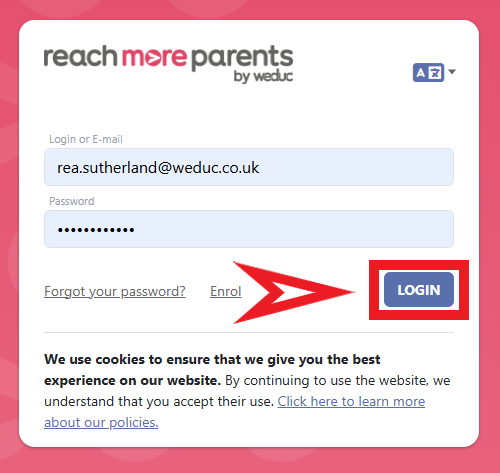
1) Log in to ReachMoreParents.
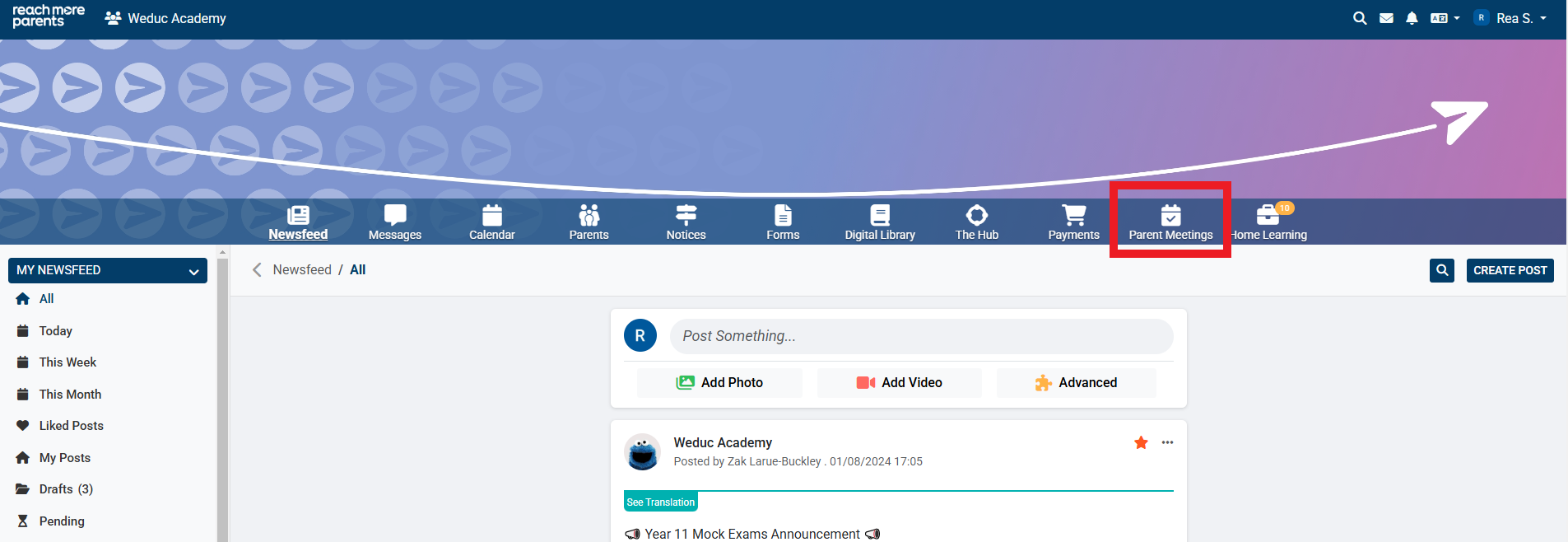
2) Click on the Parent Meetings icon
If your parent event has already been published, you will need to move it to "Draft Events" before you can make any changes to the date(s) of the event. You will also need to cancel any existing appointments. Please follow the steps below to find out how to do this.
If your parent event is already in "Draft Events" and has no appointments booked, please skip ahead to step 7 to find out how to change the date(s) of your parent event.
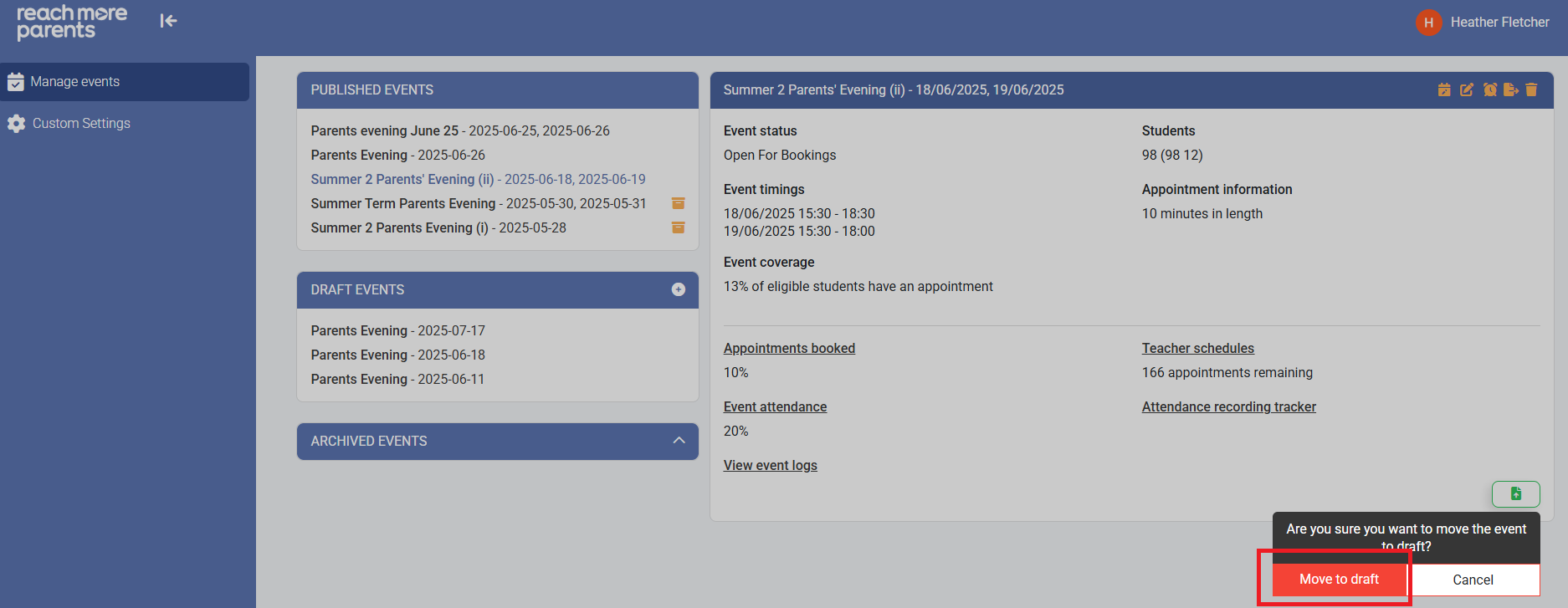
1) If your event has been published, you will first need to move it to drafts. Click on the event name and then select the Green "Move to Draft" button in the bottom right of the event tile.
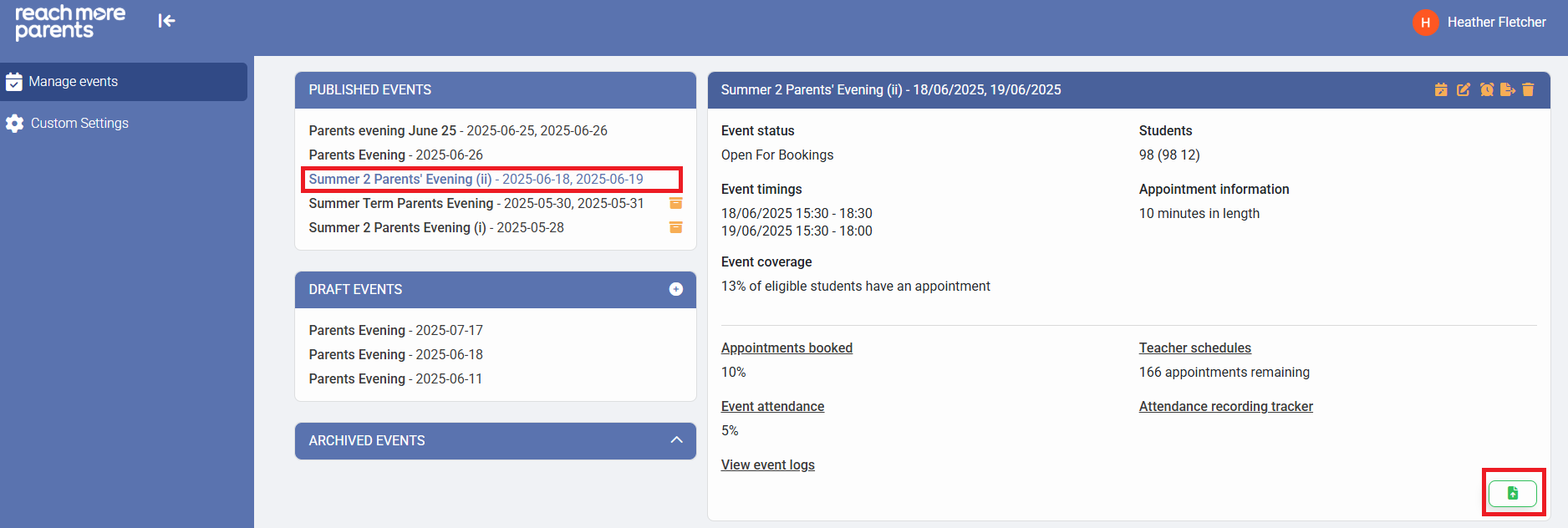
2) Then select "Move to Draft."
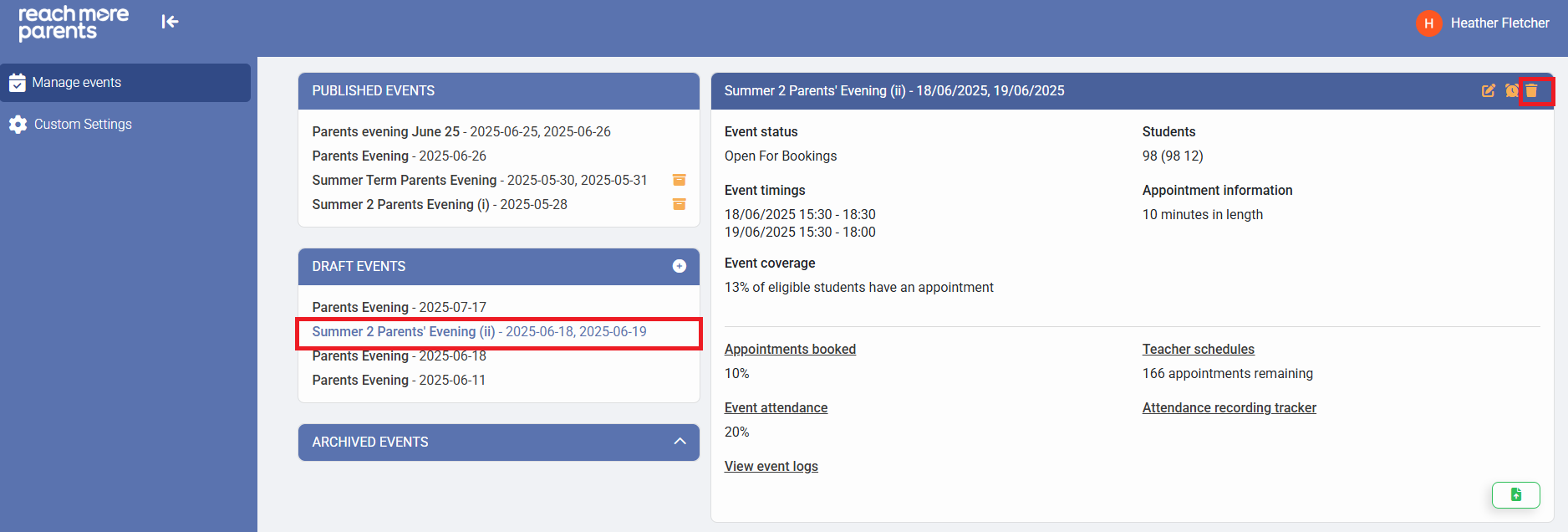
3) Once you have moved the event, click on the event name again in the drafts section and then click the bin icon.
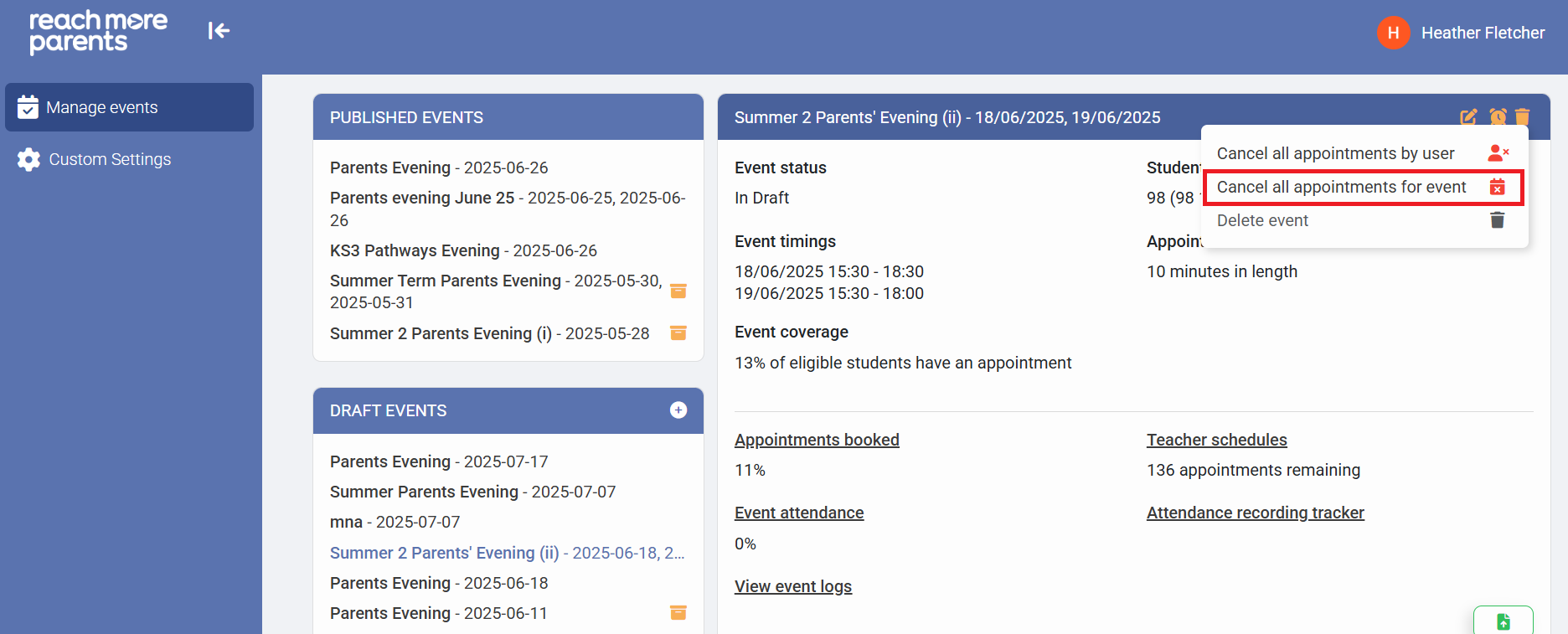
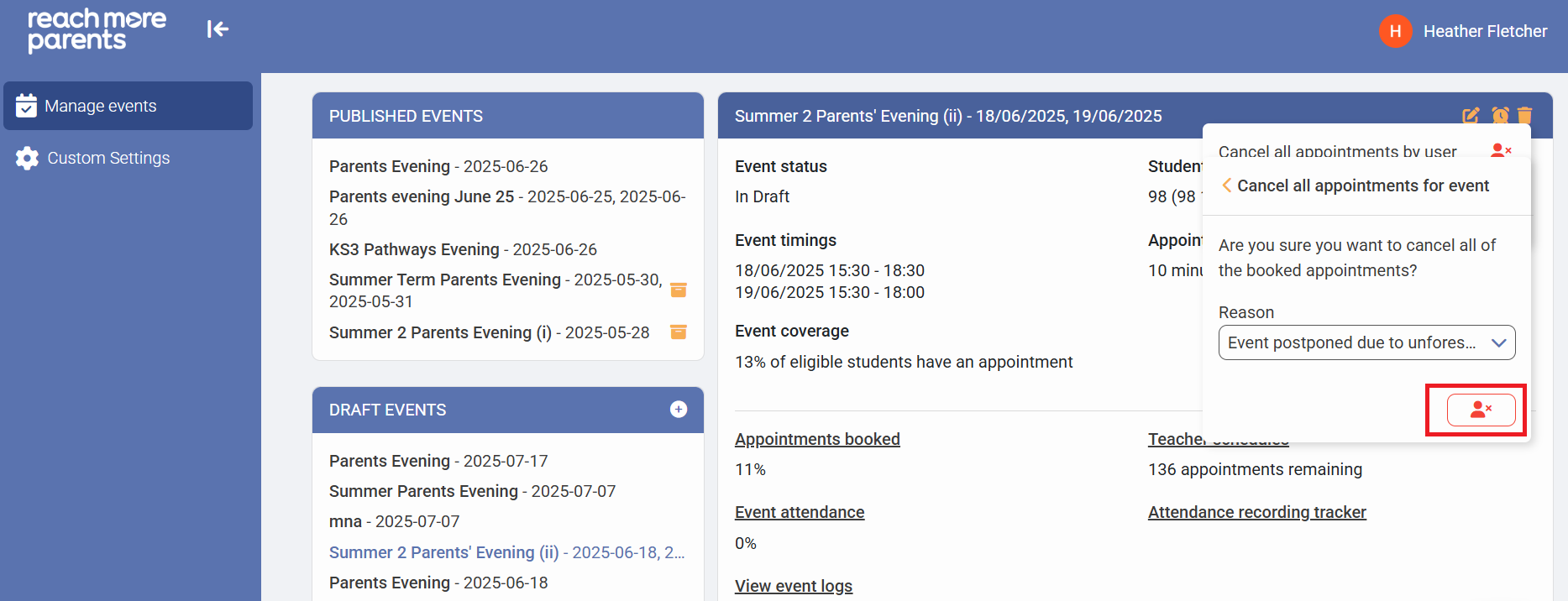
4) Click "Cancel all appointments for event"
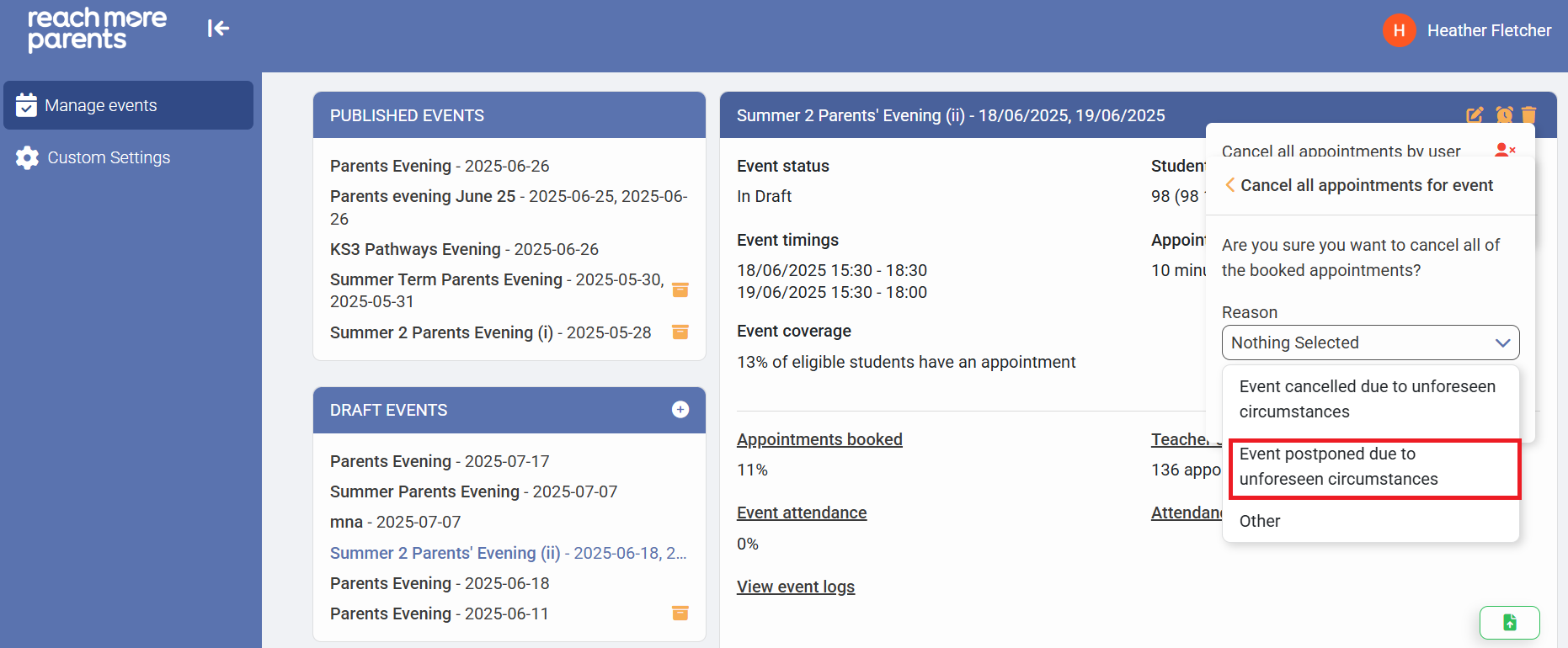
5) Select "Event postponed due to unforeseen circumstances"
6) Click the red "Cancel all appointments for this event" button
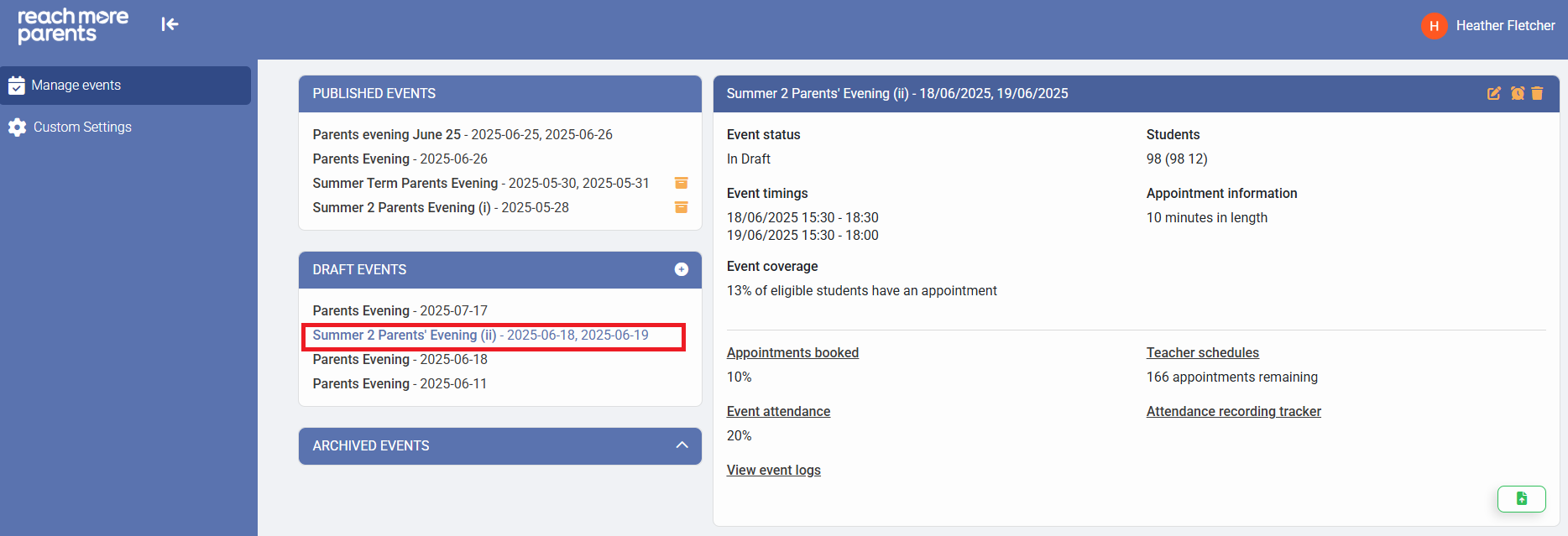
7) Click on the "Event Title" required from the Draft Events blocks
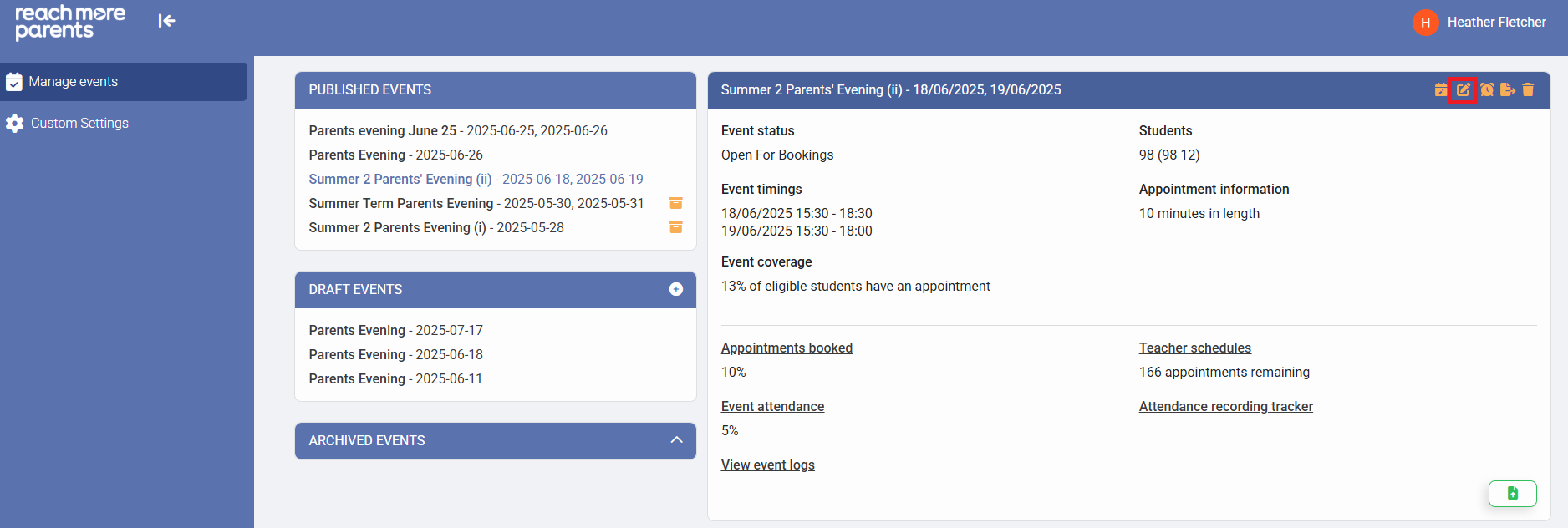
8) Click on the "Edit Event" button
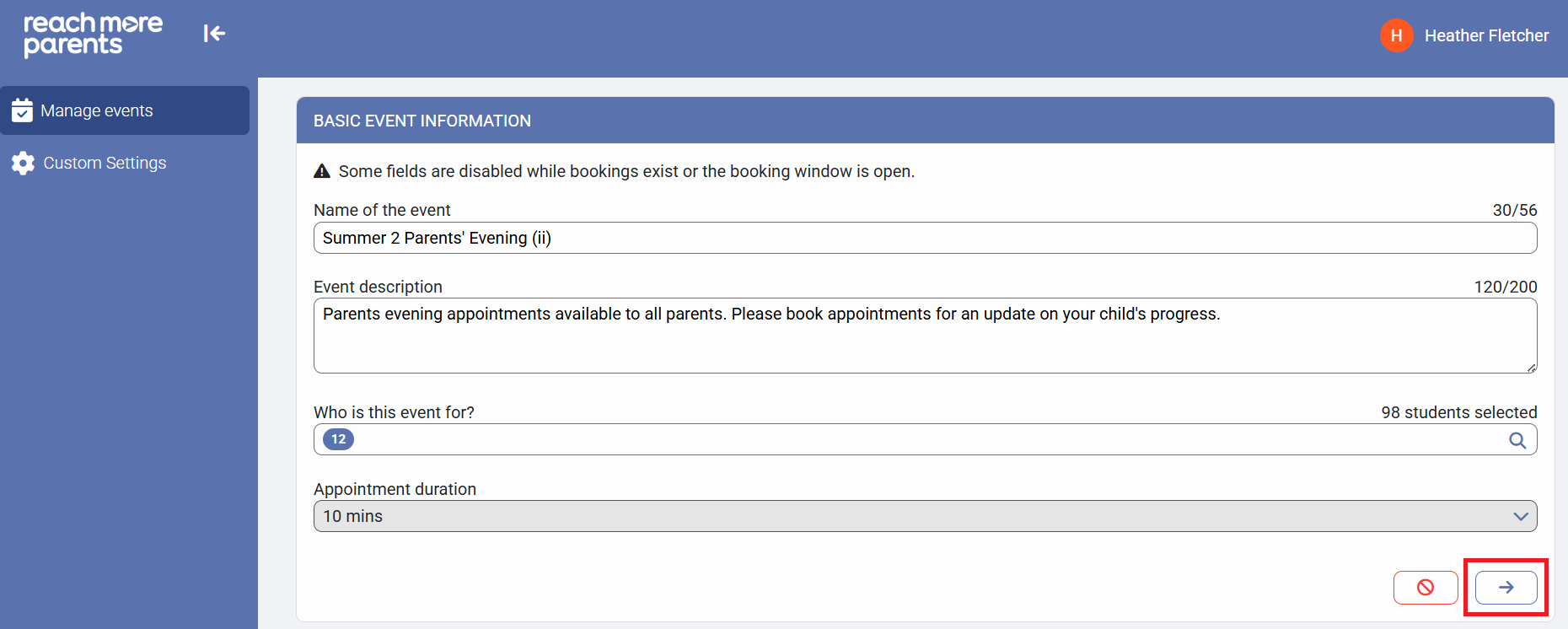
9) Click on "Next" to proceed to the "Event Date & Times for [Event Name]" screen
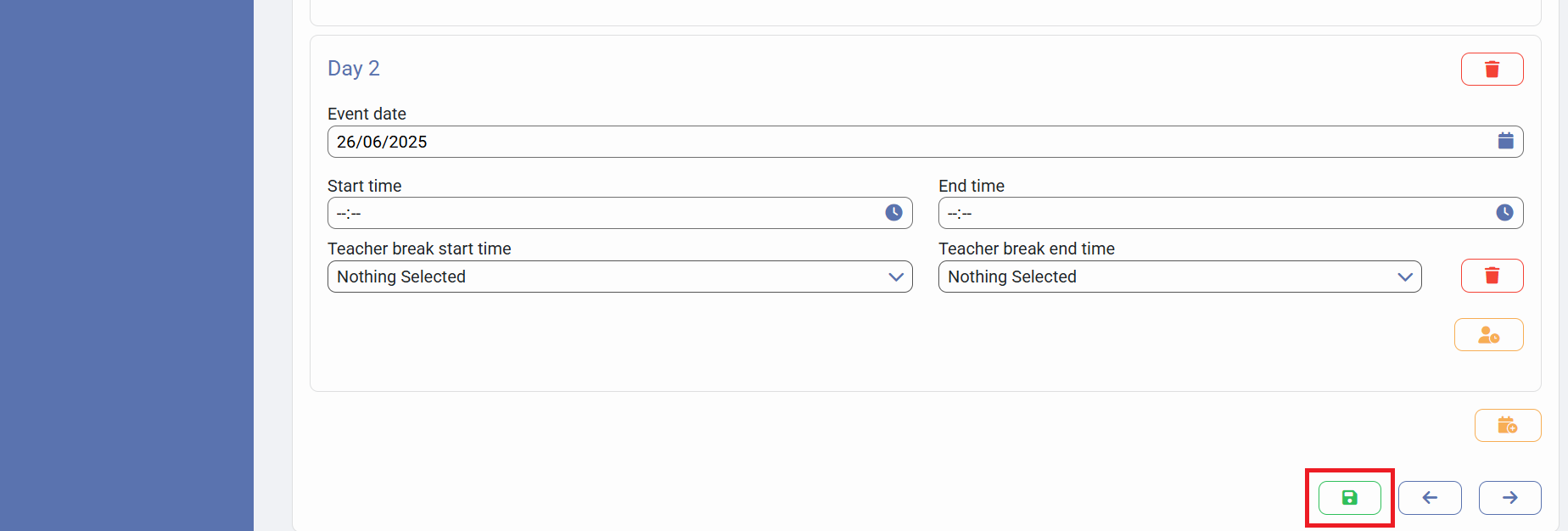
10) Click on "Event Date" field and type the new Event Date
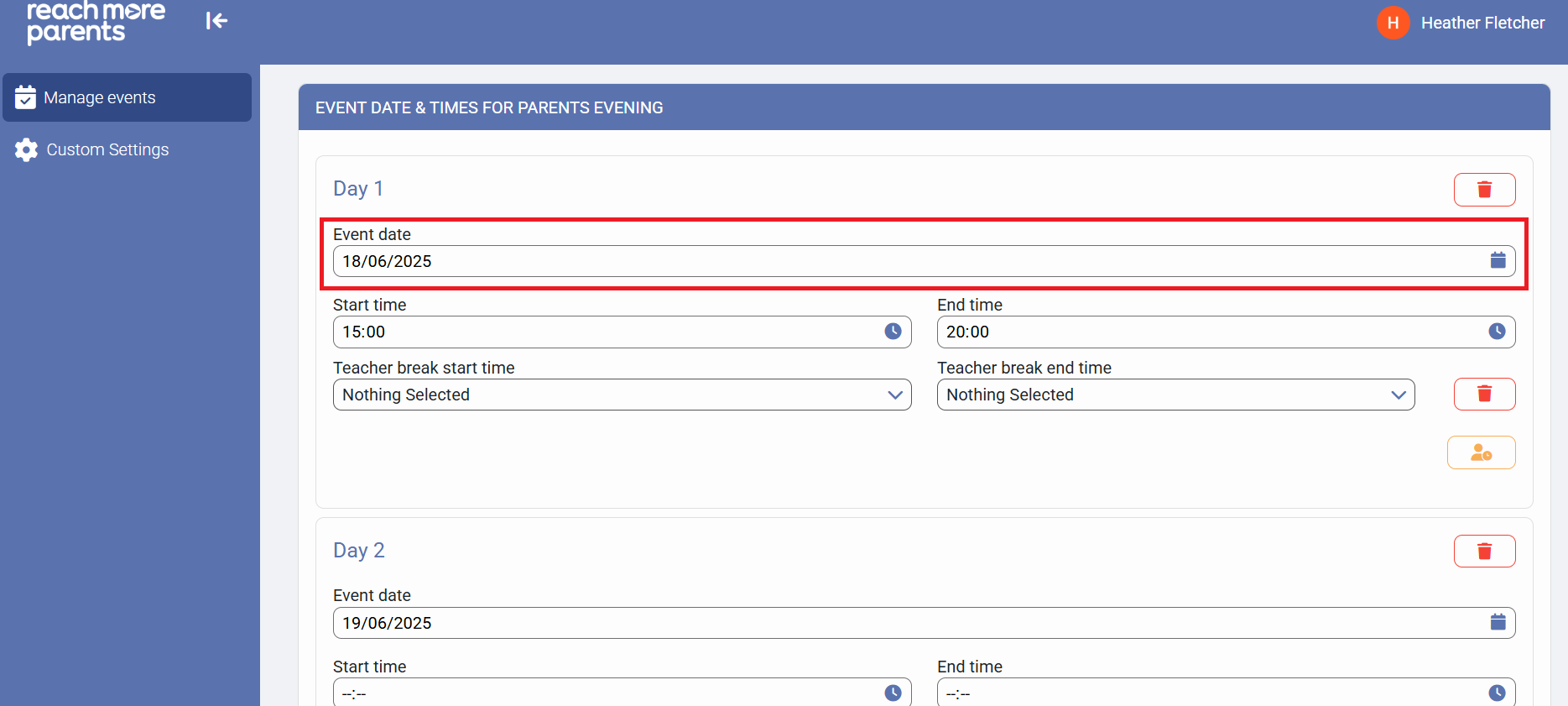
Alternatively, click on the calendar icon to select the new event date using the calendar
11) If your event spans more than one date, repeat the instructions in step 10 for any other dates
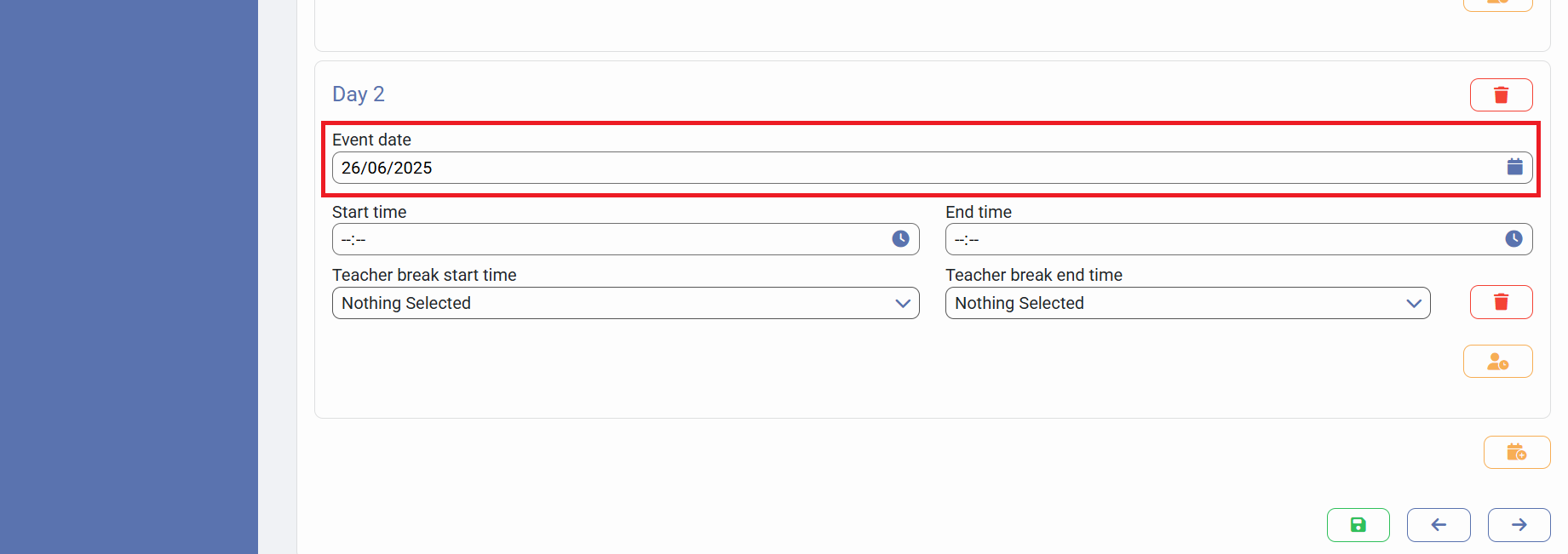
12) Click on "Save" to accept your changes