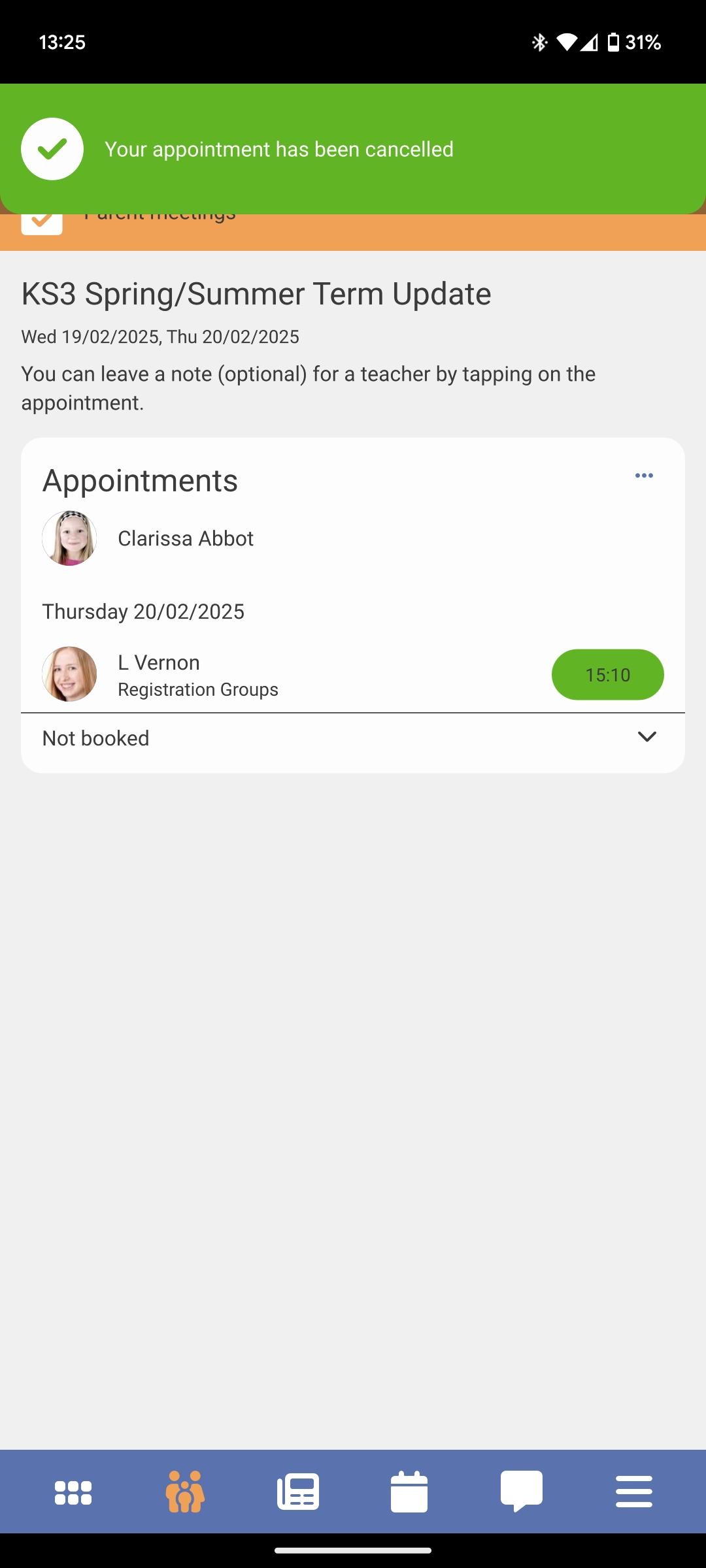
When you've booked your Parent Event appointments and realise you need to cancel a specific one, this article will show you how to do so.
Firstly, you need to access Parent Meetings as a Parent / Carer:
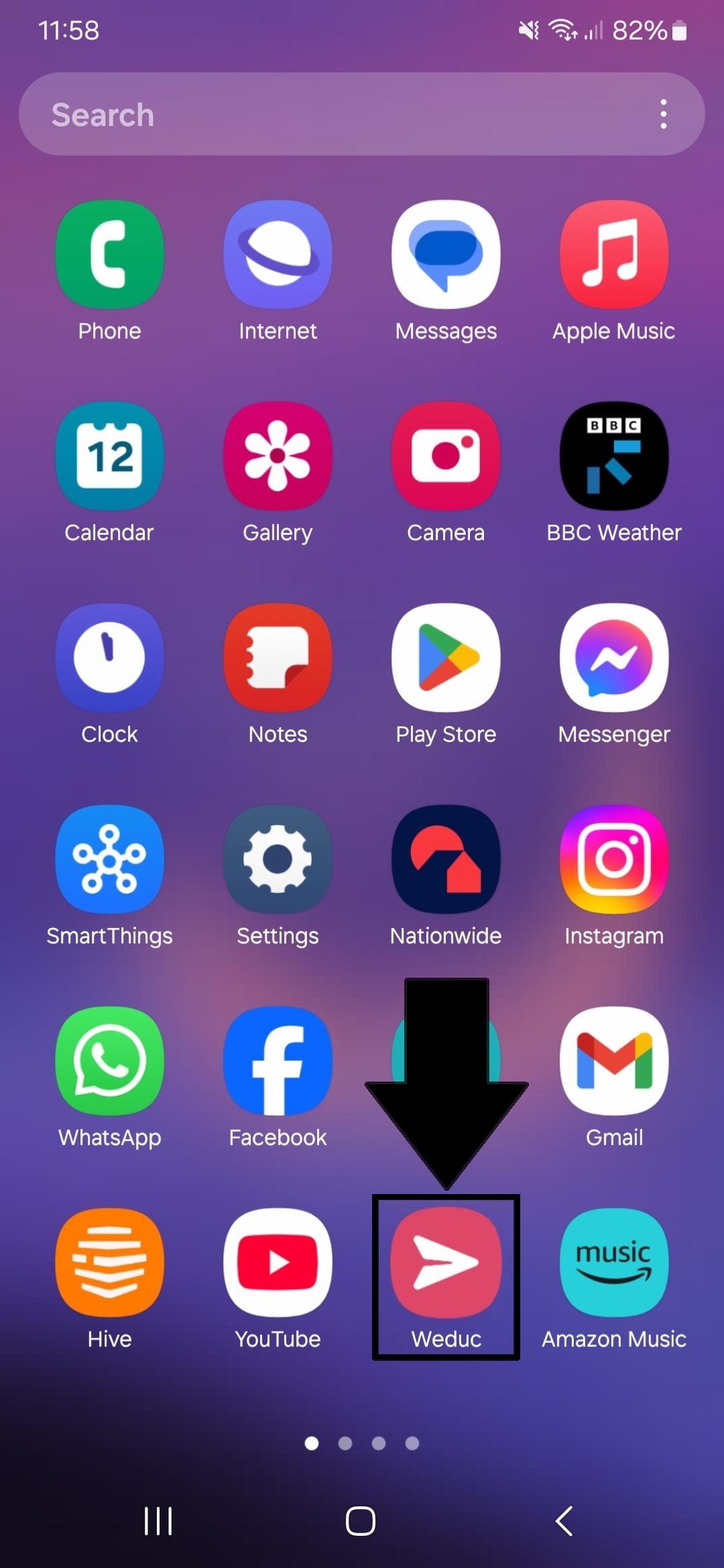
1) Tap on the ReachMoreParents app on your device home screen
2) Login using your Parent login username and password
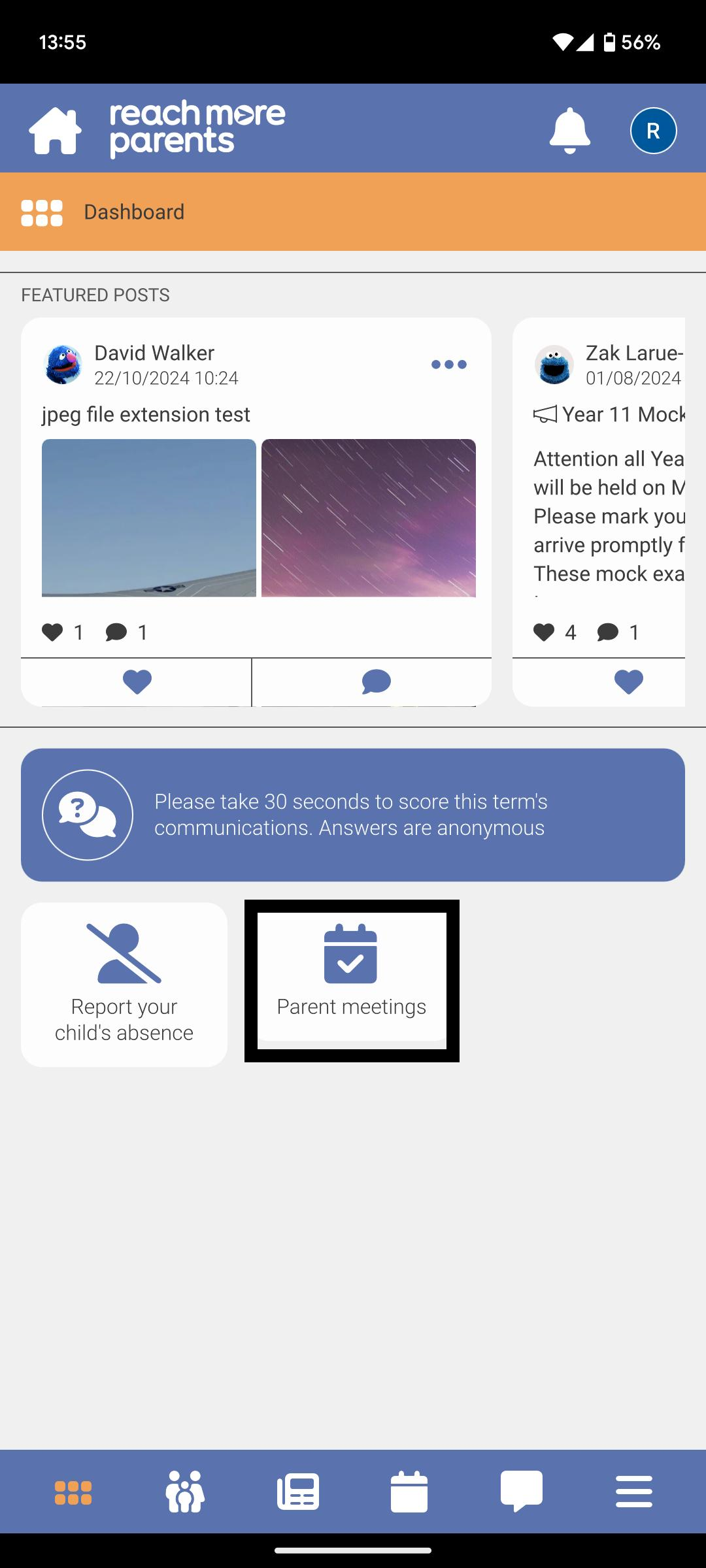
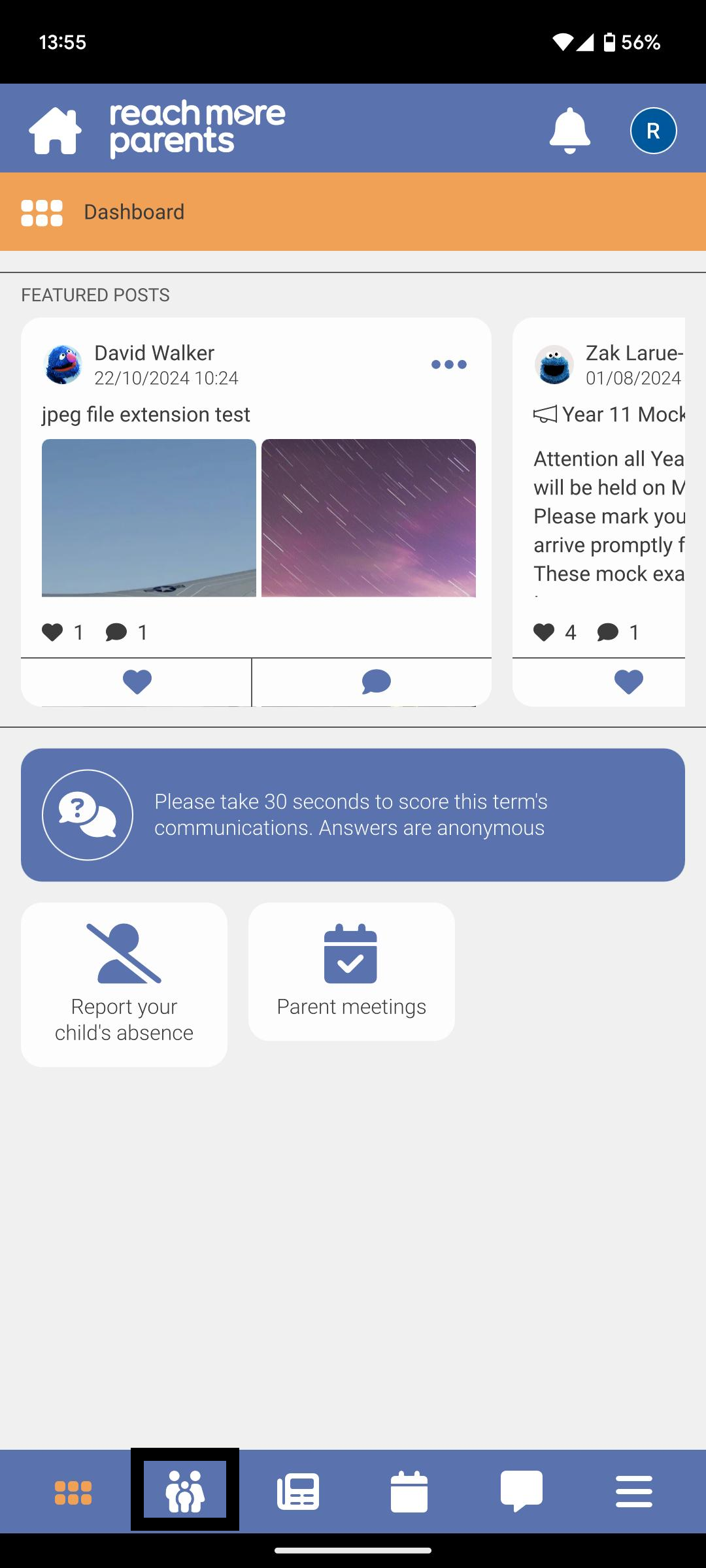
3) The "Parent meetings" tile will be present on the Dashboard if any eligible* events are available for the parent - (* Parent has at least one child associated with event, event is in the future or for the current day, the booking window is still open)
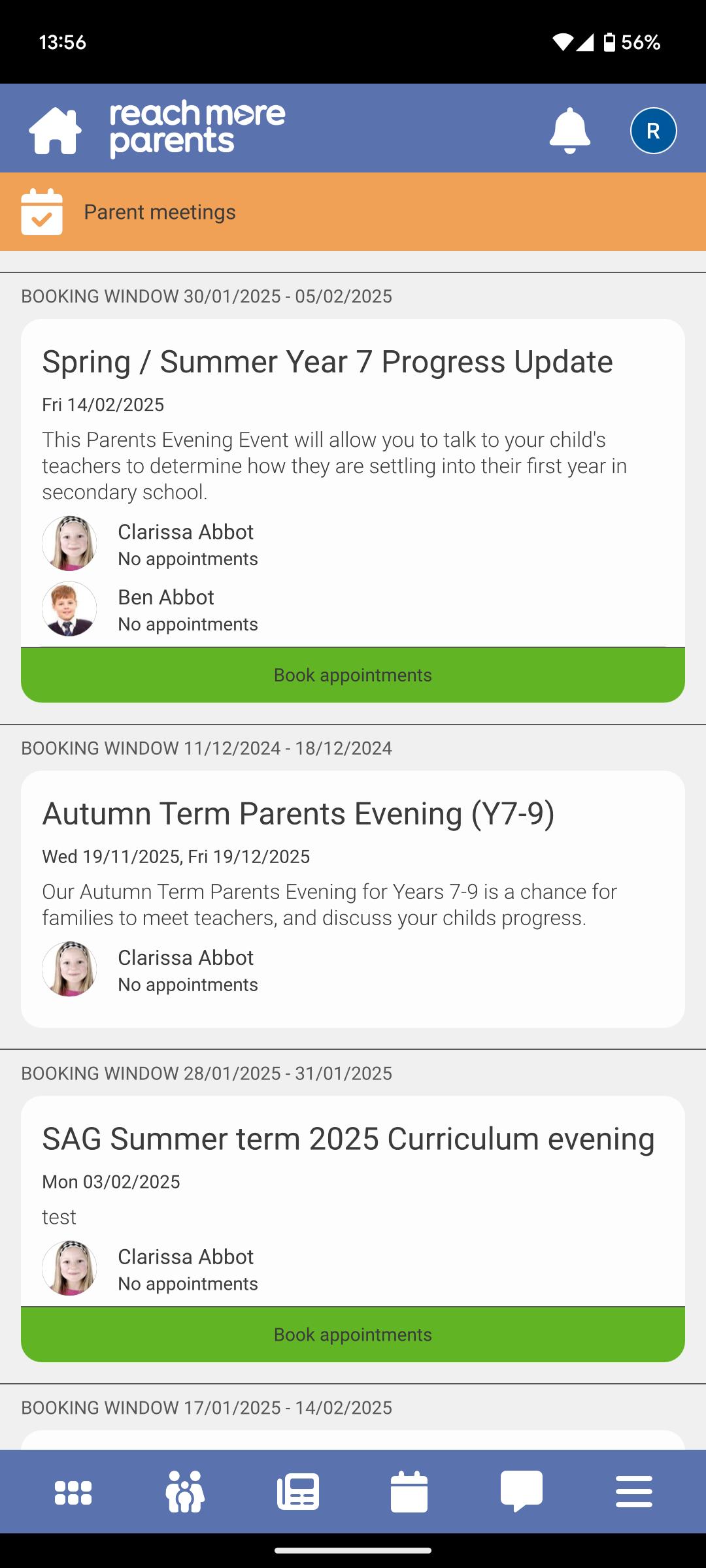
4) Tap on the Parent Meetings tile and any eligible* Parents Evening event(s) will be list in ascending event date order - (* Parent has at least one child associated with event, event is in the future or for the current day, the booking window is still open)
5) Alternatively, you can tap on the Parent Portal
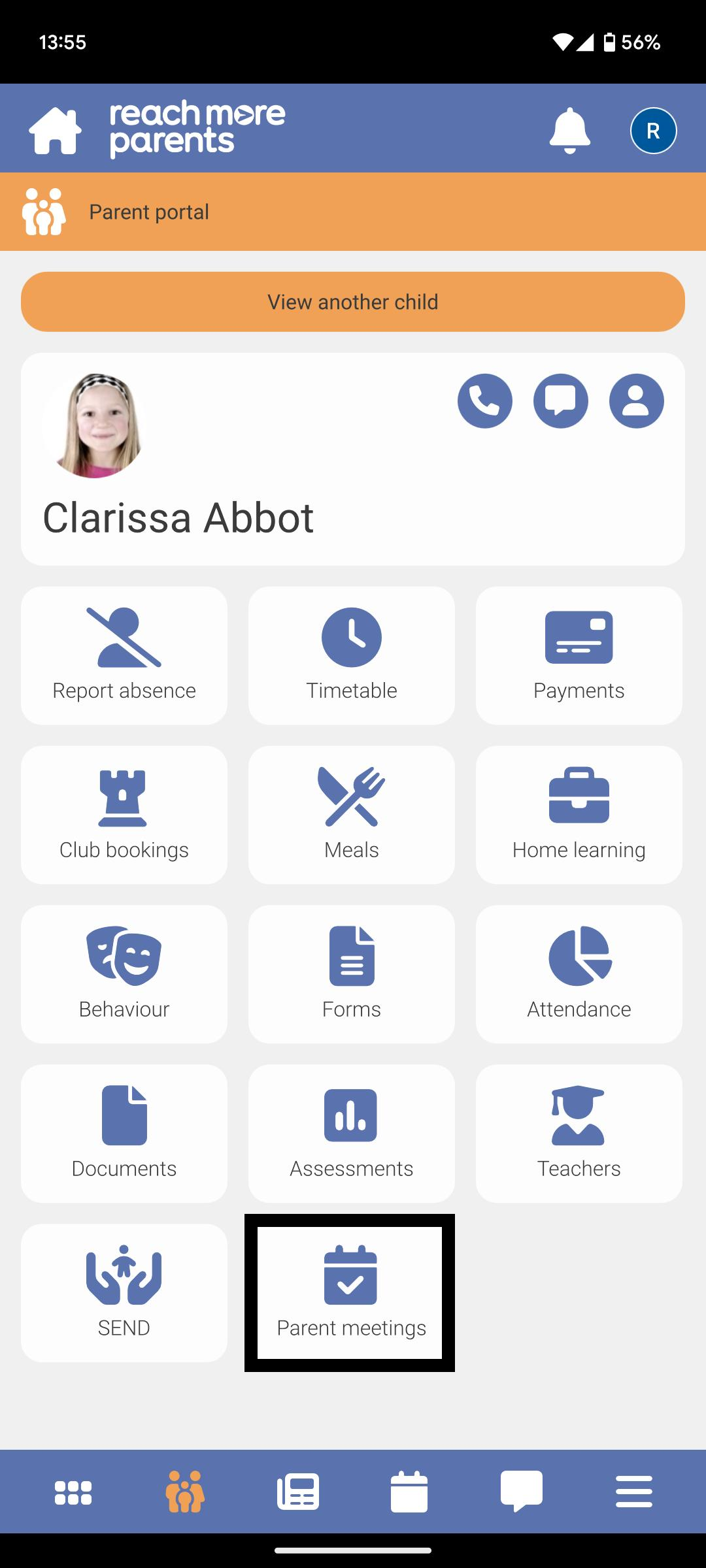
6) Then tap on the Parent meetings tile here to access your Parents Evening event(s)
From this point on, you will need to carry out the following steps:
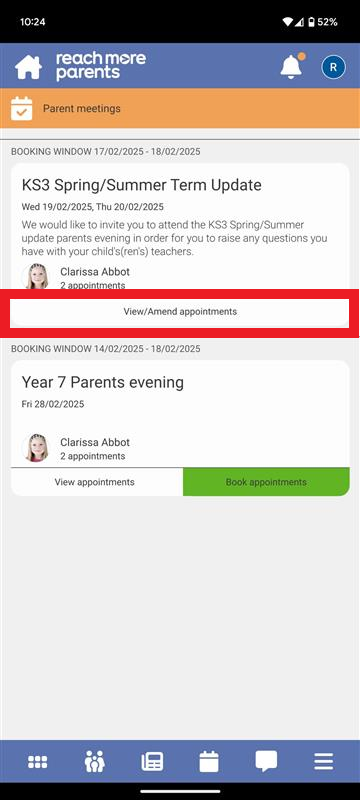
7) Tap on the "View/Amend Bookings" button
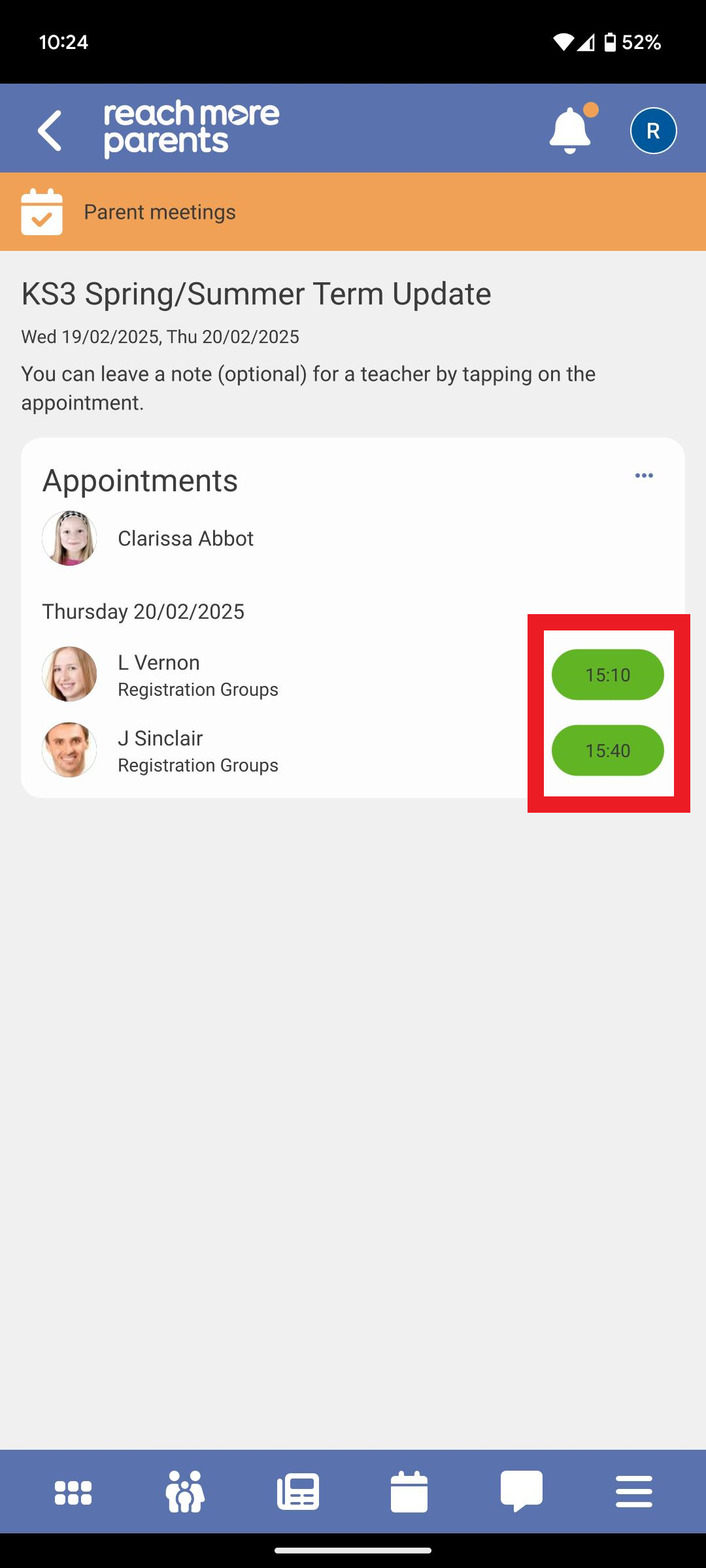
8) Tap on the Appointment time which you need to cancel
9) Tap on the "Delete" button
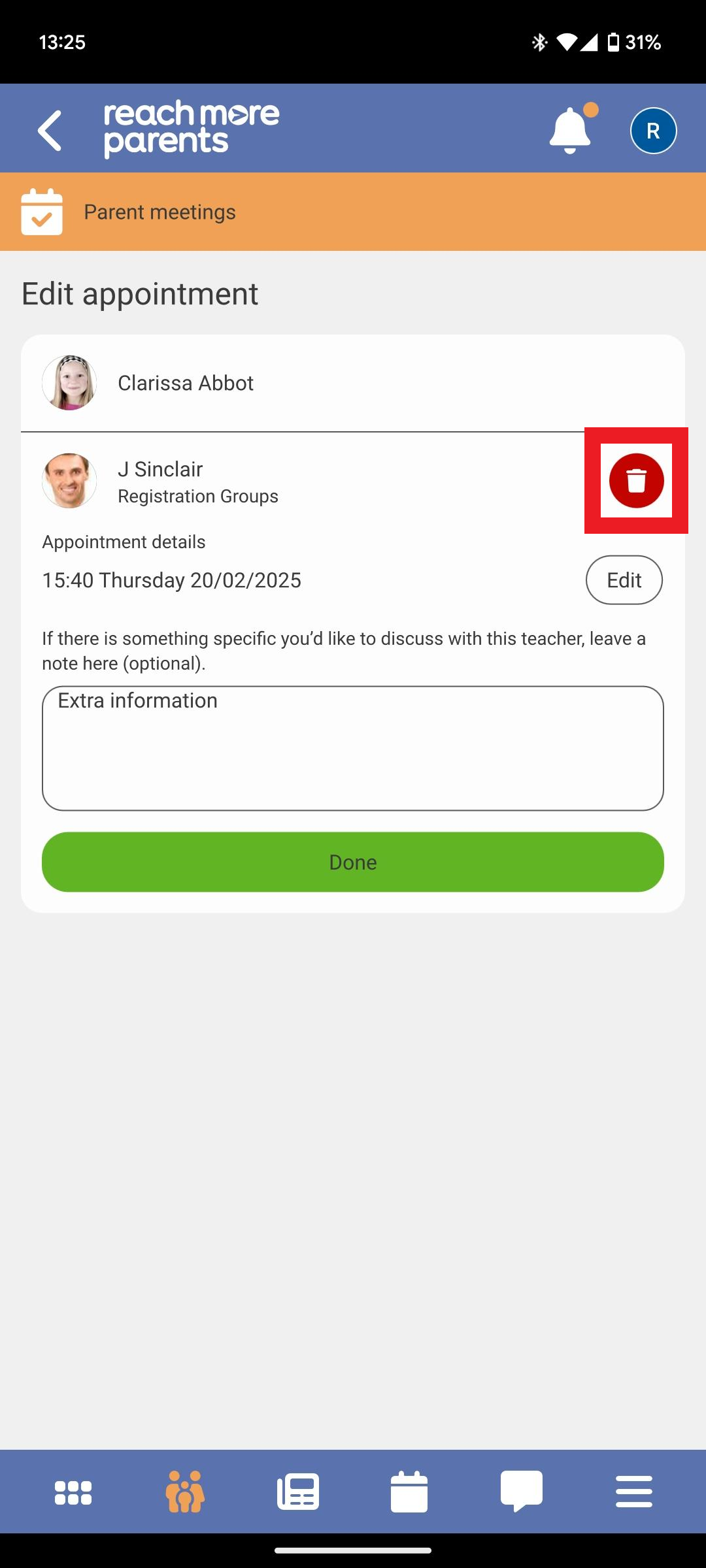
10) Tap on "Cancel" if you've changed your mind
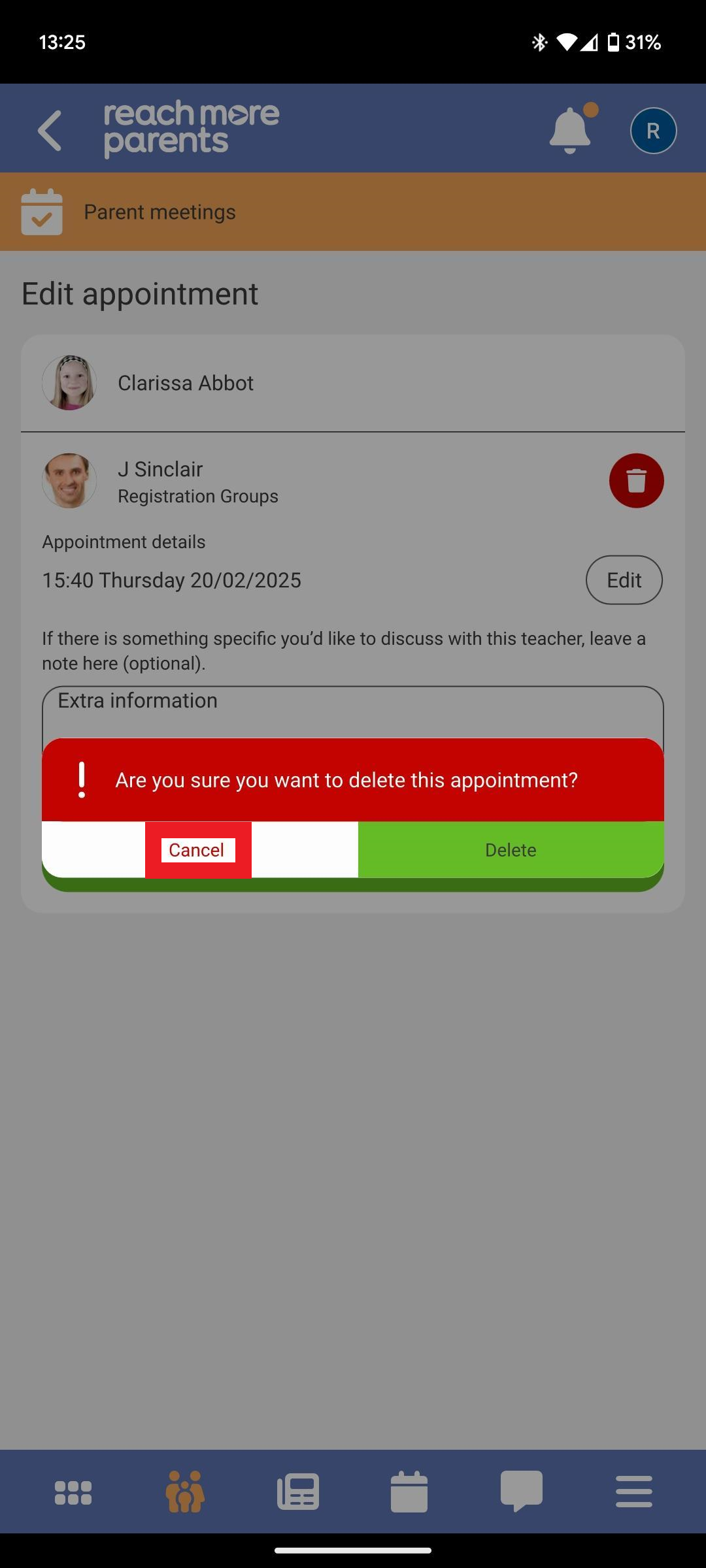
11) Tap in "Delete" when you're certain this is the appointment you need to cancel
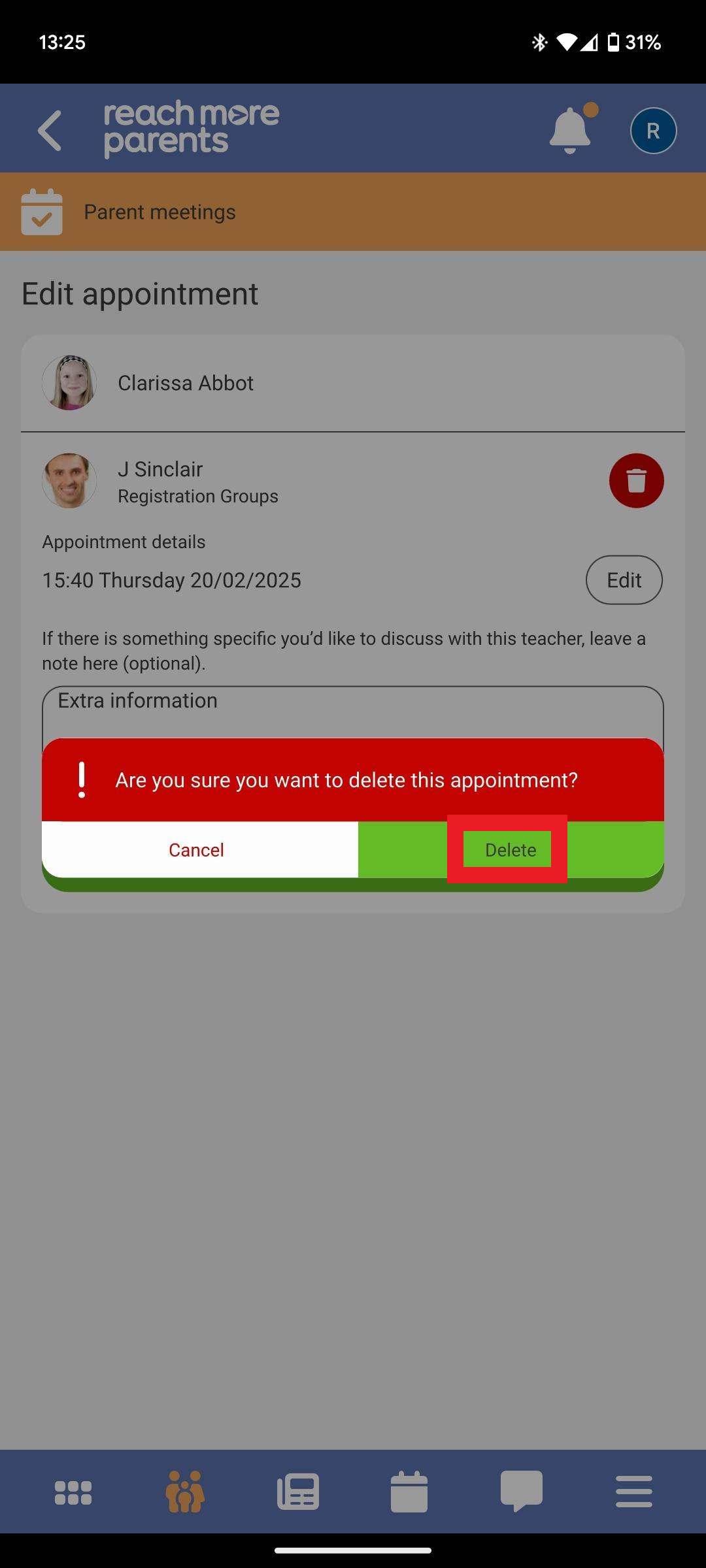
12) When this completes there will be a green confirmation message