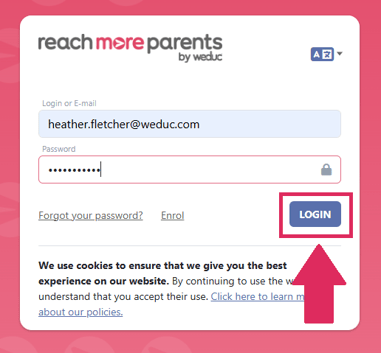
1) Log in to ReachMoreParents.
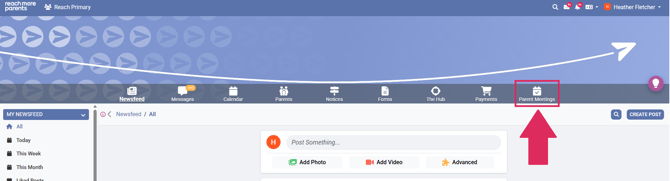
2) Click on the Parent Meetings icon.
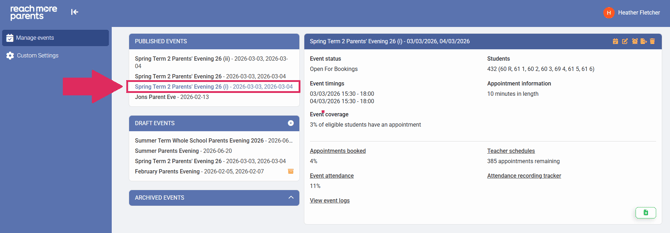
3) Click on the "Event Title" where you need to cancel the Parent / Carer bookings.
4) Click on the bin icon in the Event Summary block.
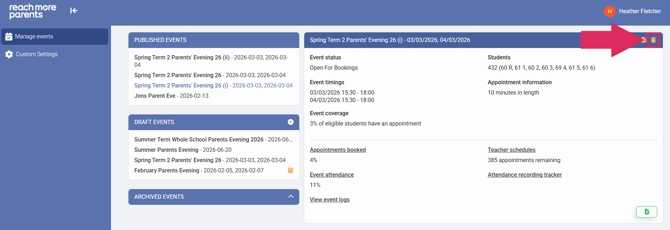
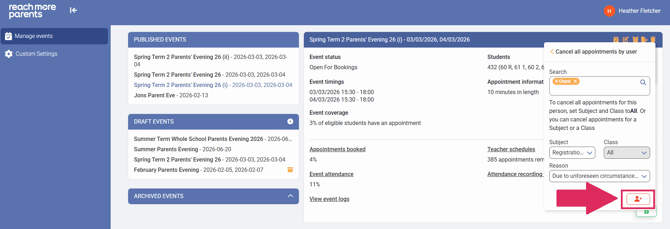
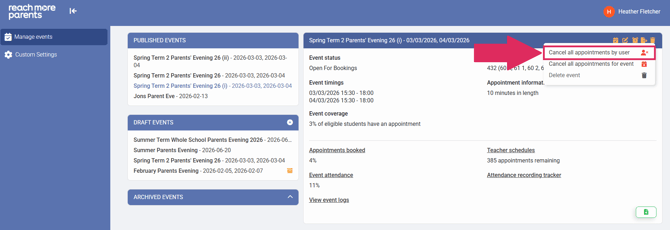
5) Within the "Delete event or a user's appointments" menu, click on the "Cancel all appointments by User" button.
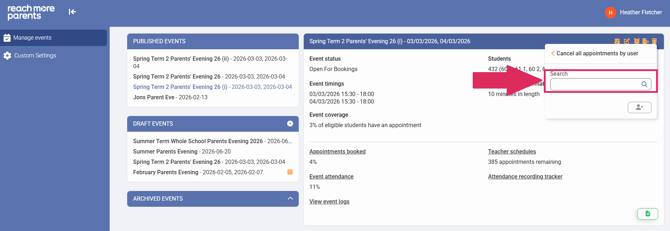
6) Click into the "Search" field and type the name of the Teacher whose appointments you need to cancel.
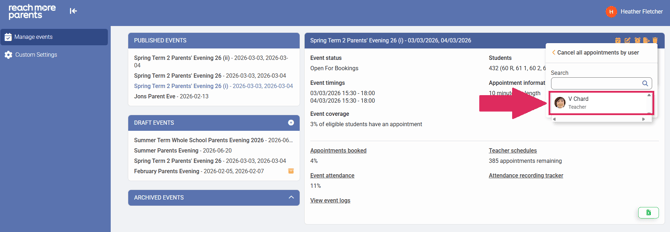
7) Click on the name you need from the list of results.
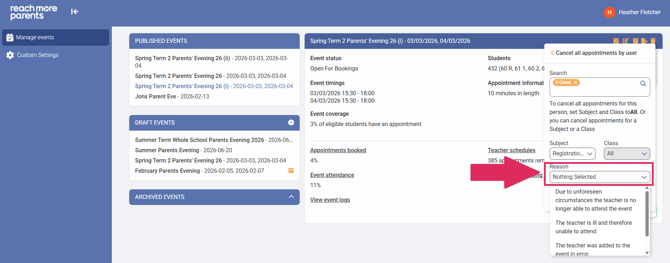
8) Click on the "Reason" selector and choose from one of the reasons in the list "Due to unforeseen circumstances the teacher is no longer able to attend the event", "The teacher is ill and therefore unable to attend", "The Teacher was added to the event in error" or "Other" * If you choose Other you will need to amend the Other reason text.
9) Click on "Cancel all appointments by user."