
In this article, we will be going through the process of creating new appointments as a teacher, on behalf of the parents for a PEMS event.
To start the process, you will need to access PEMS as a Teacher:
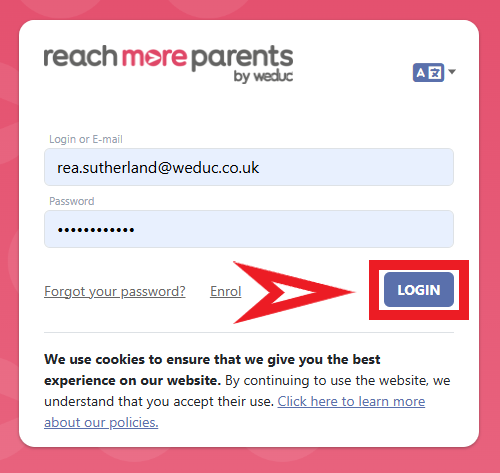
1) Log in to ReachMoreParents.
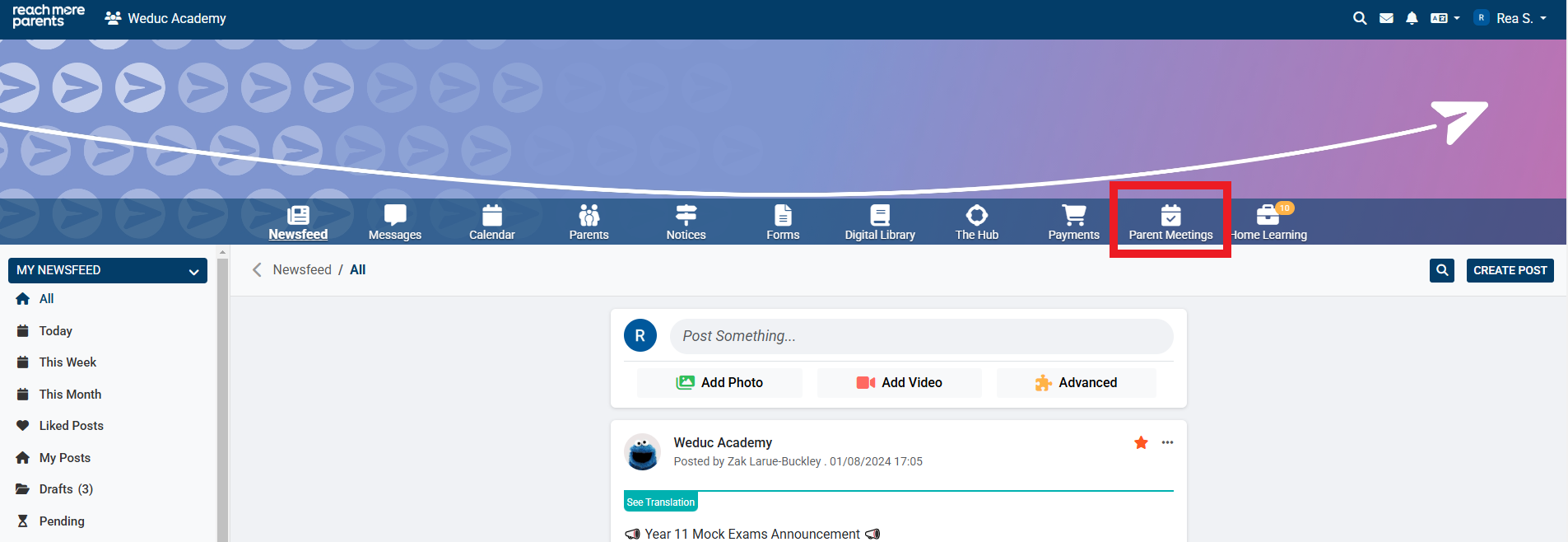
2) Click on the Parent Meetings icon
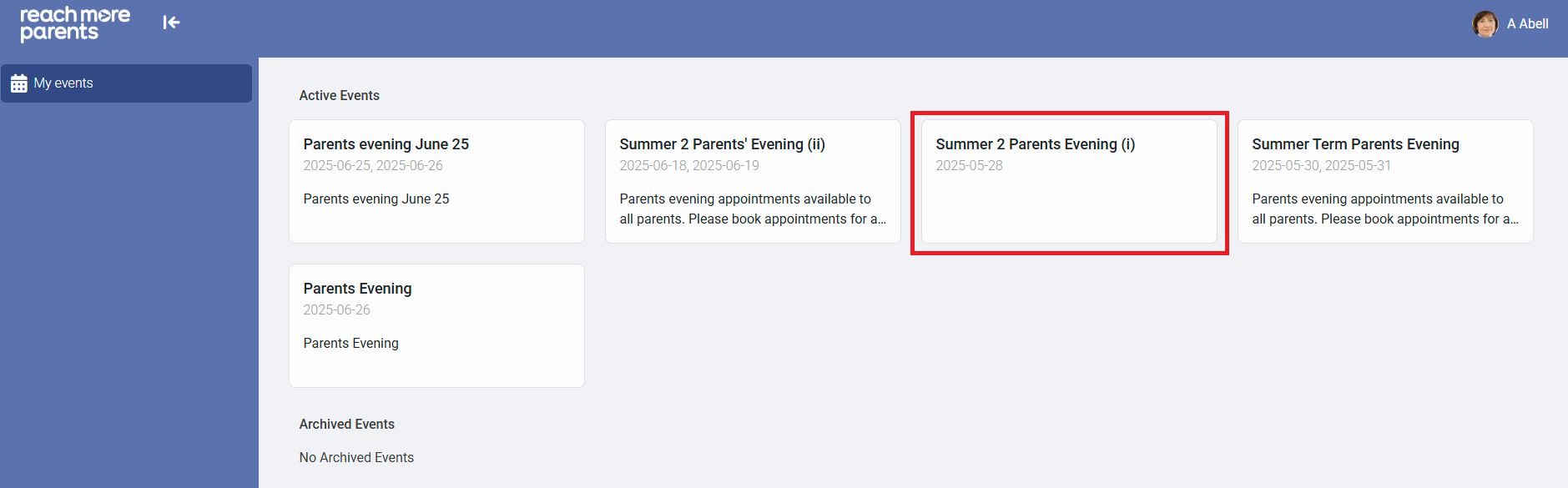
3) Click on the Event tile where the appointment needs to be booked
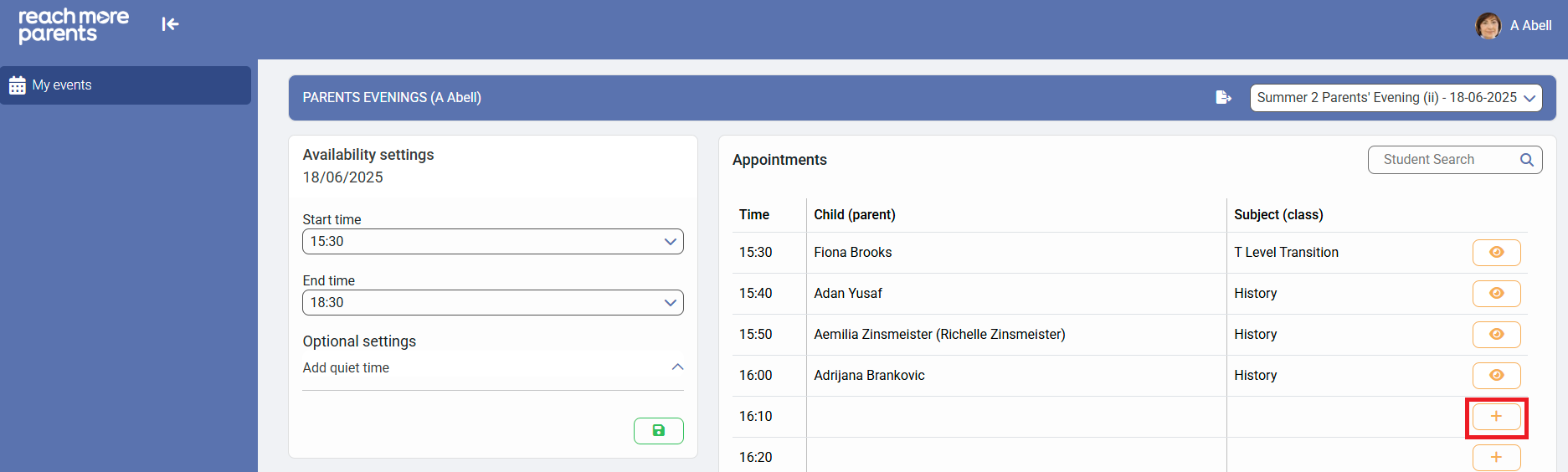
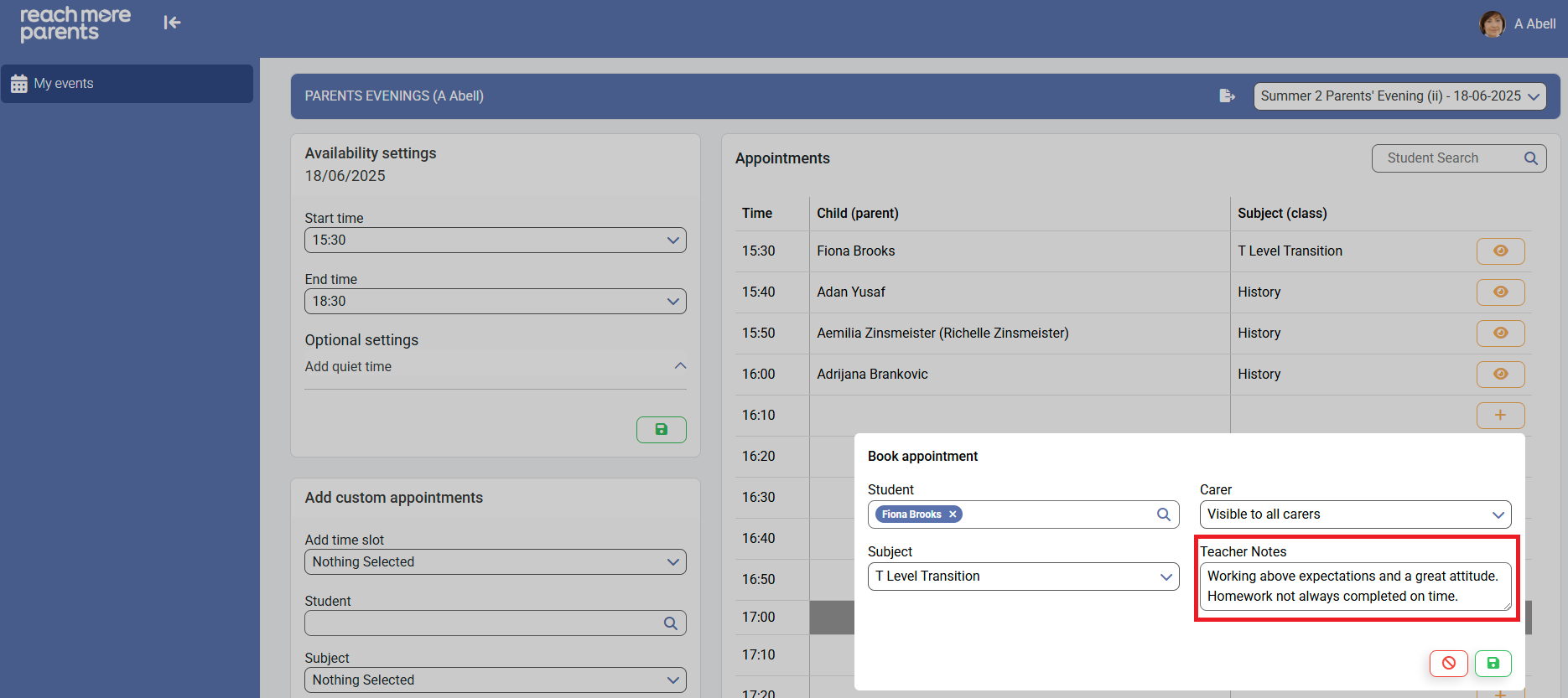
4) Click on the "+" icon to "Add Appointment" in the "Subject (Class)" column
5) Type the name of the Student you need to book the appointment for and select their name from the drop-down to add them to the field
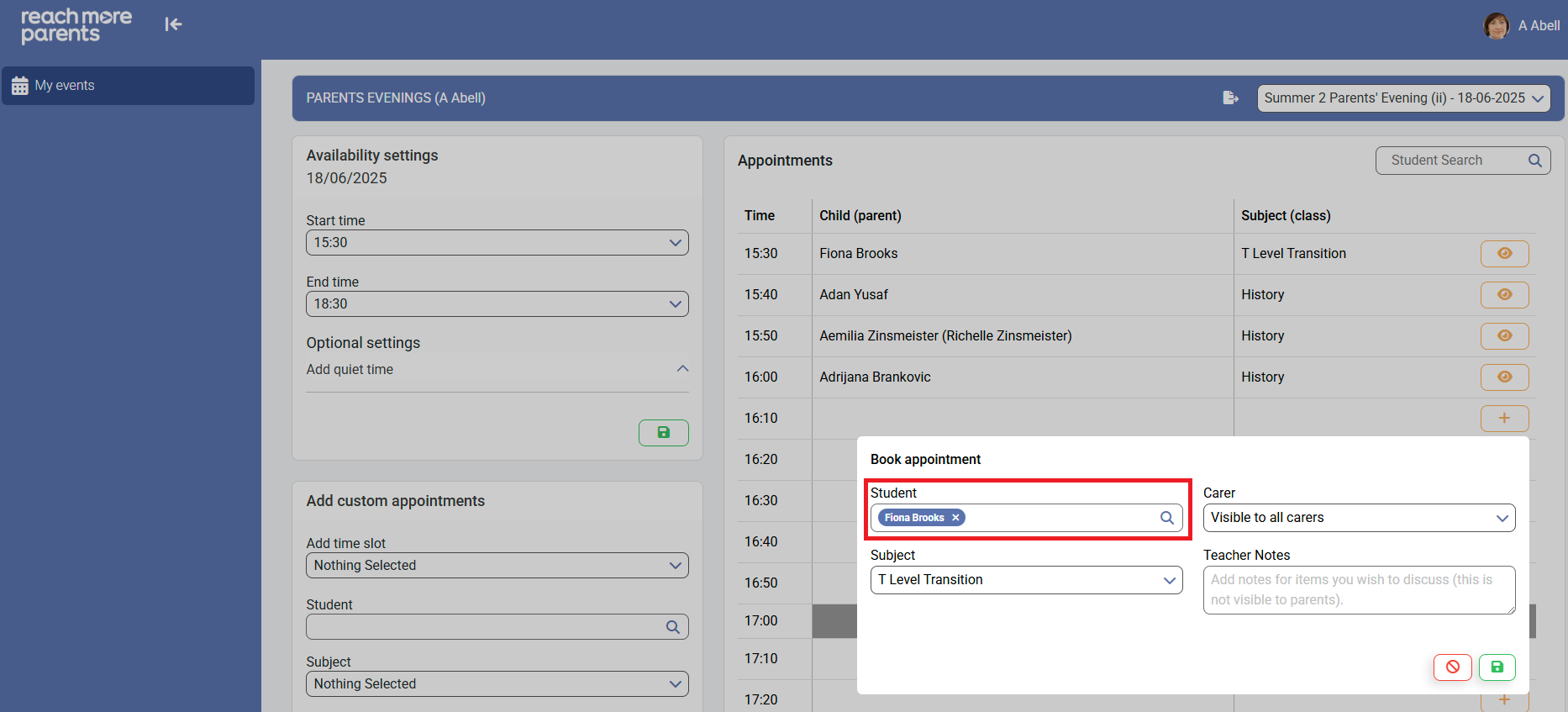
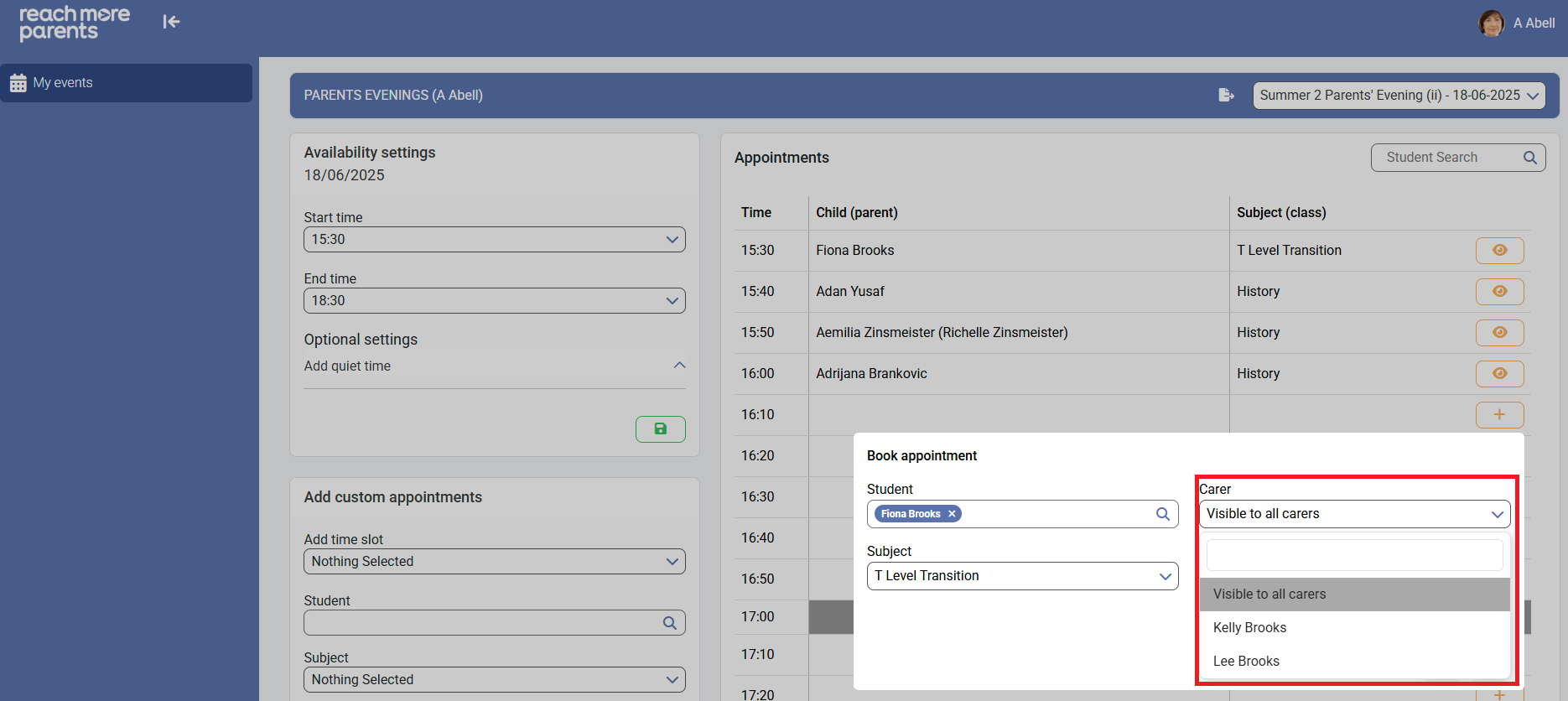
6) Click on the "Carer" selector and choose the carer you wish to make the appointment visible for. You can make the appointment "Visible to all carers" or, in the event that you need to book an appointment for an individual parent, you can select the specific parent the event is for.
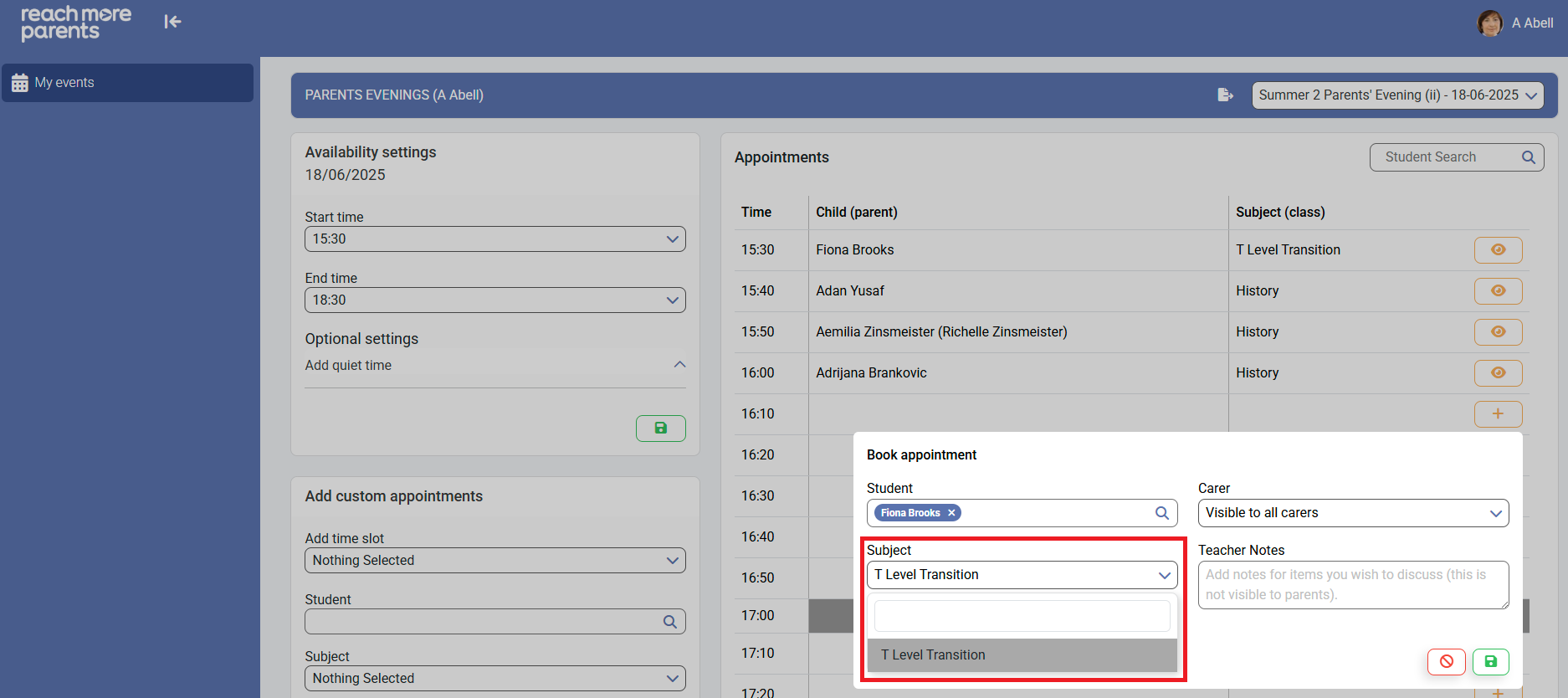
7) Click on the "Subject" selector to choose the subject the appointment is for
8) If you need to add teacher notes to the appointment, click into the "Teacher Notes" field and type out your notes
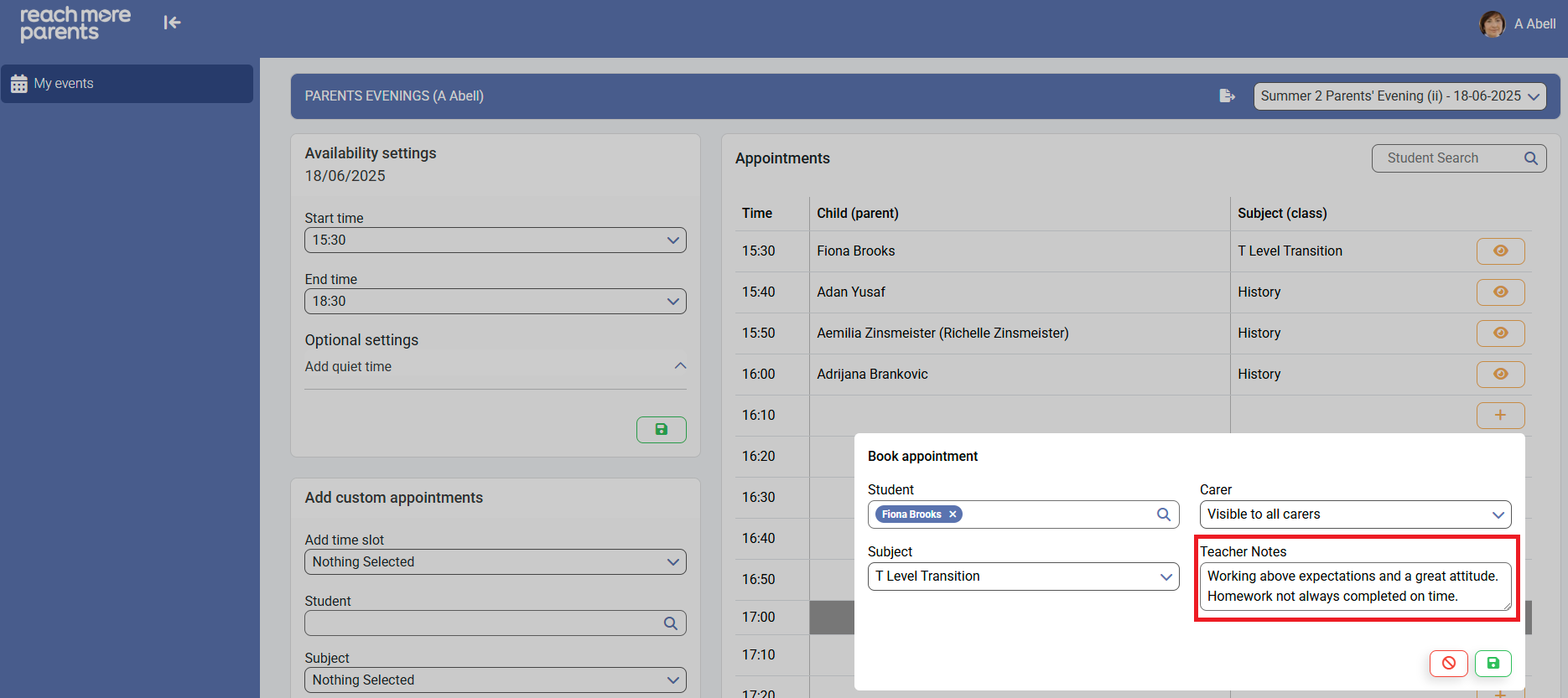
9) Click on "Save" to complete adding the appointment
If you need to return to the Full Guide for Teachers, follow the link here.