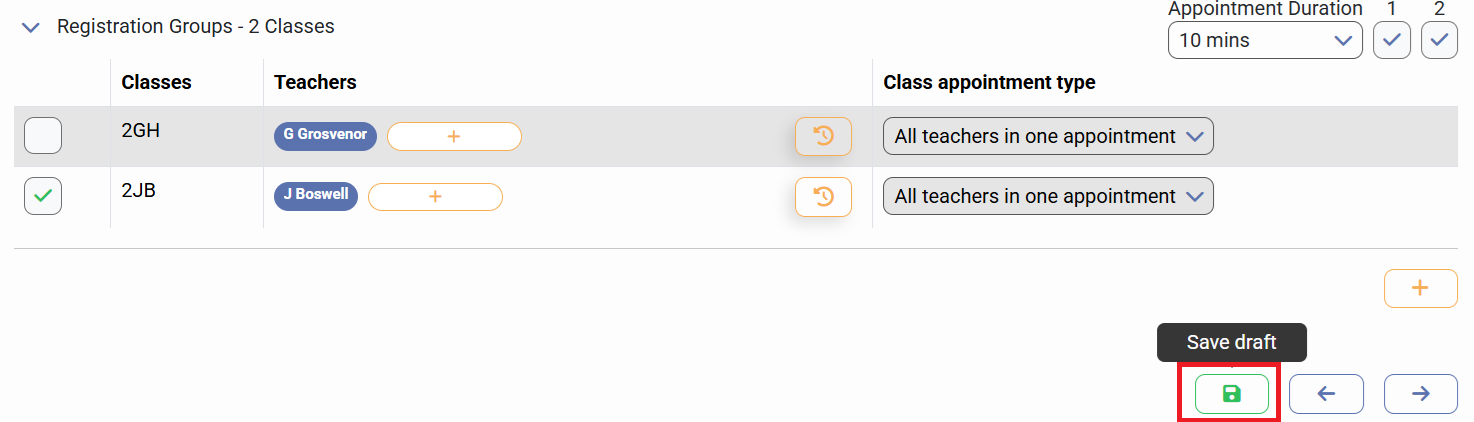
Within this article, we will be covering how to remove registration group(s) from your Parent event. This may be because for this event, you only need the parents to attend the subject teachers' appointments, not their registration teacher.
Firstly, you need to access PEMS as an Administrator:
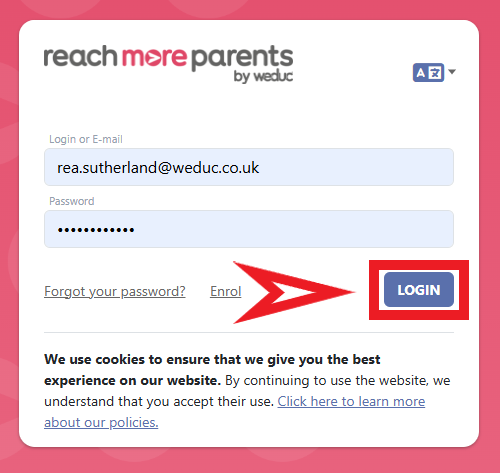
1) Log in to ReachMoreParents.
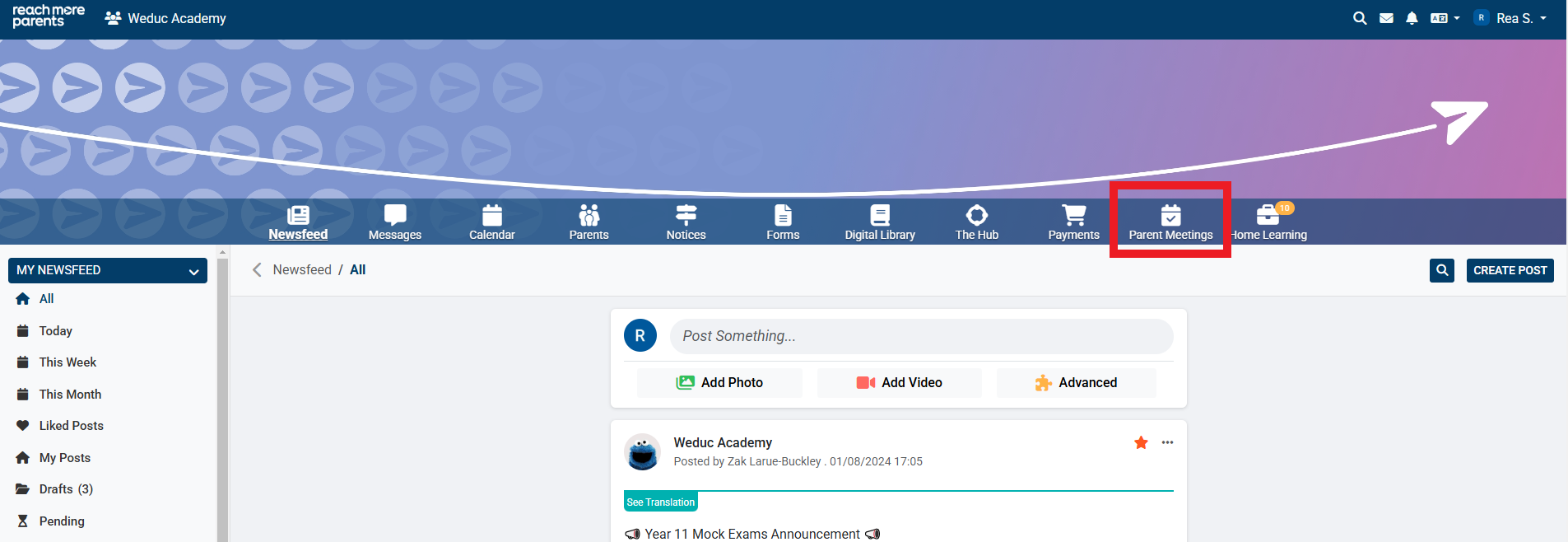
2) Click on the Parent Meetings icon
Next, you'll need to go through the below steps:
Section A - If your event is already published and has bookings
If your event is already in drafts, please skip to Section B
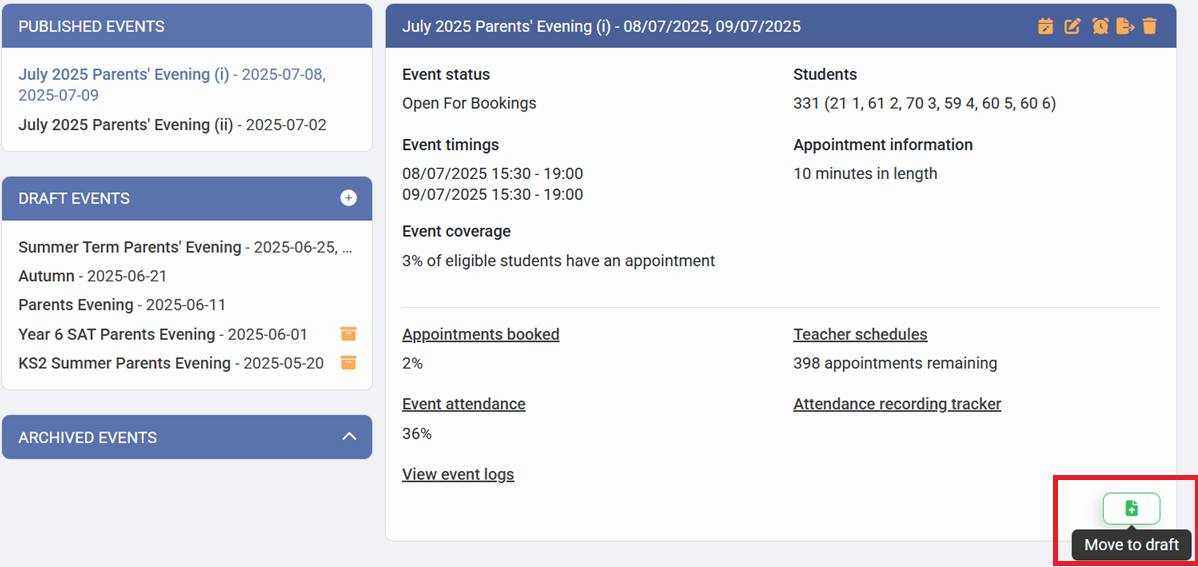
1) If your event has been published, you will first need to move it to drafts. Click on the event name and then select the Green 'Move to Draft' button in the bottom right of the event tile.
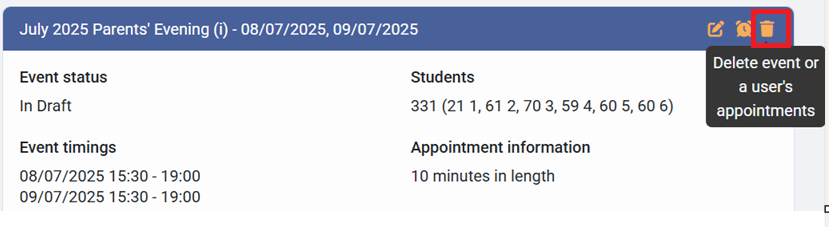
2) Once you have moved the event click on the event name again in the drafts section and then click the bin icon to delete previously booked appointments.
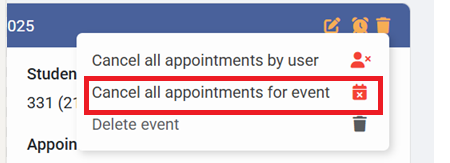
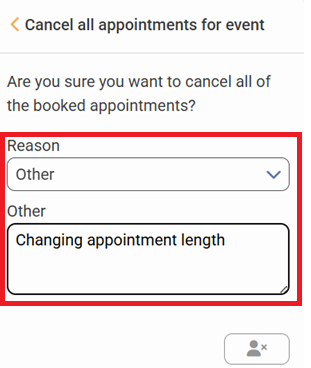
3) Select 'Cancel all appointments for the event', select 'Other' as your reason and then type in the reason in the text box. Finally, click on the image of the person with a cross at the bottom.
Section B - If your event is in drafts
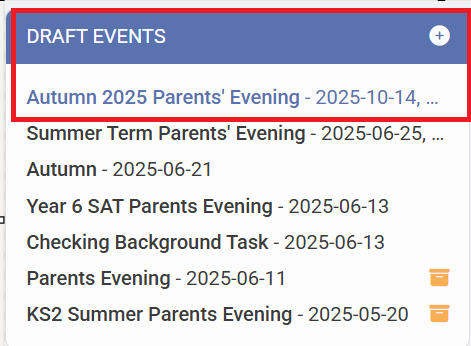
1) Click on the Event you need to amend within the "Draft Events" block
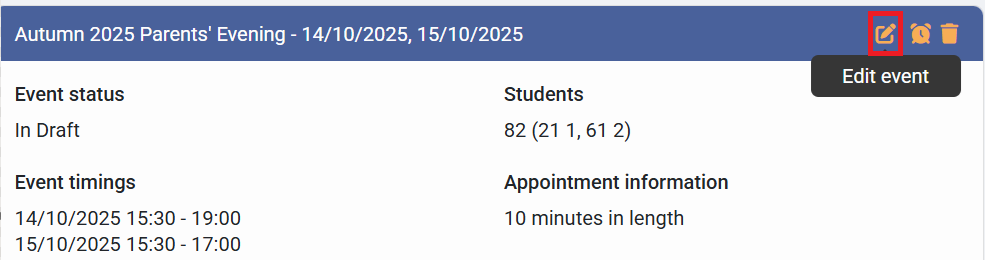
2) Click on "Edit Event"
3) Click on "Next" on the Basic Event Information, Event Date & Times and Appointment Settings screen
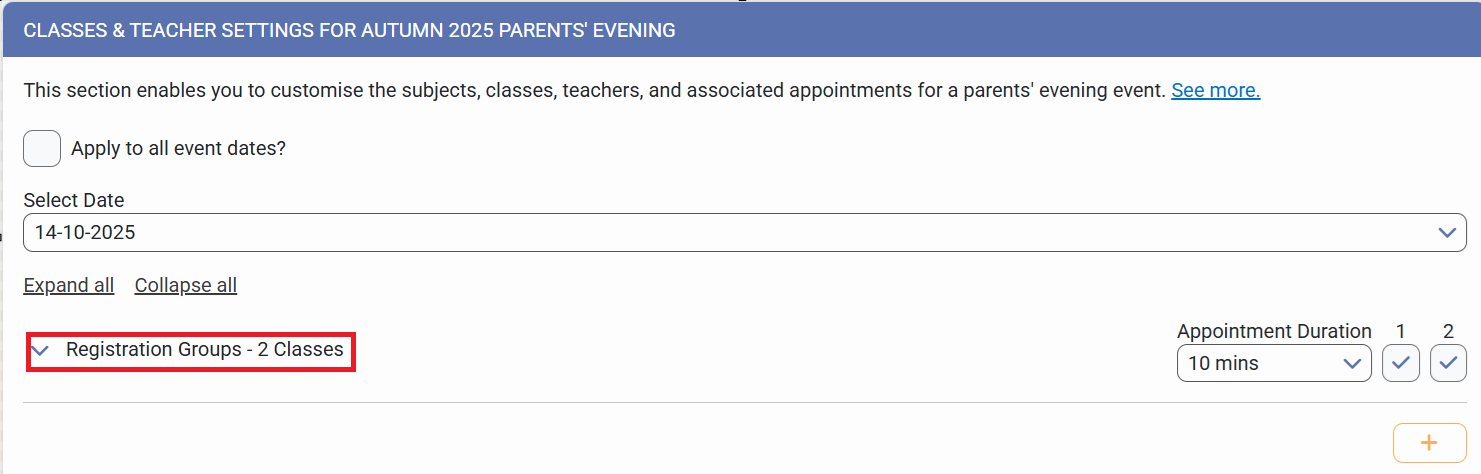
4) On the Classes & Teacher Settings screen, locate the "Registration Groups" section heading
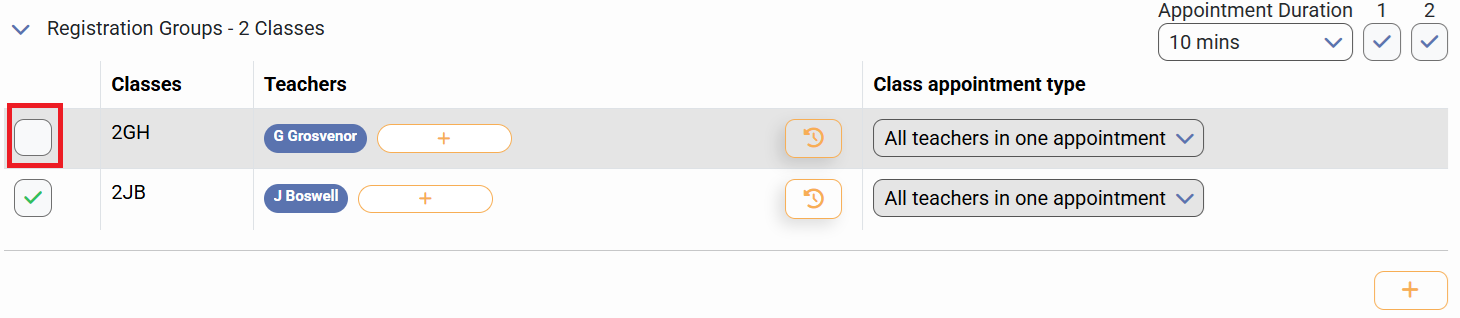
5) Click on the downwards facing arrow next to the registration groups heading to expand the groups that fall into this Group Type

6) Remove the check mark from the Registration Group(s) you don't need people to attend at the event
7) Click on "Save Draft" to accept your changes