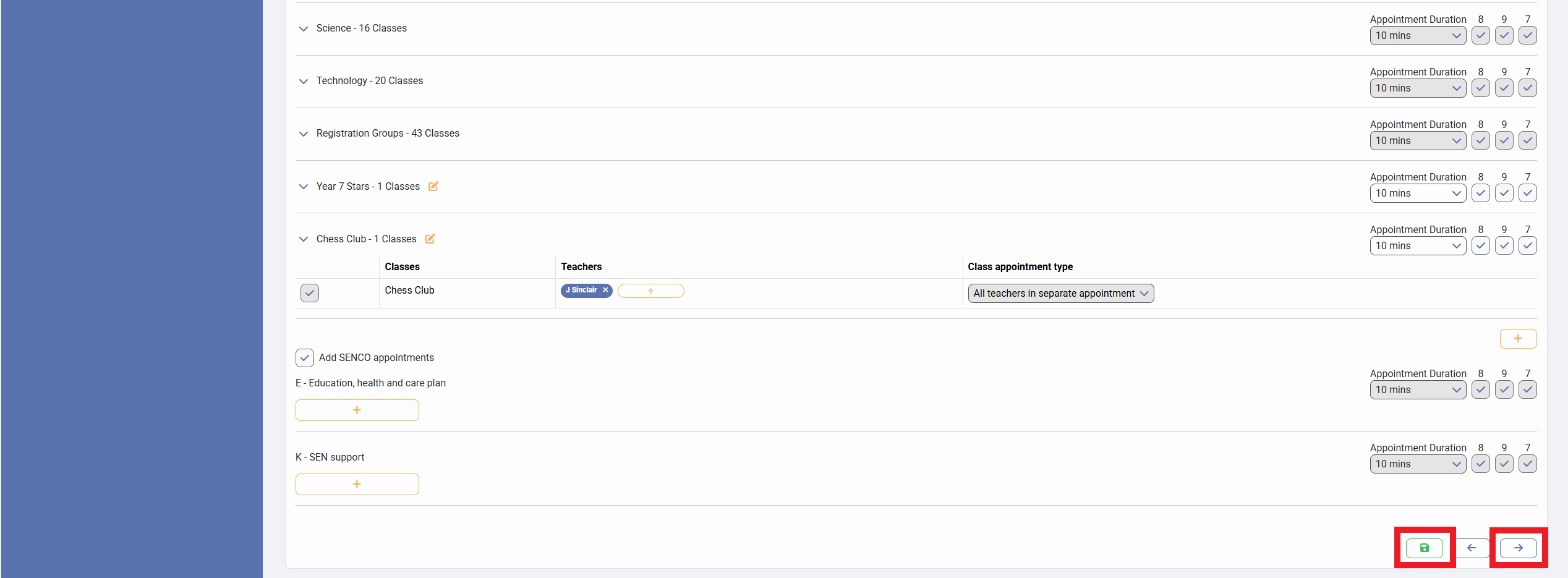
For some Parent Event, you may need to create a Custom Group to attend the event for a specific reason, such as a club group or a group for your SEND children to see their SENCO.
In the Parents Event Management System, we have accounted for this with your ability to create a Custom Group within the event creation process.
First things first, you will need to access PEMS as an Administrator:
1) Log in to ReachMoreParents.
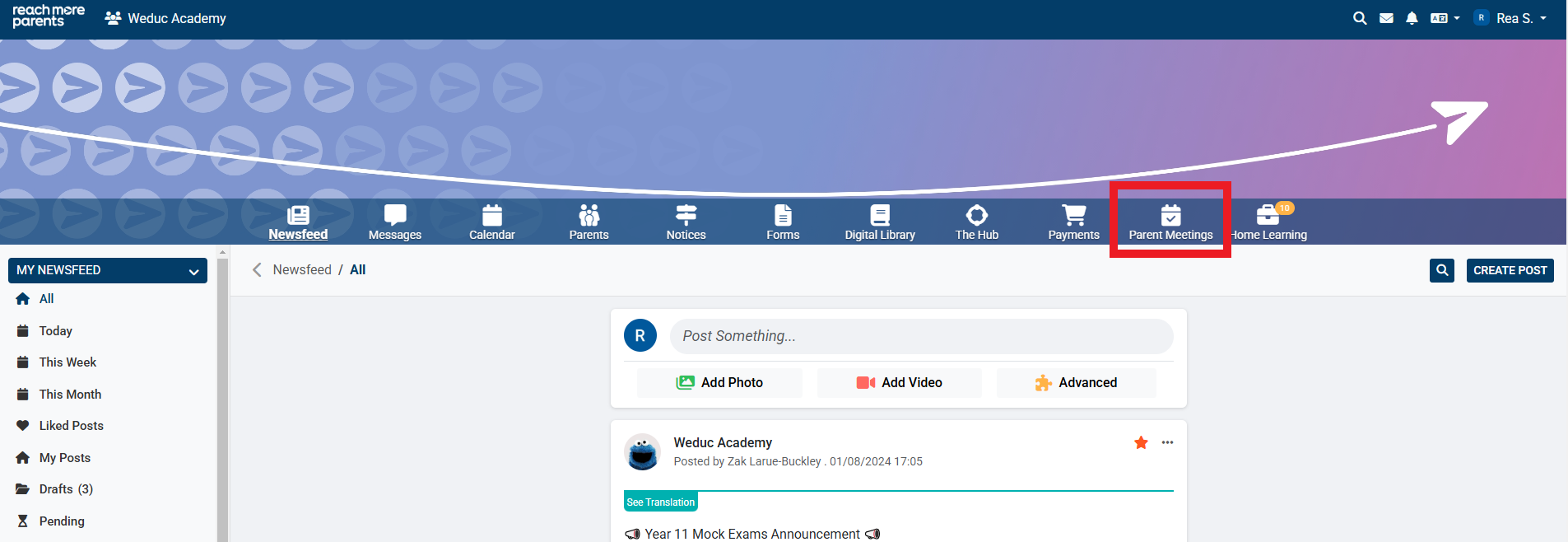
2) Click on the Parent Meetings icon
Then carry out the below steps:
1) Create the Event Basic Information and proceed to screen 2 of the Event creation process
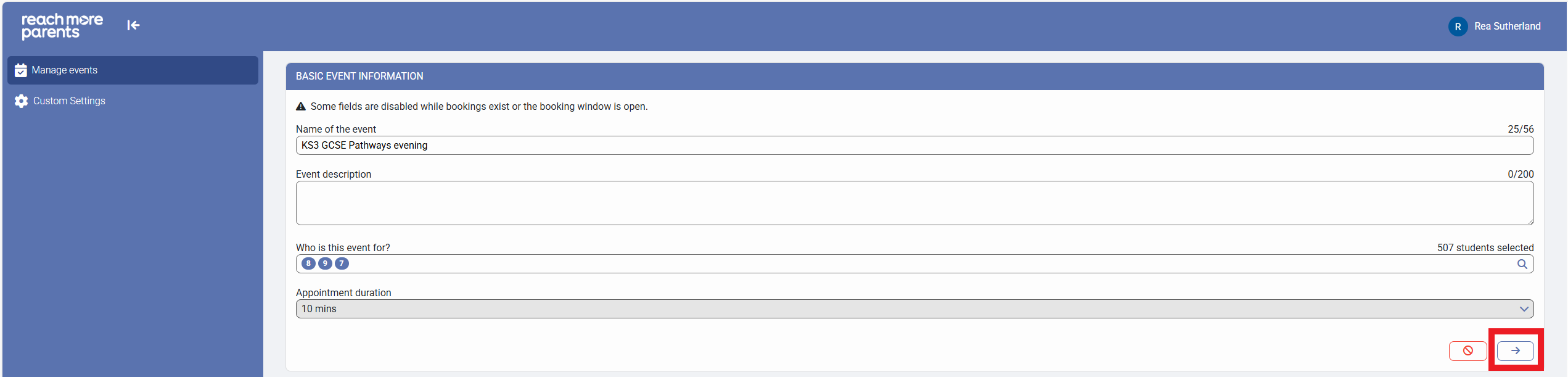
2) Define the Event Date & Time Settings and proceed to screen 3 of the Event creation process
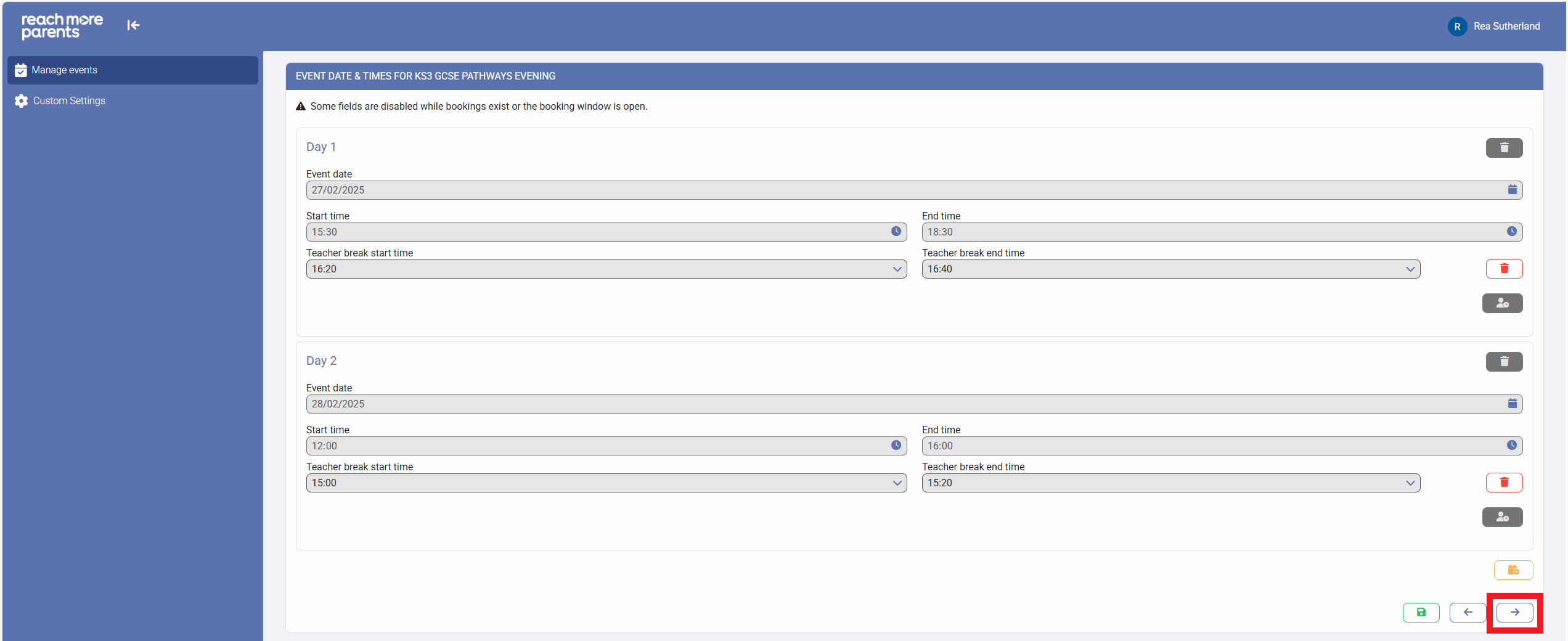
3) Define the Appointment Booking Settings and proceed to screen 4 of the Event creation process
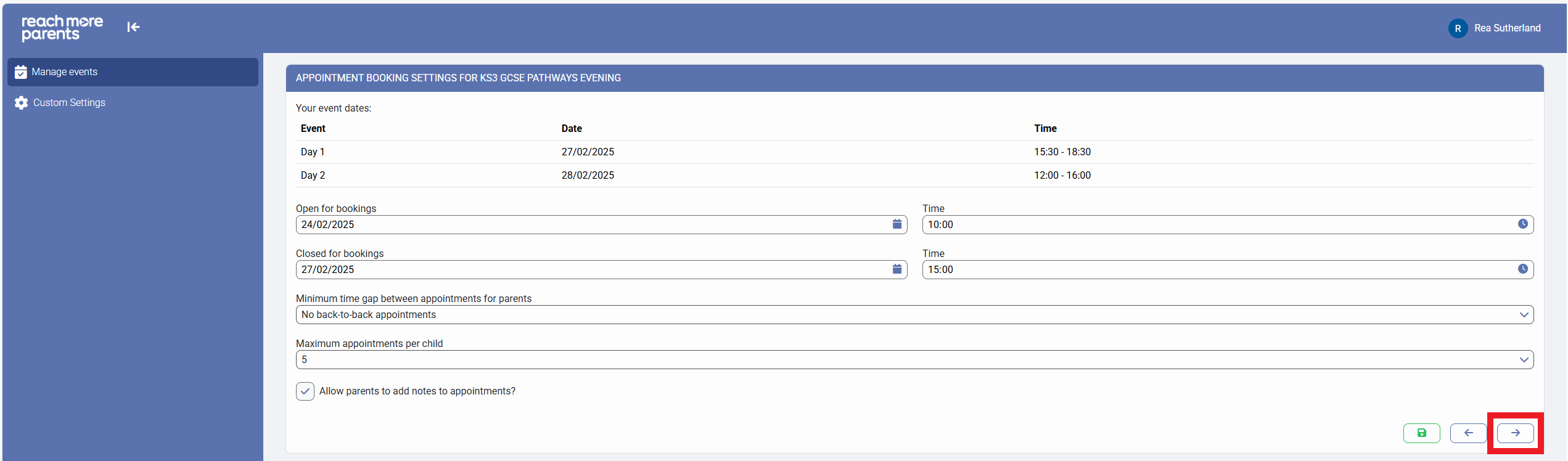
4) In the Classes and Teacher Settings screen, scroll to the bottom of the screen and click on "Create a Custom Class"
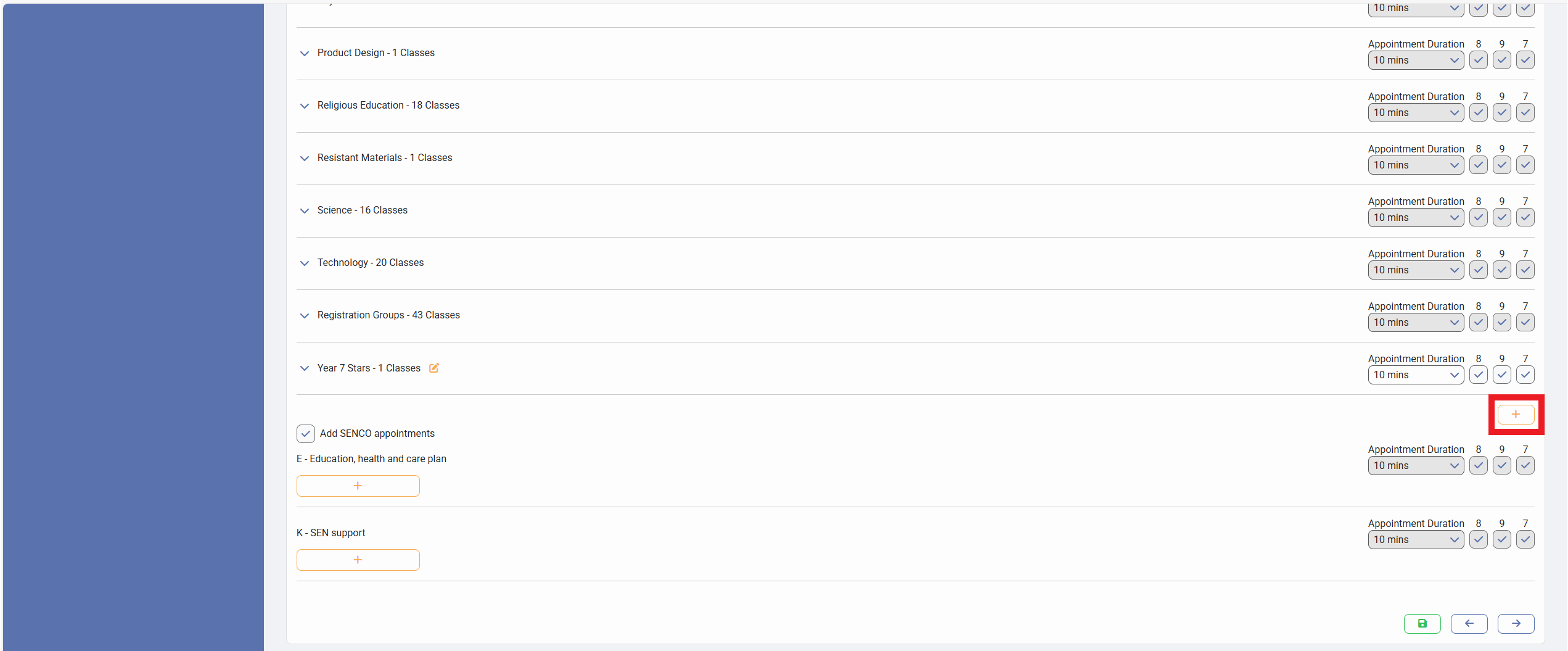
5) Type the name that should display to the parents trying to book an appointment in this group
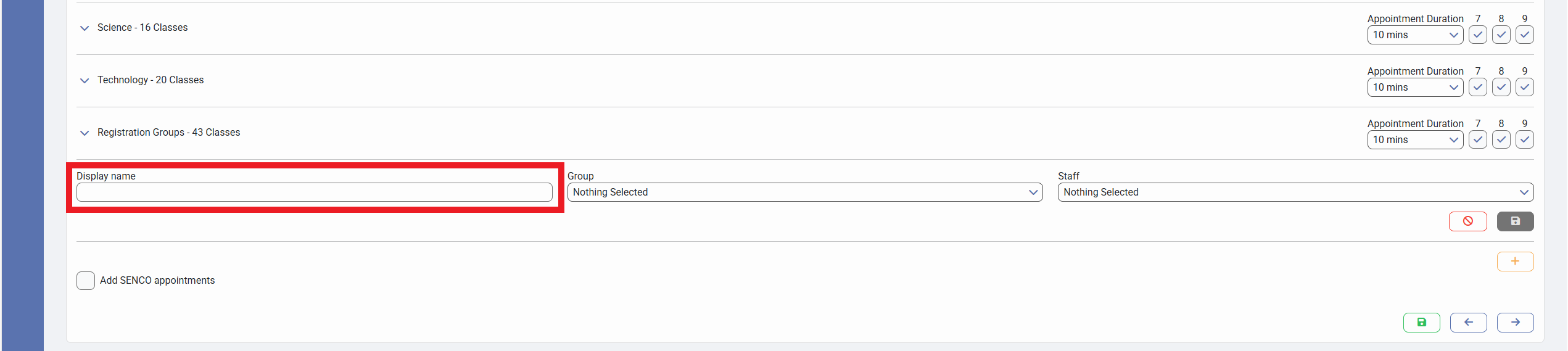
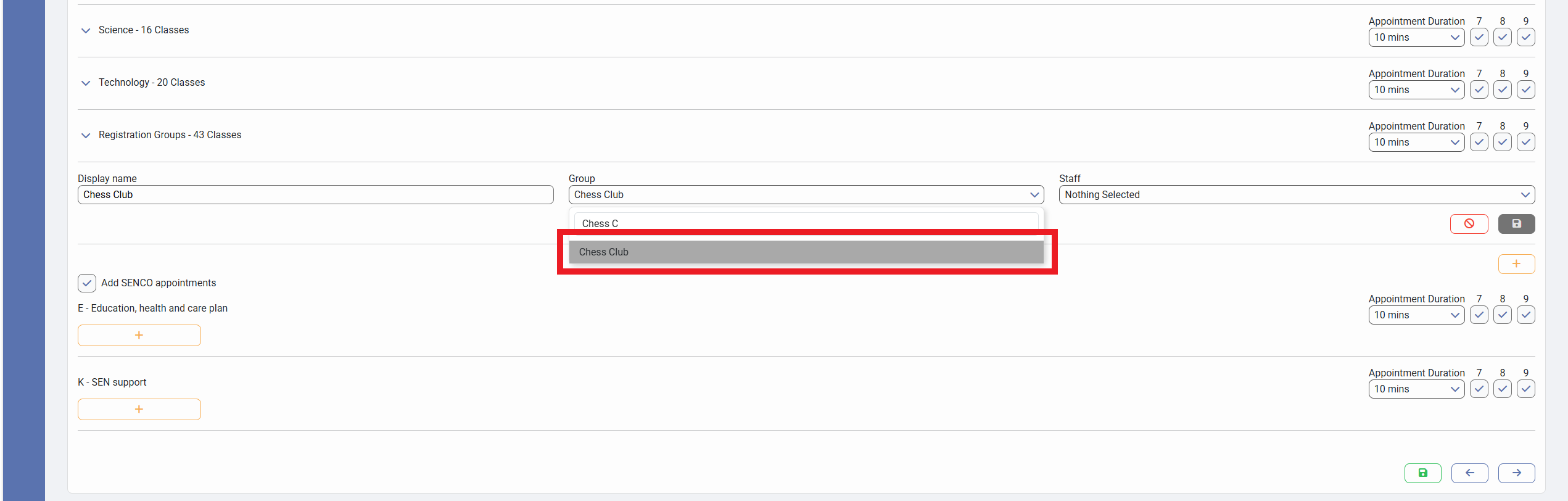
6) Choose the Group of students who need to be given appointments for this custom group
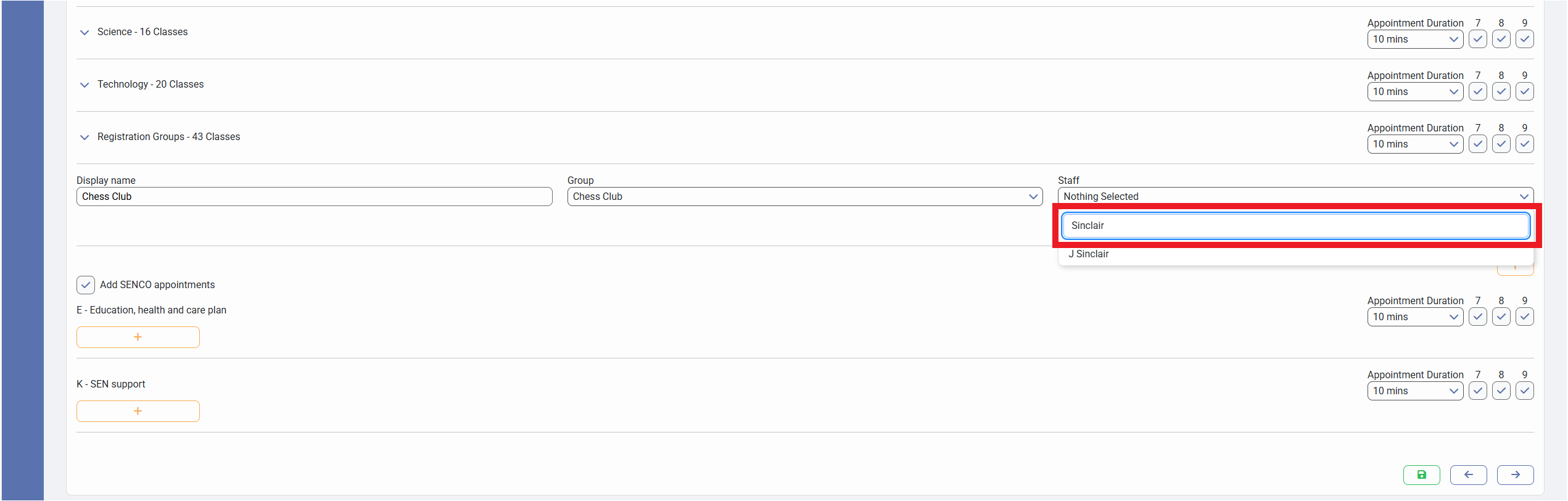
7) Choose which Staff member the Custom Group's appointments will be booked with
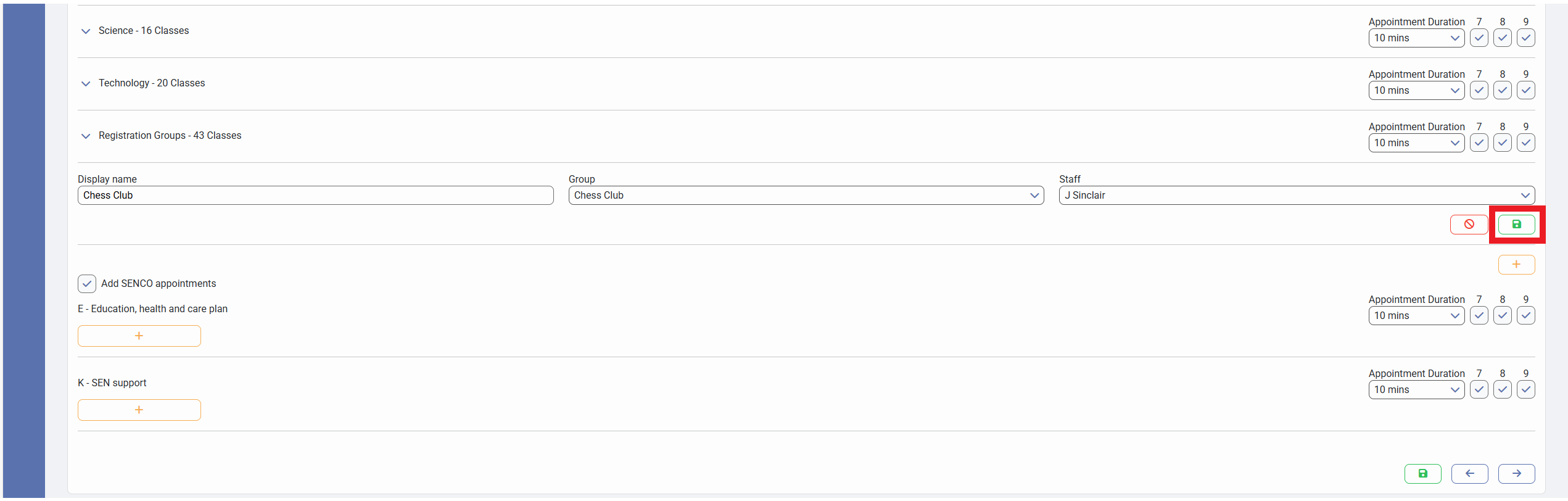
8) Click on "Save"
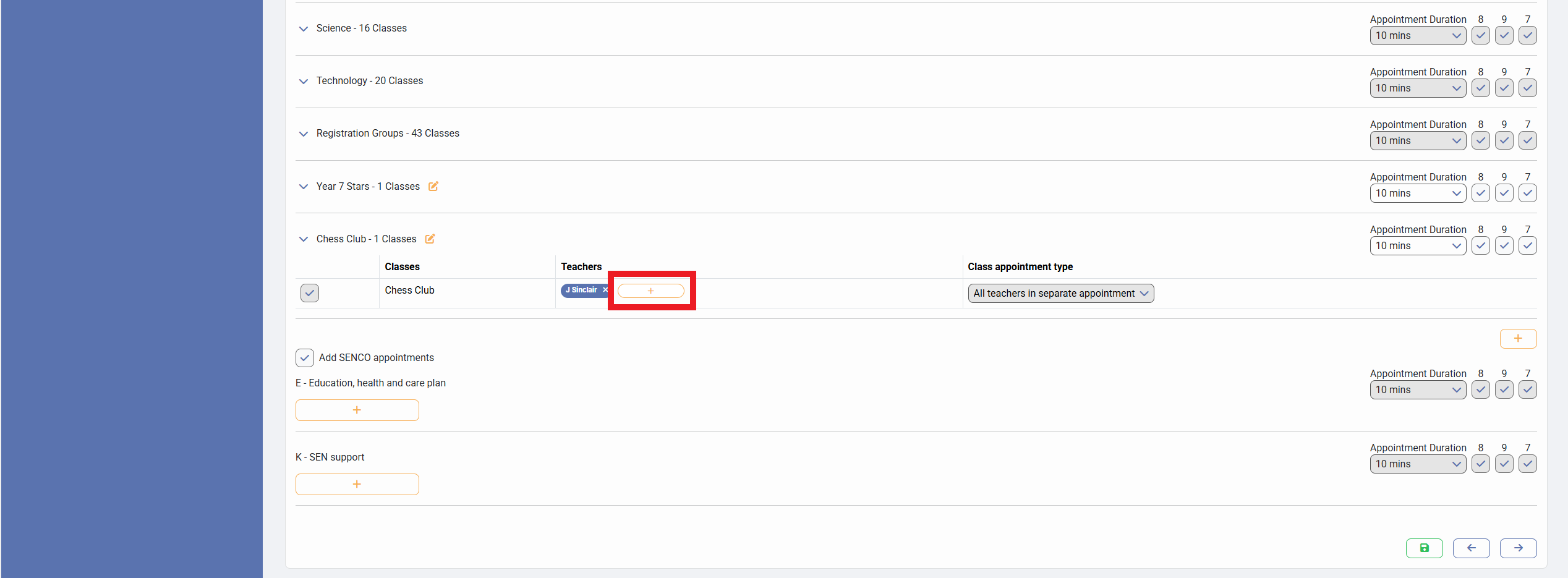
9) You can add any additional staff members by clicking on the + within the custom group "Teachers" column
10) Click on "Next" to save your changes or "Save Draft" if you need to revisit set up later