On some rare occasions, a parent / carer, for whatever reason, may not be able to attend the parents evening event. In these circumstances, where you need to liaise with a teacher who needs to see this particular parent, you might want to create a Custom Appointment.
A Custom Appointment is where you are able to book an appointment on behalf of a parent / carer and teacher outside of the event window.
For example, a Parent / Carer is a shift worker and only has availability in the morning when they finish the night shift. On this occasion, the teacher really needs to see this Parent / Carer regarding their child so they have agreed an appointment at 8:00 on the morning of the Parents Evening event. As an Administrator, you are able to create this custom appointment outside of the Parents Evening event window by carrying out the below process:
First, you need to log into ReachMoreParents as an Administrator:
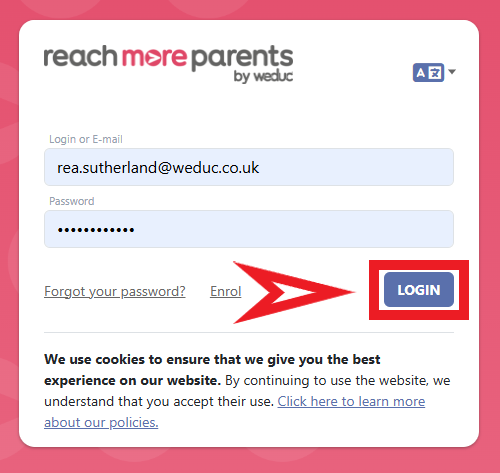
1) Log in to ReachMoreParents.
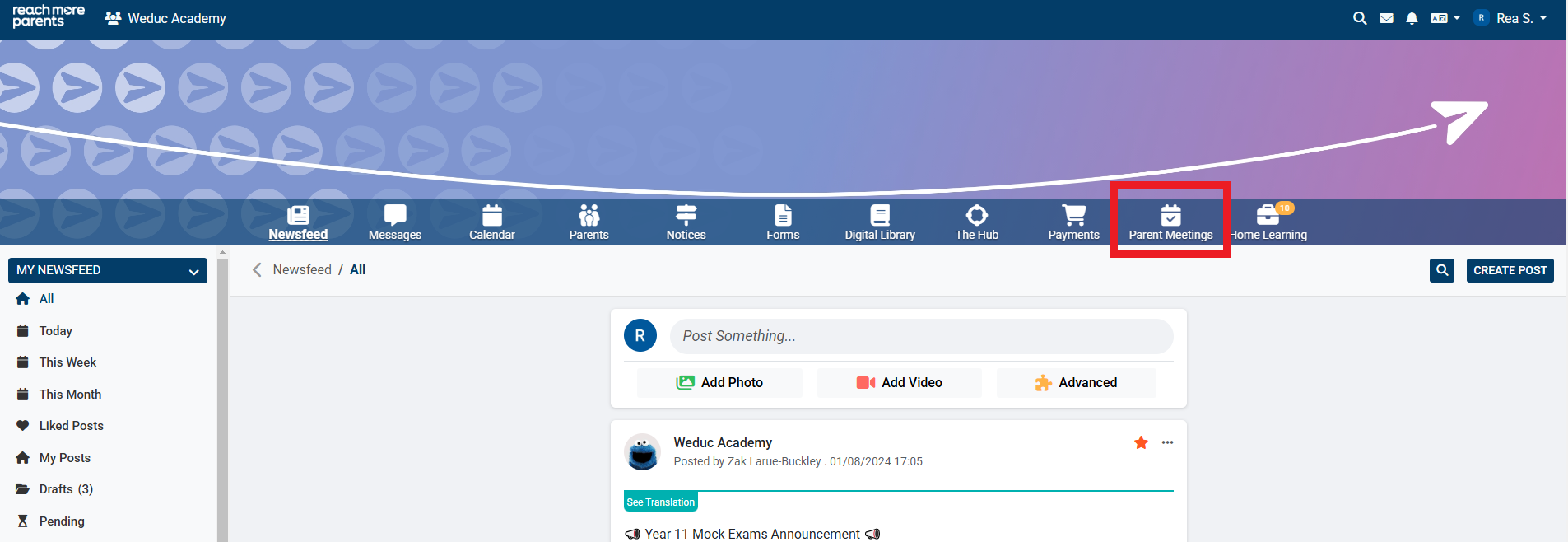
2) Click on the Parent Meetings icon
The following steps are how you complete the process of adding a Custom Appointment:
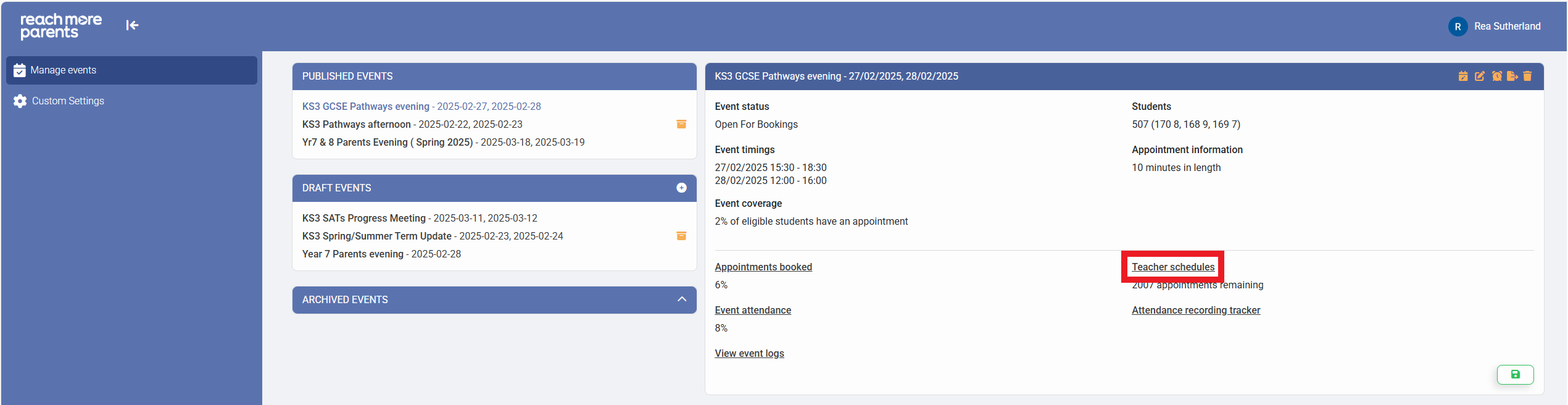
1) Click on the event you need to create a Custom Appointment in the Manage Events screen
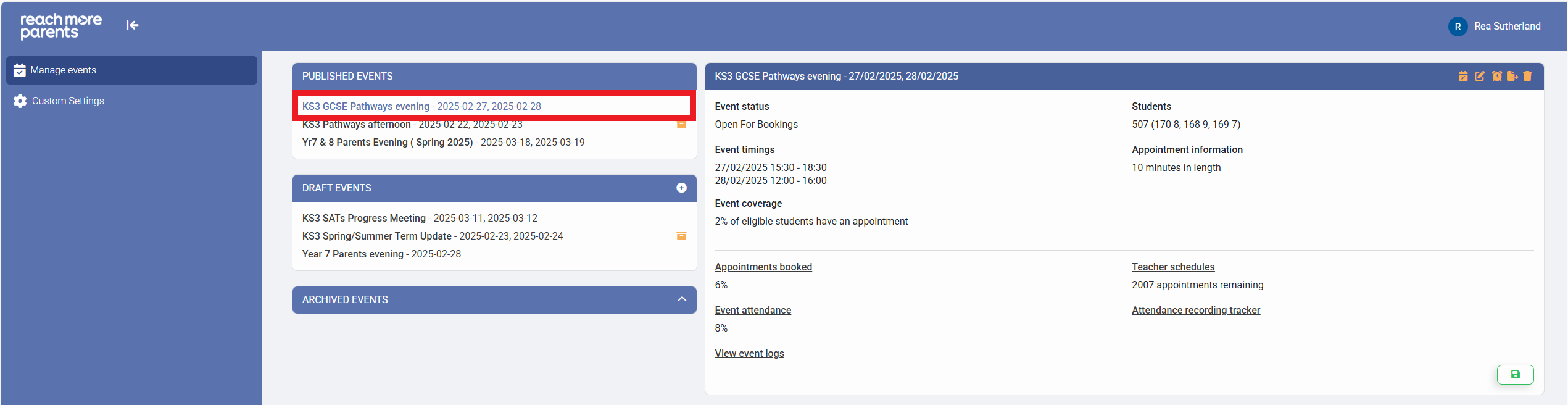
2) Click on "Teacher Schedules"
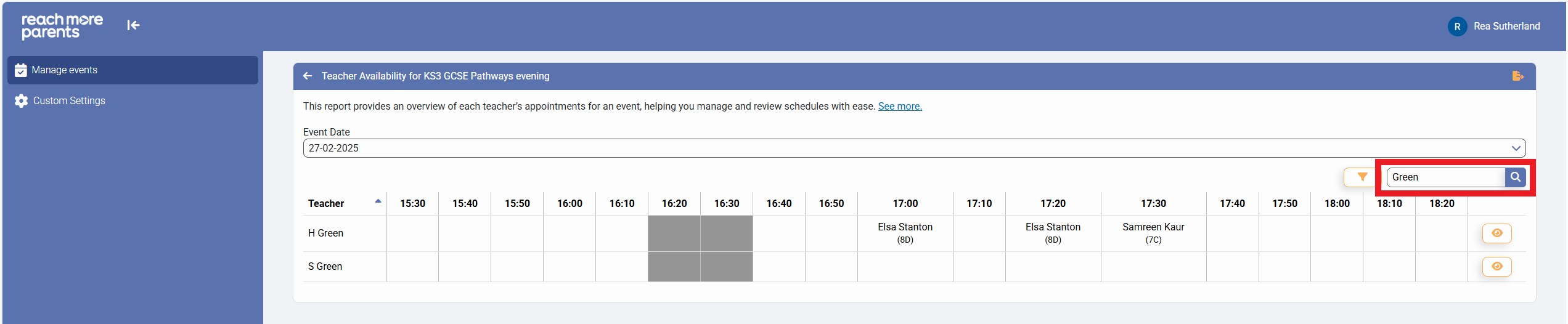
3) Filter by the teacher you need to book the Appointment with
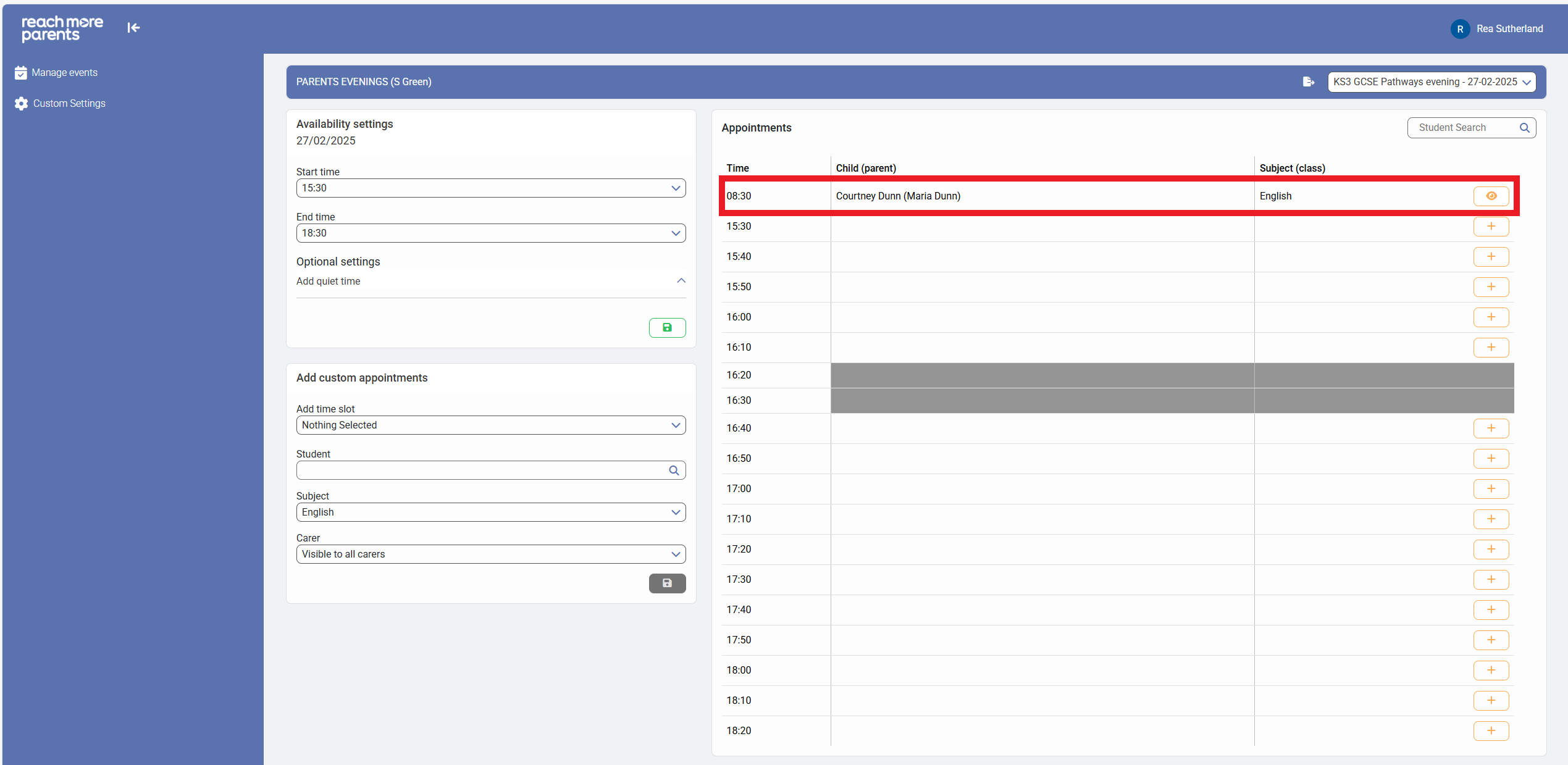
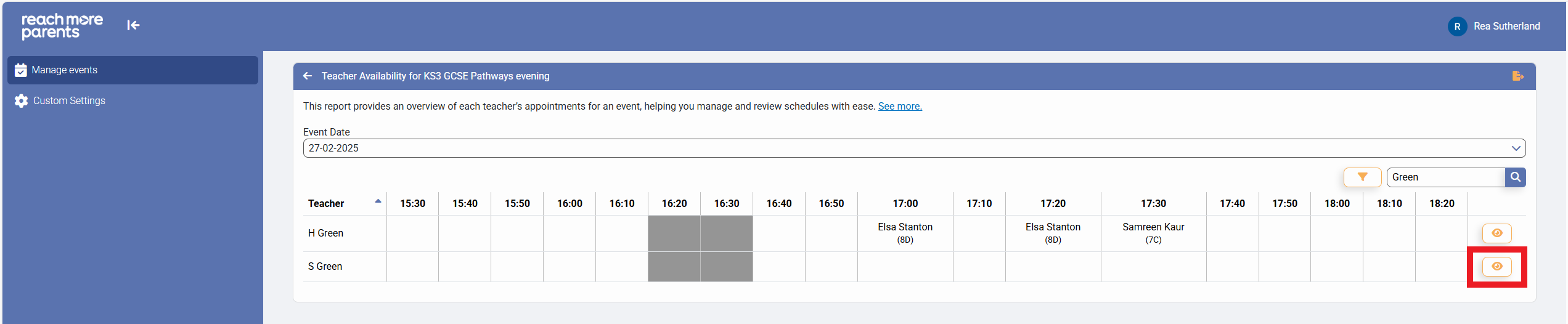
4) Click on the "View full appointment information" button
5) In the "Add custom appointments" clock on the left hand side, choose the time slot you have agreed
with the Teacher and Parent / Carer
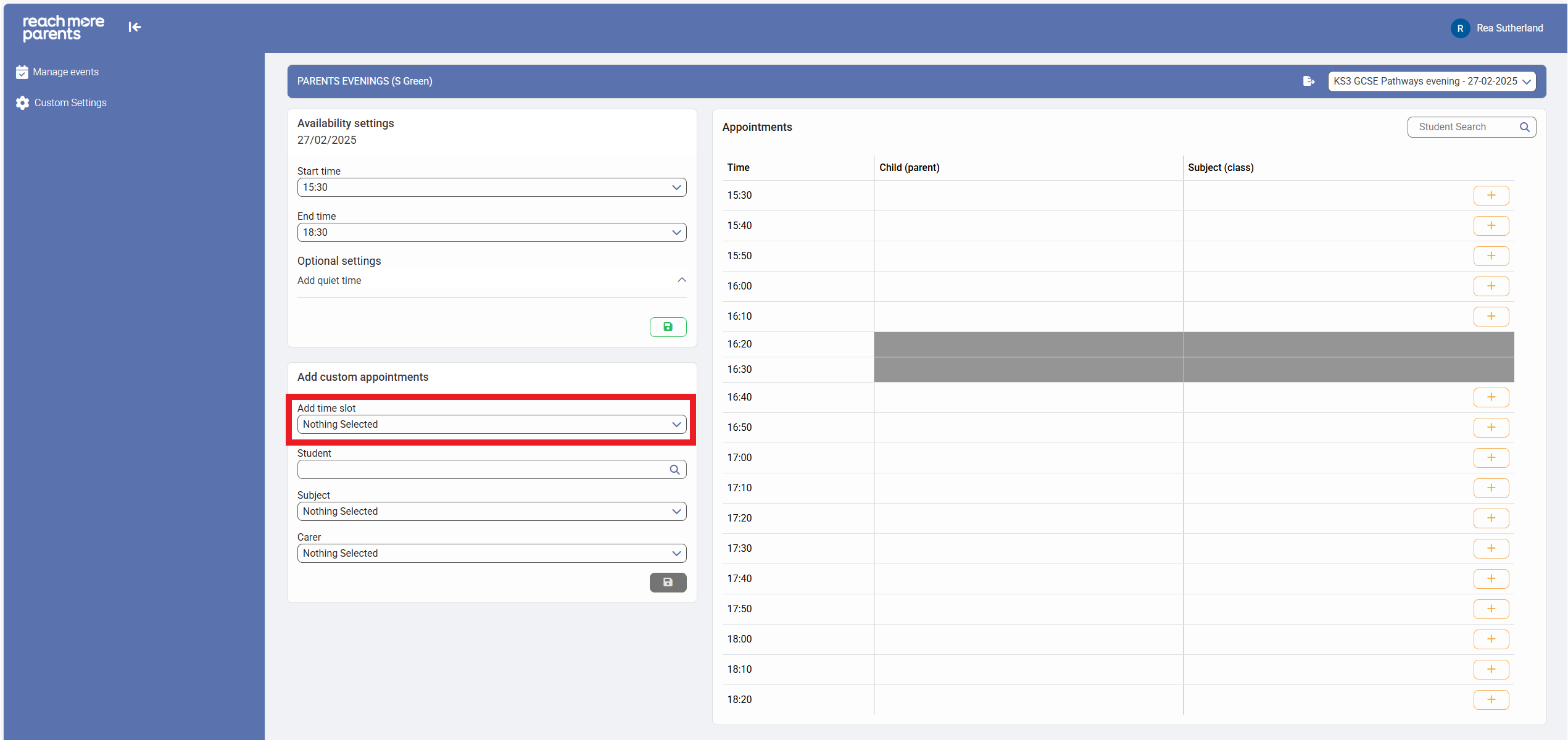
6) Search for the Student who you need to generate a Custom Appointment for
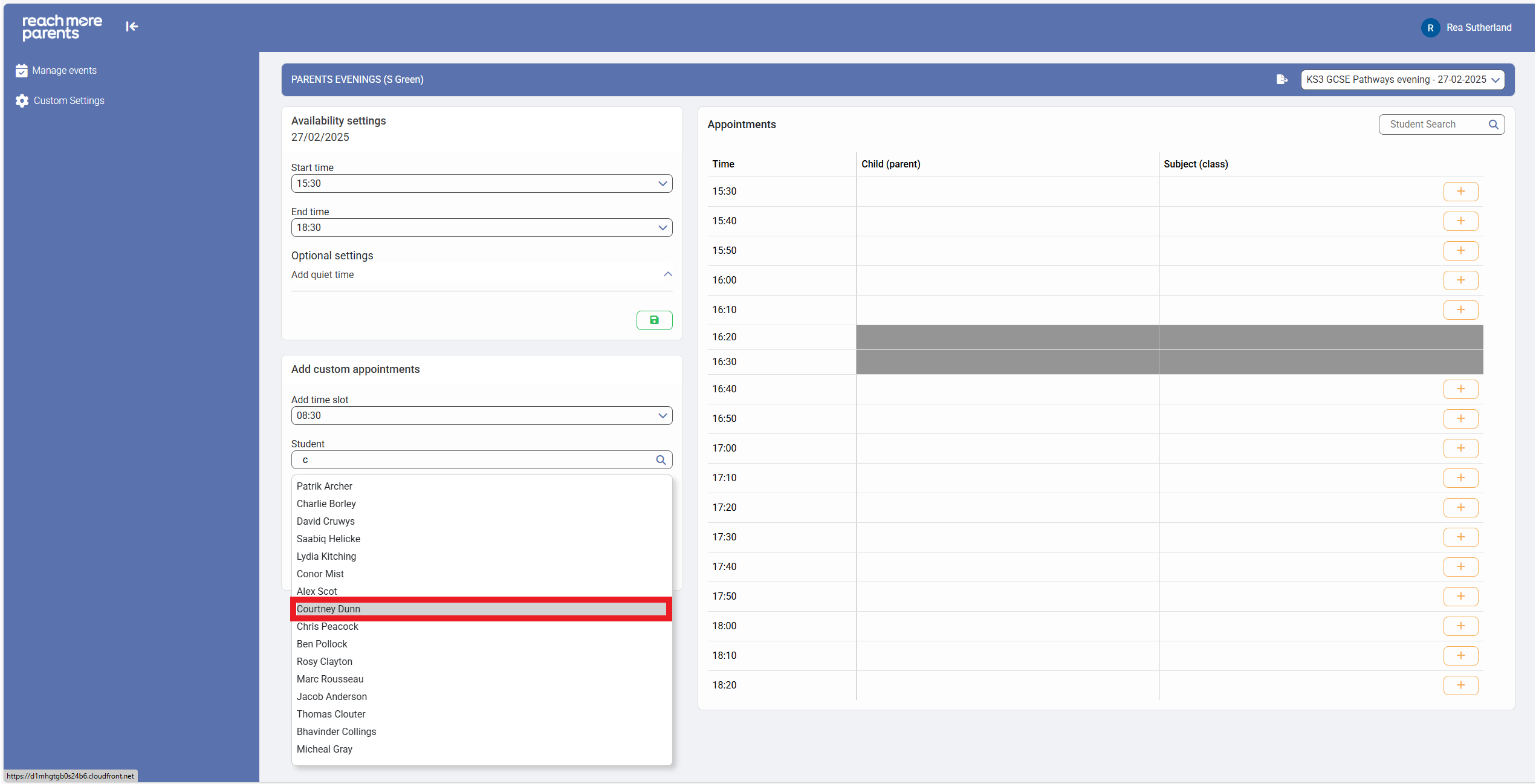
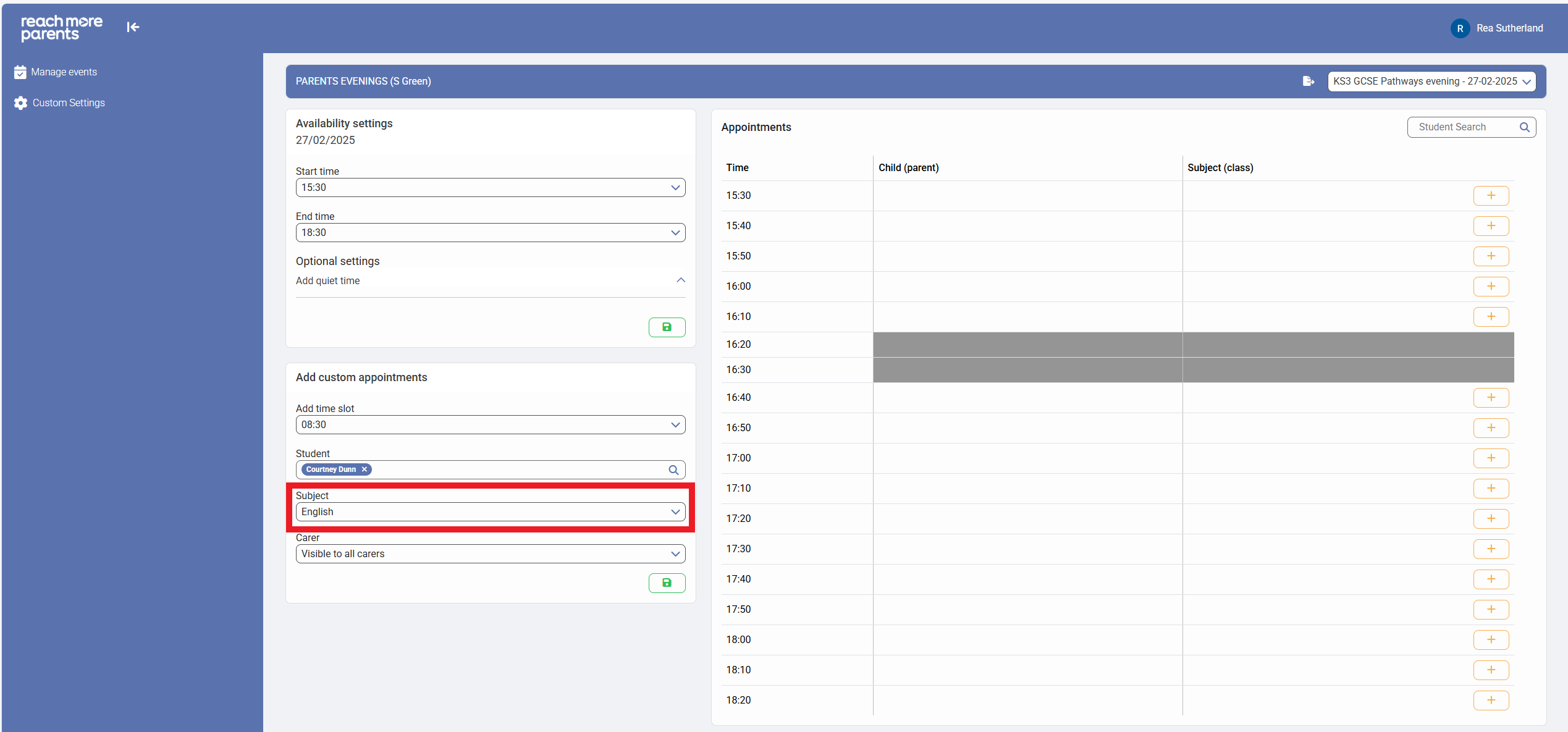
7) Choose the subject for the appointment (this will default to just the one subject if there's only one teacher for that subject)
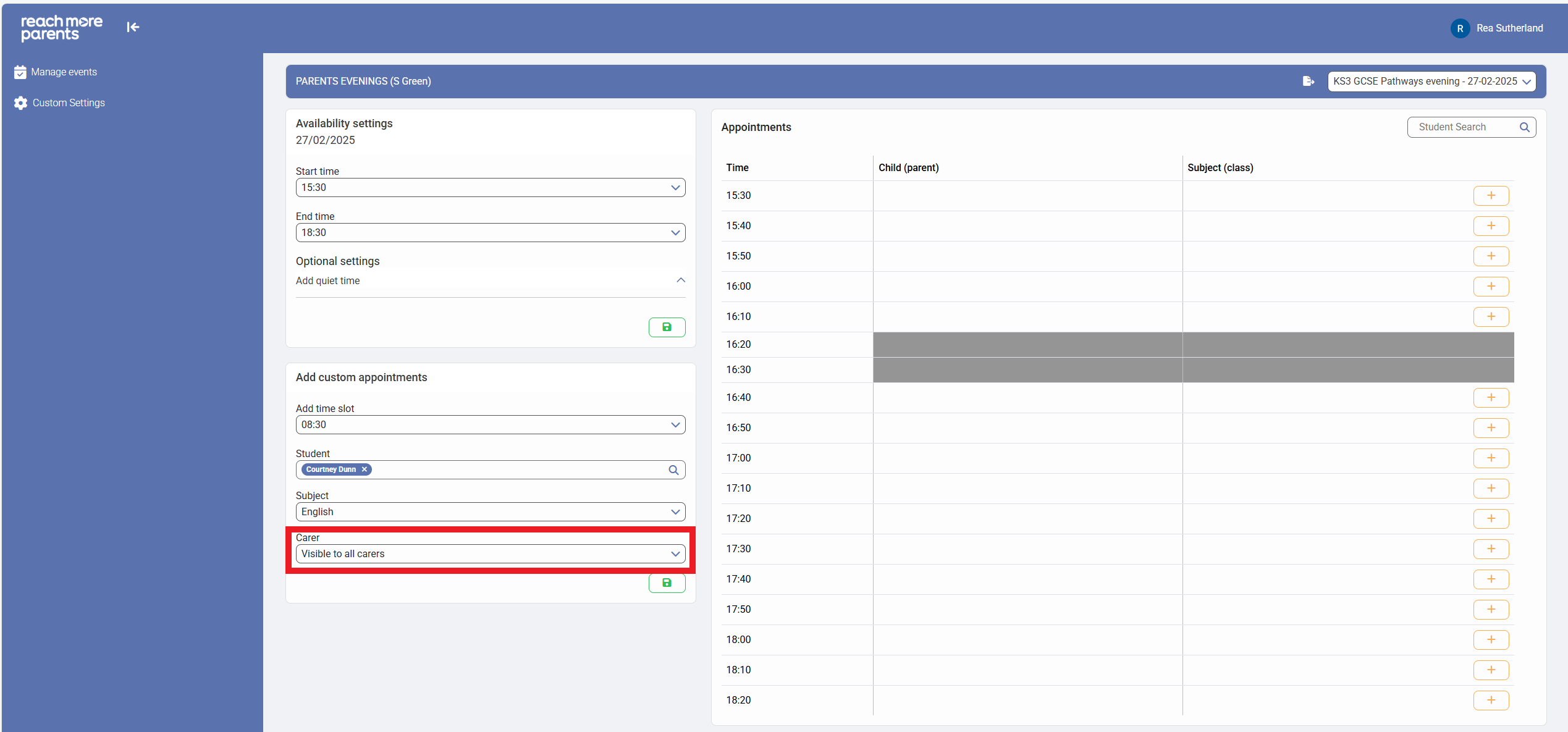
8) Choose the Parent / Carer or make this visible to all Parent / Carers if required
9) Click on "Save"
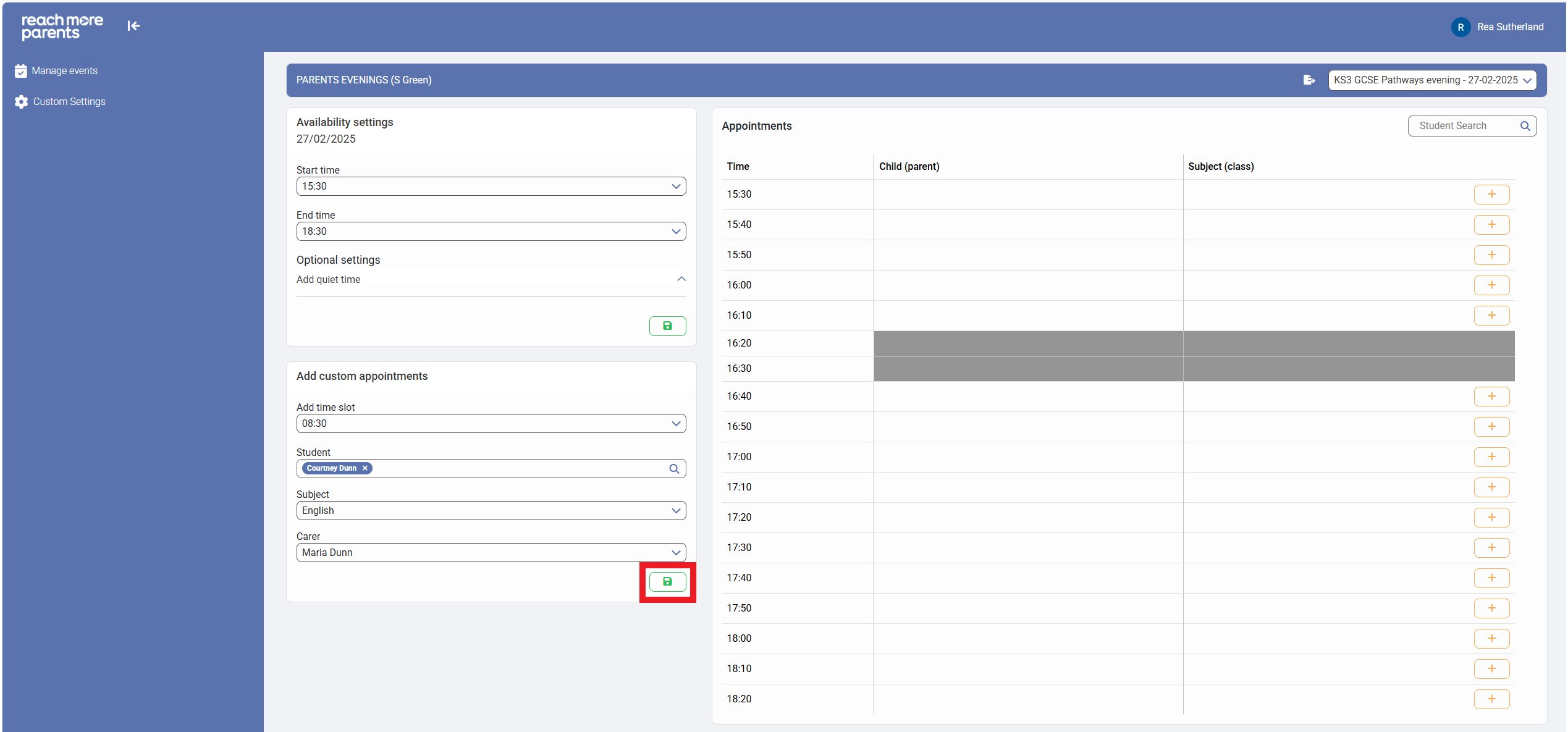
10) The appointment has been created outside of the Parents Evening event window at the desired time