
When a PEMS event has been created by your School Administrative team, they likely have applied a standard break time for the whole Teaching staff. If you require a separate break (quiet time) that isn't accounted for by the standard one provided by the admin team, you can add this within PEMS for yourself.
Firstly, you need to access PEMS as a Teacher:
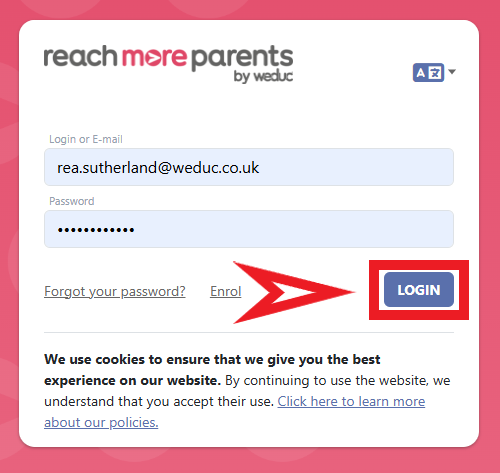
1) Log in to ReachMoreParents.
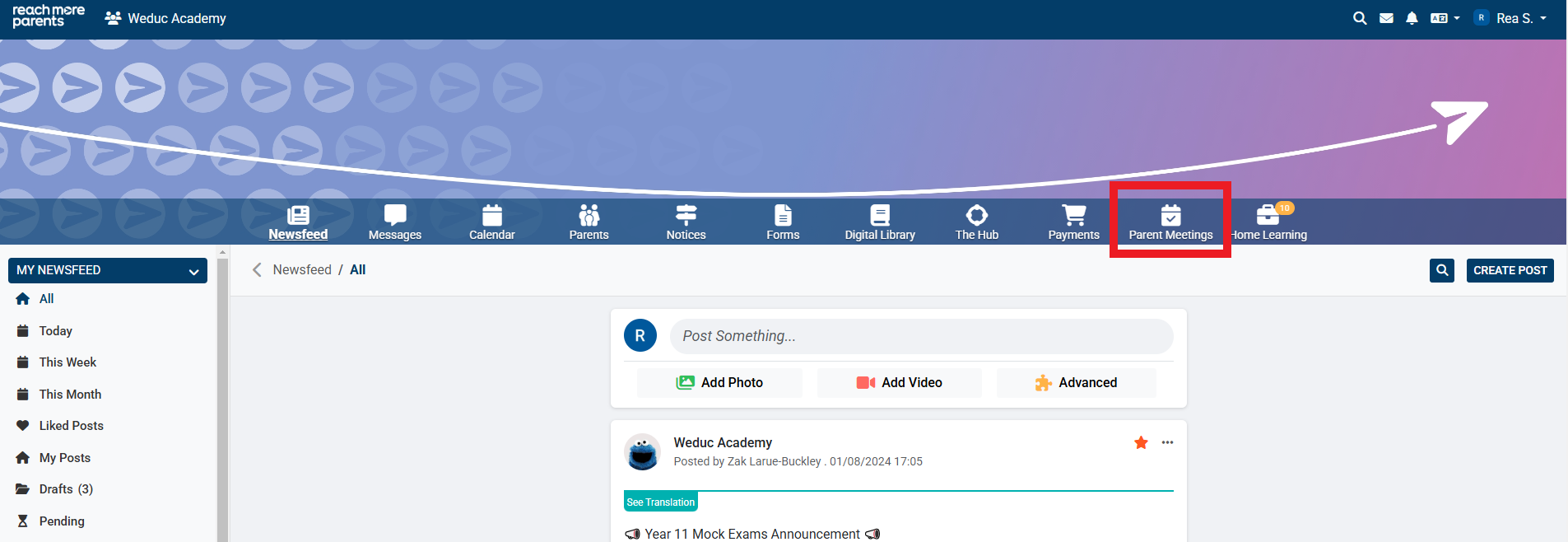
2) Click on the Parent Meetings icon
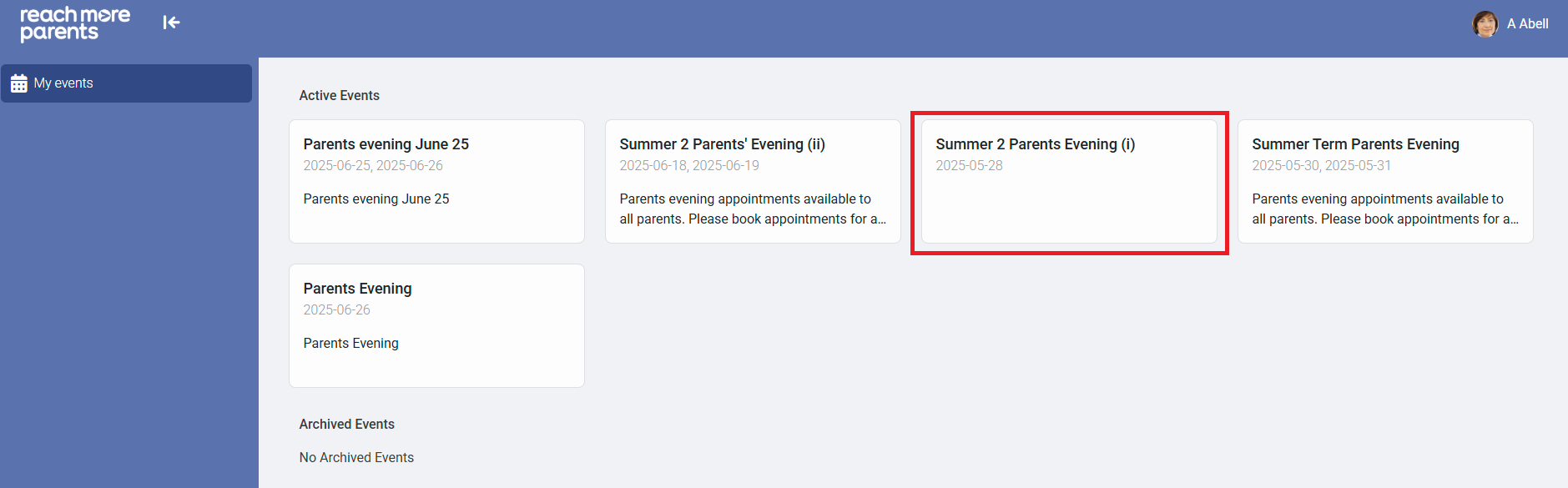
3) Click on the Event tile where you need to add your quiet time
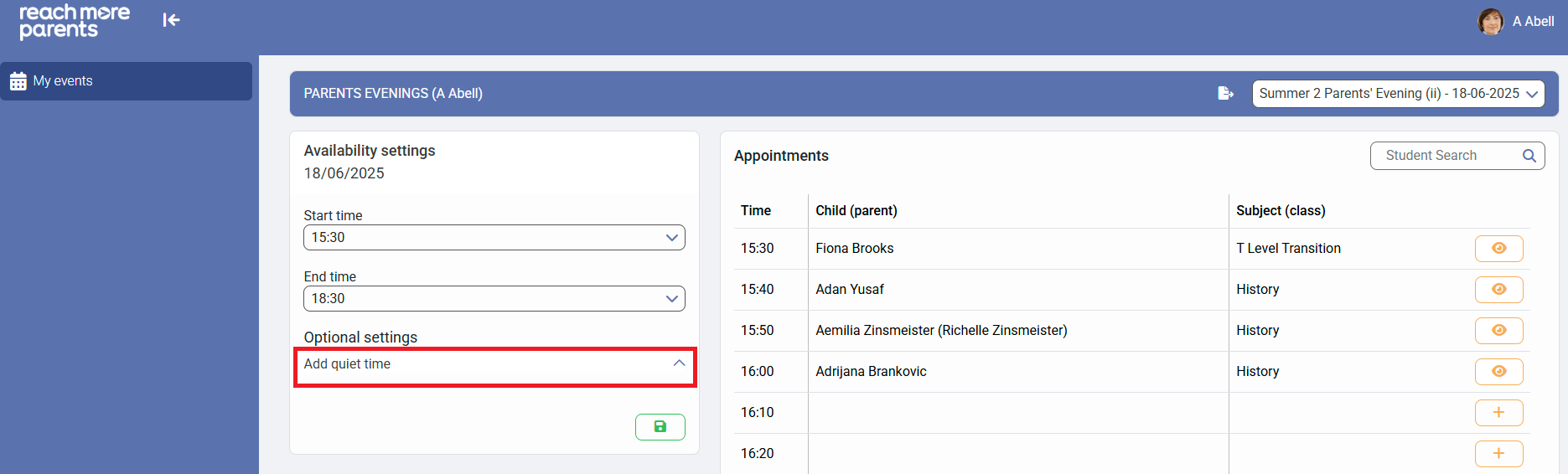
4) Click on the "Add quiet time" heading to expand it
5) Click on the "+" icon for "New quiet time"

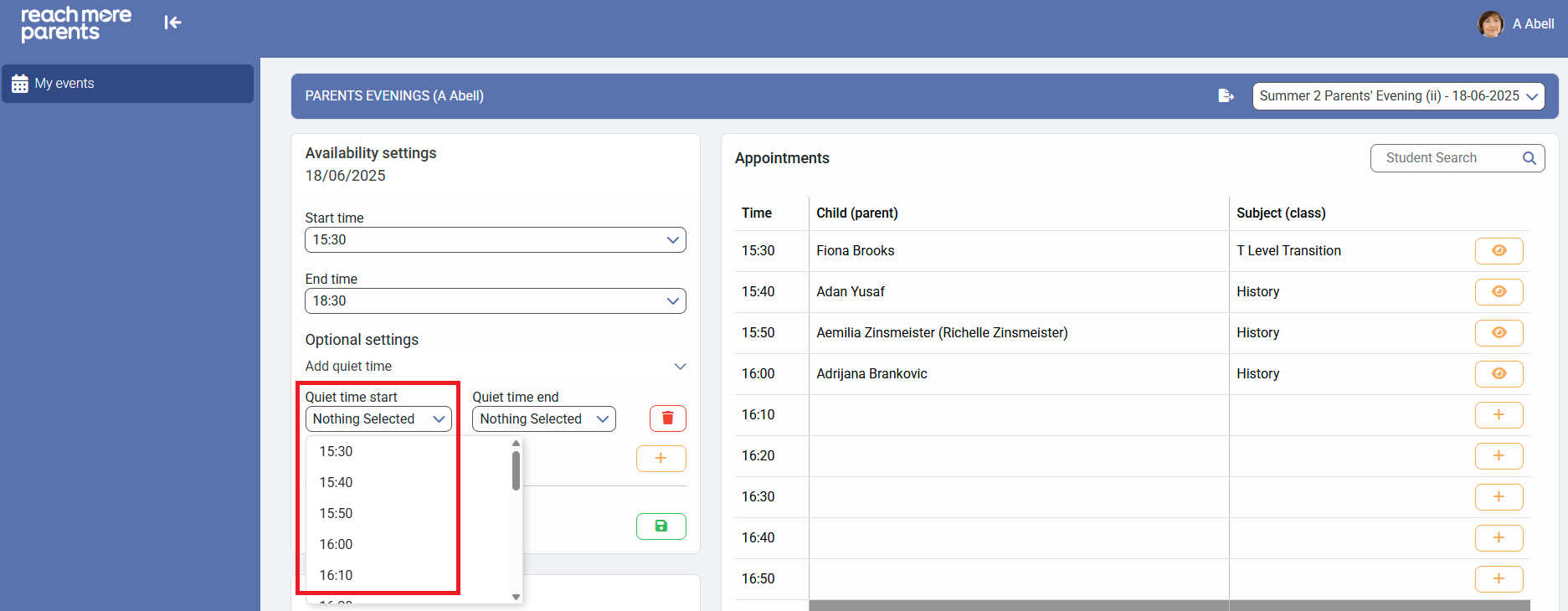
6) Click on the "Quiet time start" field and select a time for your quiet time to begin
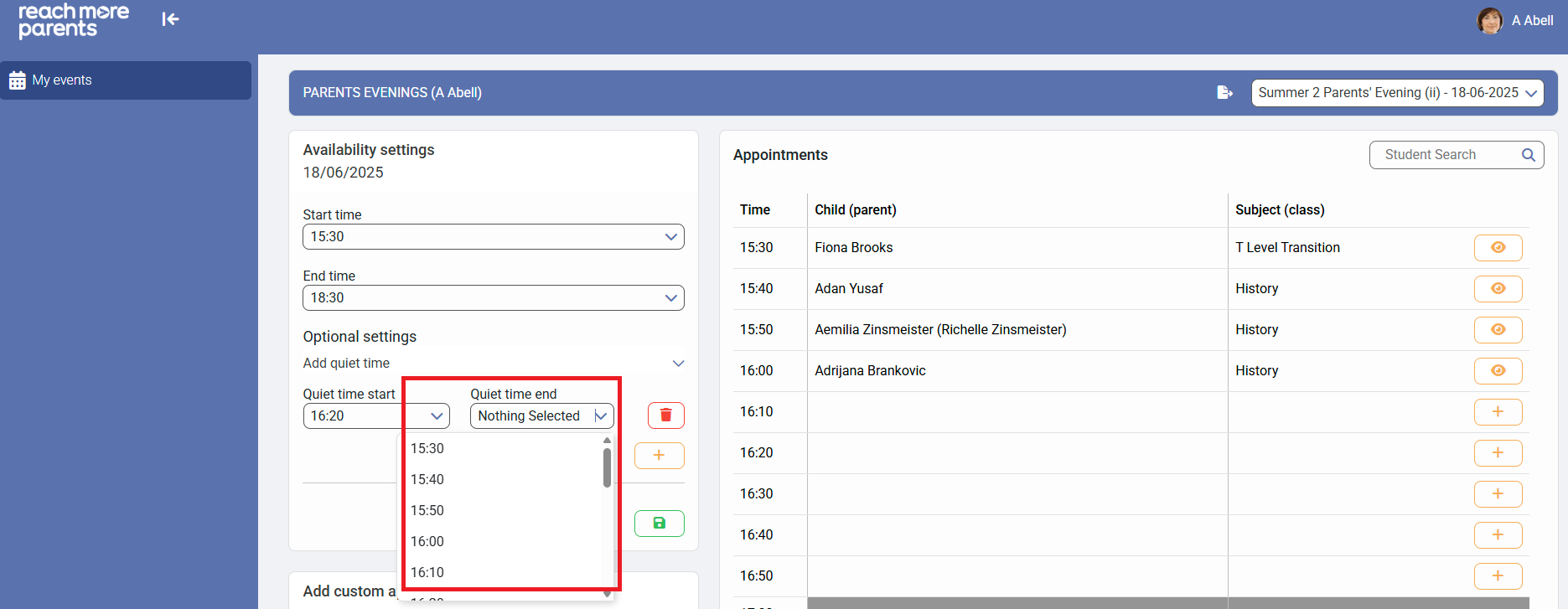
7) Click on the "Quiet time end" field and select a time for your quiet time to end
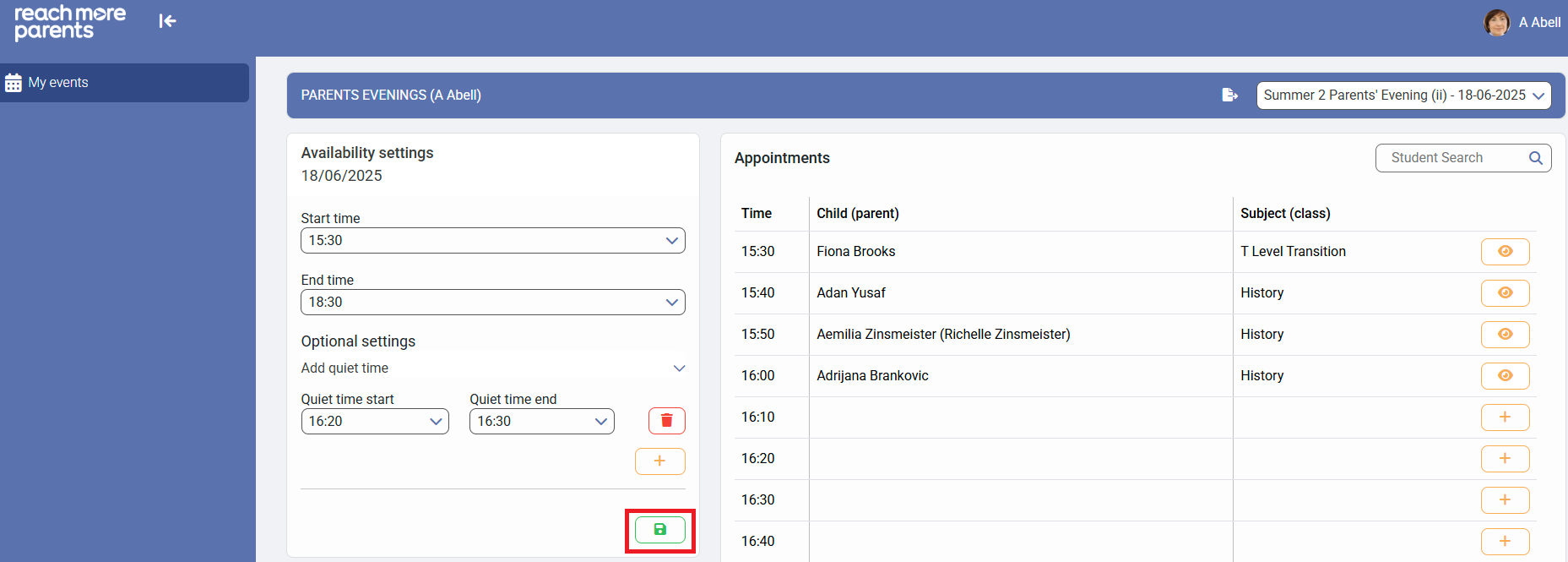
8) Click on the "Save" button to accept your changes
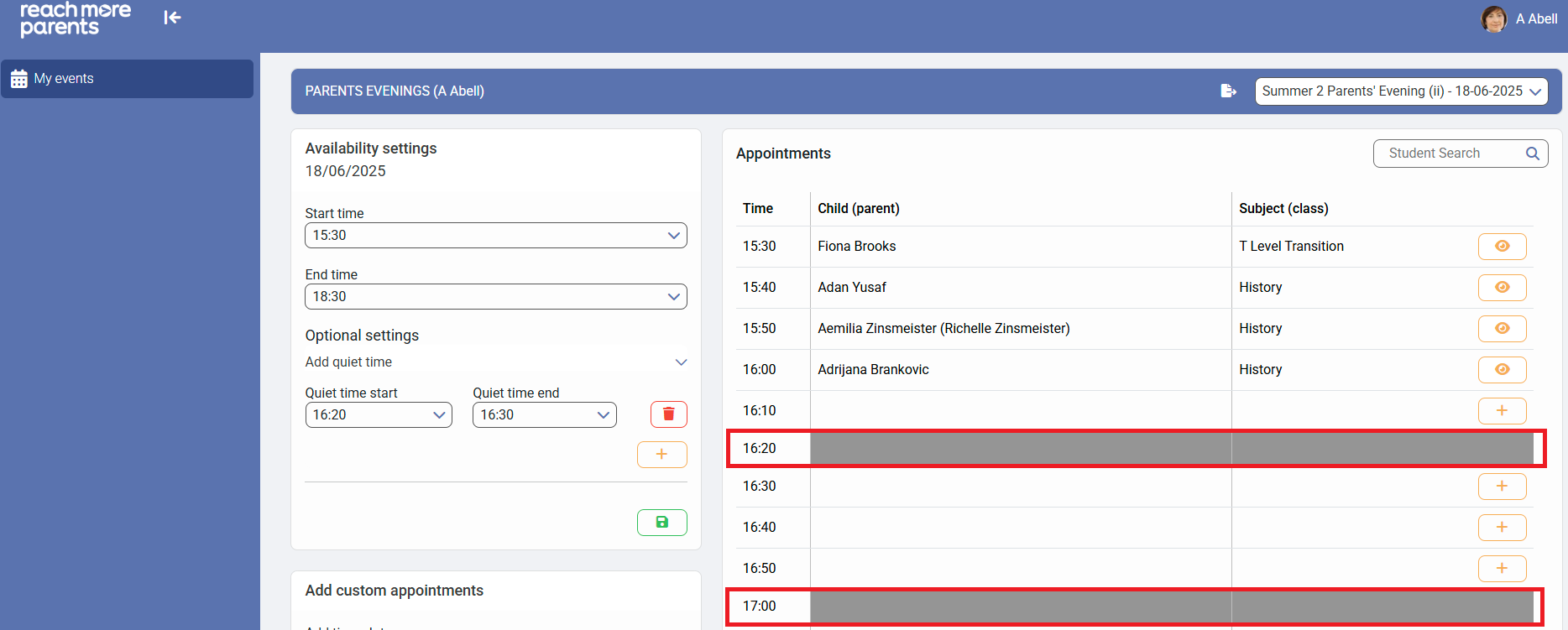
9) The appointments that exist within your Quiet Time window will now be greyed out and it will prevent any bookings being made within those times
If you need to return to the Full Guide for Teachers, follow the link here.