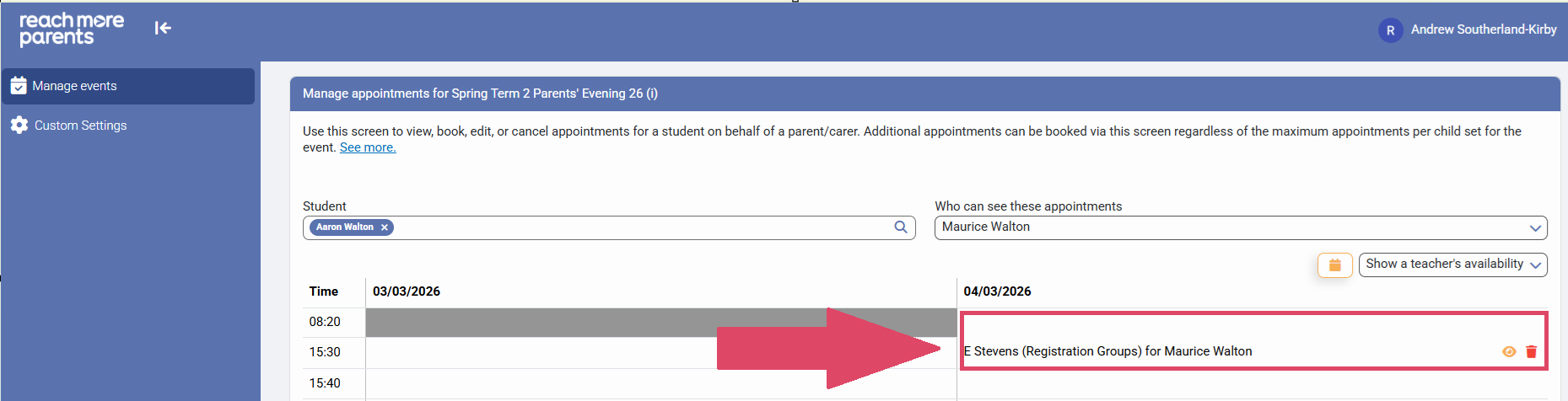
Sometimes, you have a situation where parent/carers may be acrimoniously separated and these two parent/carers may request separate appointments. In this scenario, we would recommend booking these appointments as an Admin before the Event is published to the wider school population.
We suggest this because if a Booking Window opens and the Parent / Carers go to "Auto-Generate" their appointments through the app, these bookings are carried out for all carers as a default. To avoid having to "un-pick" the appointments that were booked for all carers by mistake, it's far easier to book the individual appointments before the Booking Window opens.
In this article we will cover the steps to book an appointment for a single Parent / Carer.
Firstly, you will need to access PEMS as an Admin:
1) Log in to ReachMoreParents.
2) Click on the Parent Meetings icon

From this point, you need to carry out the below steps:
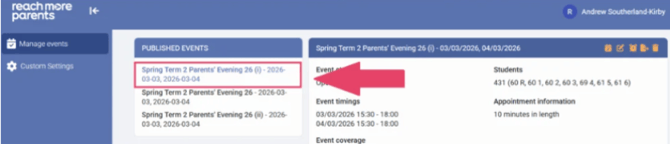
3) Click on the Event Title where you need to add these appointments
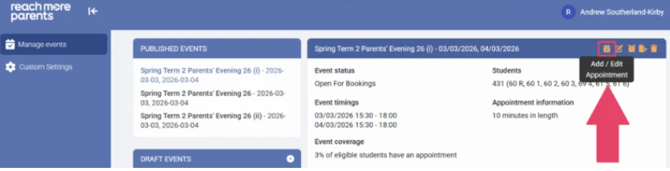
4) Click on "Add / Edit Appointment" from the Event Summary block
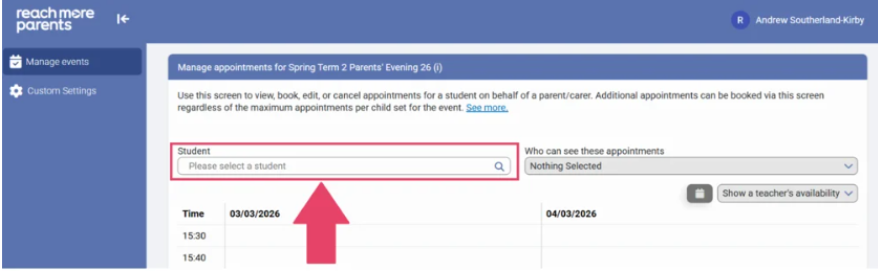
5) Click on the "Student" field and type the name of the student whose Parent/Carer you need to book appointments for
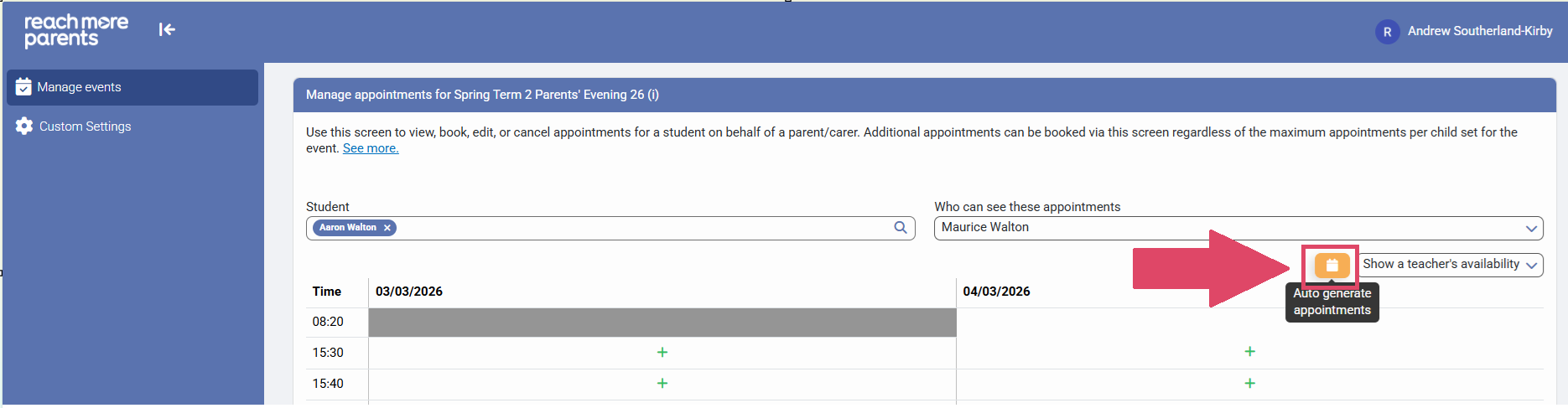
6) Click on the "Auto generate appointments" button
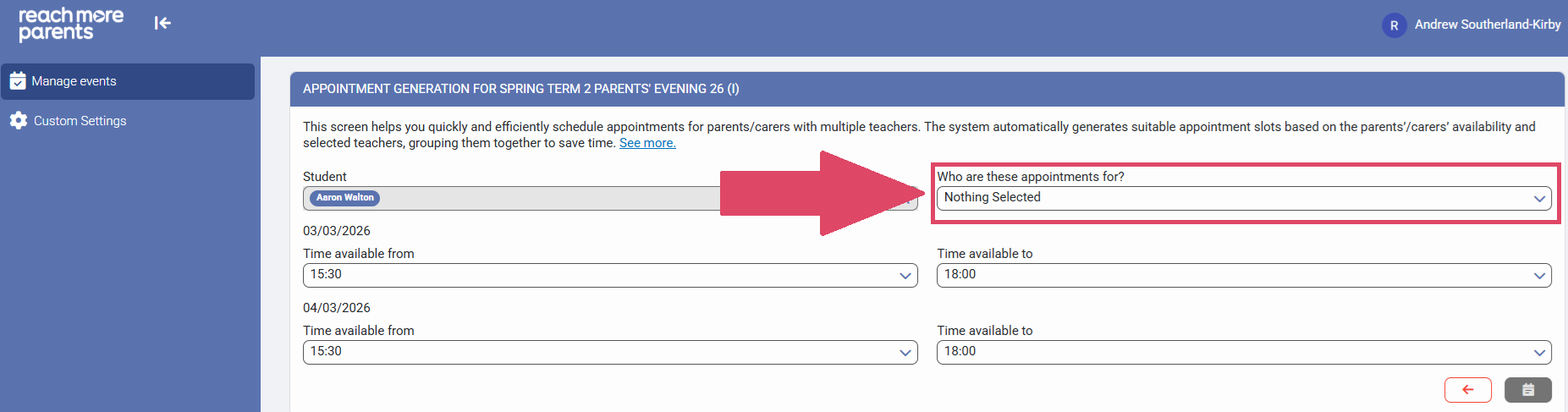
7) Click on the "Who are these appointments for?" selector
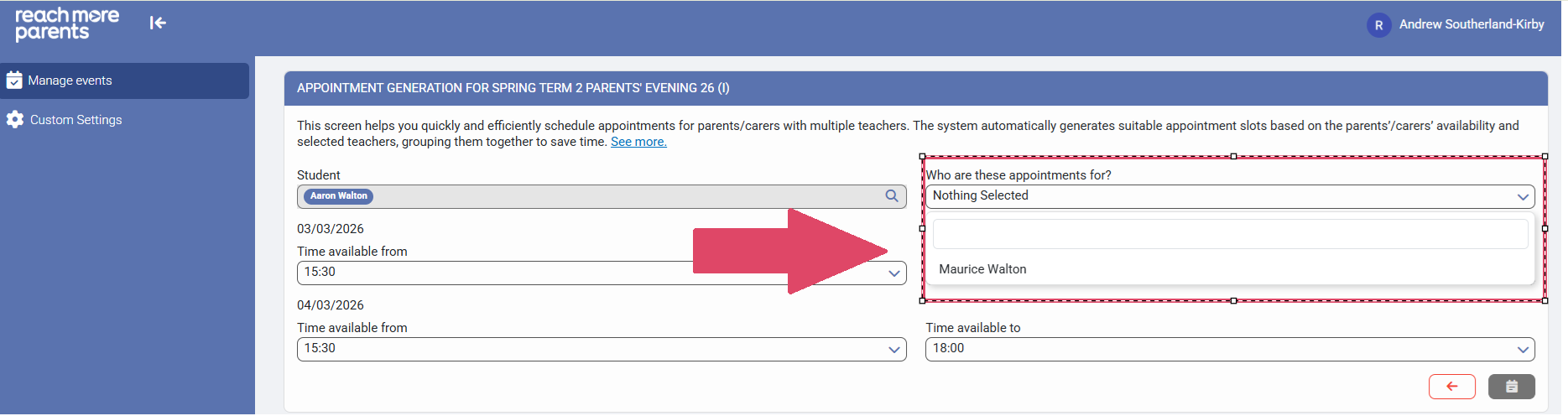
8) Choose the Parent/Carer who you need to book the appointments for from the list and remove any who you don't need to book these appointments for
9) Click on "Time available from" to assign the start of the Parent/Carers availability for Event Date 1 (if more than one event date exists)
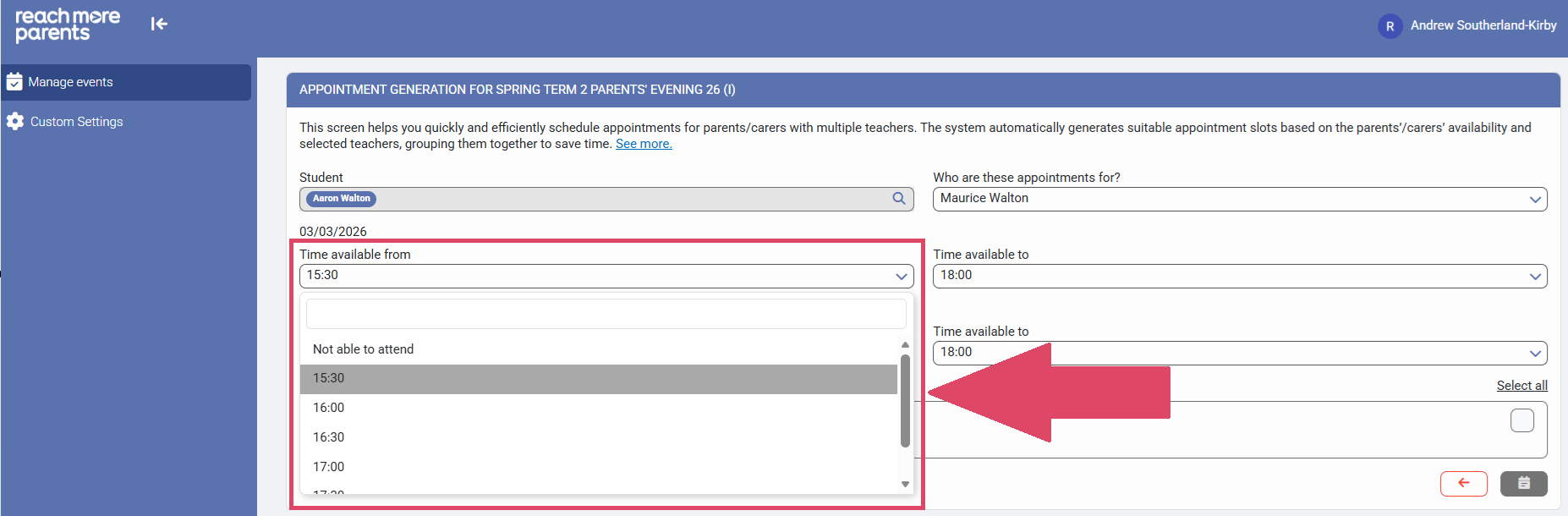
10) Click on "Time available to" to assign the end of the Parent/Carers availability for Event Date 1 (if more than one event date exists)
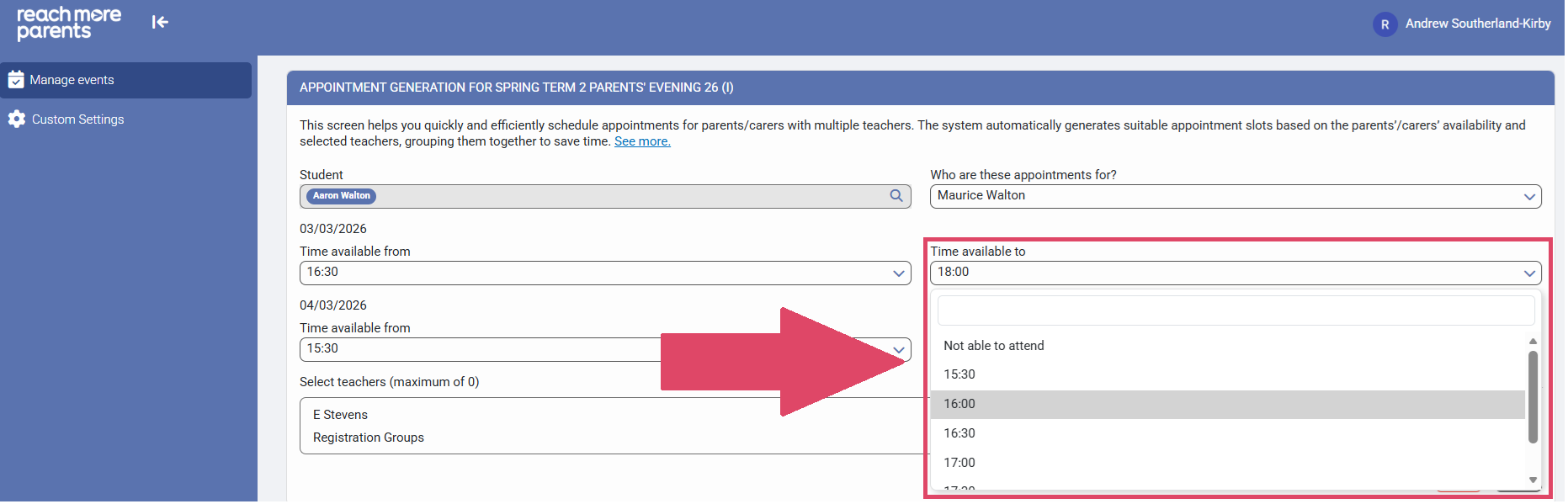
11) Repeat Steps 10 and 11 for any subsequent event dates for this event
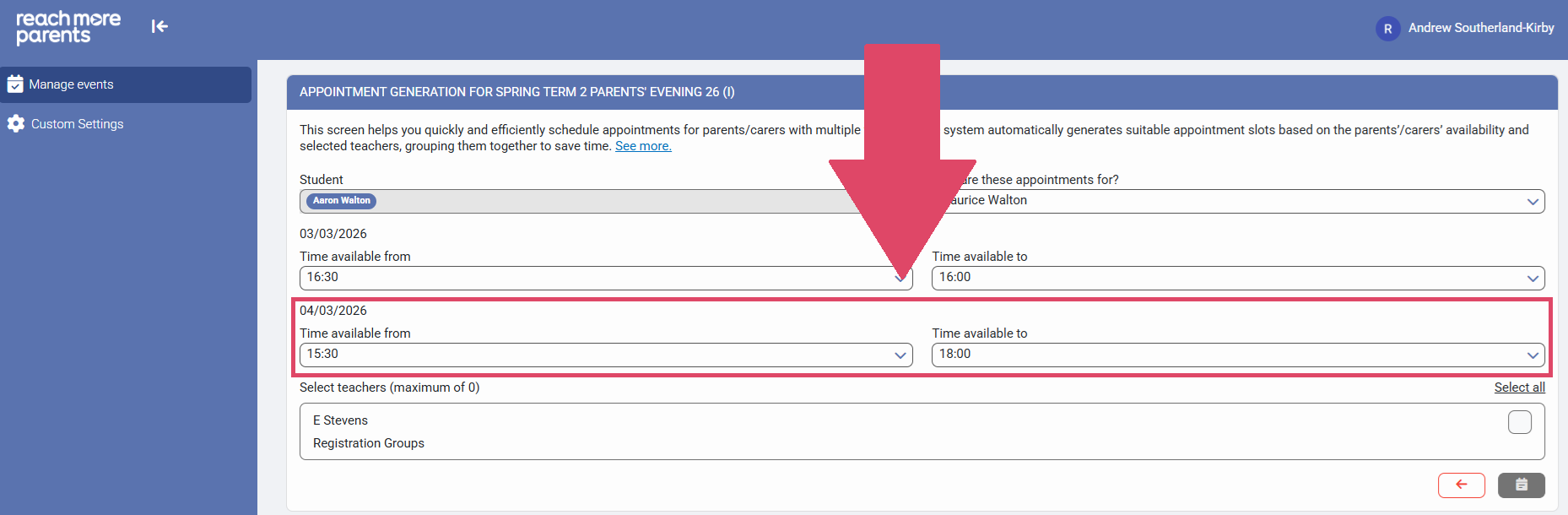
12) Click on "Select All" if you want to book appointments for all available teachers for the Parent/Carer
13) Click on the individual teachers if you only want to book appointments for the teachers the Parent/Carer has requested
14) Click on "Auto Generate Appointments" to create the appointments automatically for this one Parent/ Carer
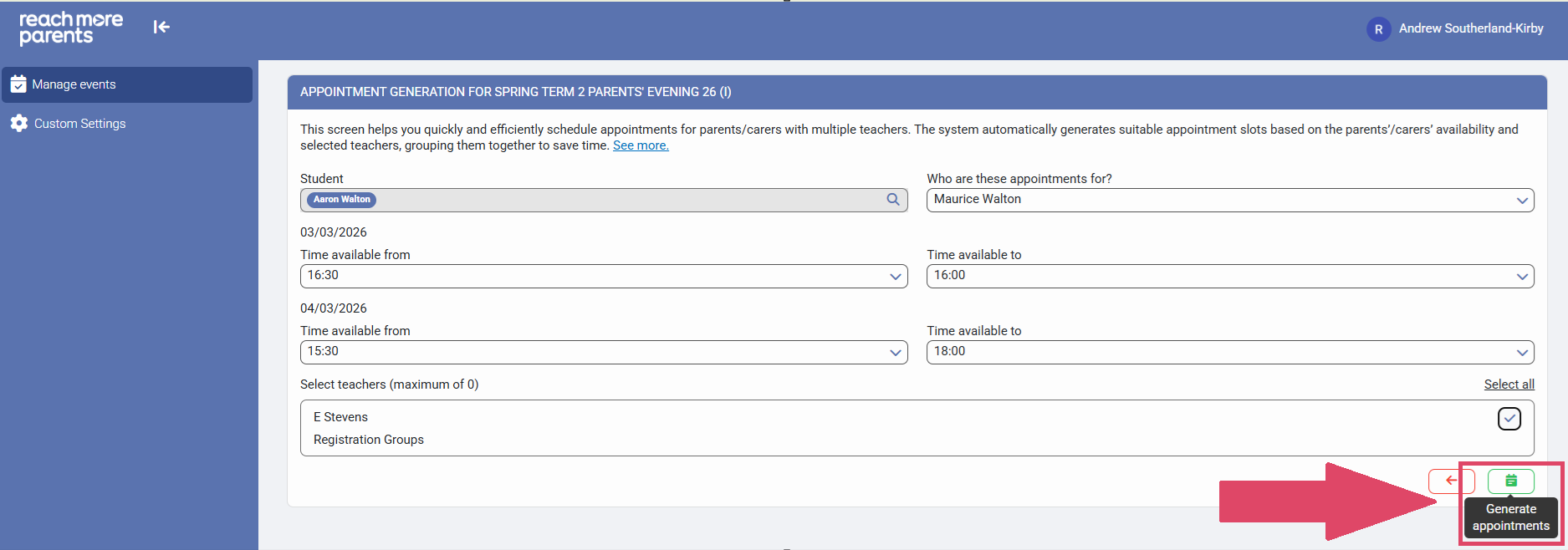
15) The appointments will be created and display in the time slots they were booked for (in our example, we have "No back-to-back appointments" option selected so an appointment slot is left empty between appointments)