Firstly, you need to access PEMS as an Admin:
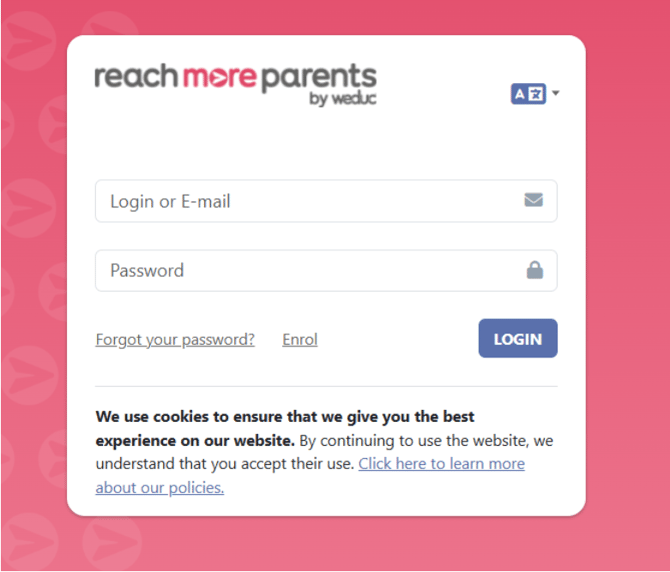
1) Log in to ReachMoreParents.
2) Click on the Parent Meetings icon

From this point, you will need to carry out the below steps:
3) Click on the Event Title where you need to add your additional group
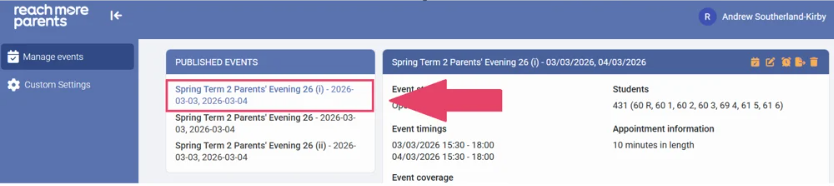
4) Click on "Edit Event"

5) Click on "Next" to proceed to the "Event Date & Times for [Event Name]" screen
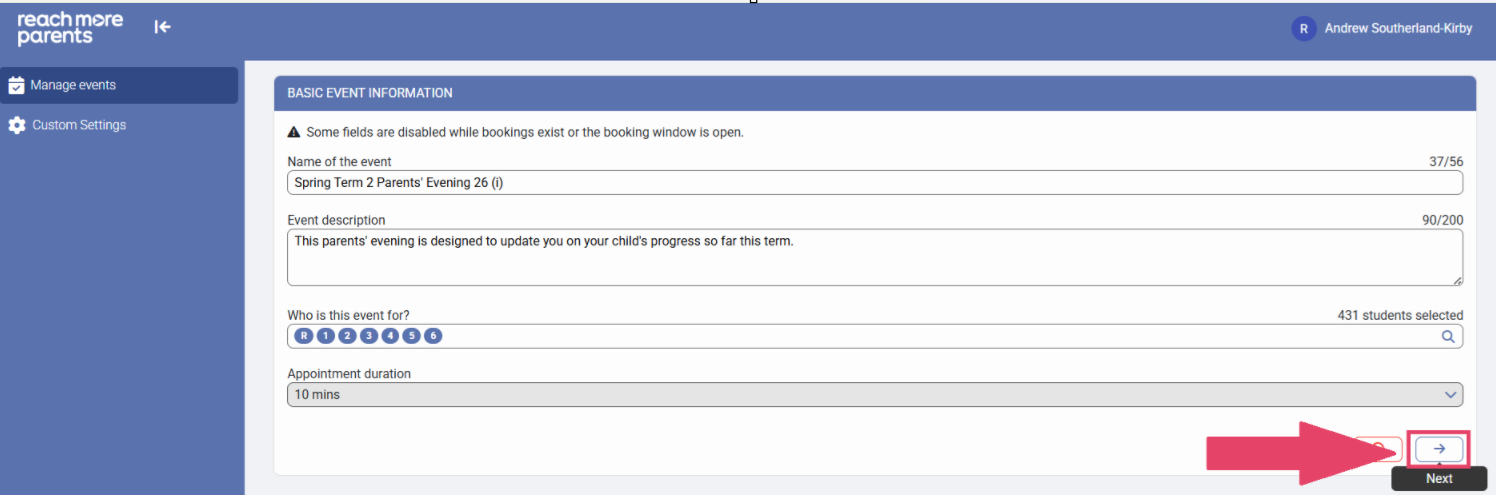
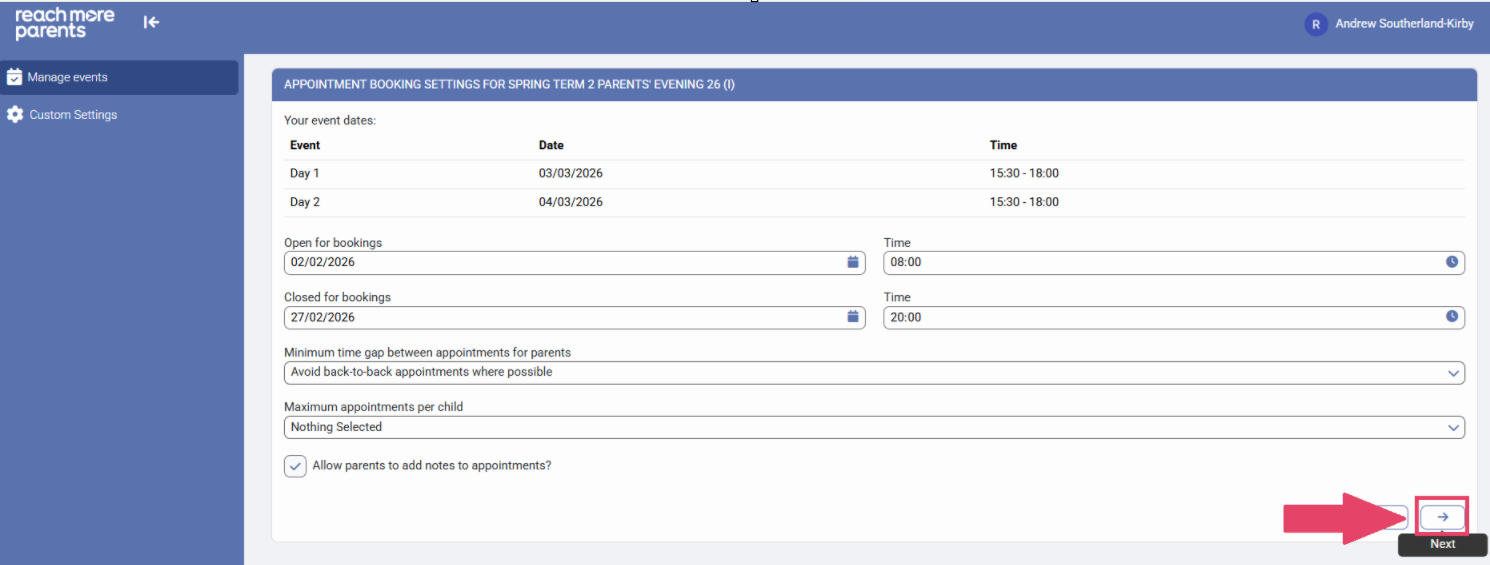
6) Click on "Next" to proceed to the "Appointment Booking Settings for [Event Name]" screen
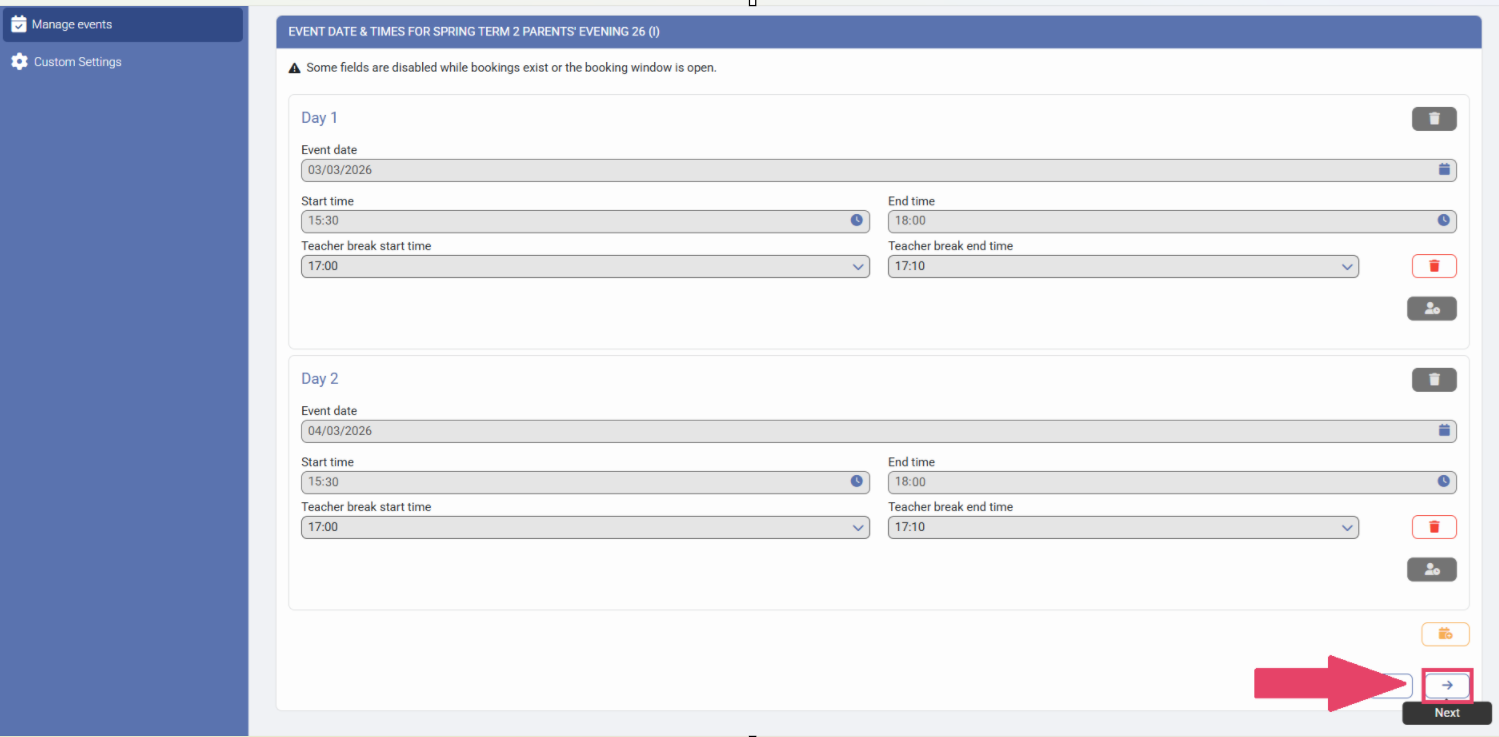
7) Click on "Next" to proceed to the "Classes & Teacher Settings for [Event Name]" screen
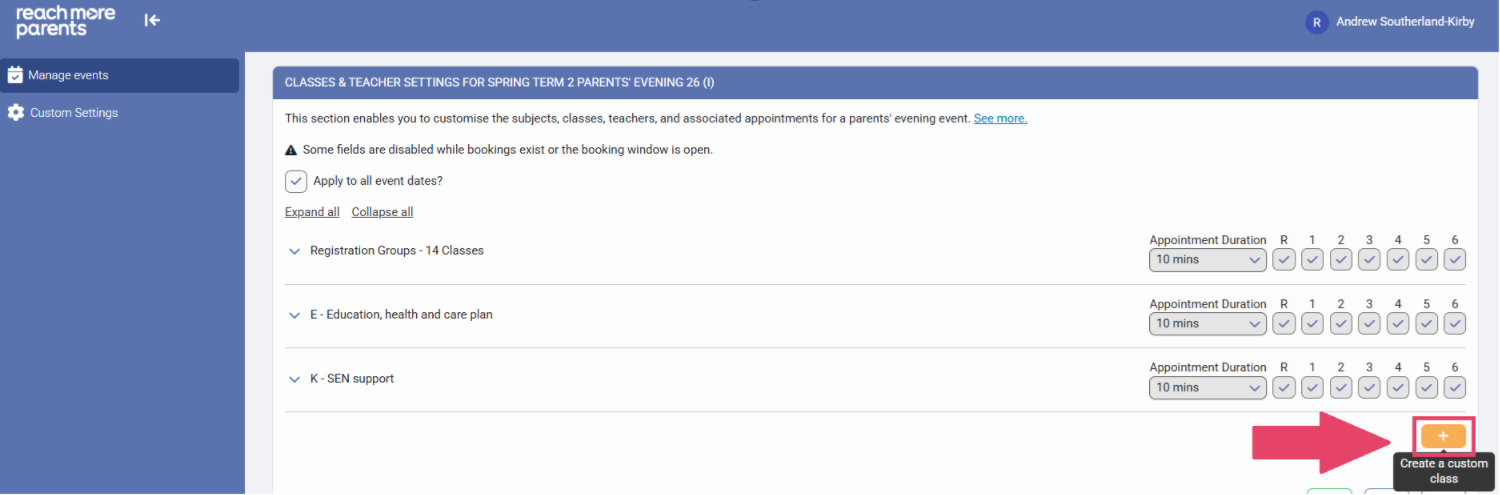
8) Click on "+" just below the SEN appointments section to "Add Custom Class"
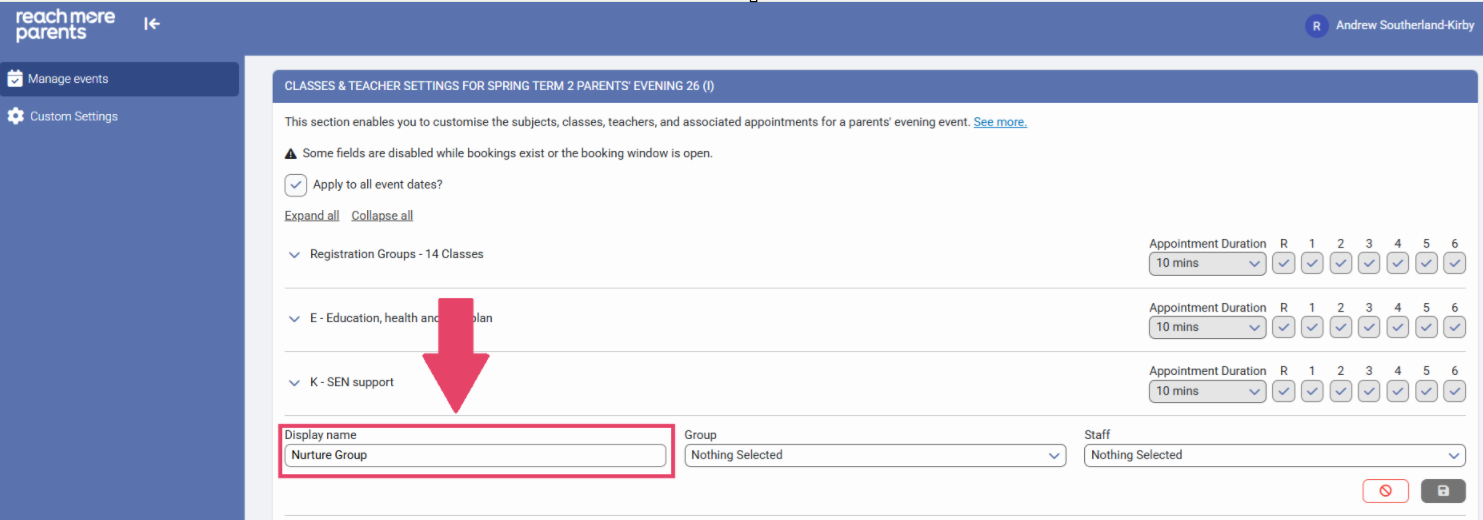
9) Click into the "Display Name" field and write the name of the Custom Class
10) Click on the "Group" field to open the Group Selector
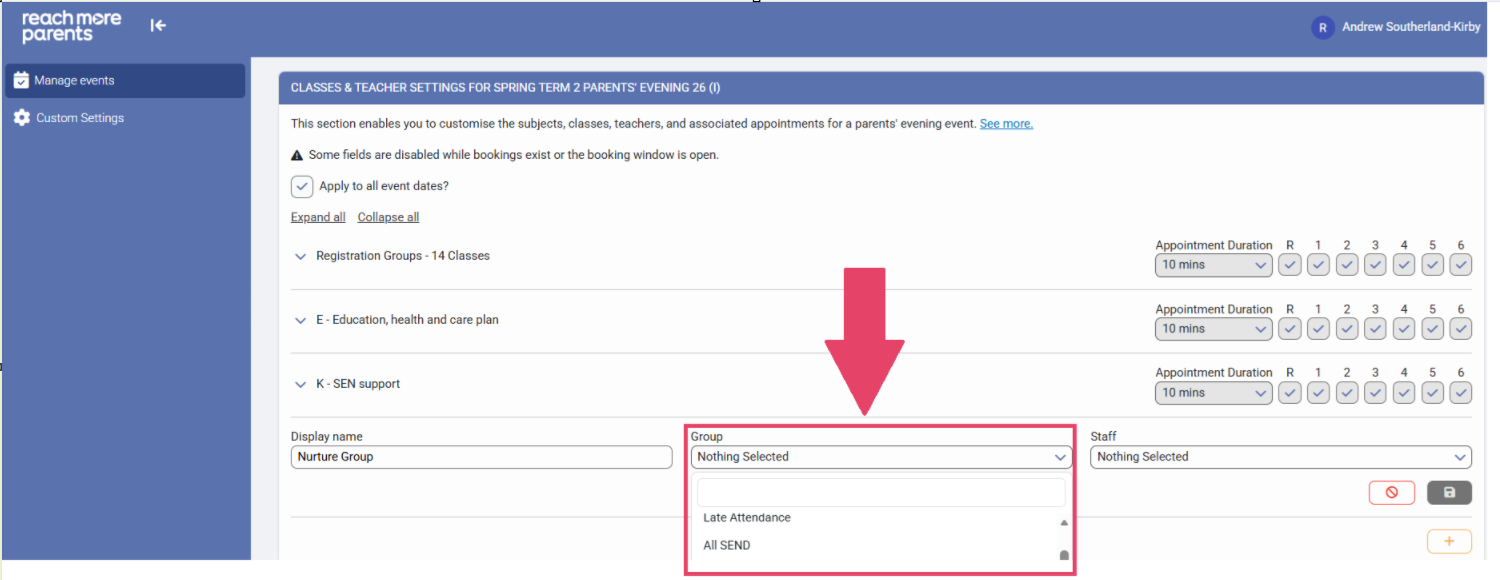
11) Type in the text box the name of the group you want to create a Custom Class for
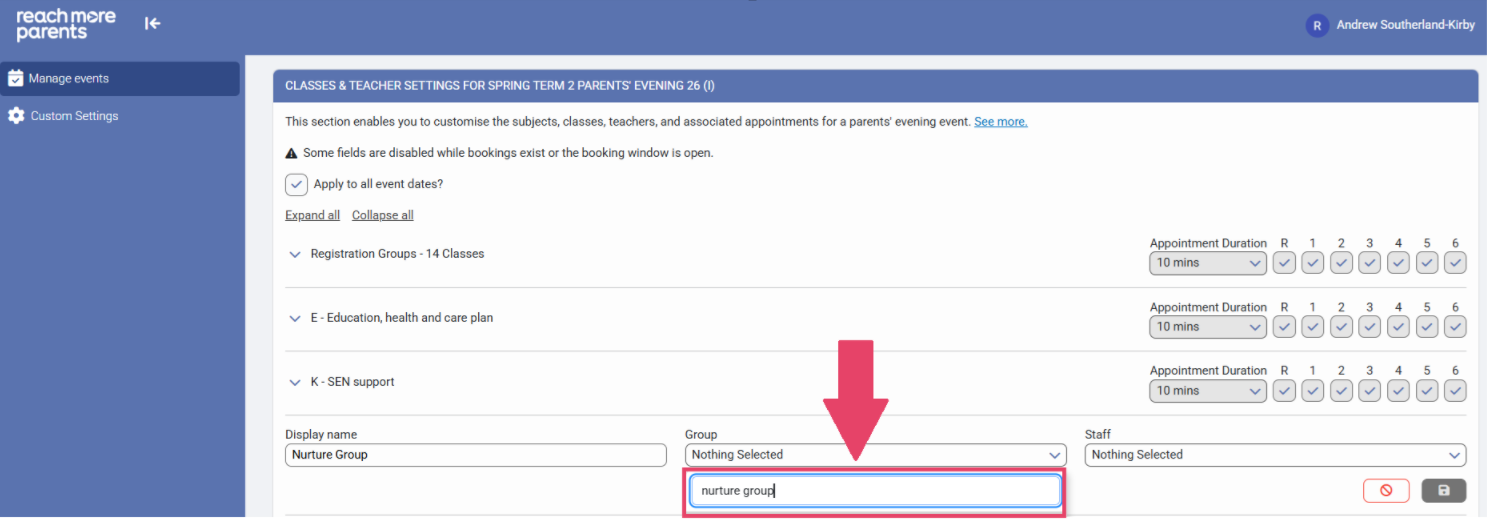
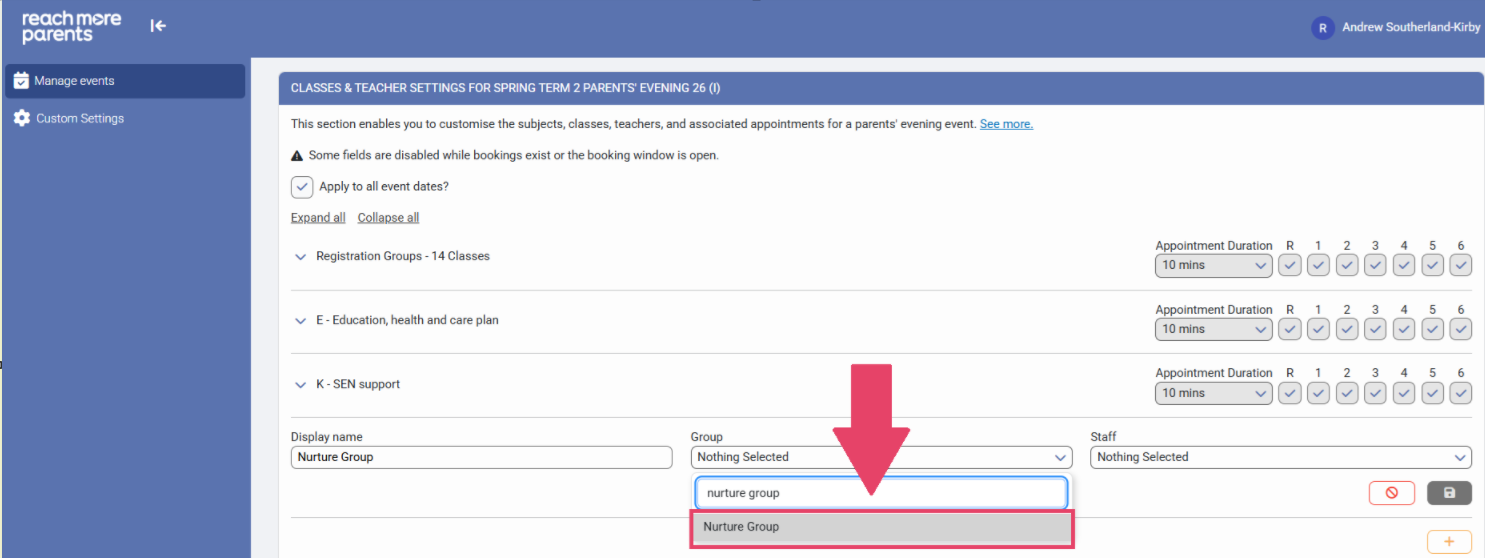
12) Click on the Group required from the list of results
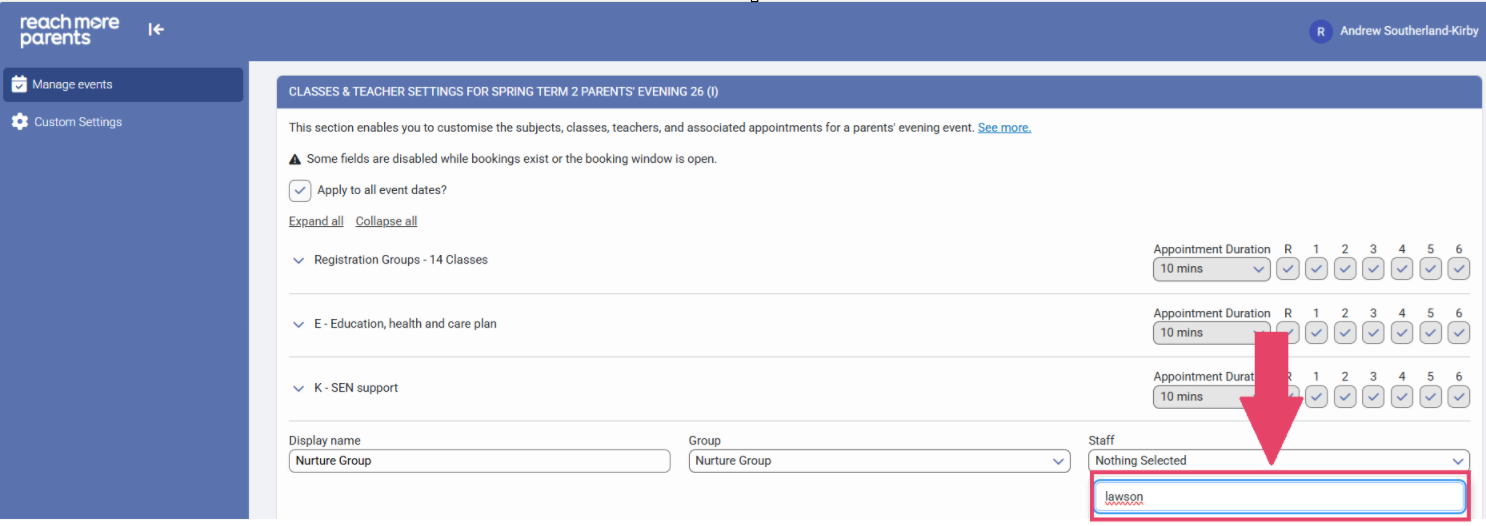
13) Click on the "Staff" field to open the Staff selector
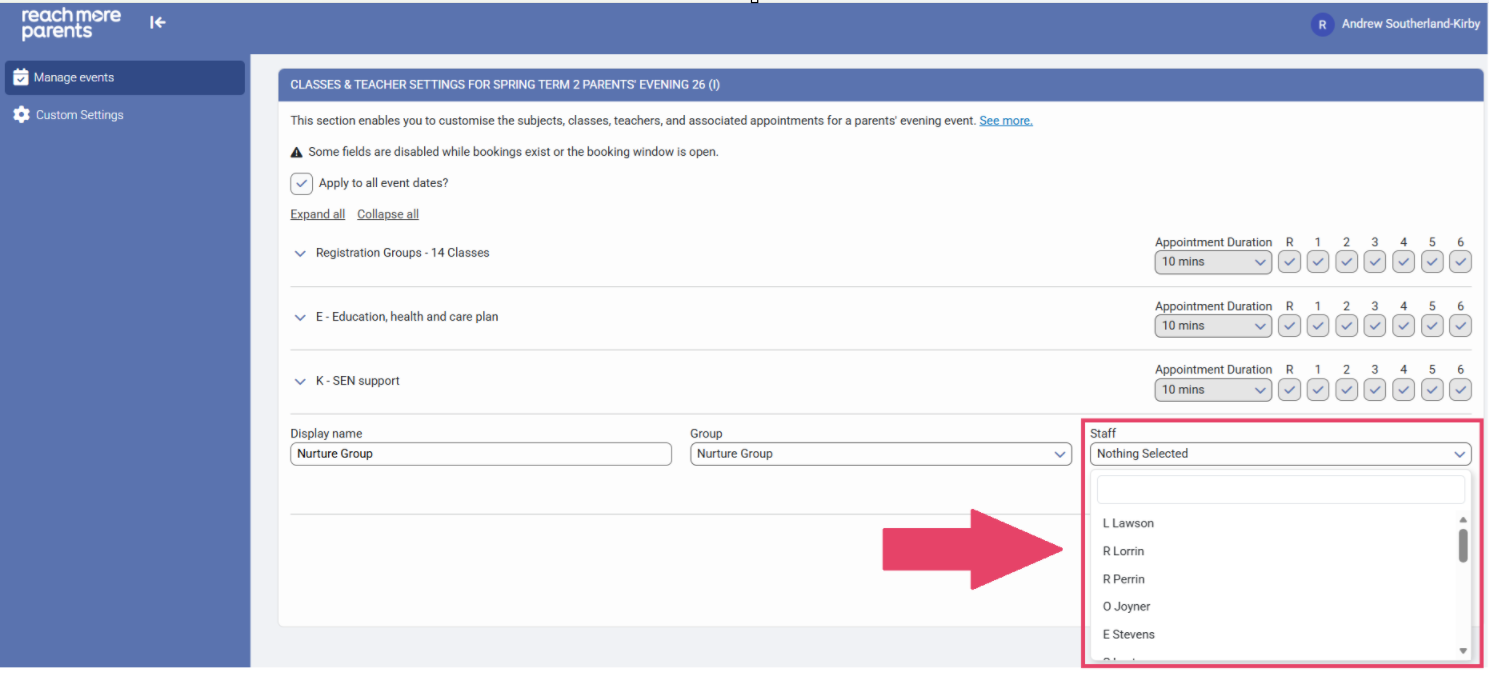
14) Type the name of the staff member in the text field
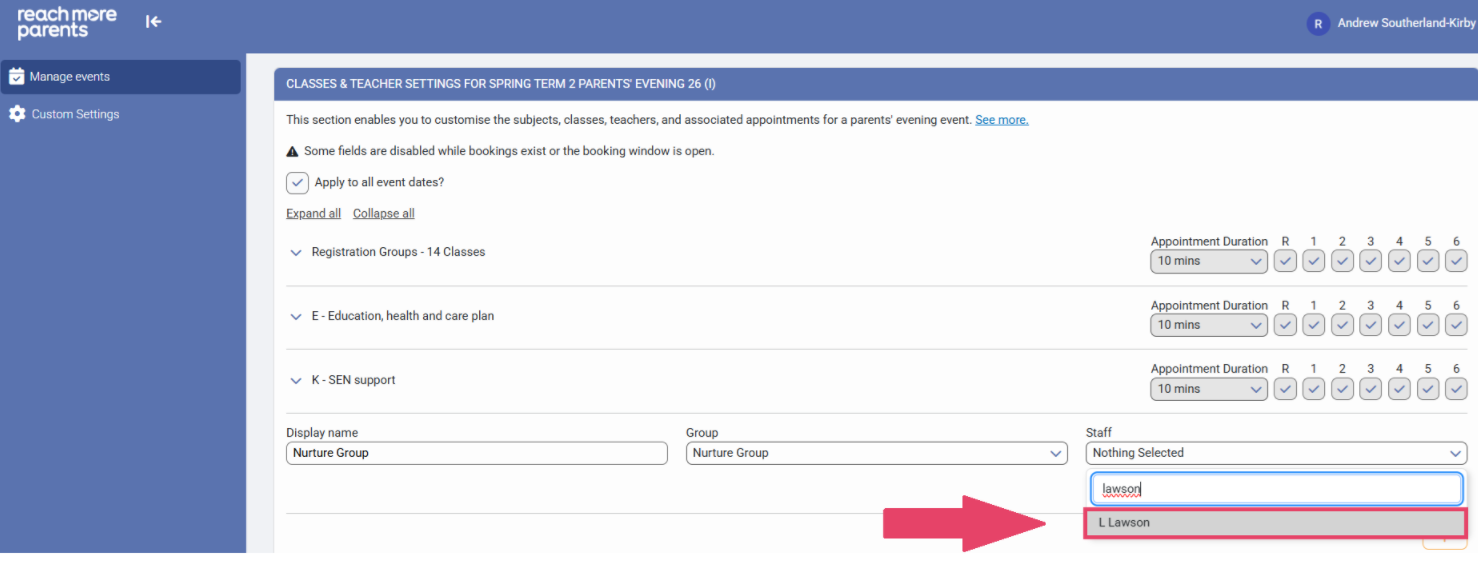
15) Click on the correct teacher from the list of results
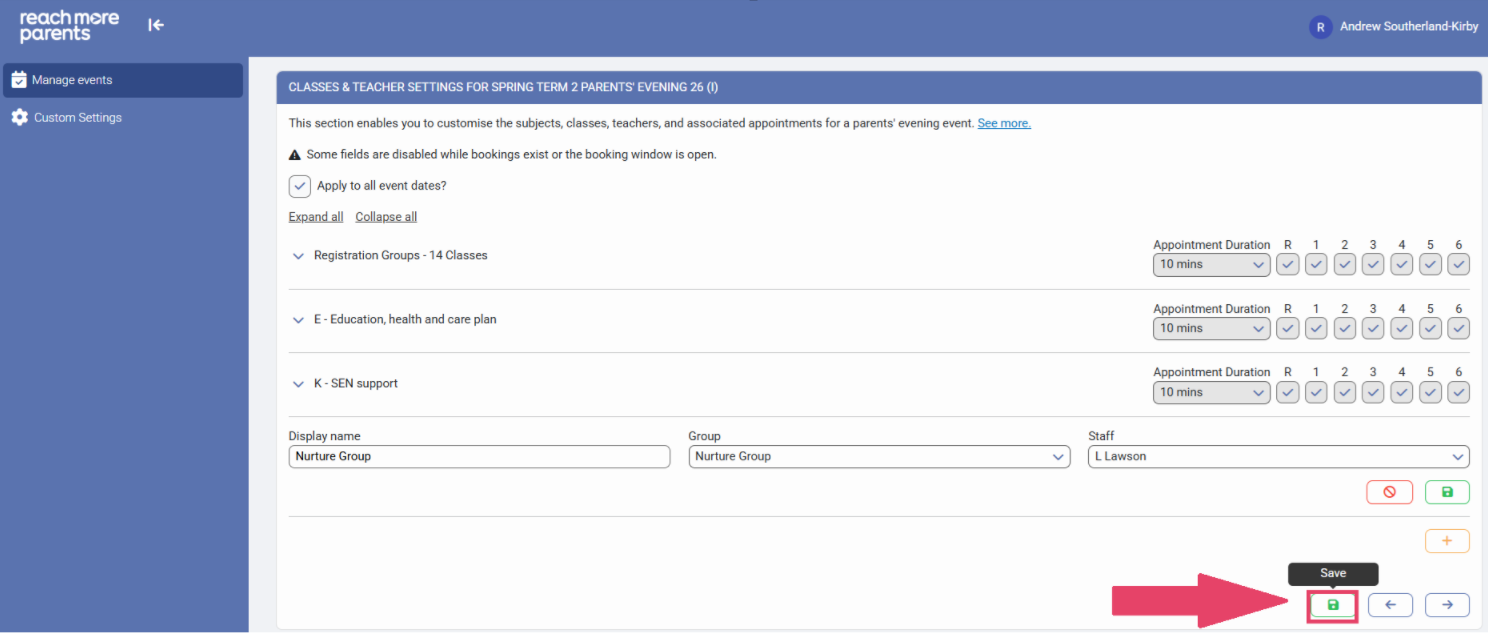
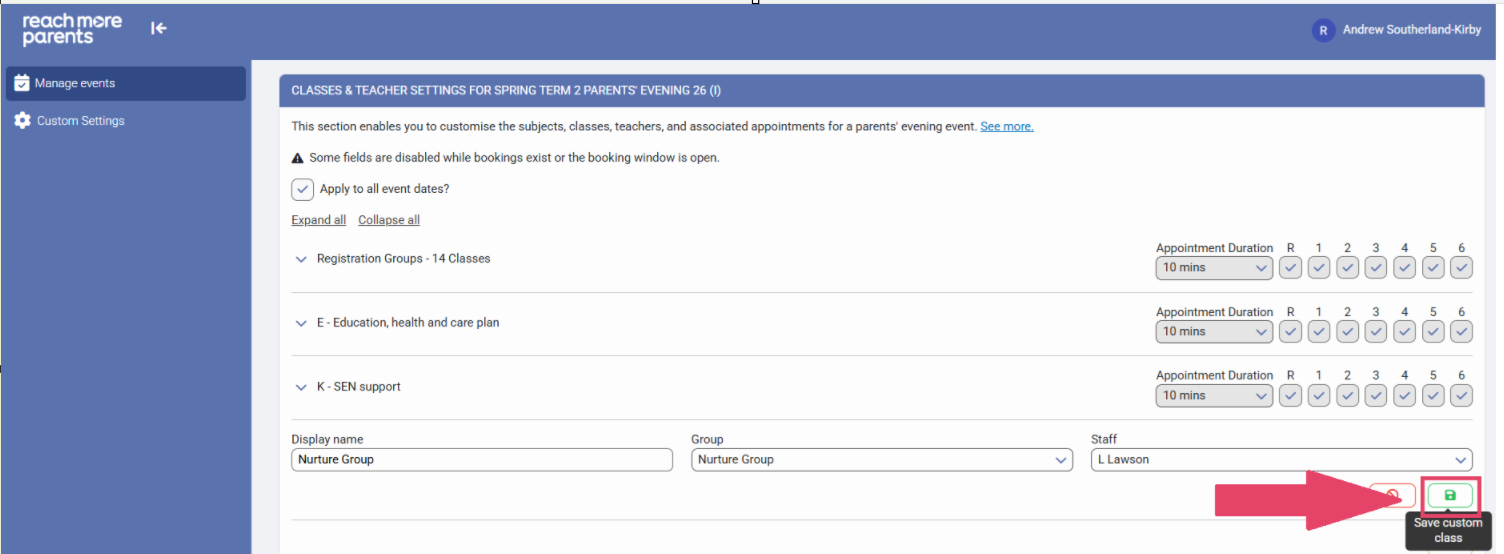
16) Click on "Save" to complete the creation of your custom class
17) Click on "Save Draft" in the screen footer to save your changes to the Event