When configuring and managing a Parent Event, you will need to account for any breaks the teaching staff require. Within PEMS, we have ensured that you can configure the number of breaks that you need at an event level.
Firstly, you need to log in as an Administrator:
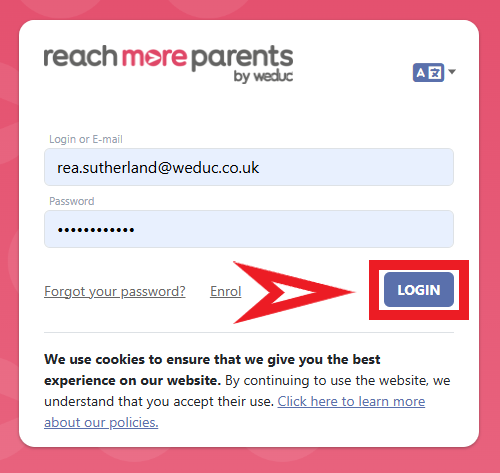
1) Log in to ReachMoreParents.
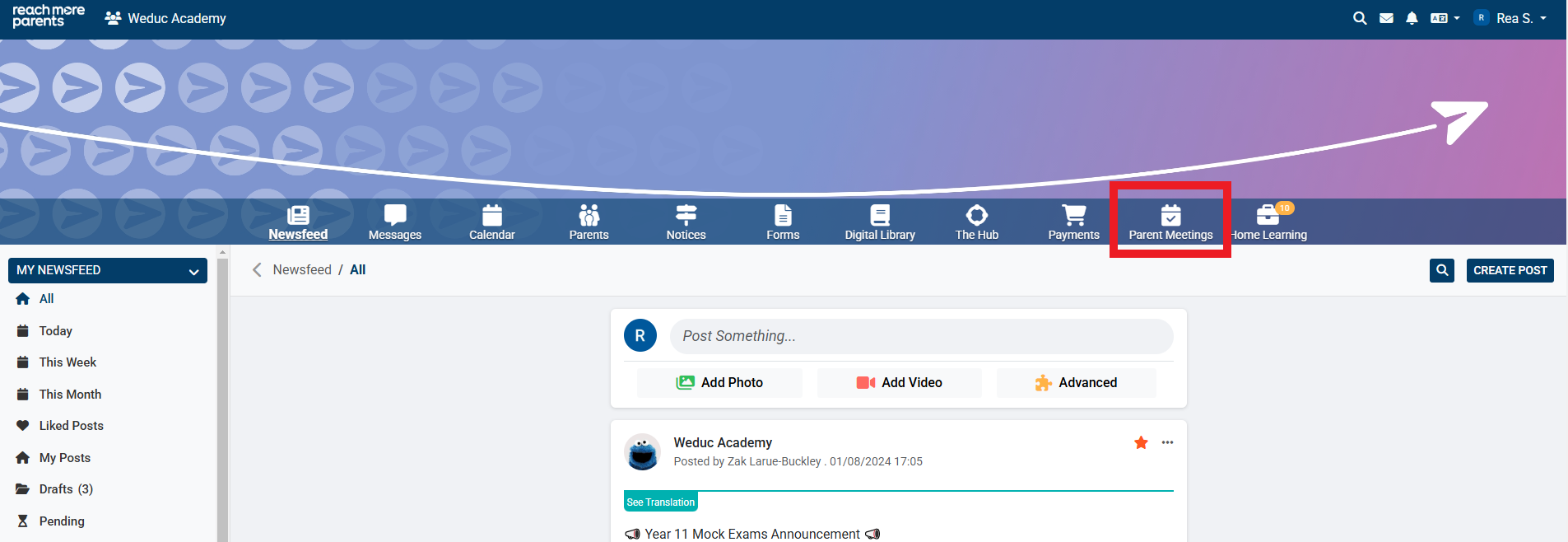
2) Click on the Parent Meetings icon
Section A - If your event is already published and has bookings
If your event is already in drafts, please skip to Section B
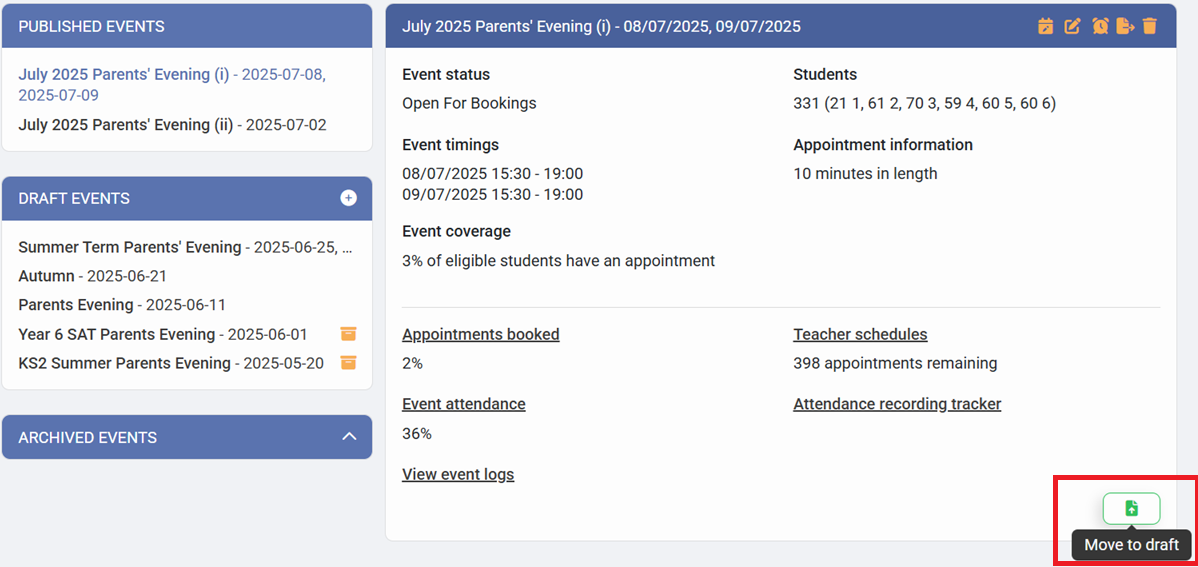
1) If your event has been published, you will first need to move it to drafts. Click on the event name and then select the Green 'Move to Draft' button in the bottom right of the event tile.
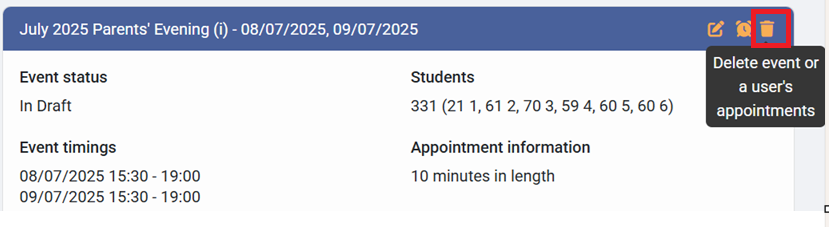
2) Once you have moved the event, click on the event name again in the drafts section and then click the bin icon to delete previously booked appointments.
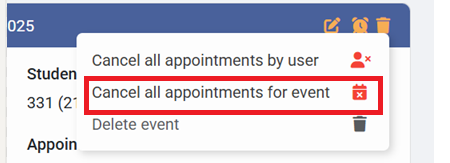
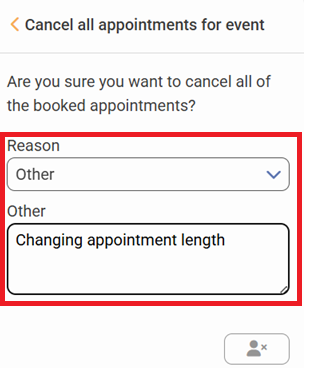
3) Select 'Cancel all appointments for the event', select 'Other' as your reason and then type in the reason in the text box. Finally, click on the image of the person with a cross at the bottom.
Section B - If your event is in drafts
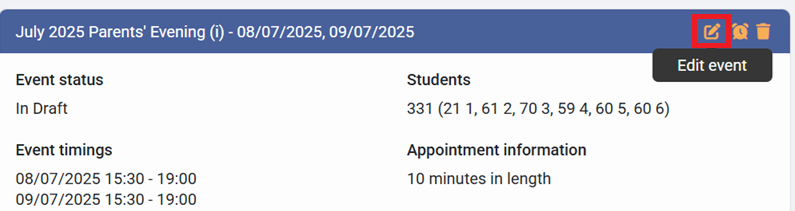
1) Click on the "Event Title" required from either the Draft Events blocks and then click on the "Edit Event" button
2) Press 'Next' to skip past the Basic Event Information
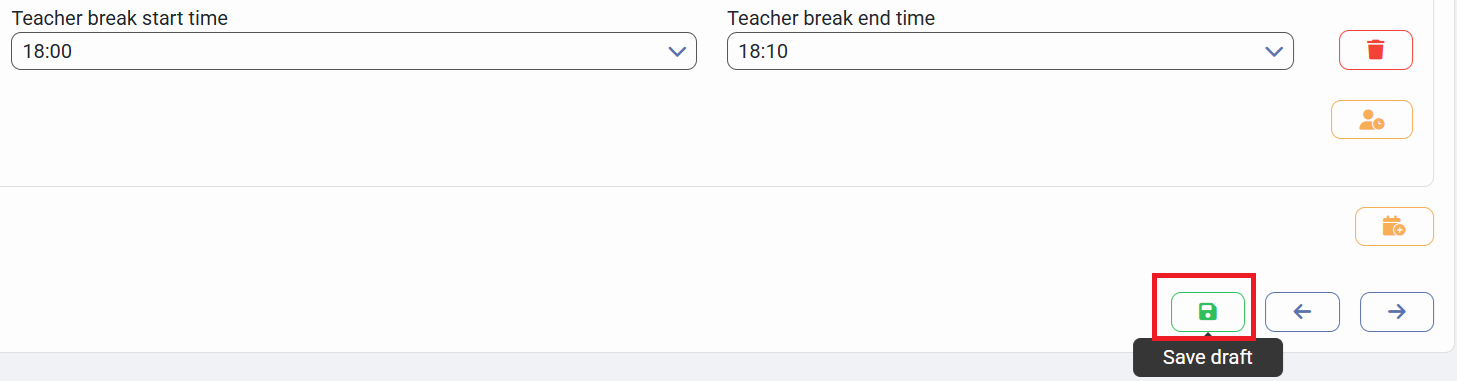
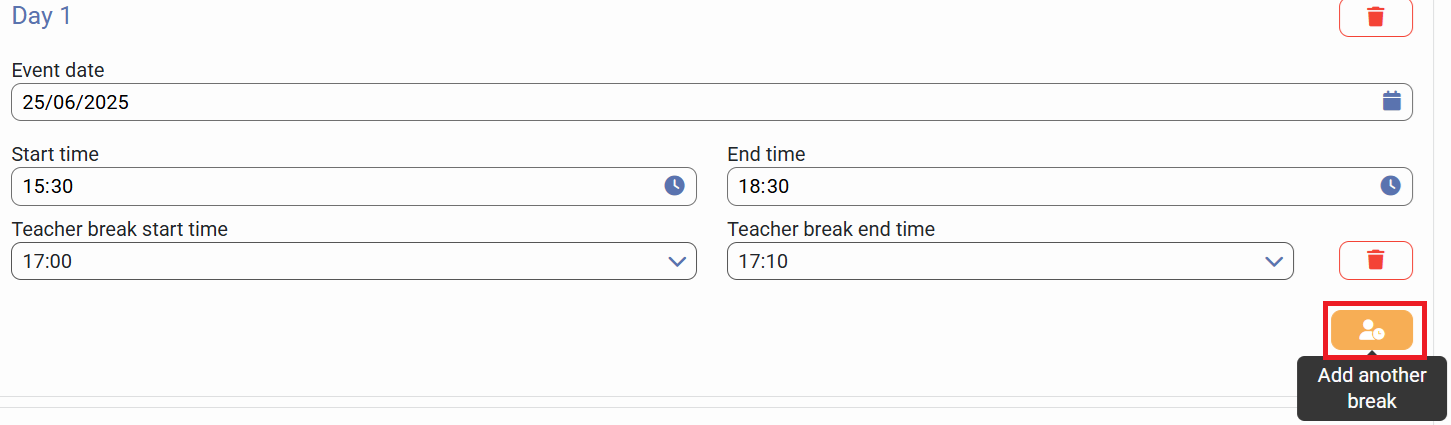
3) Click the 'Add Another Break' icon, which is located below any current breaks you already have scheduled.
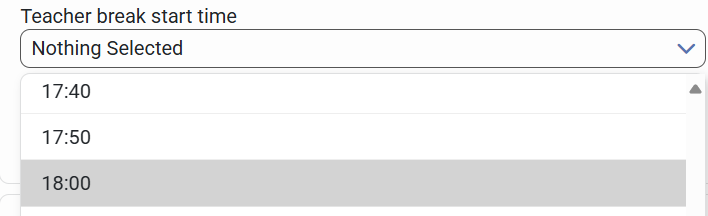
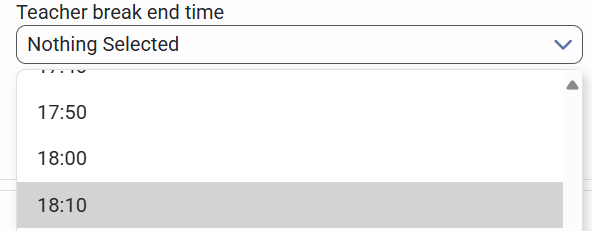
4) Select the start and end time for the additional break from the drop down menus.
5) Click 'Save Draft' at the bottom of the screen once this is done