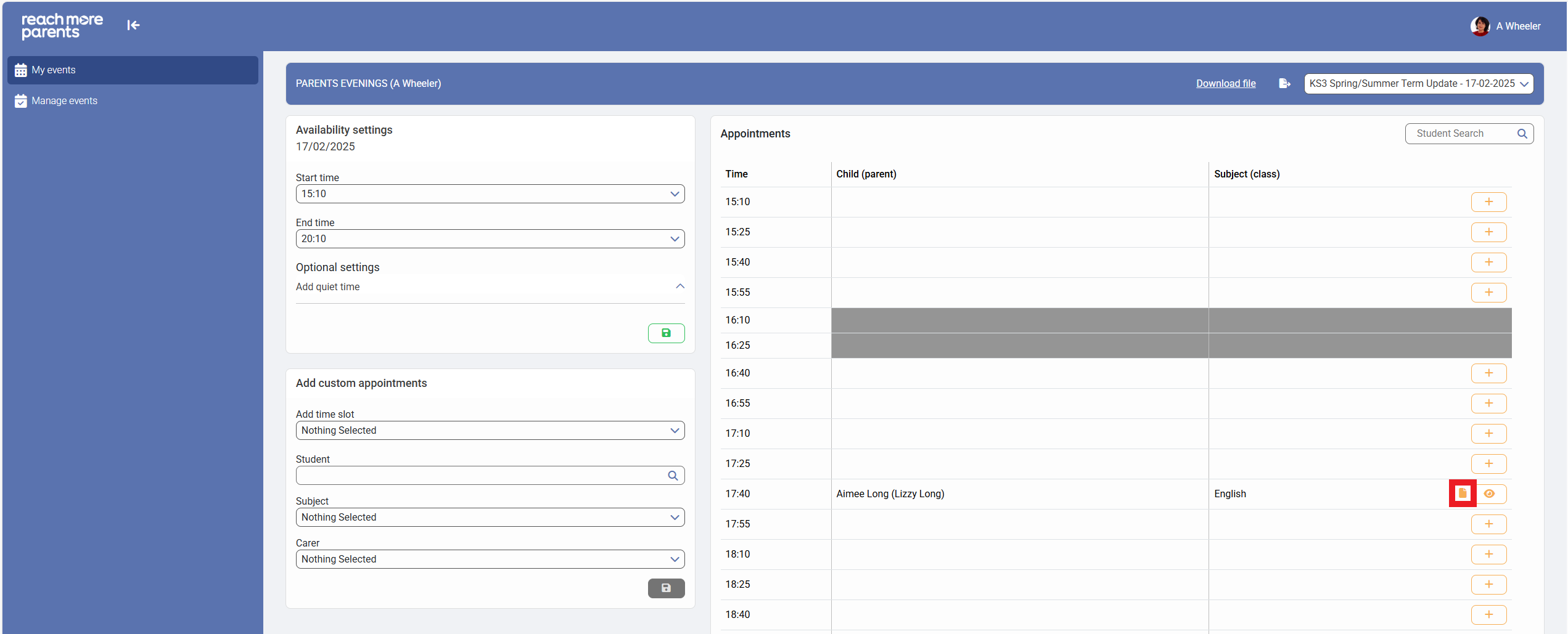
Sometimes, we have specific things that we need to discuss with a Parent / Carer during an appointment with them. Within the Appointment Details screen, you can add a note to remind yourself of key talking points without the parent being able to see these musings prior to the appointment.
In this article we will be going through the steps to add a Teachers' note to an appointment.
Firstly, you will need to access PEMS as a Teacher:
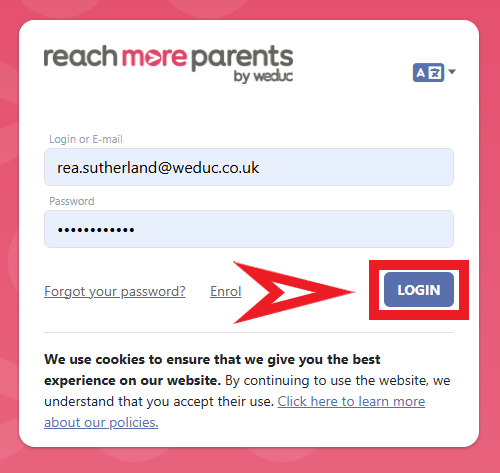
1) Log in to ReachMoreParents.
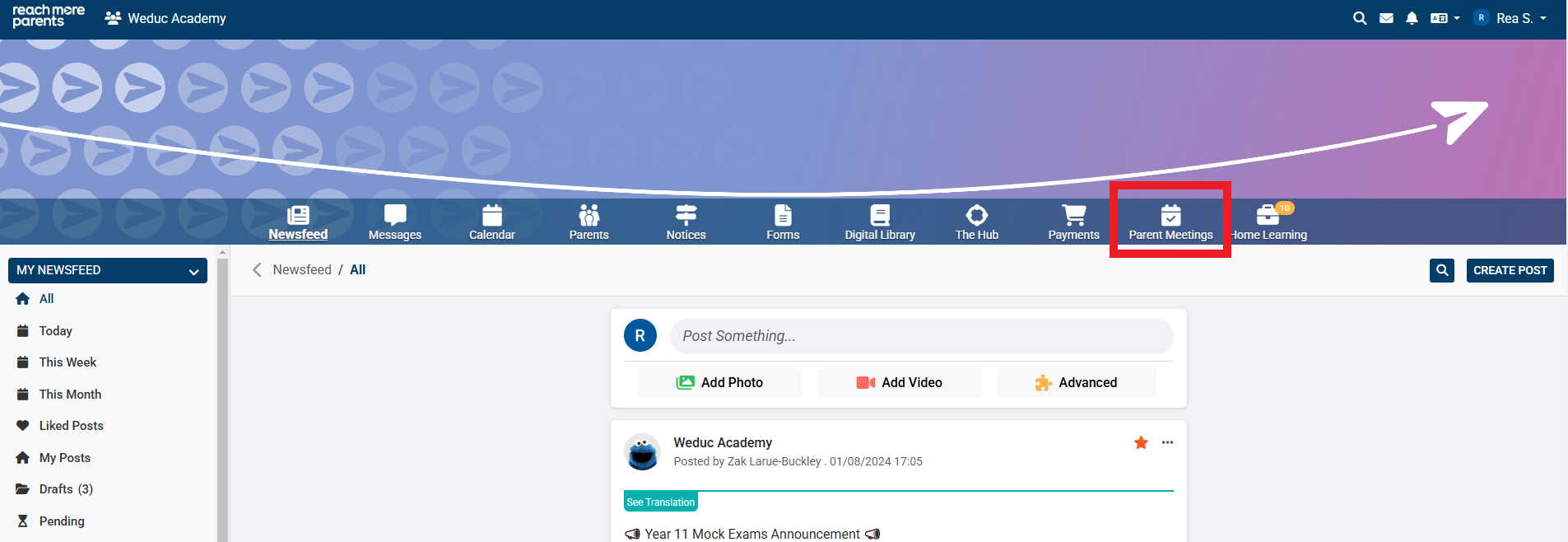
2) Click on the Parent Meetings icon
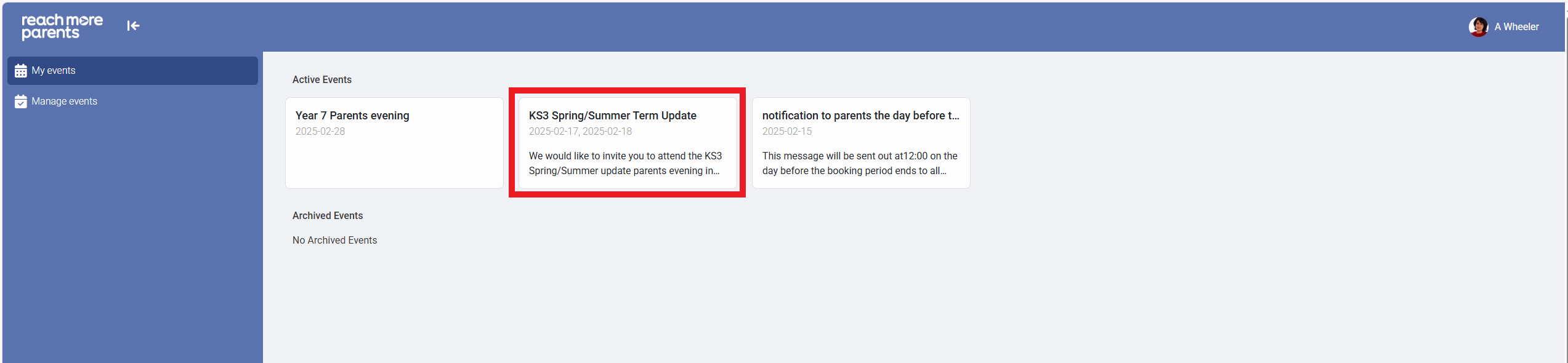
From here, you can follow the below steps to create the Teacher Note against the appointment:
3) Click on the Event Tile that hosts the appointment you need to add the note to
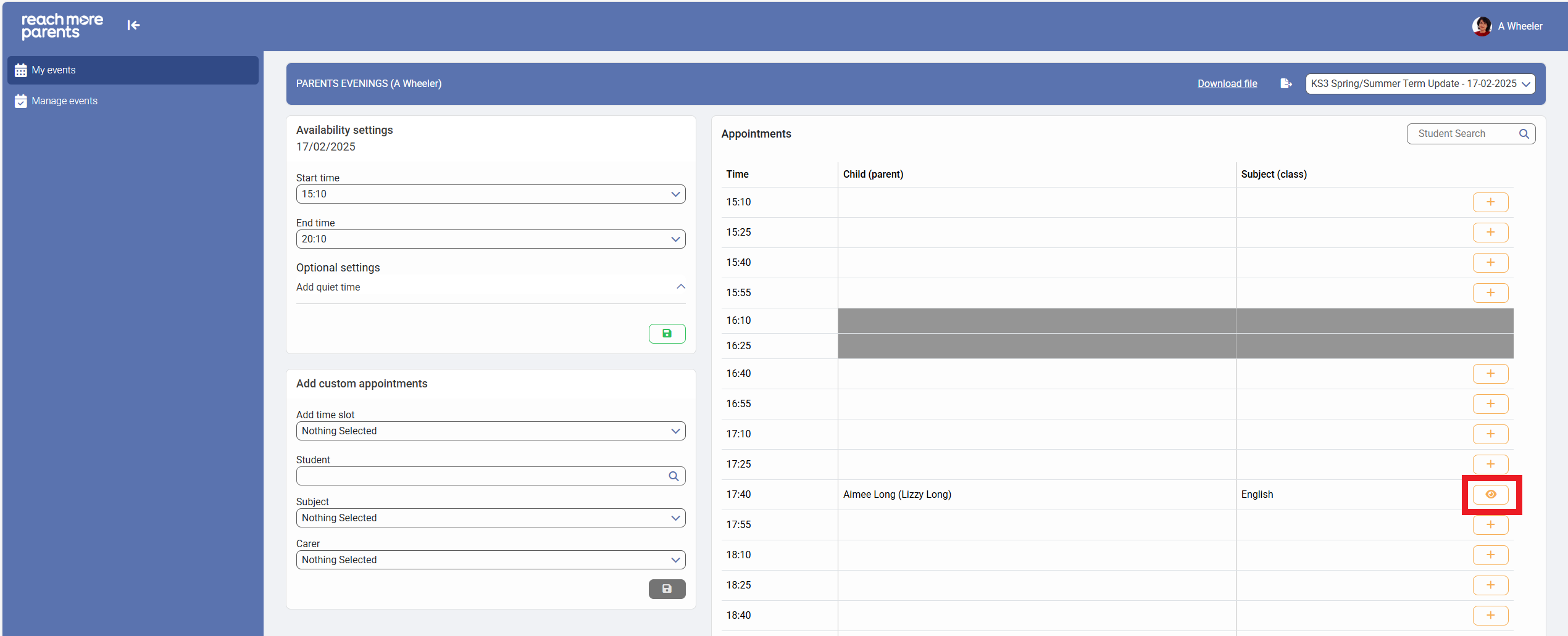
4) Click on the eye icon to "View Appointment" for the booking you need to add a note to
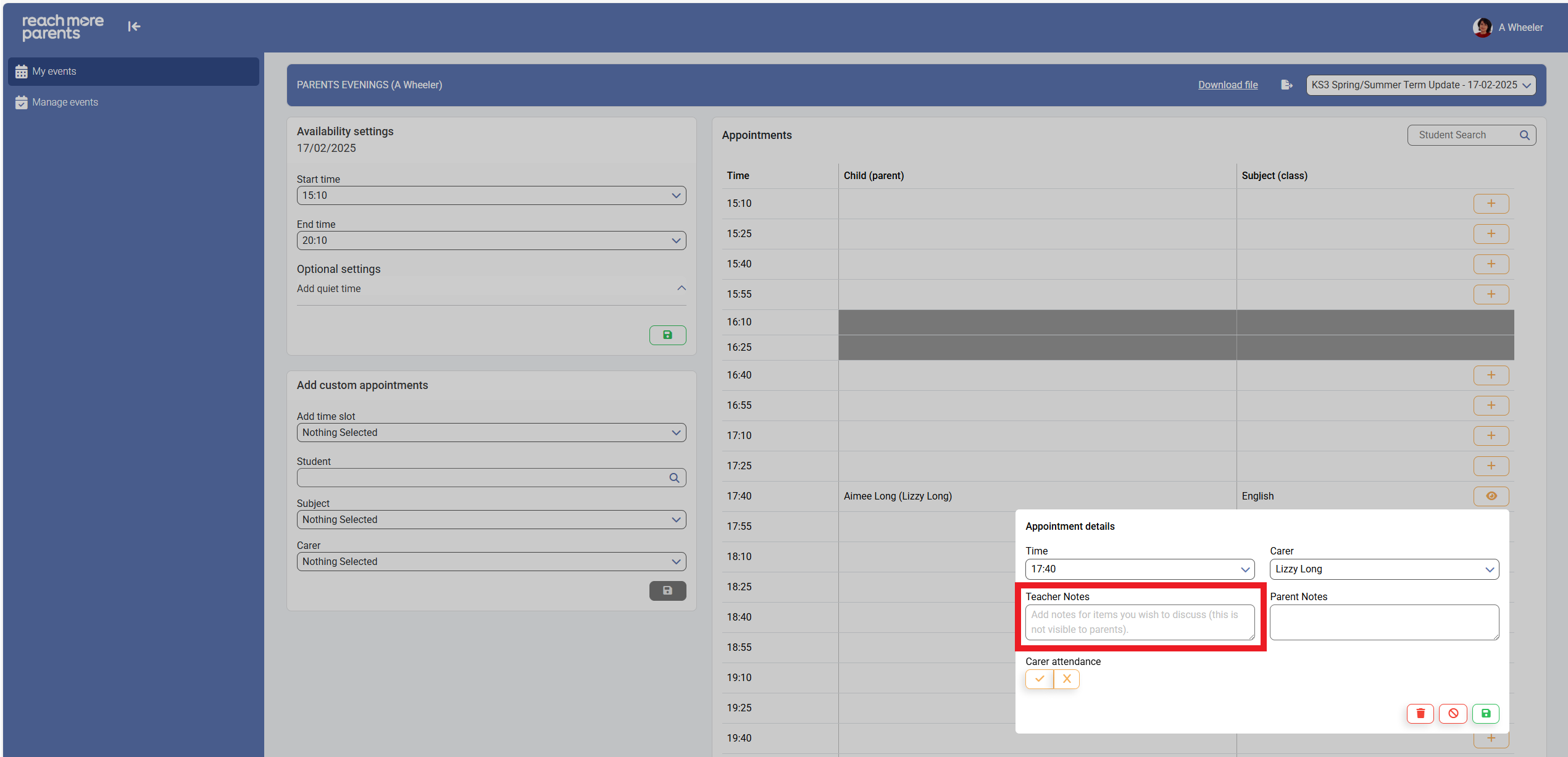
5) Click on the "Teacher Notes" text field and type the notes you need for your talking points for the appointment
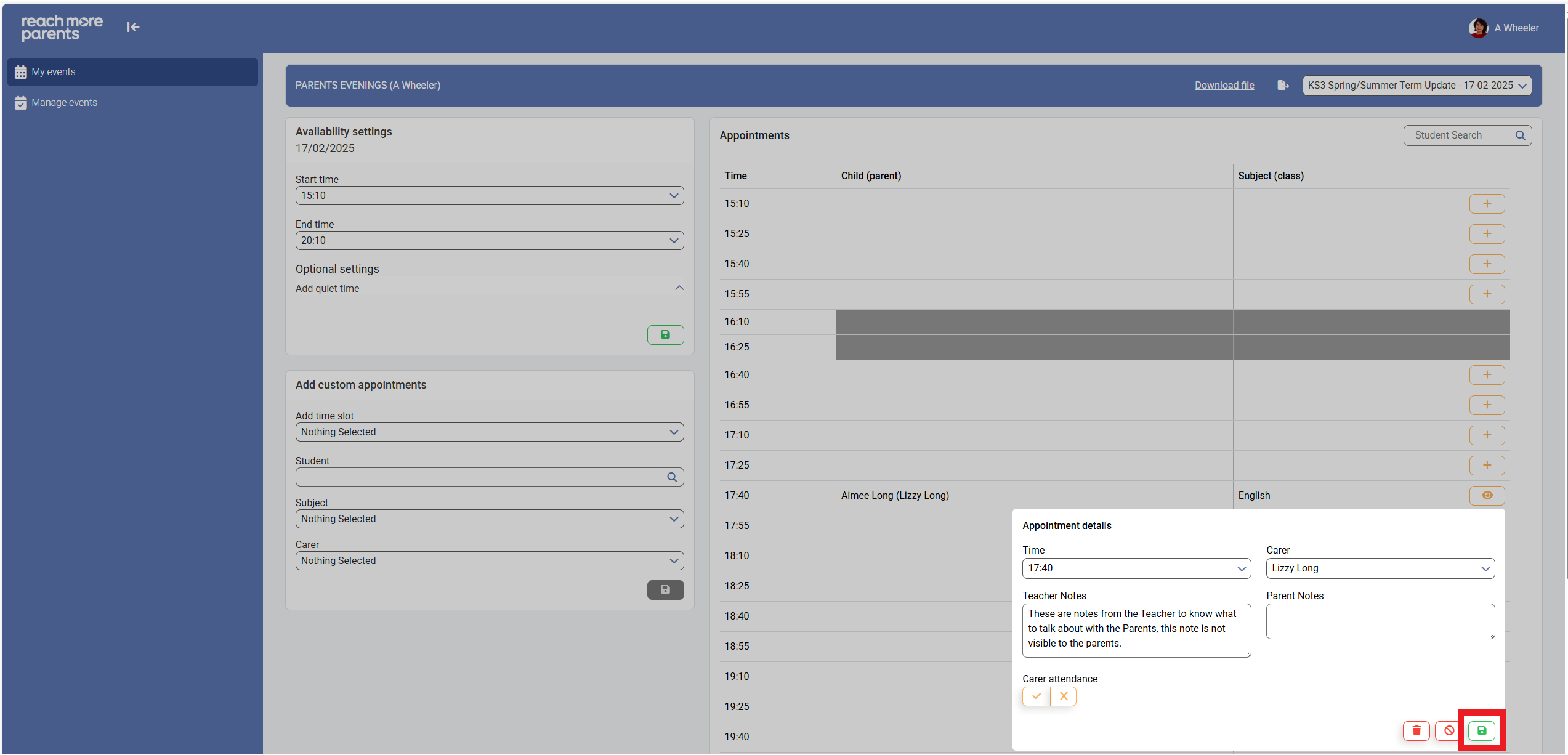
6) Click on the "Save" icon to accept your changes
7) Now the Appointment will have a paper icon to show there are notes against it